Last updated: September 26, 2026
What you'll need
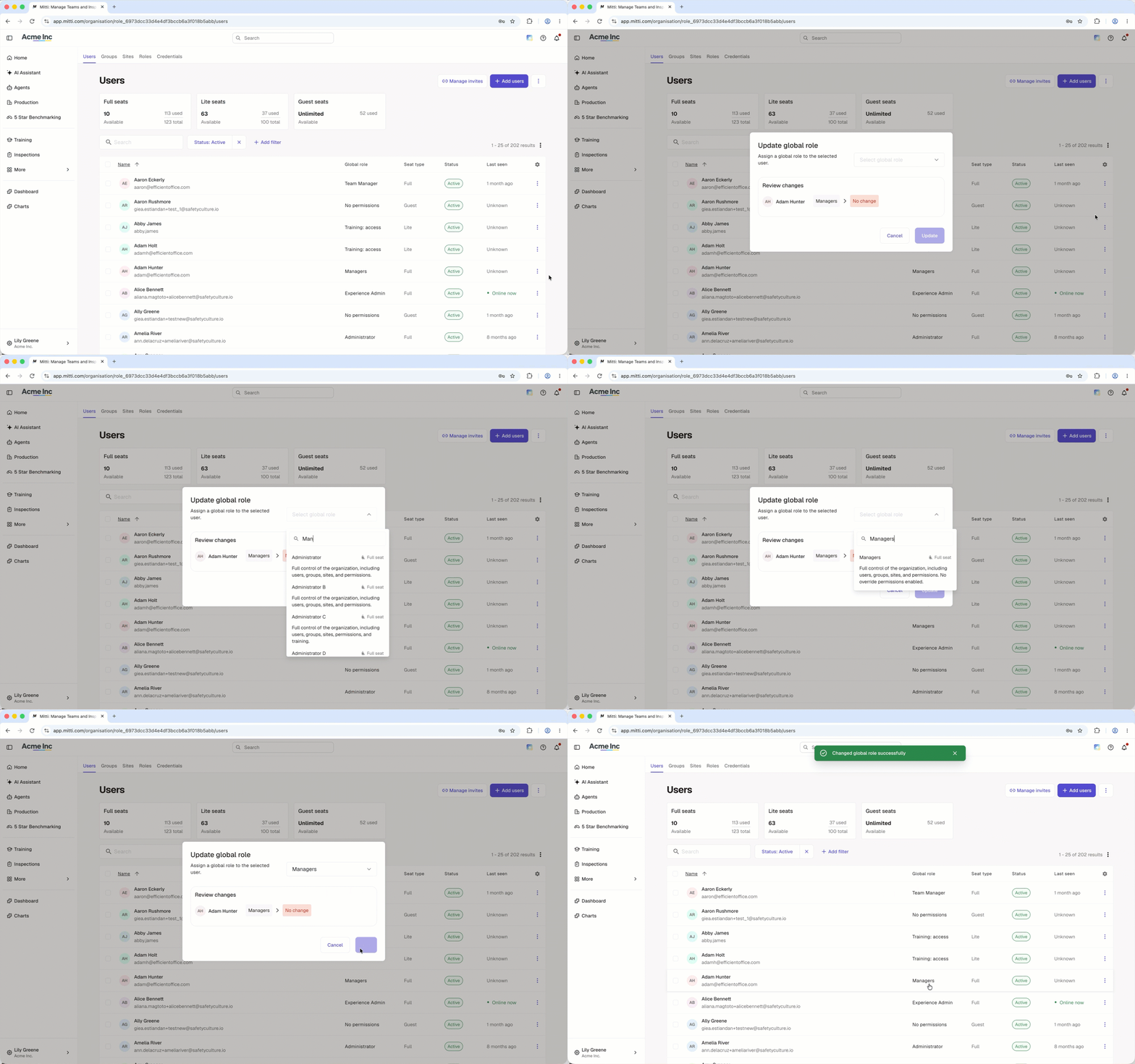
Assign a global role
Click your organization name on the lower-left corner of the page and select Users.
Click on the user's right-hand side and select Change global role.
In the pop-up window, select the global role from the dropdown menu.
Click Update.
To assign a role to a group or site, you also need "Platform management: Groups" permission or "Platform management: Sites" permission.
Assign a group or site role
When assigning roles from a role page, users who haven’t been added as a member to the site or group will automatically be added.
Limitations
Roles can only be assigned to users in a full seat.
A user can hold a different role in each group or site, but only one role within any single group or site.
Roles depend on the organization's site visibility settings. For group and site roles to work as intended, your organization's site selection settings must be set to "Users can only view and select sites they're a member of".
You can't reorder the default role, Member. It always stays at the bottom of a group's or site's priority order.
If a user matches more than one rule, they get the role from whichever rule ranks highest in the priority order.
You can't delete a role used in a membership rule until you remove it from every rule using it.
Frequently asked questions
Need more help?
Was this page helpful?