Dernière mise à jour: 14 septembre 2026
This article covers the new Supply experience, which is only available to organizations in Australia. If your organization is outside Australia, you're on the legacy version for now.
What is Supply?
Supply (previously Marketplace) is the next-generation procurement feature that lets teams browse and purchase products directly in Mitti. This reduces costs and improves compliance, so admins can focus on other important tasks. It also means frontline teams get the tools they need as soon as possible.
As part of the platform experience, admins can tailor product catalogs for their teams, so only approved products can be purchased. They can also set budgets for specific buying groups and use saved company payment methods to make purchasing easier and more secure.
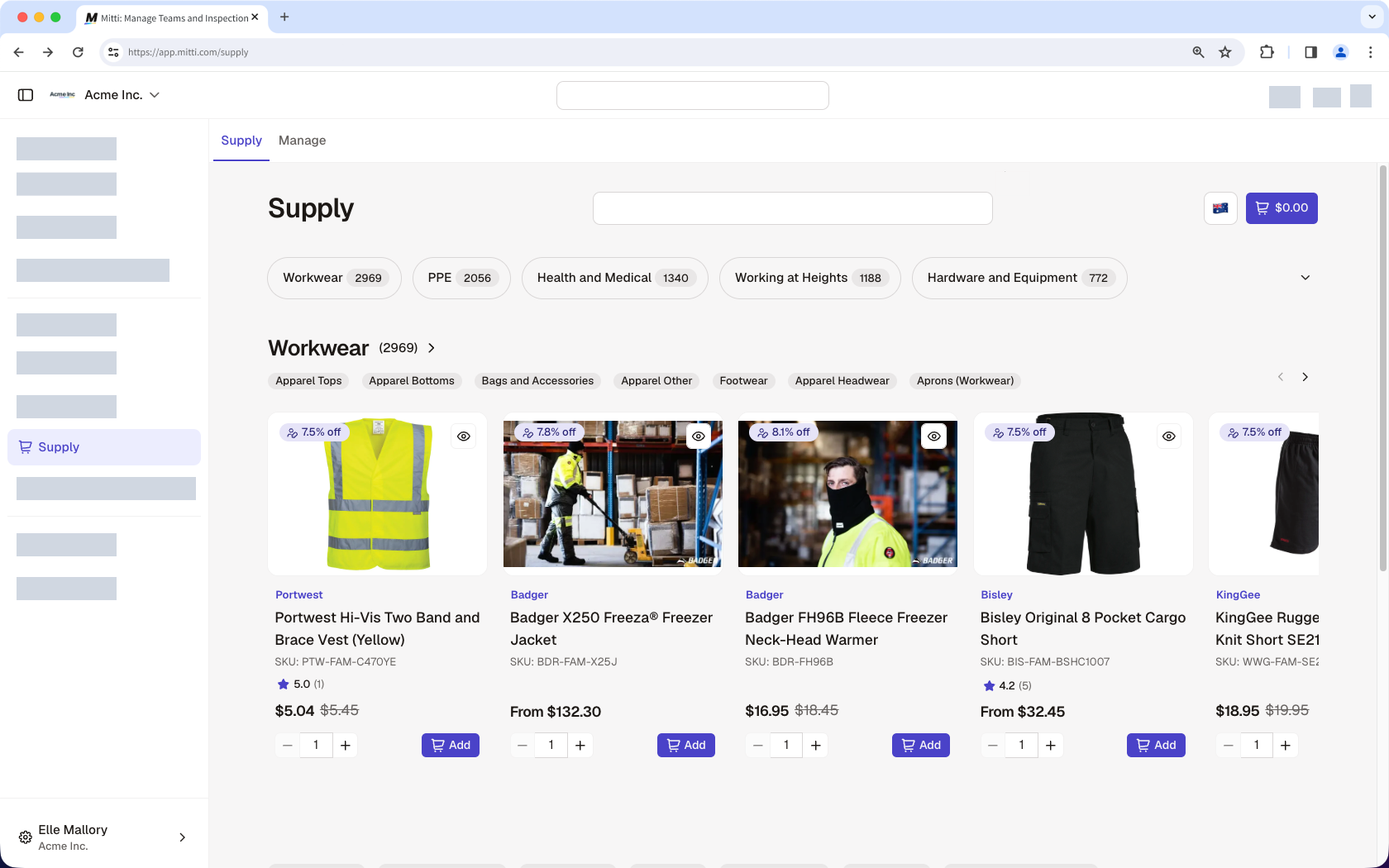
What’s in the new Supply experience?
Product browsing and purchasing
With the new Supply, you can quickly find the products your team needs by browsing categories or using search and filters to narrow your results. As you browse, preview products with Quick Look or open the full product page for more information to help you choose the right product.
Once you've found what you need, you can add items to your cart directly from the product page, making it easier to shop as you browse. When you're ready, review your cart and place your order in a few steps.
Product quote requests
Sometimes you need more information before deciding to purchase. With Supply, you can request a quote for pricing, product details, or other information that isn't available on the product page. The Supply team at Mitti will review your request and respond with the available information.
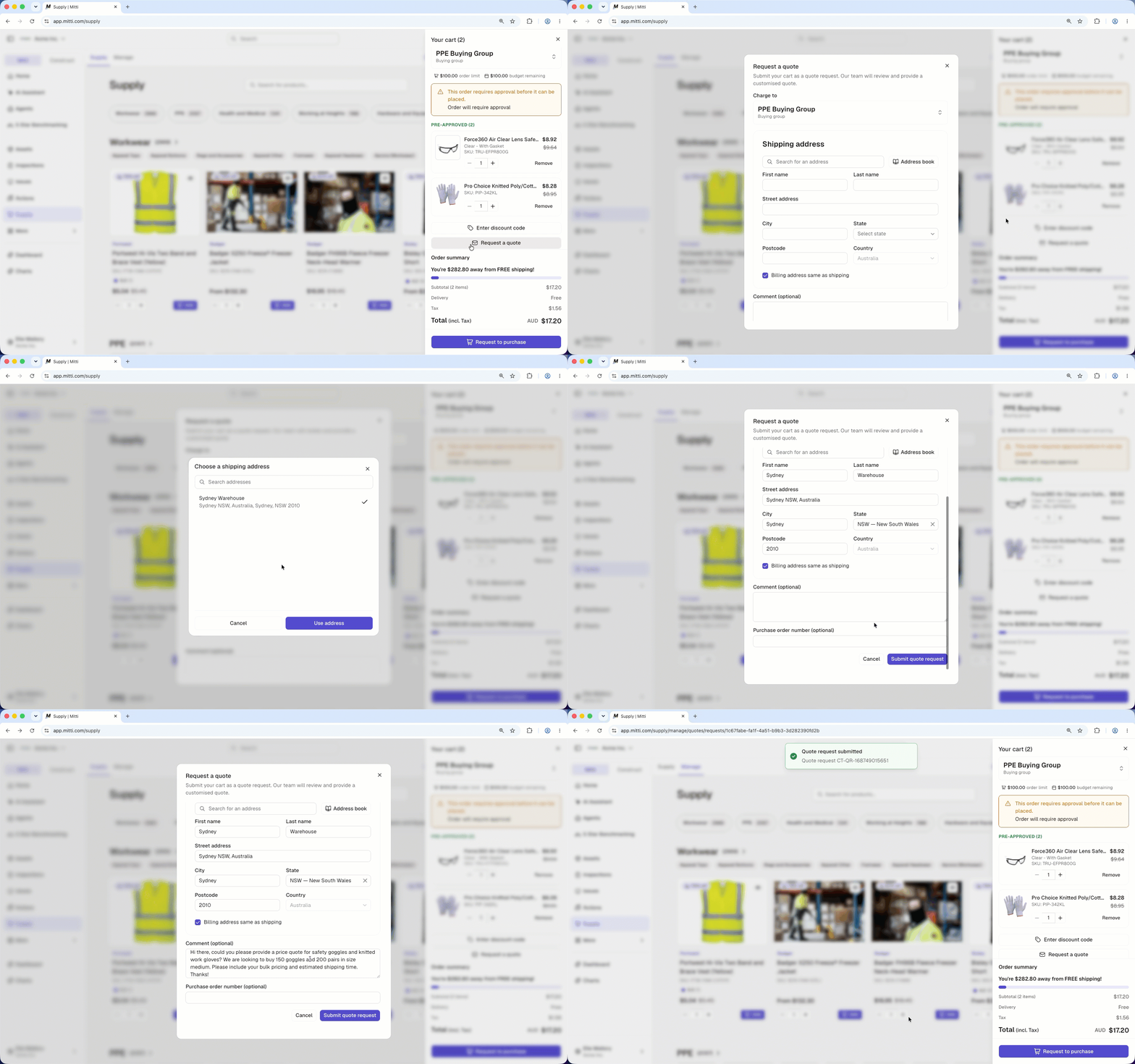
Order and quote tracking
Order and quote tracking lets you keep track of every purchase request in one place. Whether you place an order directly or request a quote for products that need custom pricing or additional details, you can monitor its status and view updates as it progresses.
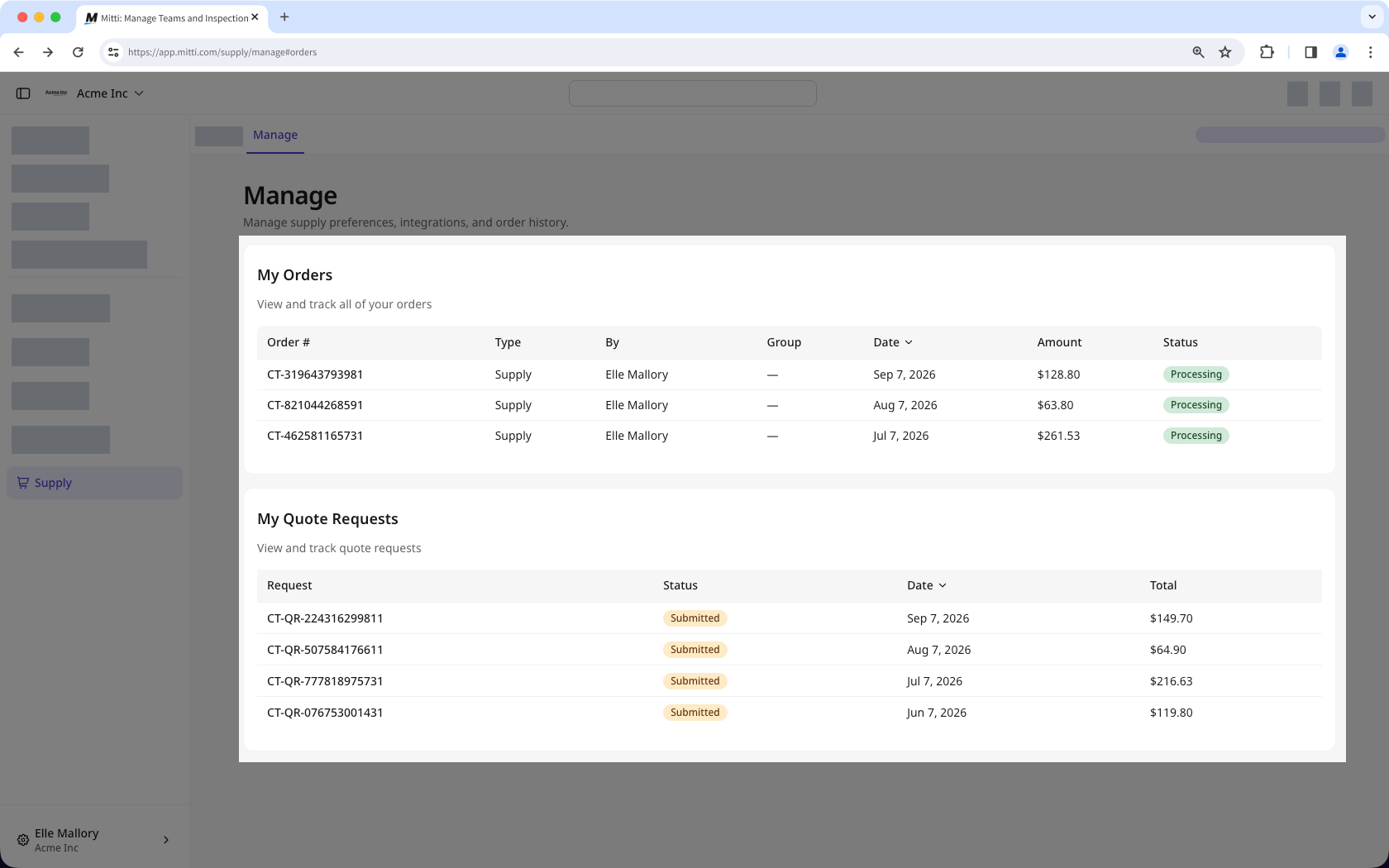
For more information on products or any questions about your orders, contact our Supply support team for assistance.
Managing the buying experience
Custom budgets and order approvals
Businesses often have complex spending patterns that would require more control over purchasing and budgets. With Supply, you can set custom budgets for buying groups to limit how much they can spend per order or each month.
Admins can also set approval rules that automatically evaluate every purchase in the priority order you set. Based on the conditions you define, purchases can be approved automatically, denied automatically, or directed for manual approval, so routine purchases can be processed without extra review. The purchase is only placed after an admin or buying group manager approves it in Supply.
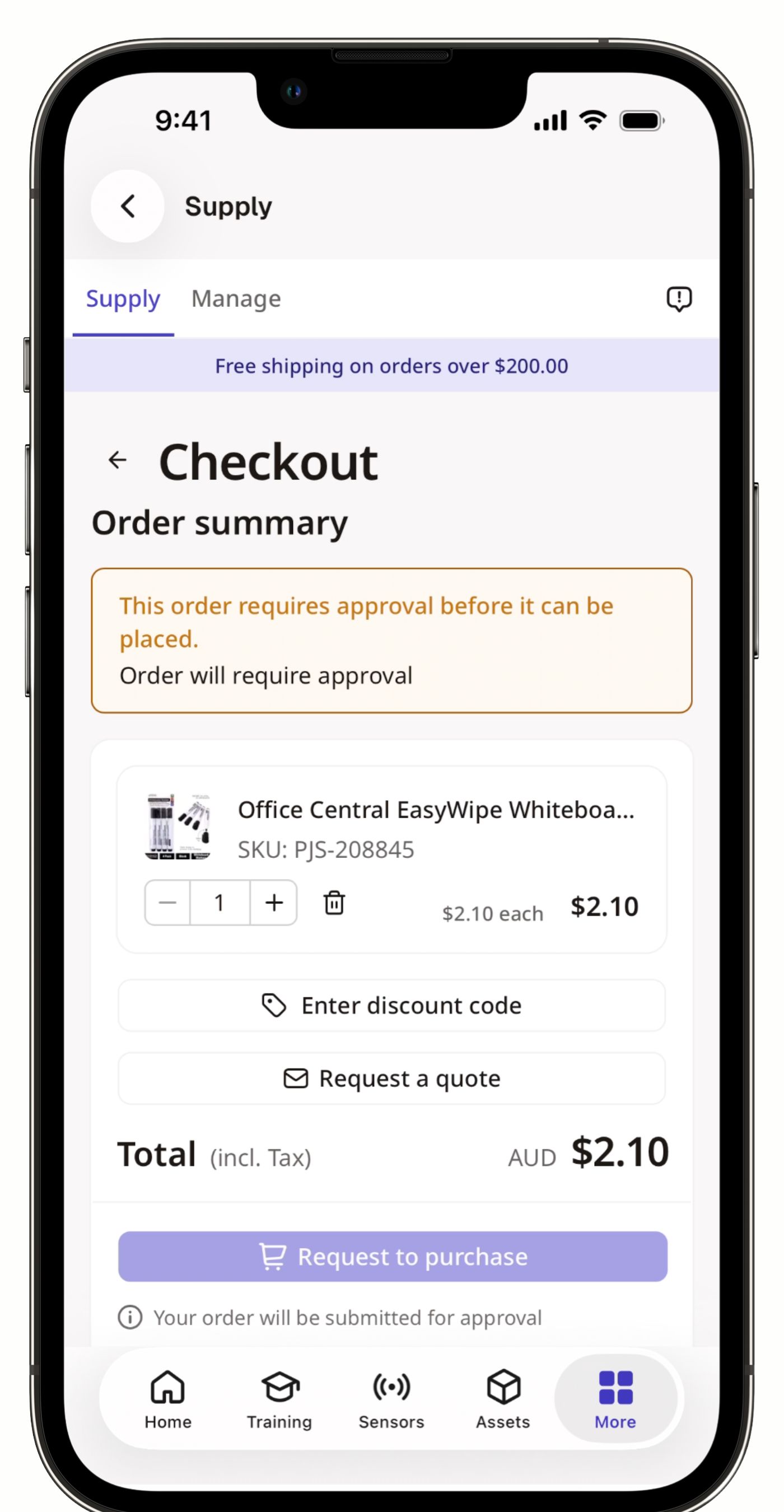
Catalog for approved products
It's easier for teams to order what they need when they don't have to search through thousands of products. With Supply, you can add products to a catalog, ensuring that teams only have access to the products they need and are approved to use. A catalog isn't limited to a single buying group either, so you can build one once and share it across multiple groups, rather than recreating the same list for each team.
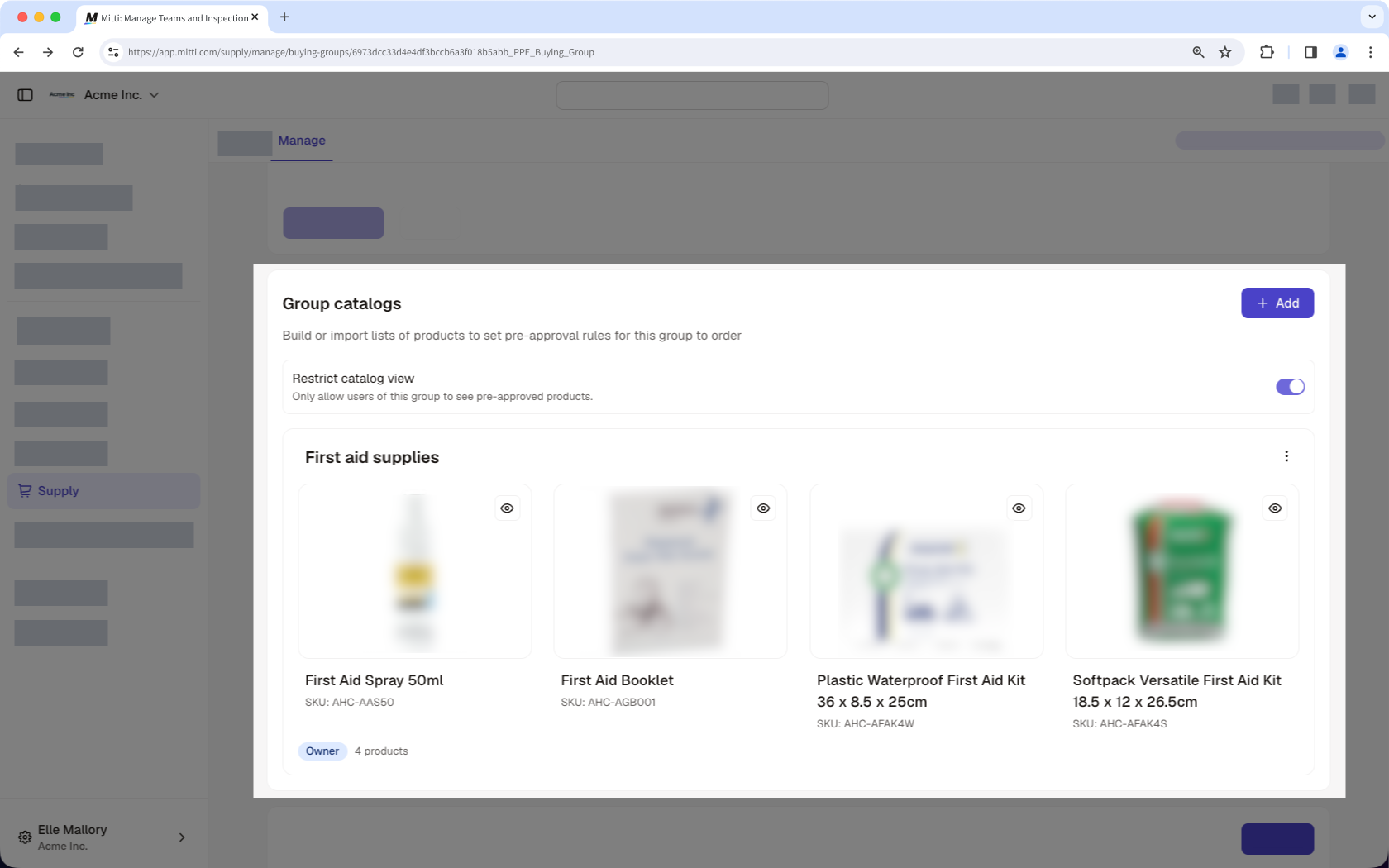
Depending on your preference, you can choose whether users only see products included in the catalog or can also browse products outside it. When restricted, users can only browse and purchase pre-approved products. If not, users can still purchase products outside the catalog, but those orders will need approval before they can be placed.
Saved payment methods and addresses
Make checkout simpler by saving payment methods and delivery addresses in Supply. Add payment methods and addresses at the organization level, for a specific buying group, or for your own personal use, so the right options are ready whenever an order is placed. This saves teams from entering details every time and makes it easier to use the correct payment method and delivery address for each purchase.
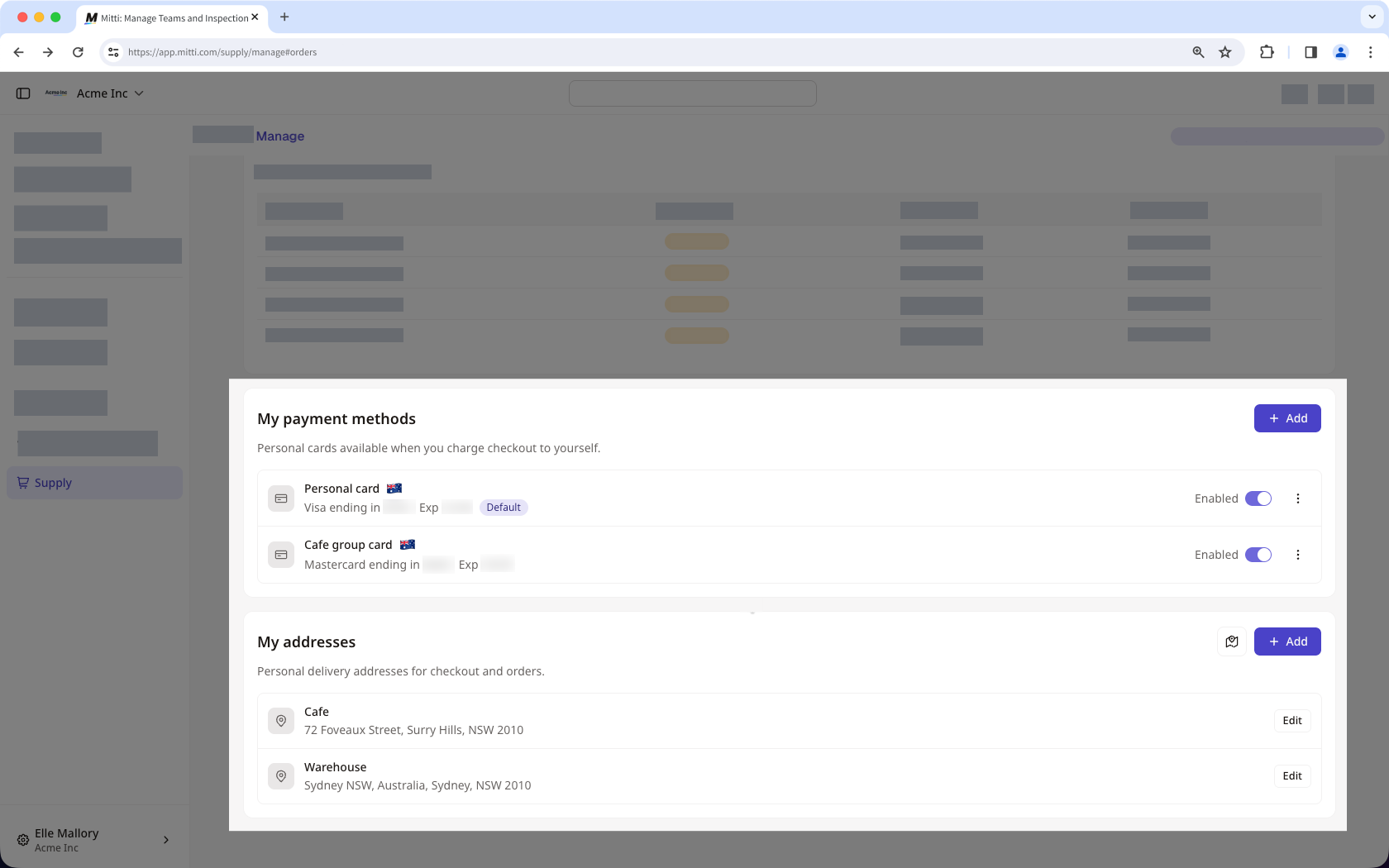
Role management
Give the right people the access they need to manage purchasing across your organization. Assign roles that control what users can do, from managing Supply as an admin at the organization level to handling specific tasks within buying groups as a group manager.
Depending on their role, users can create and manage buying groups, set budgets, manage approved product catalogs and payment methods, and approve or deny orders. This lets you share purchasing responsibilities across your organization while keeping sensitive settings and actions limited to the people who need access.
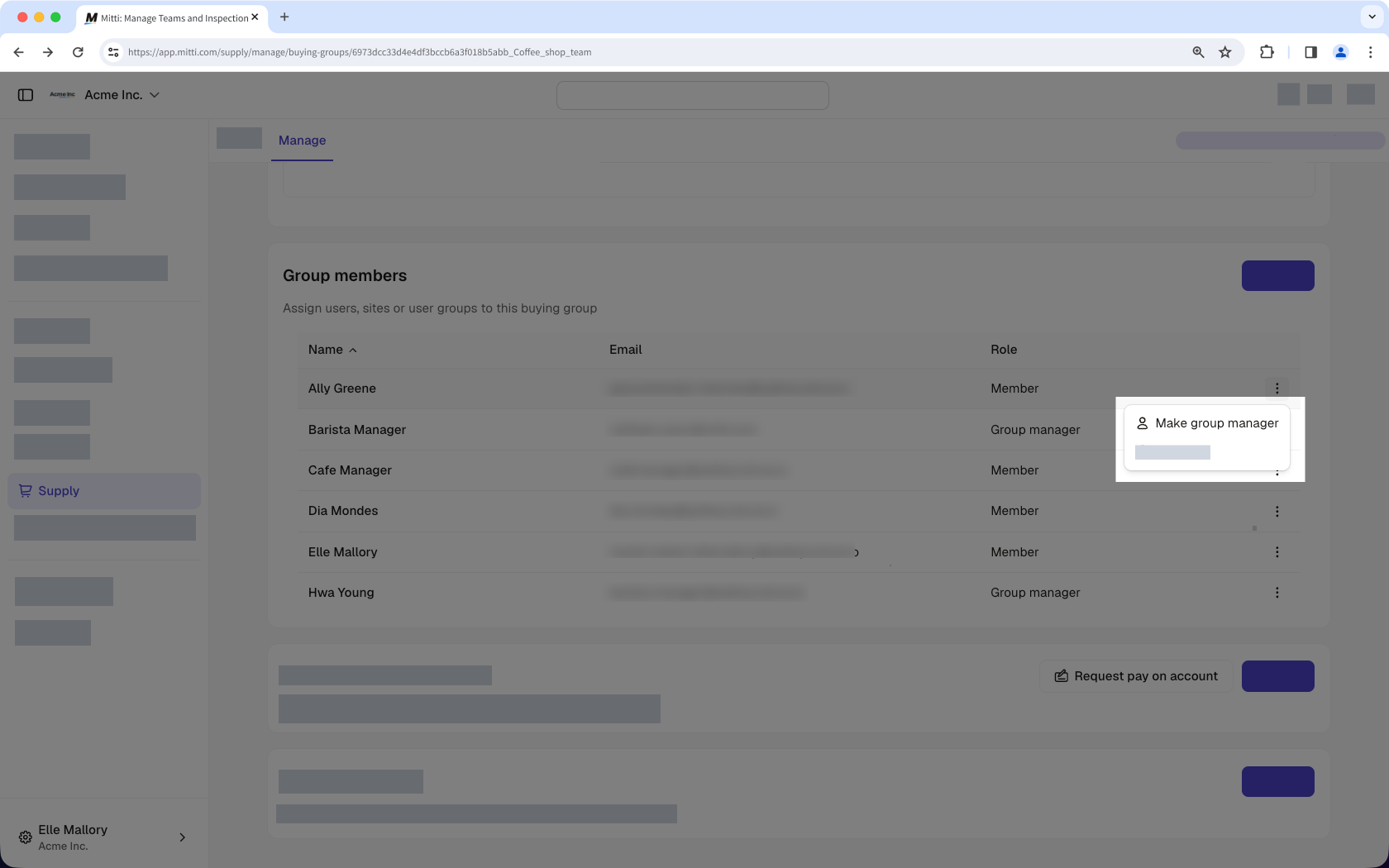
Par défaut, tous les utilisateurs disposant de l'autorisation « Gestion de la plateforme : Organisation » se voient automatiquement attribuer l'autorisation « Administrateur » dans Fournitures Mitti.
What are the differences between the legacy and new experiences?
Supply has a refreshed experience that feels more consistent with the rest of Mitti. The updated design makes it easier to browse products, place orders, and manage purchasing without learning a separate interface. It also loads faster and works more smoothly on mobile, so you can move from finding a product to placing an order with fewer interruptions.
Legacy | New | |
|---|---|---|
Finding a product | Opens on a landing page featuring promotions, with product categories a few clicks further in. | Opens directly on product categories, so you can start browsing right away. |
Budget and buying groups | Admins set spending limits for individual users or for buying groups, based on projects or location. | Budgets are set at the buying group level only, so everyone in a group automatically shares the same limit rather than needing an individual budget. Users can also belong to more than one buying group at a time, each with its own budget. |
Order approval | Orders that exceed the budget or include a product outside the approved catalog are sent to an admin for manual approval before they can be placed. | Admins can now set rules that are automatically checked against each purchase. Depending on the conditions a purchase meets, it can be approved or denied automatically without requiring someone to review it every time. |
Admin settings | Spread across nine separate tabs with no clear structure connecting them. | Settings are now organized into three levels to make them easier to manage. Organization settings apply across the company, buying group settings apply to each buying group, and user settings apply to individual users. Users only see the settings available for their role and permissions. |
Besoin d'aide supplémentaire?
Cette page vous a-t-elle été utile?