Last updated: September 14, 2026
If you want to bulk export a large number of inspection reports, our Mitti Exporter offers a great way to efficiently export data from your organization.
What you'll need
Users in guest seats can only export inspection reports as PDF files, which will include a "Powered by Mitti" watermark.
Export an inspection report as a PDF
Click Inspections from the sidebar or in More.
Click on the right-hand side of the inspection and select View report.
To customize your exported report, click Layout at the top of the page and apply a report layout.
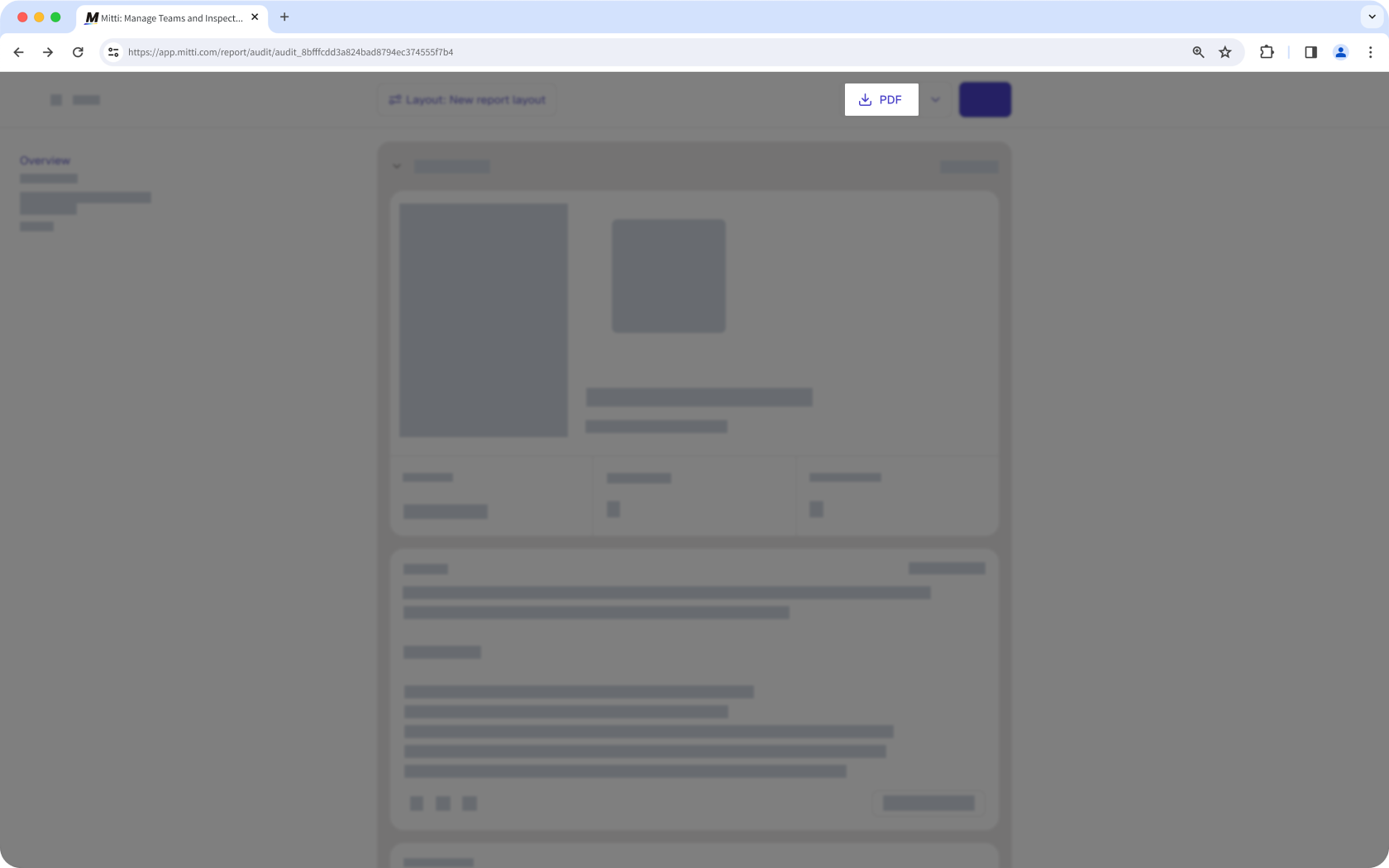
To export the report as a PDF file, click PDF at the top of the page.
Open the mobile app.
Tap Inspections from the navigation bar or in More.
Select In Progress & Complete tab at the top of your screen.
Tap the inspection and select View report. If your inspection is still in progress, tap or at the upper-right corner of your screen and select View report.
To customize your exported report, tap at the upper-right of your screen and apply a report layout.
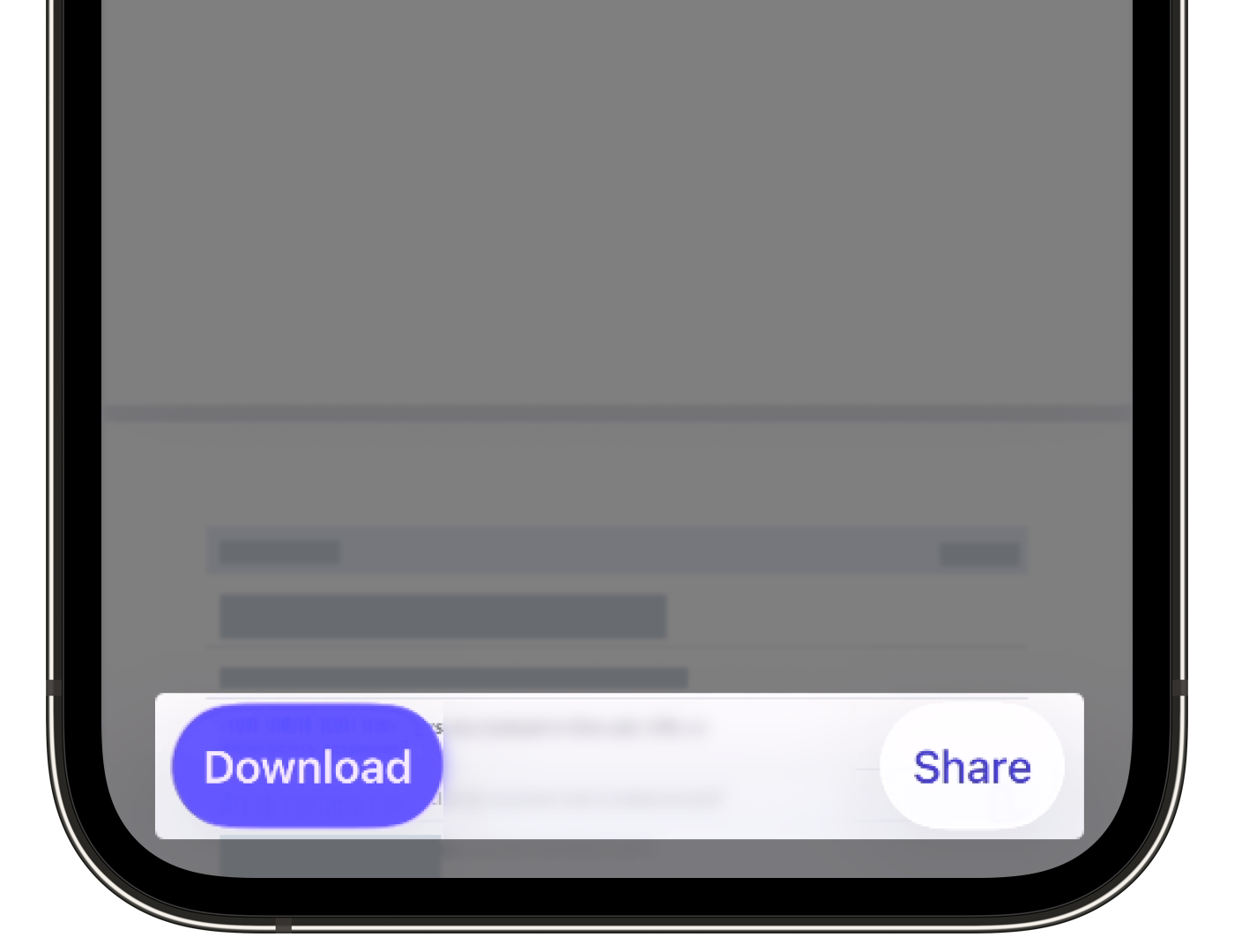
At the bottom of your screen, tap Download to export the report as a PDF file or tap Share to send the PDF report via email.
Word export is only available to organizations on Premium Plan or Enterprise Plan. It isn't supported for the "Modern" report style.
Export an inspection report as a Word file
Click Inspections from the sidebar or in More.
Click on the right-hand side of the inspection and select View report.
To customize your exported report, click Layout at the top of the page and apply a report layout.
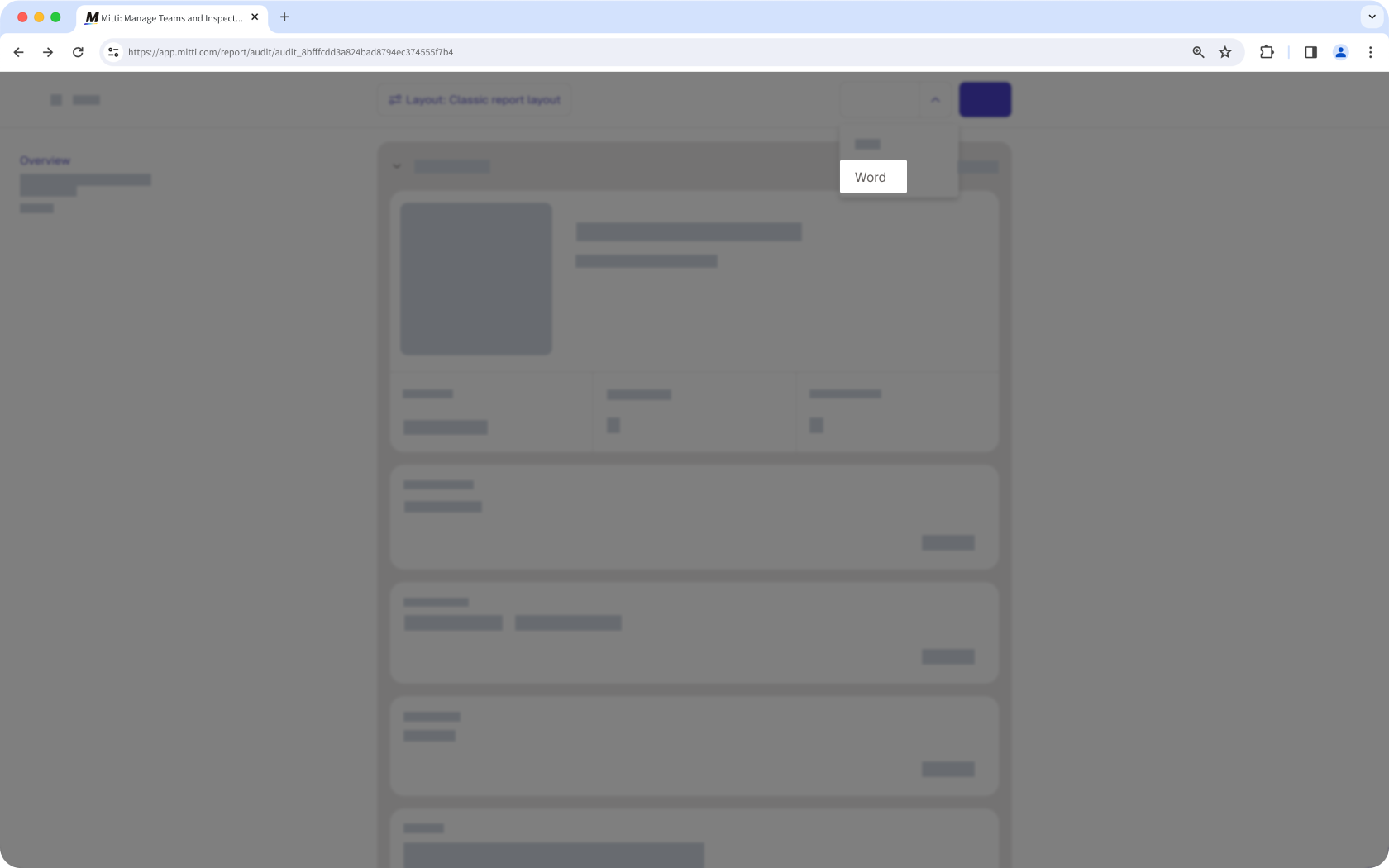
To export the report as a Word file, click next to "PDF" at the top of the page and select Word.
Open the mobile app.
Tap Inspections from the navigation bar or in More.
Select In Progress & Complete tab at the top of your screen.
Tap the inspection and select View report. If your inspection is still in progress, tap or at the upper-right corner of your screen and select View report.
To customize your exported report, tap at the upper-right of your screen and apply a report layout.
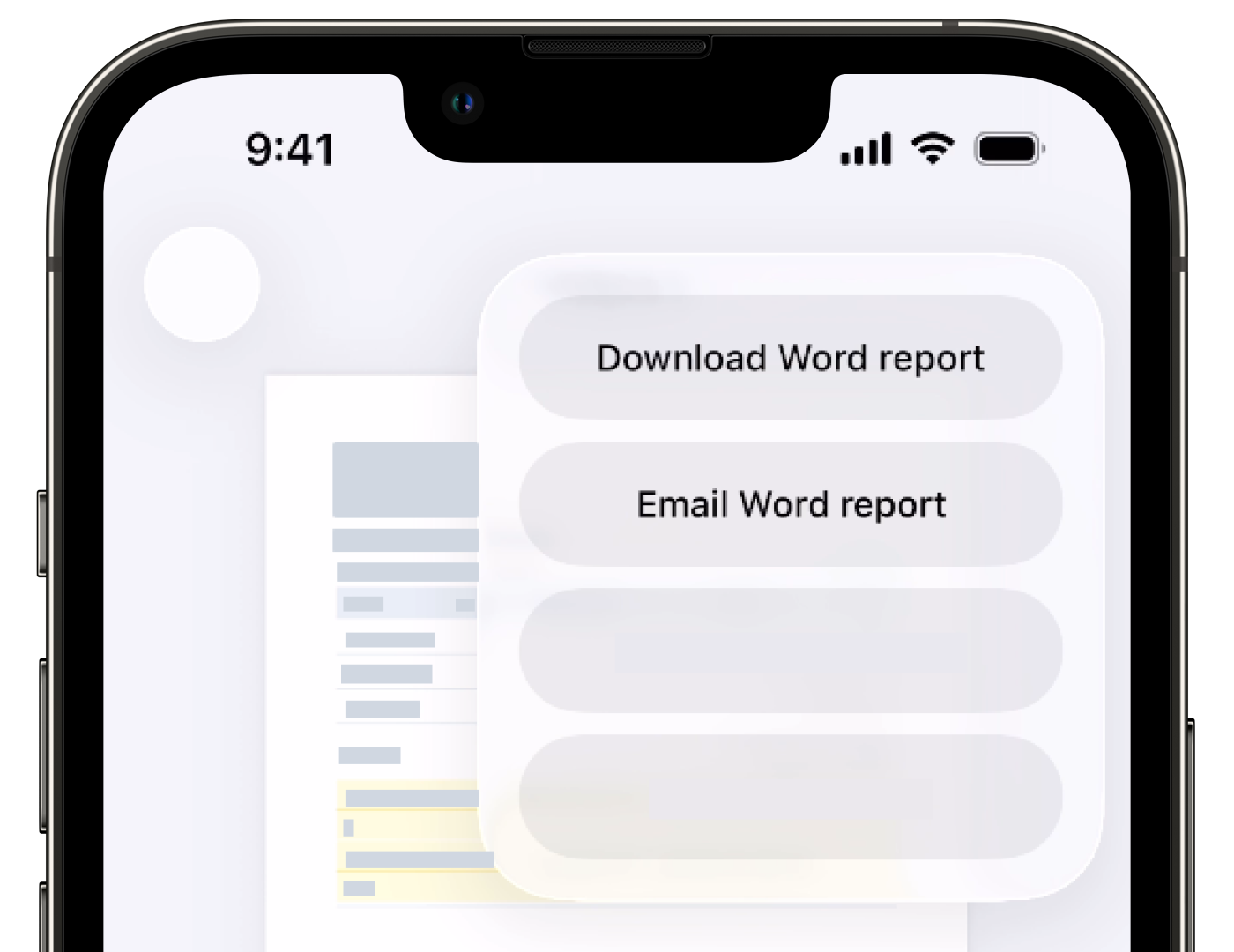
Tap or at the upper-right corner of your screen, then tap any of the options accordingly.
Download Word report or Download to download the report as a Word file
Email Word report or Email to email the report as a Word file
Limitations
The following limitations apply to PDF and offline inspection reports:
PDF inspection reports
Certain emojis, including flags and numbers, may not display correctly.
Filenames and table of contents do not support character-based languages, such as Chinese and Japanese.
Sections that don't contain any questions are automatically omitted from the inspection report.
Offline inspection reports
Links to PDF attachments are protected. To access them, log in to Mitti and ensure you have the appropriate inspection access level.
Video attachments appear as image thumbnails and cannot be downloaded.
Dates and times are displayed in Coordinated Universal Time (UTC).
Character-based languages, such as Chinese and Japanese, are not supported.
Document numbers used in inspection title formats will not appear in report file names.
Cover pages set in report layouts will not be included in inspection reports.
Sections that don't contain any questions are automatically omitted from the inspection report.
Frequently asked questions
Need more help?
Was this page helpful?
