Last updated: September 18, 2024
What you'll need
Unless you have the "Override permissions: Manage all data" permission, you'll only be able to delete actions that you've created.
Deleting is irreversible, and we cannot restore permanently deleted items. Confirmation is always required before any deletion, so be sure you're not accidentally deleting the wrong item.
Delete an action
Select Actions in the sidebar or in More.
You can choose how you want to view your actions by selecting between List, Calendar, and Board on the upper-right of the page.
Click the action.
In the side panel, click on the upper-right corner of the page and select Delete.
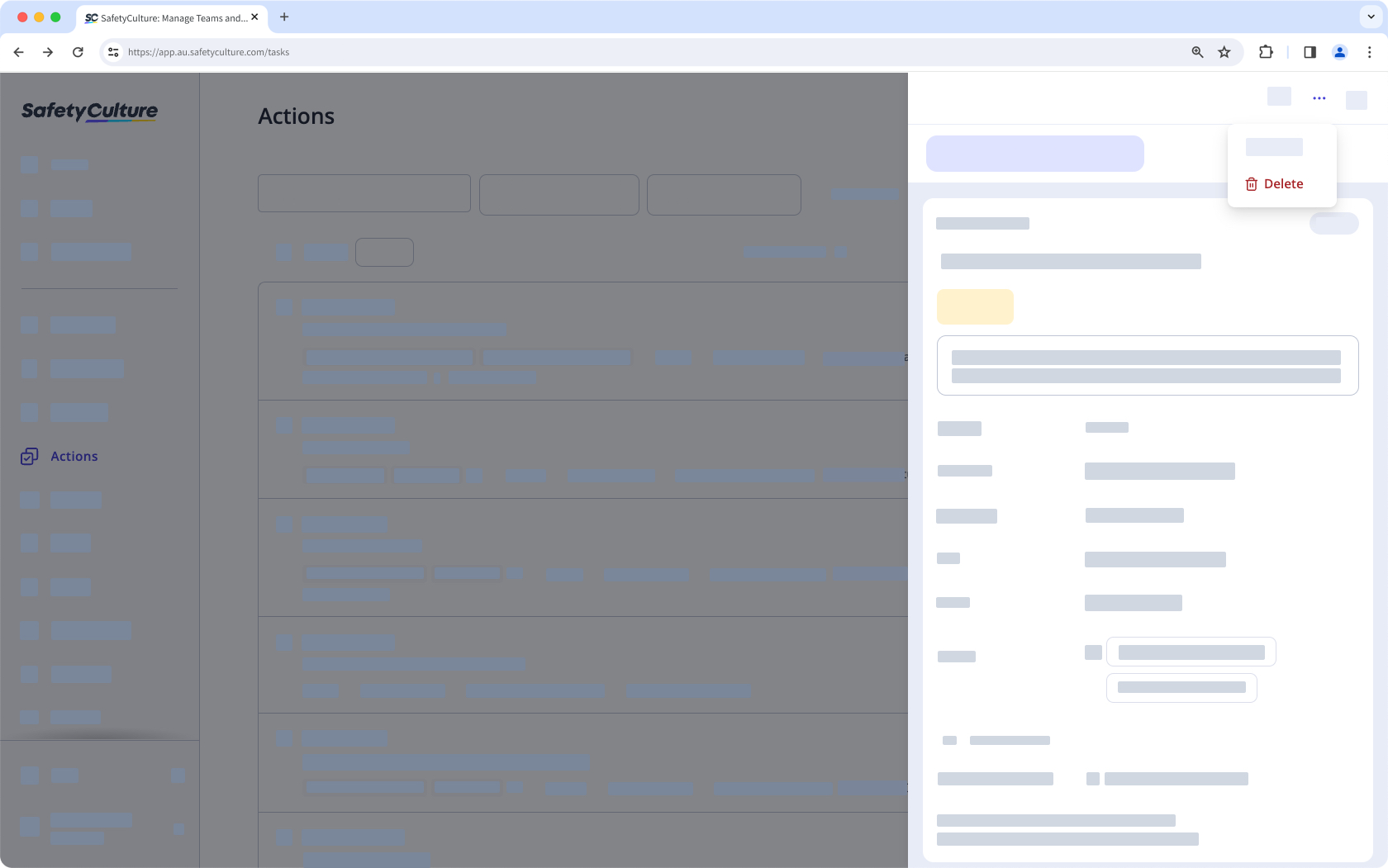
If you're deleting a recurring action, select one of the following options:
This action only: Delete the action from the series of actions.
This action and all future actions in this series: Delete the action and all upcoming actions in the series.
In the pop-up window, click Delete.
Open the mobile app.
Tap Actions in the navigation bar or select it from More.
You can choose how you want to view your actions by selecting between and at the upper-right of your screen.
Tap the action.
Tap at the upper-right corner of your screen and select Delete.
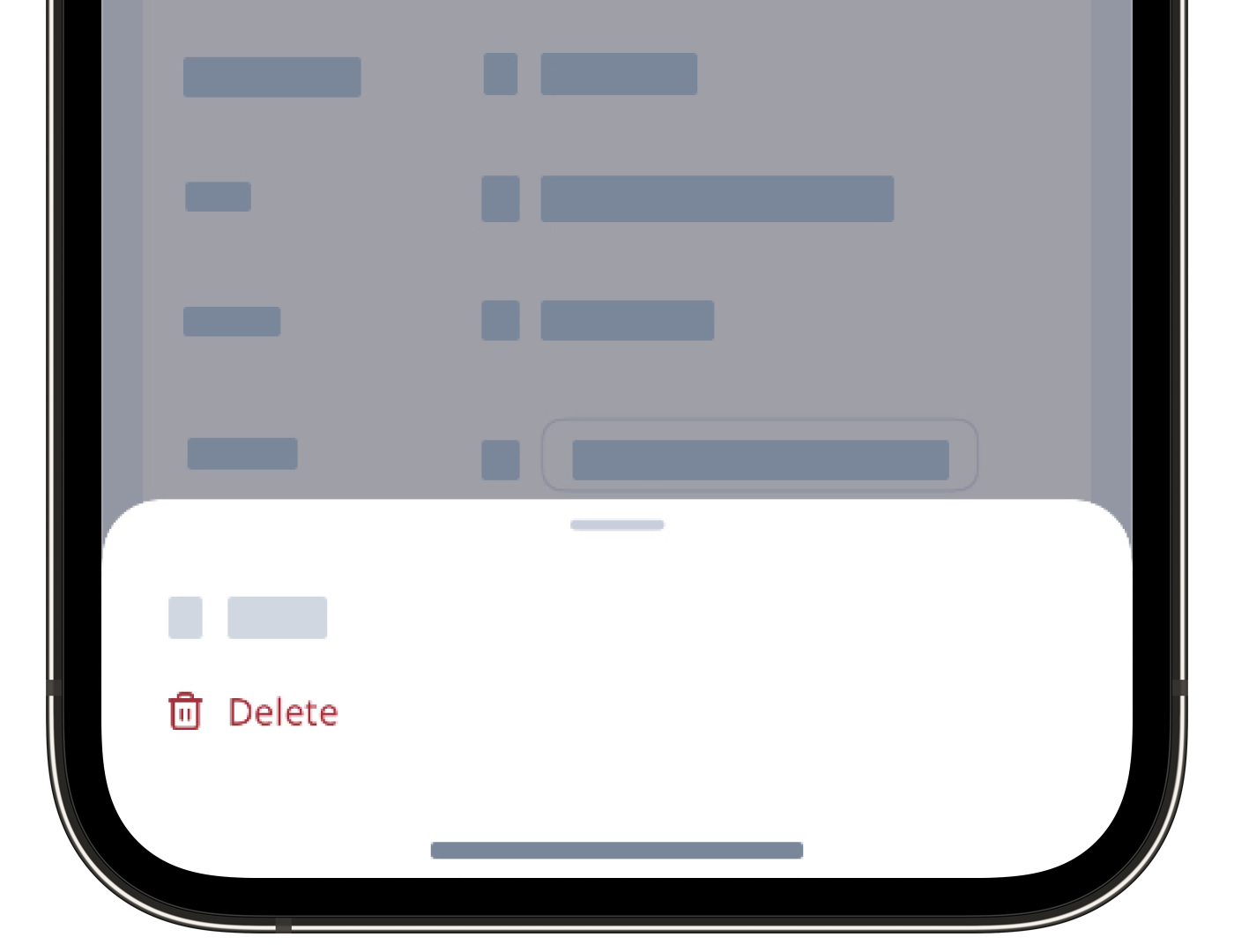
In the pop-up window, tap Delete.
Assigning and unassigning actions in bulk is only available in List view. If you're on Calendar view, switch List on the upper-right of the page.
Please also note that you can only bulk manage up to 100 actions at a time.
Bulk delete actions
Select Actions in the sidebar or in More.
Check the actions' boxes or Select all on the list's upper-left.
Click Delete on the lower-right corner of the page.
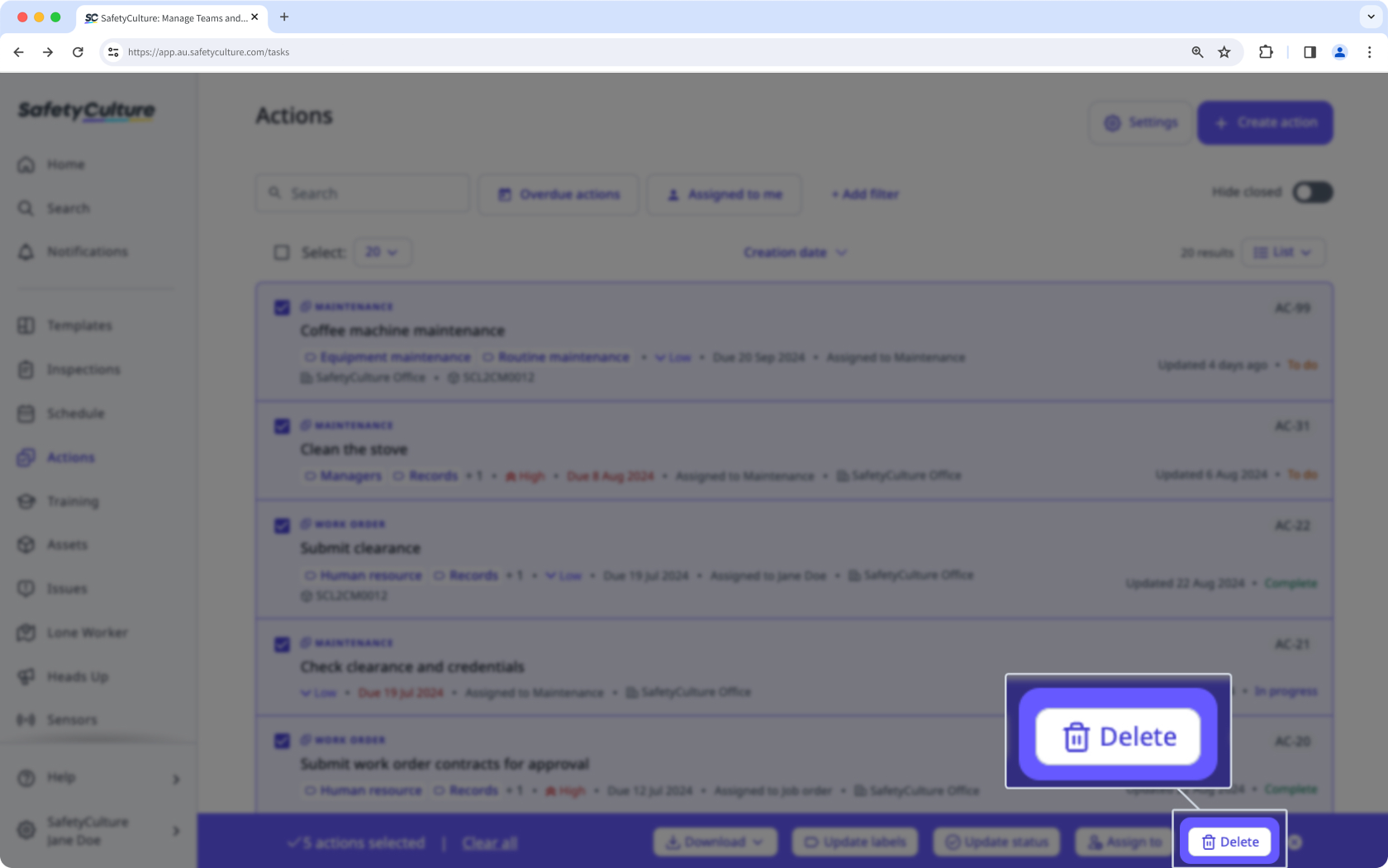
In the pop-up window, click Delete.
Please note that you can only bulk delete actions via the web app.
Need more help?
Was this page helpful?
