Last updated: December 17, 2025
Why use site questions?
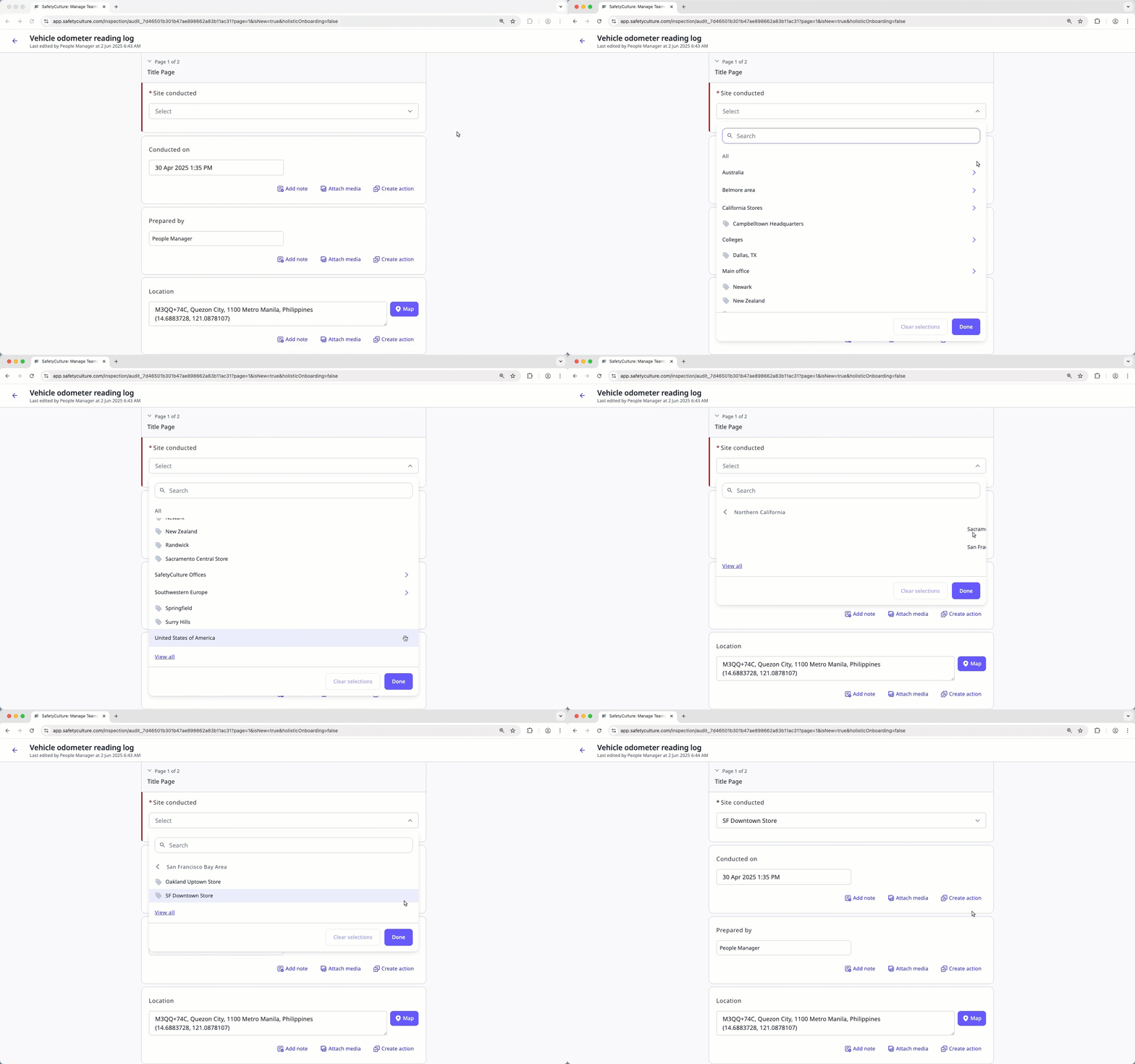
Site questions in Mitti let you connect inspections to specific locations, projects, or teams. This helps you organize and analyze data by site, making it easier to spot trends and monitor performance across your organization. When you add sites to your organization (opens in new tab), each new template comes with a required question on the title page (opens in new tab) by default, labeled "Site conducted". However, we understand that linking inspections to sites isn't always necessary, which is why you have the option to make the question optional, just like any other type of question. You can manage responses to site questions via the Sites feature (opens in new tab), where you structure your organization and view activity at each site.
What you'll need
You can customize site labels to align with your organization’s structure and terminology.
Manage the site question in a template
Select Templates in the sidebar or in More.
Click the template and select Edit template in the side panel.
Go to the "Title Page" and make sure it's expanded.
Select the Site conducted question.
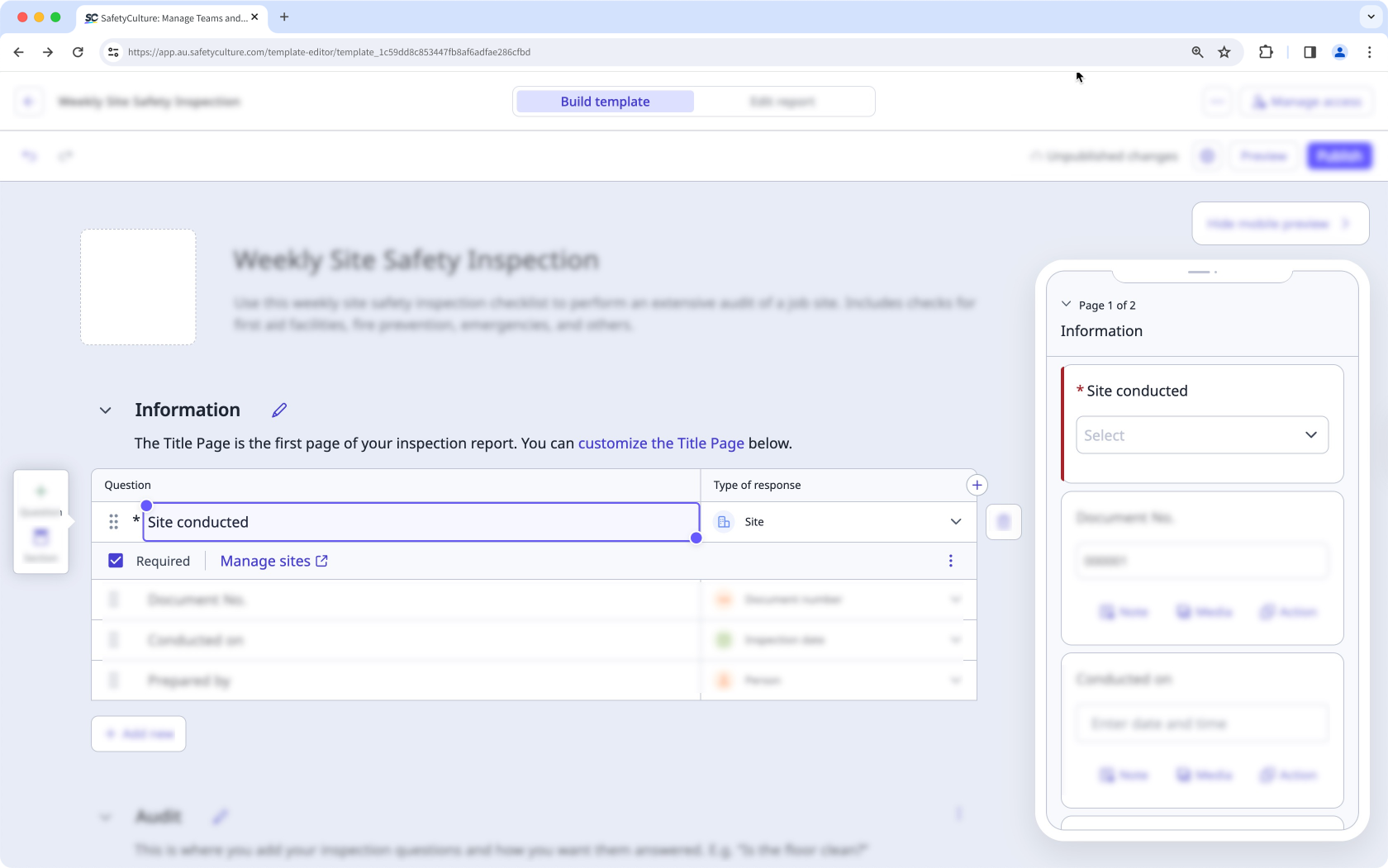
From here, you can:
Move the question by dragging on its left-hand side.
Remove the question by clicking on its right-hand side.
Rename the question by double-clicking it and adjusting accordingly.
Mark or un-mark the question as required by checking or unchecking the "Required" box at its lower-left corner.
You can also manage your organization's sites by clicking Manage sites below the question. Please note that this requires the "Platform management: Sites" permission.
Click Publish on the upper-right of the page to publish the template. If you're not ready to publish the template, you can go back to the templates list and come back when you're ready.
Open the mobile app.
Tap Inspections in the navigation bar or select it from More.
Tap the template and select Edit template from the pop-up options.
Go to the "Title Page" and make sure it's expanded.
Tap the Site conducted question.
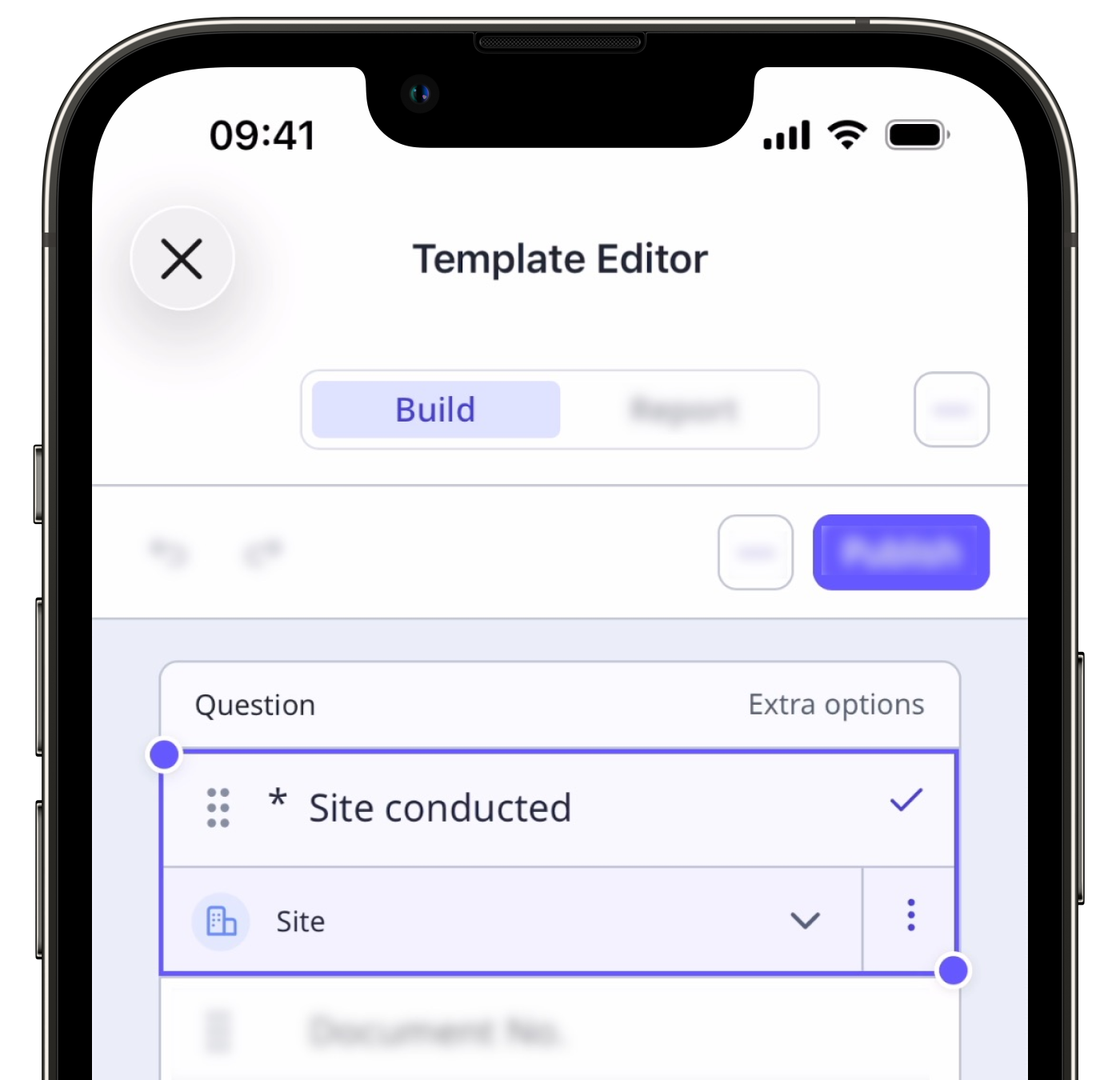
From here, you can:
Move the question by holding and dragging on its left-hand side.
Remove the question by tapping and selecting Delete.
Rename the question by tapping it once more and adjusting accordingly.
Mark or un-mark the question as required by tapping and checking or unchecking the "Required" box.
Tap Publish on the upper-right of your screen to publish the template. If you're not ready to publish the template, you can go back to the templates list and come back when you're ready.
Published changes made to templates only apply to new inspections moving forward.
Need more help?
Was this page helpful?
