Last updated: May 7, 2025
What happens when I archive an asset?
When an asset is archived in Mitti, it becomes inactive across multiple features and workflows to prevent unintended use and keep records clean. Here’s what to expect:
You can't edit its details or use it in inspections or actions.
Related notifications are paused.
Active integrations with asset management systems like Samsara (opens in new tab) or Geotab (opens in new tab) will stop.
You'll need to manually delete any scheduled inspections.
It will remain in maintenance programs (opens in new tab), but notifications will stop.
You won't be able to track your asset in real-time, including past events.
What you'll need
If you've accidentally archived assets, you can always restore them via the web app.
Archive an asset
Select Assets in the sidebar or in More.
Find the asset you want to archive.
Click on the asset's right-hand side and select Archive.
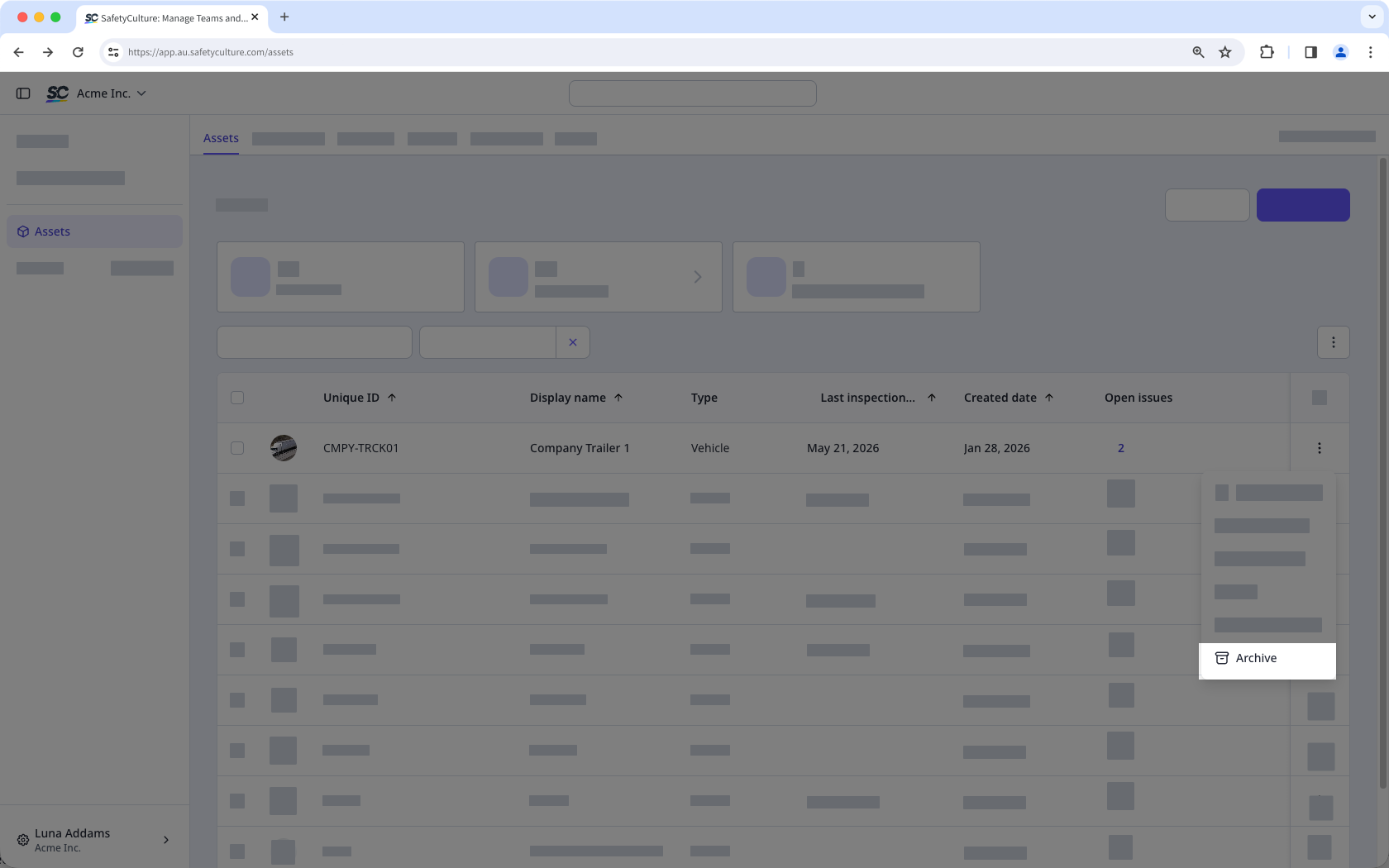
In the pop-up window, click Archive.
Bulk archive assets
Select Assets in the sidebar or in More.
Find the asset you want to archive.
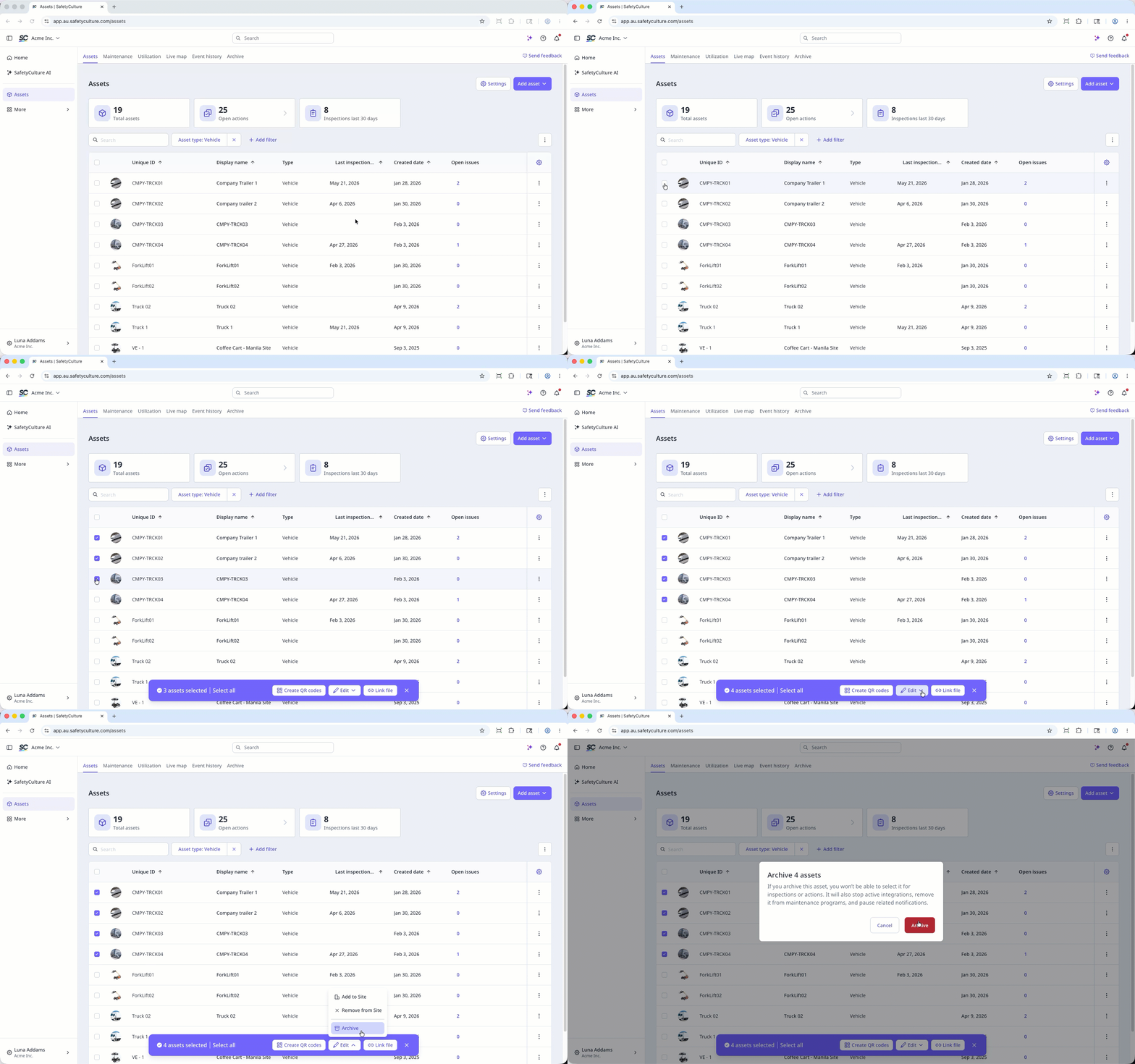
Check the assets' boxes and click Edit at the bottom of the page.
Select Archive.
In the pop-up window, click Archive.
Need more help?
Was this page helpful?
