Last updated: May 7, 2025
What you'll need
When you restore an archived asset, all related notifications will resume. In addition, all integrations will reconnect if they’re still valid.
Restore an archived asset
Select Assets in the sidebar or in More.
Select Archive from the tab at the top of the page.
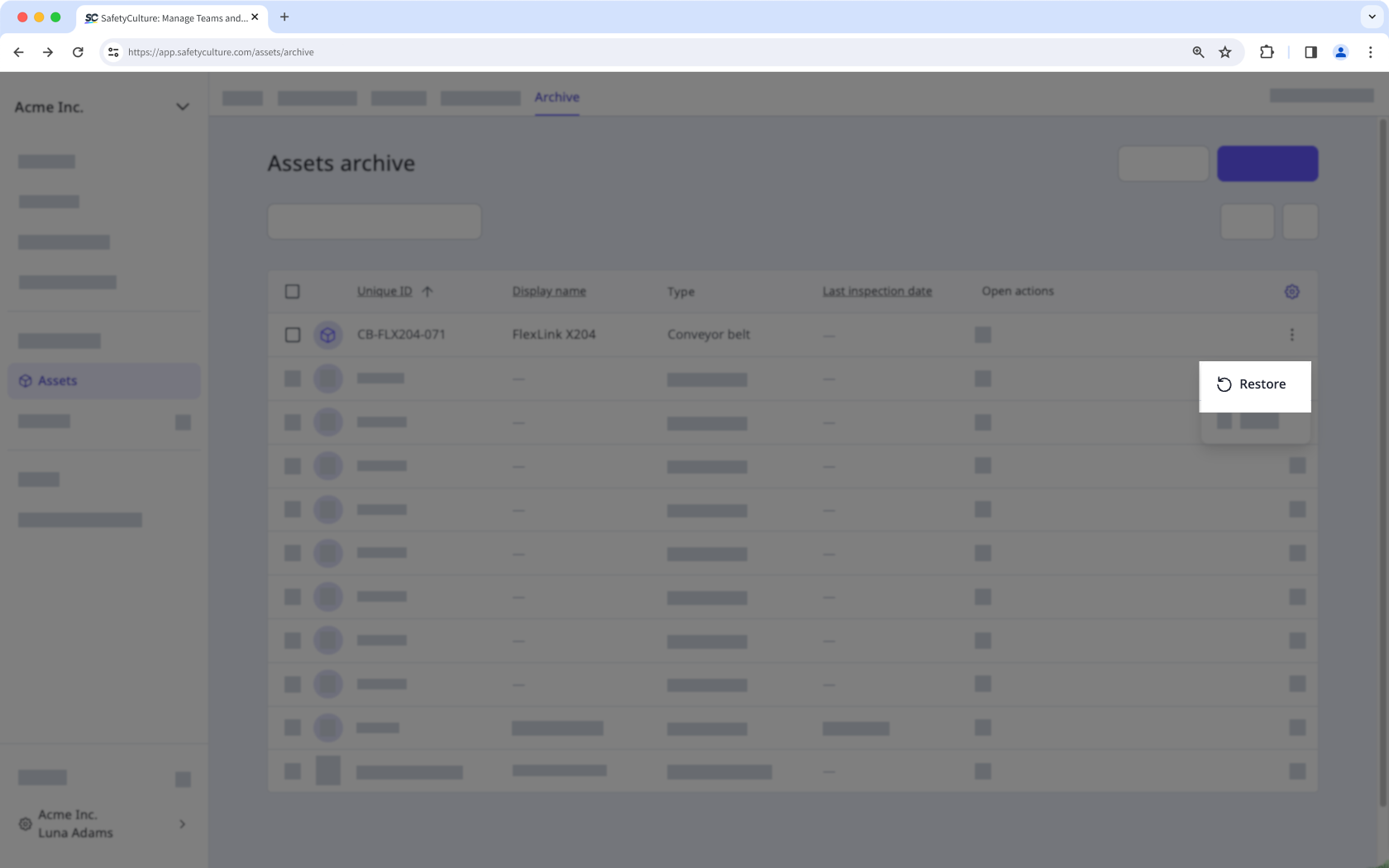
Click on for the asset that you want to restore and select Restore.
You can only bulk restore assets from Table view.
Bulk restore archived assets
Select Assets in the sidebar or in More.
Select Archive from the tab at the top of the page.
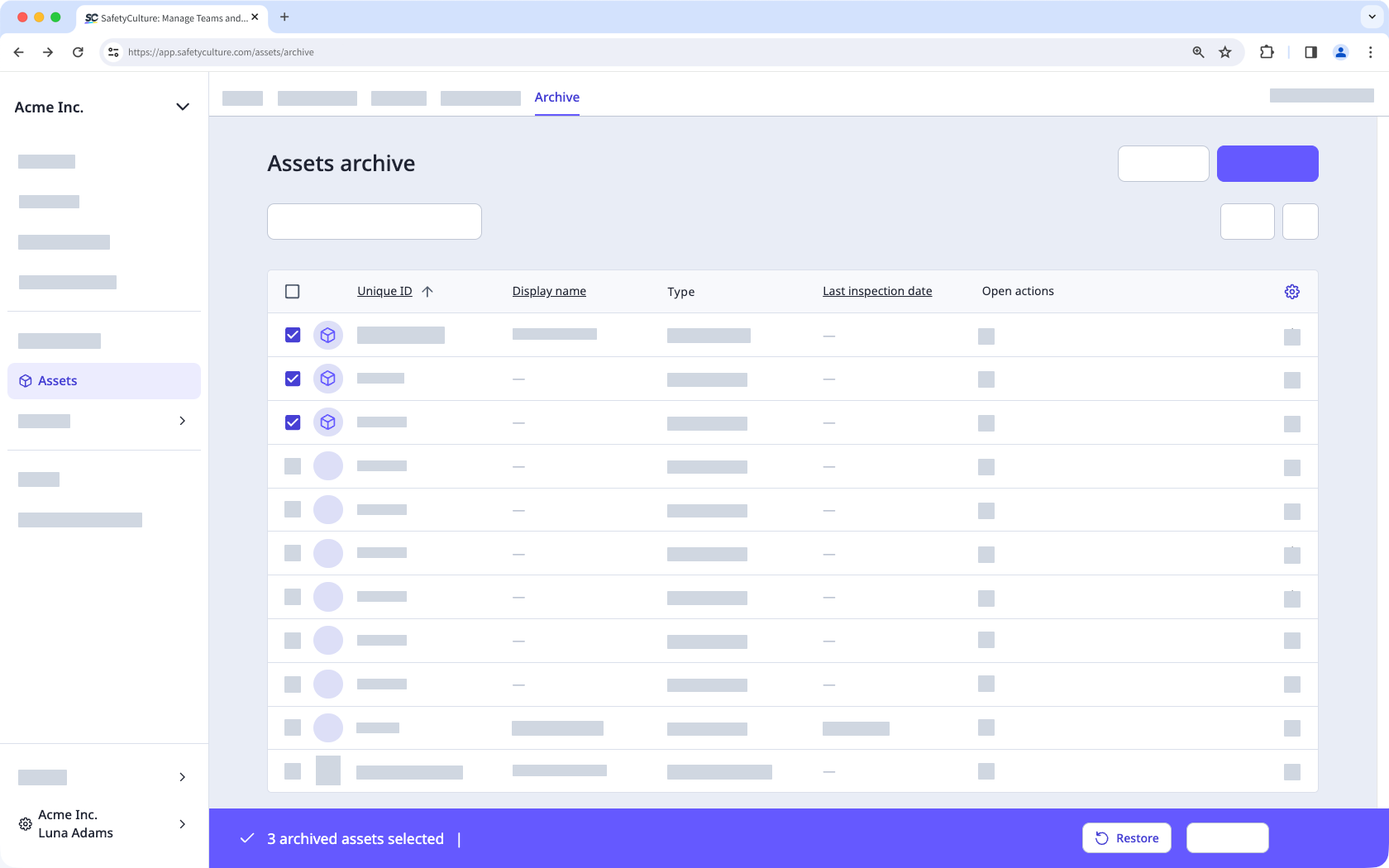
Select the assets you want to bulk restore by checking each asset's box on the left-hand side of the page.
Click Restore to bulk restore your assets.
Need more help?
Was this page helpful?
