Last updated: June 5, 2026
What are Critical Alerts?
Critical Alerts notify designated responders when an issue is reported in a category with Critical Alerts enabled, or plays a looping alarm on a worker's device when a lone-work check-in is missed or a job goes into overtime.
This is especially important in industries like construction, manufacturing, and mining, where a delayed response to a safety issue or a missed check-in can put people at risk.
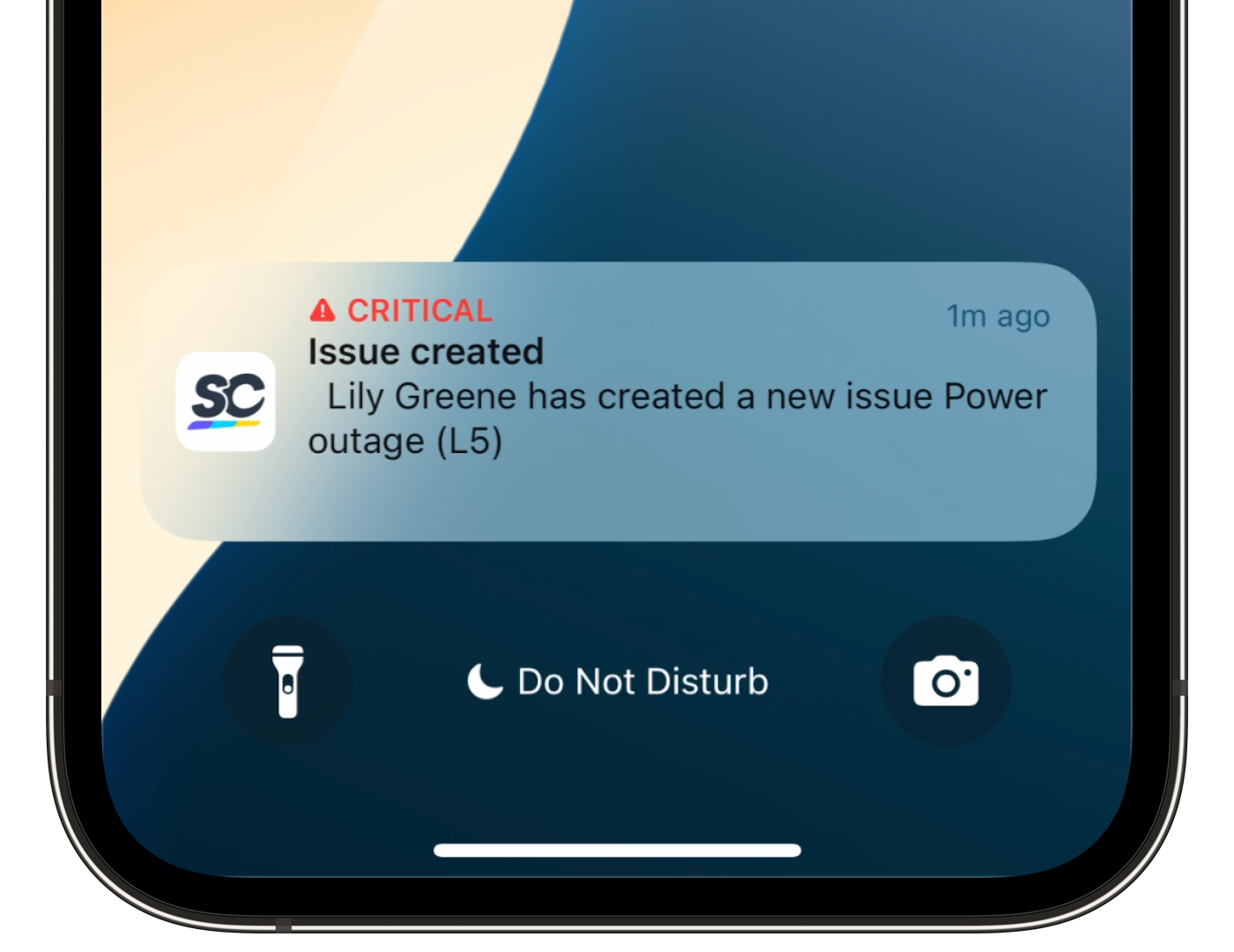
What's the difference between Critical Alerts in Issues and Lone Worker?
Both Issues and Lone Worker use the same Critical Alerts push notification. For Issues, that notification is the alert. For Lone Worker, the push notification triggers alongside a looping alarm sound with vibration that overrides Silent Mode and Do Not Disturb settings and continues until the worker responds. Lone Worker is designed for active field monitoring, where a standard notification may not be enough to reach a worker in a loud or physically demanding environment.
What you'll need
For Lone Worker, you'll also need "Lone Worker: Access" permission, full seat or lite seat, and location services and notifications turned on.
Depending on the device you’re using, please ensure its operating system version is supported:
Android: Android 9.0 or above
iOS: iOS/iPadOS 15.0 or above
Turn Critical Alerts on or off
Open the mobile app.
Tap Home at the bottom of your screen.
Tap your user profile icon at the upper-right corner of your screen and tap Settings.
Scroll down to the “Notifications” section and tap Push.
In the “Critical Alerts enabled” section, tap Open Settings. This will take you to the notification settings for the Mitti mobile app on your Android device.
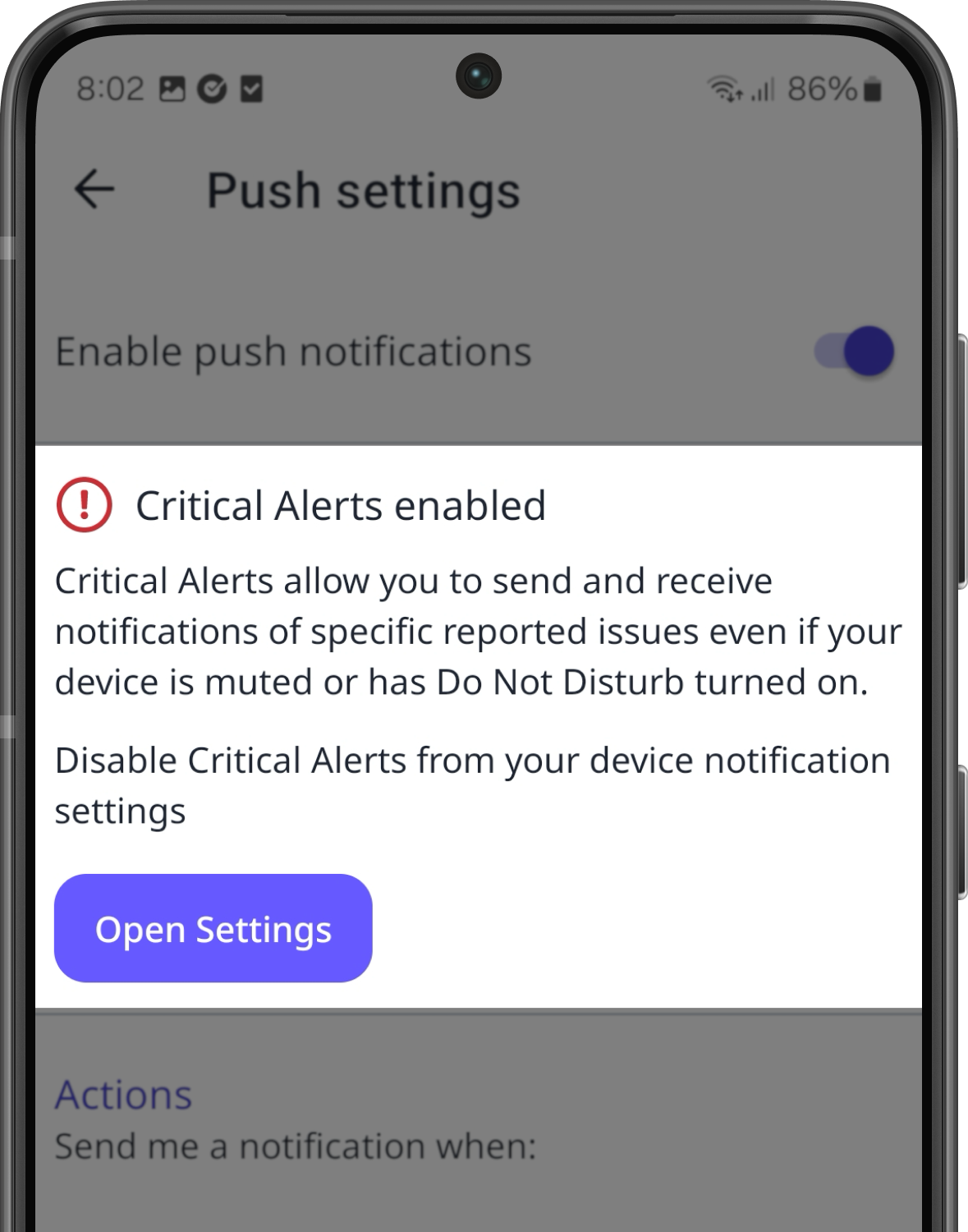
Manage the notification for Critical Alerts accordingly:
Turn Critical Alerts on: Turn on the available settings for Critical Alerts. Make sure you turn on permissions for sound and for overriding Do Not Disturb mode so you can receive Critical Alerts.
Turn Critical Alerts off: Turn off the relevant settings for Critical Alerts.
Open the mobile app.
Tap Home at the bottom of your screen.
Tap your user profile icon at the upper-right corner of your screen and tap Settings.
Scroll down to the “Notifications” section and tap Push.
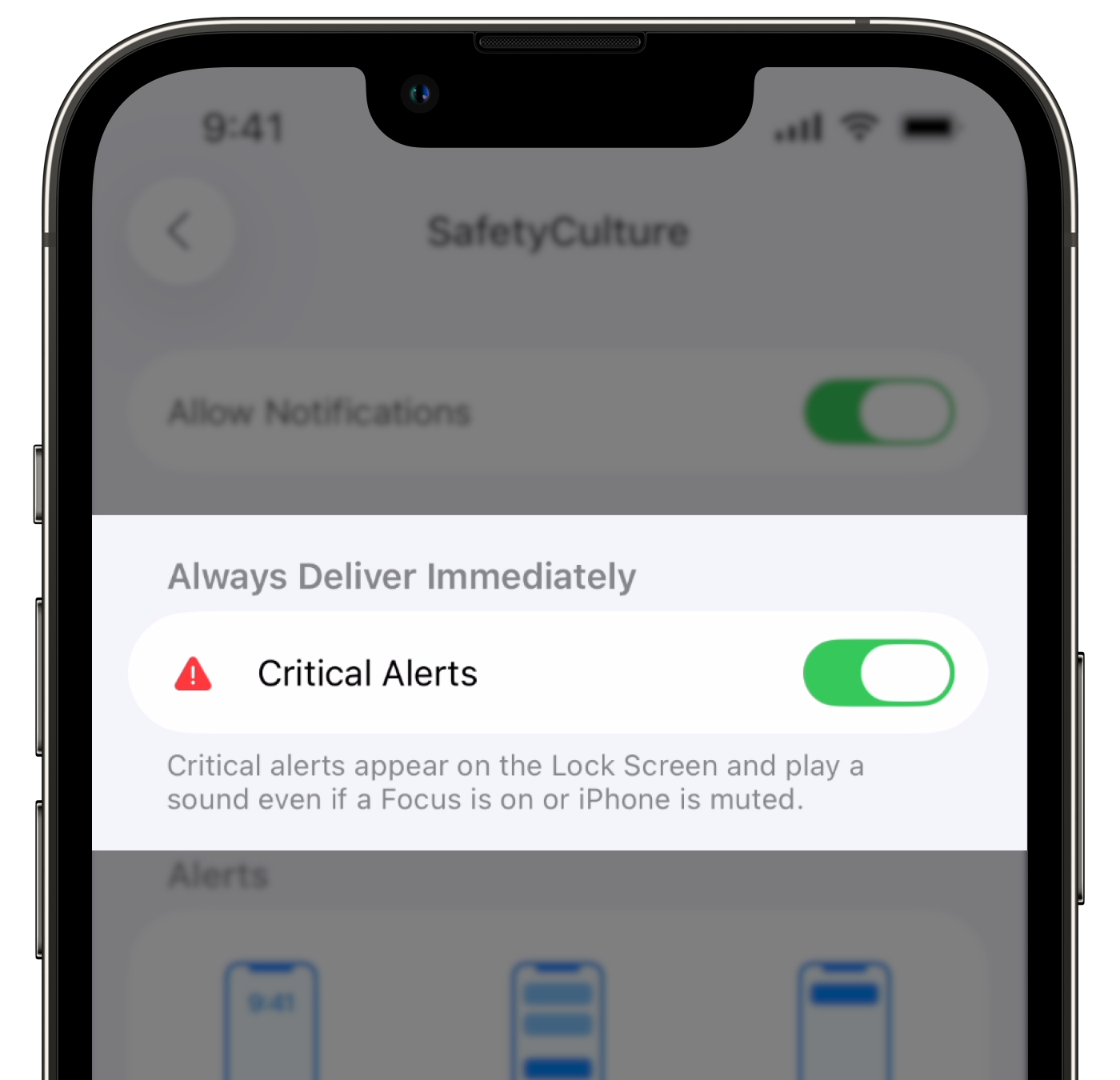
In the “Critical Alerts” section, tap Open Settings. This will take you to the notification settings for the Mitti mobile app on your iOS device.
Turn the notification settings for Critical Alerts on or off accordingly.
Frequently asked questions
Need more help?
Was this page helpful?
