Last updated: November 12, 2024
Turn on the Approvals credentials setting to allow administrators from your organization to review and approve credentials. Once a credential is approved, it cannot be undone.
If you want to skip manually approving credentials, you can approve all the credentials when you upload them in bulk.
Approve a credential
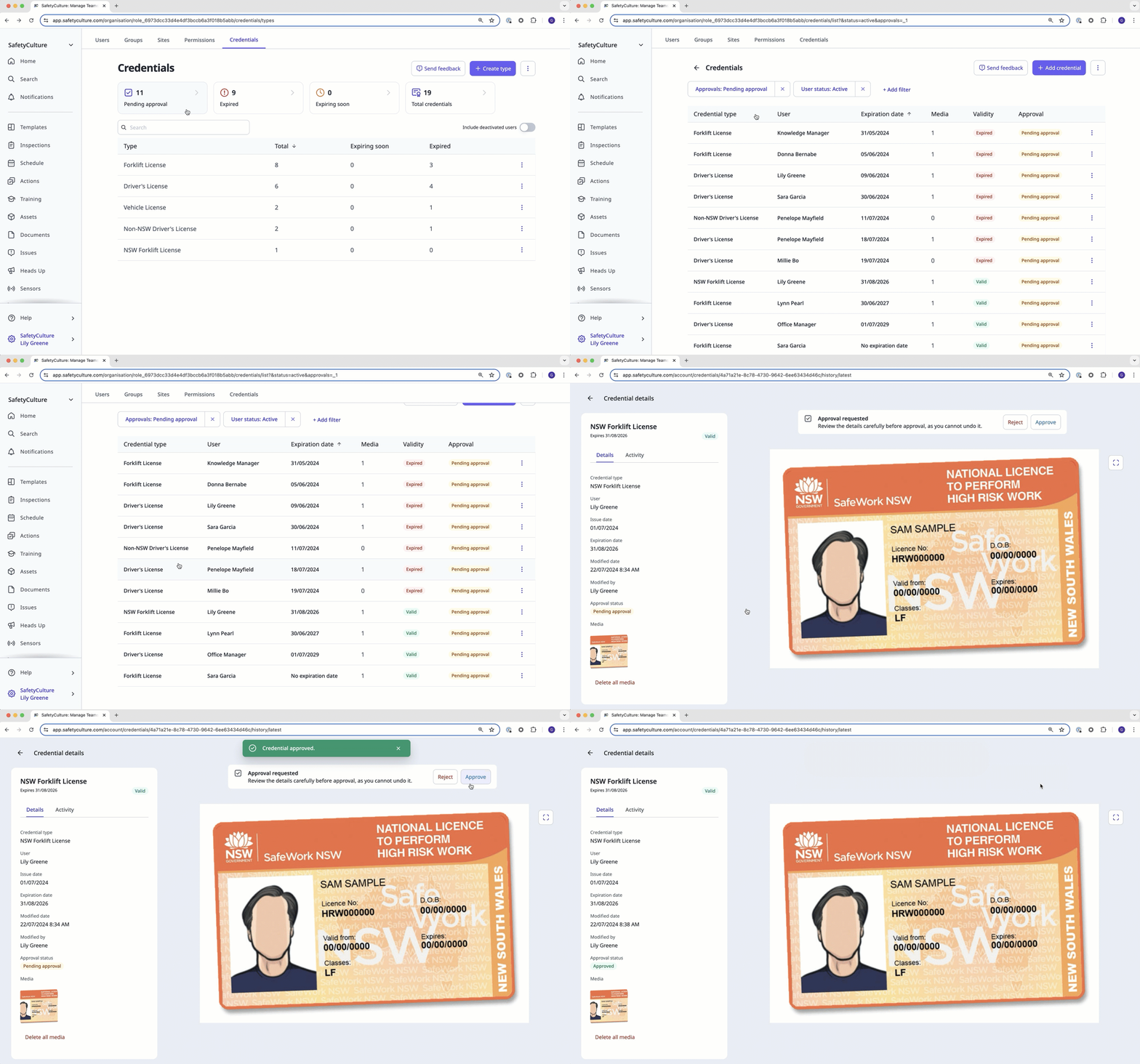
Click your username on the lower-left corner of the page and select Credentials.
Click Pending approval at the top of the page. A list of credentials with a “Pending approval” status displays.
Select a credential and review it accordingly.
Click Approve at the top of the page.
Reject a credential
Click your username on the lower-left corner of the page and select Credentials.
Click Pending approval at the top of the page. A list of credentials with a “Pending approval” status displays.
Select a credential and review it accordingly.
Click Reject at the top of the page.
In the pop-up window, enter a reason for the rejection.
Click Add.
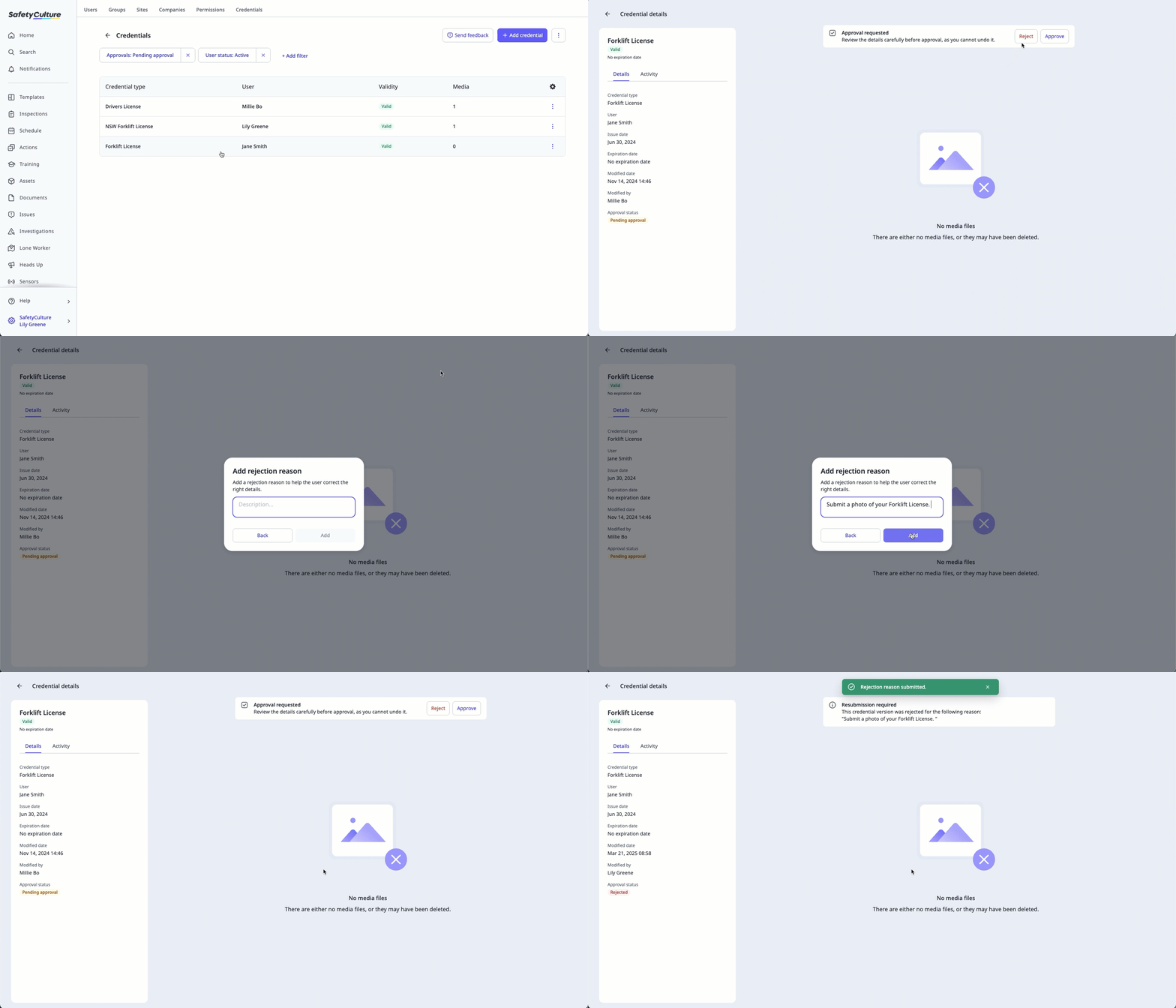
Users will receive a notification when their credential is requested for resubmission depending on their notification settings.
You can't approve or reject an archived credential. To approve or reject it, restore the credential first.
Need more help?
Was this page helpful?
