Last updated: September 22, 2026
How do I digitize my checklists?
After you have set up your organization, it’s time to start digitizing your checklists. You may have paper forms piled on your desk, digital copies stored on your device, or are thinking about creating new ones but unsure where to begin. There are three sure-fire ways to start this process.
Download templates from the Library: Browse through thousands of free templates across every industry. Explore industries, preview templates, and find the ones that fit your business needs. You can also download any template and customize it to suit your team's specific needs.
Convert your existing forms: You can upload anything on hand, and we'll convert everything for you.
Explore the Templates feature: As early as now, we want to highlight that it is always a best practice to learn how to build templates from scratch in Mitti. This will allow you to easily change your templates as you improve your workflows.
1. Download templates
The Library (opens in new tab) in Mitti is a centralized content hub where you can browse ready-made templates, courses, and collections. With thousands of content available, you can download templates directly to your account to conduct inspections and create checklists, and have the ability to edit them to suit your organization's needs.
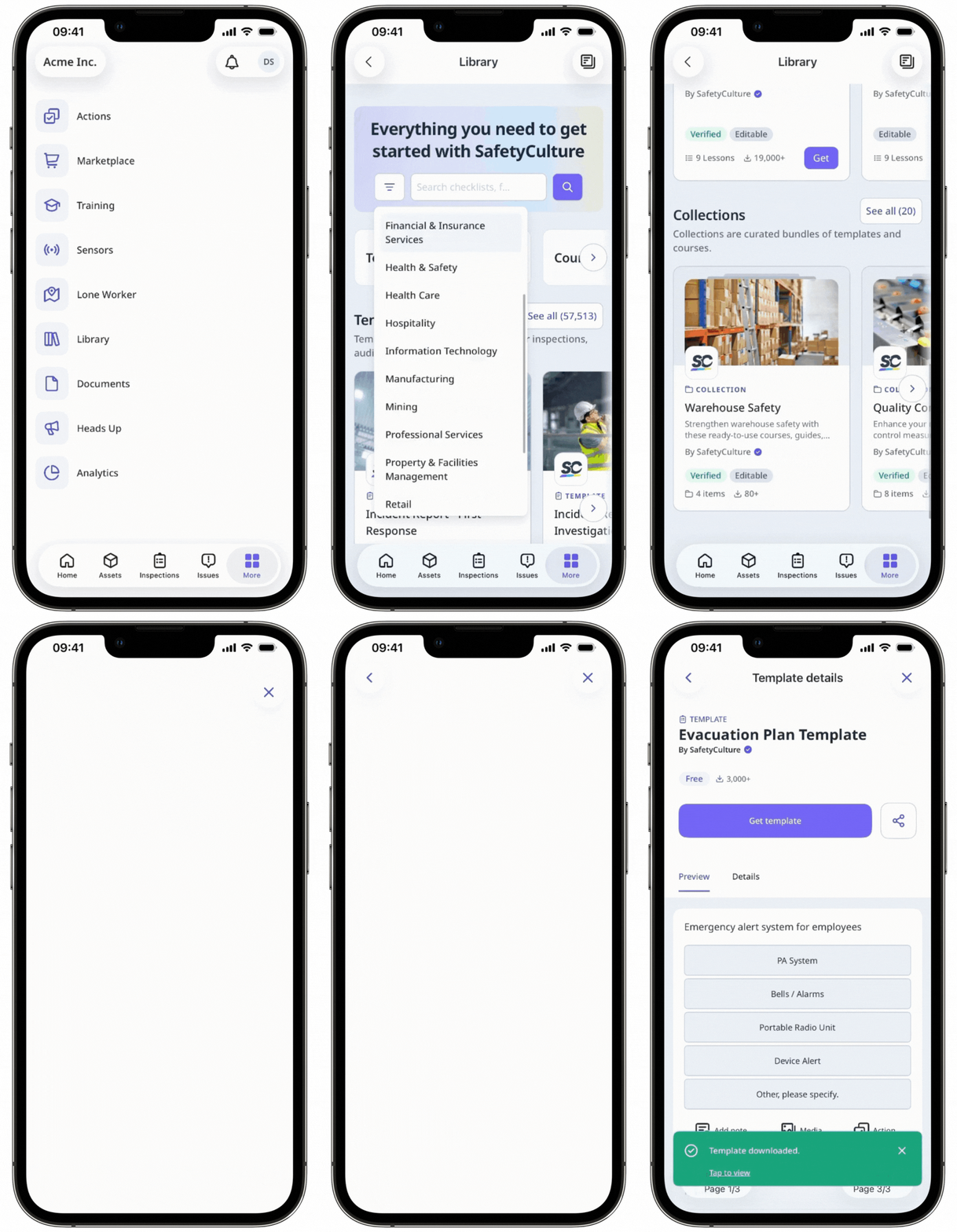
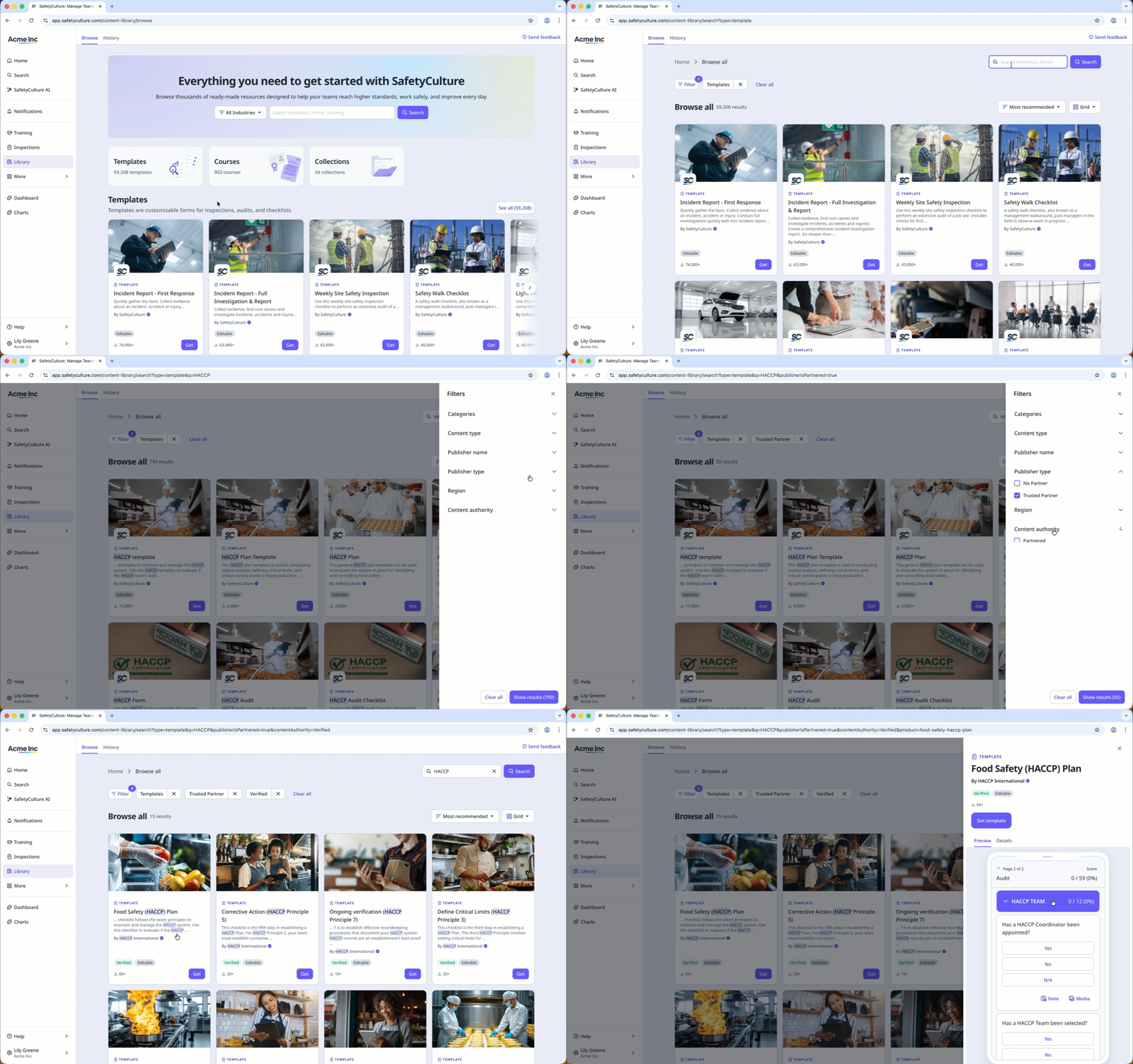
Download a template from the Library
Select Library in the sidebar or in More.
Select Templates at the top of the page.
To narrow down your results, you can apply filters and search by keywords.
Select a template.
In the side panel, click Get template.
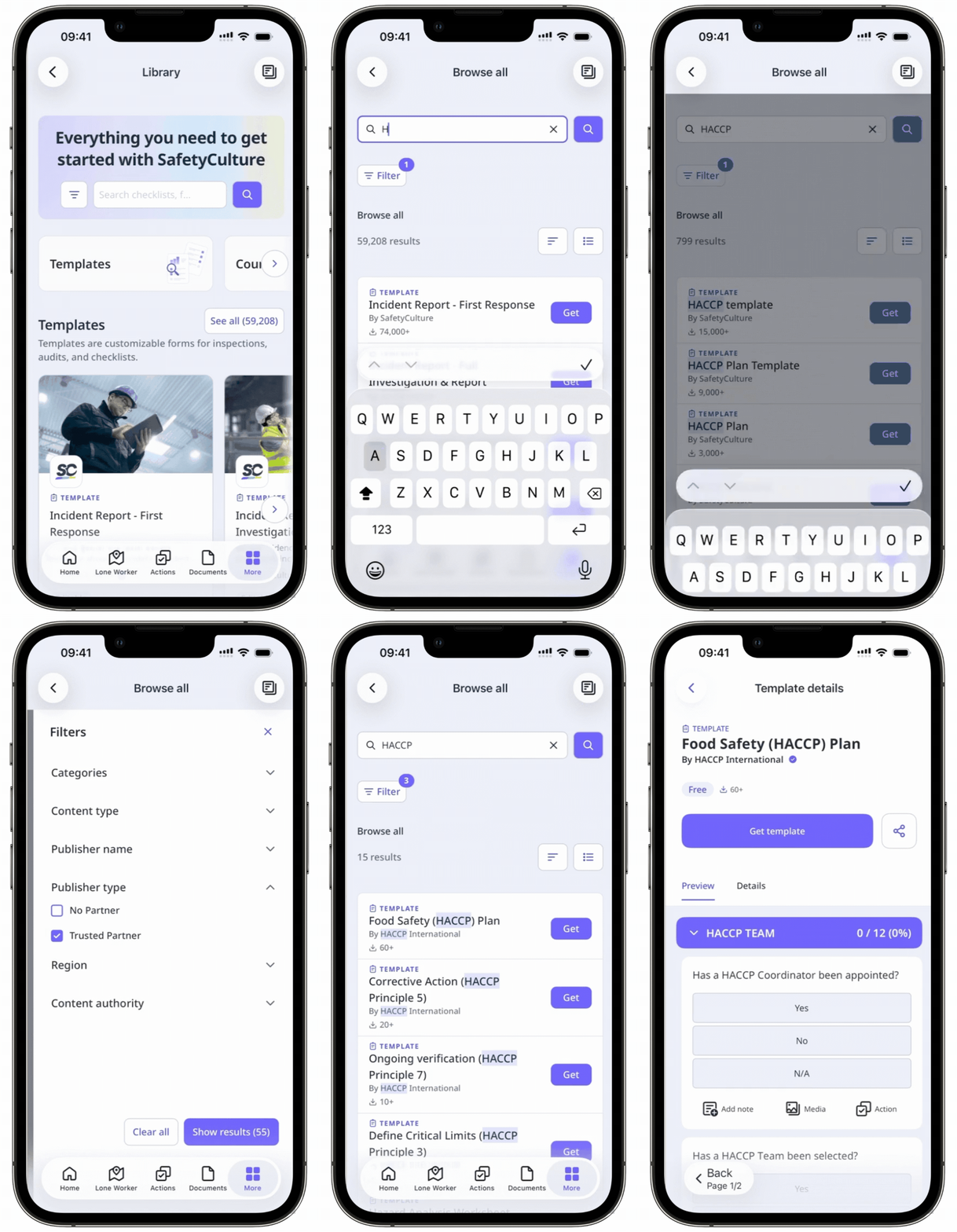
Open the mobile app.
Tap Library in the navigation bar or in More.
Tap Templates at the top of the screen.
To narrow down your results, you can apply filters and search by keywords.
Tap the template you want to download.
Tap Get template.
2. Convert forms
Converting existing forms or checklists and adding them to Mitti improves data accessibility and storage, helps you collect and analyze your data easily, and reduces manual steps in your organization's workflows. You can cut down on paper and storage costs and significantly reduce your team's turnaround time.
The template might sometimes not turn out to be exactly what you're after. Edit your template further and add final adjustments to make the best version of your forms for your team.
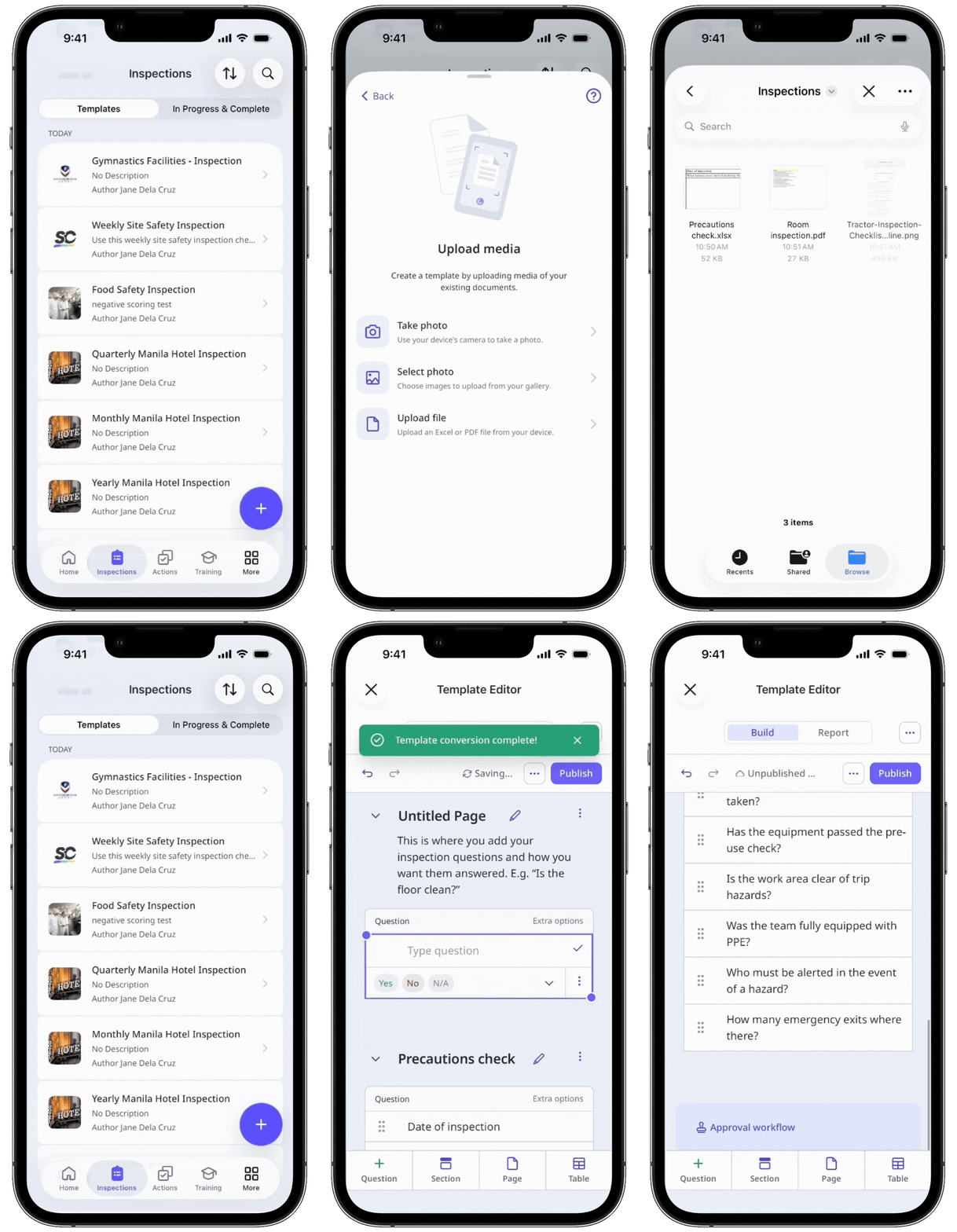
Upload files to create a template using the AI assistant that you can use in your organization on the web app.
You can convert Excel files up to 5MB and images (JPEG or PNG) or PDF files up to 10MB.
Convert an Excel into a template
Open the mobile app.
Tap Inspections in the navigation bar or select it from More.
Select Templates tab at the top of your screen.
Tap at the lower-right corner of your screen.
From the pop-up menu, tap Upload media.
In the upload media screen, tap Upload file.
Select an Excel file to start the conversion process.
Edit your template as needed.
Tap Publish on the upper-right of the page to publish the template. If you're not ready to publish the template, you can go back to the templates list and come back when you're ready.
You can only upload 1 Excel file at a time, with a maximum file size of 5 MB. If your file has more than 5 sheets, only the first 5 sheets will be converted.
Convert an image into a template
Open the mobile app.
Tap Inspections in the navigation bar or select it from More.
Select Templates tab at the top of your screen.
Tap at the lower-right corner of your screen.
From the pop-up menu, tap Upload media.
In the upload media screen, select one of the following options:
Take photo: Use your device's camera to take a photo of your existing form.
Select photo: Choose images of your existing form to upload from your gallery.
Edit your template as needed.
Tap Publish on the upper-right of the page to publish the template. If you're not ready to publish the template, you can go back to the templates list and come back when you're ready.
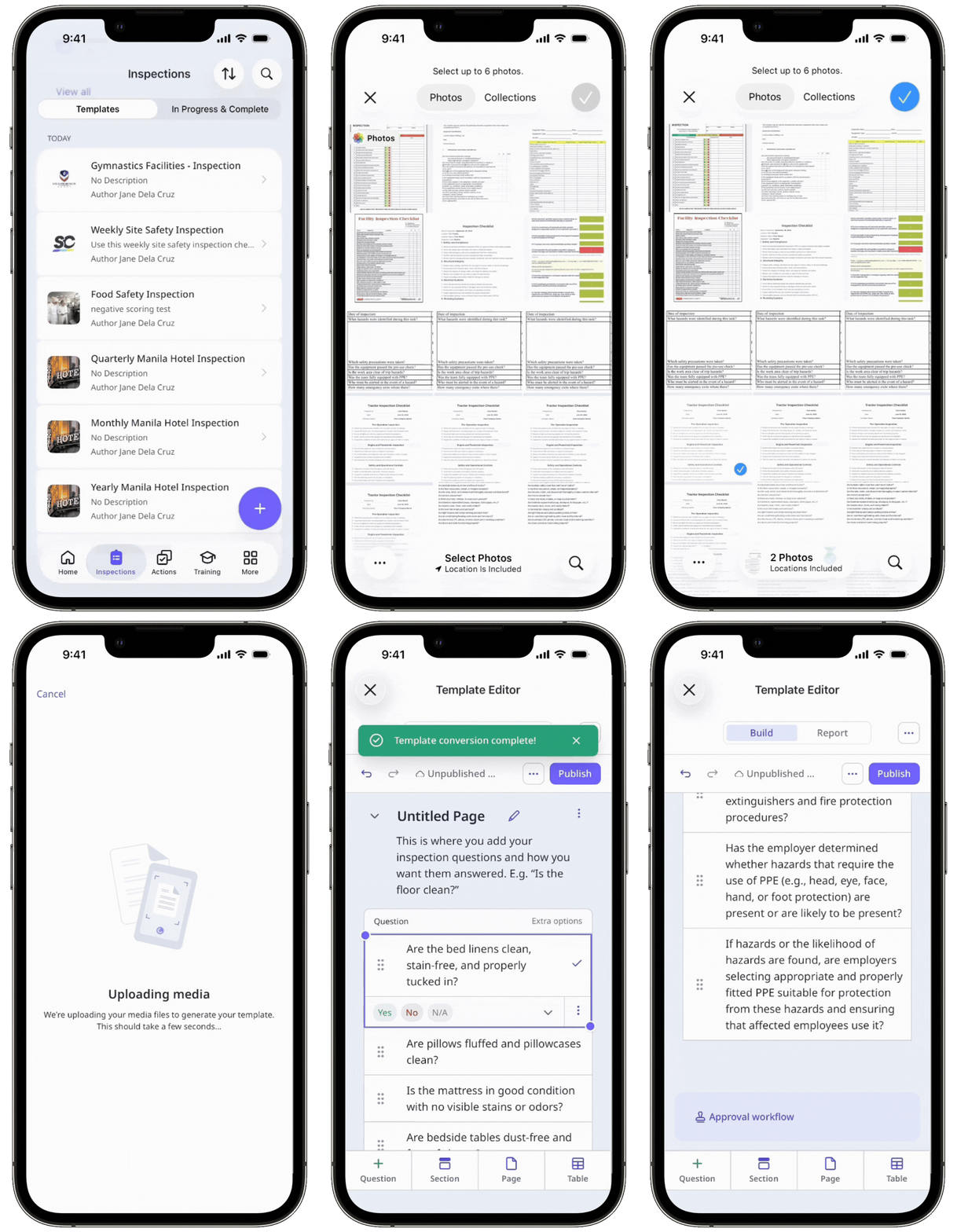
You can only upload up to 6 images at a time, with a total file size of 10 MB.
Convert a PDF into a template
Open the mobile app.
Tap Inspections in the navigation bar or select it from More.
Select Templates tab at the top of your screen.
Tap at the lower-right corner of your screen.
From the pop-up menu, tap Upload media.
In the upload media screen, tap Upload file.
Select a PDF file to start the conversion process.
Edit your template as needed.
Tap Publish on the upper-right of the page to publish the template. If you're not ready to publish the template, you can go back to the templates list and come back when you're ready.
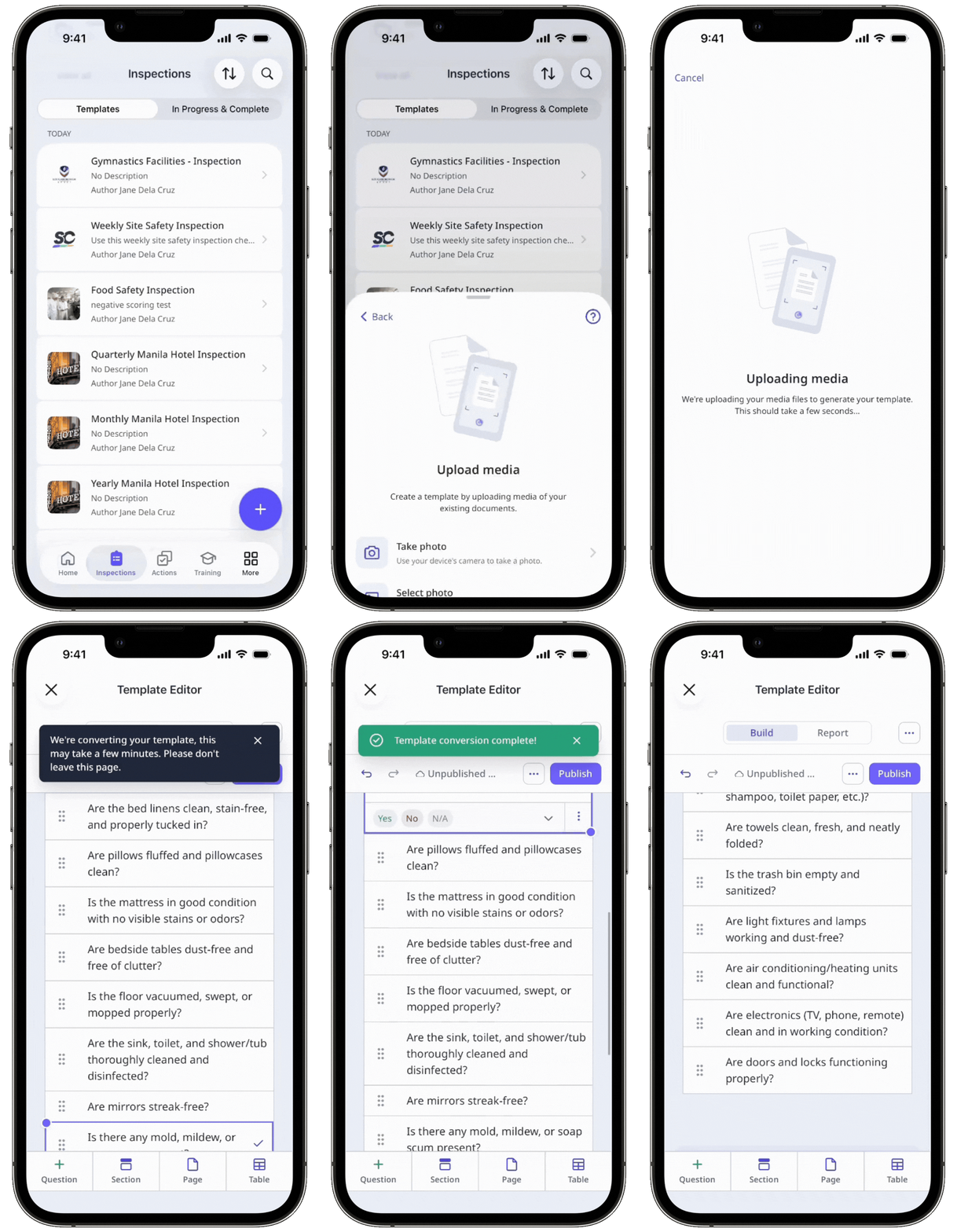
You can only upload 1 PDF file at a time, with a maximum file size of 10 MB.
If you already have a Word file, you can convert it to an Excel, an image, or a PDF, or upload your document for our customer enablement team to convert for you.
← Previous article: Manage your users (Part 3) | Next article: Digitize checklists (Part 2) →
Need more help?
Was this page helpful?
