Last updated: December 16, 2025
What is the asset list?
The asset list is a comprehensive inventory of all your assets in Mitti. It dynamically updates to show assets based on search queries and filters that you have set. You can access and manage the asset list from both the web app and the mobile app, with each platform offering different views tailored to your work style.
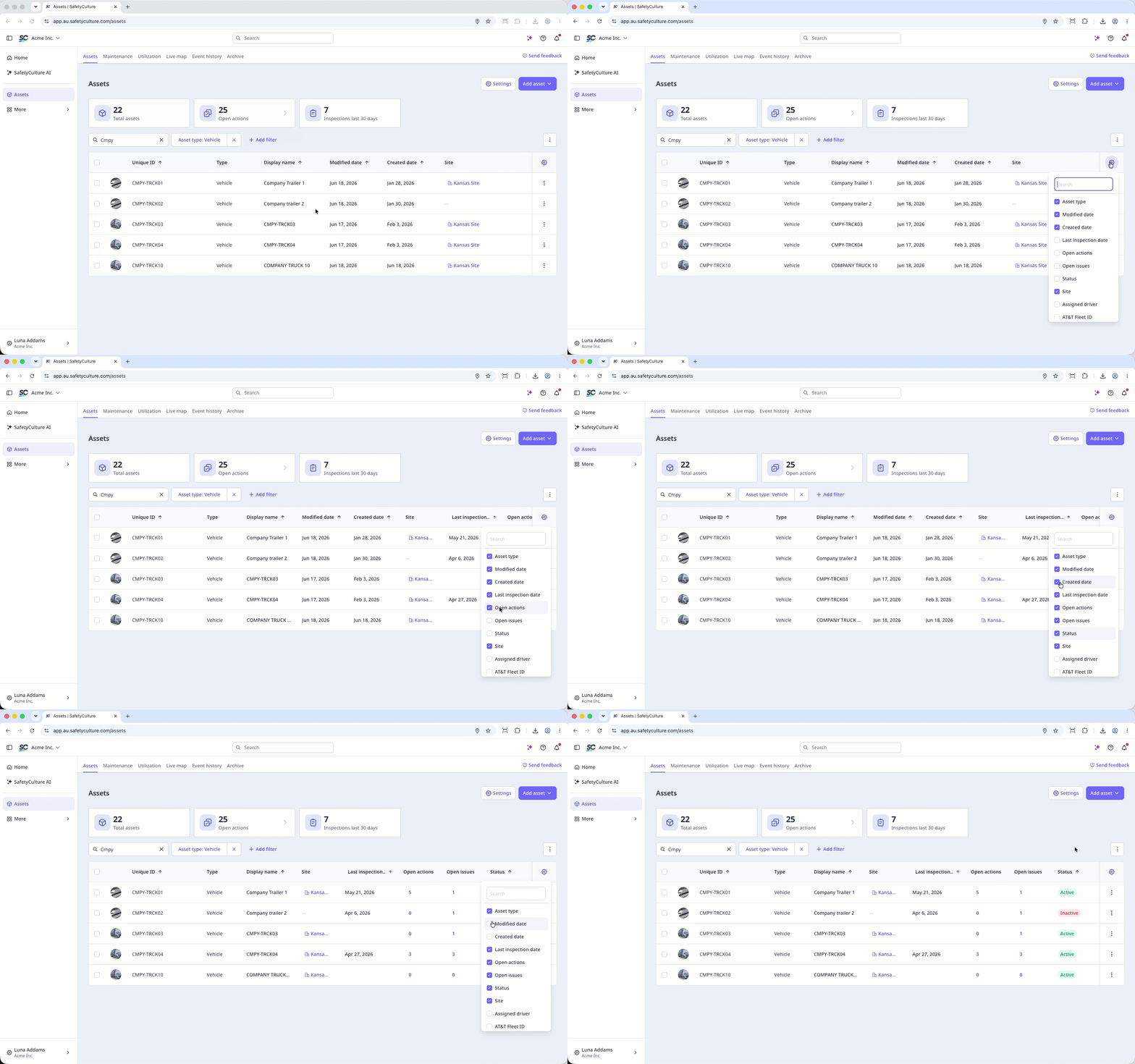
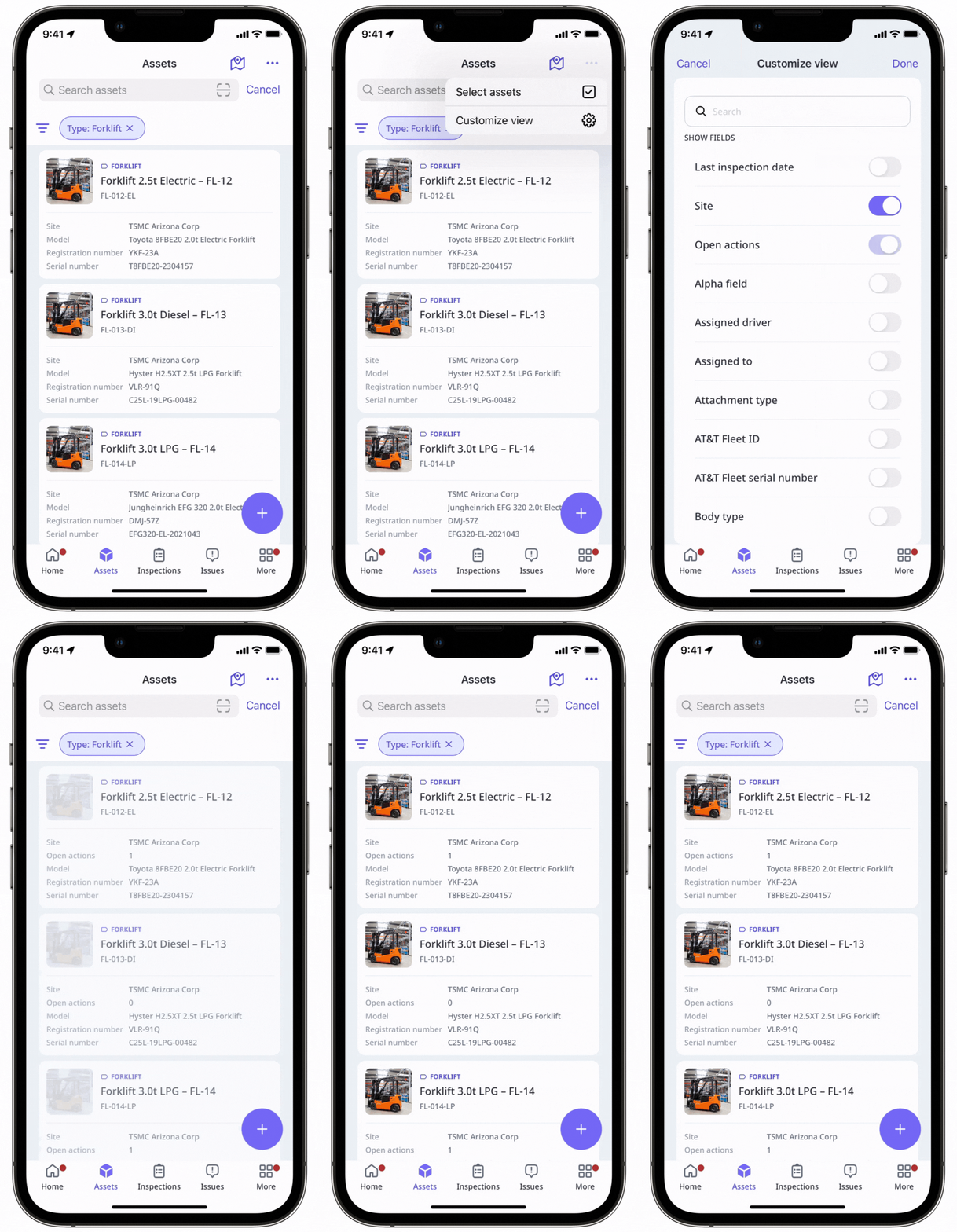
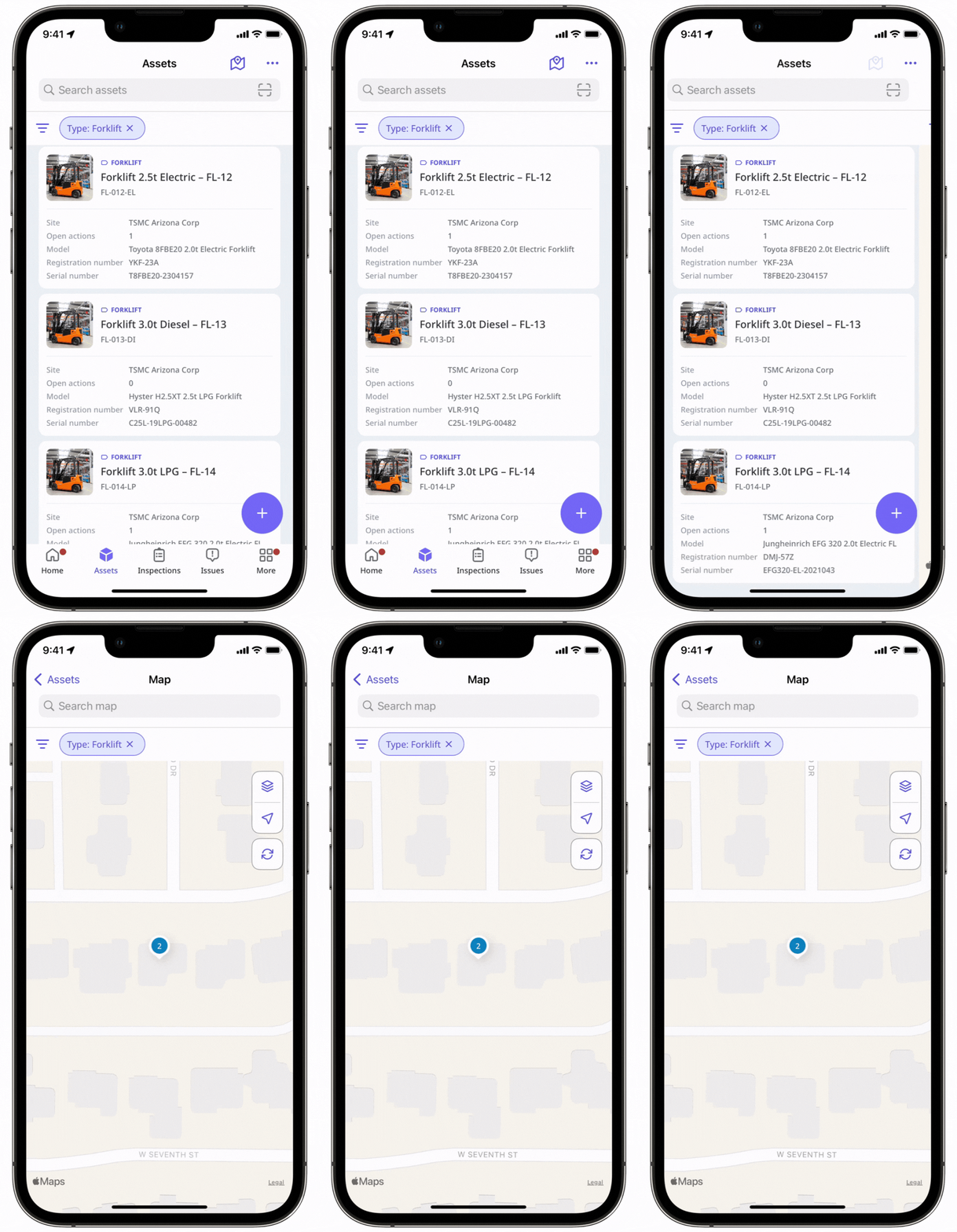
From the web app, you can customize the asset list to display up to seven fields, ensuring that only the information you need is shown. From the mobile app, you can view your assets either in a list or on a map. You can also show five relevant fields on the list and filter your assets accordingly.
Depending on asset access settings, the assets you can view and manage may vary based on your site membership.
Customize your asset list
Select Assets in the sidebar or in More.
Click and check up to seven detail fields to display or hide on the asset list.
Open the mobile app.
Tap More at the lower-right corner of your screen.
Select Assets from the list of options.
Click to filter your assets by site, type, and open actions.
Tap at the upper-right corner of the screen.
Click Customize view and select up to five detail fields to show on the asset list, then tap Apply.
Select to view all your assets on a map.
Need more help?
Was this page helpful?
