Last updated: November 19, 2024
Why add templates to actions?
Creating an action allows you to identify and track tasks as a team. Typically, an inspection is needed to conduct a more detailed observation before completing a task. By adding templates to action types, your team can have readily available templates to streamline task completion and ensure that details are captured accurately.
By default, organizations can't add templates to actions or start inspections directly from an action unless they turn on the option to link templates to an action type.
If you have "Actions: Settings" permission, you can turn on the option to link templates to an action type. This allows your team to add a template and start an inspection directly from an action.
What you'll need
You can add up to 25 templates to an action, one at a time.
Add a template to an action
Select Actions in the sidebar or in More.
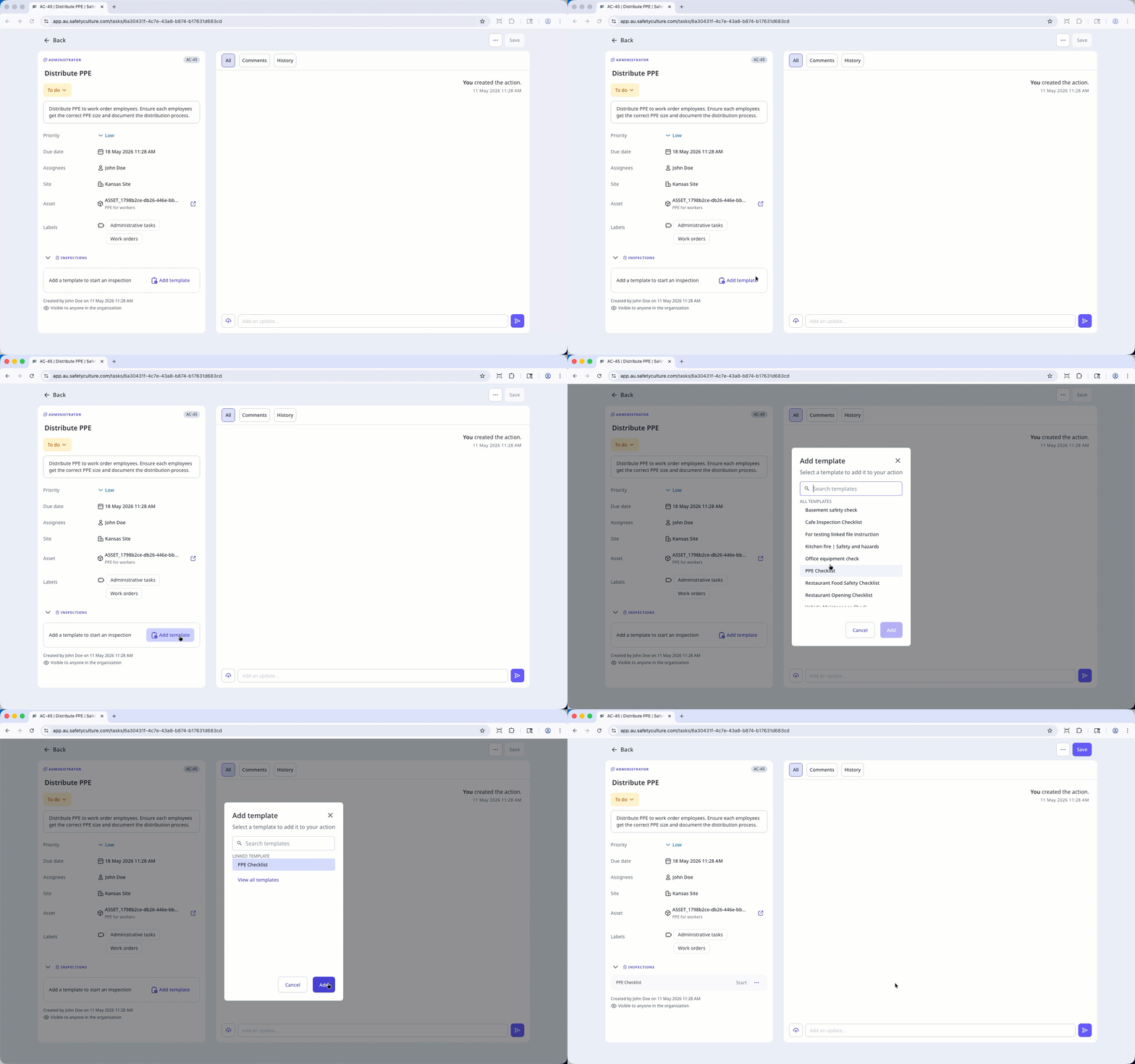
In the Inspections sections, click Add template. If there are templates already, click .
In the pop-up window, select the template and click Add.
To preview or remove the template, click and select Preview or Remove.
Click Create if you are adding a template to a new action, or Save if you are adding a template to an existing action.
Open the mobile app.
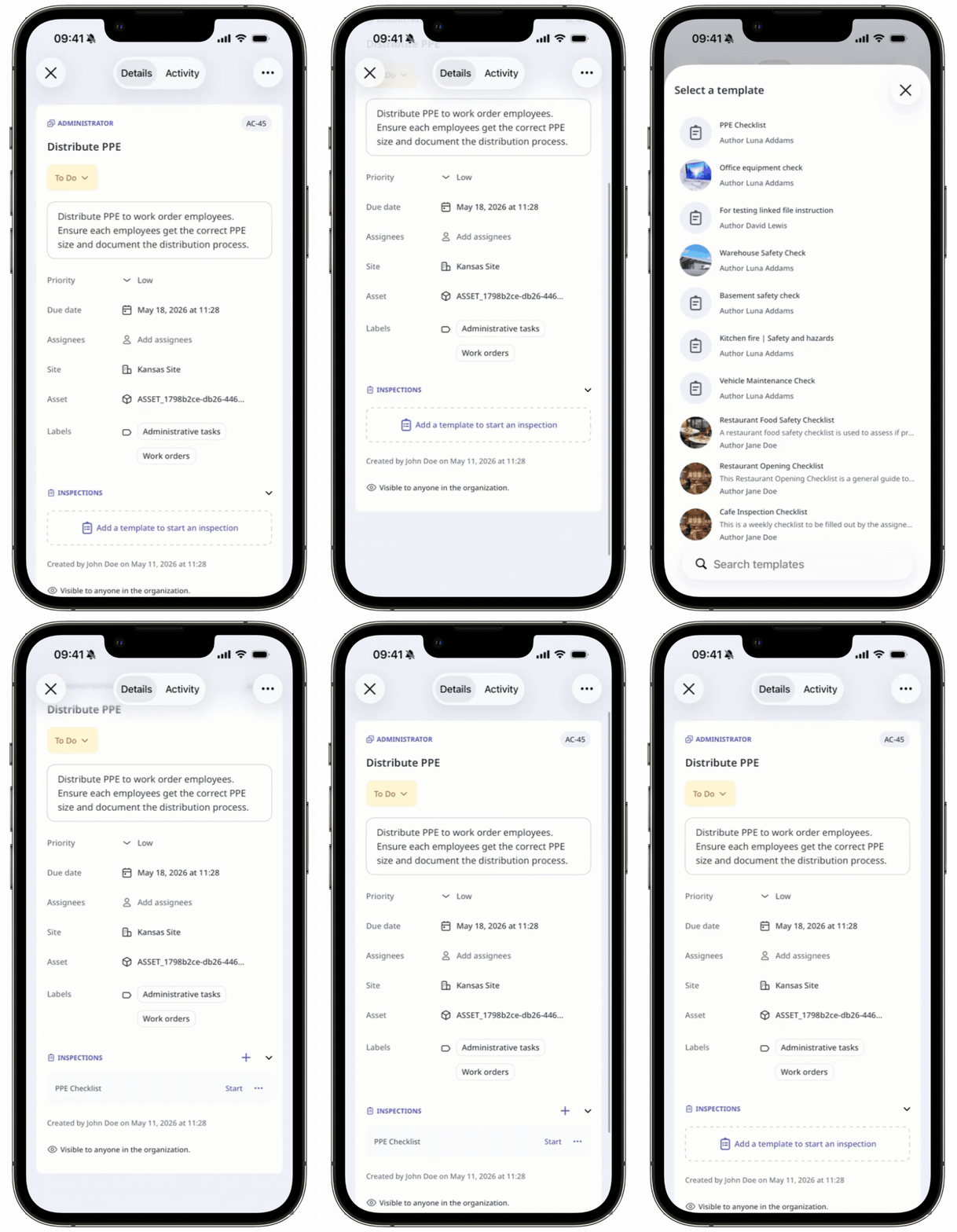
Tap Actions in the navigation bar or select it from More.
In the Inspections sections, click Add template. If there are templates already, click .
To remove the template, tap on the right side of the template and tap Remove.
Select the template.
To add more templates, tap at the corner of the section and select the template.
Tap Create at the upper-right of your screen.
Tap at the upper-left of your screen.
Frequently asked questions
Need more help?
Was this page helpful?
