Last updated: September 18, 2026
What are membership rules in groups?
Membership rules define the conditions for automatically adding users to a group. These conditions are based on custom user fields, like role, location, or manager. When a user’s details match the rule criteria, they’ll be added or removed from the group automatically, helping you keep group membership up to date without the need for manual changes.
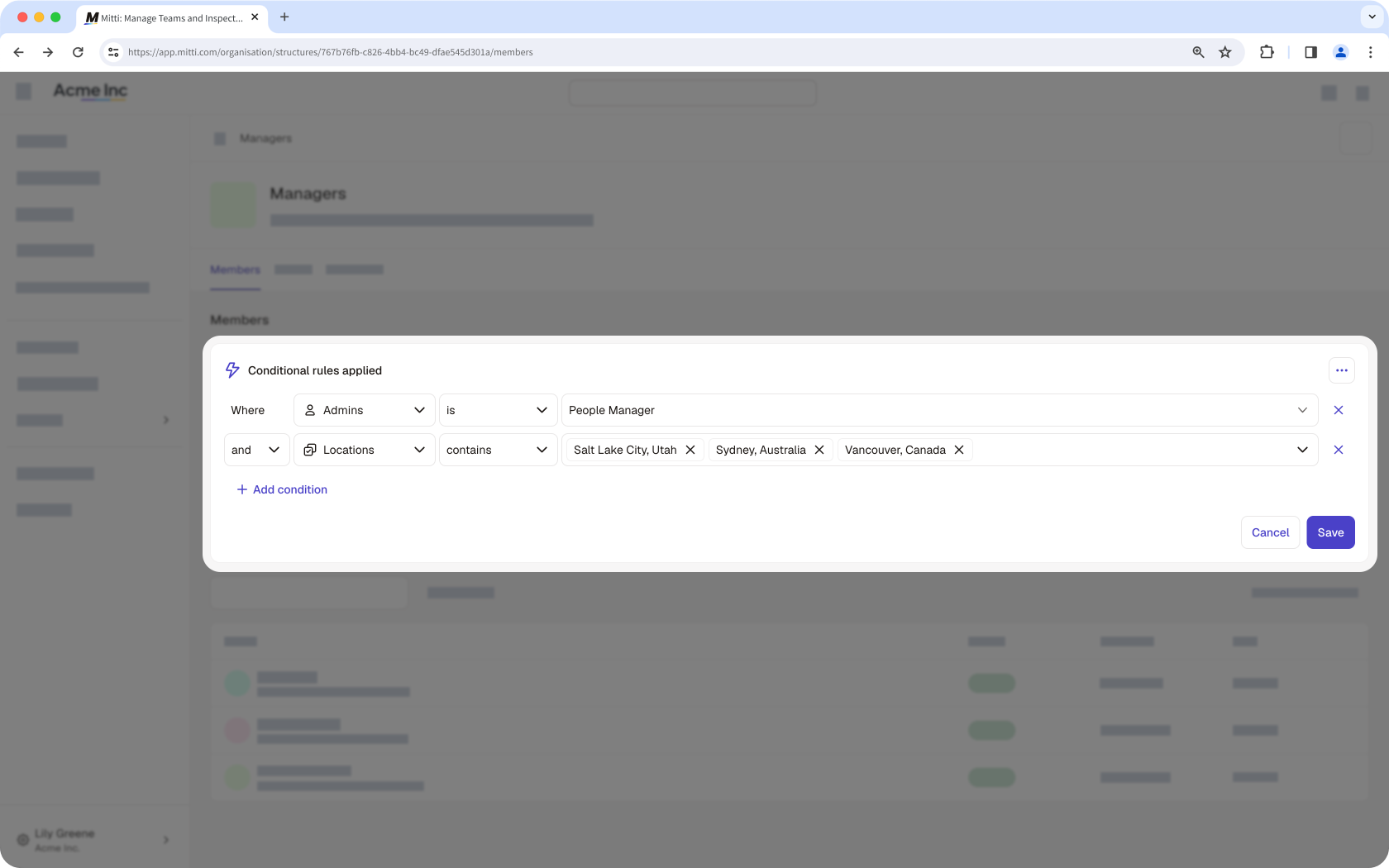
For example, you want to add your team members who work on the morning shift and on weekends to the maintenance team. Rather than manually adding them one by one, rule-based membership automatically detects members that meet the required user fields and adds them instantly. With this, you're able to save time and reduce admin work.
What you'll need
You can only have up to 15,000 users in a group with membership rules.
Create membership rules in a group
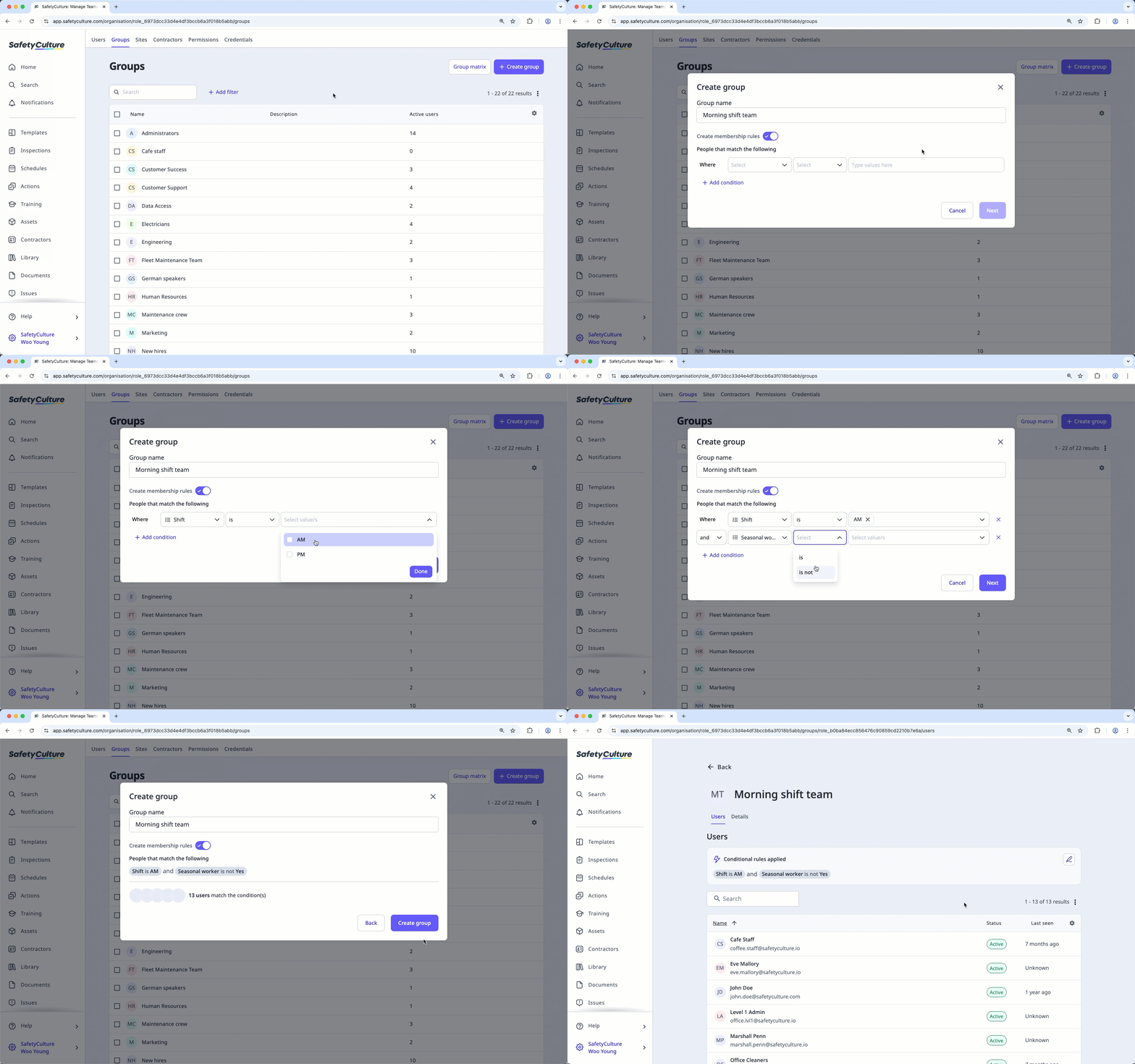
Click your organization name on the lower-left corner of the page and select Groups.
Click Create group on the upper-right corner of the page.
In the pop-up window, toggle "Create rules for easier group membership" on.
Enter the group name and set up rules. You can only have up to 5 rules per group.
Click Next.
A summary of users who match the rules will be displayed. Click Create group.
Edit membership rules in a group
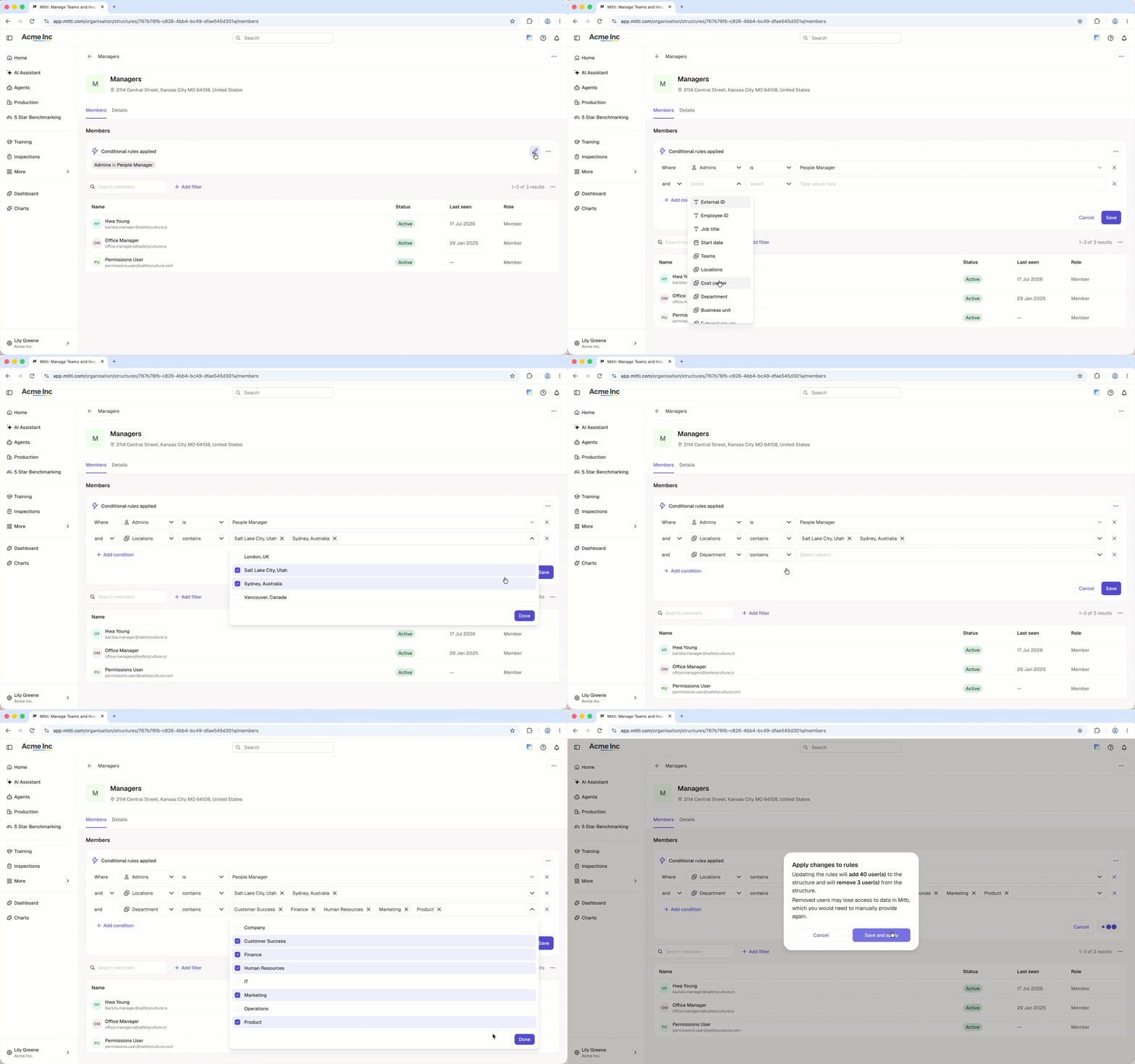
Click your organization name on the lower-left corner of the page and select Groups.
Click the group with membership rules you want to edit.
In the Members tab, click to add, edit, or delete rules.
Frequently asked questions
Need more help?
Was this page helpful?
