Last updated: August 10, 2026
What does it mean to manage navigation for your organization?
Managing navigation allows you to organize and customize the main menu across your organization’s workspace to prioritize the tools your team uses most. You can manage this experience in two ways:
Organization-managed: You set a default navigation for the whole organization, and can create additional layouts tailored to specific roles.
Personalized: Users customize their own navigation individually. You can still set a default layout for anyone who hasn't customized their own yet.
Your team can find what they need in seconds without being overwhelmed by features they don’t use. Whether you’re standardizing the interface for field workers to highlight "Inspections" and "Issues" or empowering individuals to tailor their own view, streamlined navigation ensures that the platform supports your team's daily workflows.
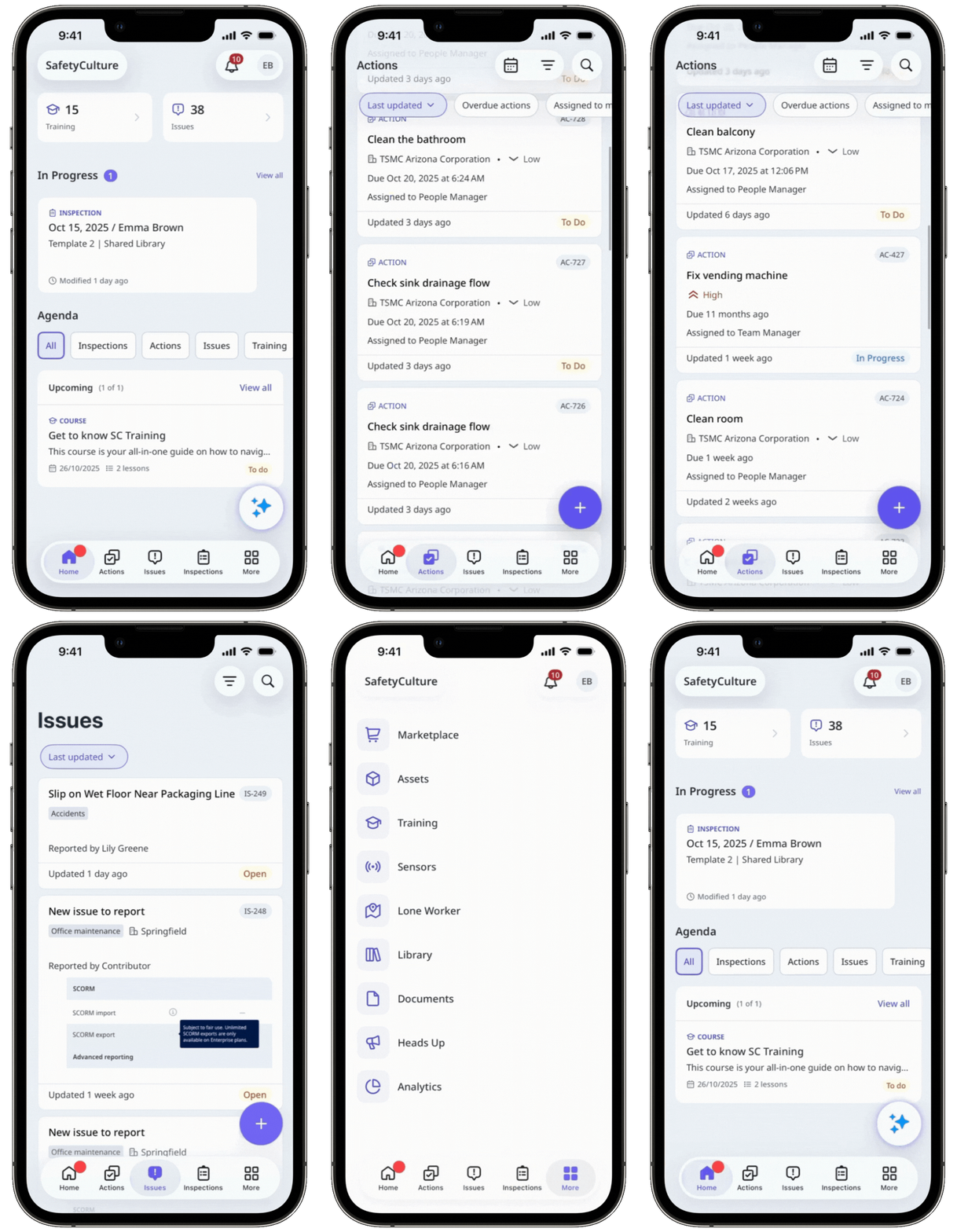
To keep your own sidebar focused on the features you use most, customize your own navigation.
What you'll need
Set the navigation setting
Click your organization name on the lower-left corner of the page and select Organization settings.
Scroll to the "Navigation" section, and click Edit.
Select your preferred navigation setting:
Organization-managed: Enforce the default navigation and any role-specific layouts for everyone. Requires Enterprise Plan.
Personalized: Allow users to customize their own navigation on top of the default.
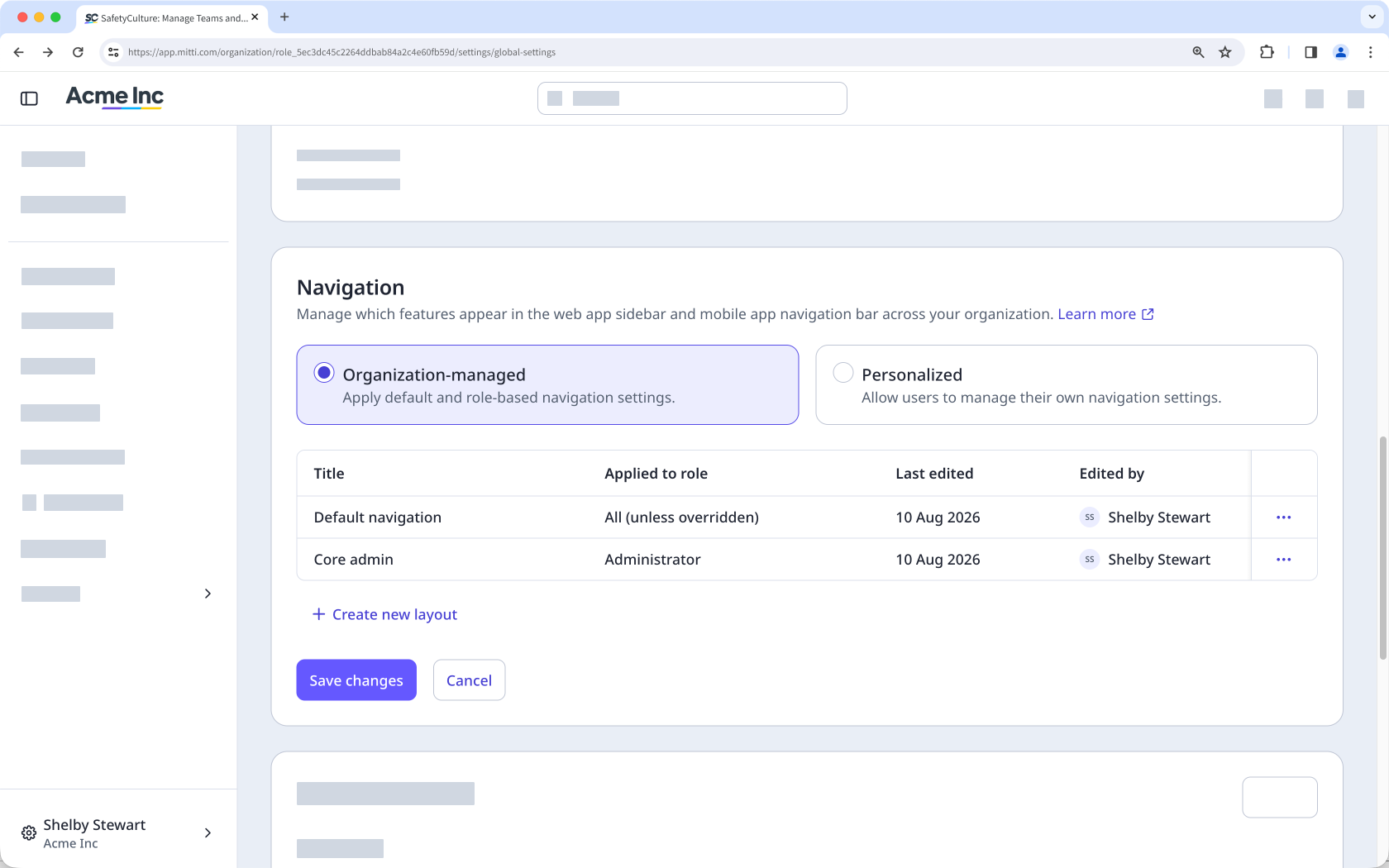
Click Save changes on the lower-left of the “Navigation” section.
In the pop-up window, click Save and apply.
Edit the default navigation
The default applies to everyone under "Organization-managed", unless a role-specific layout overrides it, or to anyone who hasn't customized their own navigation under "Personalized".
Click your organization name on the lower-left corner of the page and select Organization settings.
Scroll to the "Navigation" section, and click Edit.
Select "Organization-managed" or "Personalized," depending on how your organization manages navigation.
Select and edit the default navigation:
Check the features you want to display on the web app’s sidebar and the mobile app’s navigation bar, and uncheck those you’d like to keep under More.
Click and hold on the left-hand side of the features to sort them.
Click or to show or hide the features from More.
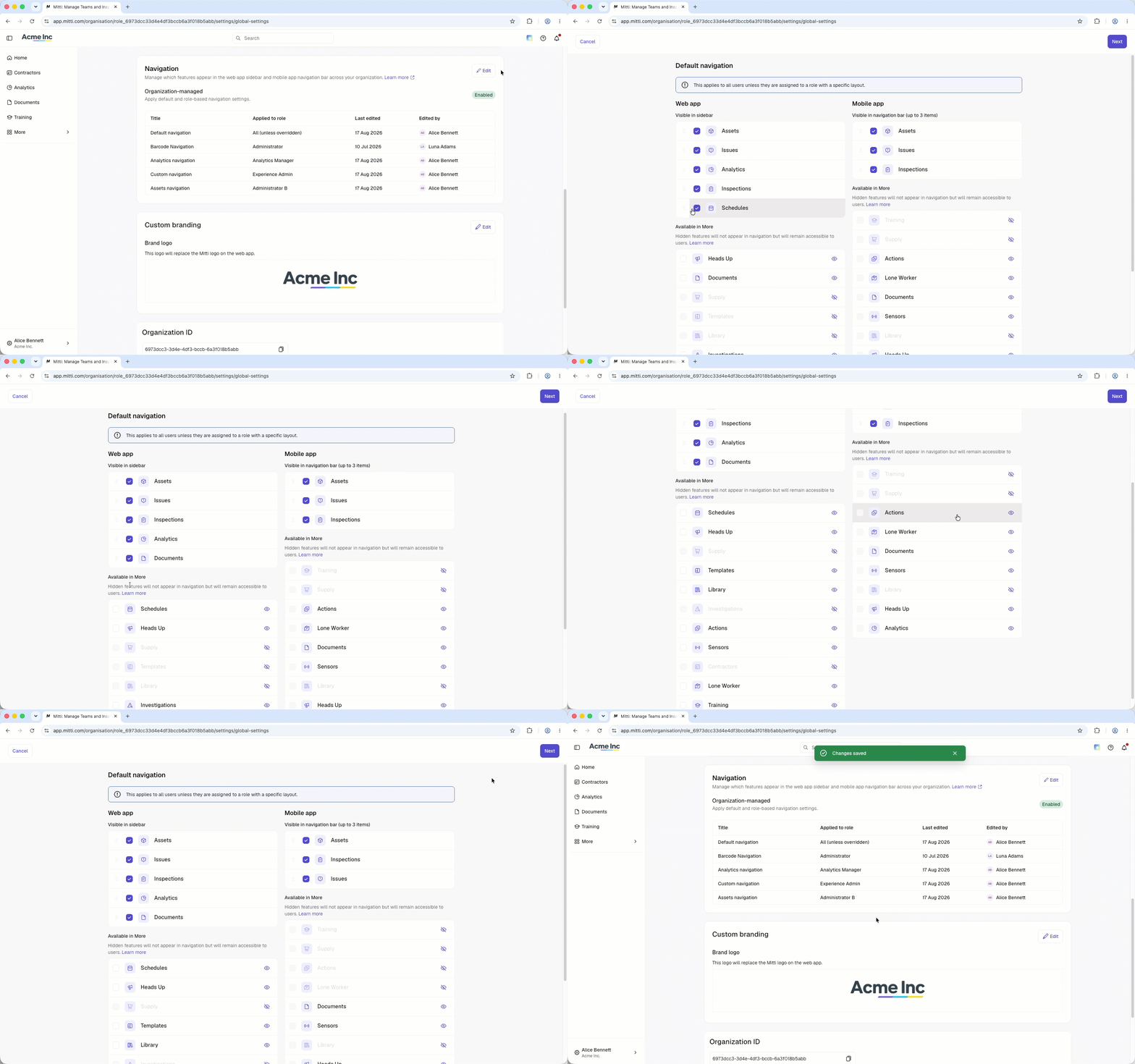
Click Next on the upper-right corder of the page.
Click Save changes on the lower-left of the “Navigation” section.
In the pop-up window, click Save and apply.
You can create additional layouts for specific roles, and display or hide specific features for any of the layouts.
For mobile app users, navigation changes will appear only after fully closing and reopening the app a few times.
Frequently asked questions
Need more help?
Was this page helpful?
