Last updated: September 7, 2026
Unlink a file from a Heads Up
You can only unlink files from a Heads Up while it's still an unpublished draft. When a Heads Up is published, you can't unlink files from it, so you'll need to delete the Heads Up instead.
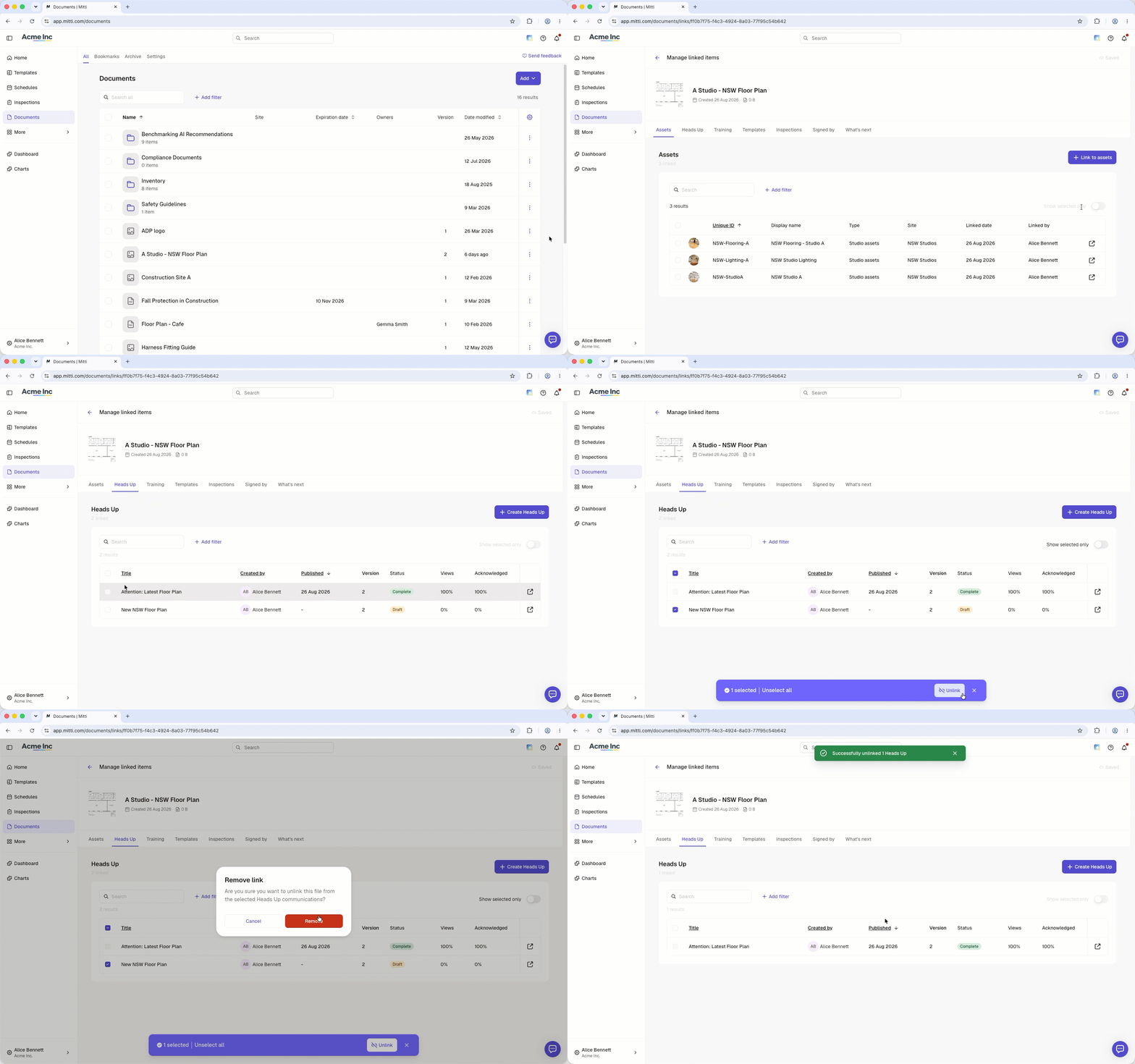
Select Documents in the sidebar or in More.
Click on the file's right-hand side and select Manage linked items.
Select Heads Up at the top of the page.
Check the box on the Heads Up's left-hand side.
Click Unlink at the bottom of the page.
In the pop-up window, click Remove.
You can only unlink files from a Heads Up while it's still an unpublished draft. When a Heads Up is published, you can't unlink files from it, so you'll need to delete the Heads Up instead.
Need more help?
Was this page helpful?
