Last updated: October 28, 2026
This article covers the new Supply experience, which is only available to organizations in Australia. If your organization is outside Australia, you're on the legacy version for now.
What are the differences between payment methods in Supply?
Mitti Supply has three types of payment methods: organization, buying group, and personal. Each type differs in who can add it and who can use it.
Organization: An organization payment method is for the entire organization and can be shared with buying groups, so several groups can pay with the same payment method. Only Supply admins can add an organization payment method.
Buying group: A buying group payment method belongs to one buying group, and its members can use it at checkout. You can also share a buying group payment method with other buying groups, and their members can then use it too. Supply admins and users assigned as group managers can add a buying group payment method.
Personal: A personal payment method is for your own use. Only the person who added it can use it to pay for their own orders.
At checkout, you can select your personal payment method or a payment method available to a buying group you belong to. Adding the right type means each payment method is available only to the people who should use it at checkout.
Add an organization payment method
Click Supply in the sidebar or in More.
Click Manage at the top of the page.
Click Manage next to your organization.
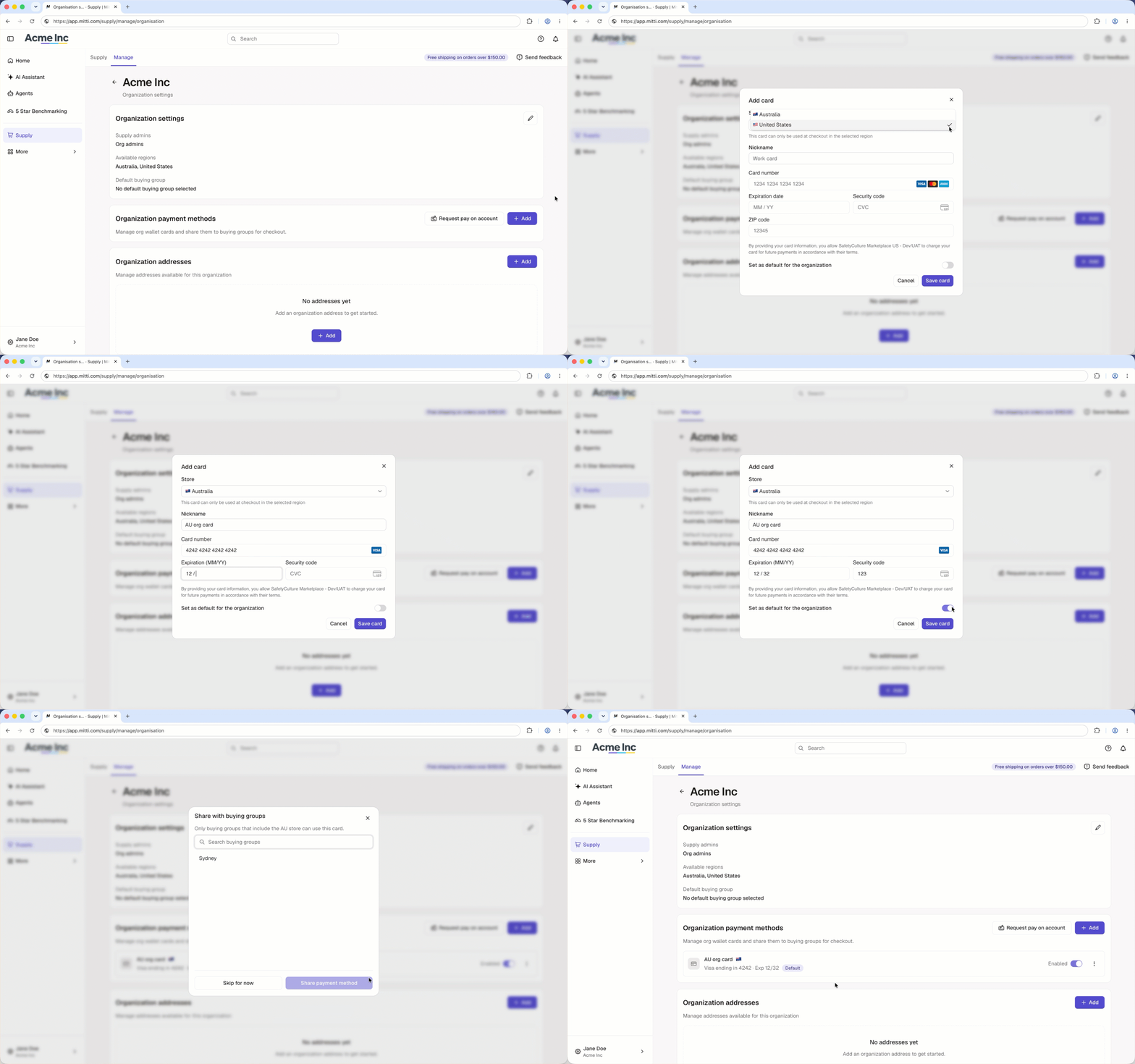
In the "Organization payment methods" section, click Add.
In the pop-up window, enter or select the following details:
Store: Click the dropdown menu and select the group region. The card can only be used at checkout in the selected region.
Nickname: Enter a name for the card.
Card number: Enter the card number.
Expiration date: Enter the expiration date in MM/YY format.
Security code: Enter the security code.
Zip code: If you selected the United States as the region, enter the ZIP code.
To make the card the default payment method for the organization, turn "Set as default for the organization" on.
Click Save card.
In the pop-up window, select the buying groups you want to share the payment method with and click Share. If you don't want to share the payment method with a buying group, click Skip for now instead.
Only buying groups that include the payment method's region can use it.
Open the mobile app.
Tap Supply from the navigation bar or in More.
Tap Manage at the upper-left of your screen.
Tap Manage next to your organization.
In the "Organization payment methods" section, tap .
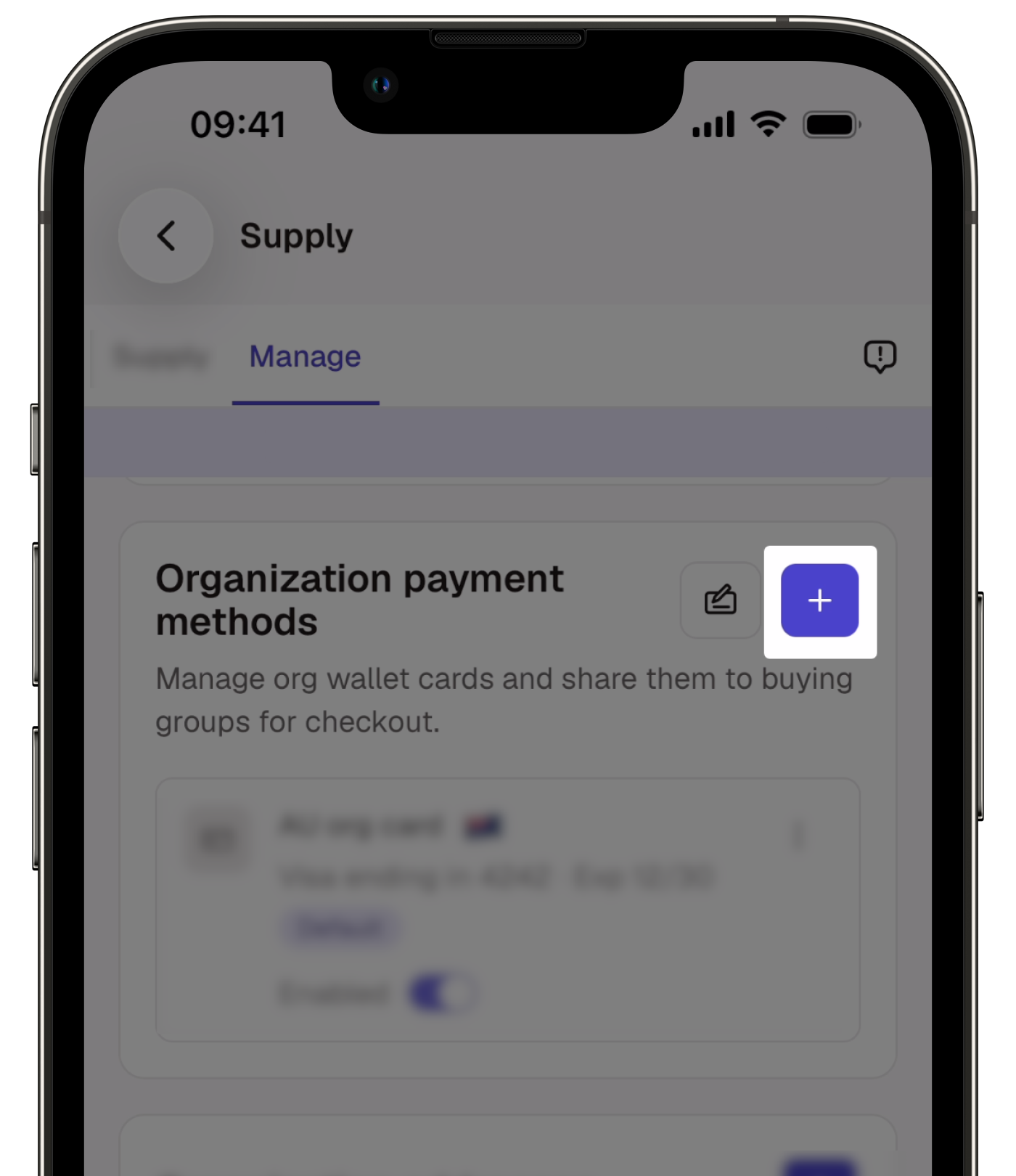
In the pop-up window, enter or select the following details:
Store: Tap the dropdown menu and select the group region. The card can only be used at checkout in the selected region.
Nickname: Enter a name for the card.
Card number: Enter the card number.
Expiration date: Enter the expiration date in MM/YY format.
Security code: Enter the security code.
Zip code: If you selected the United States as the region, enter the ZIP code.
To make the card the default payment method for the organization, turn "Set as default for the organization" on.
Tap Save card.
In the pop-up window, select the buying groups you want to share the payment method with and tap Share. If you don't want to share the payment method with a buying group, tap Skip for now instead.
Only buying groups that include the payment method's region can use it.
Delete an organization payment method
Deleting is irreversible, and we cannot restore permanently deleted items. Confirmation is always required before any deletion, so be sure you're not accidentally deleting the wrong item.
Click Supply in the sidebar or in More.
Click Manage at the top of the page.
Click Manage next to your organization.
In the "Organization payment methods" section, tap on the right of the payment method you want to delete and select Delete.
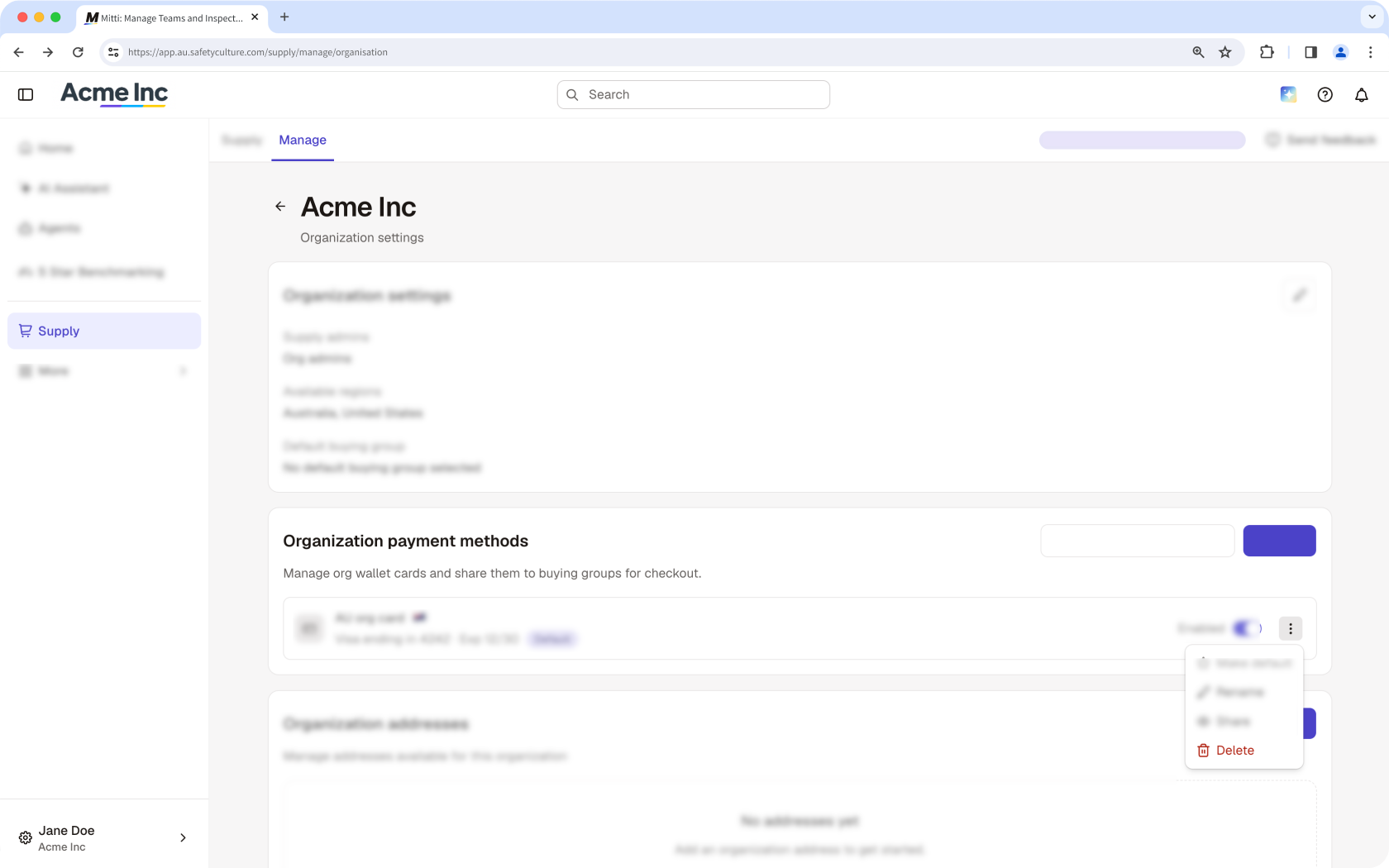
In the pop-up window, click Delete.
Deleting is irreversible, and we cannot restore permanently deleted items. Confirmation is always required before any deletion, so be sure you're not accidentally deleting the wrong item.
Open the mobile app.
Tap Supply from the navigation bar or in More.
Tap Manage at the upper-left of your screen.
Tap Manage next your organization.
In the "Organization payment methods" section, tap next to the payment method you want to delete and select Delete.
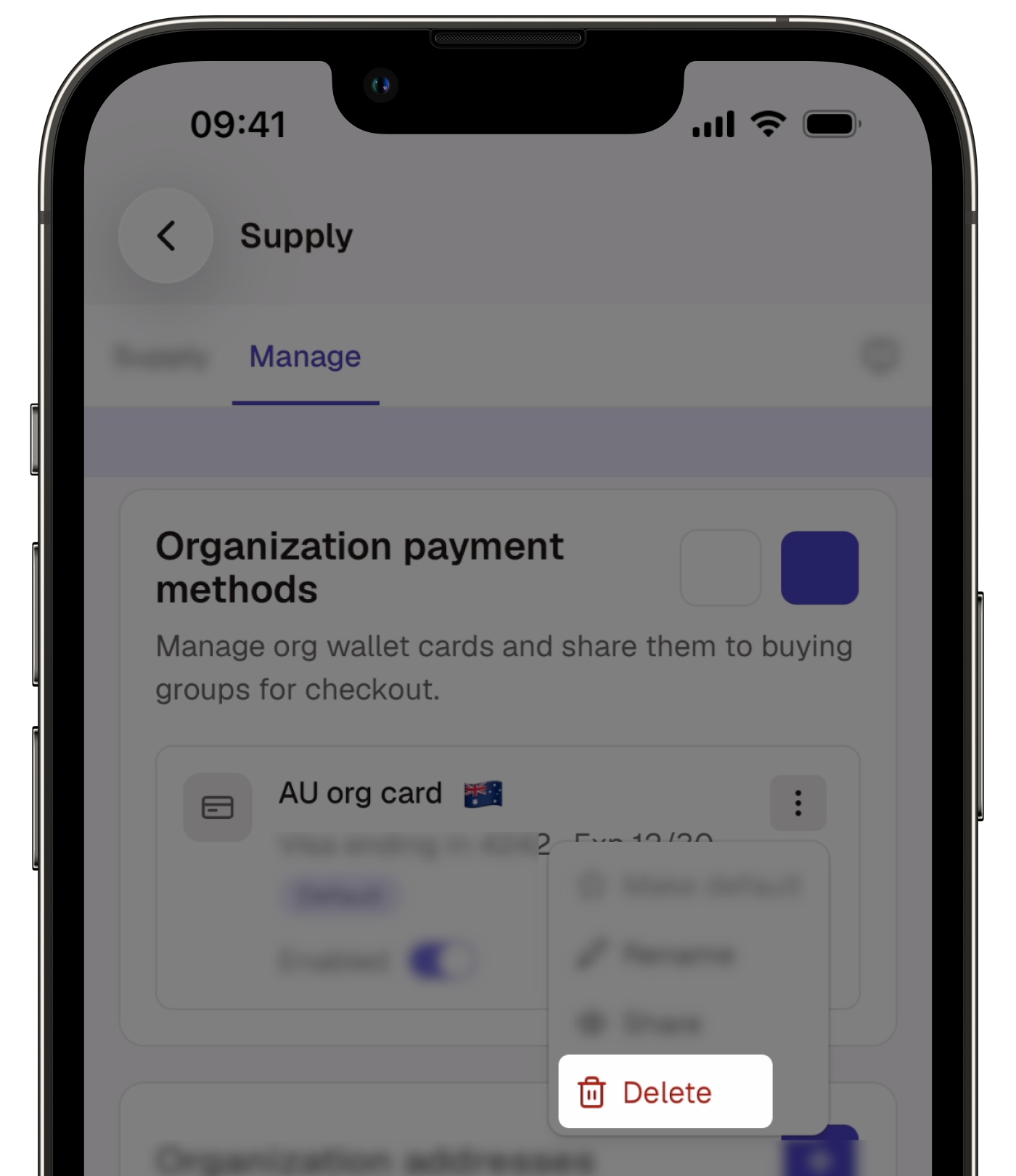
In the pop-up window, tap Delete.
Add a buying group payment method
Click Supply in the sidebar or in More.
Click Manage at the top of the page.
In the "Buying Groups" section, click Manage next to the buying group.
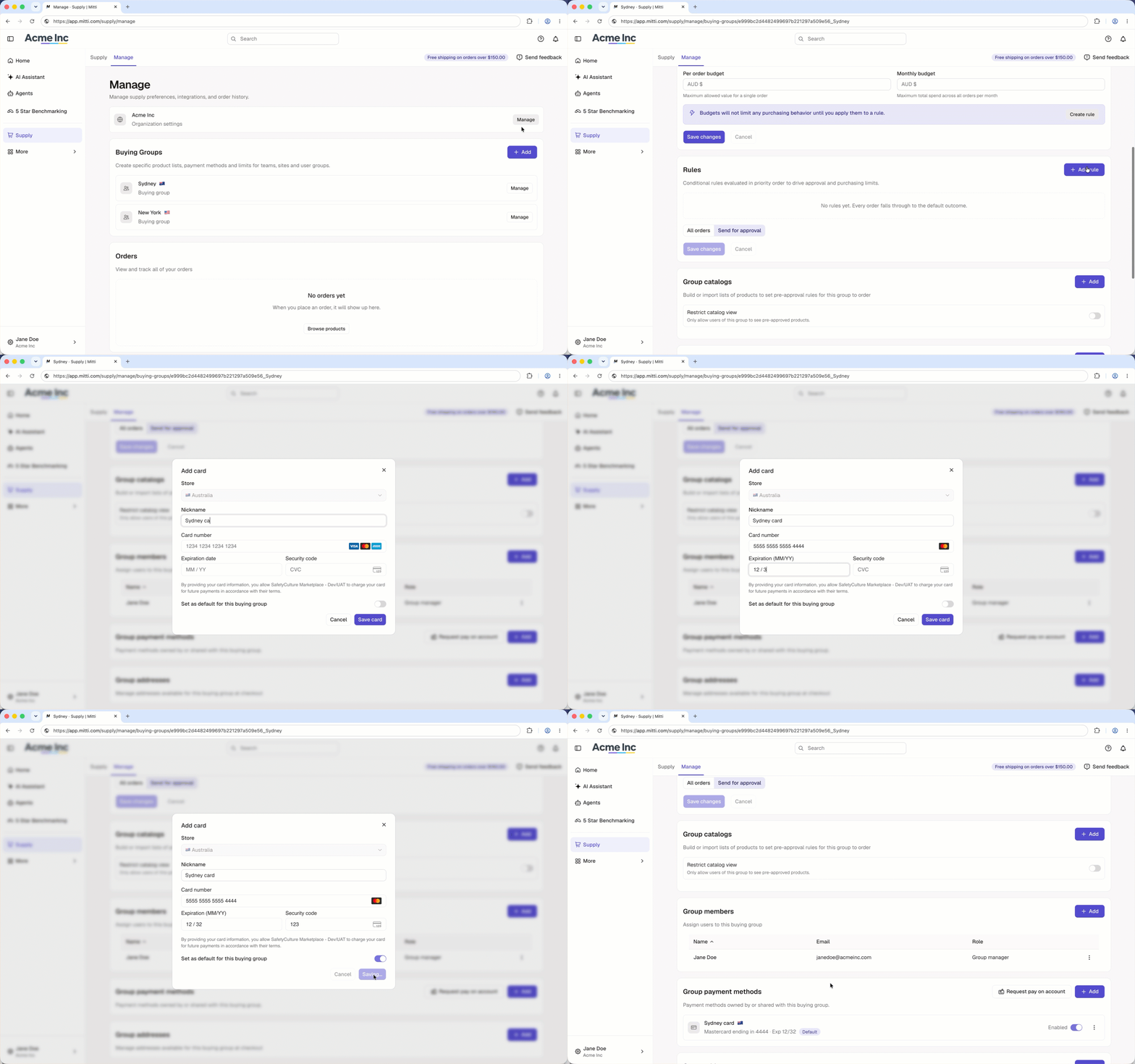
In the "Group payment methods" section, click Add.
In the pop-up window, enter or select the following details:
Nickname: Enter a name for the card.
Card number: Enter the card number.
Expiration date: Enter the expiration date in MM/YY format.
Security code: Enter the security code.
Zip code: If your group region is the United States, enter the ZIP code.
To make the card the default payment method for the buying group, turn "Set as default for this buying group" on.
Click Save card.
In the pop-up window, select the buying groups you want to share the payment method with and click Share. If you don't want to share the payment method with a buying group, click Skip for now instead.
Open the mobile app.
Tap Supply from the navigation bar or in More.
Tap Manage at the upper-left of your screen.
In the "Buying Groups" section, tap Manage next to the buying group.
In the "Group payment methods" section, tap .
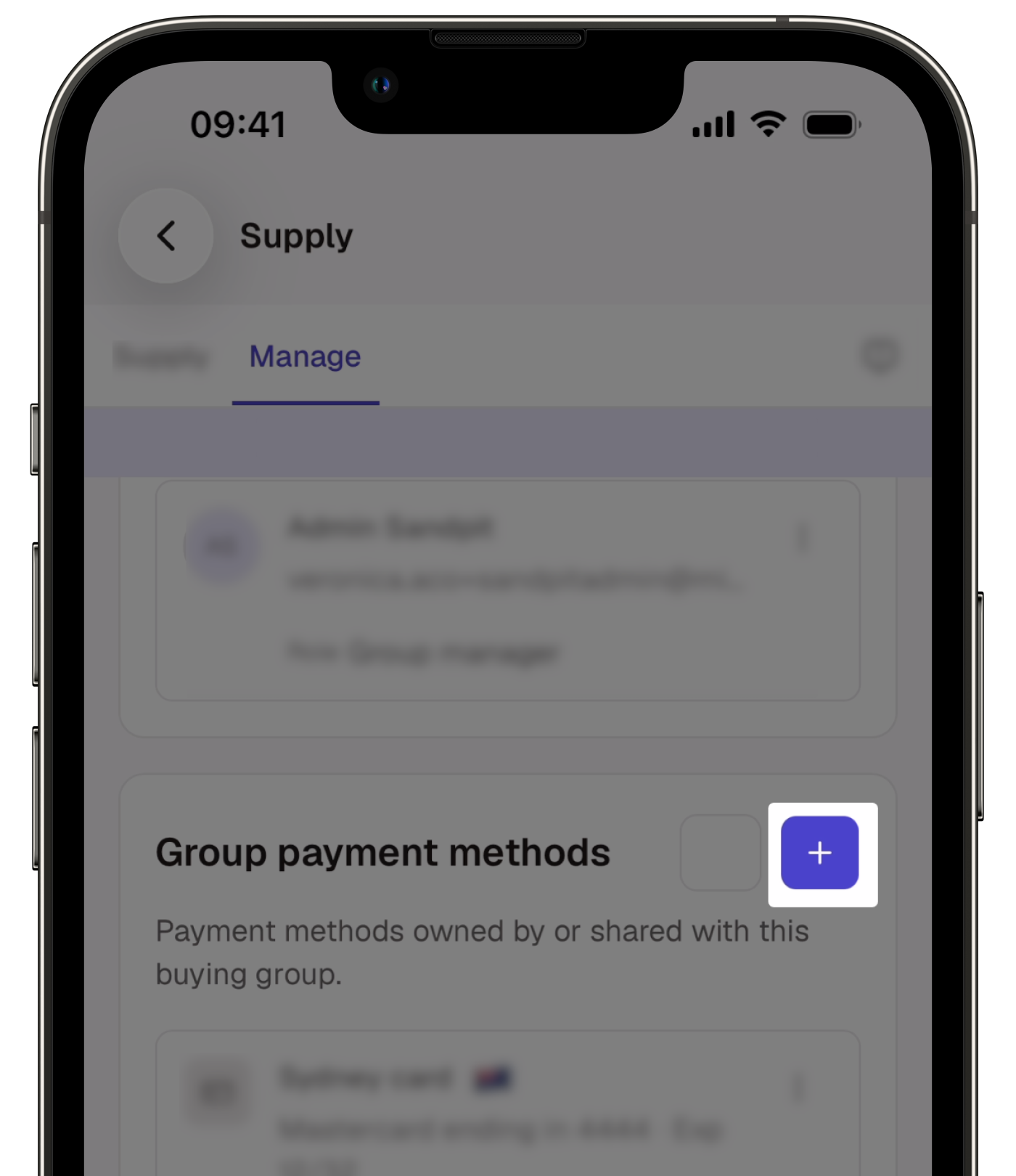
In the pop-up window, enter the following details:
Nickname: Enter a name for the card.
Card number: Enter the card number.
Expiration date: Enter the expiration date in MM/YY format.
Security code: Enter the security code.
Zip code: If the buying group region is the United States, enter the ZIP code.
To make the card the default payment method for the buying group, turn "Set as default for this buying group" on.
Tap Save card.
In the pop-up window, select the buying groups you want to share the payment method with and tap Share. If you don't want to share the payment method with a buying group, tap Skip for now instead.
Delete a buying group payment method
Deleting is irreversible, and we cannot restore permanently deleted items. Confirmation is always required before any deletion, so be sure you're not accidentally deleting the wrong item.
Click Supply in the sidebar or in More.
Click Manage at the top of the page.
In the "Buying Groups" section, click Manage next to the buying group.
In the "Group payment methods" section, click next to the payment method you want to delete and select Delete.
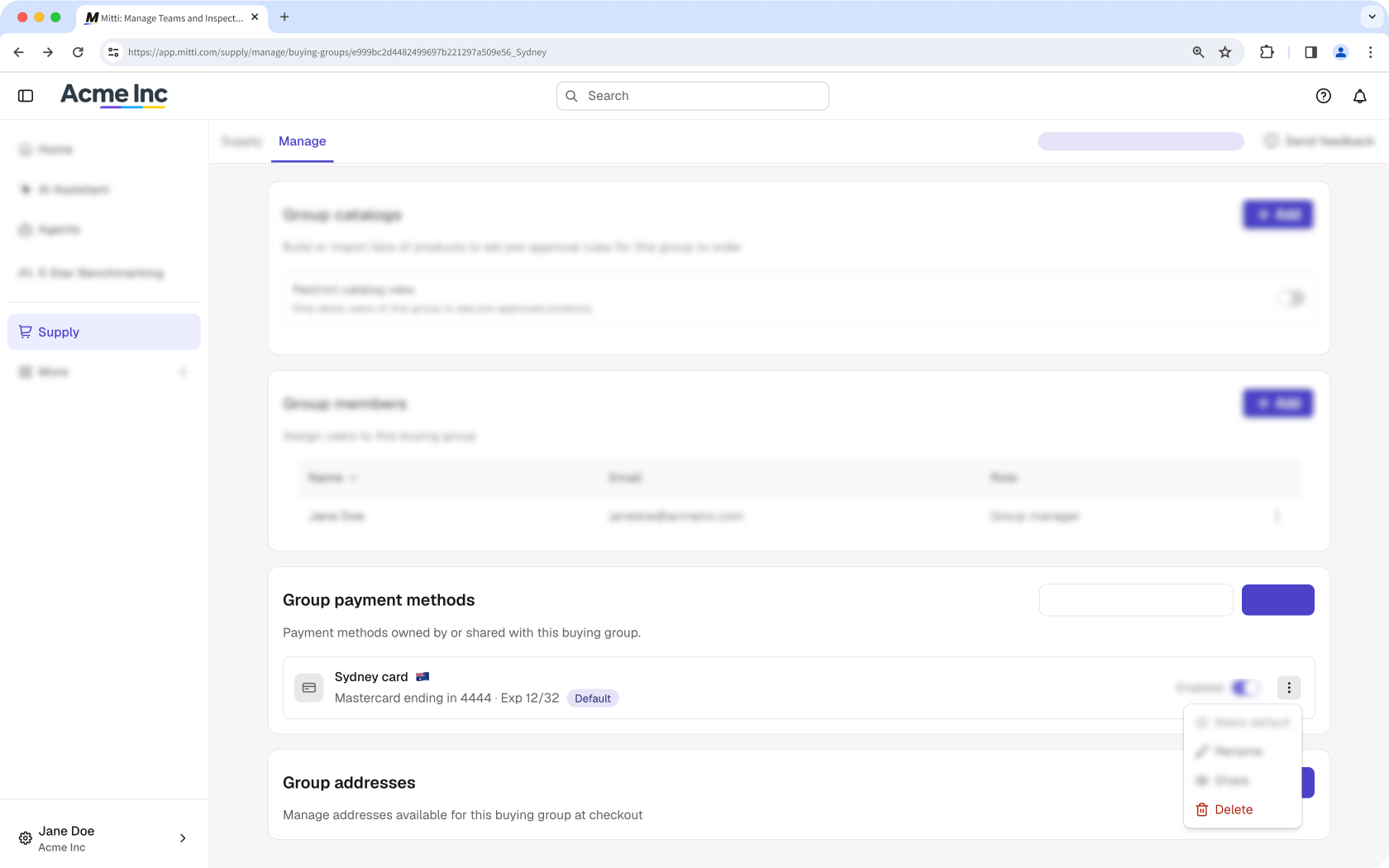
In the pop-up window, click Delete.
Deleting is irreversible, and we cannot restore permanently deleted items. Confirmation is always required before any deletion, so be sure you're not accidentally deleting the wrong item.
Open the mobile app.
Tap Supply from the navigation bar or in More.
Tap Manage at the upper-left of your screen.
In the "Buying Groups" section, tap Manage on the right of the buying group.
In the "Group payment methods" section, tap on the right of the payment method you want to delete and select Delete.
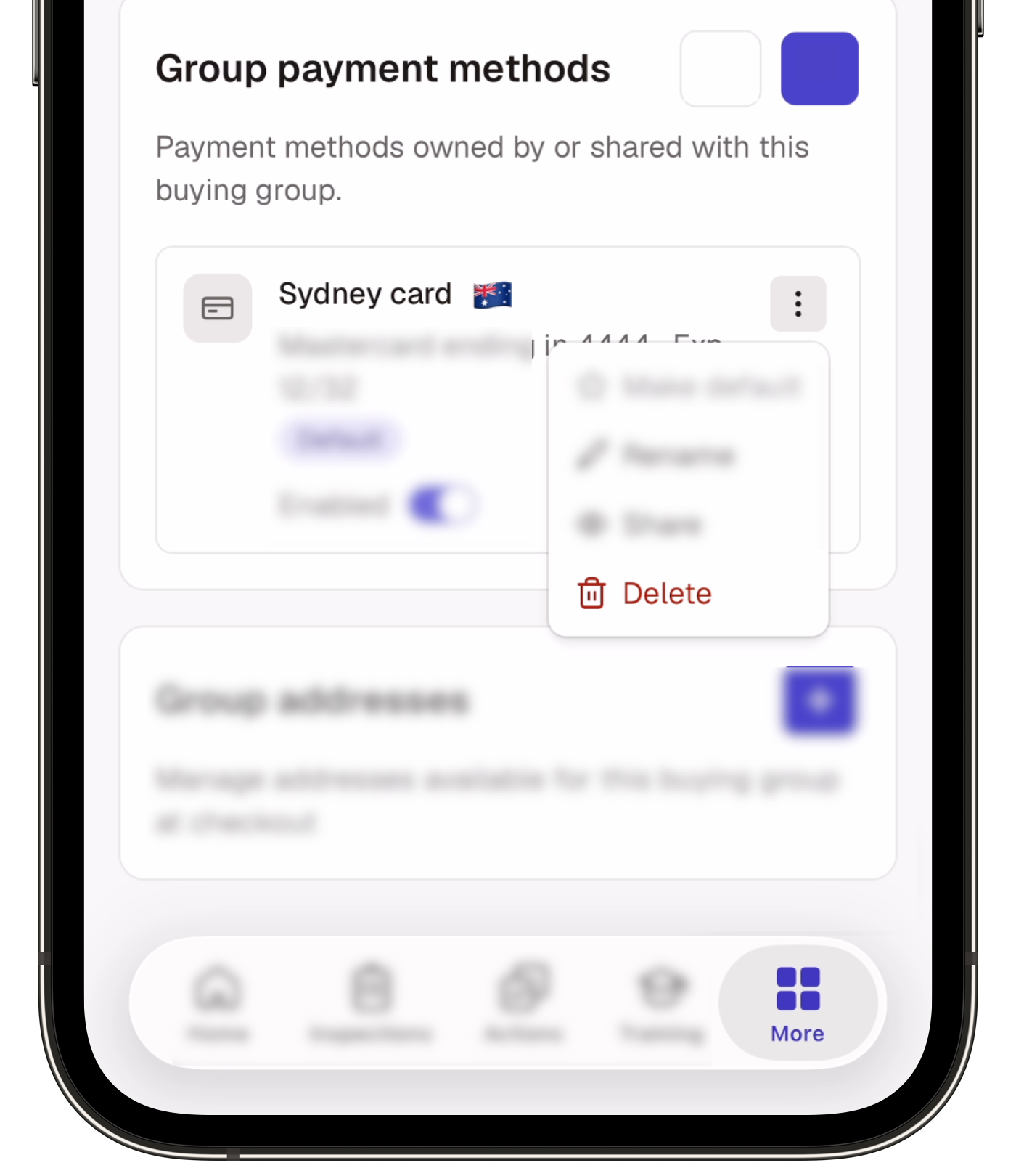
In the pop-up window, tap Delete.
Add a personal payment method
Click Supply in the sidebar or in More.
Click Manage at the top of the page.
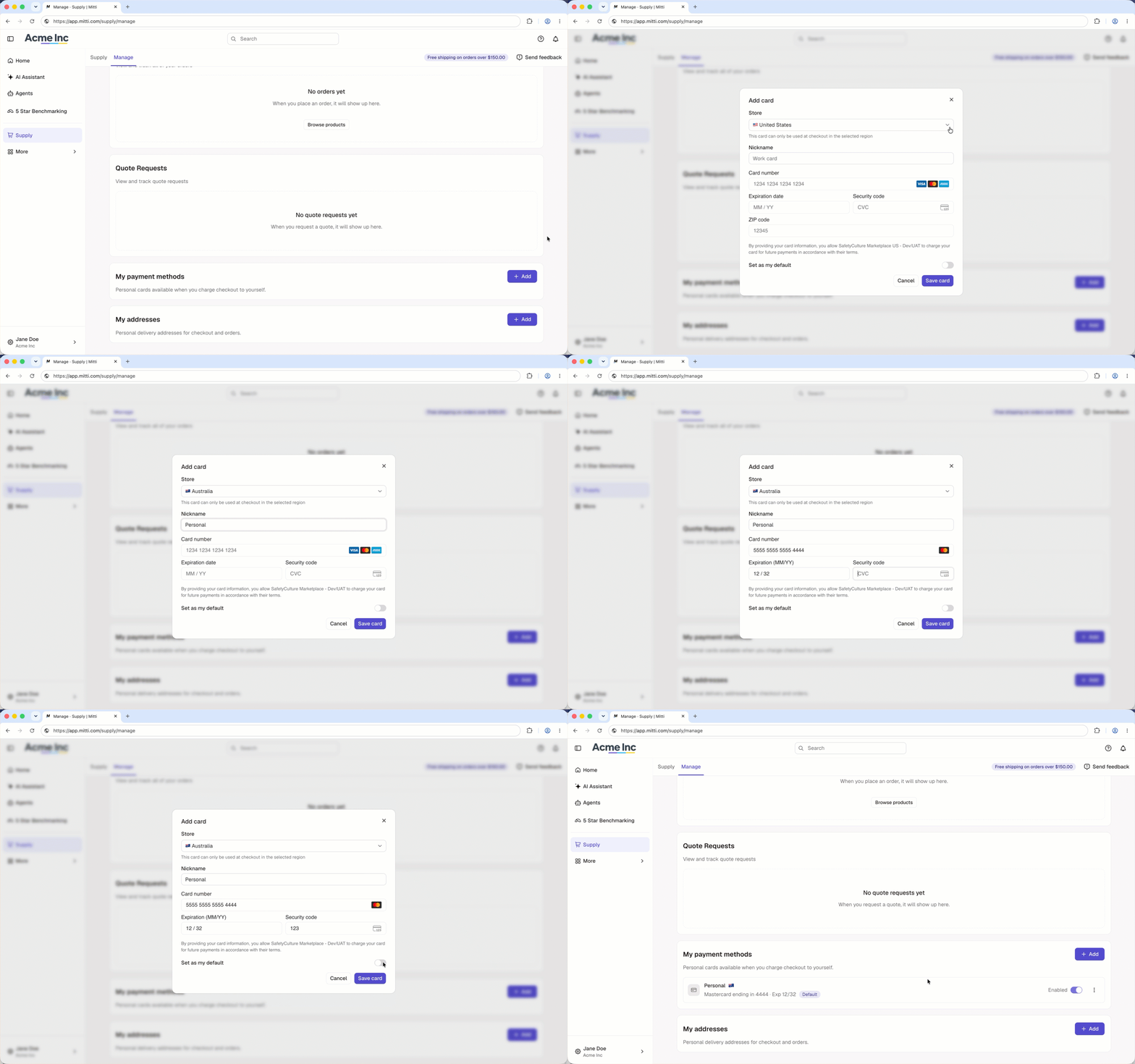
In "My payment methods" section, click Add.
In the pop-up window, enter or select the following details:
Store: Click the dropdown menu and select the region. The card can only be used at checkout in the selected region.
Nickname: Enter a name for the card.
Card number: Enter the card number.
Expiration date: Enter the expiration date in MM/YY format.
Security code: Enter the security code.
Zip code: If you selected the United States as the region, enter the ZIP code.
To make the card your default payment method, turn "Set as my default" on.
Click Save card.
Open the mobile app.
Tap Supply from the navigation bar or in More.
Tap Manage at the upper-left of your screen.
In the "My payment methods" section, tap .
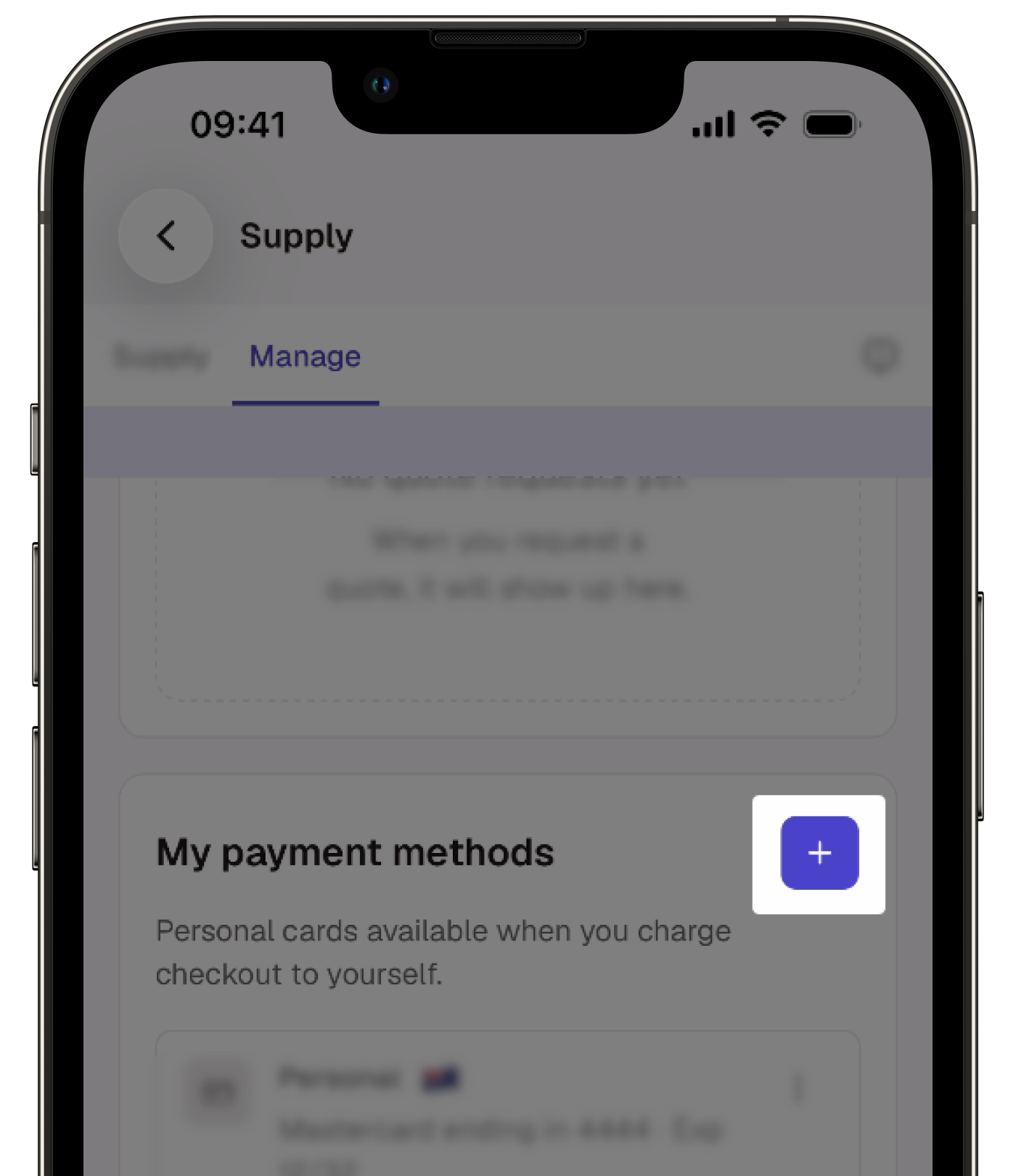
In the pop-up window, enter or select the following details:
Store: Tap the dropdown menu and select the region. The card can only be used at checkout in the selected region.
Nickname: Enter a name for the card.
Card number: Enter the card number.
Expiration date: Enter the expiration date in MM/YY format.
Security code: Enter the security code.
Zip code: If you selected the United States as the region, enter the ZIP code.
To make the card the default payment method for personal checkout, turn "Set as my default" on.
Tap Save card.
Delete a personal payment method
Deleting is irreversible, and we cannot restore permanently deleted items. Confirmation is always required before any deletion, so be sure you're not accidentally deleting the wrong item.
Click Supply in the sidebar or in More.
Click Manage at the top of the page.
In the "My payment methods" section, click next to the payment method you want to delete and select Delete.
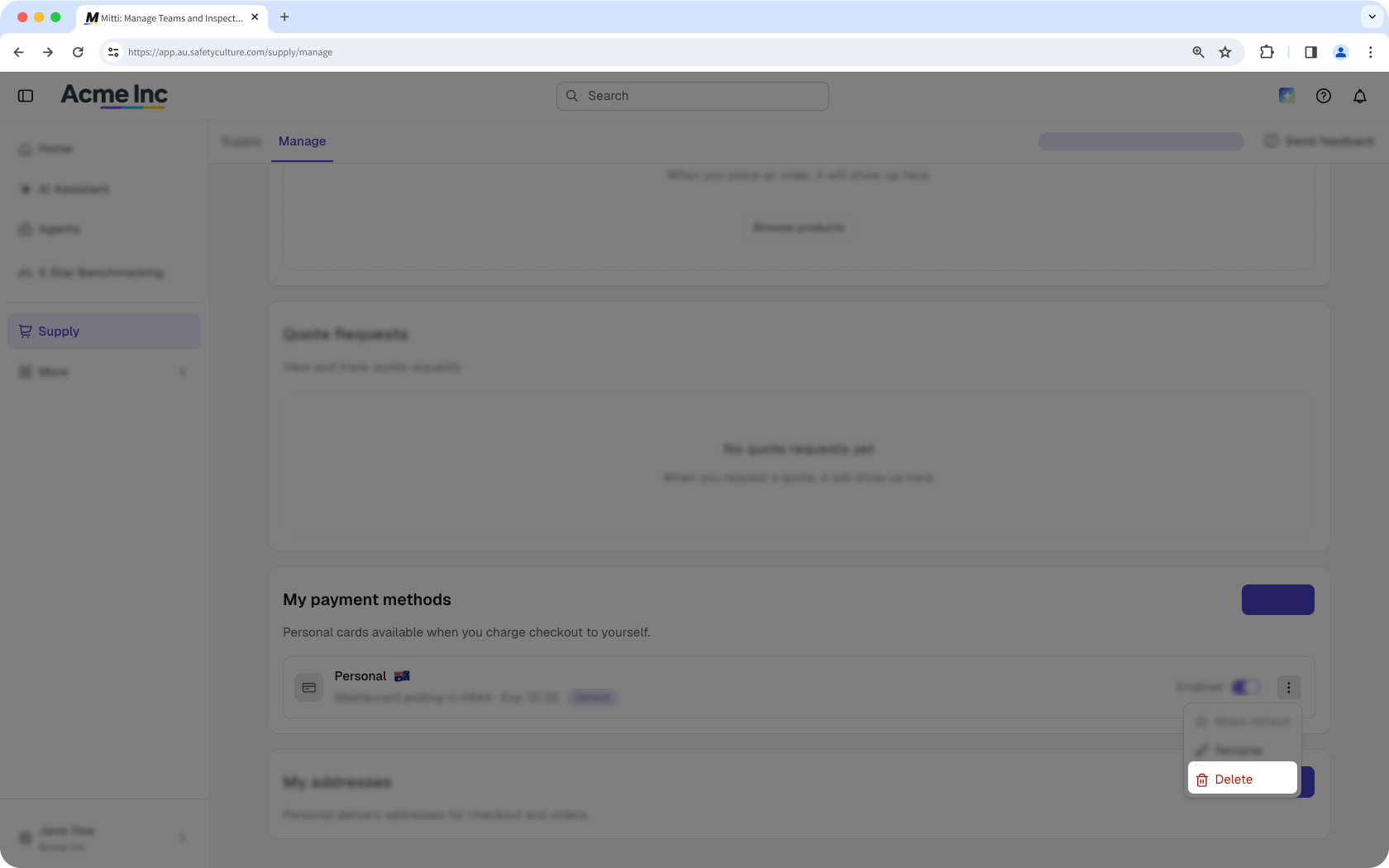
In the pop-up window, click Delete.
Deleting is irreversible, and we cannot restore permanently deleted items. Confirmation is always required before any deletion, so be sure you're not accidentally deleting the wrong item.
Open the mobile app.
Tap Supply from the navigation bar or in More.
Tap Manage at the upper-left of your screen.
In the "My payment methods" section, tap next to the payment method you want to delete and select Delete.
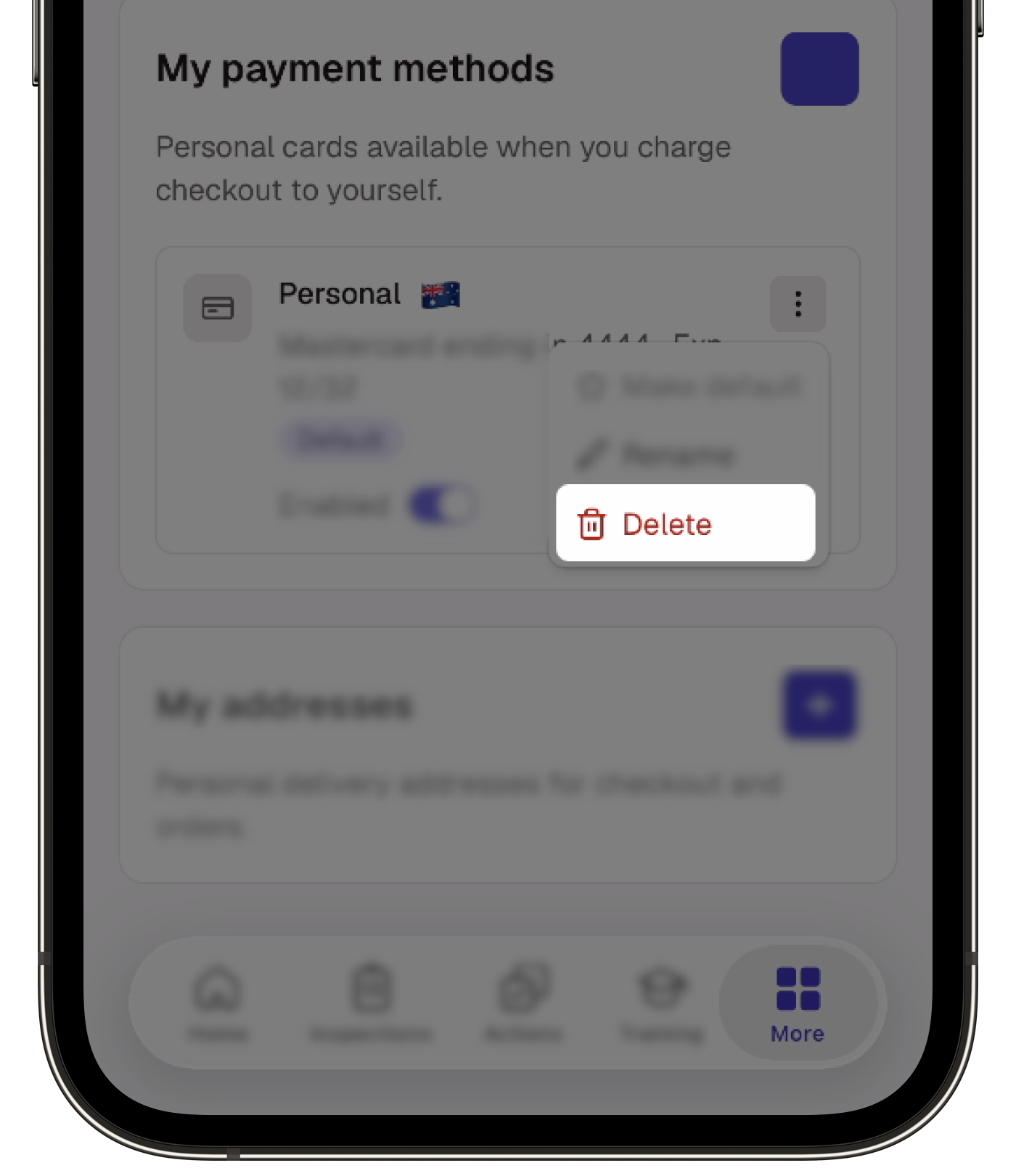
In the pop-up window, tap Delete.
Need more help?
Was this page helpful?