Last updated: September 3, 2026
What you'll need
Add an additional billing contact
Click your organization name on the lower-left corner of the page and select Billing.
Click Details at the top of the page.
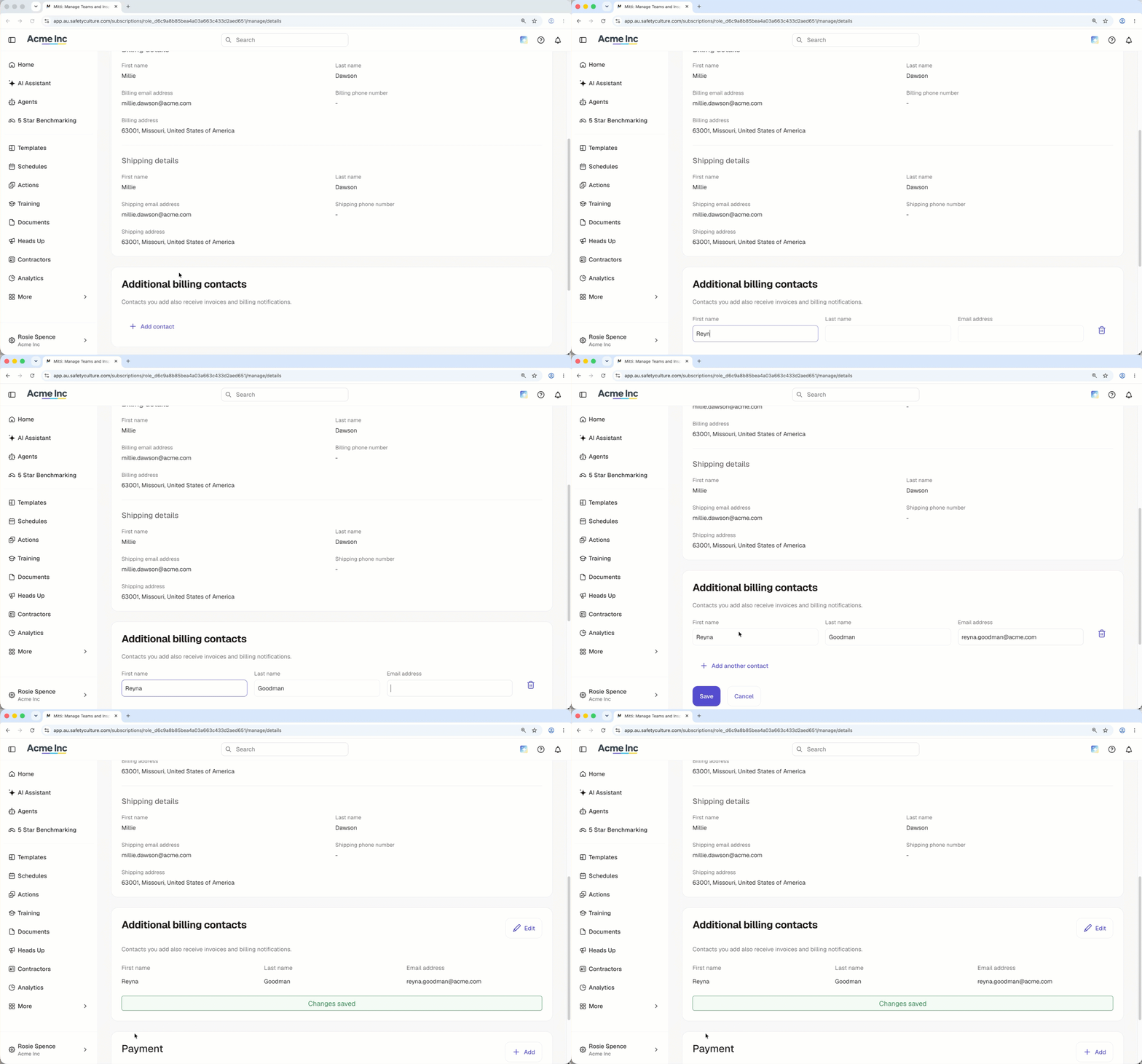
In the "Additional billing contacts" section, click Add contact.
Enter the first name, last name, and email address of the new billing contact.
Click Save.
Edit an additional billing contact
Click your organization name on the lower-left corner of the page and select Billing.
Click Details at the top of the page.
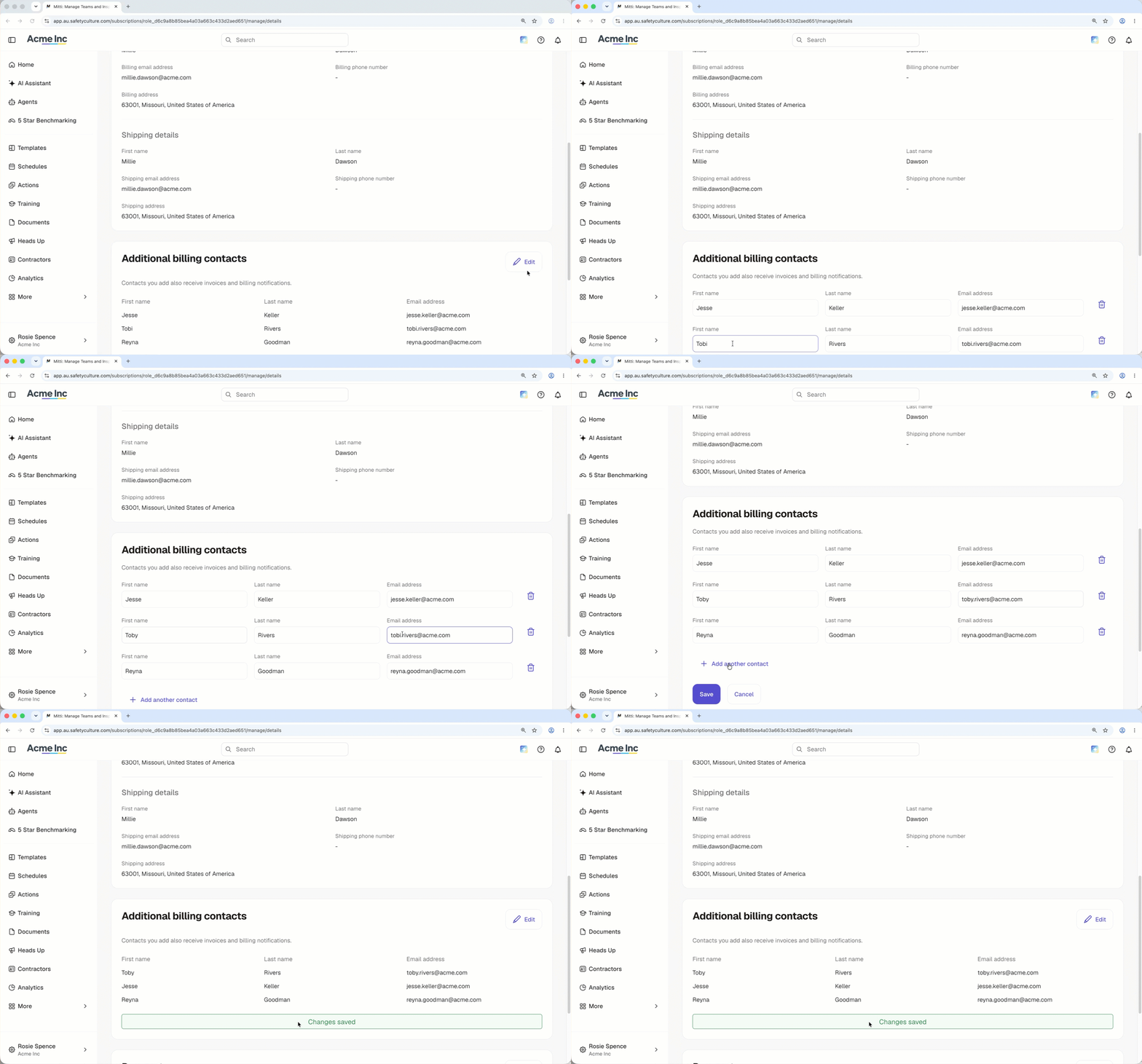
In the "Additional billing contacts" section, click Edit.
Edit the name or email address of your billing contact.
Click Save.
Delete an additional billing contact
Click your organization name on the lower-left corner of the page and select Billing.
Click Details at the top of the page.
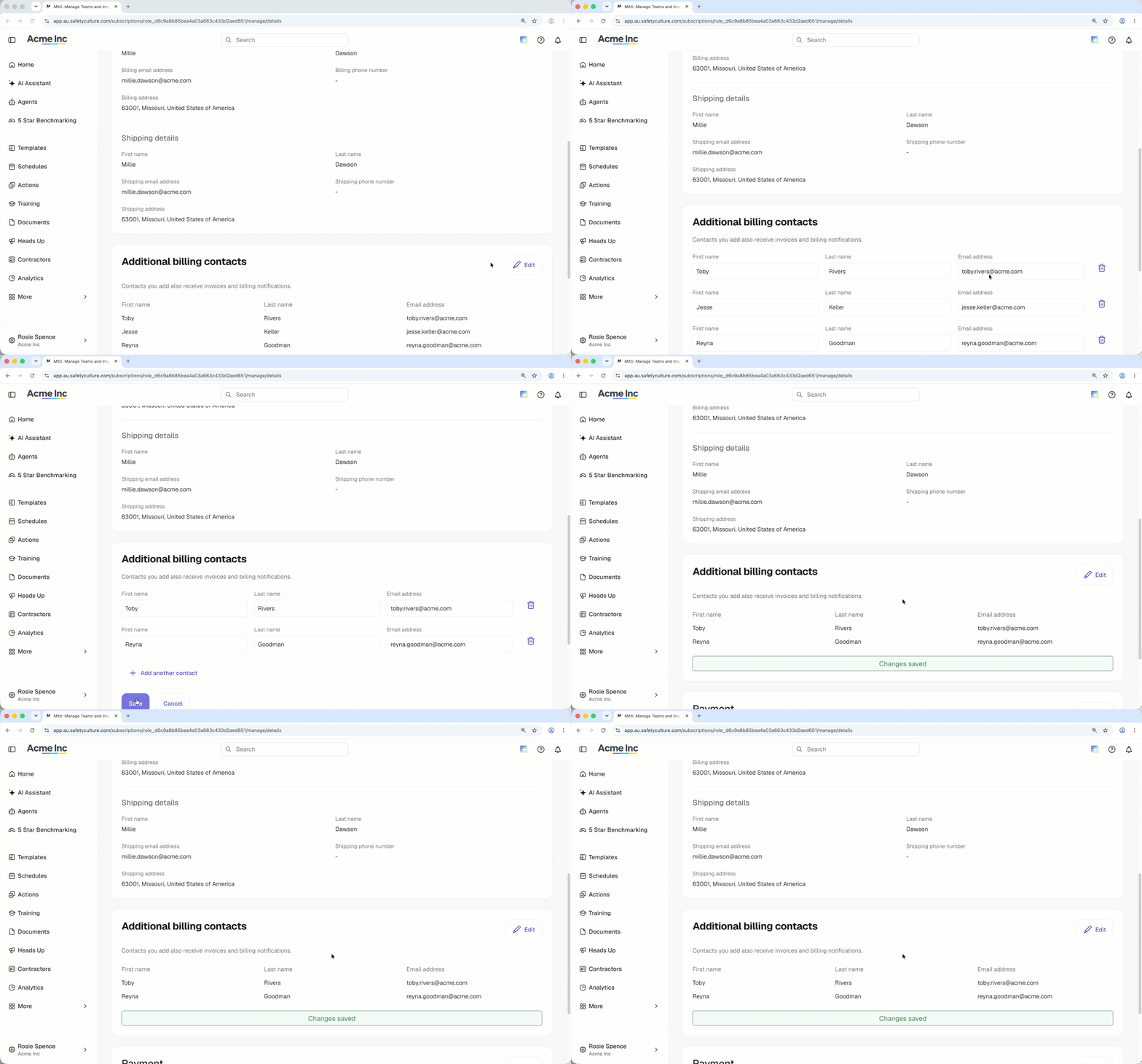
In the "Additional billing contacts" section, click Edit.
Click on the right-hand side of the billing contact.
Click Save.
Need more help?
Was this page helpful?