Last updated: August 30, 2026
Add a company document
Click Contractors from the sidebar or in More.
Select the company.
In the company profile, click the Documents tab.
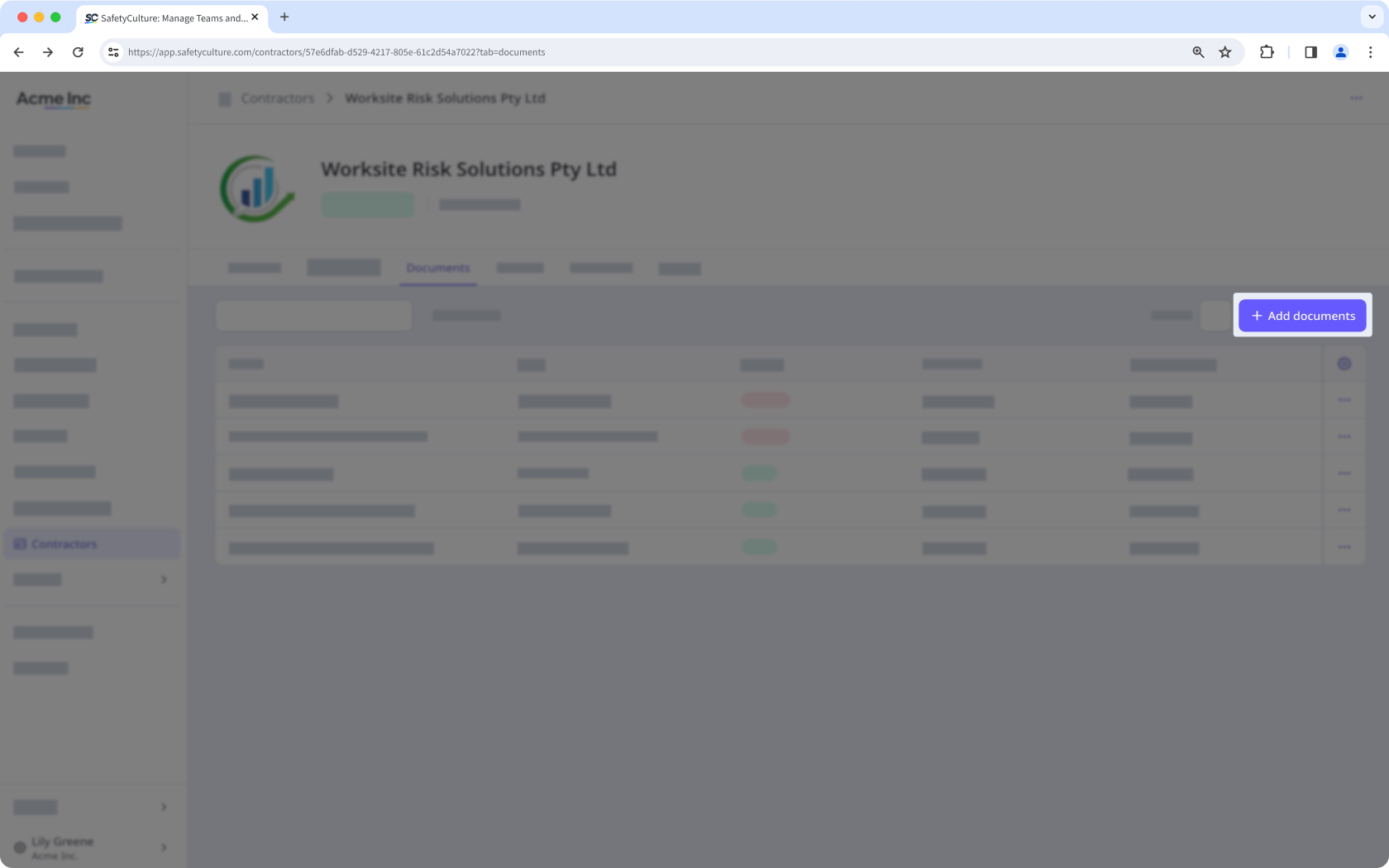
Click Add documents on the upper-right of the page.
Select the document you want to upload.
Enter the document details:
Document name
Document type
Issue date
Expiration date
Click Save and close.
You can add up to 100 MB of JPEG/JPG, PNG, PDF, and DOCX files as company documents.
View a company document
Click Contractors from the sidebar or in More.
Select the company.
In the company profile, click the Documents tab.
Select the document you want to view.
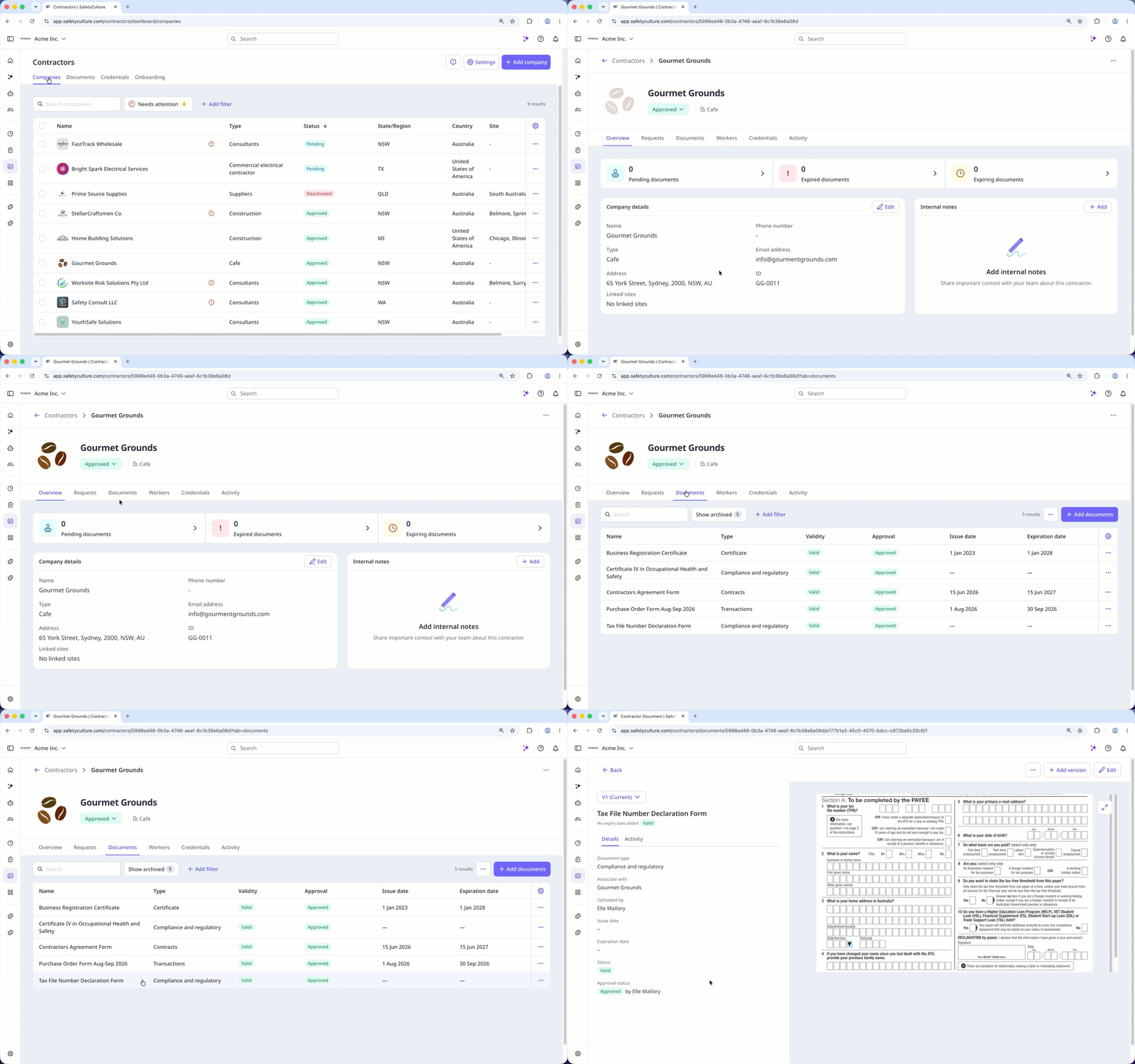
In the Documents tab of a company profile, you can filter documents by type, validity, and approval status to focus on what needs attention.
Edit a company document's details
Click Contractors from the sidebar or in More.
Select the company.
In the company profile, click the Documents tab.
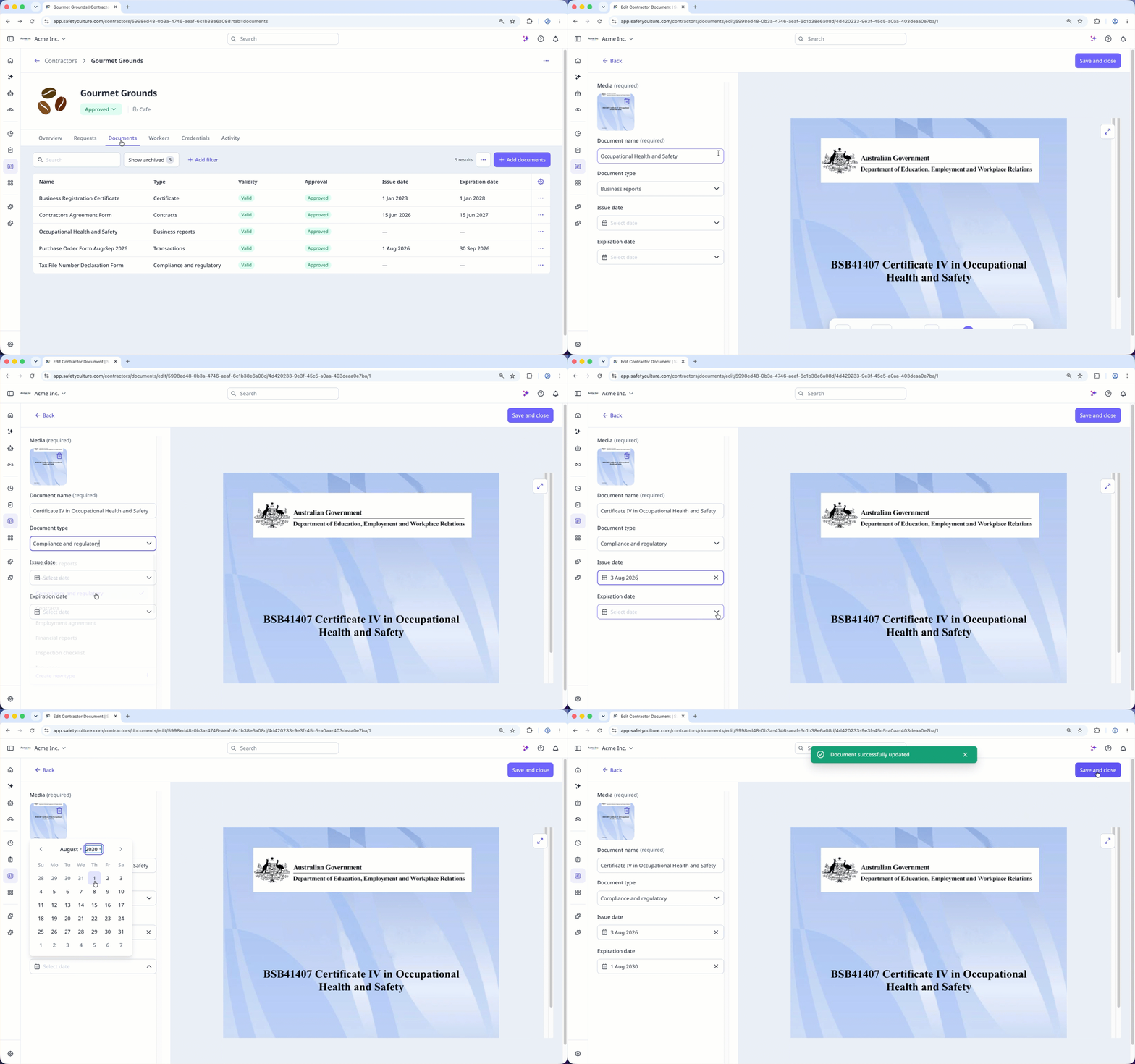
Select the document you want to edit.
Click Edit on the upper-right of the page.
Update the document details, then click Save and close.
Download a company document
Click Contractors from the sidebar or in More.
Select the company.
In the company profile, click the Documents tab.
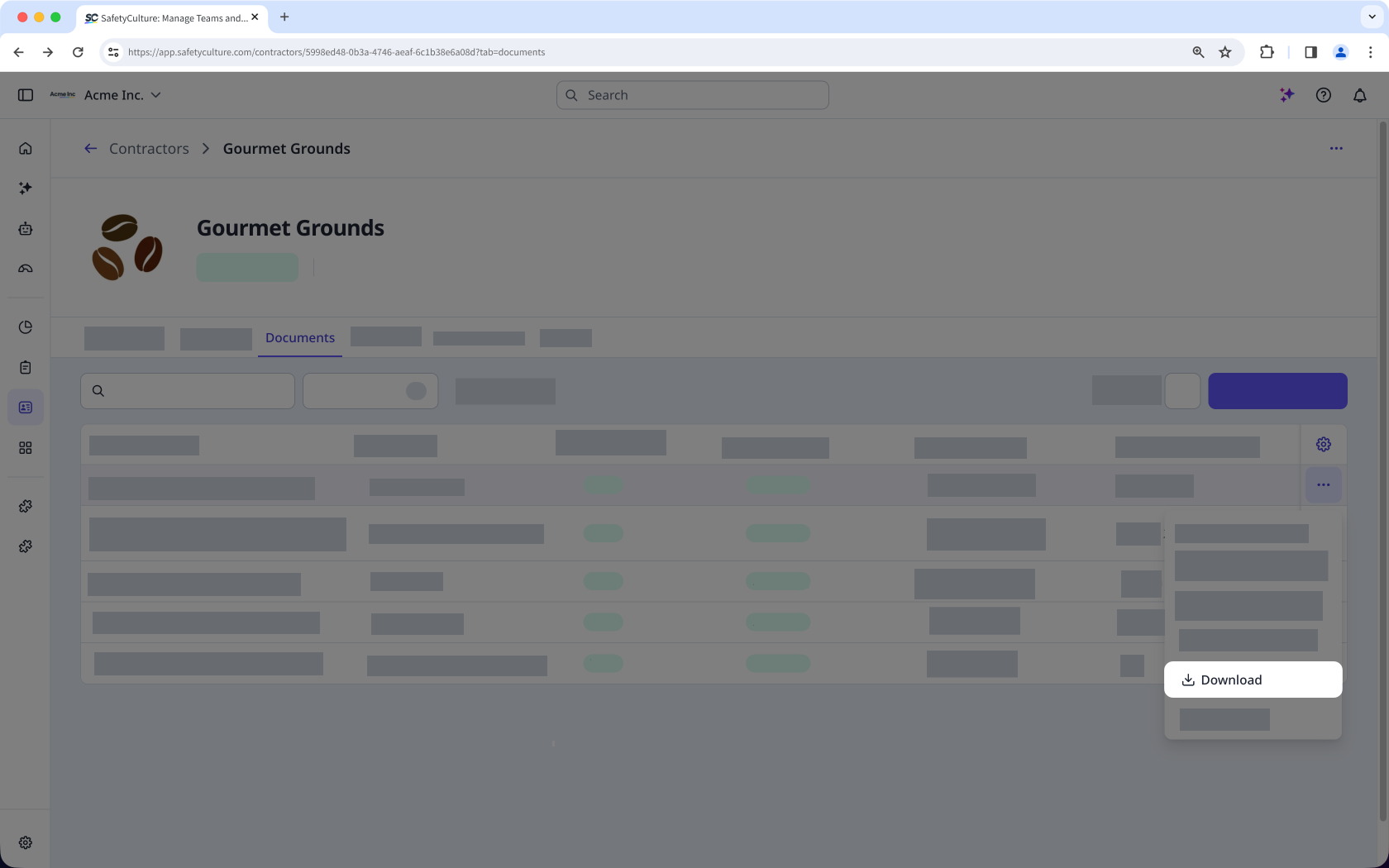
Click next to the document you want to download and select Download.
Archive a company document
Click Contractors from the sidebar or in More.
Select the company.
In the company profile, click the Documents tab.
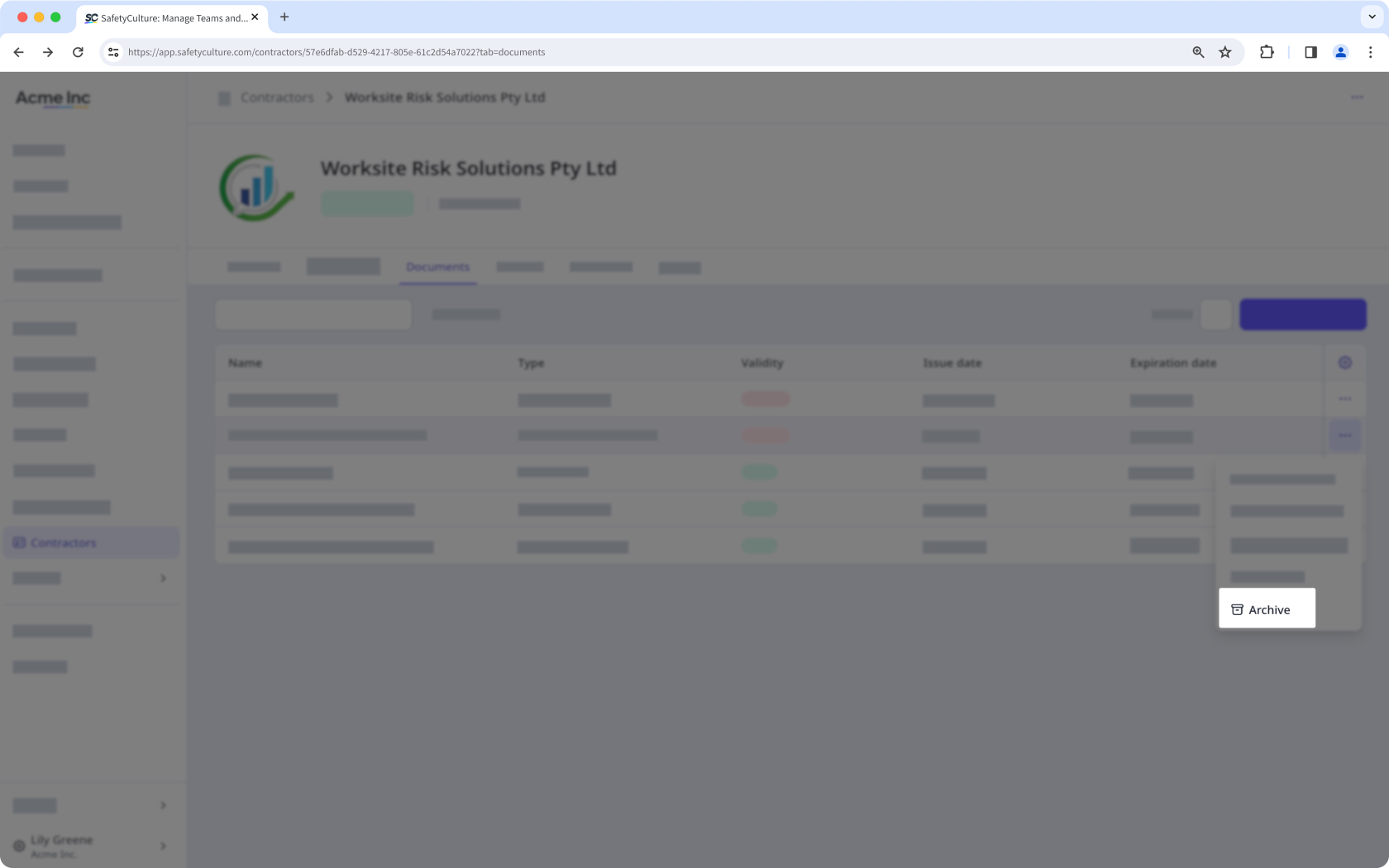
Click next to the document you want to archive and select Archive.
Restore an archived company document
Click Contractors from the sidebar or in More.
Select the company.
In the company profile, click the Documents tab.
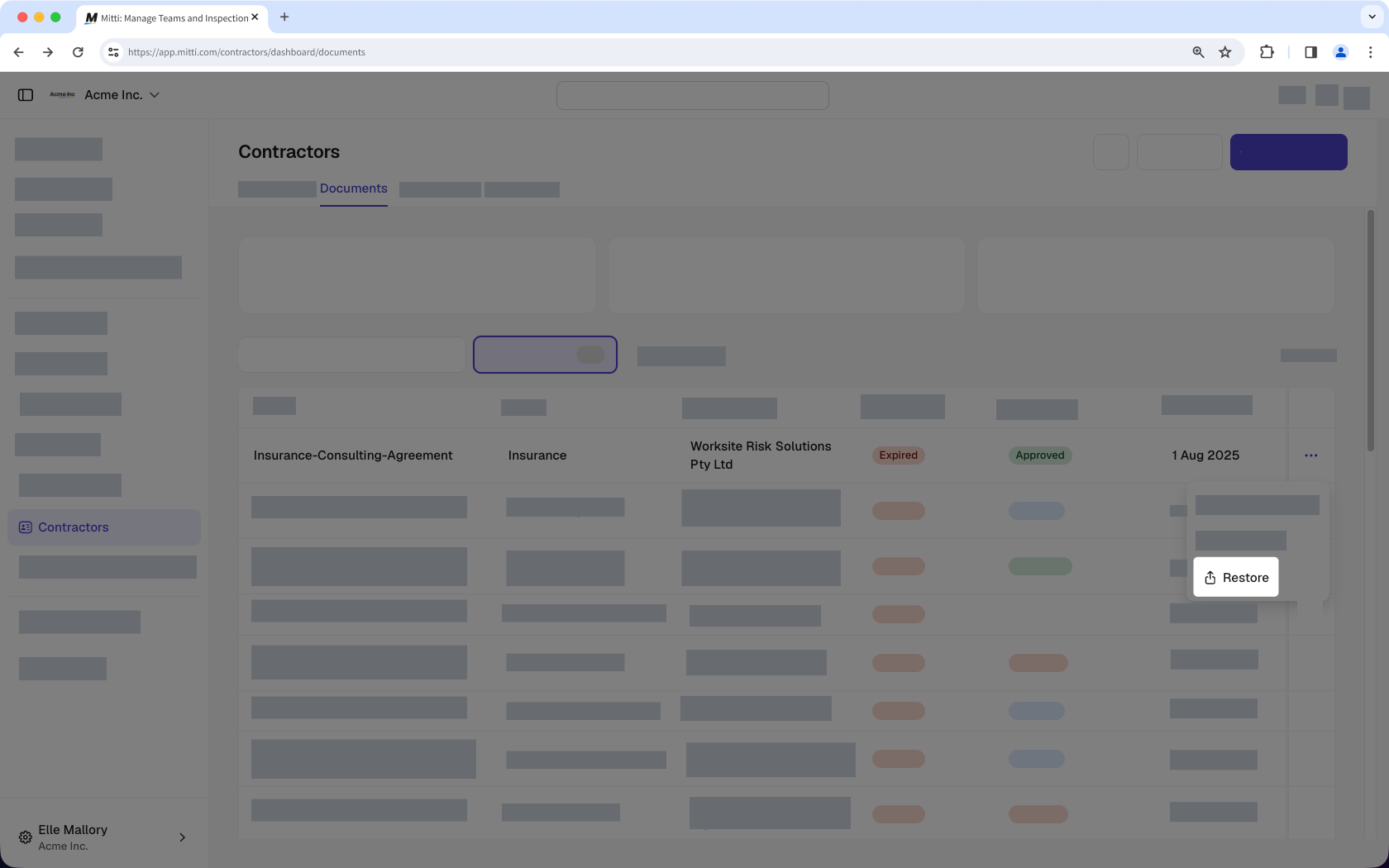
Click Show archived on the upper-left of the page.
Click next to the document you want to restore and select Restore.
Need more help?
Was this page helpful?