Última actualización: 25 de agosto de 2026
What is a scenario?
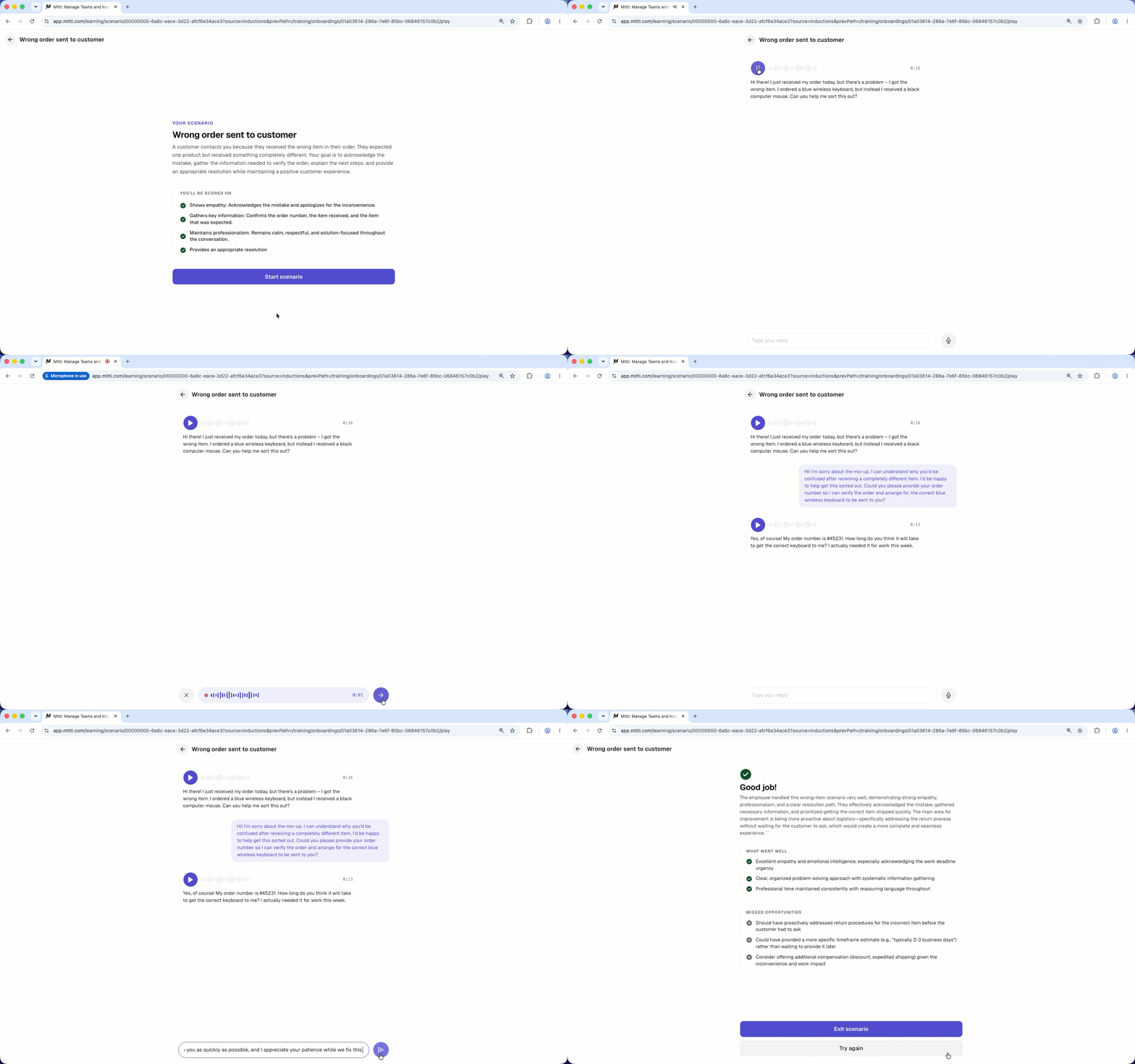
A scenario is a practice conversation between a worker and an AI character, built to help workers feel more prepared for situations they might encounter in their role. That could mean dealing with an unhappy customer, handling a workplace incident, sorting out a disagreement with a colleague, or noticing a chance to offer an extra service.
During the conversation, the AI character reacts based on the scenario and personality the admin has configured. This gives workers a realistic way to practice how they'd handle the situation. Once it ends, the AI checks their performance against the team's evaluation criteria and gives feedback on what they did well and where they can improve.
Lo que necesitarás
Crear un escenario
Click Formación from the sidebar or in Más.
Click Contenido at the top of the page and select Caso ficticio.
Click Crear on the upper-right corner of the page.
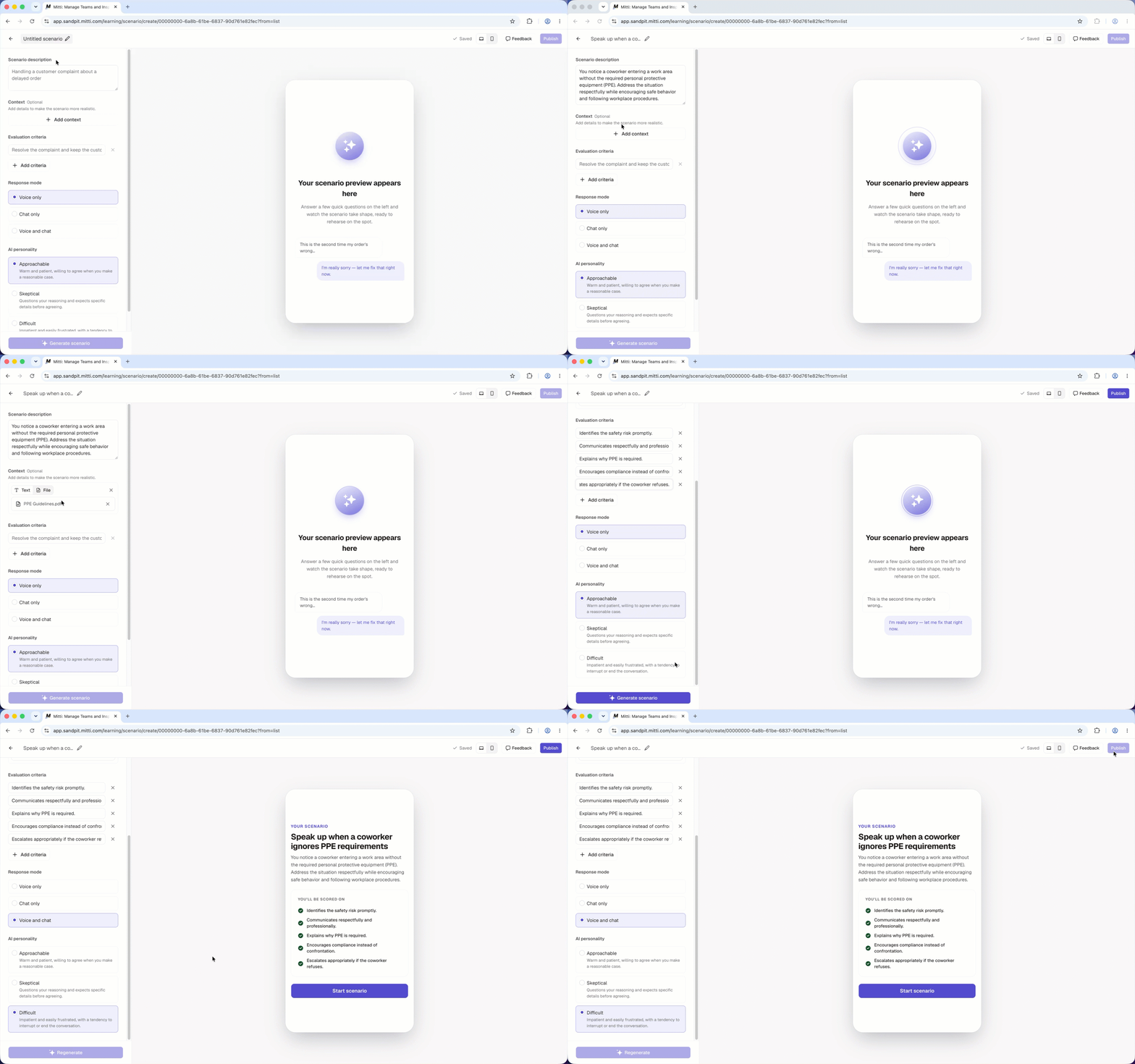
Click Untitled scenario at the top of the page and enter the scenario's title.
In the side panel, enter the scenario details:
Scenario description: A short description of the situation that workers will practice.
Context: Type in or upload files for additional background information, company policies, or other details to make the conversation more realistic and guide the AI's responses.
Evaluation criteria: What a successful outcome looks like. Workers are scored against these criteria after completing the scenario.
Response mode: How workers can interact with the AI, whether by talking or by typing.
AI personality: How the AI behaves during the conversation.
Click Generar un escenario. After the scenario is generated, interact with the preview to test the scenario before finalizing it.
Use the toggle on the upper-right of the page to preview the scenario in desktop or mobile view.
Once you're ready, click Publicar.
Los usuarios solo pueden acceder a los escenarios e iniciarlos a través de los flujos de trabajo de incorporación. Para que un escenario esté disponible, añádalo como un paso a un flujo de trabajo de incorporación.
Editar un escenario
Haga clic en Formación en la barra lateral o en Más.
Haga clic en Contenido y seleccione Caso ficticio.
Seleccione el escenario que quiera editar.
Actualice los detalles del escenario. Sus cambios se guardan automáticamente como borrador.
Una vez que esté listo, haga clic en Publicar.
Archivar un escenario
Haga clic en Formación en la barra lateral o en Más.
Haga clic en la pestaña Contenido y seleccione Caso ficticio.
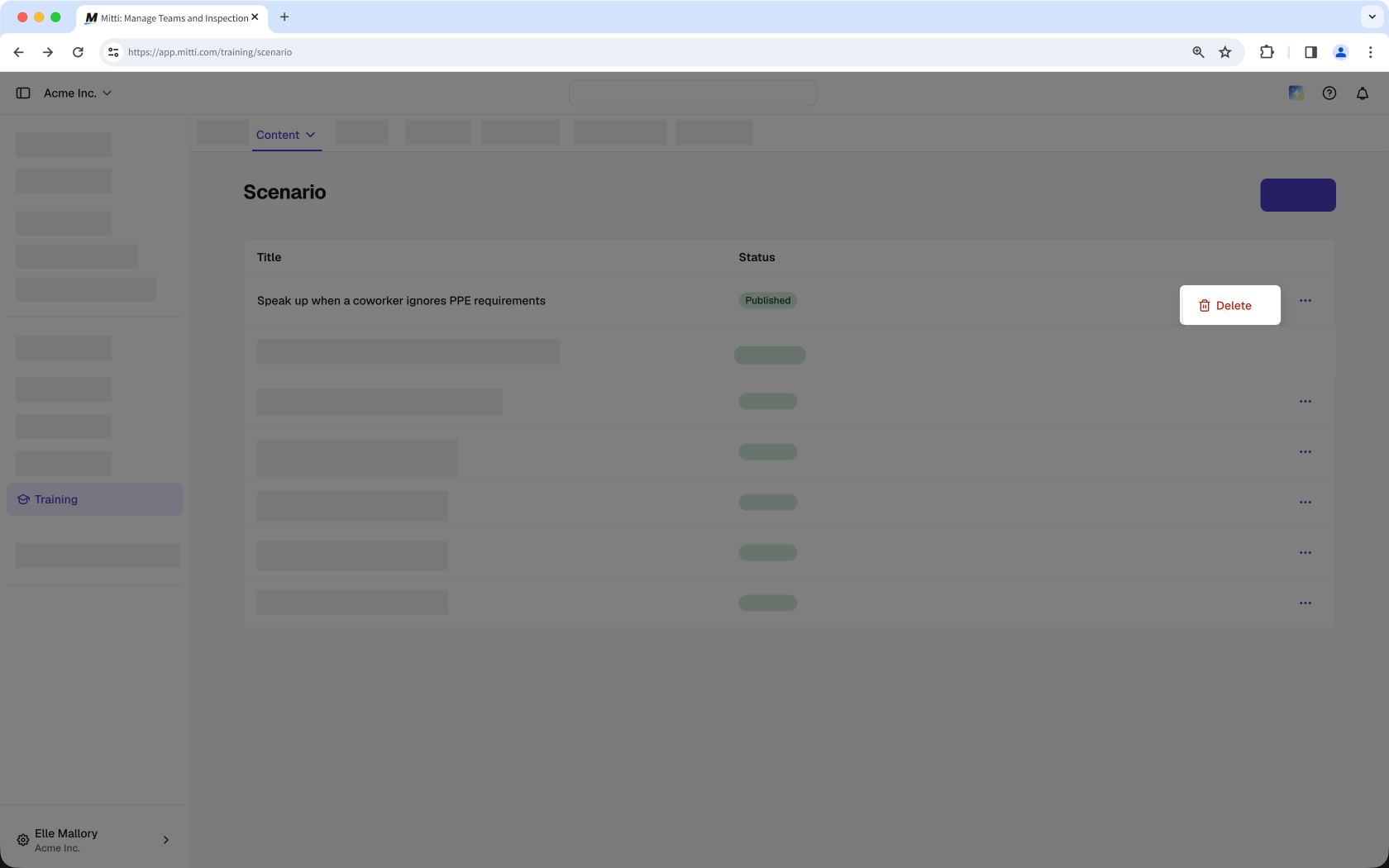
Haga clic en junto al escenario y, a continuación, seleccione Eliminar.
No puede eliminar un escenario mientras esté incluido en un flujo de trabajo de incorporación publicado. Elimine el escenario de todos los flujos de trabajo de incorporación publicados antes de eliminarlo.
Preguntas frecuentes
¿Necesitas más ayuda?
¿Fue útil esta página?