Última actualización: 24 de noviembre de 2026
What is a Lone Worker license?
A Lone Worker license lets a worker use Lone Worker features in Mitti. Admins assign licenses to individual workers. A license is separate from the worker's seat type.
Workers with a license can start jobs, work on shifts, turn on fall detection, and use safety features such as panic and SOS alerts and check-in timers. Admins can also set up job types and geofences, plan shifts, and manage settings. Licenses let your organization limit Lone Worker features to the team members who need them, instead of everyone.
Admins can also add an optional 24/7 Monitoring license for a licensed worker, so alerts reach a professional monitoring center at any hour.
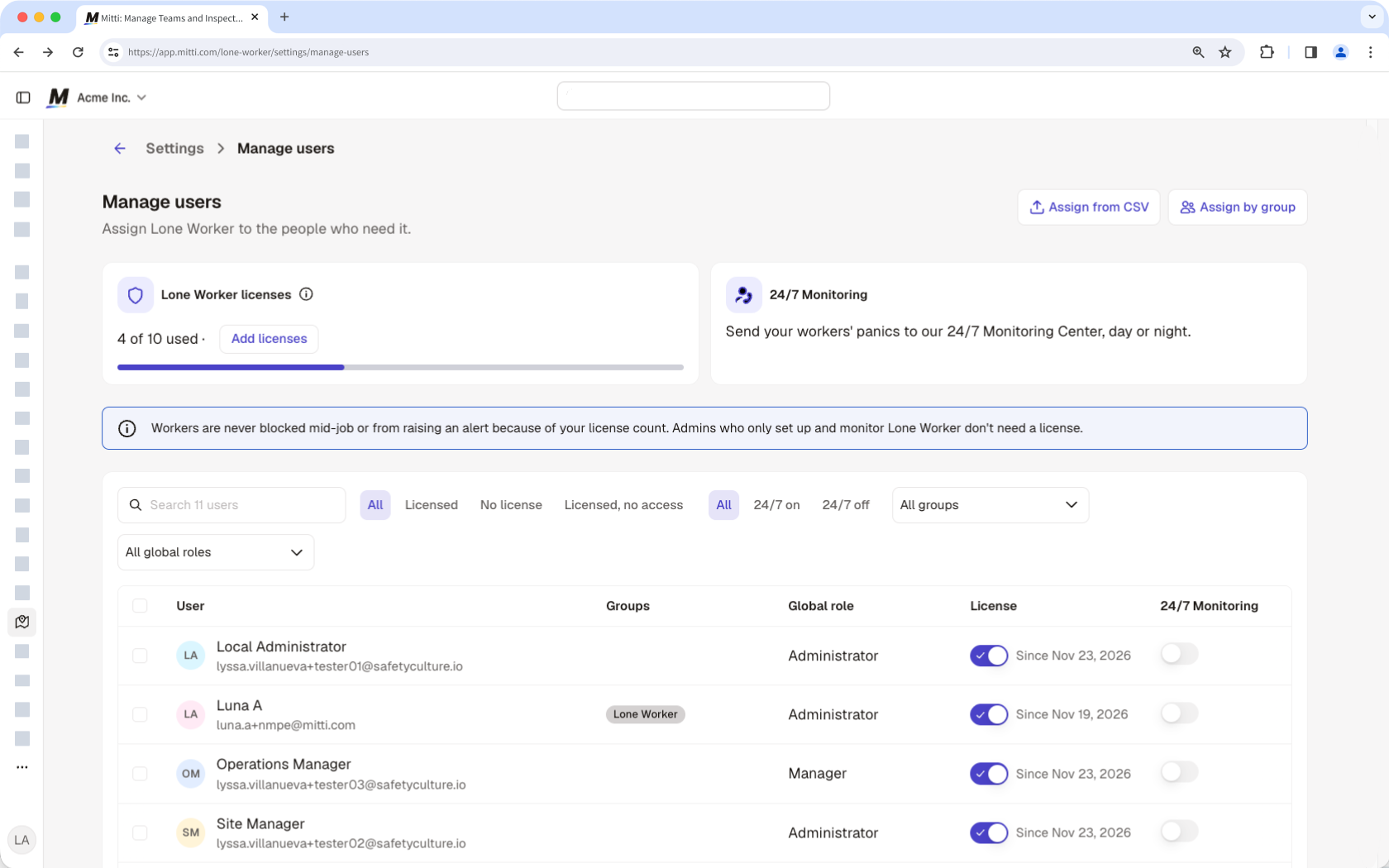
If a worker has Lone Worker access but no license, they can see Lone Worker in the mobile app but can't start a job. They need to ask an admin to assign them a license.
Lo que necesitarás
Assign a Lone Worker license
Click - in the sidebar or in Más.
Click Ajustes tab at the top of the page.
In the "People" section, click Manage users.
Select the user, then t urn on their Lone Worker license.
To add 24/7 Monitoring, turn it on for the same user.
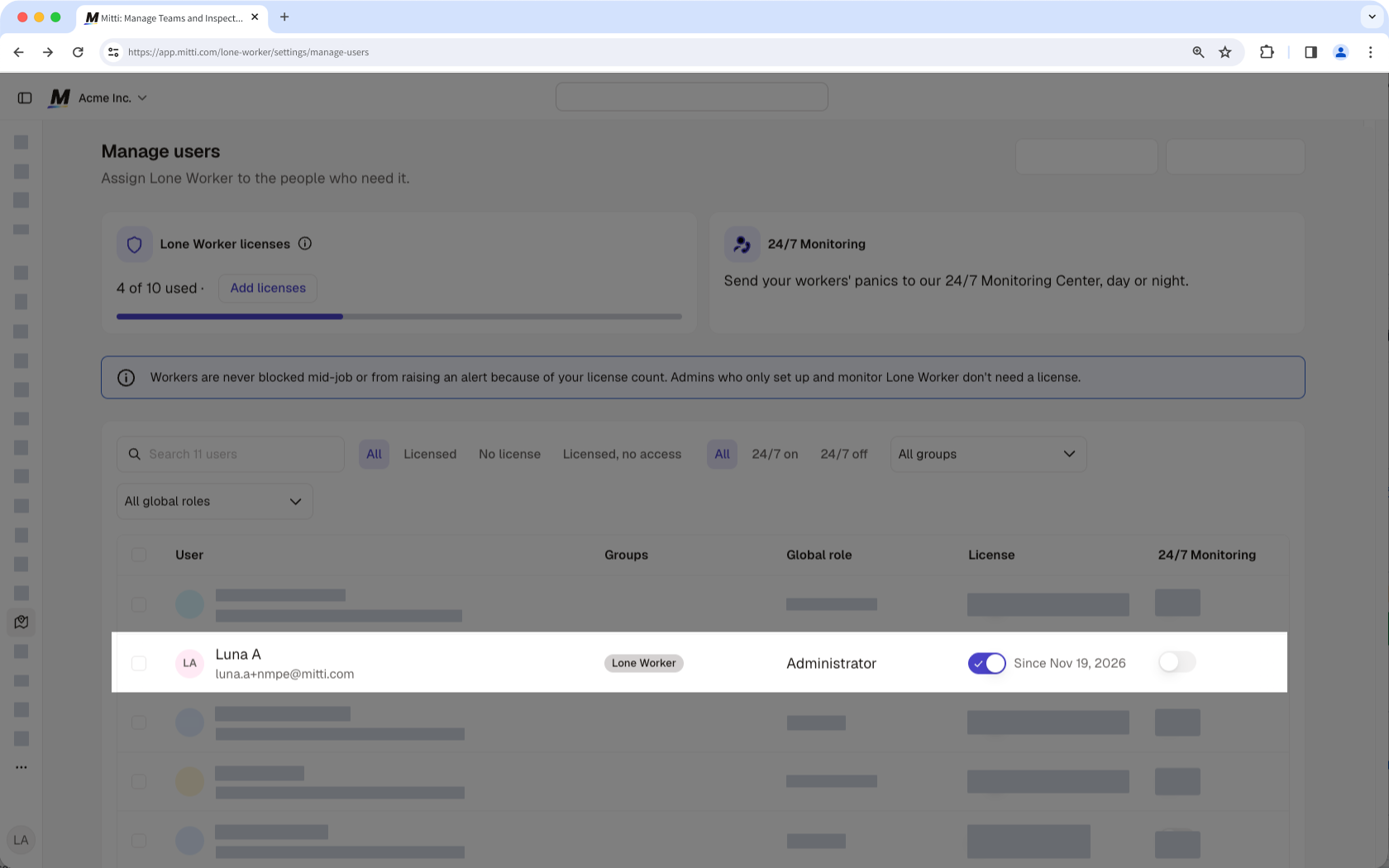
24/7 Monitoring is an add-on to the Lone Worker license. To assign 24/7 Monitoring to a user, the user needs a Lone Worker license and your plan needs a 24/7 Monitoring license.
To purchase a 24/7 Monitoring license, go to the Facturación page.
Unassign a Lone Worker license
Click - in the sidebar or in Más.
Click Ajustes tab at the top of the page.
In the "People" section, click Manage users.
Select the user, then turn off their Lone Worker license.
To turn off only 24/7 Monitoring, turn off 24/7 Monitoring for the user instead of their Lone Worker license.
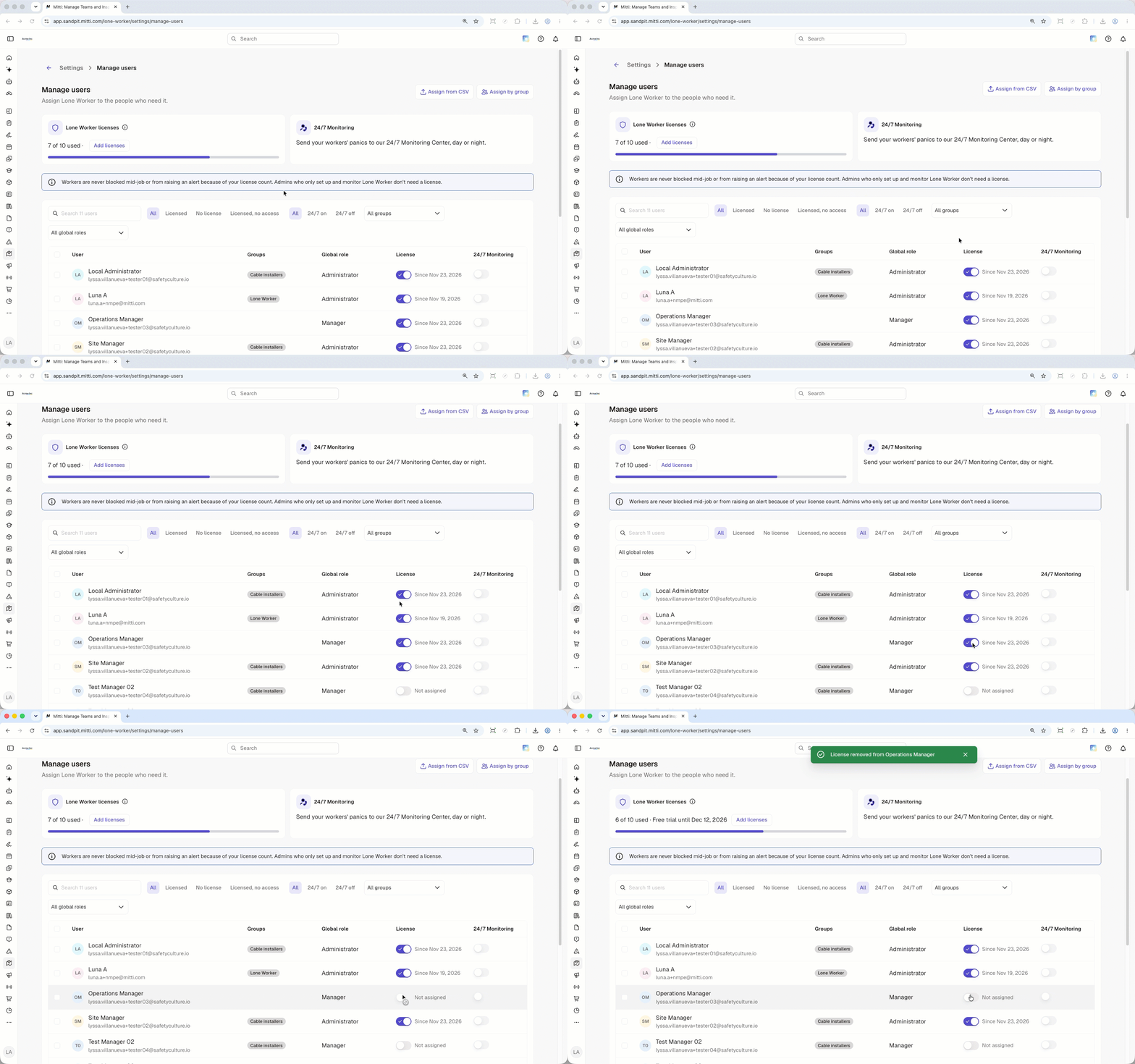
Unassigning a Lone Worker license from a user also turns off 24/7 Monitoring for that user.
Assign licenses by group
Click - in the sidebar or in Más.
Click Ajustes tab at the top of the page.
In the "People" section, click Manage users.
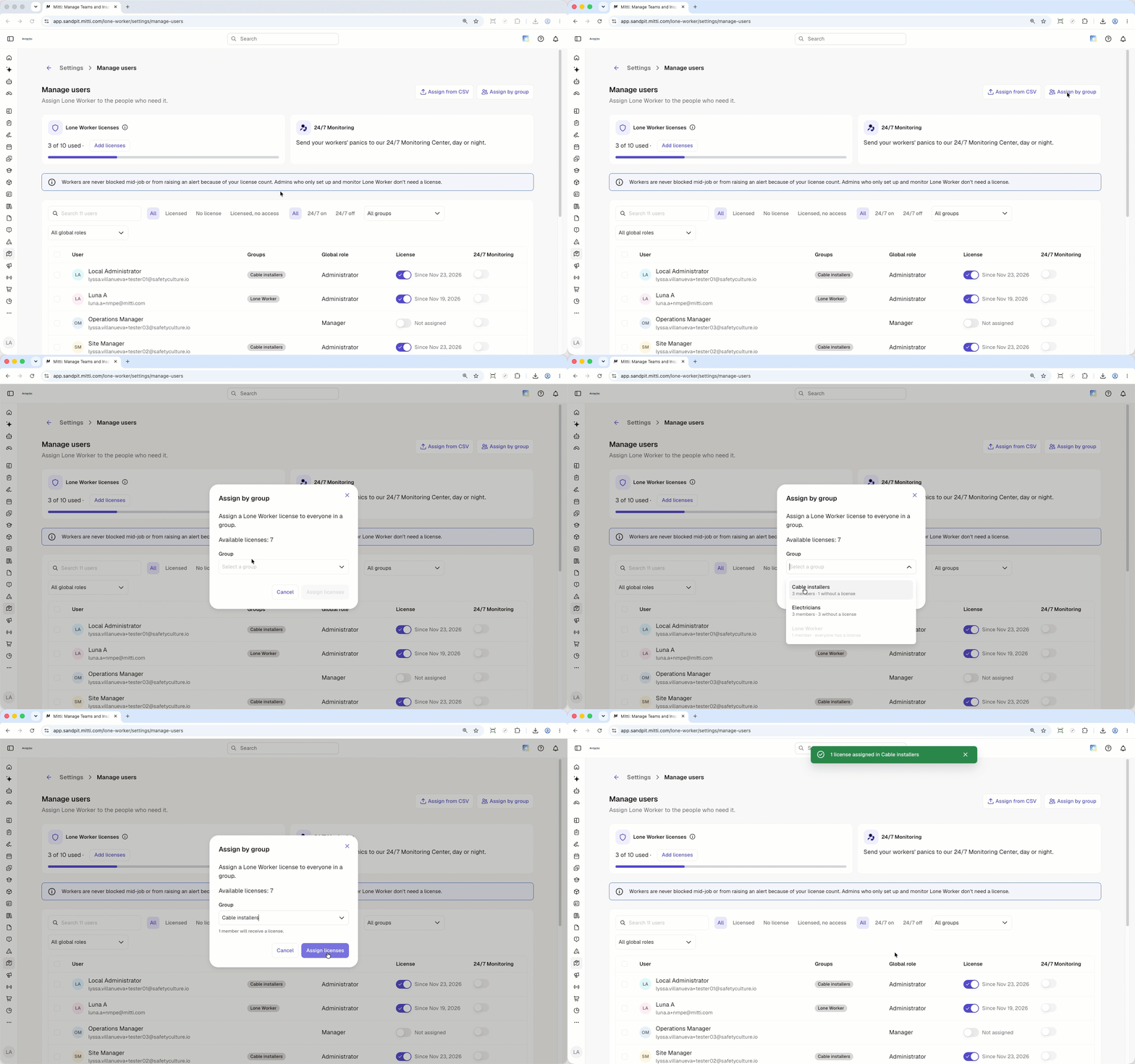
Click Assign by group on the upper-right of the page.
In the pop-up window, select the group from the dropdown menu.
Click Assign licenses.
Assign licenses from CSV
Click - in the sidebar or in Más.
Click Ajustes tab at the top of the page.
In the "People" section, click Manage users.
Click Assign from CSV on the upper-right of the page.
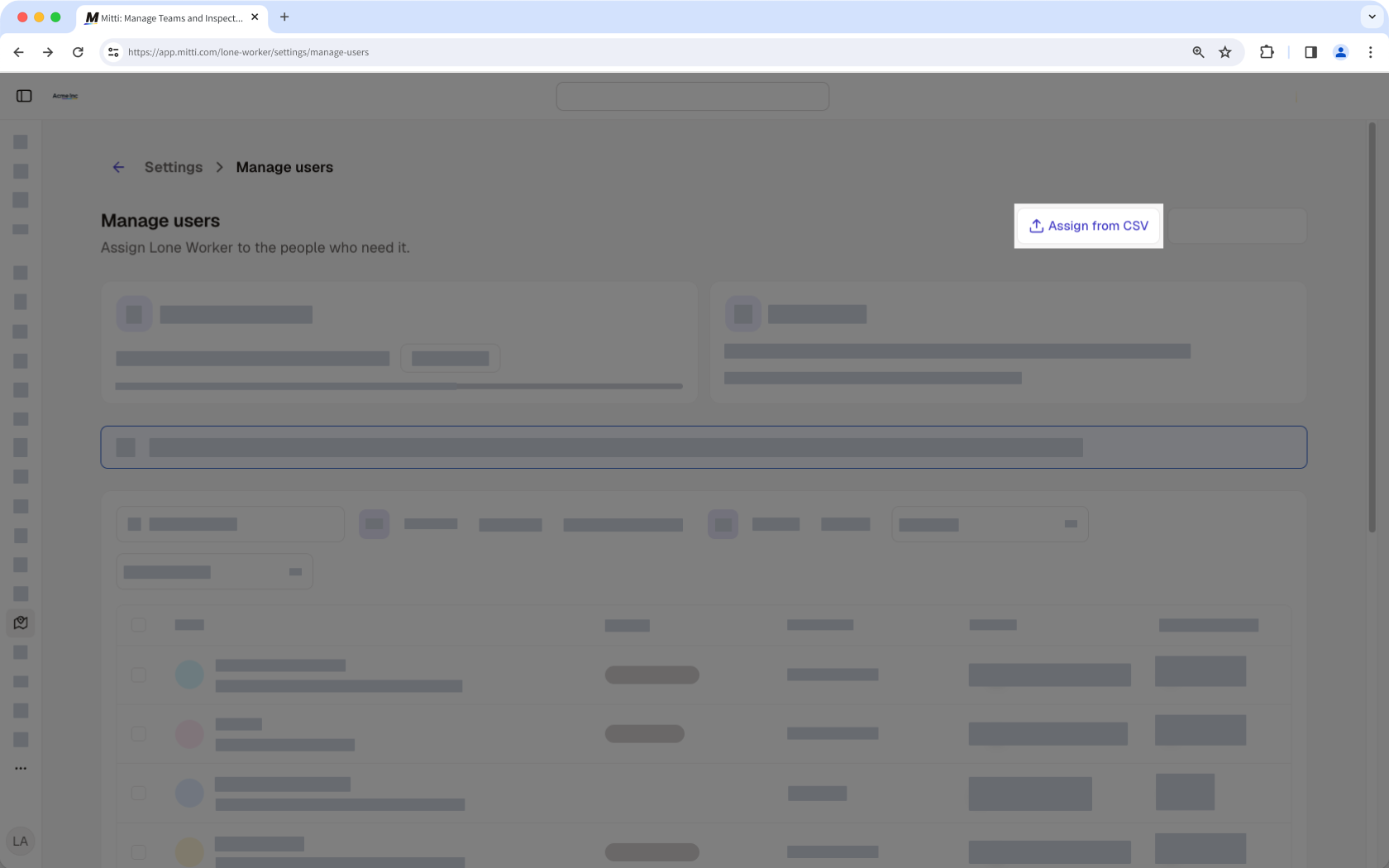
In the pop-up window, download and fill out the template.
Upload the CSV file.
Review the preview of changes.
Click Apply changes.
¿Necesitas más ayuda?
¿Fue útil esta página?