Dernière mise à jour: 19 octobre 2026
Cette fonctionnalité est actuellement en Aperçu. Alors que nous continuons à développer cette fonctionnalité, ses caractéristiques et sa disponibilité peuvent changer avant sa sortie complète.
How does the MCP server work?
The Model Context Protocol (MCP) server allows users in your organization to connect AI tools (opens in new tab) such as Claude and Copilot to Mitti, so users can ask questions about their Mitti data directly from those services. A connection is read-only by default and only reaches data that the user's own permissions allow. As an administrator, you control whether the MCP server is available to your organization and which roles can connect an AI tool.
The MCP server is turned on by default, and it applies to everyone in your organization. While it's on, the "External AI tools (MCP)" permissions decide which users can connect and what a connected AI tool can do.
Ce dont vous aurez besoin
Turn the MCP server on or off
Click your organization name on the lower-left corner of the page and select Paramètres de l'organisation.
Click Mitti IA at the top of the page.
In the "MCP" section, turn "MCP server" on or off.
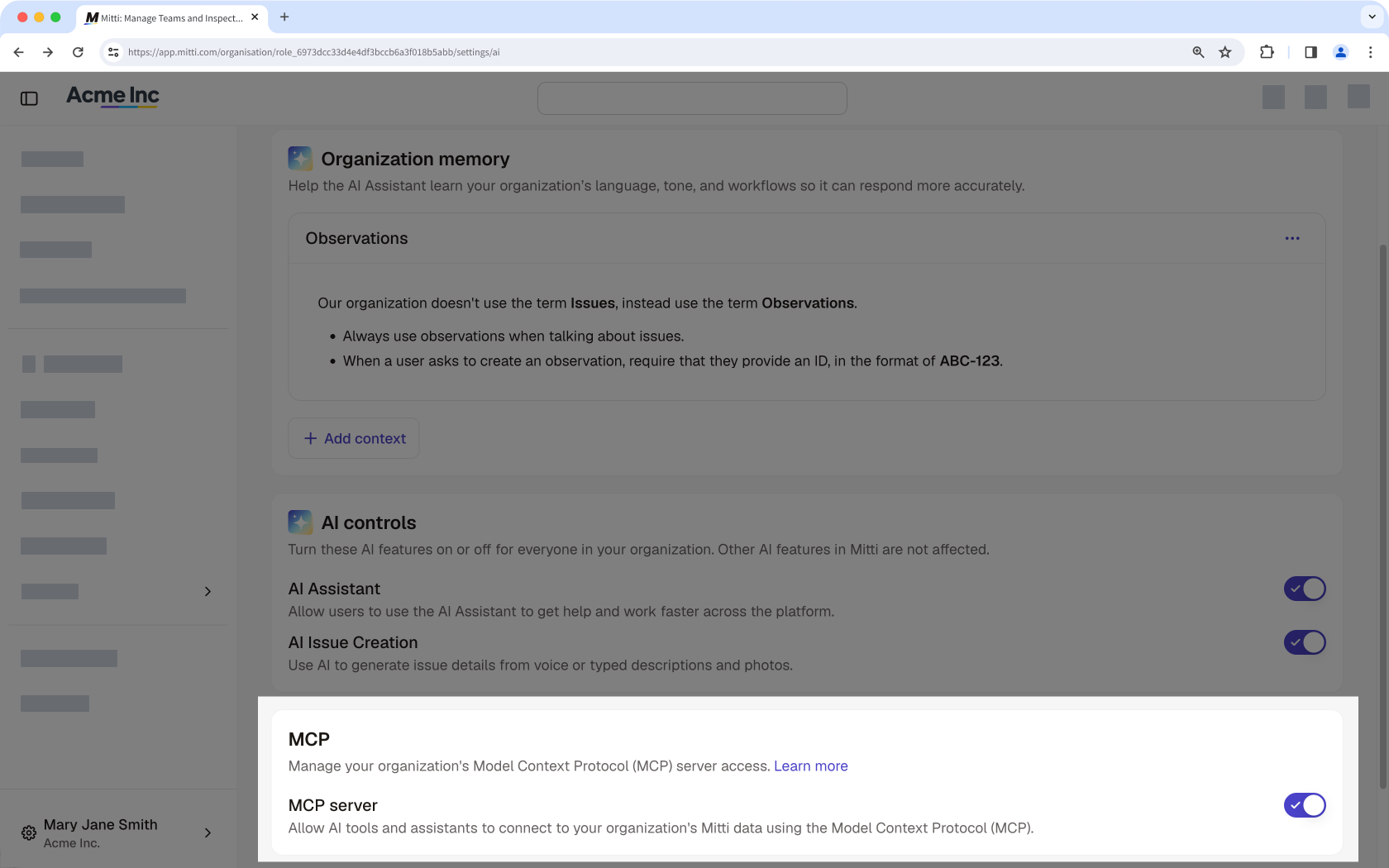
Turning the MCP server off stops every AI tool connection in your organization right away, including connections users have already set up. If you only need to stop certain users from connecting, remove the "External AI tools (MCP): Read" permission from their roles instead.
Questions fréquemment posées
Besoin d'aide supplémentaire?
Cette page vous a-t-elle été utile?