Last updated: September 11, 2026
What is Group Training?
Group Training lets you deliver workplace training in short, focused lessons that you can access on any device. Some topics are better suited to group settings, where you can facilitate activities and discussions. You can present any course in slideshow format to your team. Their attendance is captured automatically, so their training is recorded as complete.
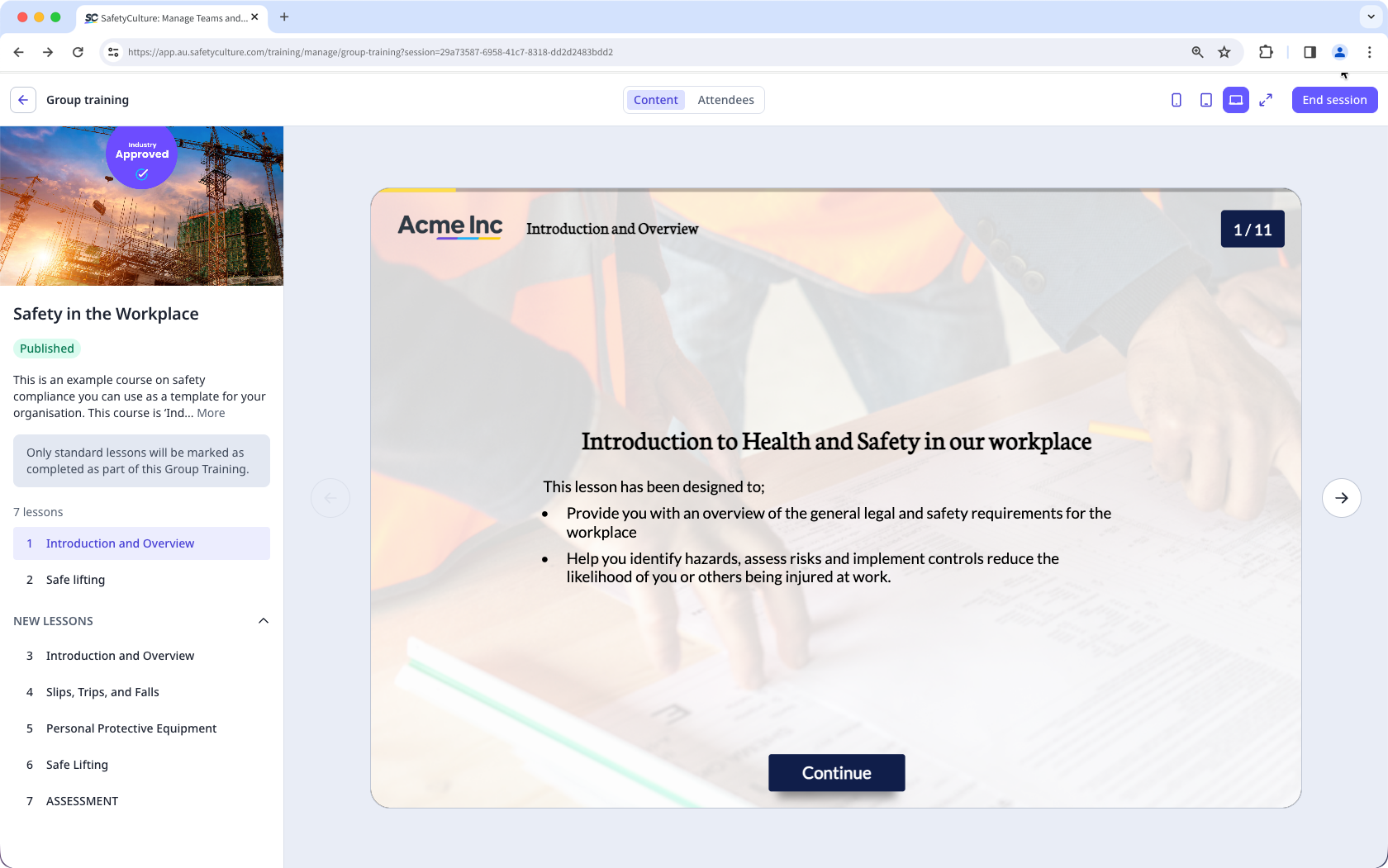
"Training: Manage content (all)" permission is required to edit and turn on Group Training for a course.
Turn Group Training on for a course
Click Training from the sidebar or in More.
If you're on the "Learn" page, click Content at the top of the page and select Courses.
You can choose how you want to view your courses by selecting between or on the upper-right of the page.
Select the course.
If the course is published, click Edit on the upper-right of the page.
Click Set up at the top of the page.
Scroll to the "DELIVERY" section and turn Group Training on.
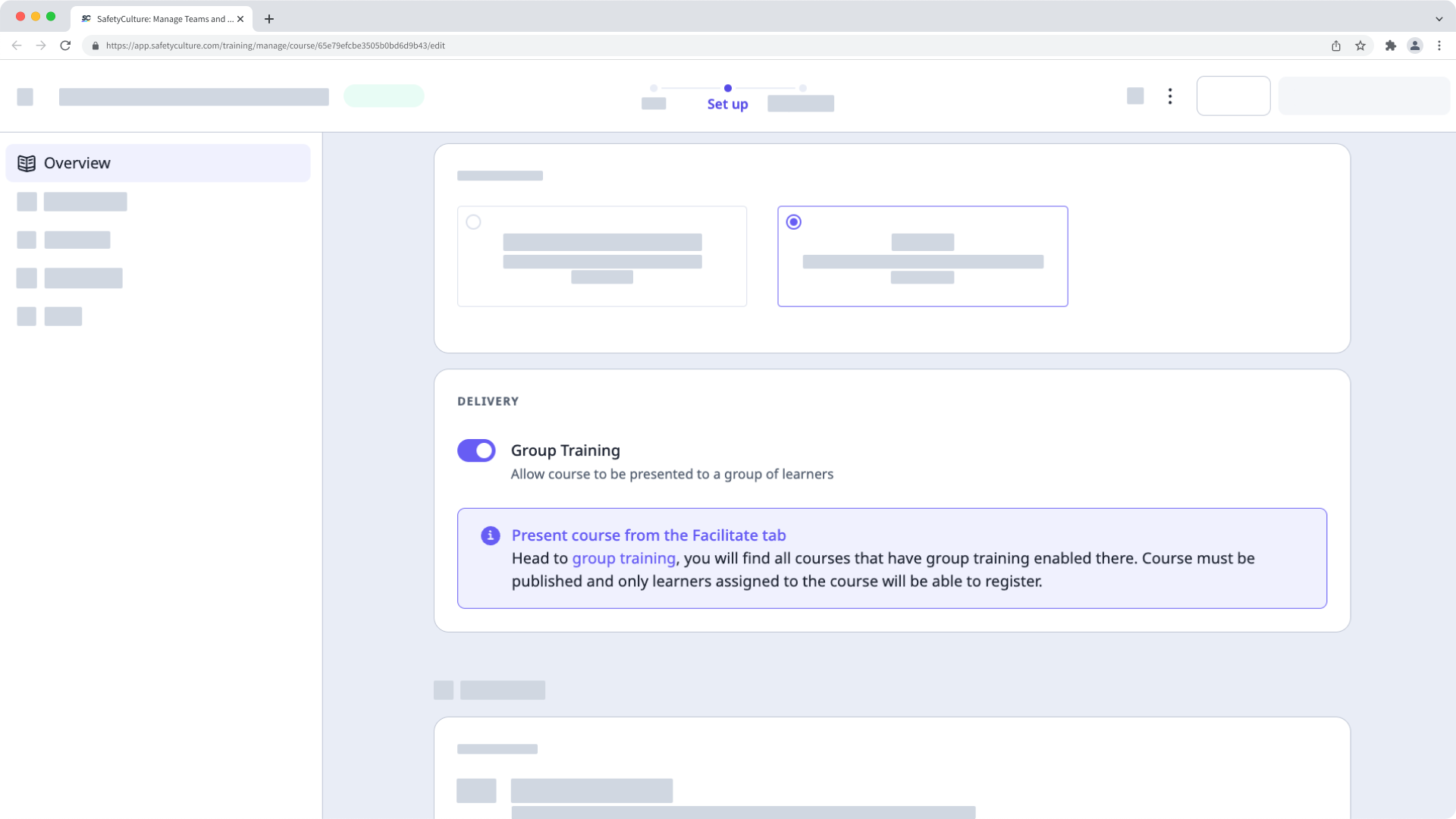
Changes are saved automatically.
If your course is currently a draft, remember to publish it to make your changes available to your team.
By default, you can only facilitate training and view data from users in groups and sites for which you're a team manager. If you have "Training: Administration" permission, you can facilitate training and view data from all users in your organization.
Configure Group Training settings
Click Training from the sidebar or in More.
Select Facilitate at the top of the page and select Group Training.
Click Settings on the upper-right of the page.
In the pop-up window, turn Learners can complete Group Training courses outside a session on or off.
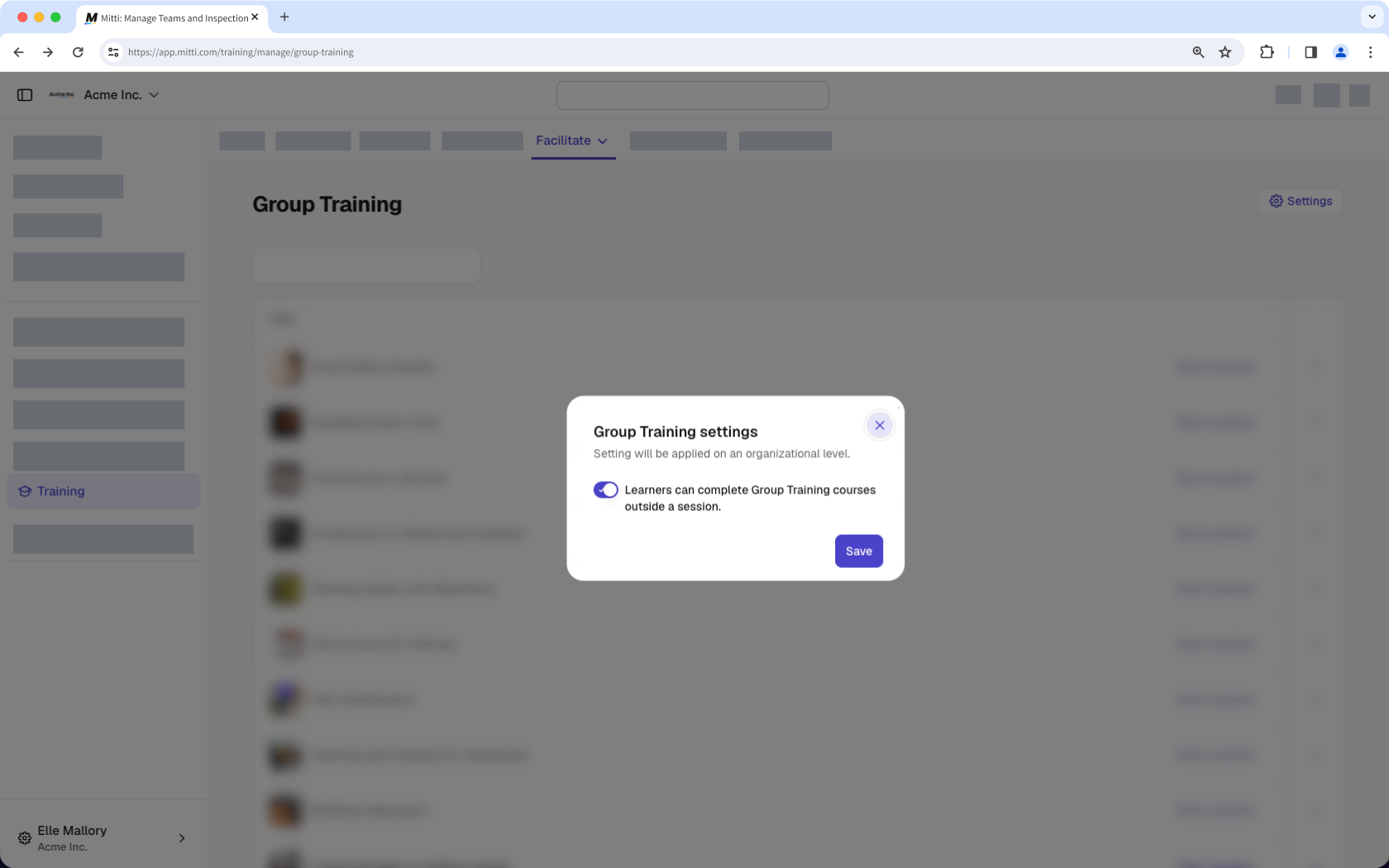
Learner completion outside a session is an organization level setting that applies across all courses with Group Training turned on. When it's turned off, learners won't be able to see Group Training courses at all.
Start a Group Training session
Click Training from the sidebar or in More.
Select Facilitate at the top of the page and select Group Training.
Click Start session or Resume on the right-hand side of the course.
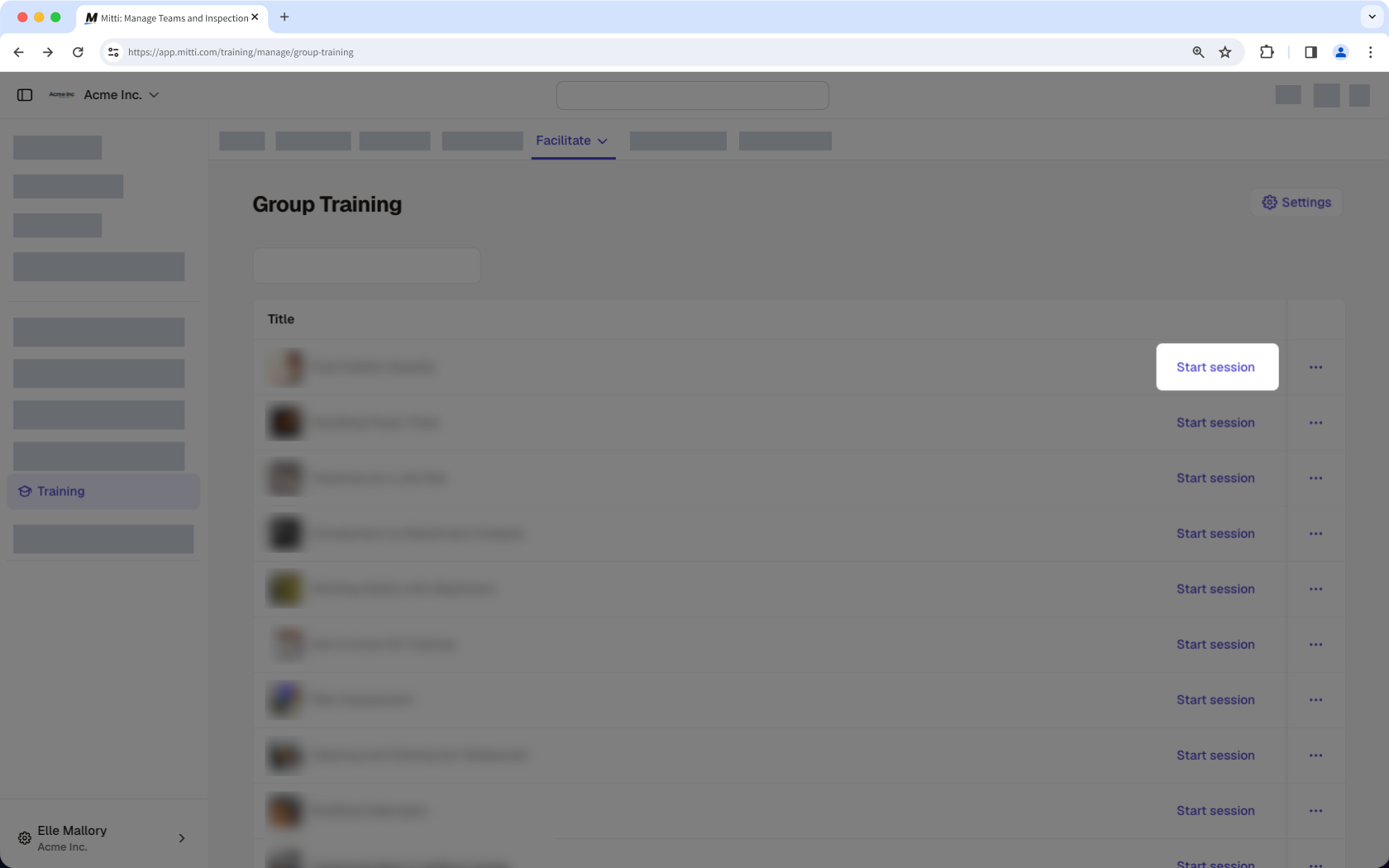
Proceed with the session accordingly.
When the session is complete, click End session on the upper-right of the page.
In the pop-up window, click End session. This also marks the users who attended the Group Training session as having completed the course.
Add attendees to a session
Only users assigned to a course can attend a Group Training sessions.
Click Training from the sidebar or in More.
Select Facilitate at the top of the page and select Group Training.
Click Start session on the right-hand side of the course.
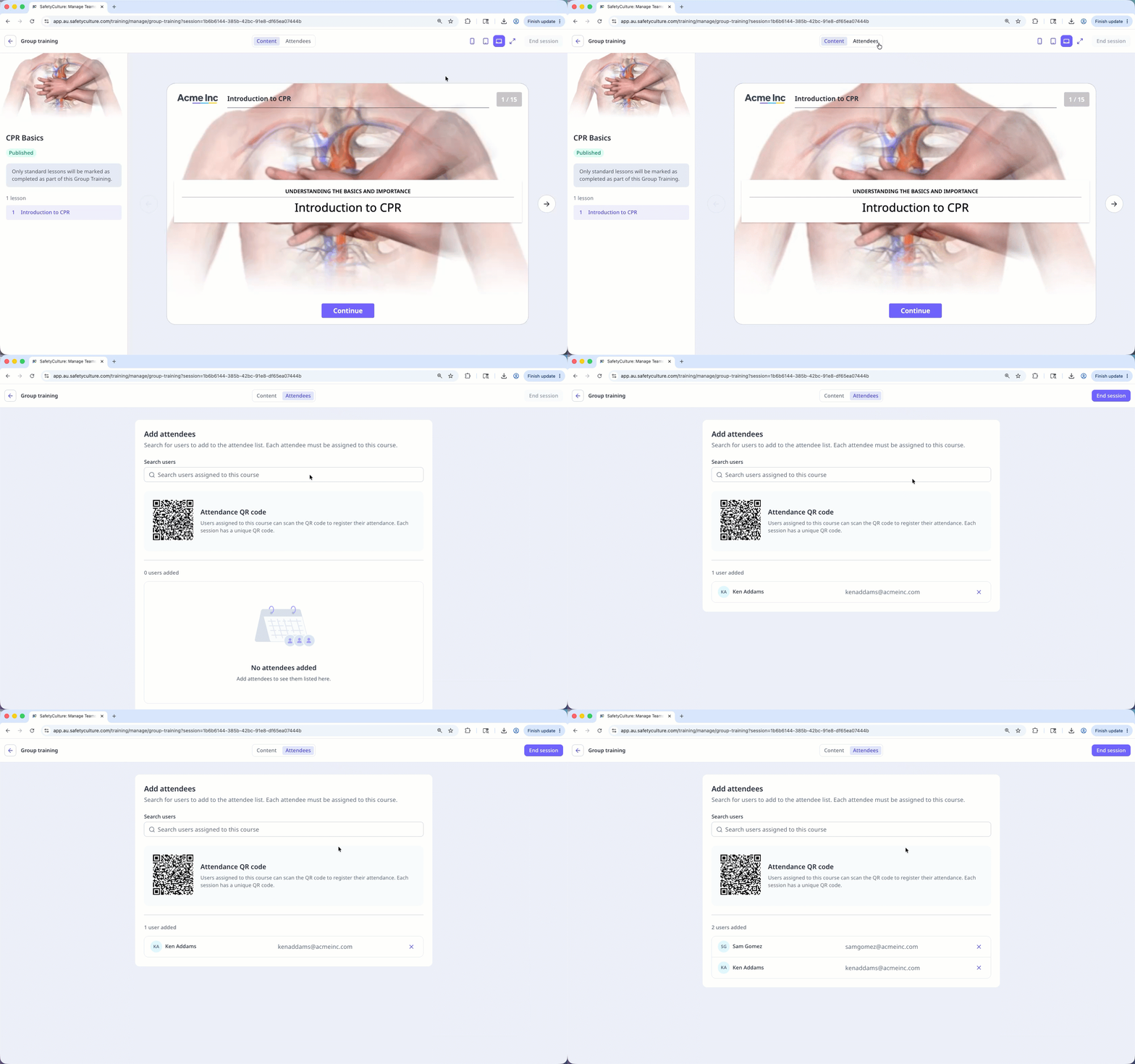
Click Attendees tab at the top of the page.
In the search field, enter the user's name, then select them from the results. Attendees can also scan the QR code to add themselves.
View a session report
Click Training from the sidebar or in More.
Click Facilitate at the top of the page and select Group Training.
Click on the right-hand side of the course and select View session report.
On this page, you can view the date and attendees for each session. You can also navigate between sessions on the left-hand side of the page.
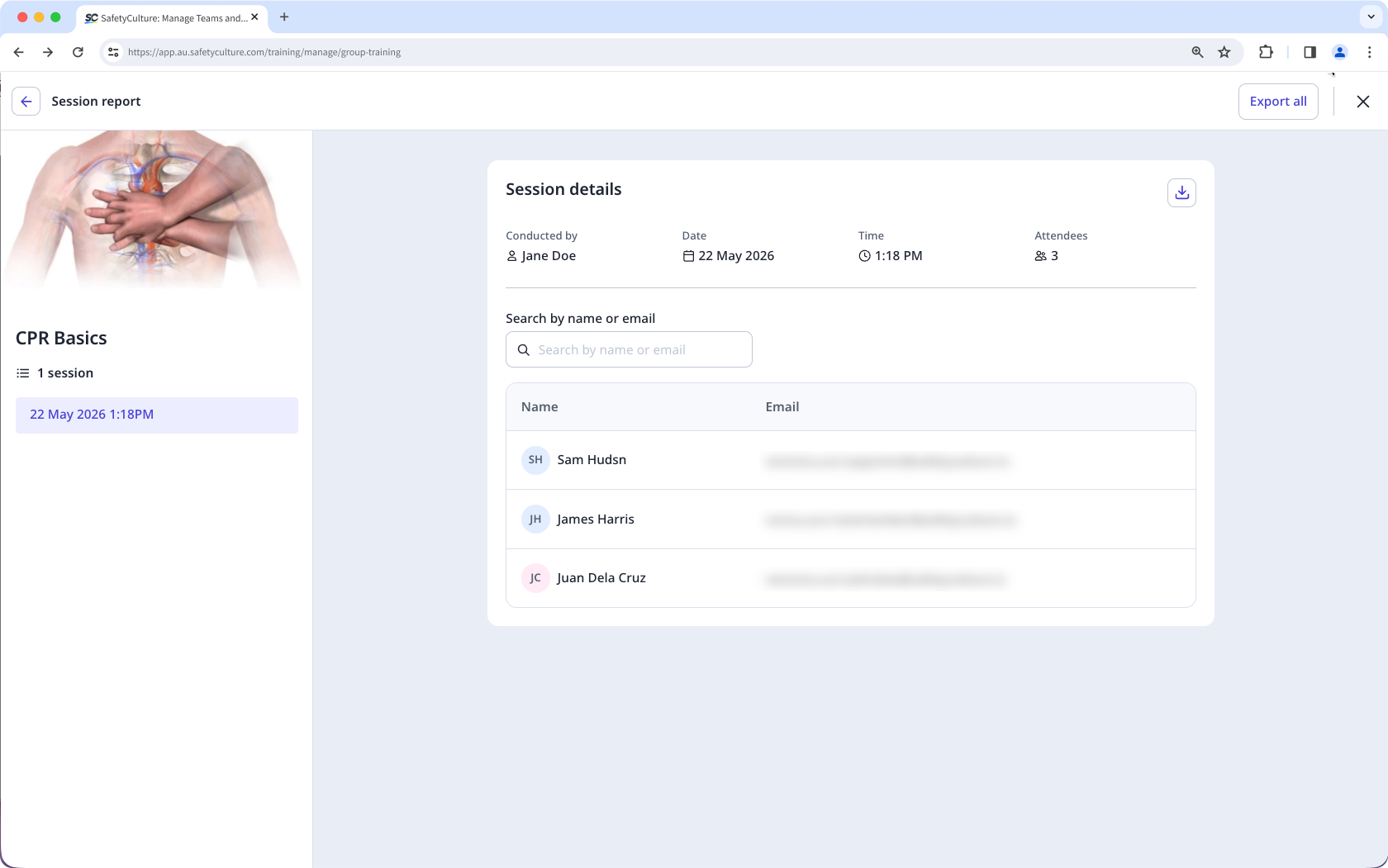
To export a CSV of an individual session, click on the upper-right of the "Session details" section.
To export a CSV of all sessions, click Export all on the upper-right of the page.
Frequently asked questions
Need more help?
Was this page helpful?
