Last updated: October 26, 2026
This article covers the legacy Supply experience, which is available to organizations in the U.S. If your organization is in Australia, you're on the new experience.
What are buying groups?
In Supply, a buying group lets you organize who can buy which products and how much they can spend. Admins can create and manage buying groups. Everyone in a buying group shares the same budget, so you don’t need to set a limit for each user.
With a buying group, you can:
Set a custom budget for the group, either per order or per month.
Restrict the group to a catalog of approved products. You can share one catalog across several buying groups.
Save payment methods for the group.
Assign group managers to manage budgets, catalogs, and payment methods, and to approve or deny orders.
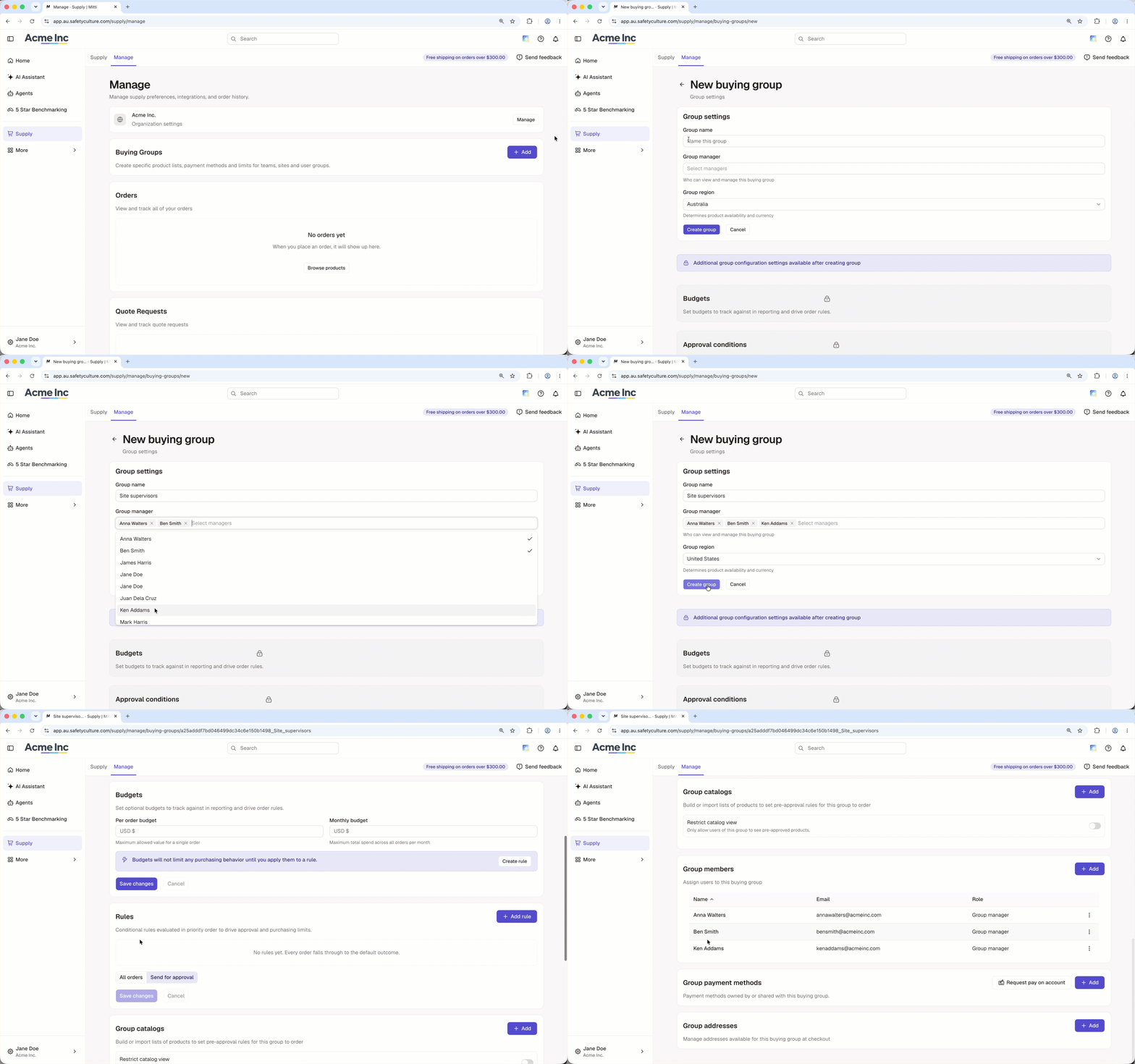
Buying groups in Supply are managed separately from groups you can create and select in the rest of the platform.
Create a buying group
Click Supply from the sidebar or in More.
Click Settings on the upper-right of the page.
Click New buying group on the upper-right of the page.

In the side panel, enter a name for the buying group and configure the following settings:
Max order limit value: Set a limit for how much a user in the buying group can spend per order. This requires a user's "Inherit Team Budget" setting to be turned on.
Monthly limit value: Set a limit for how much users in the buying group can collectively spend per month. This requires a user's "Inherit Team Budget" setting to be turned on.
Default payment: Select the saved credit card that users in the buying group can use. This requires a user's "Saved Payment" setting to be turned on.
Buying group admin access: Select a user as the buying group's admin.
Click Create New Buying Group.
Need more help?
Was this page helpful?