Last updated: October 21, 2026
This article covers the new Supply experience, which is only available to organizations in Australia. If your organization is outside Australia, you're on the legacy version for now.
What are buying groups?
In Supply, a buying group lets you organize who can buy which products and how much they can spend. Admins can create and manage buying groups. Everyone in a buying group shares the same budget, so you don’t need to set a limit for each user.
With a buying group, you can:
Set a custom budget for the group, either per order or per month.
Restrict the group to a catalog of approved products. You can share one catalog across several buying groups.
Save payment methods for the group.
Assign group managers to manage budgets, catalogs, and payment methods, and to approve or deny orders.
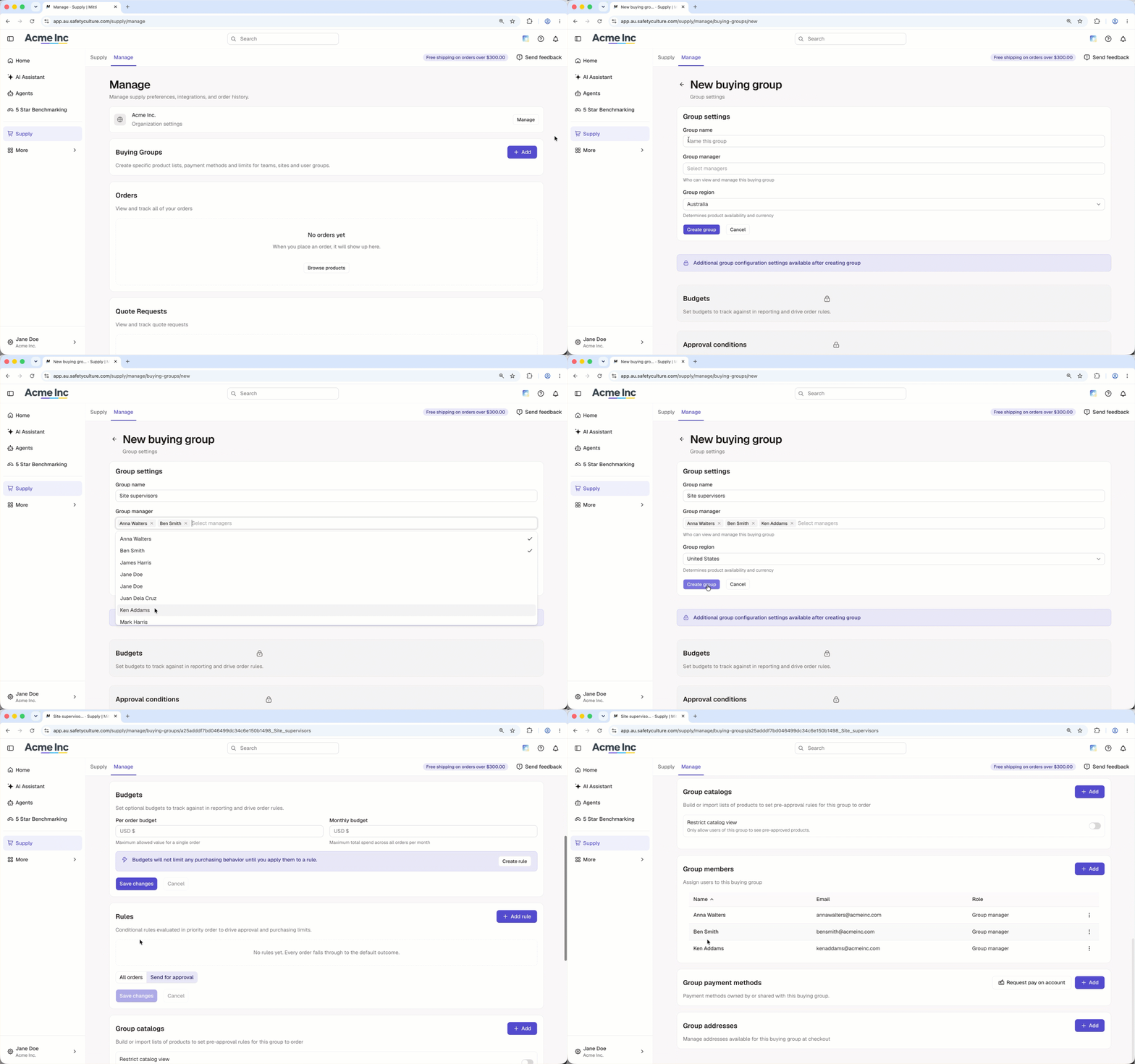
Buying groups in Supply are managed separately from groups you can create and select in the rest of the platform.
Add a buying group
Click Supply in the sidebar or in More.
Click Manage at the top of the page.
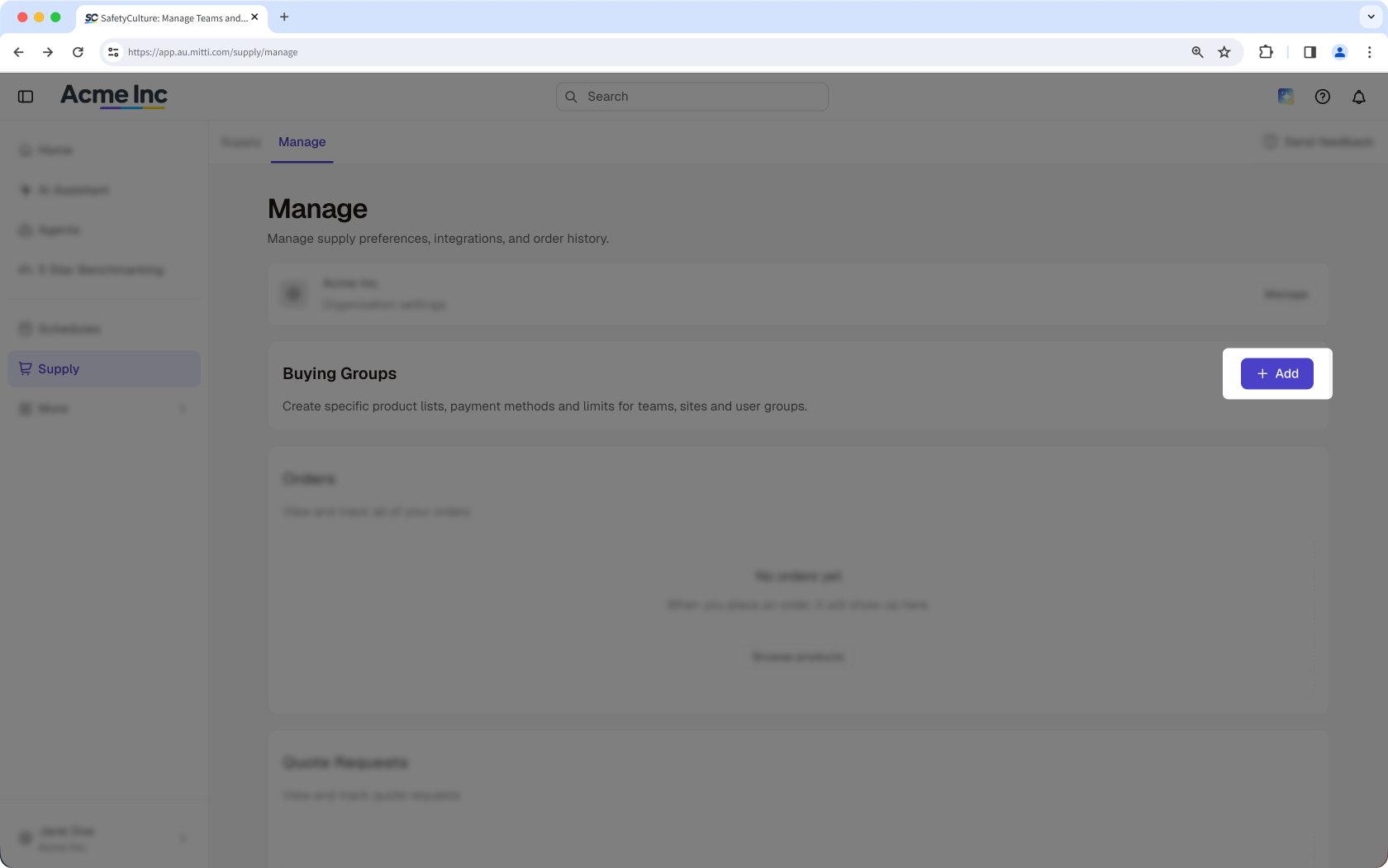
In the "Buying Groups" section, click Add on the right-hand side of the section.
Enter or select the following details:
Group name: Enter the name of the group.
Group manager: Click the field and select the users you want to set as group managers.
Group region: Click the dropdown menu and select the group region. The group region determines product availability and currency.
Click Create group.
Open the mobile app.
Tap Supply from the navigation bar or in More.
Tap Manage at the upper-left of your screen.
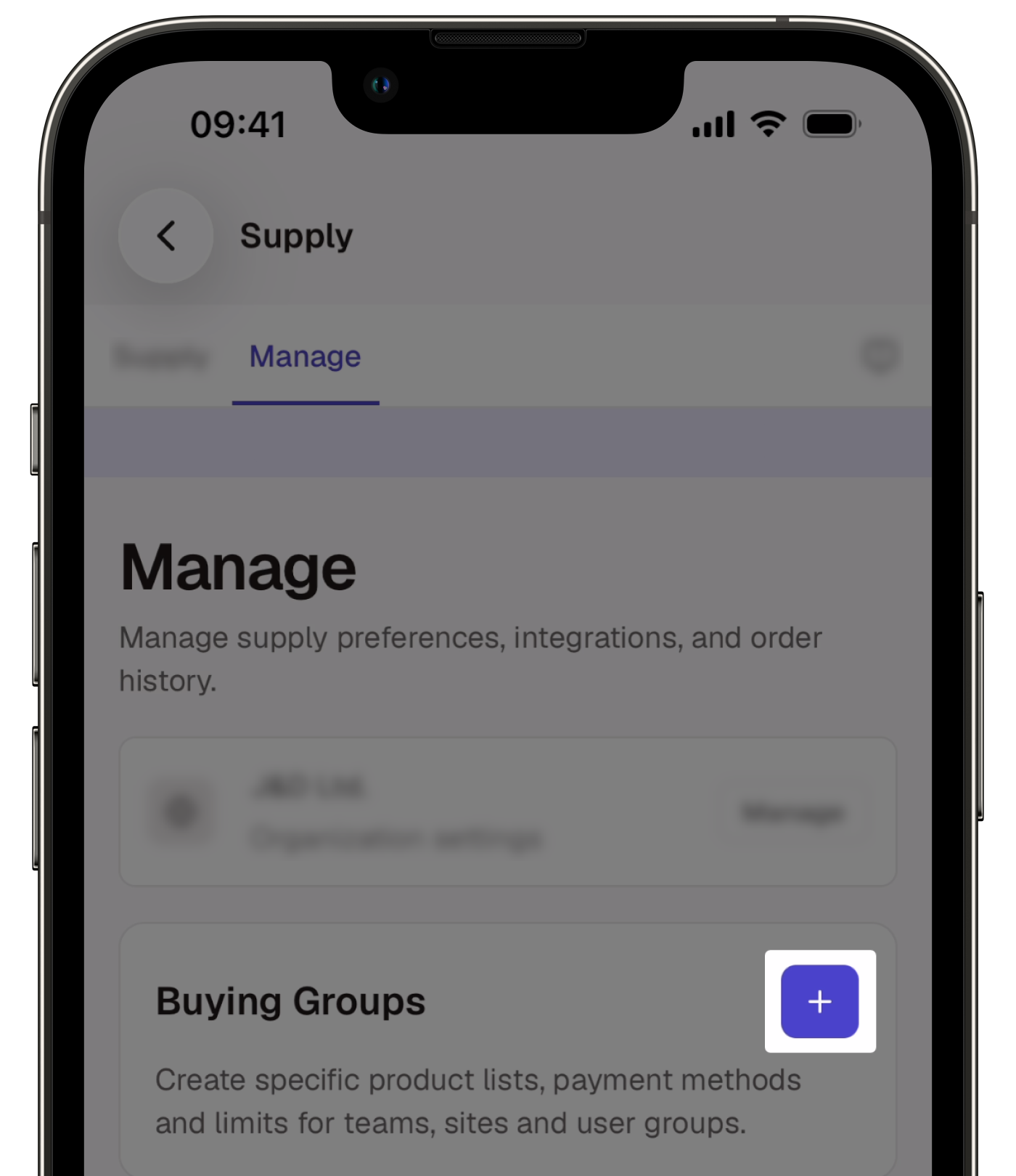
In the "Buying Groups" section, tap .
Enter or select the following details:
Group name: Enter the name of the group.
Group manager: Tap the field and select the users you want to manage the buying group.
Group region: Tap the dropdown menu and select the region. The group region determines product availability and currency.
Tap Create group.
After you create a buying group, you can manage the group's budgets, approval rules, catalogs, members, payment methods, and addresses.
Duplicate a buying group
Click Supply in the sidebar or in More.
Click Manage at the top of the page.
In the "Buying Groups" section, click Manage on the right-hand side of the buying group you want to duplicate.
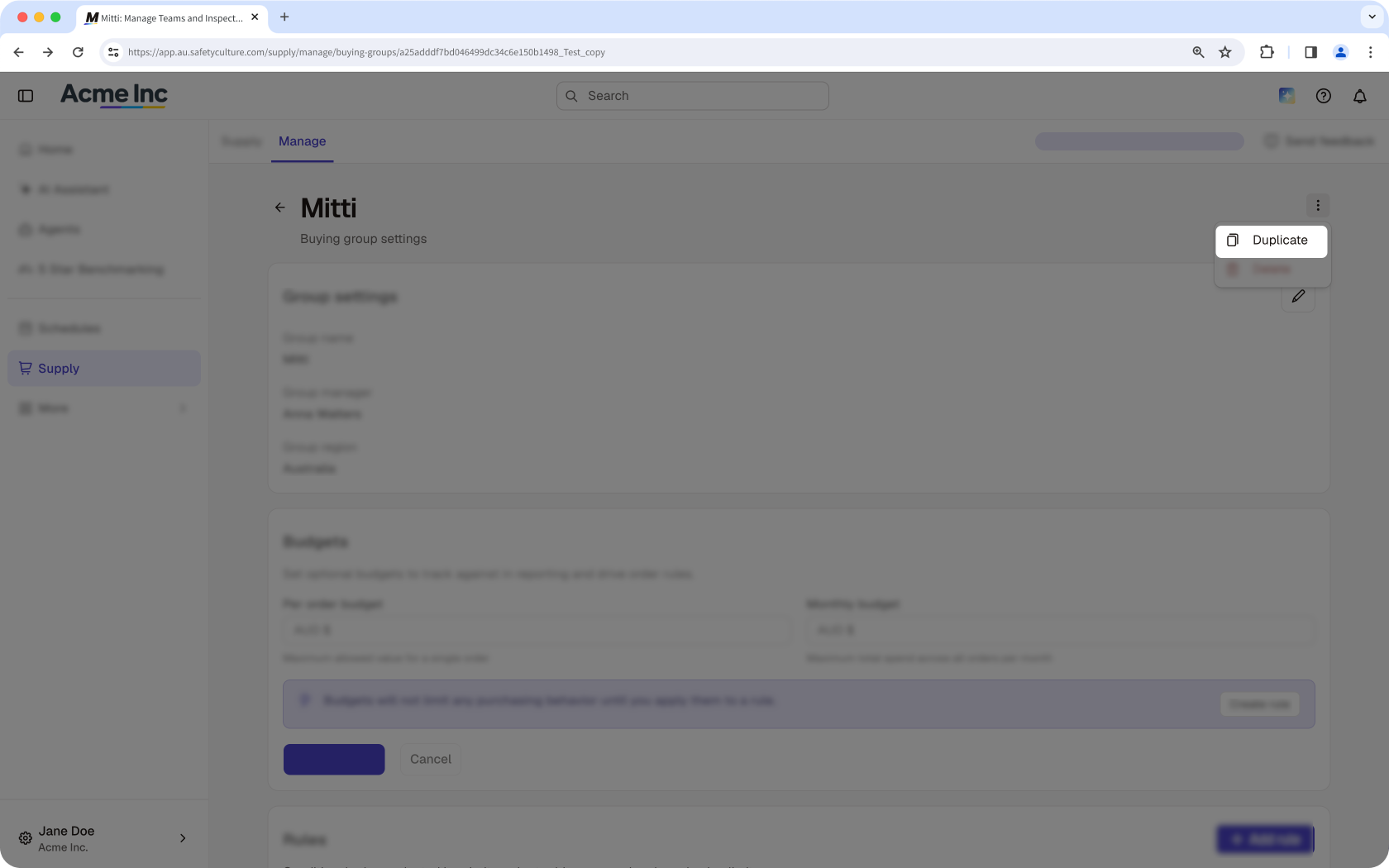
Click on the upper-right of the page and select Duplicate.
In the "Group settings" section, enter or select the following details:
Group name: Enter a name for the new buying group.
Group manager: Click the field and select the users you want to set as group managers.
Group region: Click the dropdown menu and select the group region. The group region determines product availability and currency.
Check or uncheck the box next to each setting you want to copy to the new buying group.
Click Duplicate group.
Open the mobile app.
Tap Supply from the navigation bar or in More.
Tap Manage at the upper-left of your screen.
In the "Buying Groups" section, tap Manage on the right-hand side of the buying group you want to duplicate.
Tap at the upper-right of your screen and select Duplicate.
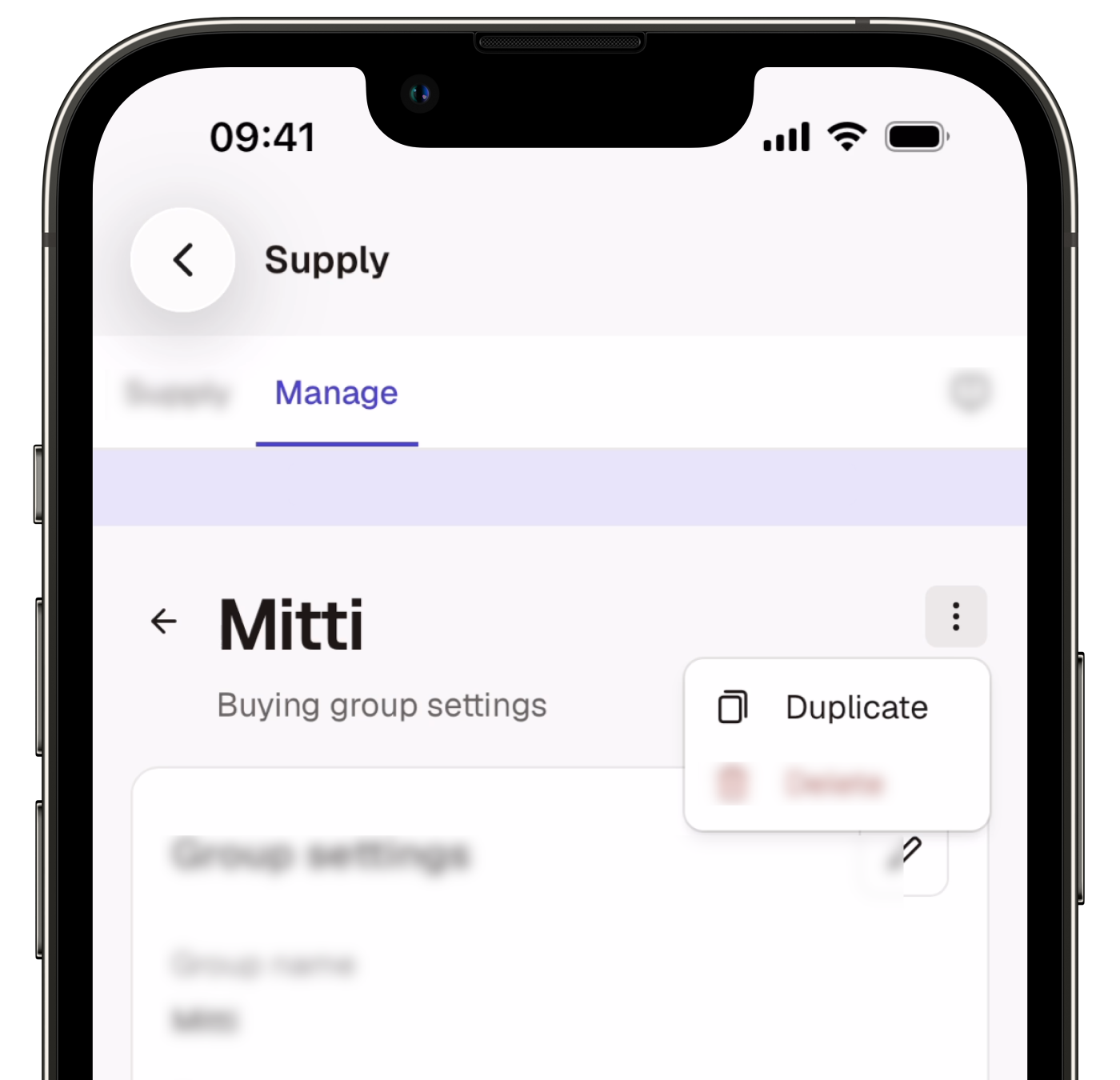
In the "Group settings" section, enter or select the following details:
Group name: Enter a name for the new buying group.
Group manager: Tap the field and select the users you want to set as group managers.
Group region: Tap the dropdown menu and select the group region. The group region determines product availability and currency.
Check or uncheck the box next to each setting you want to copy to the new buying group.
Tap Duplicate group.
Delete a buying group
Click Supply in the sidebar or in More.
Click Manage at the top of the page.
In the "Buying Groups" section, click Manage on the right-hand side of the buying group you want to delete.
Click on the upper-right of the page and select Delete.
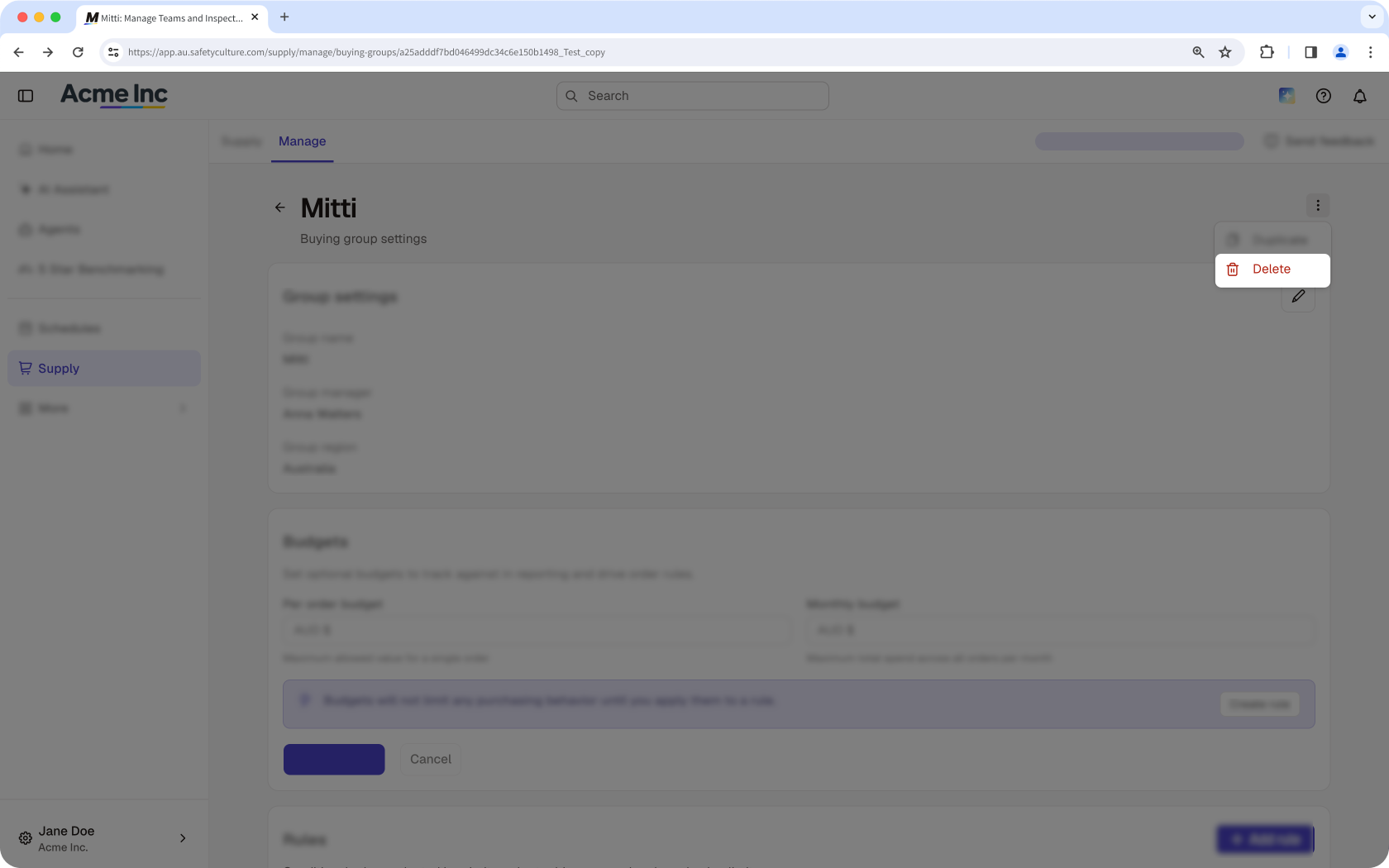
In the pop-up window, click Delete buying group.
Open the mobile app.
Tap Supply from the navigation bar or in More.
Tap Manage at the upper-left of your screen.
In the "Buying Groups" section, tap Manage on the right-hand side of the buying group you want to delete.
Tap at the upper-right of your screen and select Delete.
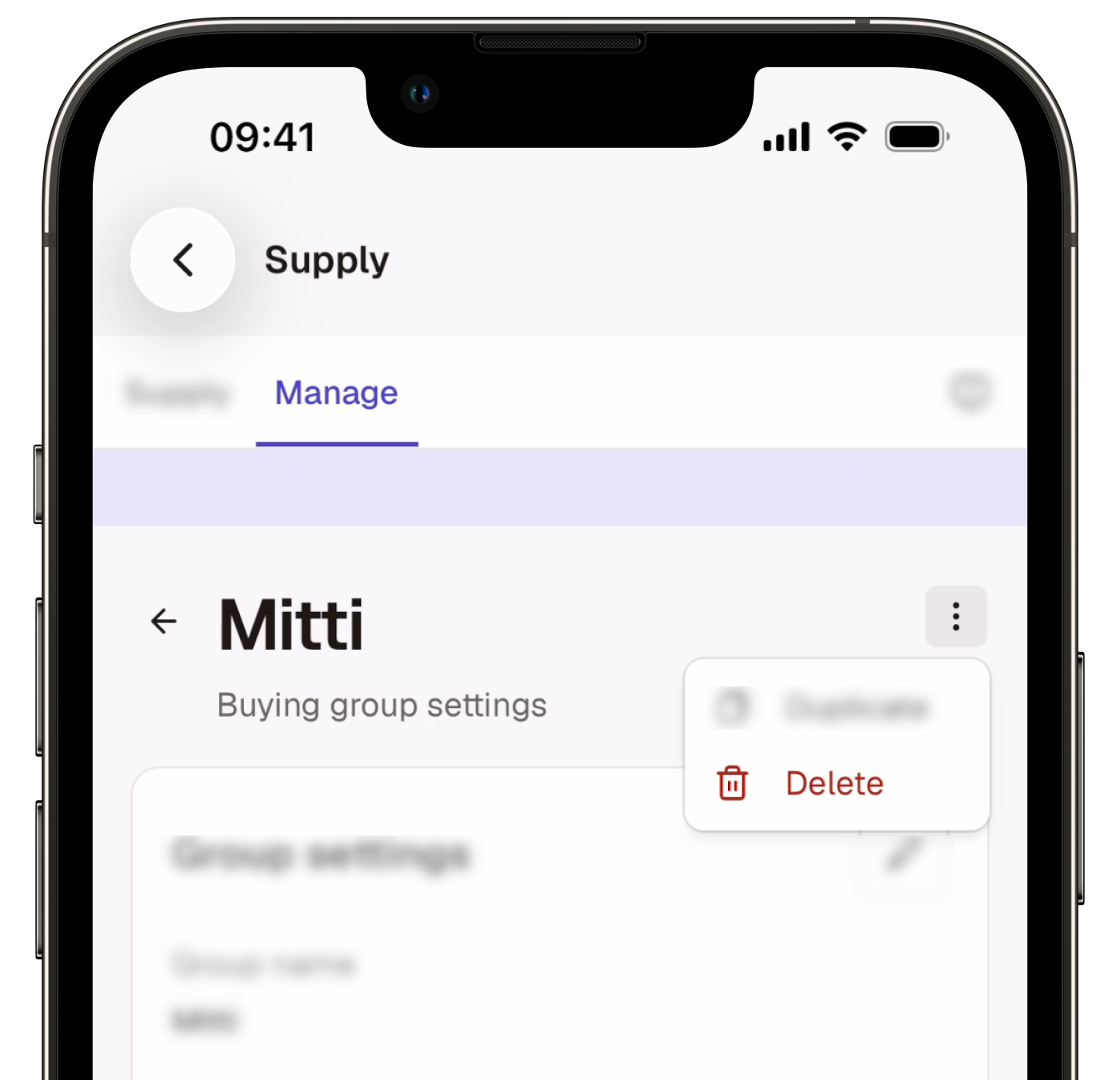
In the pop-up window, tap Delete buying group.
Limitations
When you duplicate a default buying group, group members are not copied. Default buying groups include all users automatically.
When you duplicate a buying group, group payment methods are not copied. You can add payment methods to the new buying group after you create the duplicate.
Need more help?
Was this page helpful?