Last updated: March 11, 2026
What are practical assessments?
A practical assessment is a course lesson type that emphasizes hands-on training that goes beyond traditional teaching methods. Assessors can observe their team members while completing real tasks and provide immediate feedback to help them improve and track progress toward mastery. This lesson type is ideal for teaching skills such as customer service or safety checks, giving your team the opportunity to demonstrate what they’ve learned in a practical setting.
What you'll need
By default, you can only facilitate training and view data from users in groups and sites for which you're a team manager. If you have "Training: Administration" permission, you can facilitate training and view data from all users in your organization.
Conduct a practical assessment
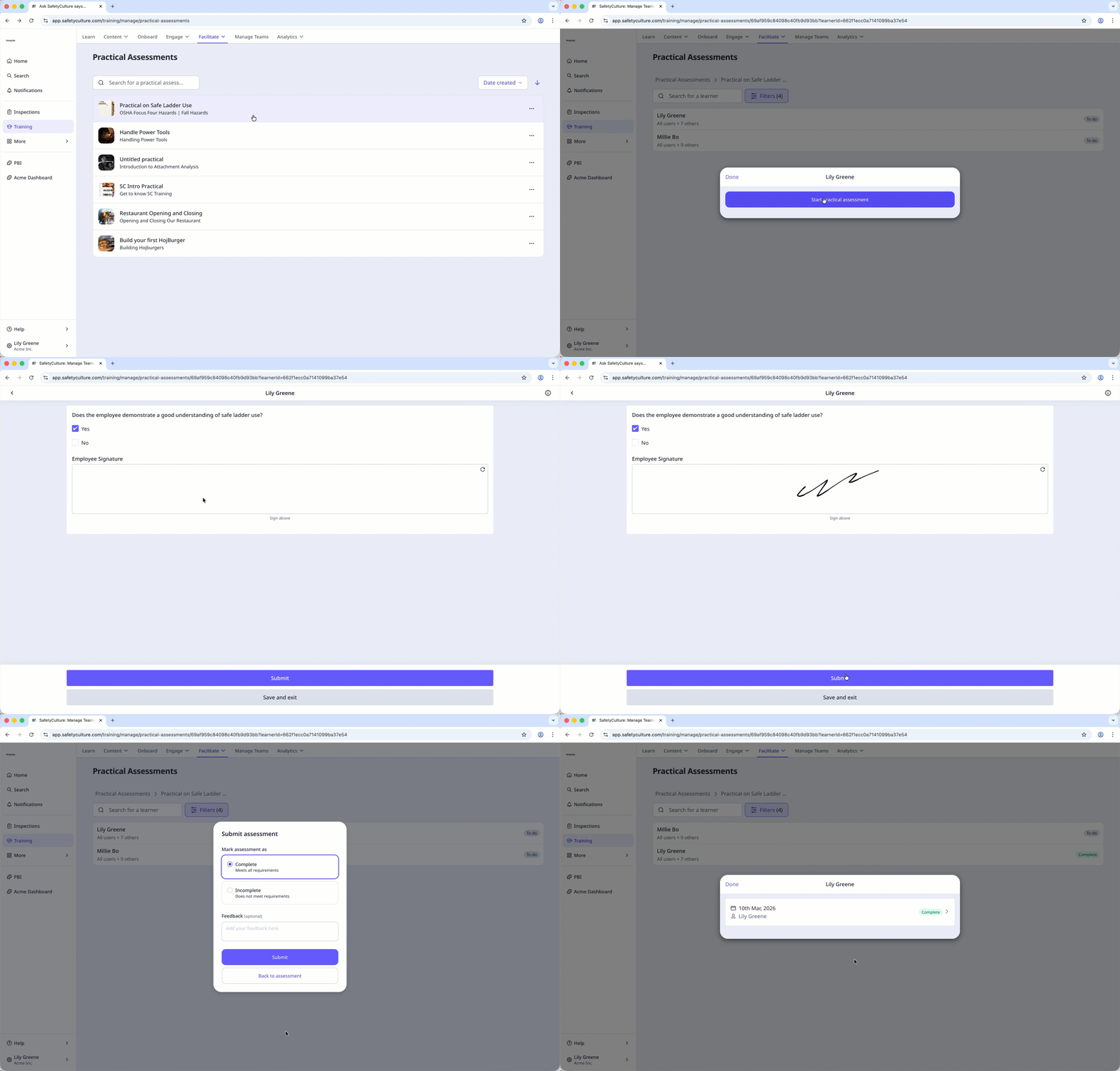
Select Training in the sidebar or in More.
Click Facilitate at the top of the page and select Practical Assessments.
Click the practical assessment, and select the user you’re conducting it for.
If the status is To do or Incomplete, click Start practical assessment and proceed accordingly.
If the status is In progress, click Resume practical assessment and continue accordingly.
Complete the form as the user you're assessing demonstrates their knowledge of the training topic.
Once you're ready, click Submit.
In the pop-up window, click Complete or Incomplete to evaluate the assessment. You can also add feedback, which will be visible to them.
Click Submit.
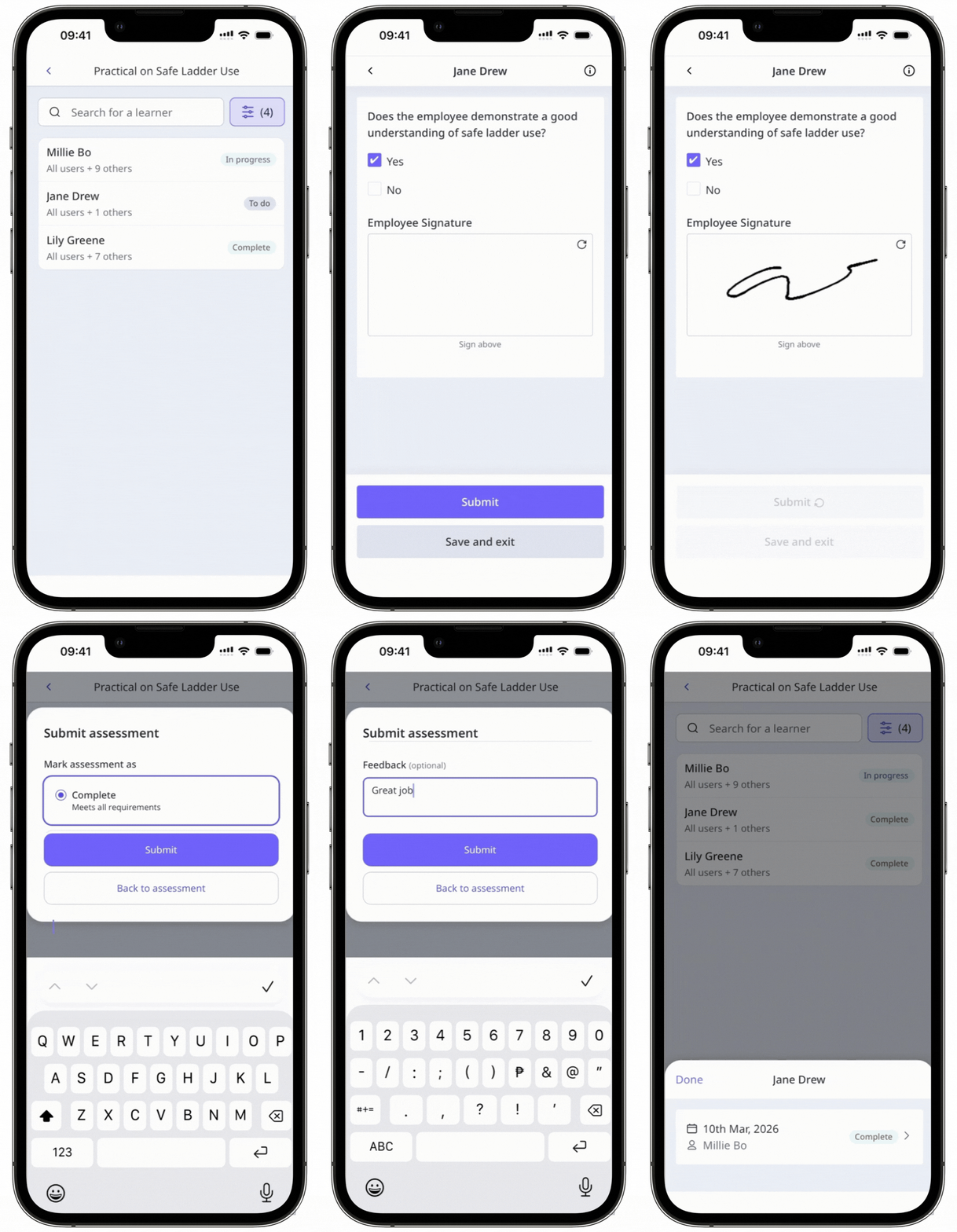
Open the mobile app.
Tap Training in the navigation bar or select it from More.
If you're currently on Learn or Create tab, tap Facilitate at the top of your screen.
Tap the practical assessment, and select the user you’re conducting it for.
If the status is To do or Incomplete, tap Start practical assessment and proceed accordingly.
If the status is In progress, tap Resume practical assessment and continue accordingly.
Complete the form as the user you're assessing demonstrates their knowledge of the training topic.
Once you're ready, tap Submit.
In the pop-up window, tap Complete or Incomplete to evaluate the assessment. You can also add feedback, which will be visible to them.
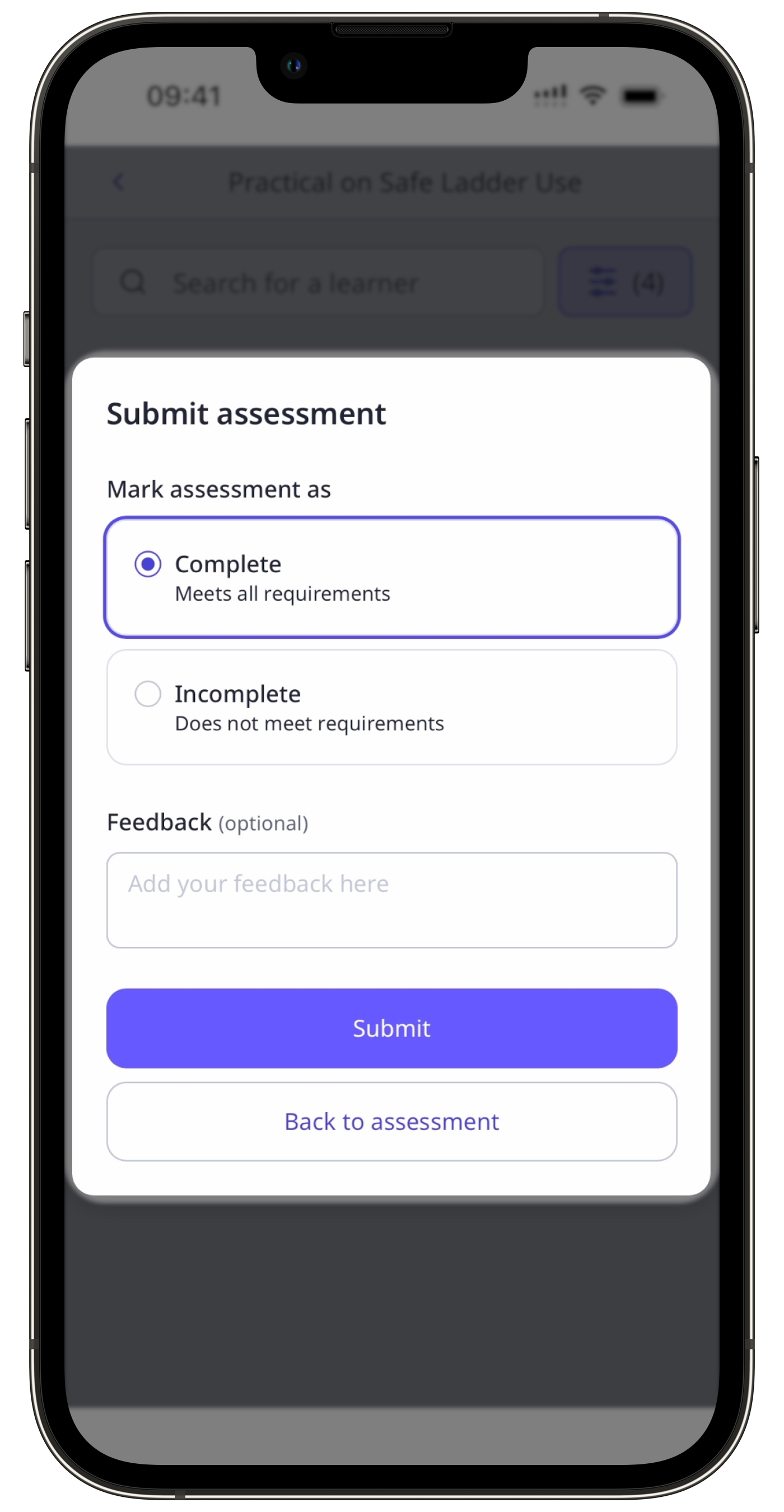
Tap Submit.
When a course's progress is reset, all user progress, including completed practical assessments, will be reset as well. Users will need to complete the practical assessment again after the course is retaken.
Need more help?
Was this page helpful?
