Last updated: September 22, 2026
How do course-assigned notifications work?
Course-assigned notifications help you and your team stay on top of training by automatically alerting users when new courses are assigned through direct or rule-based assignment. Notifications are sent by email, push, or SMS as soon as the course becomes available, including when it’s part of an onboarding workflow.
This eliminates the need for manual reminders, keeping teams informed, engaged, and on track to complete their training.
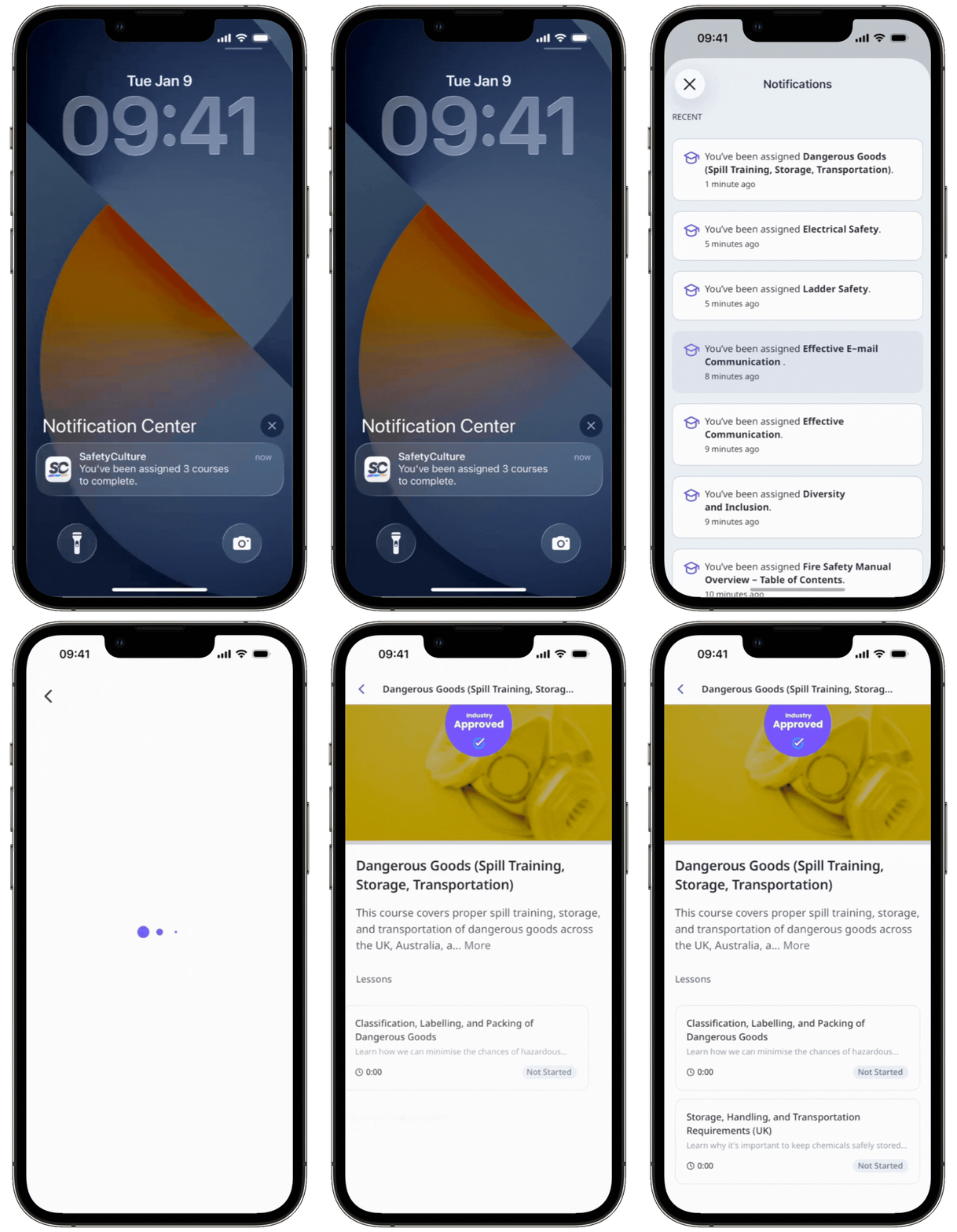
Course-assigned notifications apply only to the initial assignment notification and do not affect reminders, due dates, or overdue-status notifications triggered by a course due date.
Course-assigned notifications are turned on by default when you create a new course.
Turn course-assigned notifications on or off for a course
Click Training from the sidebar or in More.
If you're on the "Learn" page, click Content at the top of the page and select Courses.
Hover your cursor over the course and click View or Edit.
If you're editing an existing course and it's published, click Edit on the upper-right of the page.
Click Set up at the top of the page.
Scroll to the "Delivery" section and turn Course assigned notifications on or off.
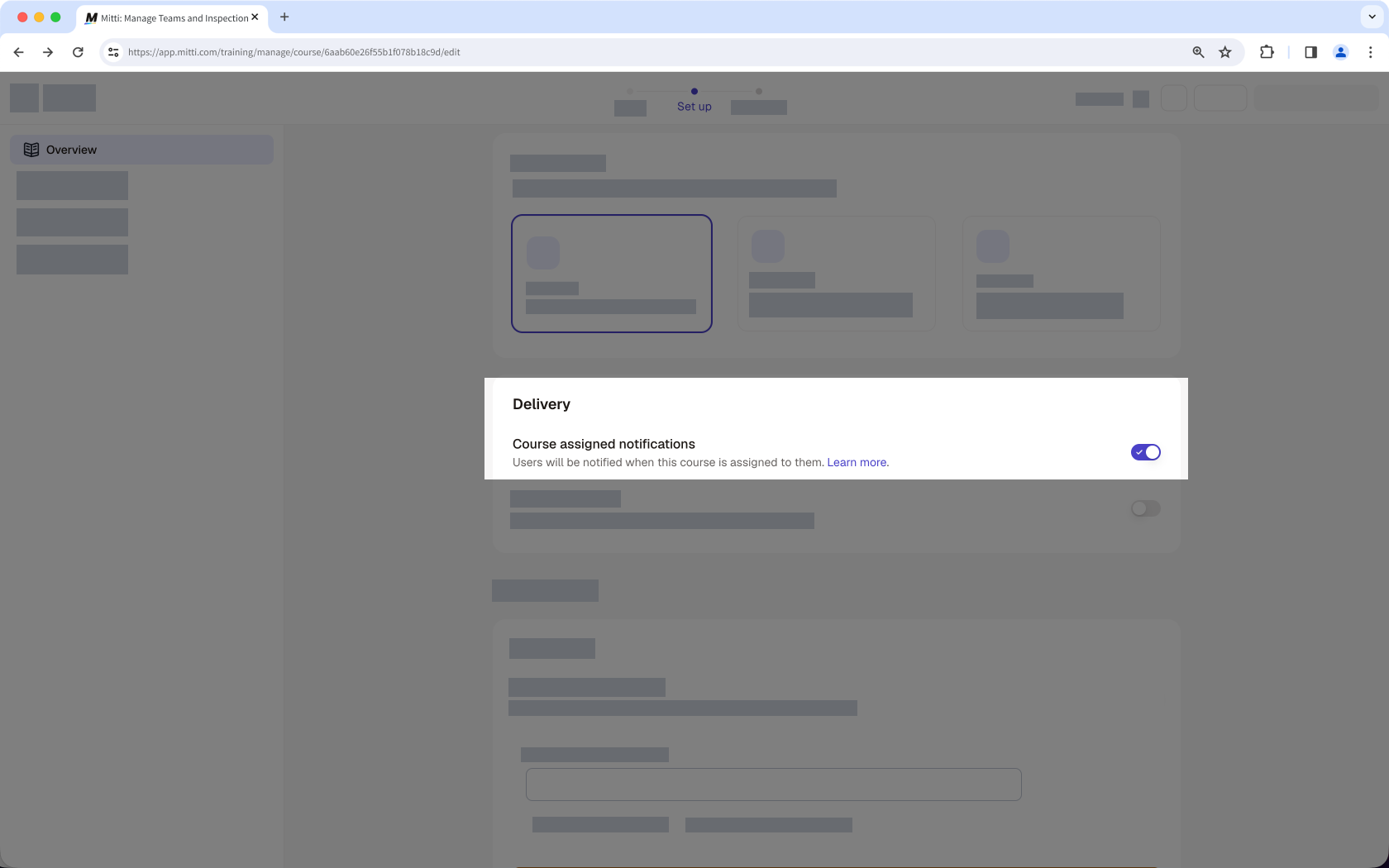
Changes are saved automatically.
If your course is currently a draft, remember to publish it to make your changes available to your team.
Frequently asked questions
Need more help?
Was this page helpful?
