Last updated: January 12, 2026
How do tables in inspections work?
Tables in inspections are designed to help teams efficiently collect, display, and manage large volumes of repetitive data in a tabular format. Whether you're recording consistent sets of information across multiple items or meeting strict reporting requirements from third-party clients, tables offer a structured way to capture what matters. The clear, structured format makes it easier to reference previously entered responses, spot patterns and trends, and ensure your data is both complete and easy to interpret.
What you'll need
Tables in inspections are supported on the Mitti mobile app version 25.50 or above, with iOS/iPadOS 16.0 or Android 9.0 at a minimum.
Add a row
Select Inspections in the sidebar or in More.
Click Start inspection on the upper-right corner of the page.
In the pop-up window, click the dropdown menu and select a template.
Click Start inspection.
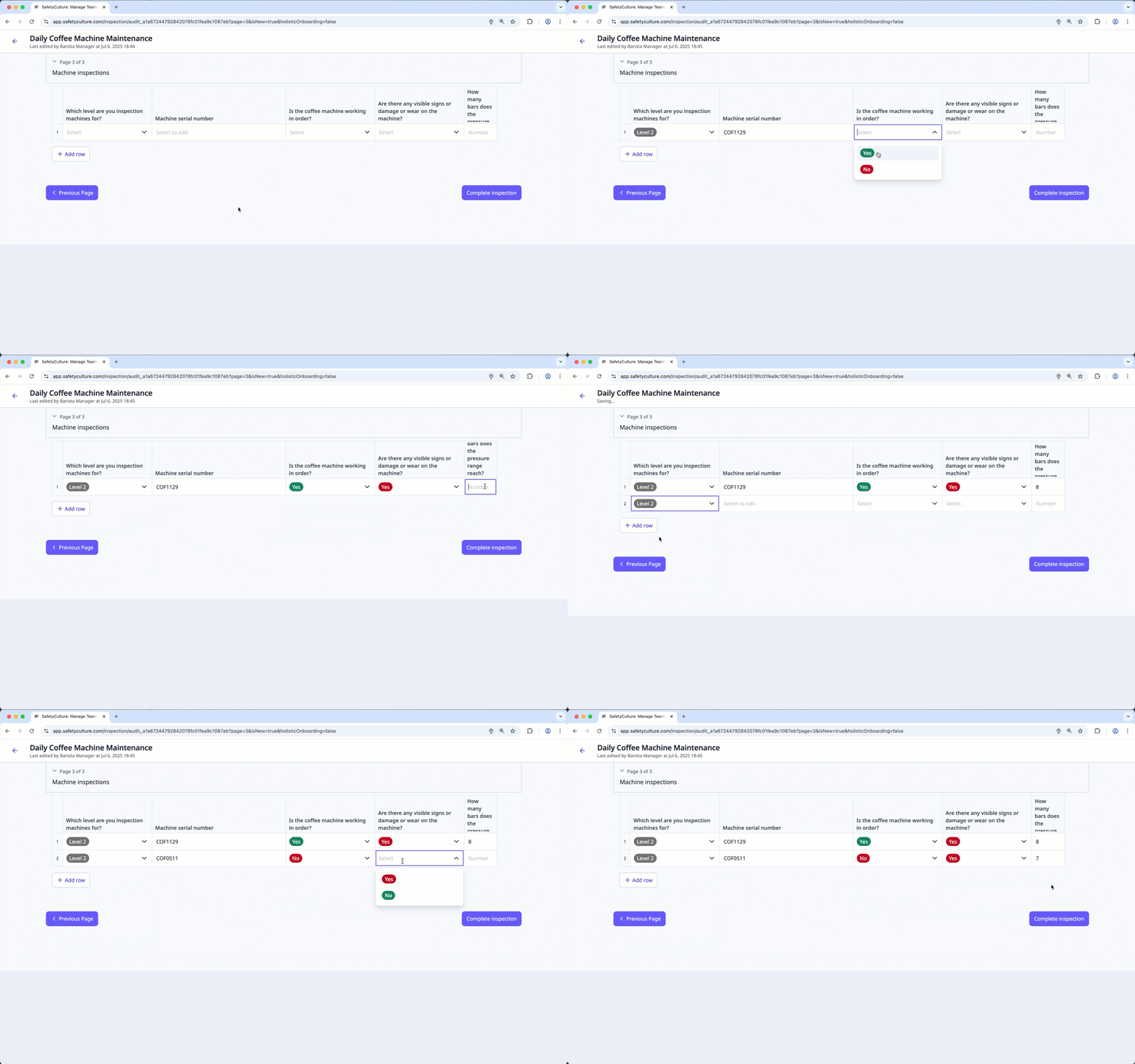
In the table, enter responses in each cell.
Click Add row at the bottom left of the page to add another row of responses.
Open the mobile app.
Tap Inspections in the navigation bar or select it from More.
Select Templates tab at the top of your screen.
Tap the template and tap Start inspection from the pop-up options.
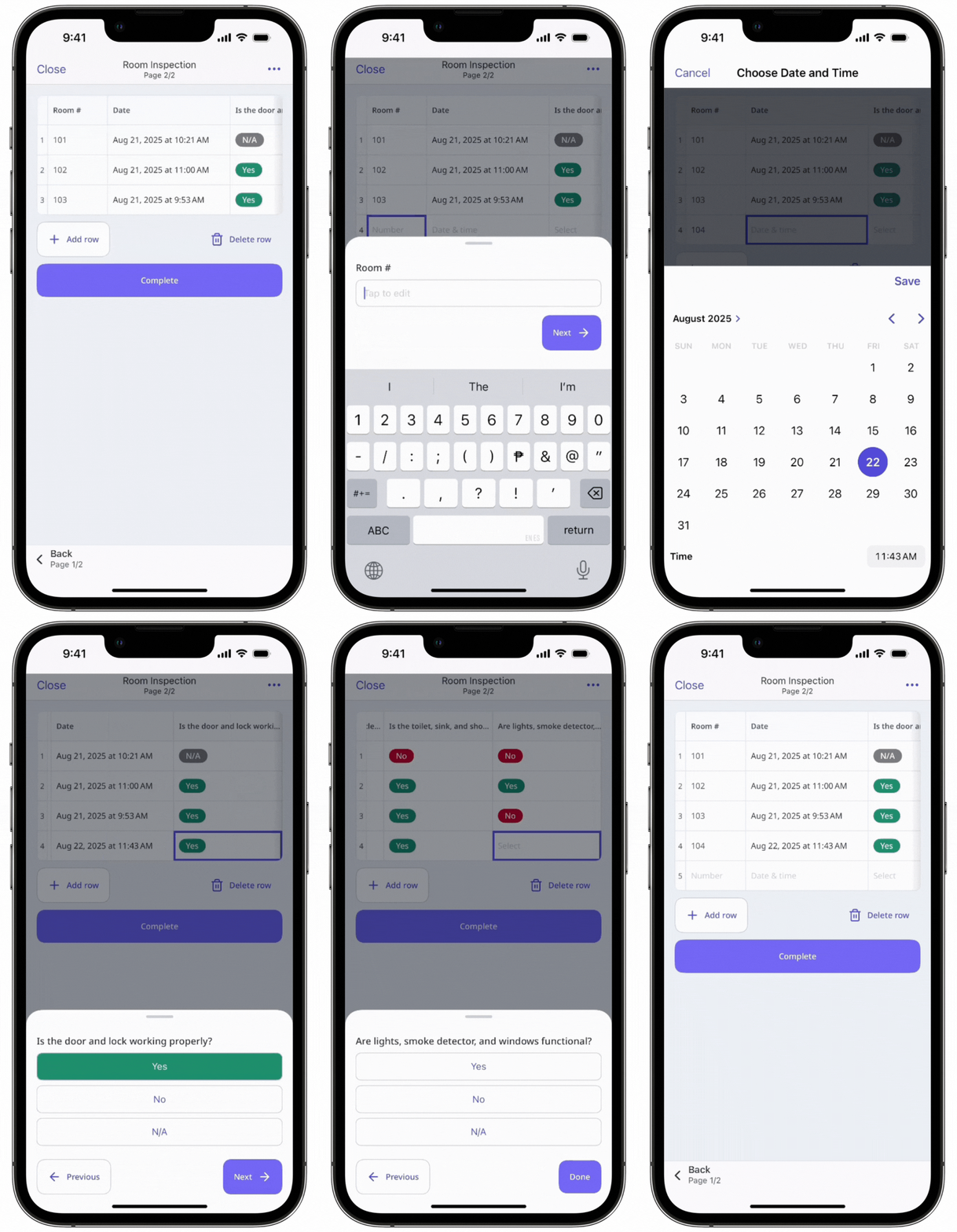
In the table, enter responses in each cell. You can tap Previous and Next to navigate through the row cells.
Tap Add row at the bottom left of the page to add another row of responses.
Delete a row
Select Inspections in the sidebar or in More.
Click Continue on the inspection's right-hand side. If the inspection is completed, click on the inspection's right-hand side and select Edit inspection.
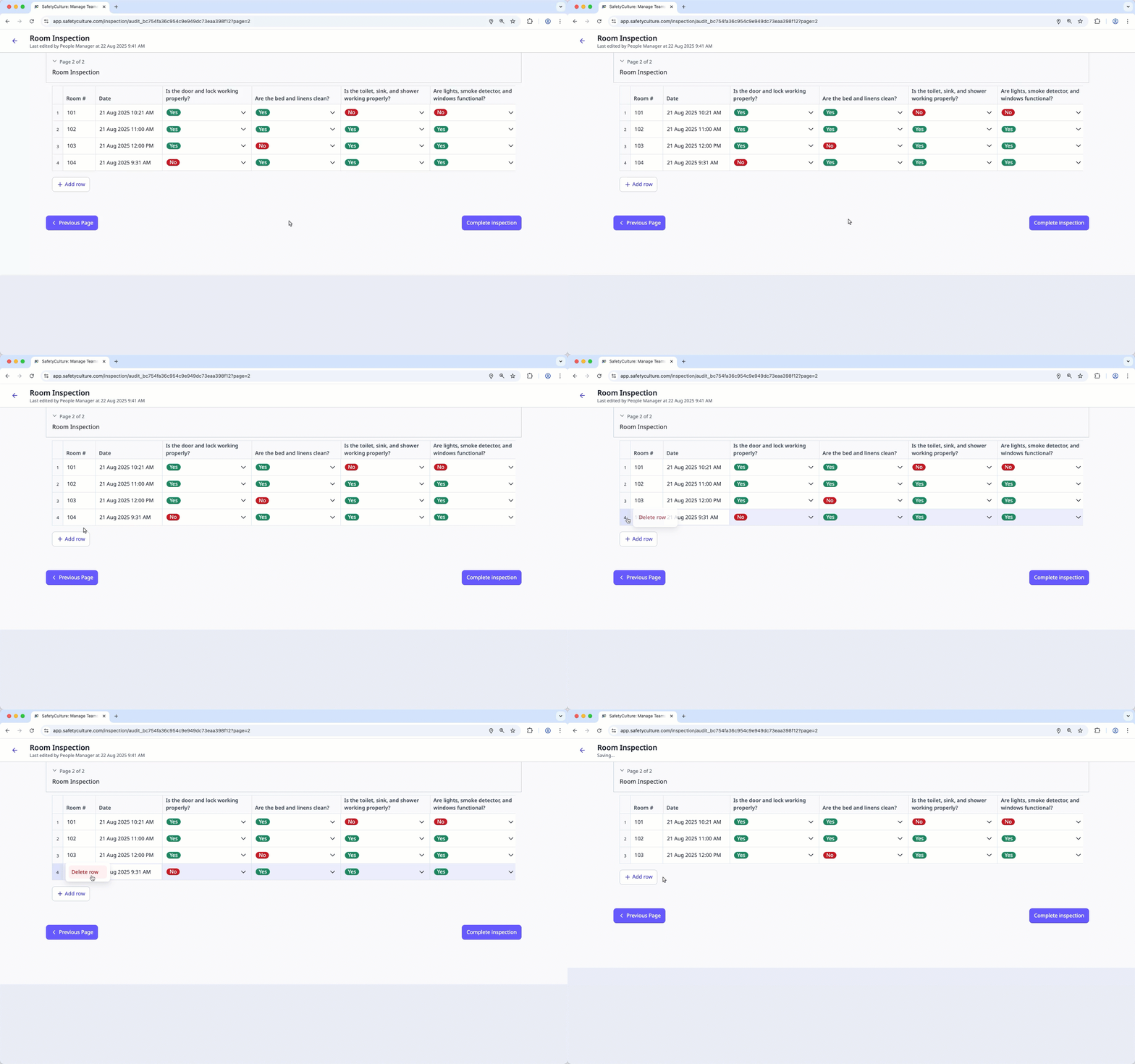
In the table, click the row number.
Click Delete row.
Open the mobile app.
Tap Inspections in the navigation bar or select it from More.
Select In Progress & Complete tab at the top of your screen.
Tap the inspection and select Continue inspection. If the inspection has been marked as completed, tap Edit inspection from the pop-up options.
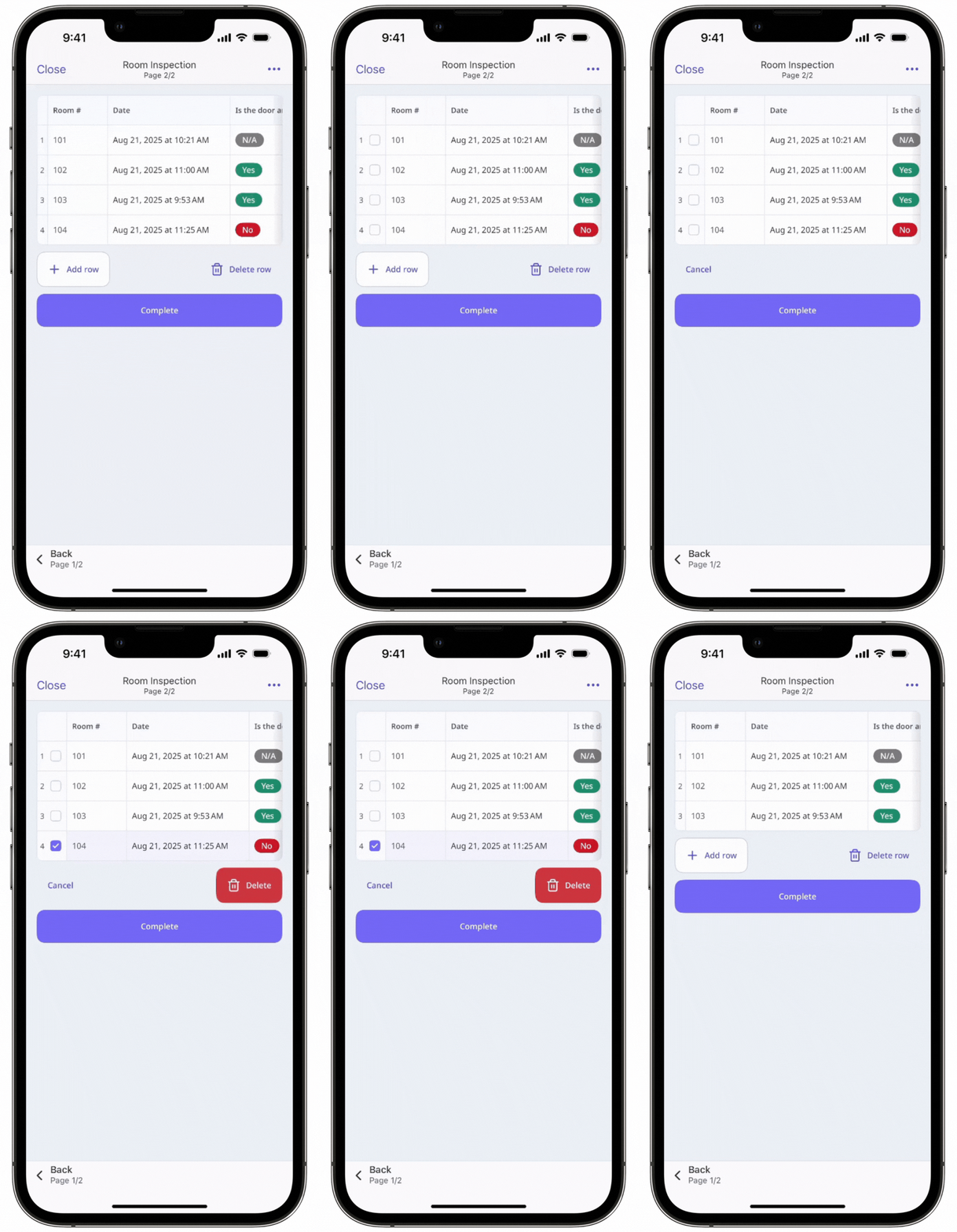
In the table, tap Delete row.
Check the row you want to delete.
Tap Delete.
You can export inspection reports with tables in both PDF and Word files, giving you more flexibility in how you use and share them.
Limitations
You can only add up to 100 rows per table.
You can only delete one row at a time.
Adding notes, creating actions, or attaching files and media are not currently supported within rows and tables.
You can review flagged responses after completing an inspection, but creating actions from the side panel isn’t currently supported.
Frequently asked questions
Need more help?
Was this page helpful?
