Last updated: October 25, 2026
Home layouts are only available on the Enterprise Plan.
Why create Home layouts for roles?
A Home layout lets administrators control which items a role sees on Home. With a layout for each role, users can quickly find what they need and focus on the information that matters most to their work.
For example, managers need to keep track of their Agenda and their team's work. Frontline workers need to find assigned actions and continue inspections in progress. Instead of showing every user the same Home, administrators can create a layout for each role with the items that role needs, giving every team a more focused Home experience.
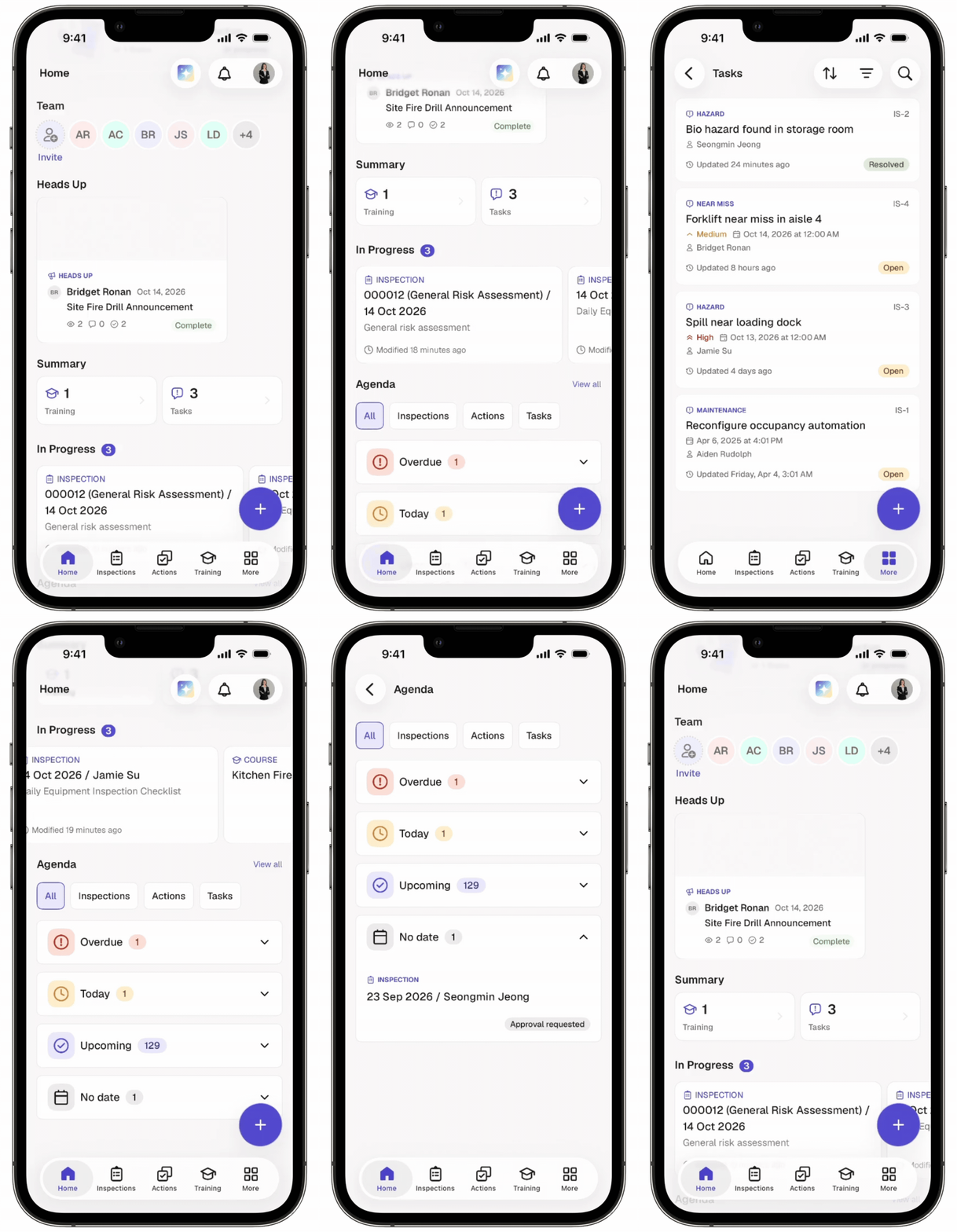
The default layout applies to users with roles that have no assigned layout.
Create a Home layout
Click your organization name on the lower-left corner of the page and select Organization settings.
Click the Home settings tab.
Click Create new layout on the lower-left of the list.
In the pop-up window, click the dropdown menu and select a role.
Click Create.
Click on the upper-left of the page to edit the Home layout name.
Edit what's included in the new layout:
Check the widgets you want to display on the Home of the web app and the mobile app, and uncheck those you want to hide.
Click and hold on the left-hand side of the widgets to sort them.
Click Save on the upper-right corner of the page.
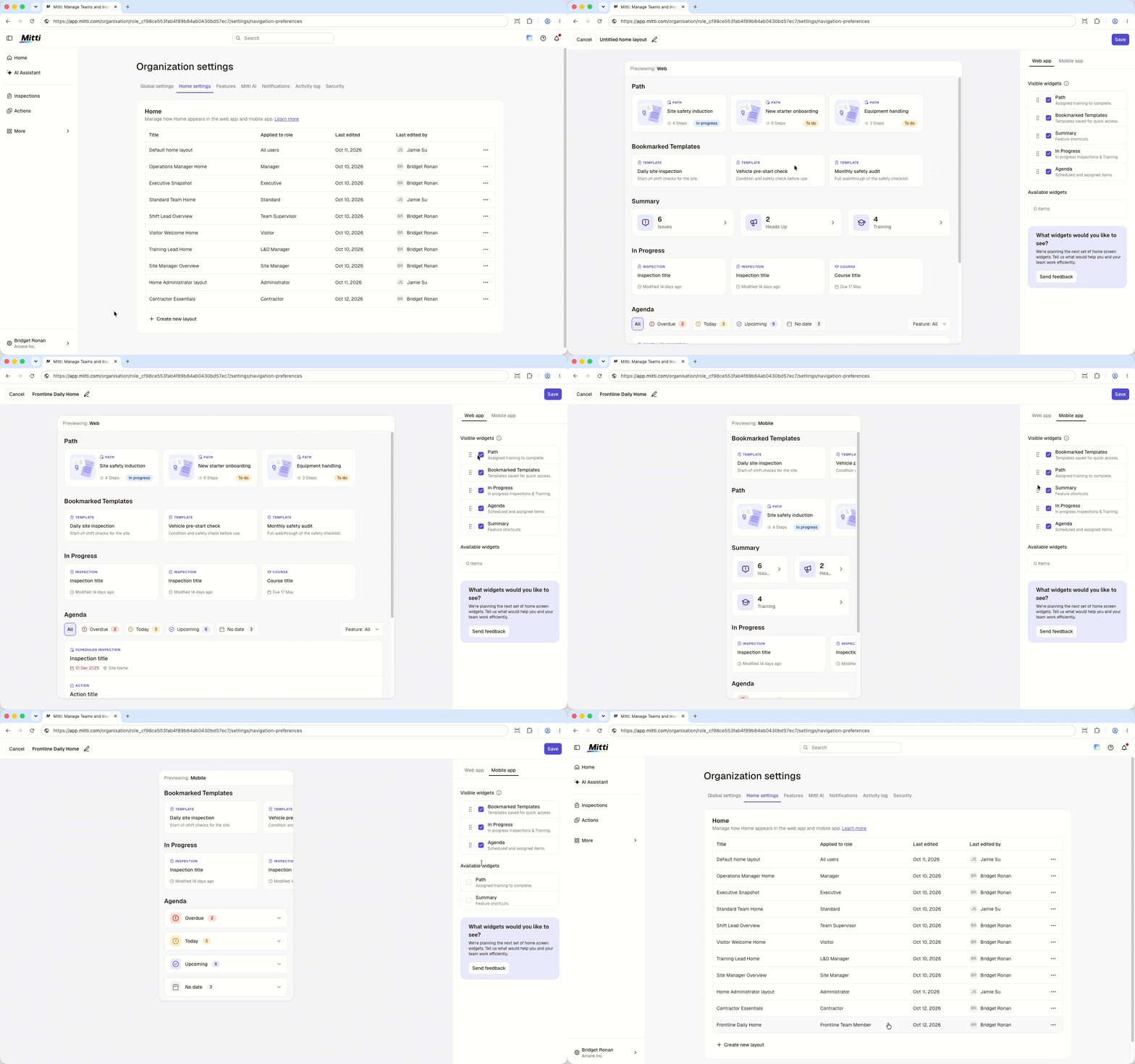
You can only create one Home layout for each role.
Edit a Home layout
Click your organization name on the lower-left corner of the page and select Organization settings.
Click the Home settings tab.
Click on the right-hand side of the layout and select Edit.
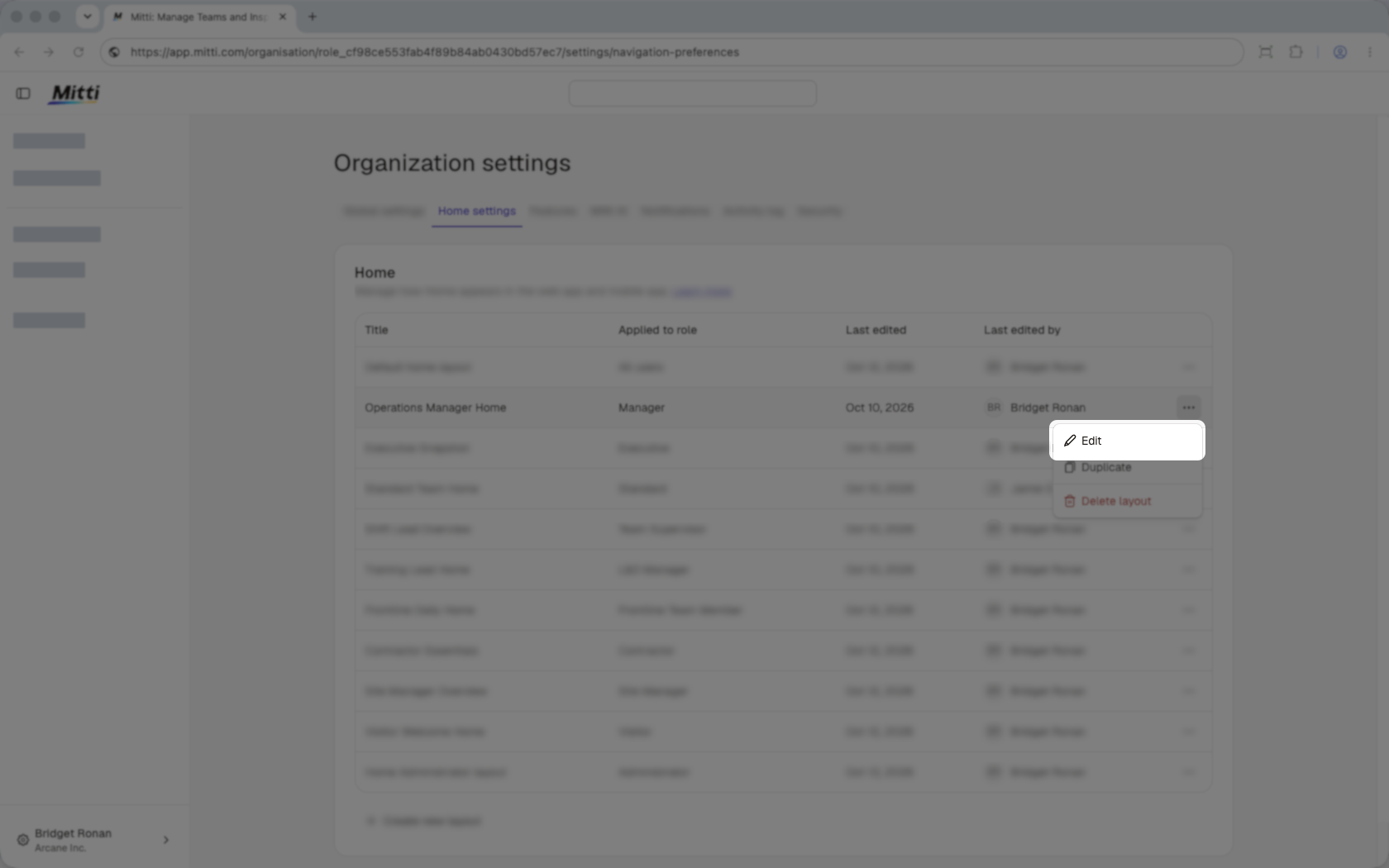
Edit the Home layout name, the widgets you want to show, and their order.
Click Save on the upper-right corner of the page.
Duplicate a Home layout
Click your organization name on the lower-left corner of the page and select Organization settings.
Click the Home settings tab.
Click on the right-hand side of the layout and select Duplicate.
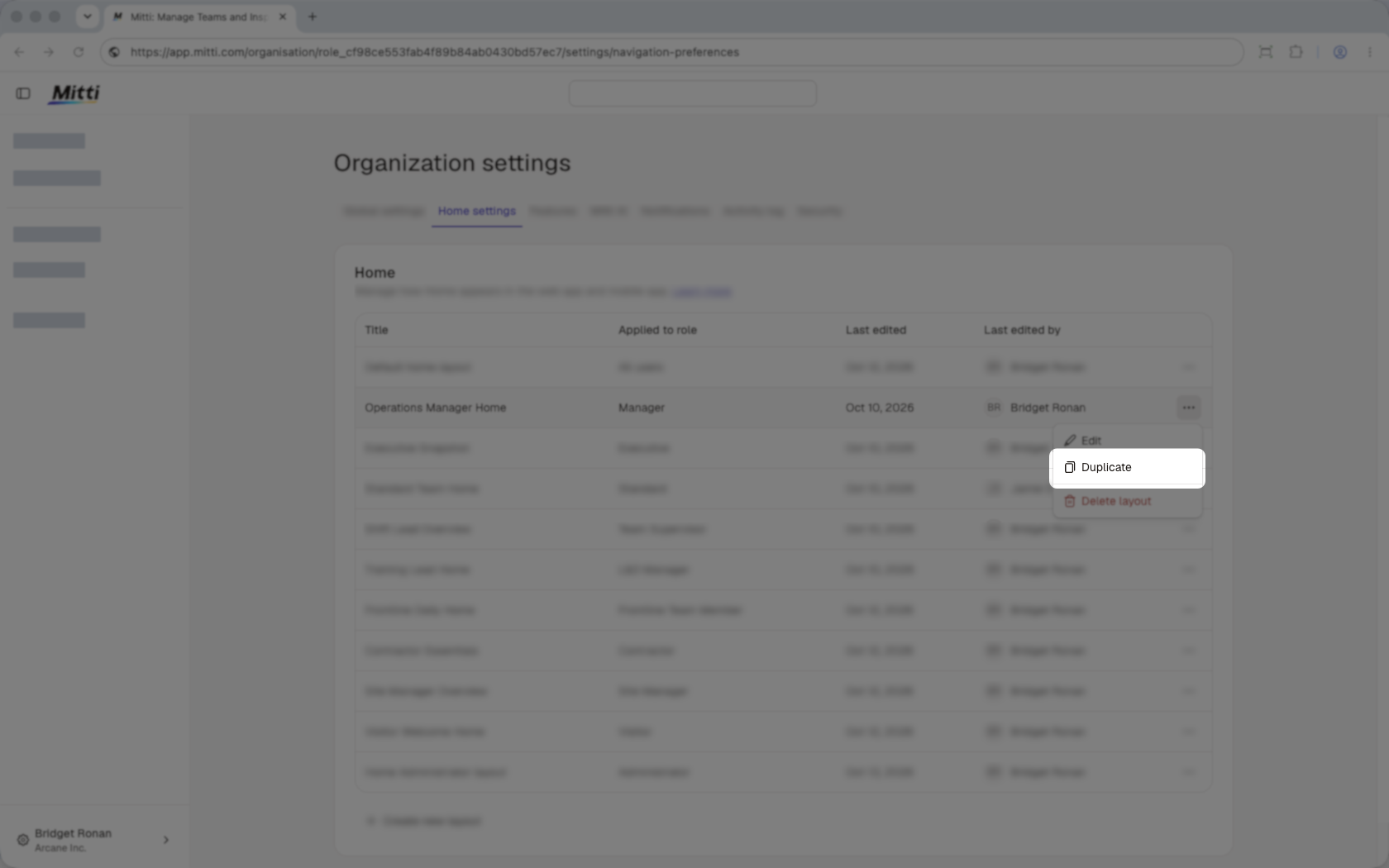
In the pop-up window, click the dropdown menu and select a role.
Click on the upper-left of the page to rename the Home layout.
Click Save on the upper-right corner of the page.
Delete a Home layout
Deleting is irreversible, and we cannot restore permanently deleted items. Confirmation is always required before any deletion, so be sure you're not accidentally deleting the wrong item.
Click your organization name on the lower-left corner of the page and select Organization settings.
Click the Home settings tab.
Click on the right-hand side of the layout and select Delete layout.
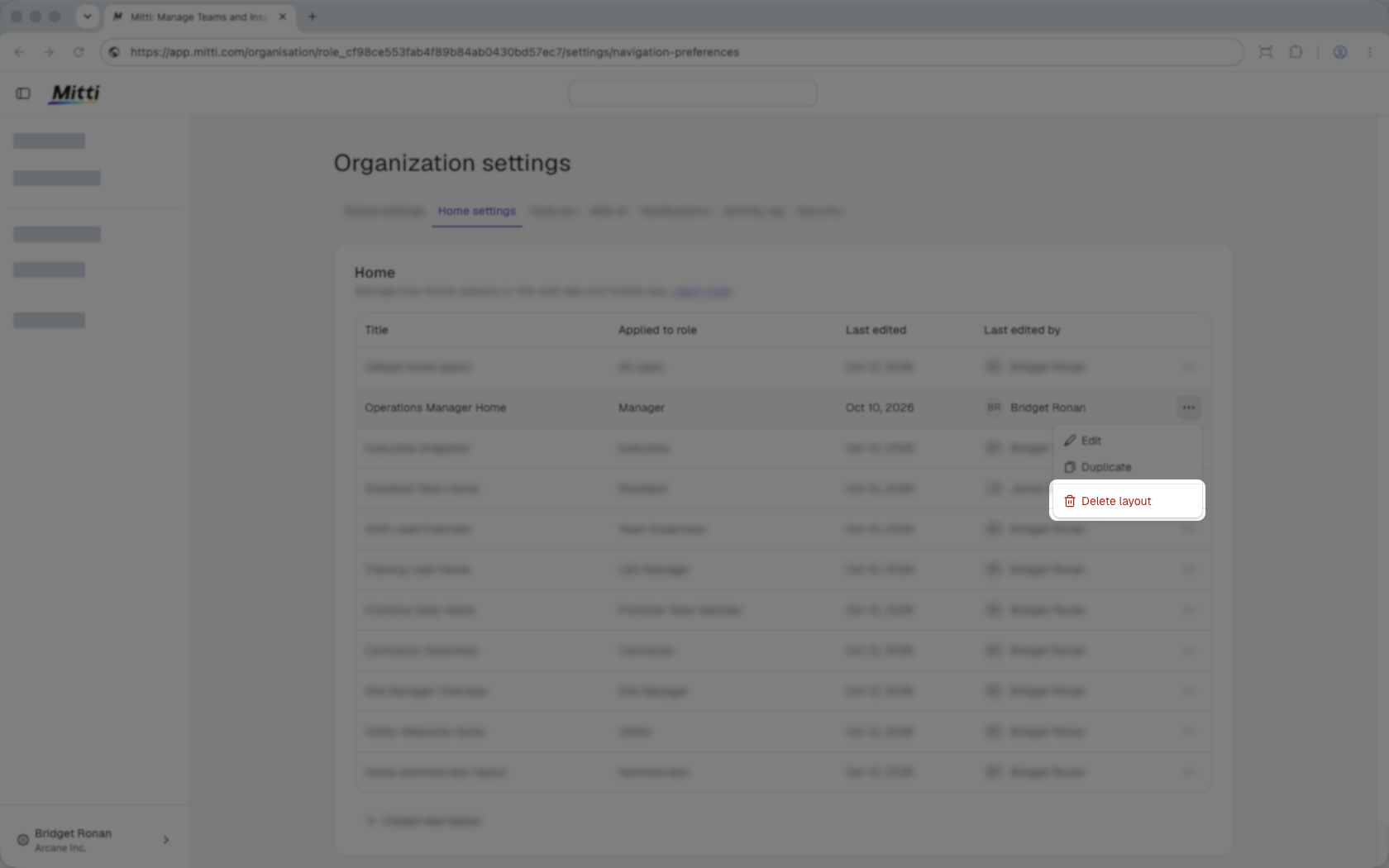
In the pop-up window, click Delete.
The default Home layout cannot be deleted.
Frequently asked questions
Need more help?
Was this page helpful?