Last updated: August 25, 2026
What is a scenario?
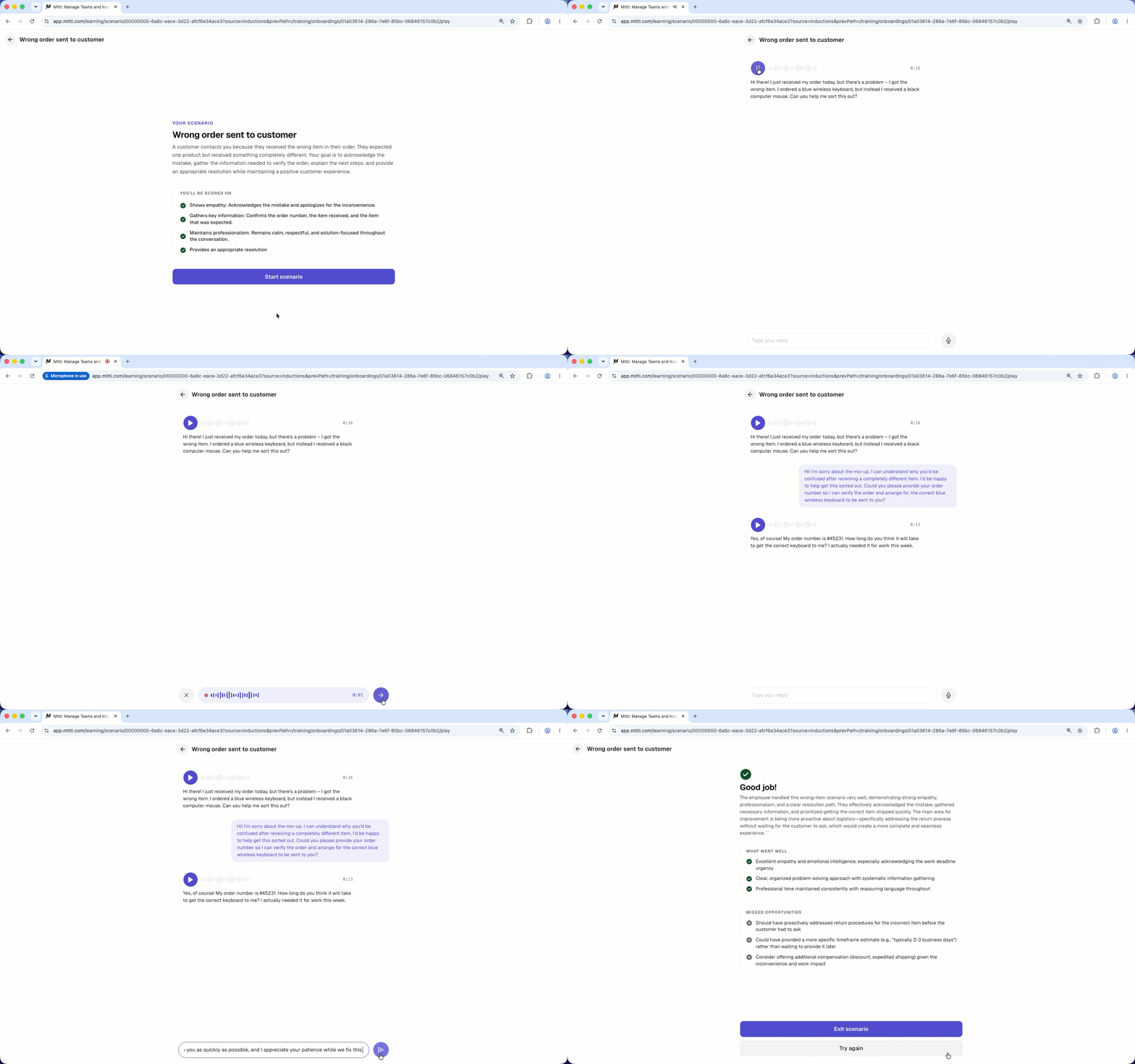
A scenario is a practice conversation between a worker and an AI character, built to help workers feel more prepared for situations they might encounter in their role. That could mean dealing with an unhappy customer, handling a workplace incident, sorting out a disagreement with a colleague, or noticing a chance to offer an extra service.
During the conversation, the AI character reacts based on the scenario and personality the admin has configured. This gives workers a realistic way to practice how they'd handle the situation. Once it ends, the AI checks their performance against the team's evaluation criteria and gives feedback on what they did well and where they can improve.
Create a scenario
Click Training from the sidebar or in More.
Click Content at the top of the page and select Scenario.
Click Create on the upper-right corner of the page.
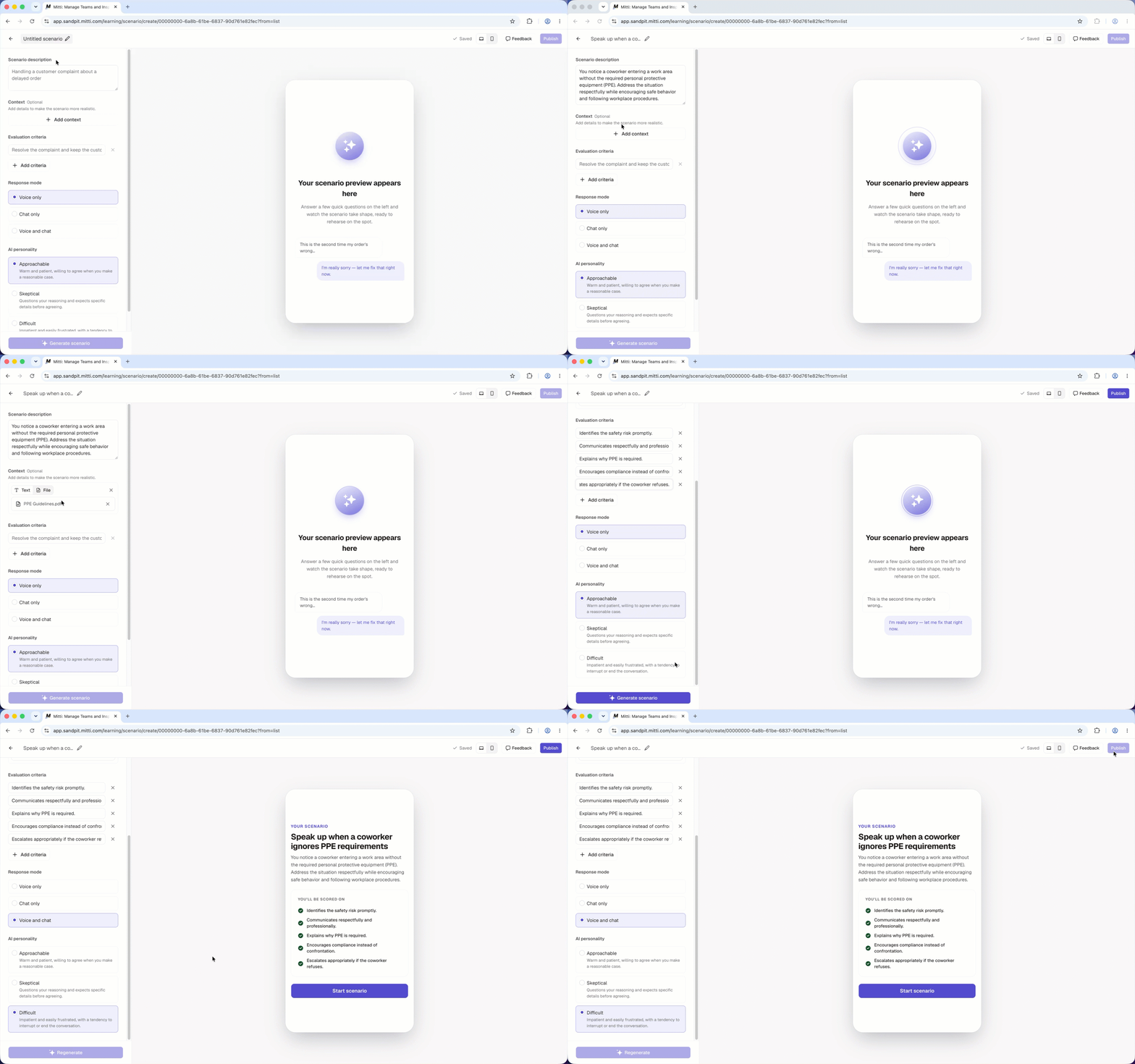
Click Untitled scenario at the top of the page and enter the scenario's title.
In the side panel, enter the scenario details:
Scenario description: A short description of the situation that workers will practice.
Context: Type in or upload files for additional background information, company policies, or other details to make the conversation more realistic and guide the AI's responses.
Evaluation criteria: What a successful outcome looks like. Workers are scored against these criteria after completing the scenario.
Response mode: How workers can interact with the AI, whether by talking or by typing.
AI personality: How the AI behaves during the conversation.
Click Generate scenario. After the scenario is generated, interact with the preview to test the scenario before finalizing it.
Use the toggle on the upper-right of the page to preview the scenario in desktop or mobile view.
Once you're ready, click Publish.
Users can only access and start scenarios through onboarding workflows. To make a scenario available, add it as a step in an onboarding workflow.
Edit a scenario
Click Training from the sidebar or in More.
Click Content at the top of the page and select Scenario.
Select the scenario.
Update the scenario details. Your changes are automatically saved.
Once you're ready, click Publish.
Delete a scenario
Click Training from the sidebar or in More.
Click Content at the top of the page and select Scenario.
Click on the scenario's right-hand side and select Delete.
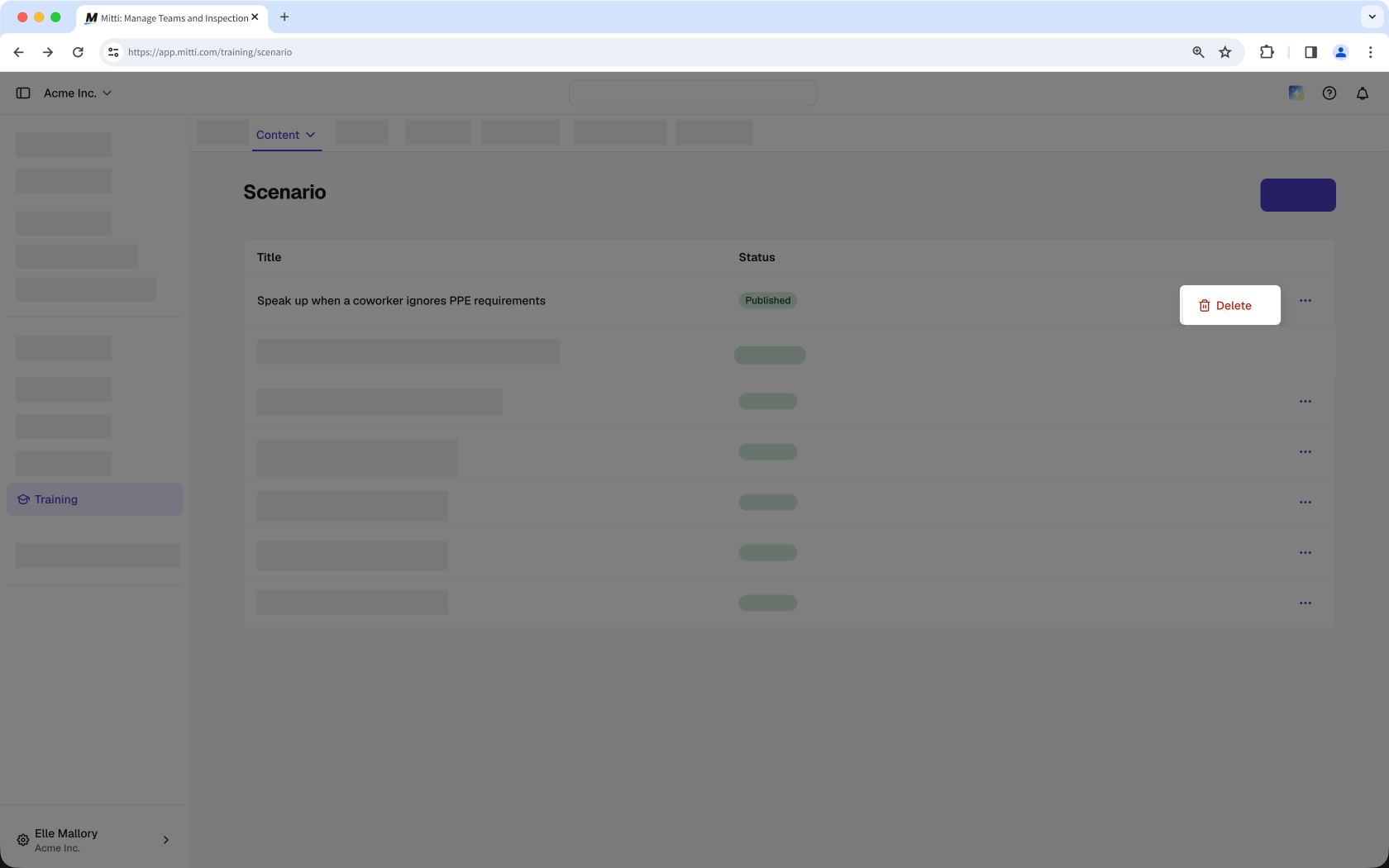
In the confirmation pop-up, click Delete.
You can't delete a scenario while it's included in a published onboarding workflow. Remove the scenario from all published onboarding workflows first before deleting it.
Frequently asked questions
Need more help?
Was this page helpful?