Last updated: October 4, 2026
This article covers the new Supply experience, which is only available to organizations in Australia. If your organization is outside Australia, you're on the legacy version for now.
How do Supply organization settings work?
Supply is Mitti's procurement tool that lets teams browse and purchase products directly in Mitti. Supply organization settings let Supply admins configure how Supply works for everyone in the organization:
Assign users as Supply admins.
Set the regions where users can buy products.
Select the organization's default buying group.
Manage organization-wide settings for payment methods, delivery addresses, and product catalogs.
Together, these settings keep buying consistent across your organization and give admins clear control over who can buy and how. 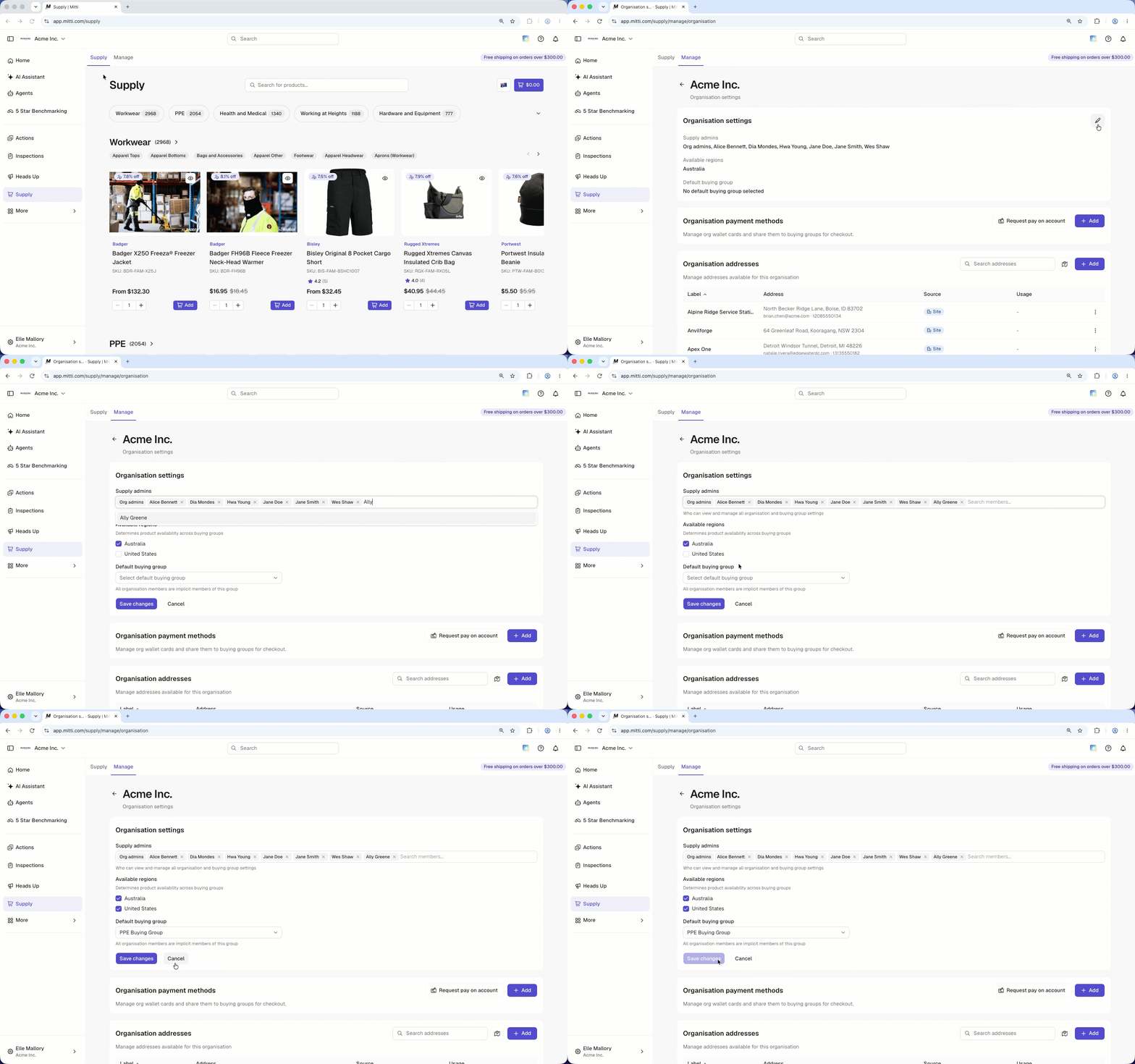
By default, users with “Platform management: Organization” permission automatically become Supply admins.
Set up Supply organization settings
Click Supply from the sidebar or in More.
Select Manage in the tab at the top of the page.
Click Manage on the right-hand side of your organization.
In the "Organization settings" section, click on the right-hand side of the section.
Add the following details:
Supply admins: Click the field and select the users you want to set as admin.
Available regions: Select the region that determines which products are available across your organization's buying groups.
Default buying group: Click the dropdown menu and select the buying group that all organization members will automatically be part of.
Click Save changes.
Open the mobile app.
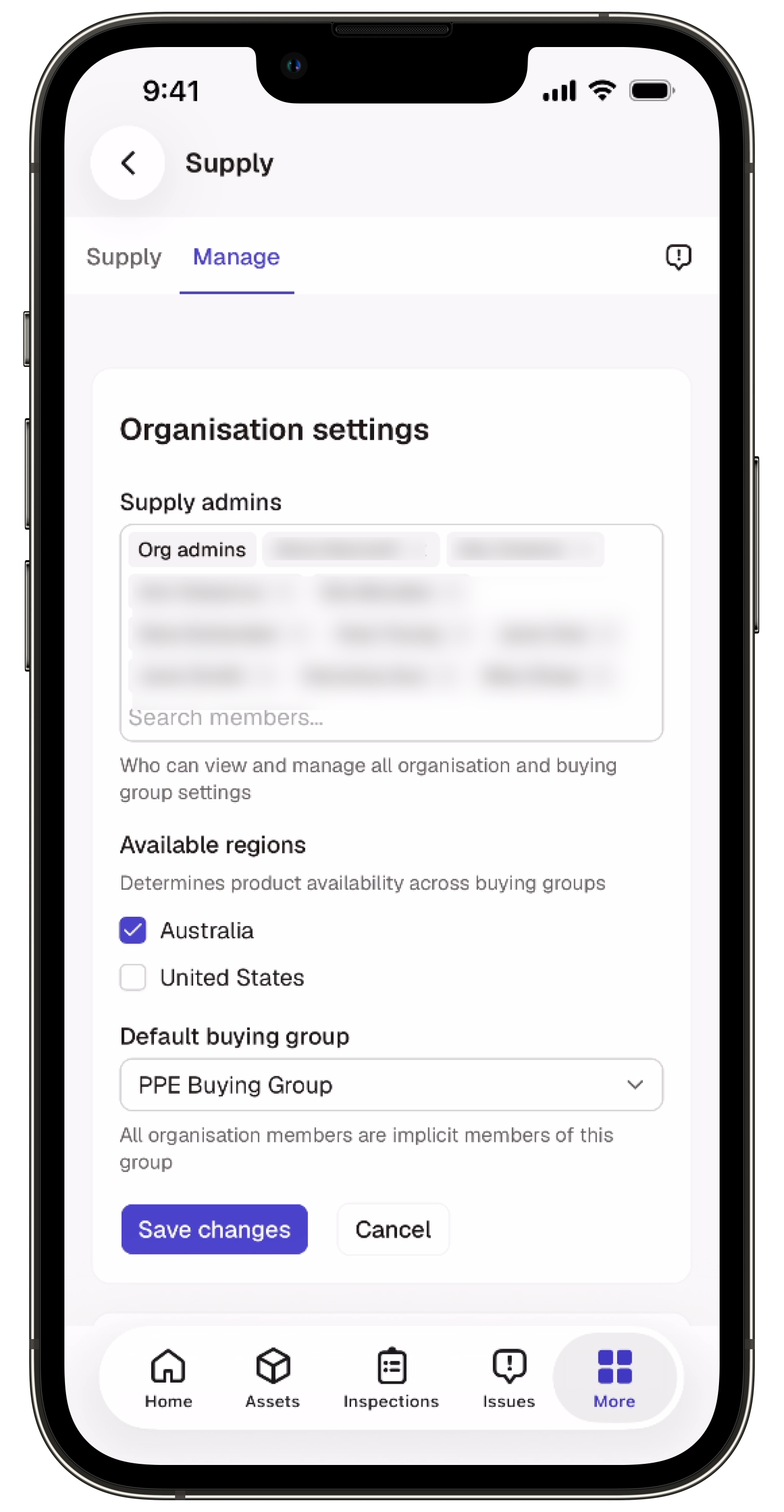
Tap Supply from the navigation bar or in More.
Tap Manage at the upper-left of your screen.
In the "Organization settings" section, tap on the right-hand side of the section.
Add the following details:
Supply admin: Tap the field and select the users you want to set as admin.
Available region: Select the region that determines which products are available across your organization's buying groups.
Default buying group: Tap the dropdown menu and select the buying group that all organization members will automatically be part of.
Once you're finished, tap Save changes to apply your updates.
Need more help?
Was this page helpful?