Last updated: October 29, 2026
This article covers the new Supply experience, which is only available to organizations in Australia. If your organization is outside Australia, you're on the legacy version for now.
Why set Supply budgets?
Setting a budget for your buying group in Mitti helps you manage spending and keep purchases within the limits you set. A budget limits how much the group can spend on each order and each month. If a team member needs to place an order that exceeds the budget, the team member can request approval. You review the request and decide whether to approve the additional spending before the order is placed.
What you'll need
Set a buying group budget
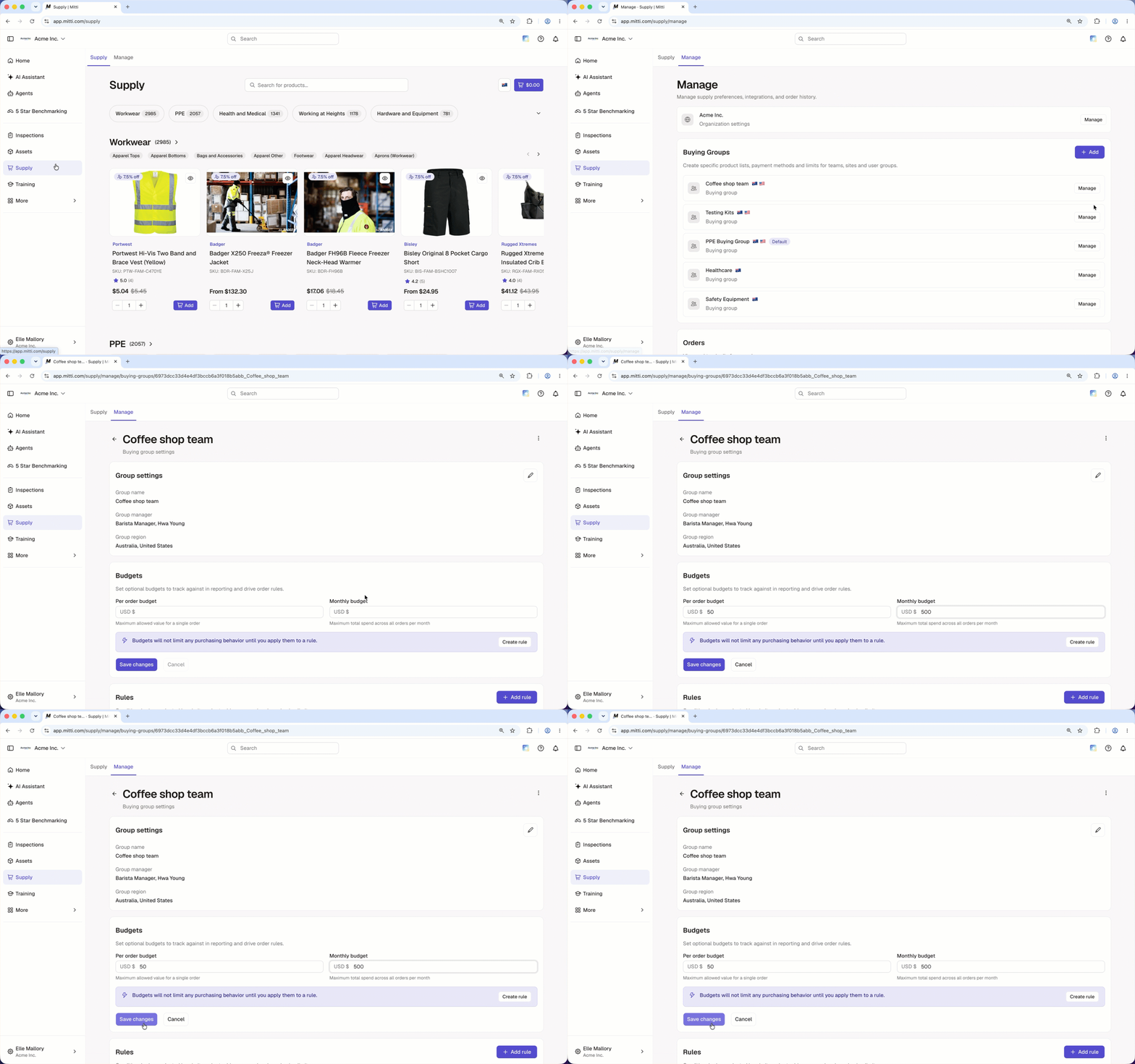
Click Supply from the sidebar or in More.
Click Manage tab at the top of the page.
In the "Buying Groups" section, click Manage next to the buying group you want to set a budget for.
Enter the amounts for the following budgets:
Per order budget: The maximum amount allowed for a single order.
Monthly budget: The maximum total amount that can be spent across all orders each month.
Click Save changes.
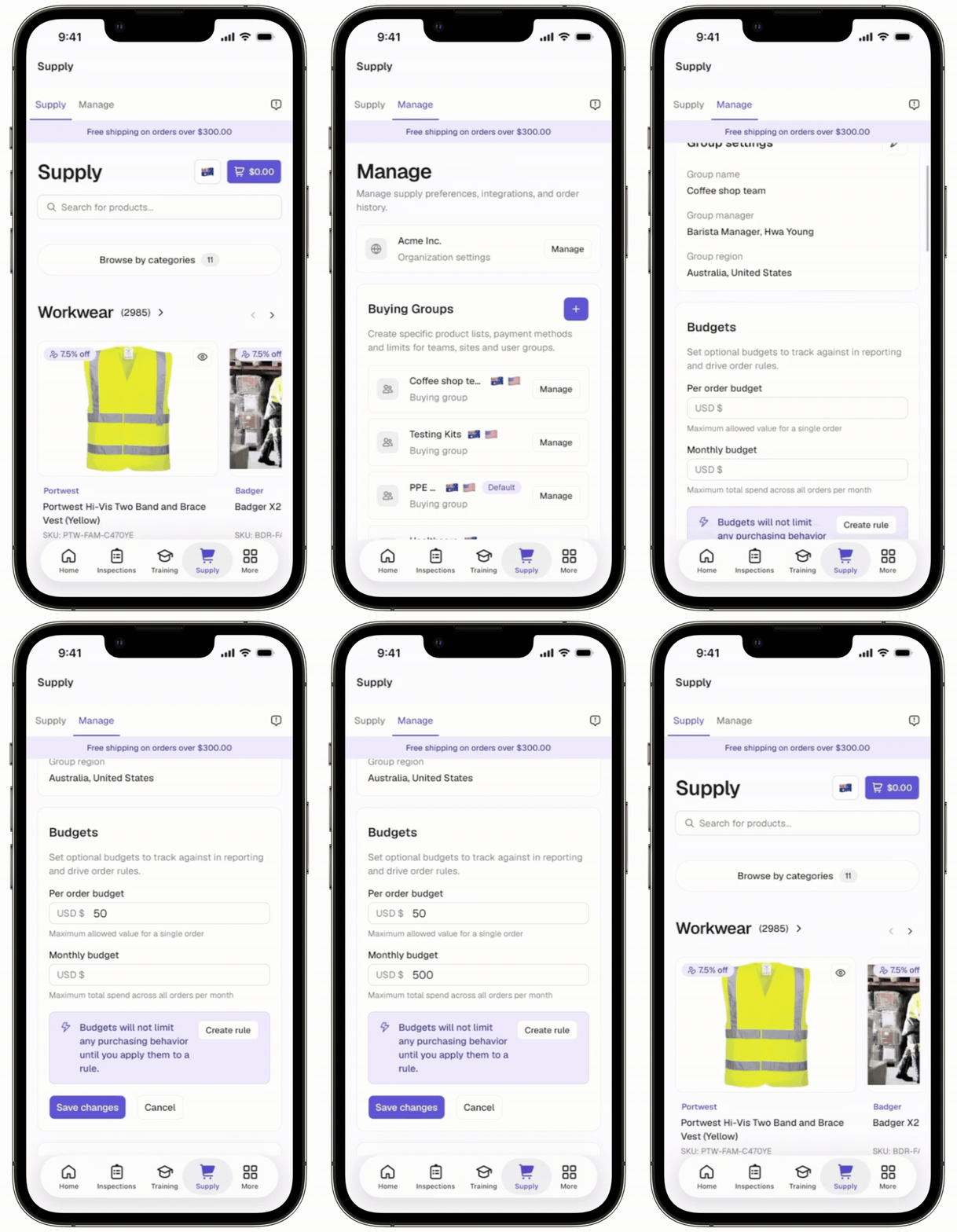
Open the mobile app.
Tap Supply from the navigation bar or in More.
Tap Manage tab at the top of your screen.
In the "Buying Groups" section, tap Manage next to the buying group you want to set a budget for.
Enter the amounts for the following budgets:
Per order budget: The maximum amount allowed for a single order.
Monthly budget: The maximum total amount that can be spent across all orders each month.
Tap Save changes.
Budgets are set at the buying group level rather than for individual users. Users automatically inherit the budget of the buying group they belong to.
Need more help?
Was this page helpful?