Last updated: November 3, 2026
What are Paths?
The new Paths experience in Mitti lets you bring different types of training and requirements together into one guided learning journey. The new experience builds on the familiar Onboarding workflows feature with a redesigned builder to create and manage training. Use the new Paths to onboard new hires, develop employees in their roles, or deliver recurring compliance training.
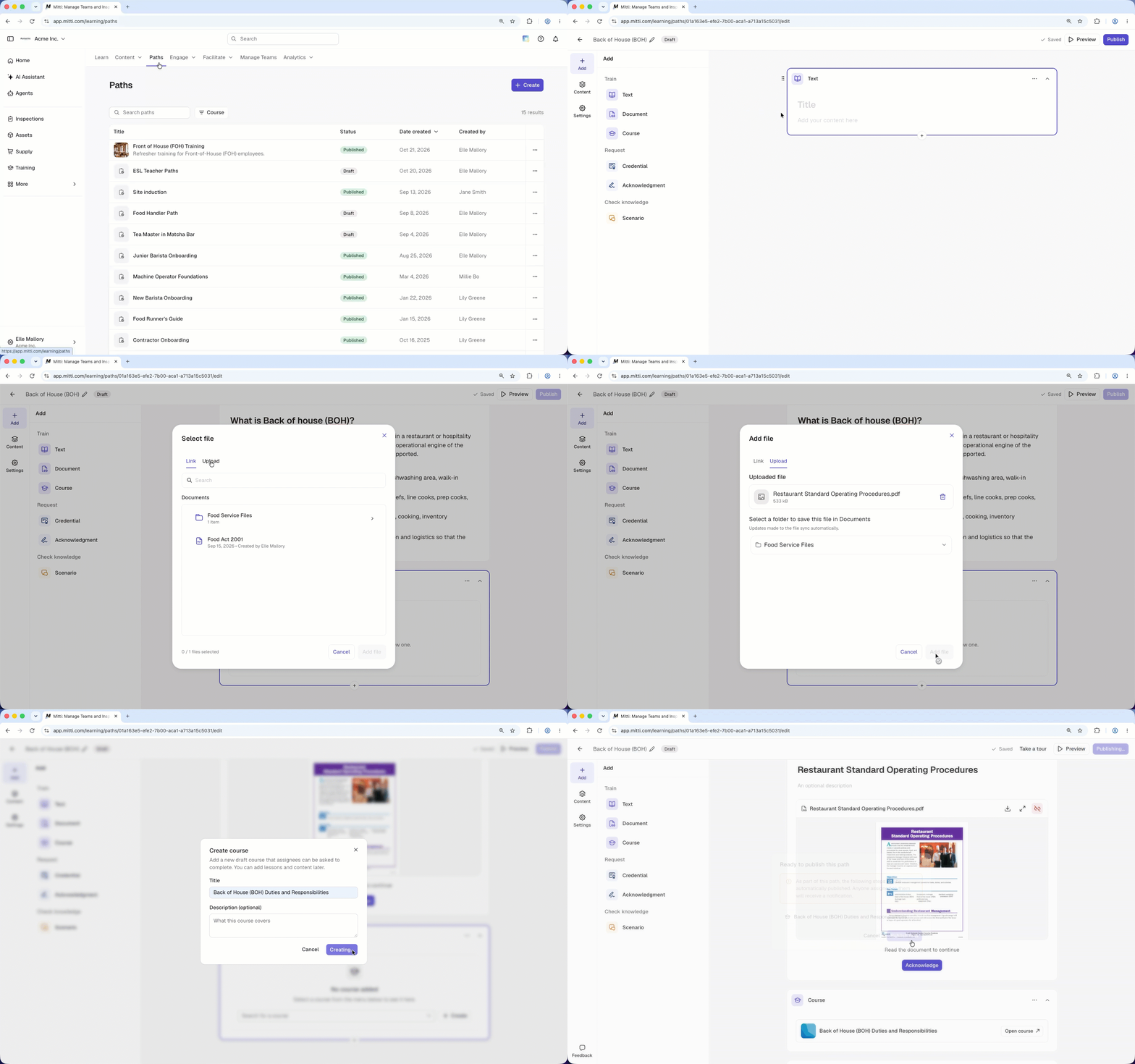
Each path is made up of blocks, with each block representing a step in the learning journey. You can combine different block types to suit your team's needs. For example, a new-hire path could start with a "Text" block to welcome employees, followed by a "Document" block outlining your organization's policy. An "Acknowledgment" block lets them confirm they've read and understood the path. You choose whether assignees complete the blocks in sequence or in any order, then track their progress.
What's in the new Paths experience?
The new Paths experience gives you a more flexible way to build, assign, and track training for your team. You can bring courses, documents, credentials, acknowledgments, and scenarios together in one guided learning journey, then track each assignee's progress from a single place.
Flexible content blocks for building paths
The path builder lets you create a path one block at a time. Each block represents a step in the learning journey, and you can combine different block types depending on what you want assignees to do.
Blocks are grouped into three categories:
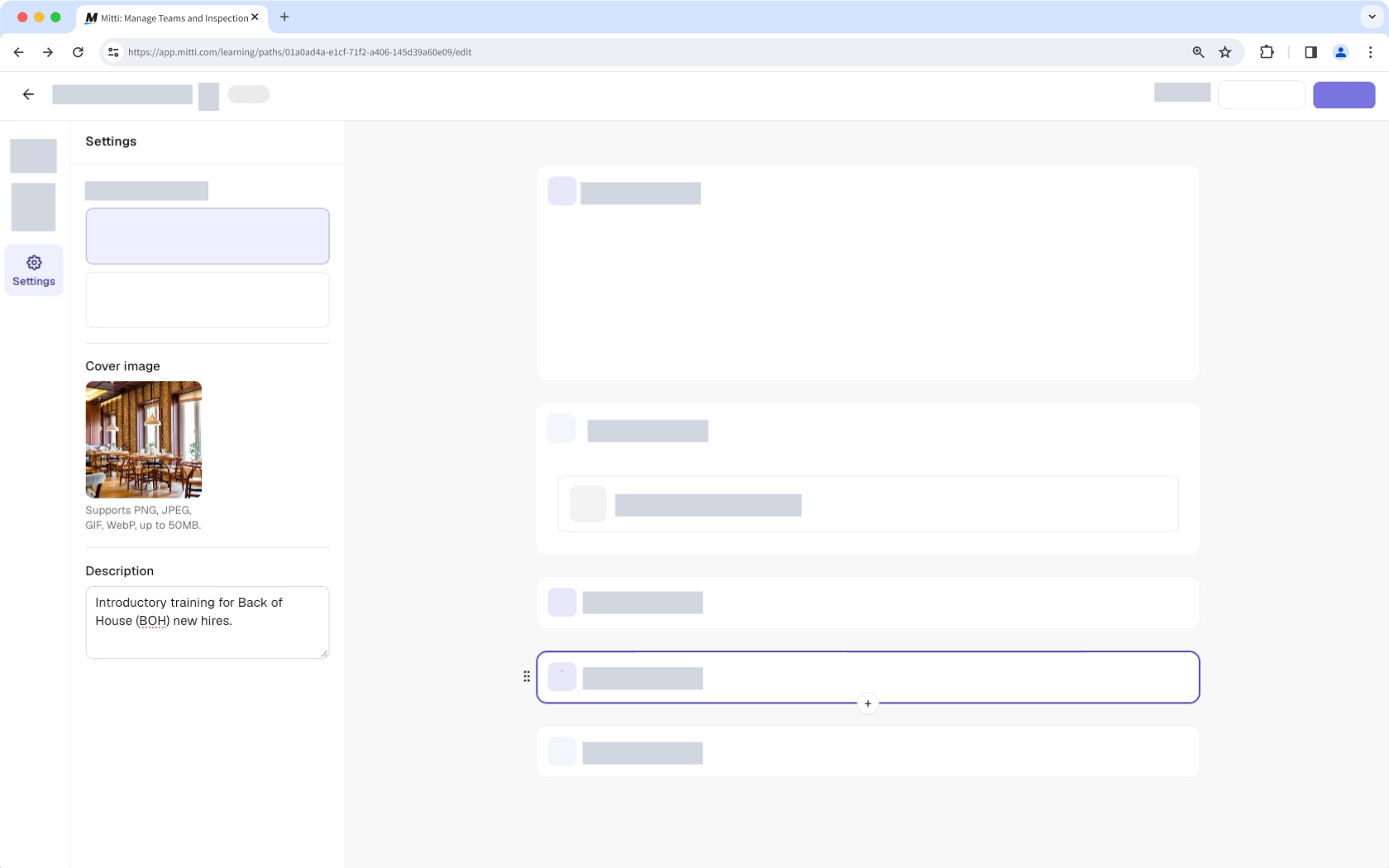
Train: Use "Text", "Document", and "Course" blocks to share information and help assignees develop their knowledge and skills.
Request: Use "Credential" and "Acknowledgment" blocks to collect credentials or require assignees to acknowledge information.
Check knowledge: Use "Scenario blocks to let assignees practice responding to workplace situations and demonstrate what they know.
Combine these blocks to create a learning journey for your team’s needs, such as introducing a new process or collecting required credentials.
Configurable completion options for assignees
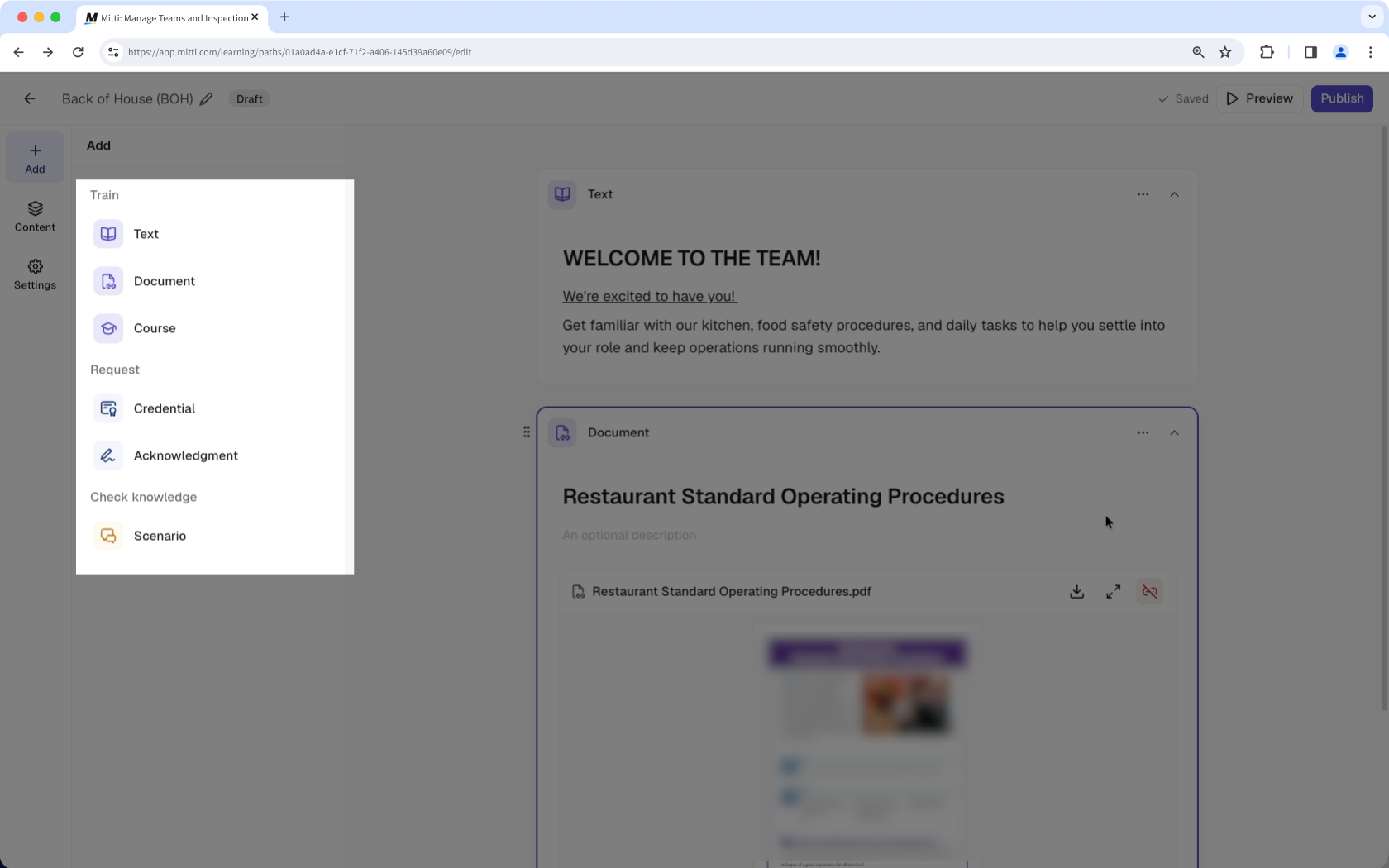
Control how assignees move through a path by choosing a completion order that suits your training.
Sequential: Assignees must complete blocks in the order you've set. Sequential works well when later steps depend on earlier ones, such as completing a course before moving on to a practice scenario.
Free order: Assignees can complete blocks in any order. Free order is useful when the steps are independent and don't need to be completed in a particular sequence.
Cover image and description customization
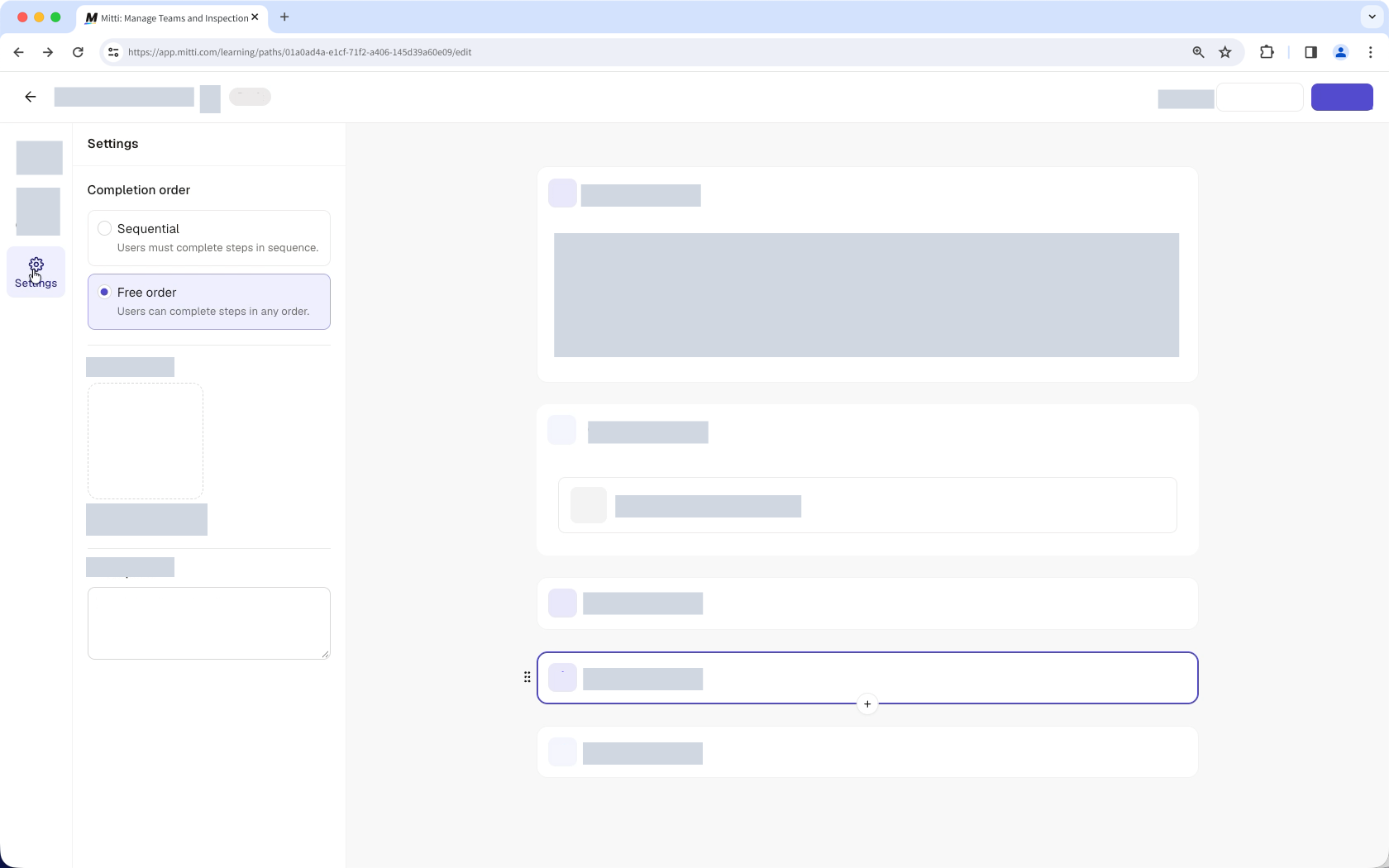
Customize your paths to make them easier to recognize and understand. Add a cover image to visually distinguish each path. You can also write a description that explains a path's purpose and what assignees can expect to learn or complete.
Path progress with table and matrix views
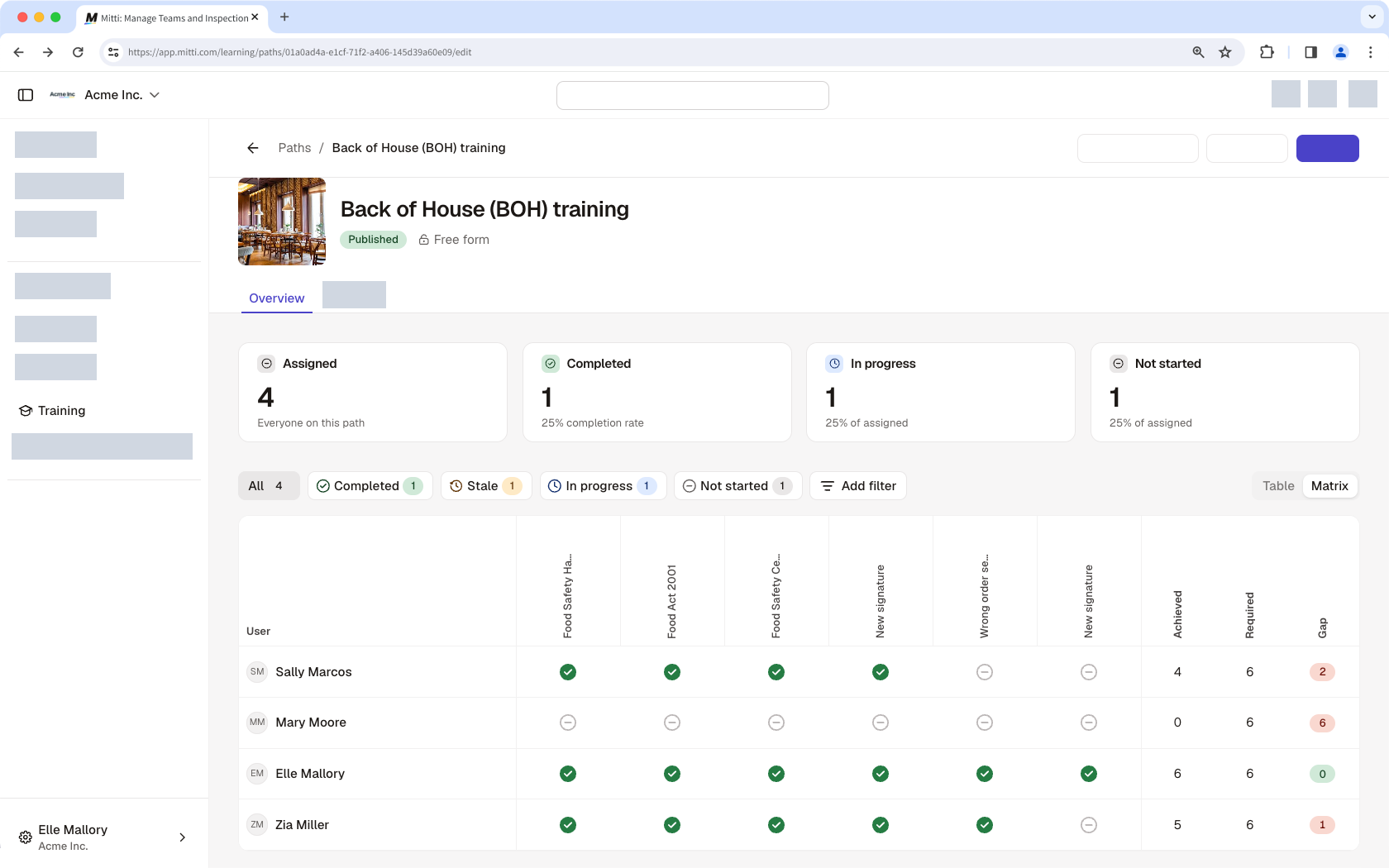
After you assign a path, use the table and matrix views to monitor assignee progress and identify where your team may need follow-up.
The table view gives you an overview of assignees and their path completion statuses. For a more detailed breakdown, switch to the matrix view, which shows assignees in rows and path blocks in columns. The matrix view helps you see which steps each person has completed and where they still have work to do.
The matrix view also includes three summary columns:
Achieved: Shows the number of blocks the assignee has completed.
Required: Shows the number of blocks the assignee must complete to finish the path.
Gap: Shows the number of required blocks the assignee still needs to complete.
Use these views together to get an overview of your team's progress or review specific steps to identify training gaps.
Stale completion tracking across paths
When you update a path, you may need to know whether assignees have completed the latest training requirements or an earlier version.
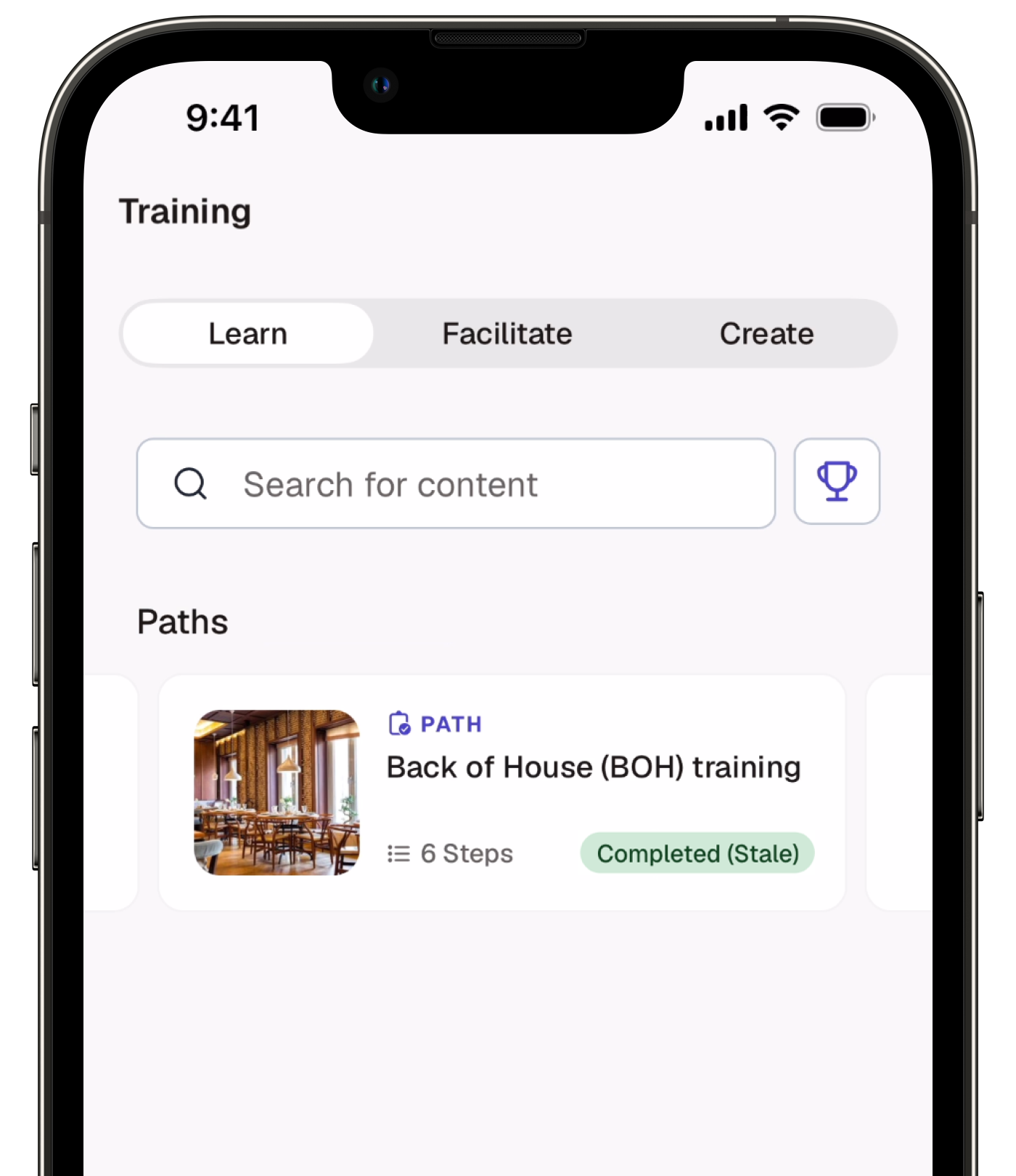
In the new Paths experience, a completion becomes stale when you edit and republish a path after an assignee has completed it. The stale completion status helps you identify completions of earlier and latest published versions.
For example, if you update a training path with a new procedure and republish it, an assignee who completed the path before the update will have a stale completion status. Use stale completion statuses alongside other progress statuses to better understand each assignee’s progress and where follow-up may be needed.
What are the differences between onboarding workflows and the new Paths experience?
Feature | Onboarding workflows | New Paths |
|---|---|---|
Path builder | Onboarding workflows consist of steps, with a Lock order toggle to control whether assignees complete them in a specified order or any order. | A redesigned path builder groups blocks into Train, Request, and Check knowledge categories, with options for sequential or free-order completion. |
Additional content blocks | Onboarding workflows support adding courses, credentials, and scenarios. | Like onboarding workflows, the new Paths support "Course", "Credential", and "Scenario" blocks, with the addition of "Text", "Document", and "Acknowledgment" blocks. More block types are coming soon. |
Cover image and description | Onboarding workflows don't include a cover image or description. | Paths support adding a cover image and description to help assignees recognize each path and understand what it covers. |
Progress views | Progress is available in a table view. | Progress is available in both table and matrix views. The matrix shows assignees against individual path blocks, helping admins identify completed steps and gaps in required training. |
Stale completion tracking | Completed workflows remain marked as completed after edits, making it harder to distinguish earlier completions from completions that reflect the latest changes. | A completion is marked stale when an admin edits and republishes a path after an assignee completes it. The stale status helps admins tell earlier completions from current ones. |
Need more help?
Was this page helpful?