Last updated: October 1, 2026
What is Sign On?
Sign On records who's on a site. Workers and visitors sign themselves on when they arrive and off when they leave, either at a shared kiosk or from a QR code at the entrance. Each entry then builds an attendance record for that site. Your Sign On settings decide what people are asked for when they sign on, who's allowed to sign on at all, and whether they have to complete an onboarding before they're let through.
Sign On settings sit in two layers. Your organization settings are the starting point for every site you run, and a site's own settings override them. Set a value at site level and that site keeps it, including when you change your organization settings later. Leave a setting alone at site level and the site uses your organization's value, so changing it once applies everywhere.
What you'll need
1. Turn on Sign On for a site
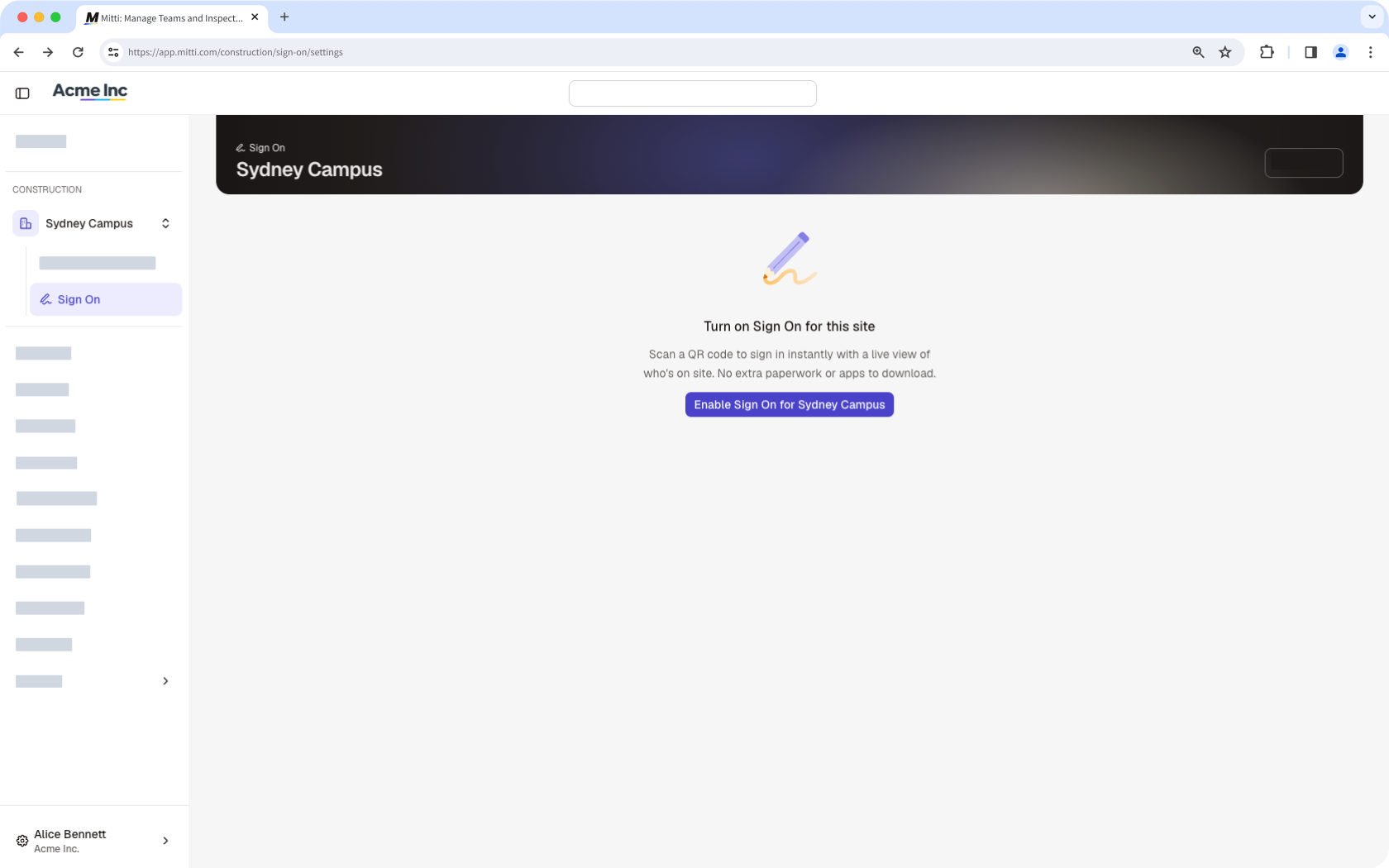
Sign On stays off for a site until someone turns it on, so repeat this for each site you want to use it at.
In the sidebar's "Construction" section, click All sites then select the site.
Click Sign On in the sidebar.
Click Enable Sign On.
2. Set your organization's Sign On settings
In the sidebar's "Construction" section, click Sign On.
Click the on the upper-right of the page.
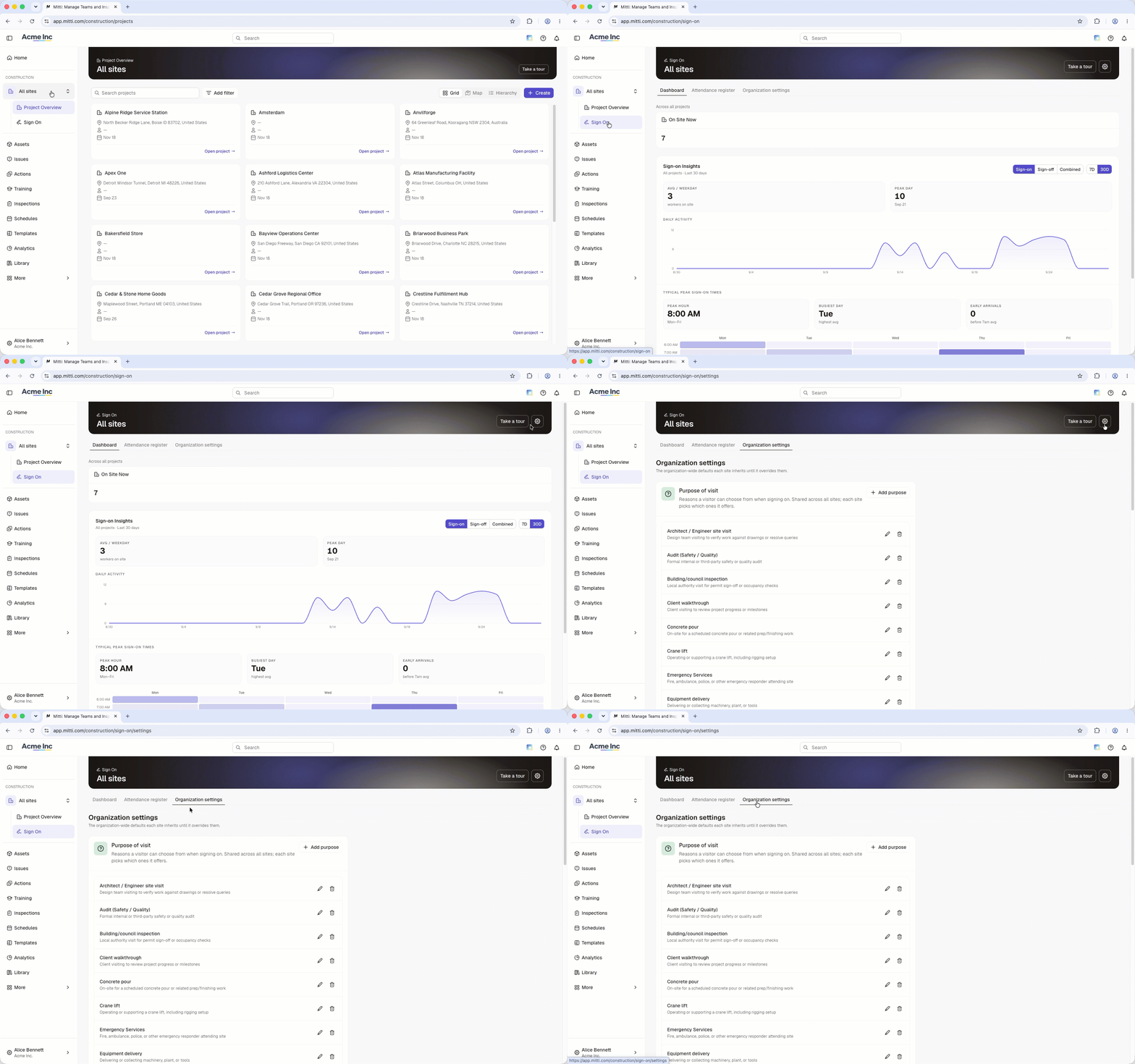
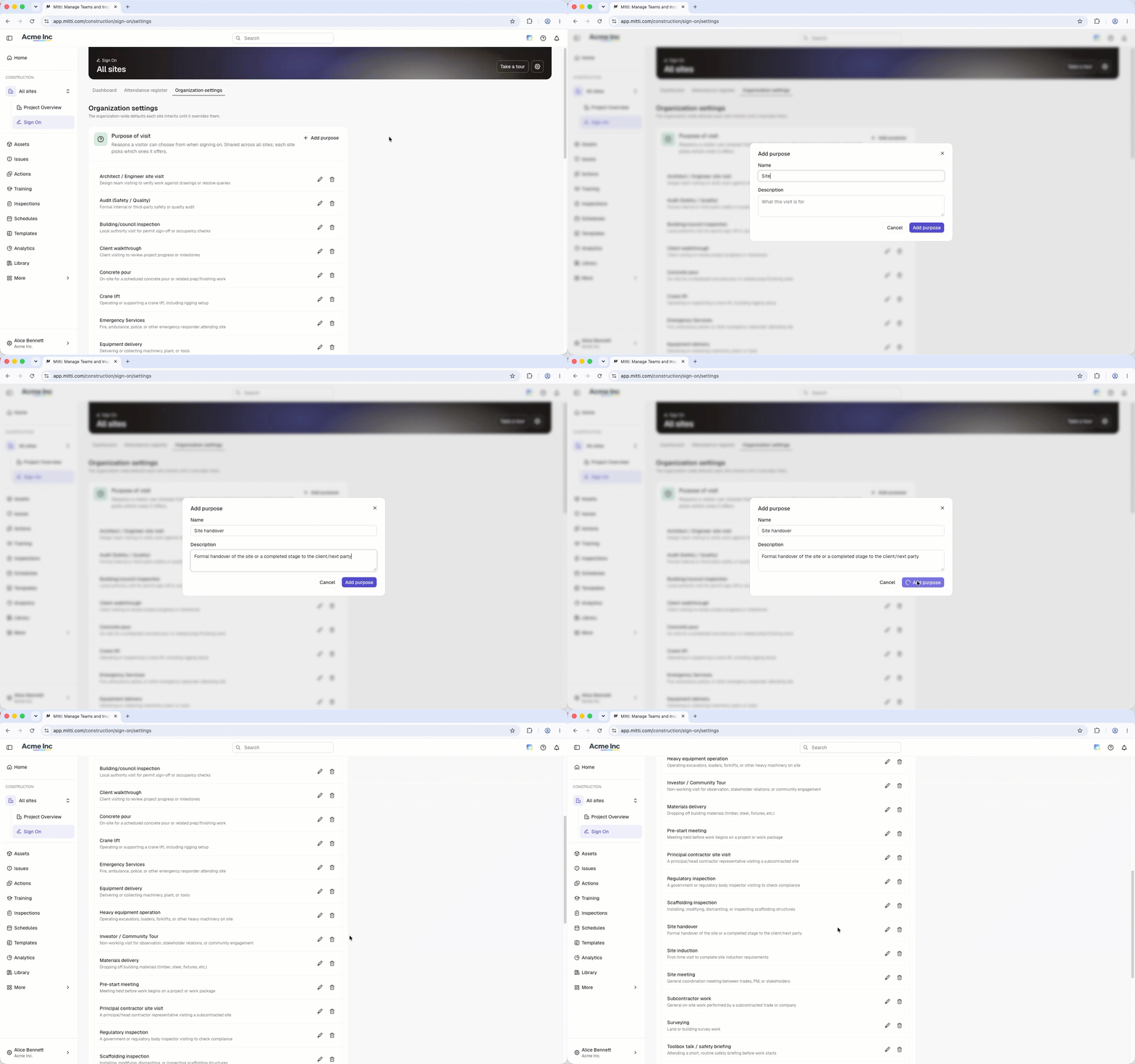
In the "Purpose of visit" section, add each reason a person can give for being on site. Your sites select from this list, so add every reason you want available anywhere.
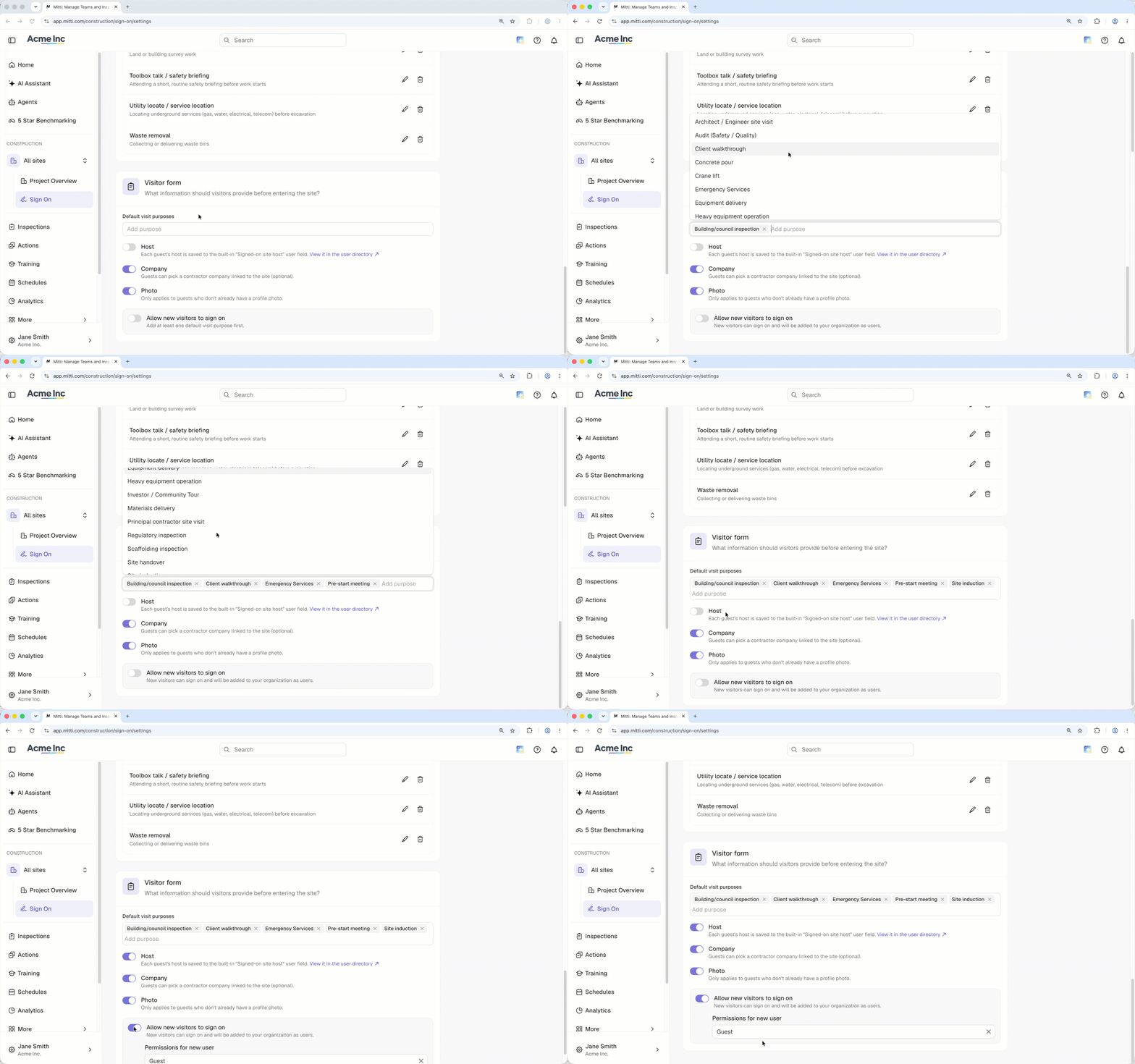
In the "Visitor form" section, turn the following settings on or off:
Host: This setting is off by default. When turned on, visitors are required to provide their point of contact in your organization. Their answer is recorded against the Signed-on site host field on their user profile, and they choose from the full seat and lite seat users in your organization.
Company: When a visitor signs on, they can specify the company they work for. If their company isn't in your organization yet, they can create it as they sign on.
Photo: Visitors are asked for a photo of themselves, which will be added to their new user profile.
Allow new visitors to sign on: This setting is off by default. You need at least one purpose of visit before you can turn it on. When turned on, visitors without a Mitti account can create one at the kiosk and sign on right away. Select the default global role for new visitors.
3. Set a site's Sign On settings
Change a setting and it applies to this site only.
In the sidebar's "Construction" section, click All sites then select the site.
Click Sign On in the sidebar, then select Site settings at the top of the page.
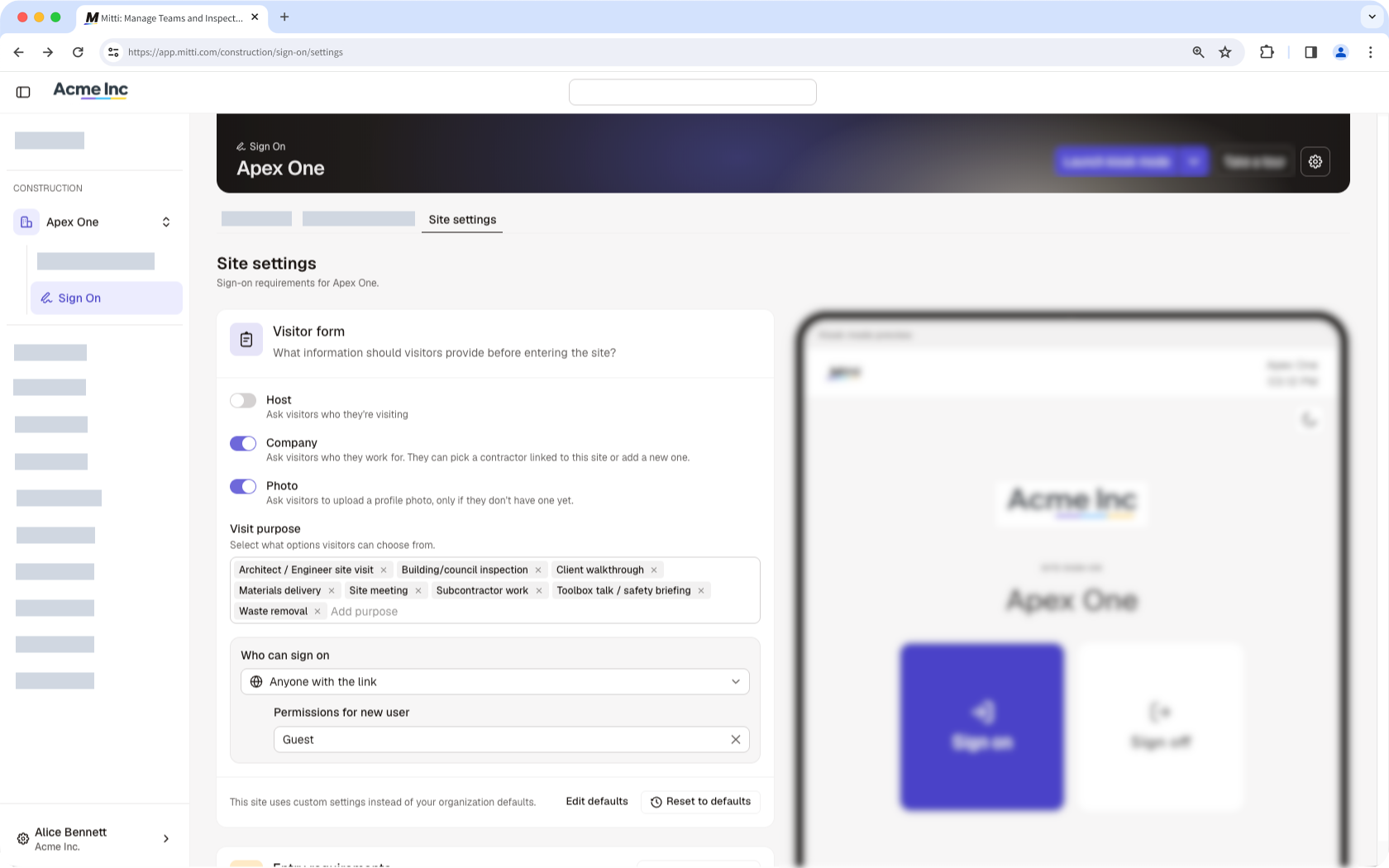
In the "Visitor form" section, turn Host, Company, and Photo on or off for the site.
In the "Visit purpose" section, select which of your organization's purposes people see when they sign on.
Under "Who can sign on", select who's allowed to sign on at the site.
Existing site members: The people who are already members of the site. This is the default.
Anyone in the organization: A user who signs on becomes a member of the site.
Anyone with the link: A visitor can sign themselves on for the first time. Select the global role for new visitors who sign on.
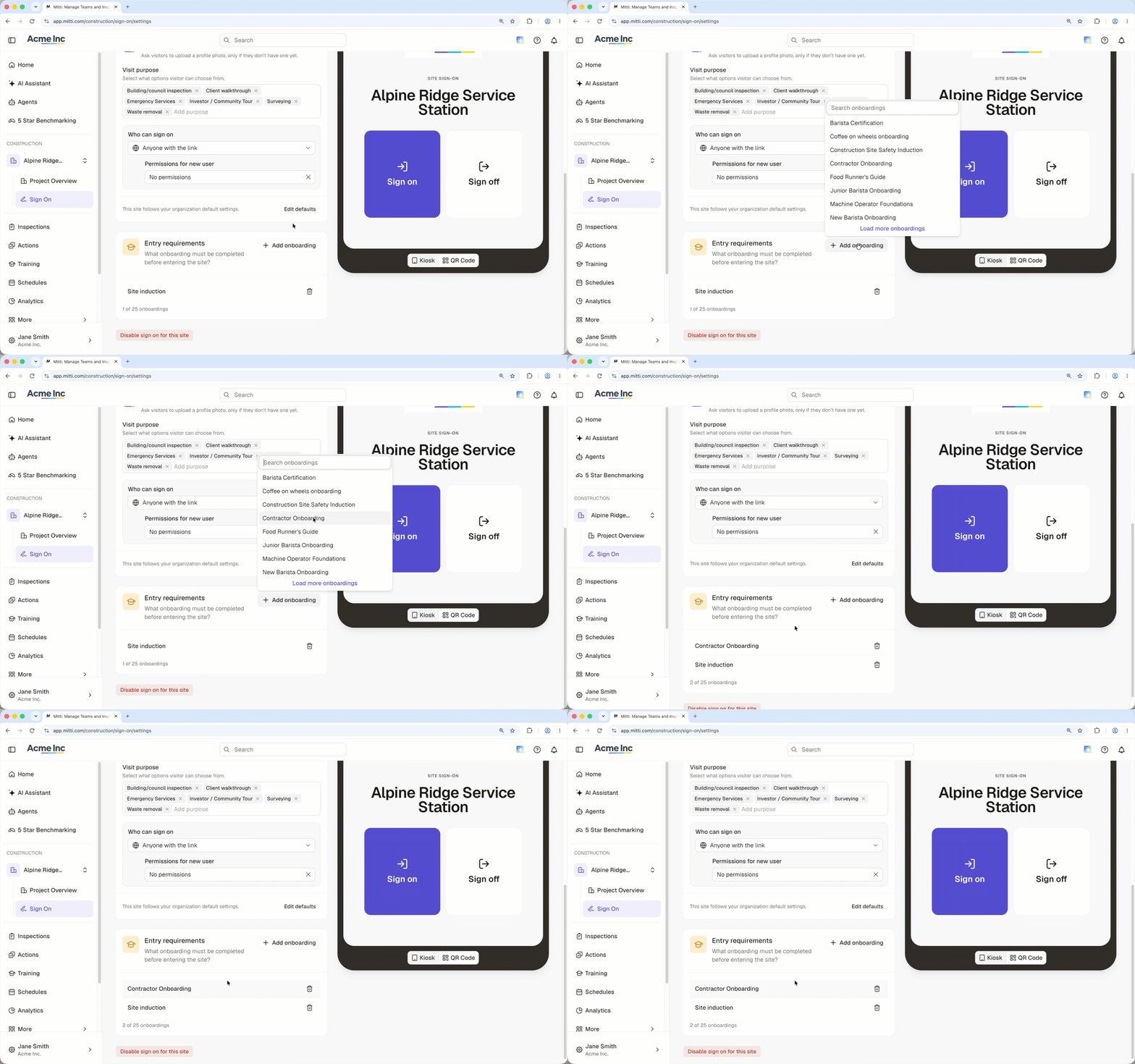
In the "Entry requirements" section, add each onboarding a person has to complete before they can sign on to a site. You can require up to 25 onboarding workflows.
4. Get your site's sign-on QR code
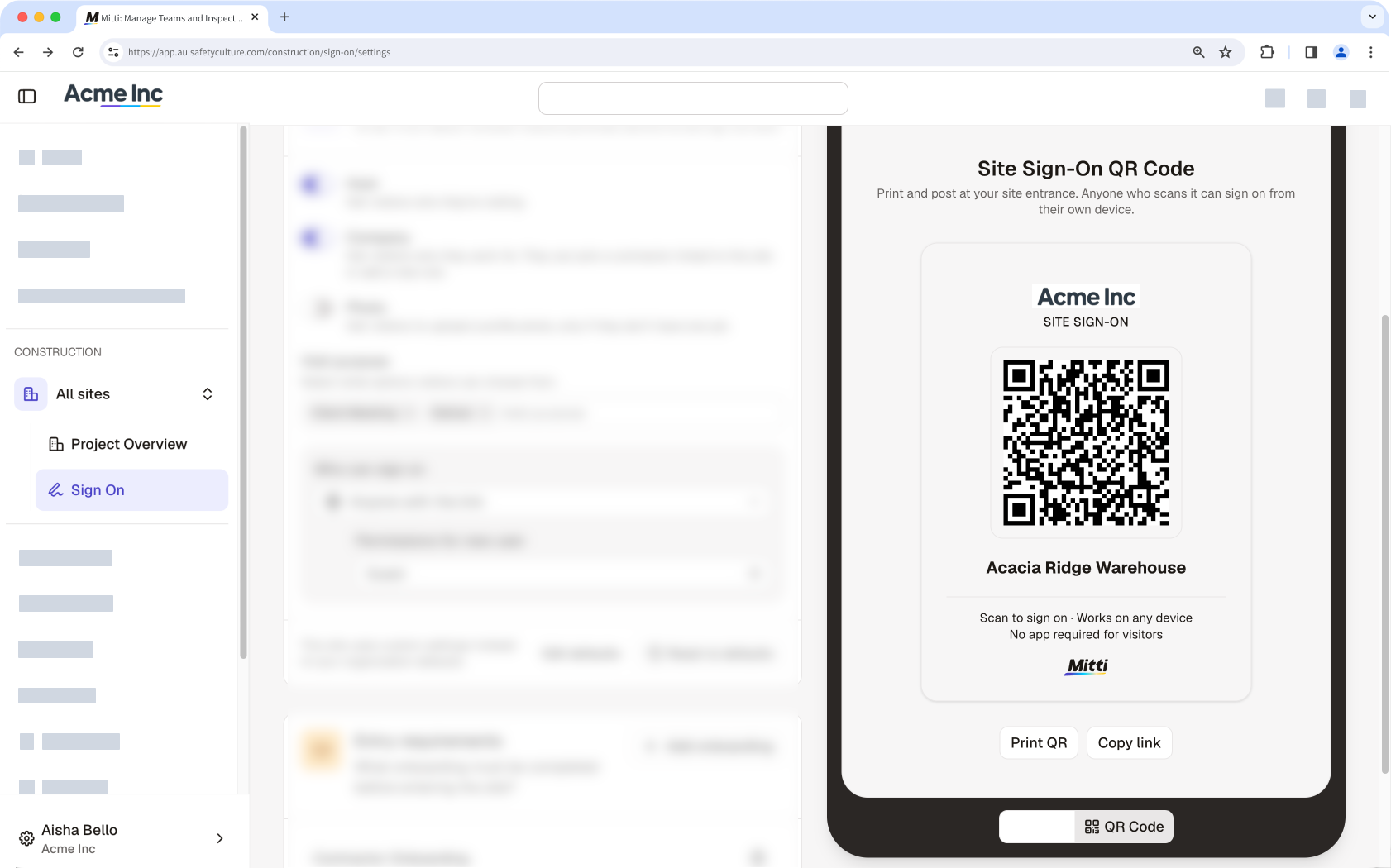
Workers and visitors can sign on from their own phone by scanning your site's QR code, with no kiosk needed. Print the QR code to display at your site entrance, or copy the link to share it with your team.
In the sidebar's "Construction" section, click All sites then select the site.
Click Sign On in the sidebar, then select Site settings at the top of the page.
From the Kiosk mode preview on the right-hand side of the page, click QR code.
Click Print QR to print and display the code at the site entrance, or click Copy link to share the site sign-on link with your team.
To log in to the kiosk device, you need an account that has an Administrator role or a Site Manager scoped role.
5. Set up a kiosk
A kiosk is a shared device that workers and visitors use to sign on and off. You can lock the kiosk on the Sign On page if you're leaving the site entrance unattended.
On the kiosk device, log in to the web app (opens in new tab).
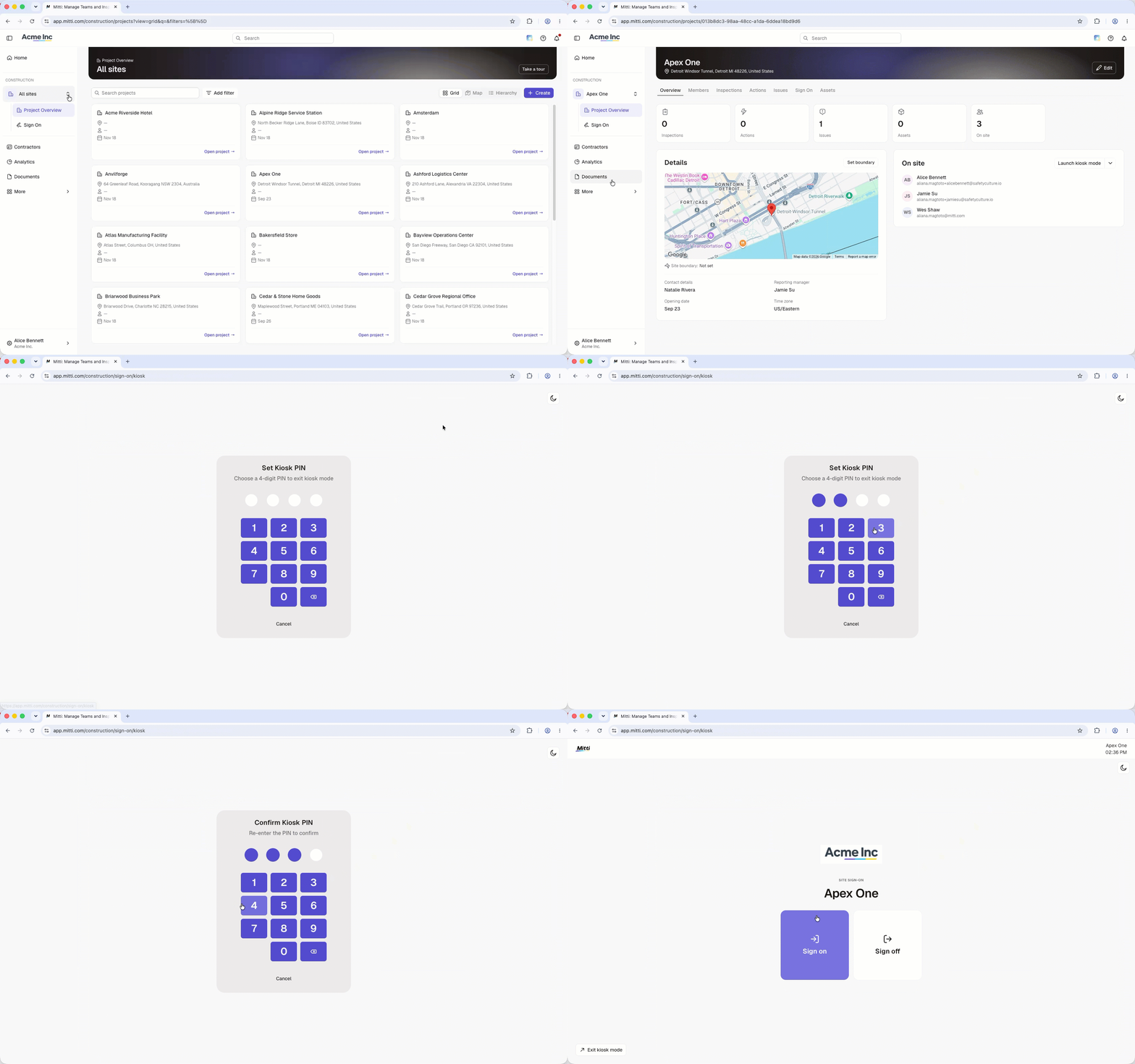
In the sidebar's "Construction" section, click All sites then select the site you want to set up a kiosk for.
Click Sign On in the sidebar.
Click Launch kiosk mode on the upper-right of the page.
Enter a 4-digit PIN to lock the kiosk.
Frequently asked questions
Need more help?
Was this page helpful?