Last updated: October 18, 2026
How do Sign On licenses work?
You hold a license for each site you want to run Sign On. Your licenses sit in a pool for your organization. Turning on Sign On for a site takes one license from the pool. While turning off Sign On for a site returns the license to the pool, so you can reallocate the license. Each license also carries its own monthly allowance of sign-ons, which moves with the license to another site.
What you'll need
Purchase a license
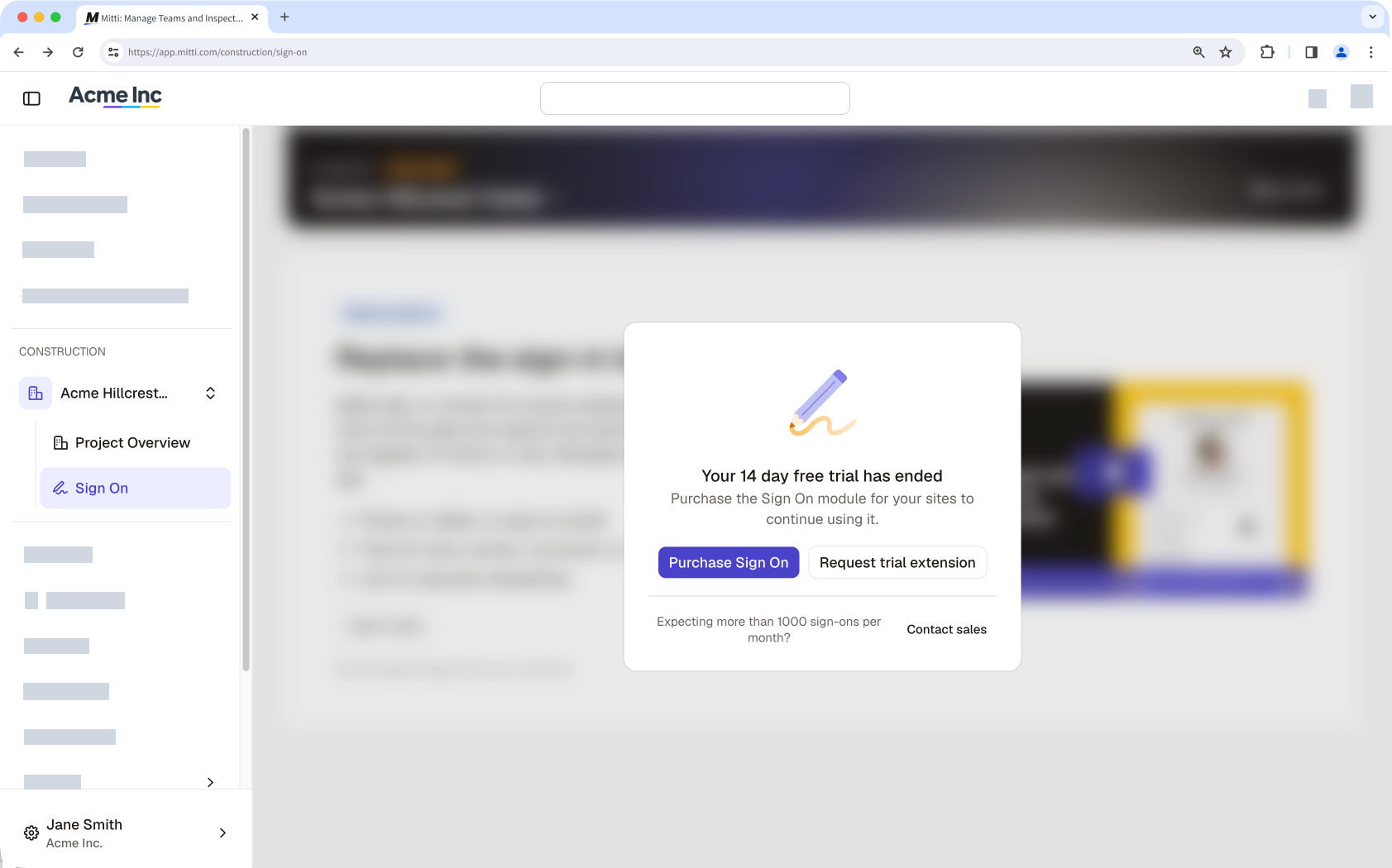
At the end of your Sign On trial, you can purchase licenses for your Mitti plan at a prorated rate.
In the Construction module, click Sign On in the sidebar.
Click Purchase Sign On at the center of the page.
In the pop-up window, enter the number of licenses you want to purchase.
Click Purchase Sign On.
Add a license
In the Construction module, click Sign On in the sidebar.
On the Dashboard tab, click Add more on the right-hand side of the page.
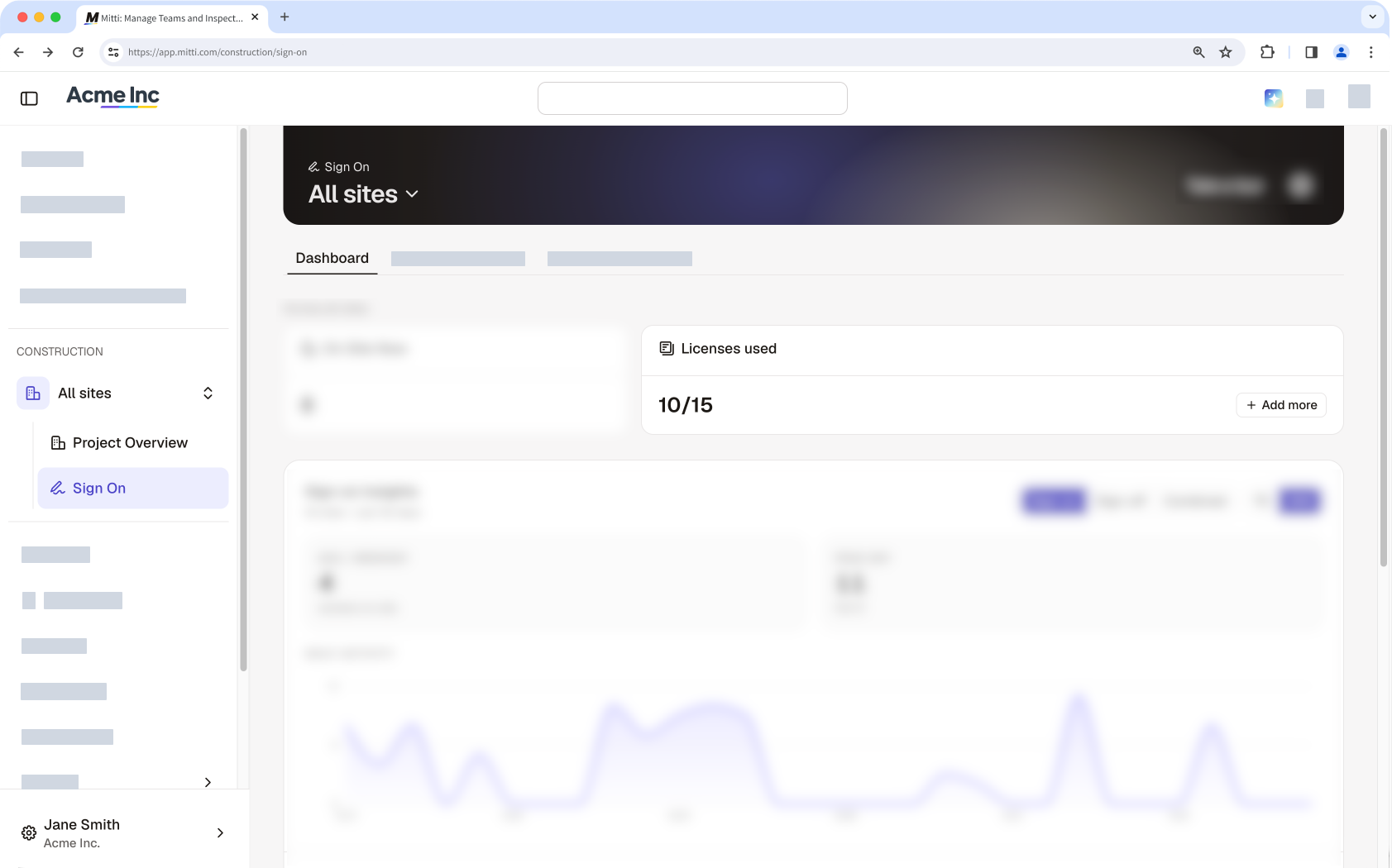
In the pop-up window, enter the number of licenses you want to add.
Click Add licenses.
Move a license to another site
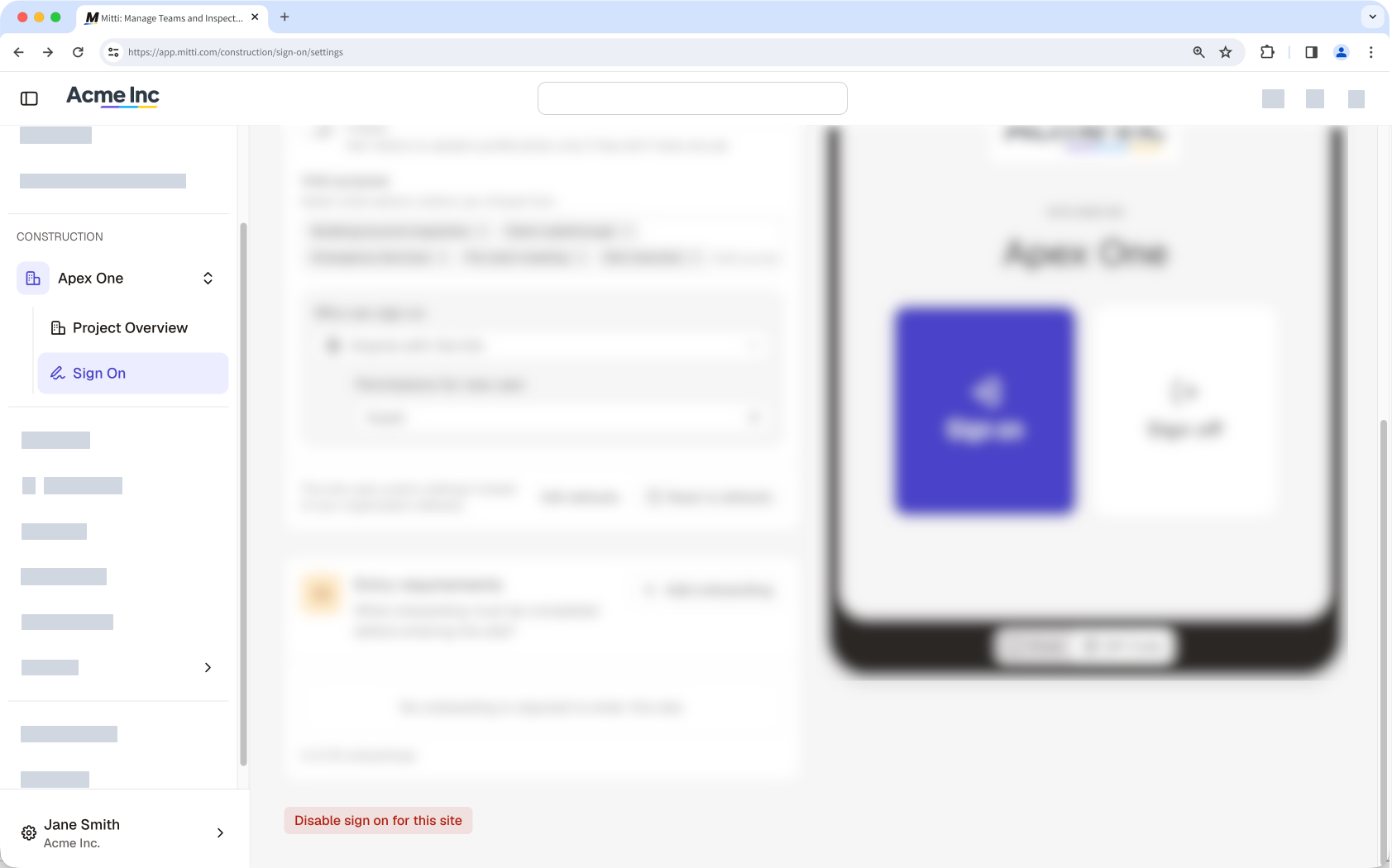
When you turn off the Sign On feature for a site, the license returns to your pool. You can then use the license for another site right away.
In the Construction module, click All sites in the sidebar, then select the site.
Click Sign On in the sidebar, then select Site settings tab at the top of the page.
Click Disable site sign on for this site.
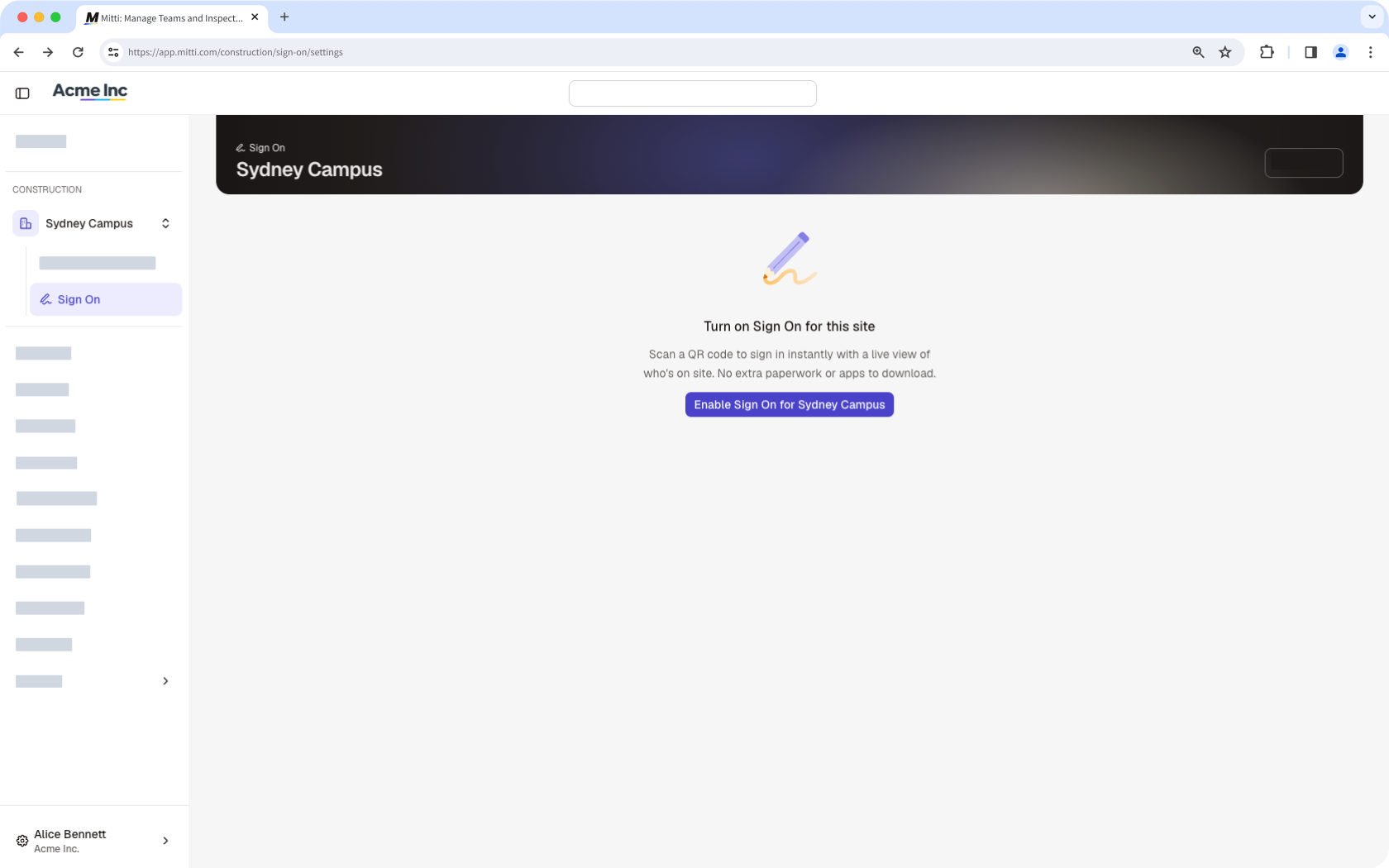
In the sidebar, select the site you want to move the license to.
Click Enable Sign On at the center of the page.
Frequently asked questions
Need more help?
Was this page helpful?