Zuletzt aktualisiert: 19. Juni 2026
Multiple organizations in Mitti allows a single user to belong to more than one organization using the same email address and password. After logging in via web or mobile, a user can switch between organizations to access each organization's dedicated workspace, data, and permissions.
Meanwhile, in EdApp, a user can only belong to one organization at a time. This means workarounds are required if the same user needs to exist across multiple organizations, such as using email aliases or deactivating and reactivating a user before re-adding them. The table below outlines the key differences:
Features | EdApp | Mitti |
|---|---|---|
Switching between organizations | Unavailable | Users can switch between organizations via the web app and mobile app |
Workspace loaded | Users can only view data in the single organization they belong to | Data and permissions are org-specific and don't carry over across organizations |
Profile settings | Settings are not saved per organization because each user belongs to only one organization | Settings such as time zone, language, notifications, user fields, and more are saved separately per organization |
Email address | An email address can only belong to one organization — teams may need email aliases like "name+1@company.com", or request deactivation before re-adding a user in another org | An email address can be added to multiple organizations |
Organization switcher | Unavailable | The organization switch only appears if a user belongs to multiple organizations |
Wenn ein Benutzer bereits in einer anderen Mitti-Organisation mit derselben E-Mail-Adresse existiert, können Sie seine E-Mail-Adresse nicht entsprechend anpassen. Wenden Sie sich an unseren Kundensupport, um Unterstützung zu erhalten.
Prüfen Sie vor der Migration, ob Ihre Nutzer bereits Mitti-Konten unter einer anderen E-Mail-Adresse haben. So lassen sich E-Mail-Konflikte nach der Migration vermeiden.
Was Sie brauchen
Organisationen wechseln
Klicken Sie in der oberen linken Ecke der Seite auf und wählen Sie die Organisation, zu der Sie wechseln möchten.
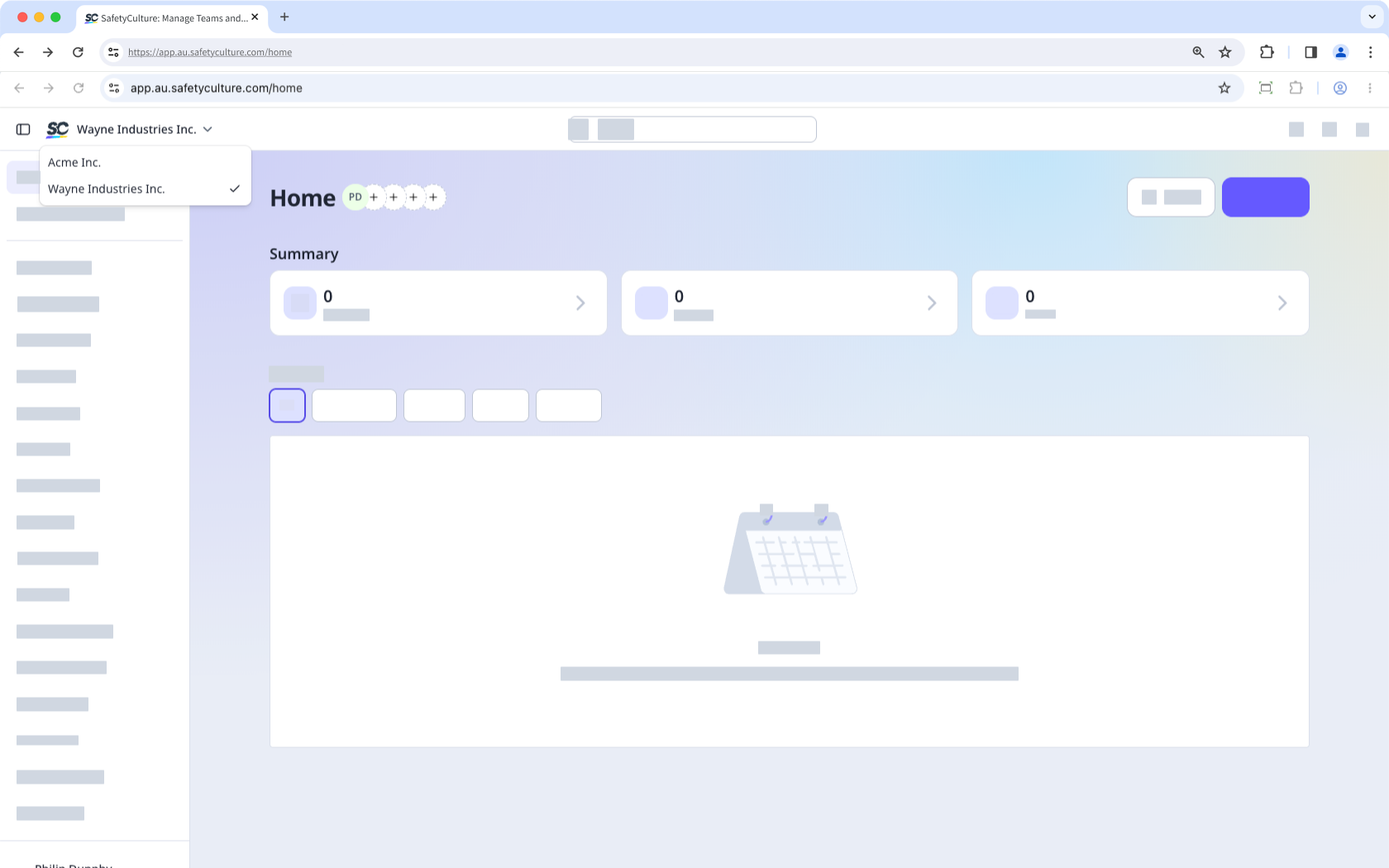
Wenn Sie sich eine Zeit lang nicht mit einem Passwort oder über Single Sign-On (SSO) angemeldet haben, werden Sie möglicherweise aufgefordert, sich erneut anzumelden, wenn Sie zu einer anderen Organisation wechseln.
Öffnen Sie die Mobile-App.
Tippen Sie auf in der oberen linken Ecke Ihres Bildschirms.
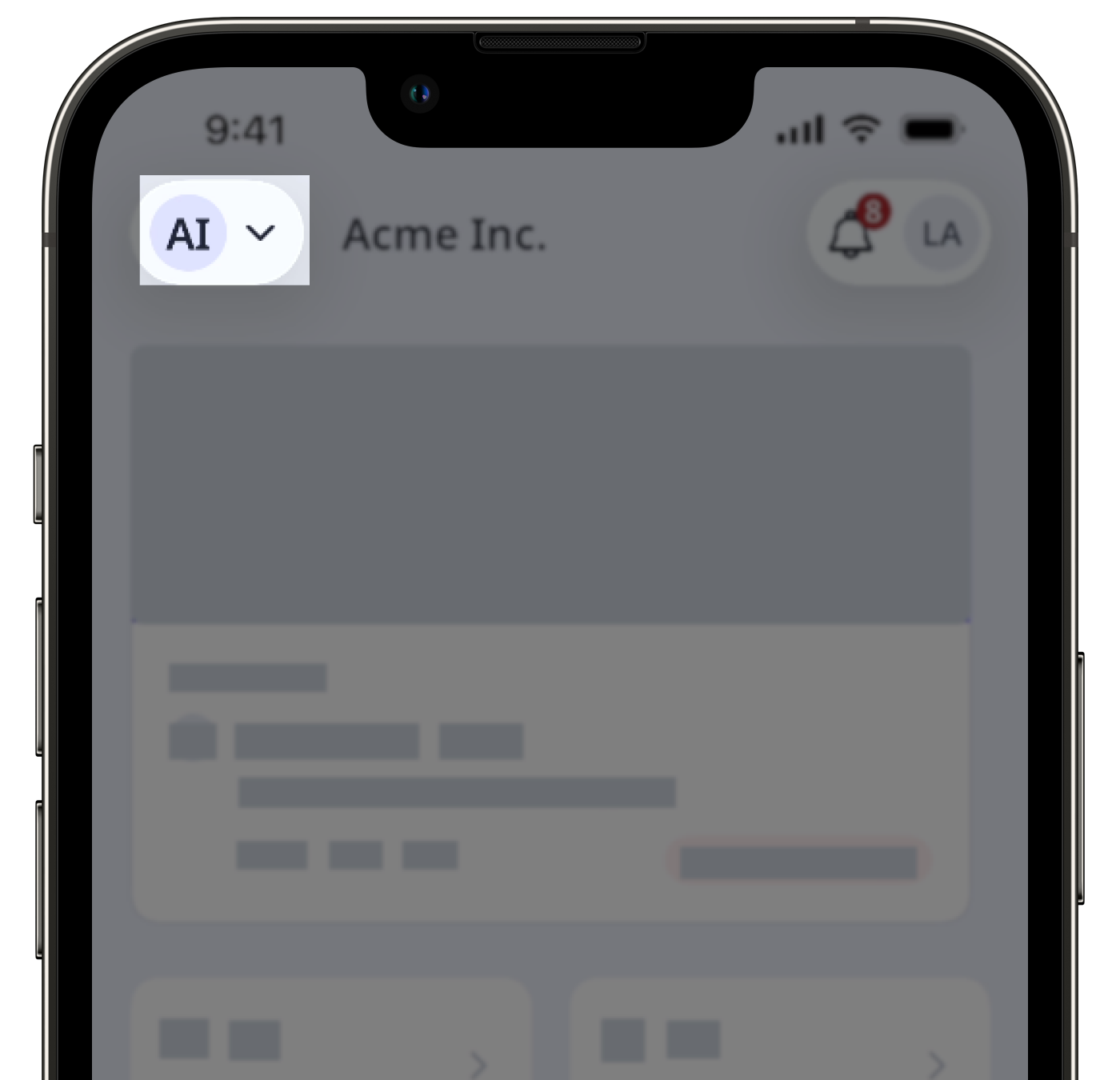
Wählen Sie im Popup-Menü die Organisation aus, zu der Sie wechseln möchten.
Wenn Sie sich eine Zeit lang nicht mit Passwort oder Single sign-on (SSO) angemeldet haben, werden Sie möglicherweise aufgefordert, sich erneut anzumelden. Wenn Sie nicht synchronisierte Daten haben, erhalten Sie eine Popup-Benachrichtigung. Synchronisieren Sie Ihre App manuell, um Datenverluste zu vermeiden, bevor Sie fortfahren.
Brauchen Sie weitere Hilfe?
War diese Seite hilfreich?
