Zuletzt aktualisiert: 12. Oktober 2026
Was sind KI-Ausgabenobergrenzen?
Das KI-Ausgabelimite legt fest, wie viele zusätzliche Credits eine Person aus den KI-Credits Ihrer Organisation in Anspruch nehmen kann. Zusätzliche Credits sind diejenigen, die aus Ihrem Abonnement für „ “-Credits sowie aus Überschreitungen bei stammen.
Wenn Sie beispielsweise für einen Nutzer ein Limit von 500 Credits festlegen, werden für diesen Nutzer keine 500 Credits beiseite gelegt. Es wird lediglich verhindert, dass er mehr als 500 Credits von den Credits abzieht, über die Ihre Organisation bereits verfügt; es werden jedoch keine Credits an irgendjemanden vergeben oder reserviert.
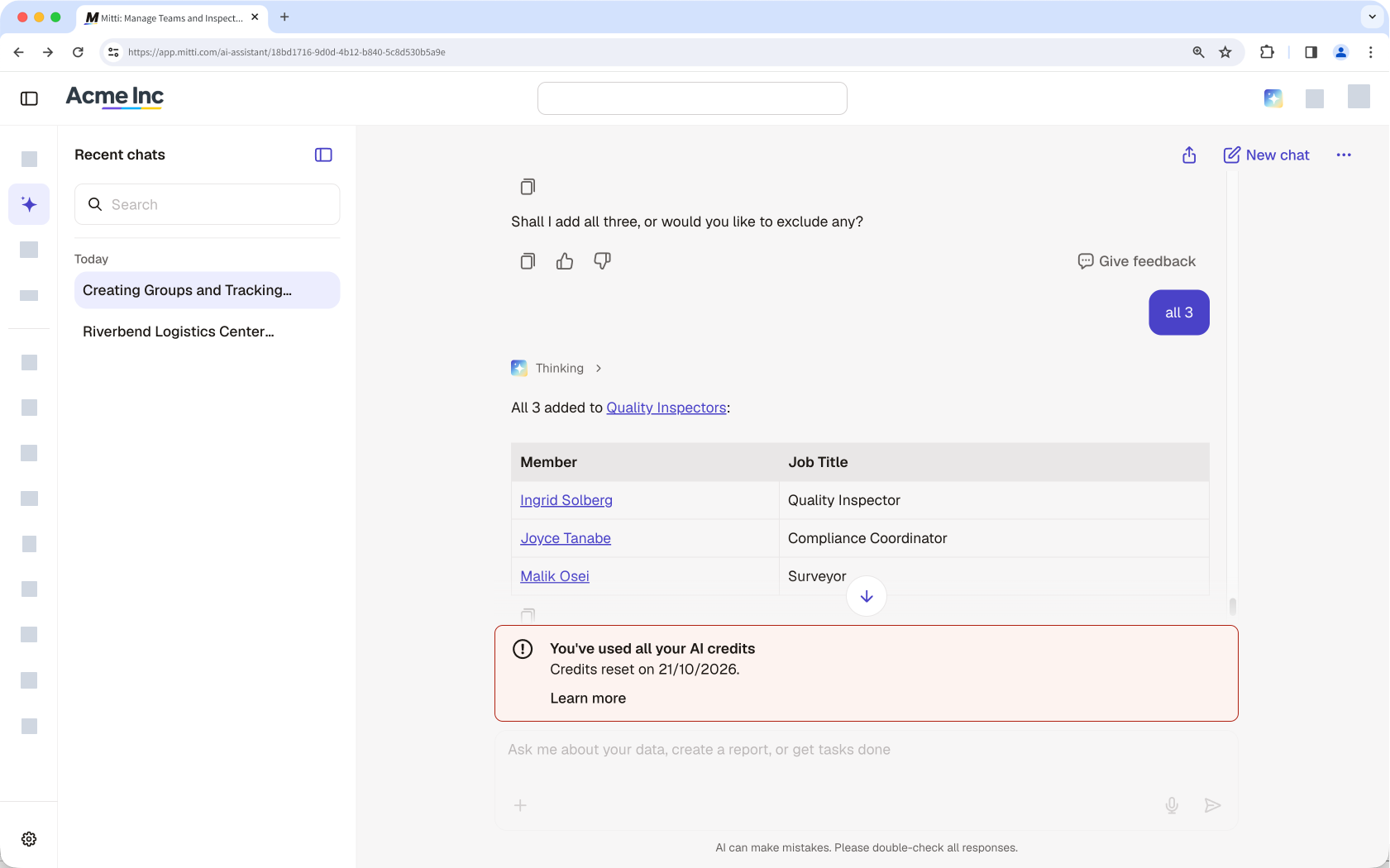
Sie können ein Ausgabenlimit für Ihre gesamte Organisation oder für bestimmte Benutzer festlegen. Ein organisationsweites Ausgabenlimit gilt für alle Benutzer, die kein eigenes Limit haben, während ein benutzerspezifisches Ausgabenlimit für namentlich genannte Personen gilt. Letzteres hat Vorrang vor dem organisationsweiten Ausgabenlimit. Wenn also beide vorhanden sind, gilt das eigene Limit des Benutzers.
Standardmäßig ist kein Ausgabenlimit festgelegt, und Nutzer können die zusätzlichen Credits Ihrer Organisation ohne Obergrenze in Anspruch nehmen. Ein von Ihnen festgelegtes Limit gilt so lange, bis Sie es ändern. Die Creditsverwendung wird zu Beginn jedes Abrechnungszeitraums zurückgesetzt.
Sehen Sie im Aktivitätsprotokoll Ihrer Organisation nach, wer wann ein Ausgabenlimit geändert hat.
Was Sie brauchen
Legen Sie ein Ausgabenlimit für KI in Ihrem Unternehmen fest
Klicken Sie unten links auf der Seite auf den Namen Ihrer Organisation und wählen Sie Abrechnung aus.
Klicken Sie oben auf der Seite auf Nutzung.
Klicken Sie unten links auf der Seite auf Individuelle Nutzung anzeigen.
Klicken Sie oben rechts auf der Seite auf Ausgabenlimit festlegen.
Wählen Sie im Popup-Fenster eine der folgenden Optionen aus:
Unbegrenzt: Nutzer, die kein eigenes Limit haben, können die zusätzlichen Credits Ihrer Organisation ohne Obergrenze in Anspruch nehmen.
Benutzerdefiniertes Limit: Geben Sie die Anzahl der zusätzlichen Credits ein, die ein Benutzer in einem Abrechnungszeitraum ausgeben darf. Benutzer, für die kein eigenes Limit festgelegt wurde, können diesen Betrag nicht überschreiten.
Klicken Sie auf Speichern. Das Ausgabenlimit gilt für alle Nutzer, die kein eigenes Limit haben.
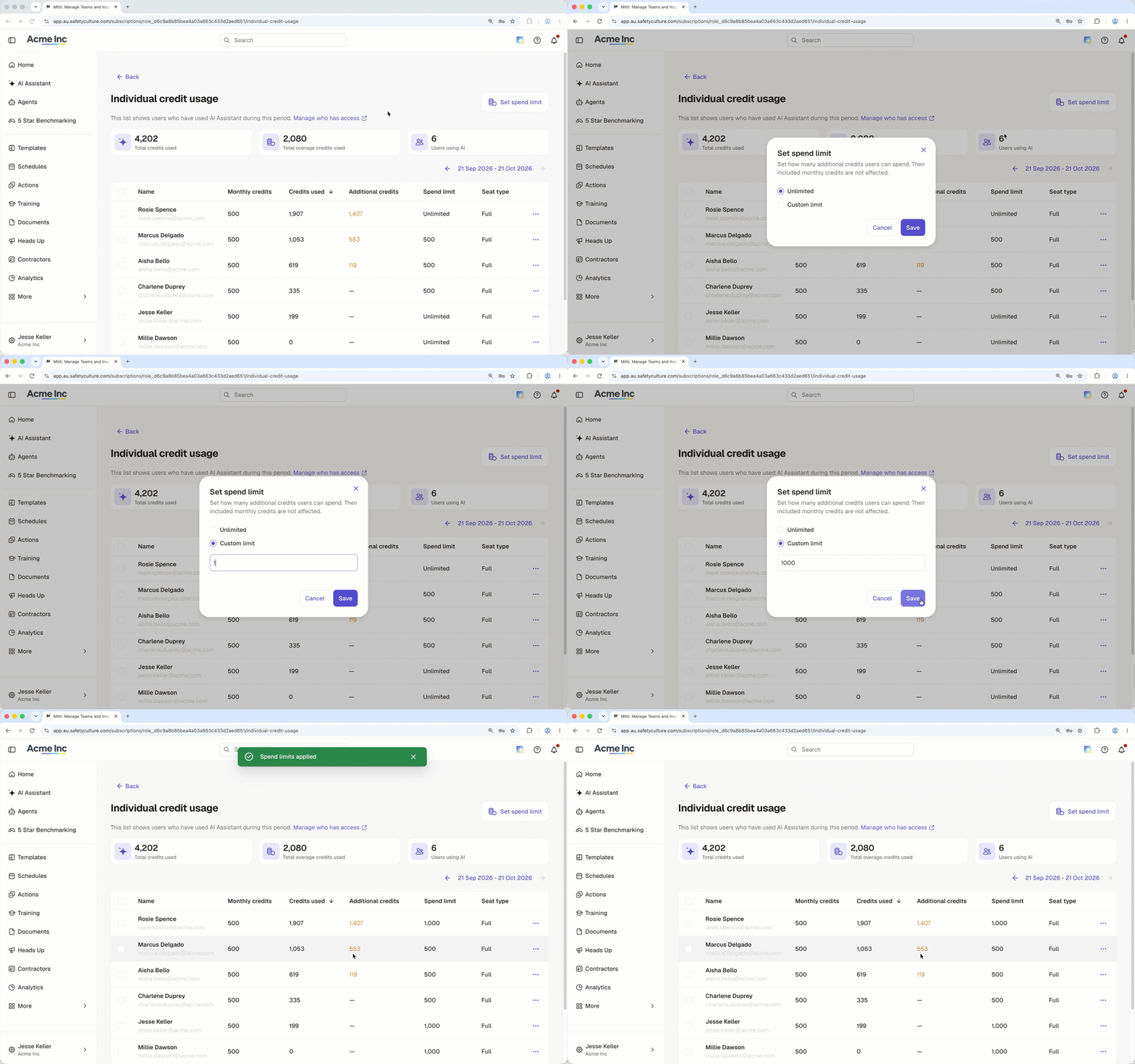
KI-Ausgabenlimit für bestimmte Benutzer festlegen
Klicken Sie unten links auf der Seite auf den Namen Ihrer Organisation und wählen Sie Abrechnung aus.
Klicken Sie oben auf der Seite auf Nutzung.
Klicken Sie unten links auf der Seite auf Individuelle Nutzung anzeigen.
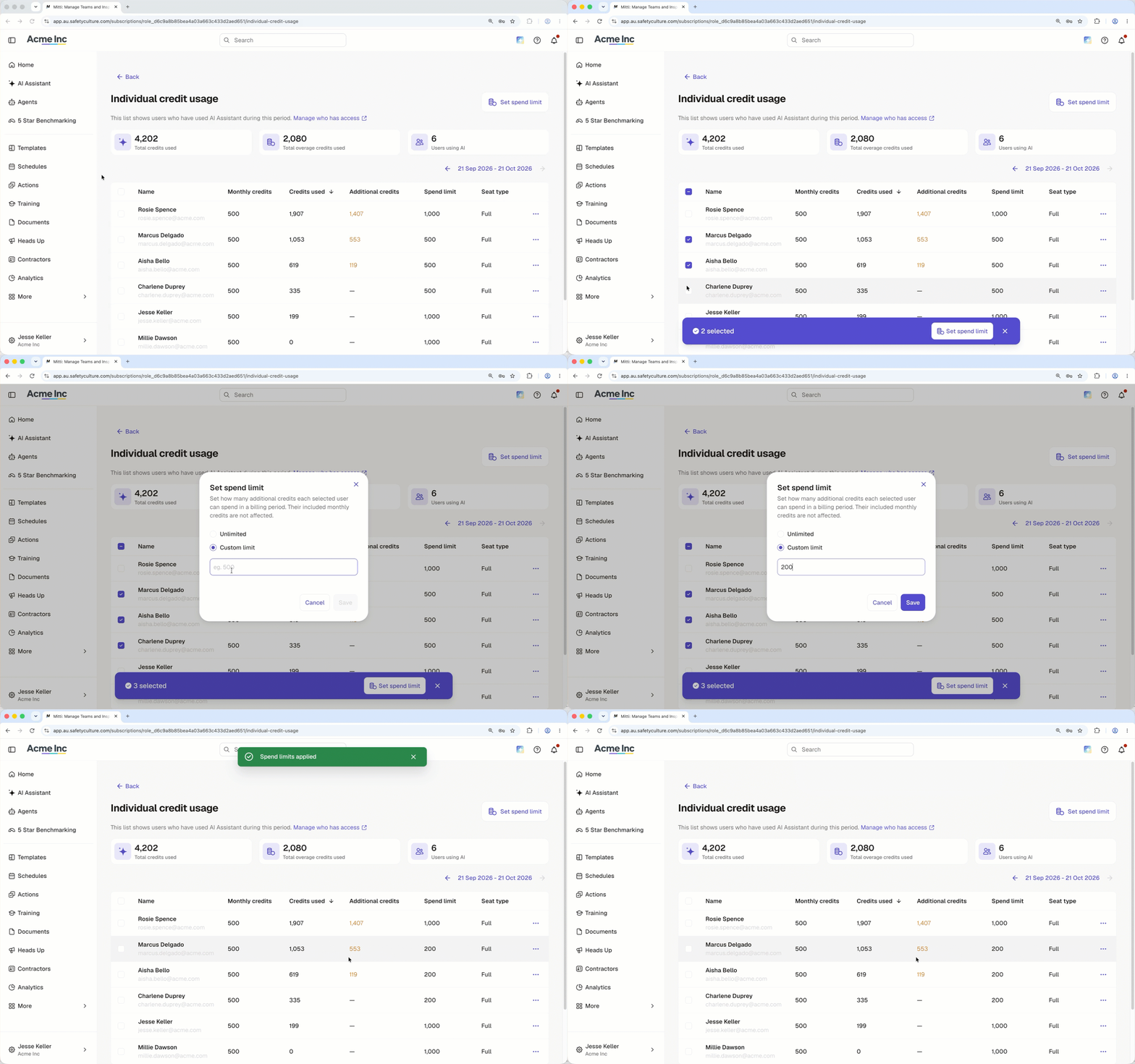
Klicken Sie links neben jedem Benutzer, dessen Ausgabenlimit Sie ändern möchten, auf.
Wählen Sie im Popup-Fenster eine der folgenden Optionen aus:
Unbegrenzt: Benutzer können die zusätzlichen Credits Ihrer Organisation ohne Obergrenze in Anspruch nehmen.
Individuelles Limit: Geben Sie die Anzahl der zusätzlichen Credits ein, die dieser Benutzer in einem Abrechnungszeitraum ausgeben darf. Dieses individuelle Limit gilt auch dann, wenn für Ihre Organisation ein organisationsweites Ausgabenlimit festgelegt wurde.
Klicken Sie auf Speichern. Das Ausgabenlimit gilt für alle Benutzer, die kein eigenes Limit haben.
Ein Nutzer, dessen Credits aufgebraucht ist, kann bei seinen Administratoren neue Credits anfordern. Überprüfen Sie die Nutzung Ihres Teams, um zu sehen, wer sich seinem Limit nähert, bevor dieses erreicht wird.
Häufig gestellte Fragen
Brauchen Sie weitere Hilfe?
War diese Seite hilfreich?