Última actualización: 13 de septiembre de 2026
¿Cómo funciona la memoria en el Asistente de IA?
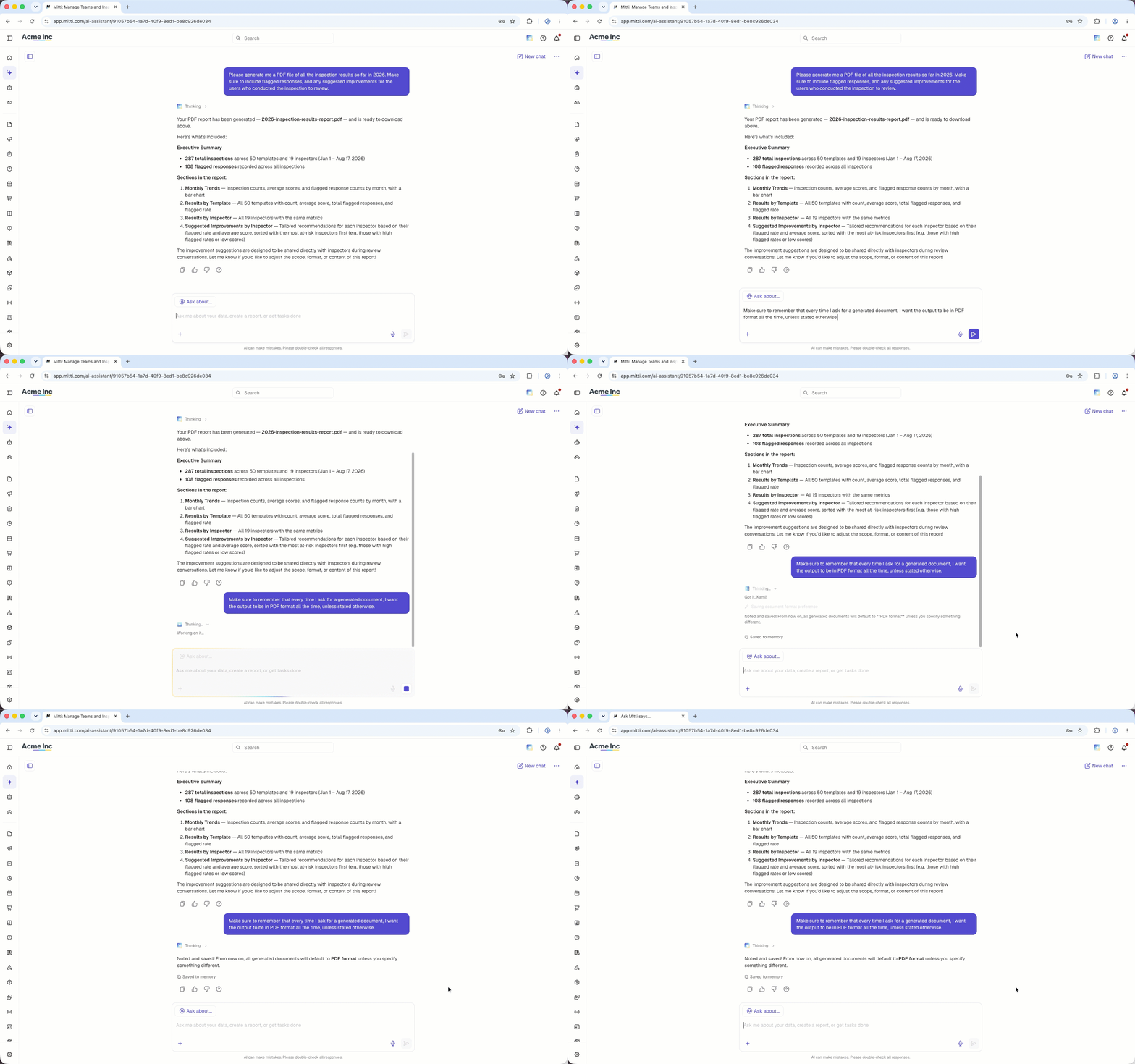
La memoria de chat permite al Asistente de IA recordar datos breves sobre usted y su trabajo, como su rol o el sitio que gestiona. El Asistente de IA guarda estos datos mientras chatea, y cada vez aparece una nota que dice "Guardado en la memoria» para que sepa qué se ha guardado. Puede ver, editar o borrar lo que recuerda el Asistente de IA en cualquier momento gestionando su memoria. De esta forma, no tendrá que repetir el contexto en cada conversación y las respuestas seguirán siendo relevantes para su trabajo.
Lo que necesitarás
Añadir un recuerdo
Click Asistente de IA in the sidebar or click on the right-hand side of the top bar.
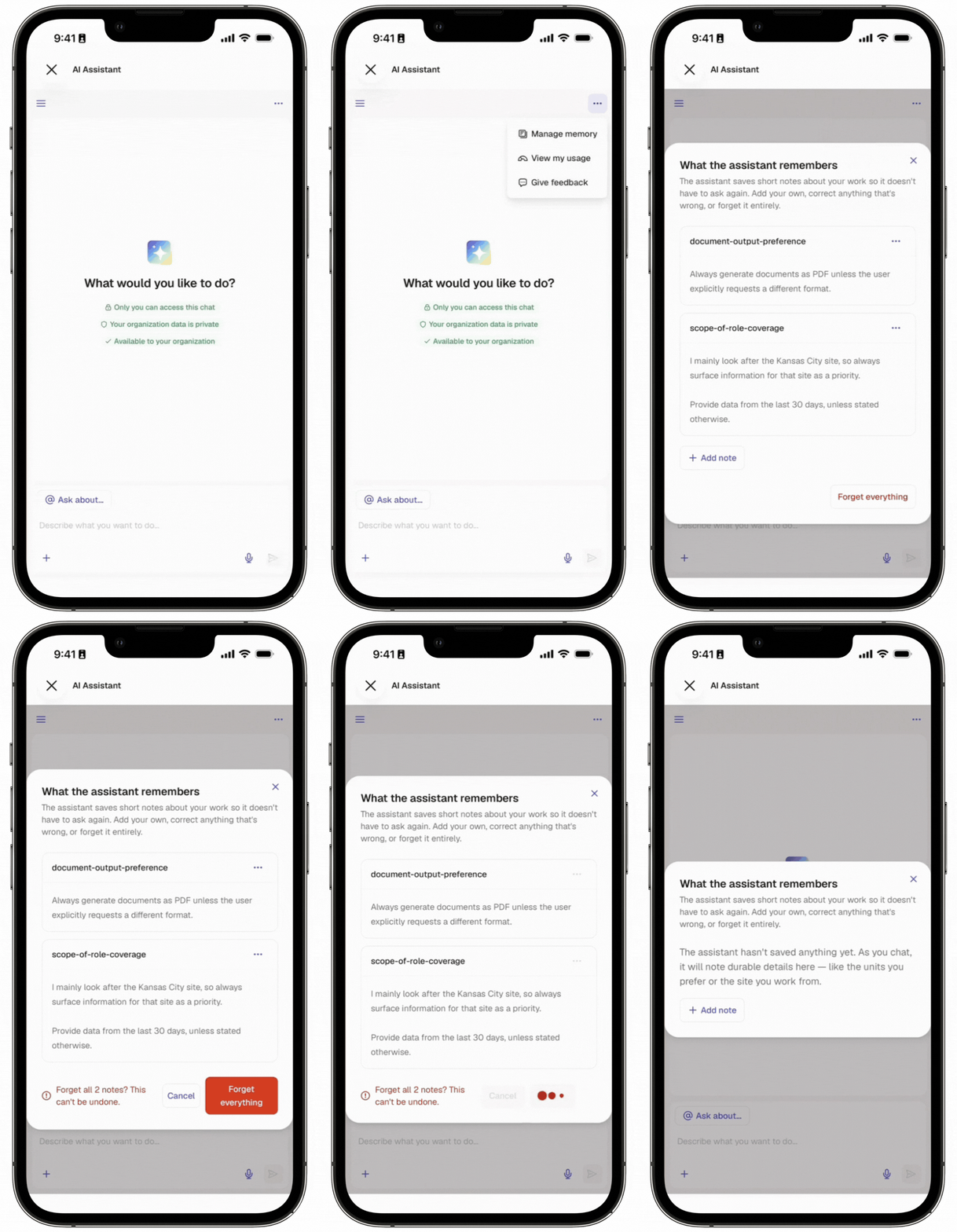
On the upper-right of the page, click then select Gestionar memoria.
In the pop-up window, click Añadir nota.
Enter a label and a note.
Label: Enter a short name for the note.
Note: Enter the information you want the AI Assistant to remember, such as the site you manage or your preferred output format.
Click Guardar.
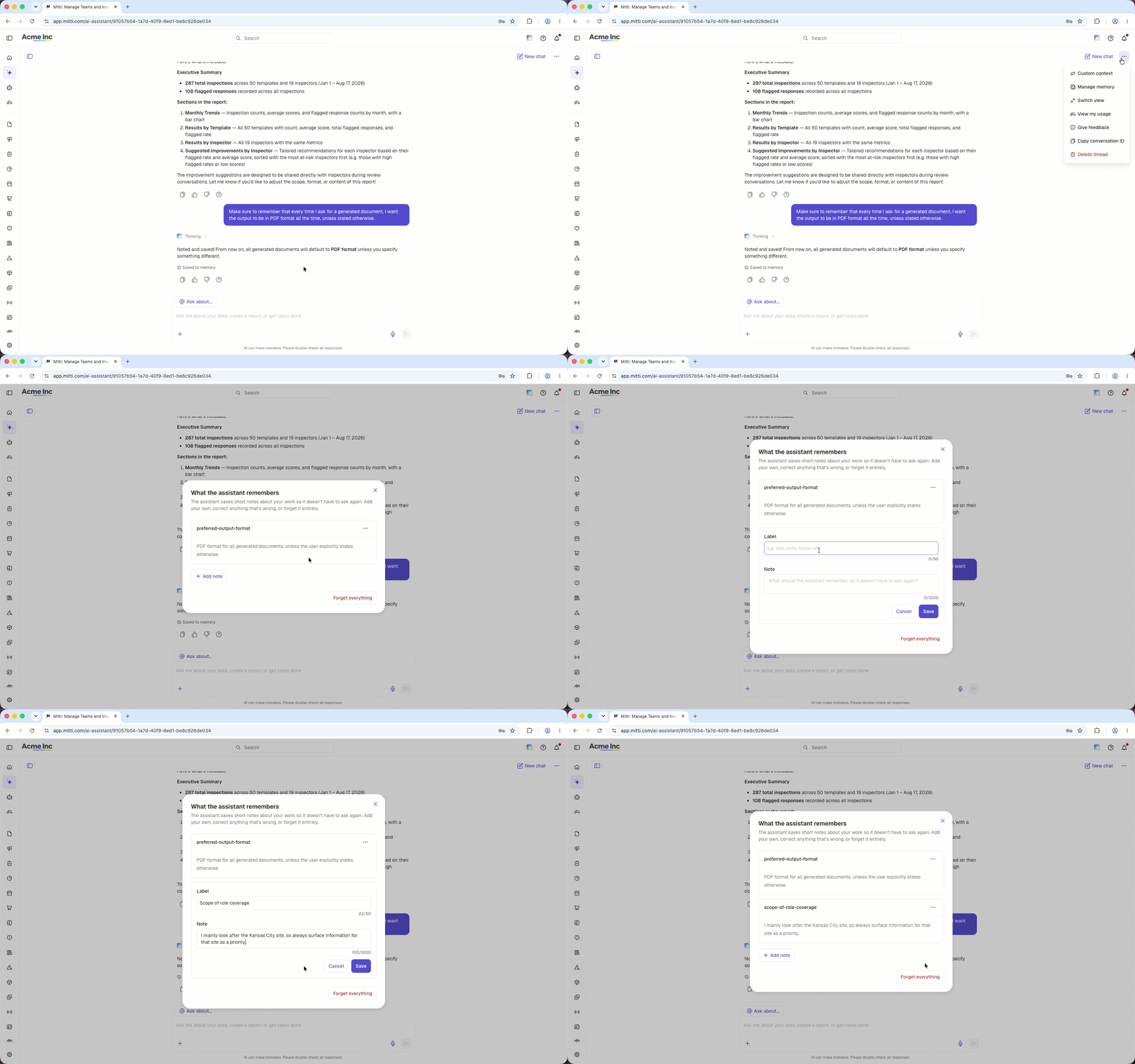
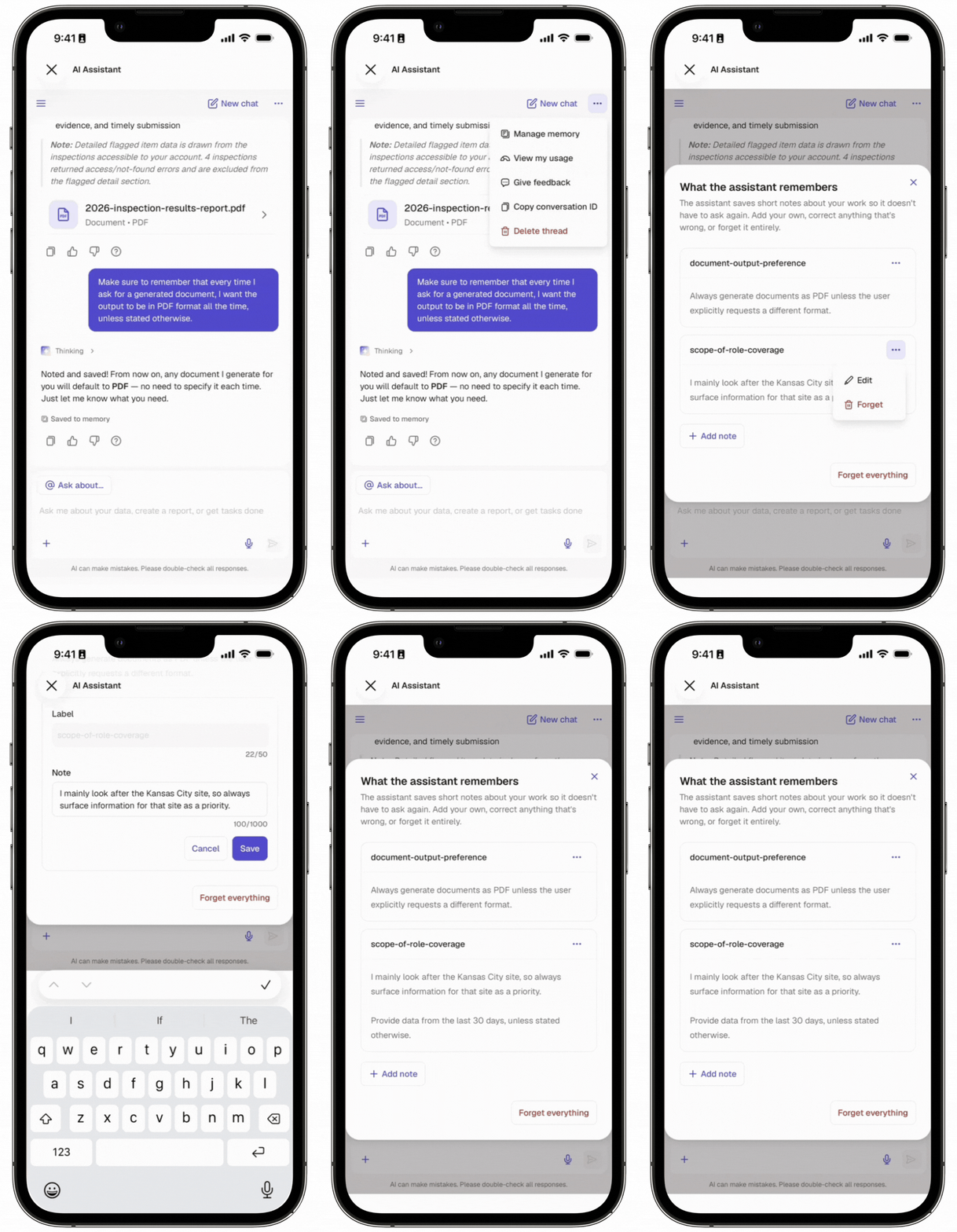
Open the mobile app.
Tap Inicio at the bottom of your screen.
Tap at the upper-right of your screen.
Tap at the upper-right of your screen then select Gestionar memoria.
In the pop-up window, tap Añadir nota.
Enter a label and a note.
Label: Enter a short name for the note.
Note: Enter the information you want the AI Assistant to remember, such as the site you manage or your preferred output format.
Tap Guardar.
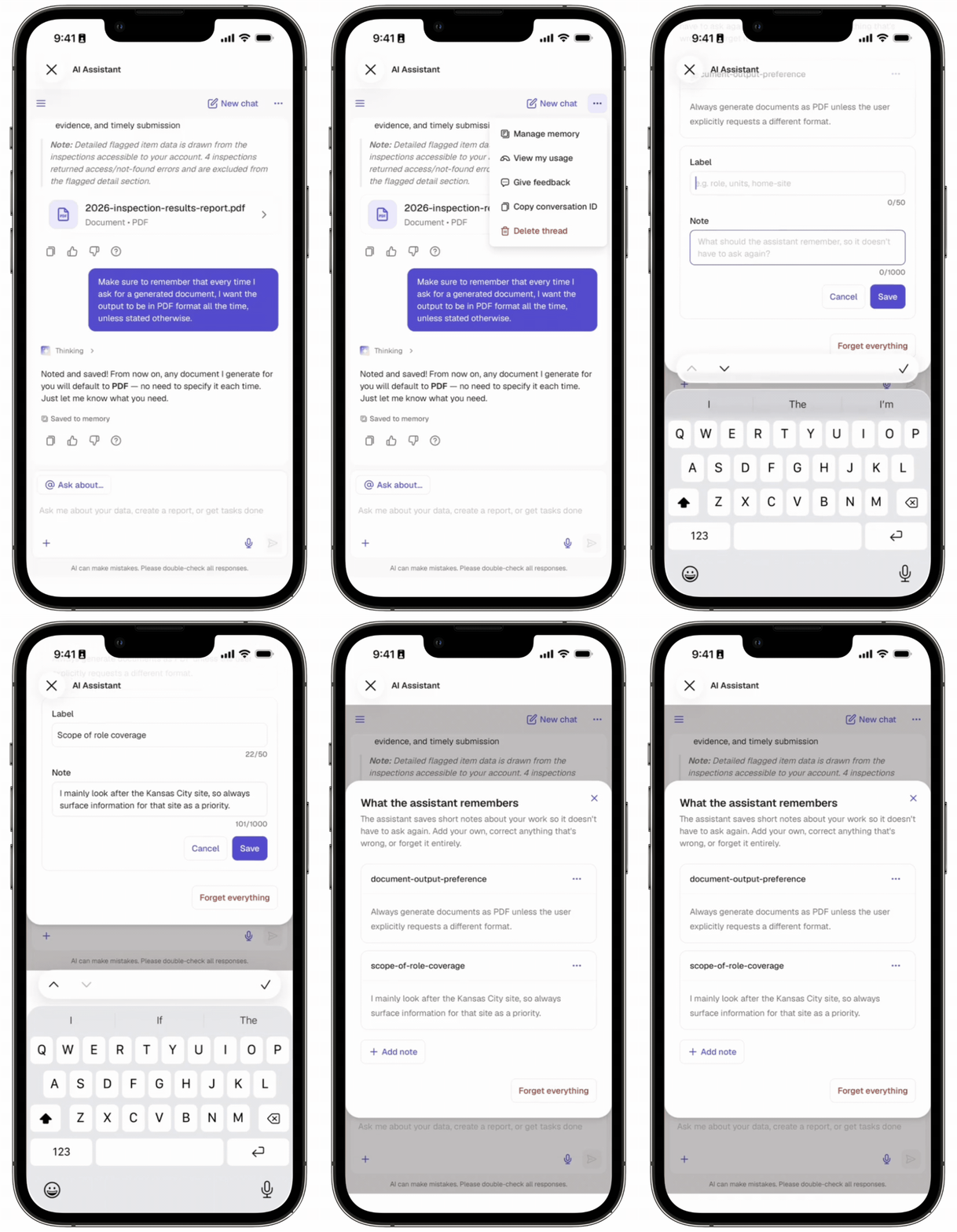
Edit a memory
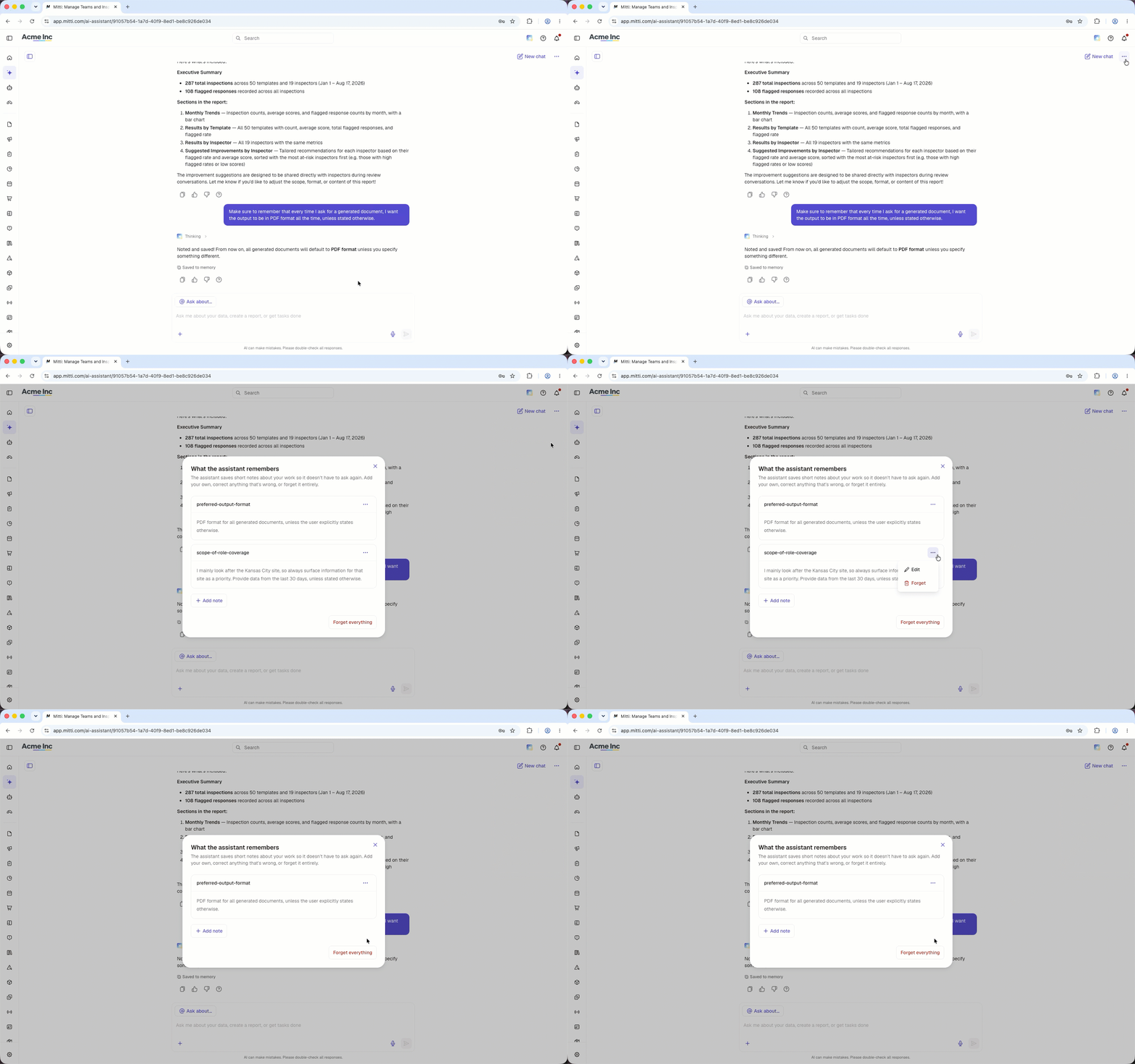
Click Asistente de IA in the sidebar or click on the right-hand side of the top bar.
On the upper-right of the page, click then select Gestionar memoria.
In the pop-up window, click on the note's right-hand side then select Editar.
Edit the note accordingly.
Click Guardar.
Abra la aplicación móvil.
Toque Inicio en la parte inferior de su pantalla.
Toque en la parte superior derecha de su pantalla.
Toque en la parte superior derecha de su pantalla y luego seleccione Gestionar memoria.
En la ventana emergente, toque en el lado derecho de la nota y luego seleccione Editar.
Edite la nota según corresponda.
Toque Guardar.
La eliminación es irreversible y no podemos restaurar elementos eliminados permanentemente. Siempre se requiere confirmación antes de cualquier eliminación, así que asegúrese de no eliminar accidentalmente el elemento equivocado.
Delete a memory
Click Asistente de IA in the sidebar or click on the right-hand side of the top bar.
On the upper-right of the page, click then select Gestionar memoria.
In the pop-up window, click on the note's right-hand side then select Forget.
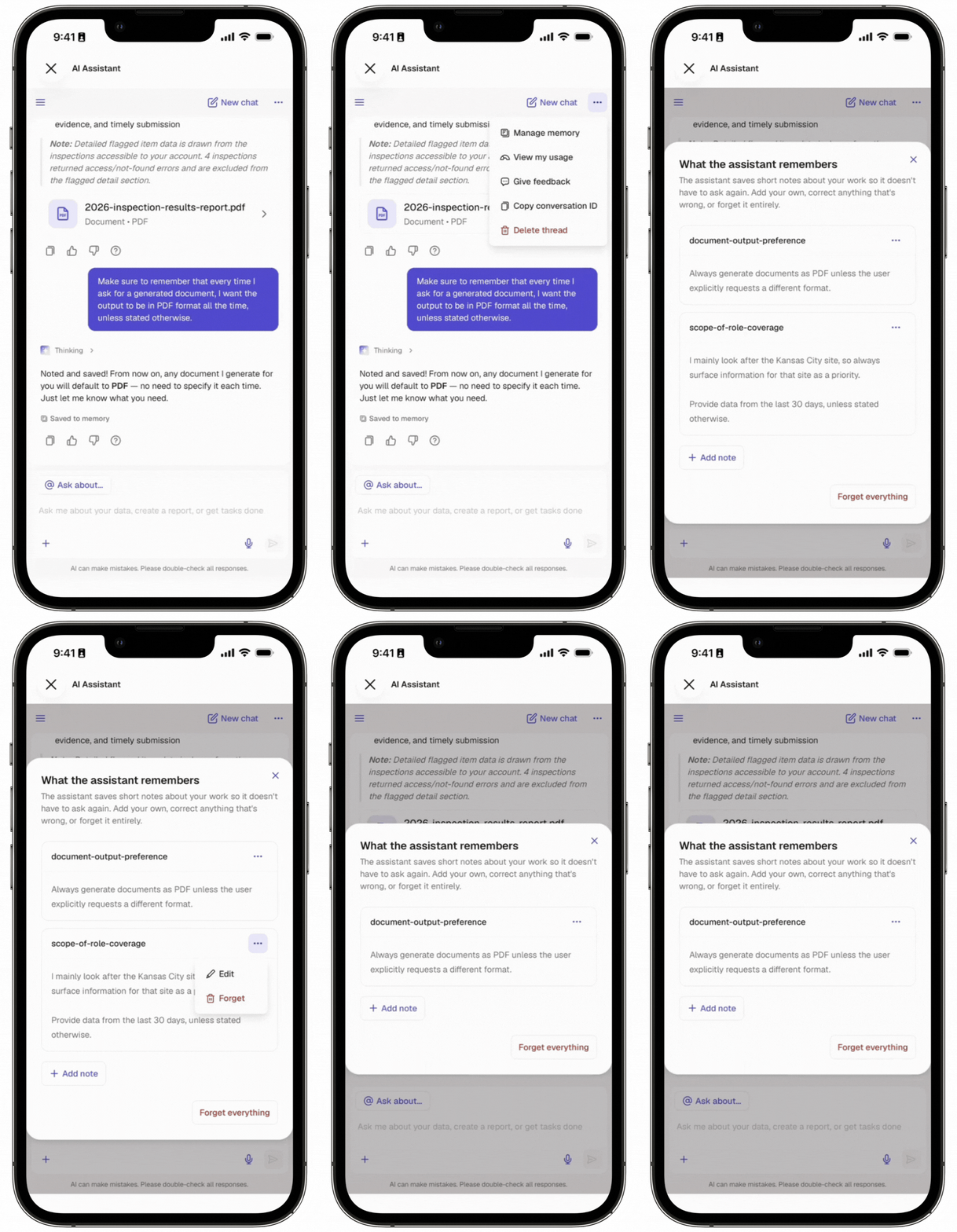
Abra la aplicación móvil.
Toque Inicio en la parte inferior de su pantalla.
Toque en la parte superior derecha de su pantalla.
Toque en la parte superior derecha de su pantalla y seleccione Gestionar memoria.
En la ventana emergente, toque en el lado derecho de la nota y luego seleccione Forget.
Borrar la memoria
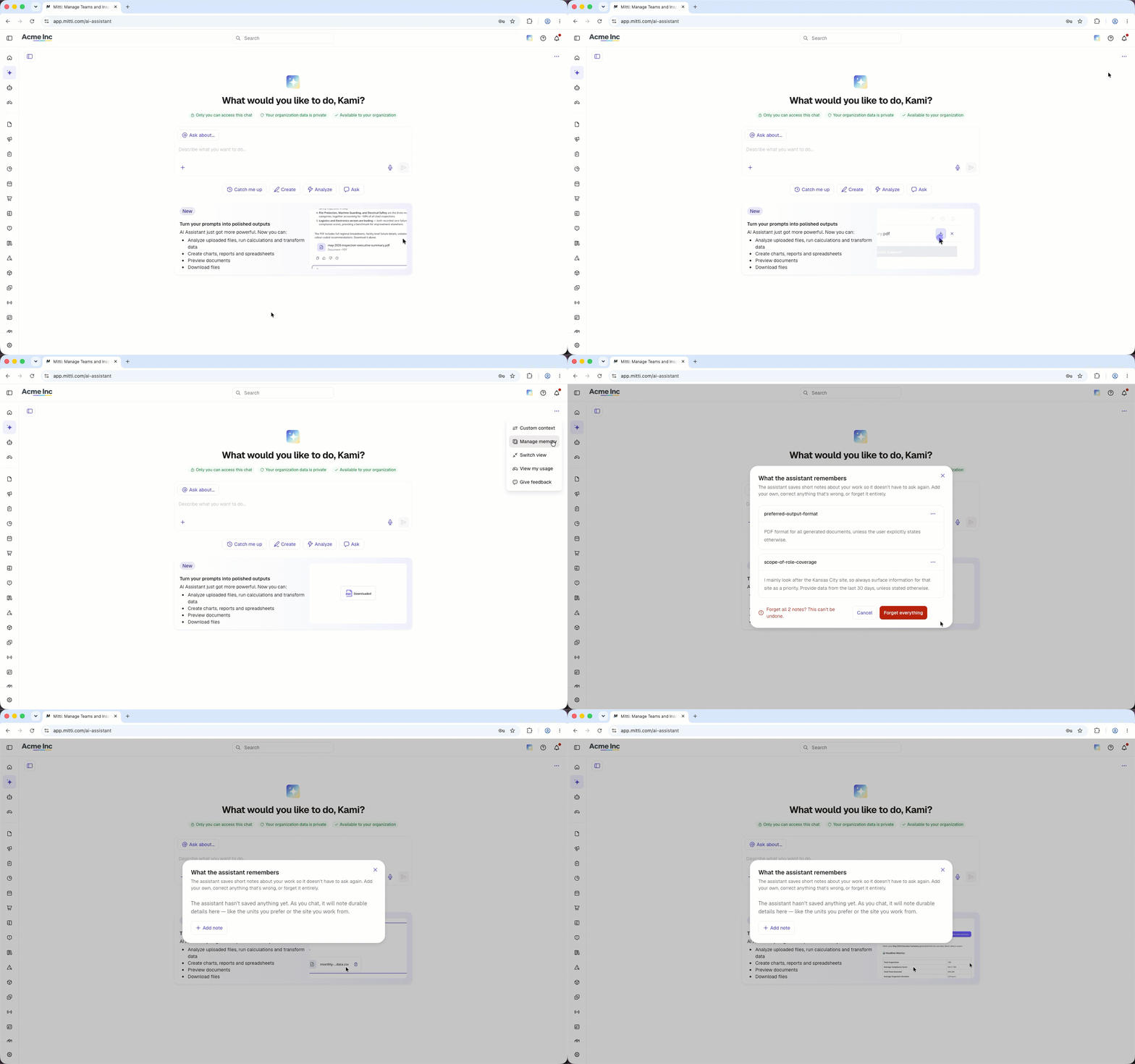
Click Asistente de IA in the sidebar or click on the right-hand side of the top bar.
On the upper-right of the page, click then select Gestionar memoria.
In the pop-up window, click Forget everything.
Click Forget everything.
Abra la aplicación móvil.
Toque Inicio en la parte inferior de su pantalla.
Toque en la parte superior derecha de su pantalla.
Toque en la parte superior derecha de su pantalla y luego seleccione Gestionar memoria.
En la ventana emergente, toque Forget everything.
Toque Forget everything.
Limitaciones
La etiqueta de una nota puede tener hasta 50 caracteres, y la nota en sí, hasta 1.000 caracteres.
Las etiquetas no se pueden editar.
La memoria no se comparte con los agentes.
La memoria del Asistente de IA es independiente en cada organización a la que pertenece un usuario.
Los administradores no pueden ver ni borrar la memoria del Asistente de IA de un usuario en su nombre.
Preguntas frecuentes
¿Necesitas más ayuda?
¿Fue útil esta página?