Última actualización: 24 de septiembre de 2026
Esta función se encuentra actualmente en Acceso temprano. Si le interesa, contacte con su gerente de éxito del cliente para verificar si su organización es elegible.
What does it mean to link sites to files and folders?
When you link sites to a file or folder in Documents, that file or folder appears on the profile of every site you link it to. The file or folder stays in Documents, so linking creates a reference rather than a copy, and any edits you make show up on all of those sites.
Linking from Documents lets you connect one file or folder to several sites at a time. That helps when the same documentation applies to more than one location, such as a company-wide policy or a standard operating procedure. Site members can then view the files and folders in one place on the site profile.
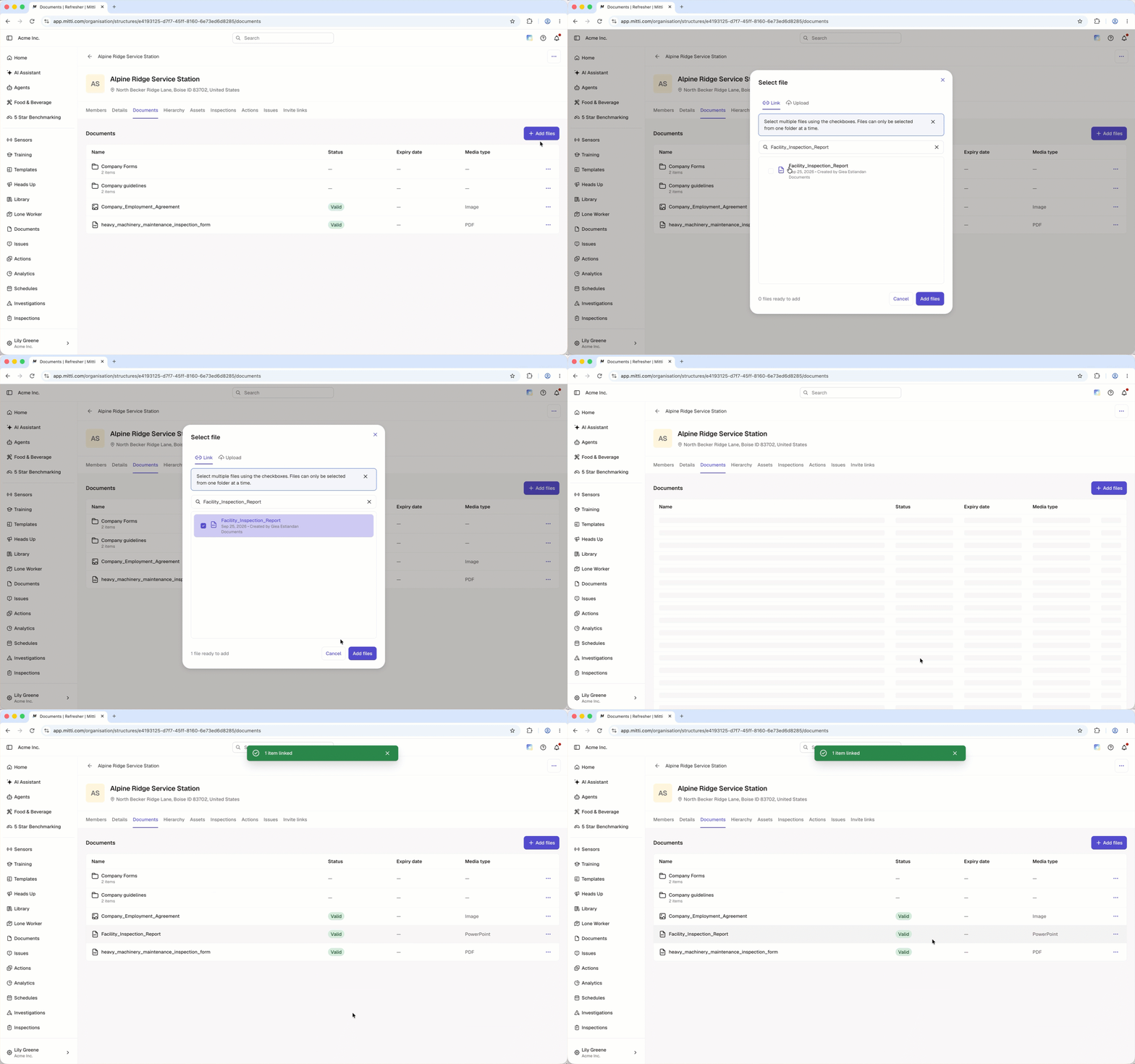
Lo que necesitarás
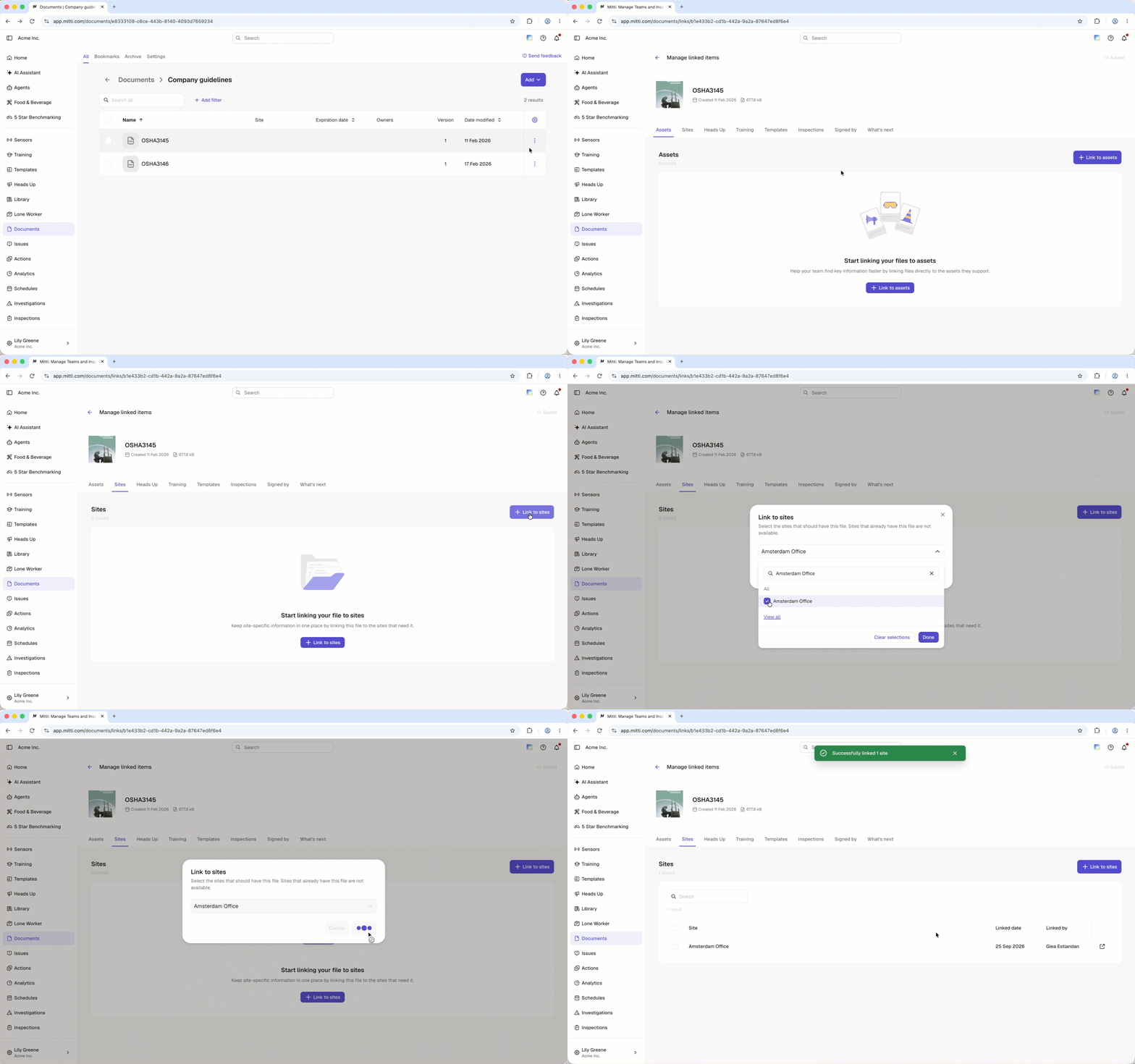
Link a site to a file or folder
Click Documentos in the sidebar or in Más.
Click on the file or folder's right-hand side and select Gestionar elementos vinculados.
Select the Sitios tab at the top of the page.
Click Link to sites on the upper-right of the page.
In the pop-up window, select the site you want to link from the dropdown menu and click Hecho.
Click Vincular.
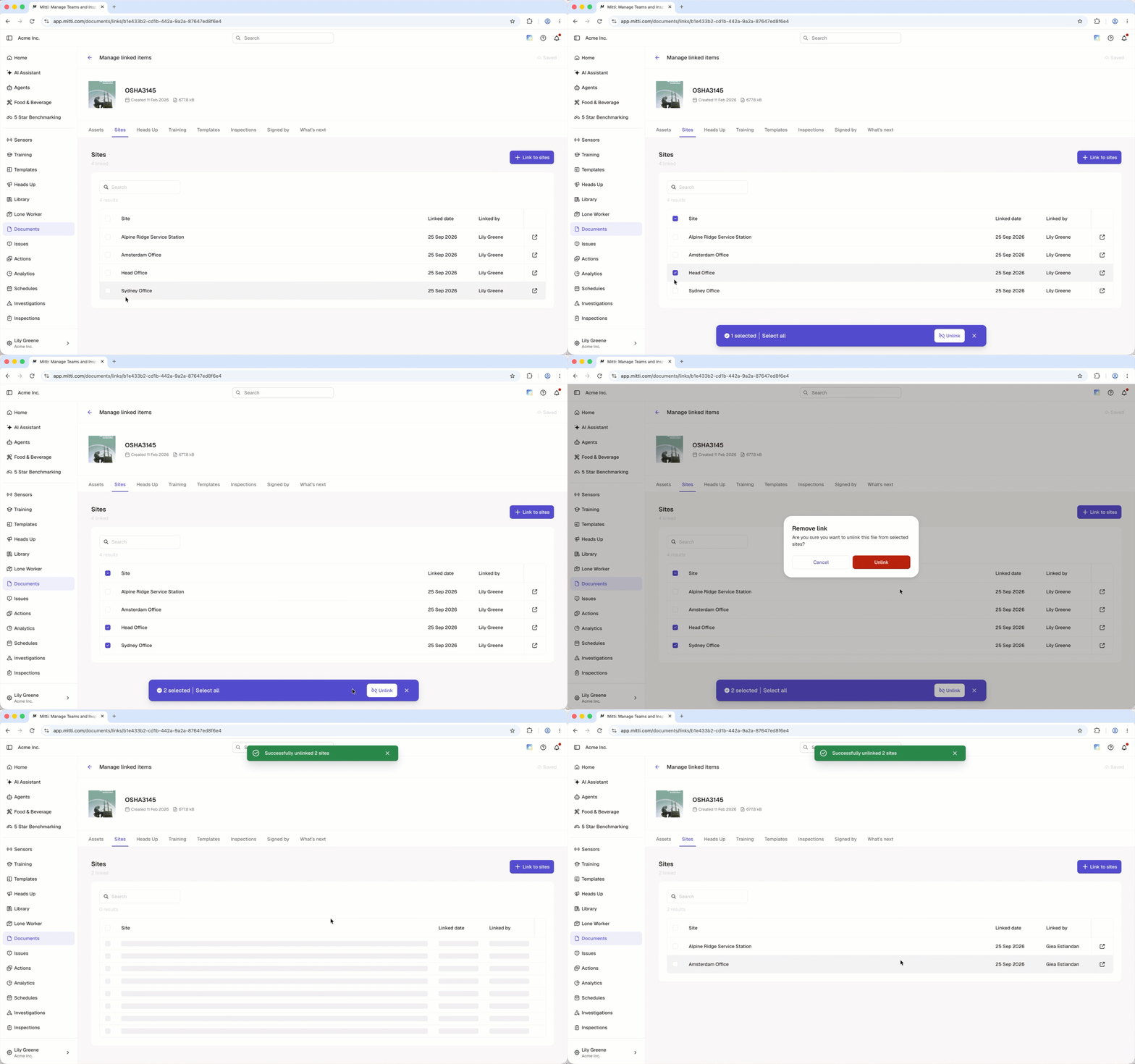
Unlink a site from a file or folder
Click Documentos in the sidebar or in Más.
Click on the file or folder's right-hand side and select Gestionar elementos vinculados.
Select the Sitios tab at the top of the page.
Check the box on the site's left-hand side.
Click Desvincular at the bottom of the page.
In the pop-up window, click Unlink.
Haga clic en Novedades y seleccione hasta 2 funciones con las que desee vincular Documents. Sus comentarios ayudarán a dar forma al futuro de Documents.
Preguntas frecuentes
¿Necesitas más ayuda?
¿Fue útil esta página?
