Última actualización: 1 de octubre de 2026
¿Qué es «Sign On»?
La función «Sign On» registra quién se encuentra en un sitio de. Los trabajadores y visitantes se registran al llegar y al marcharse, ya sea en un quiosco compartido o mediante un código QR situado en la entrada. Cada entrada genera un registro de asistencia para ese sitio. La configuración de Sign On determina qué datos se solicitan a las personas al registrarse, quiénes pueden registrarse y si deben completar un proceso de incorporación antes de que se les permita el acceso.
La configuración de «Iniciar sesión» se estructura en dos niveles. La configuración de tu organización es el punto de partida para todos los sitios que gestionas, y la configuración propia de cada sitio tiene prioridad sobre ella. Si estableces un valor a nivel de sitio, ese sitio lo conservará, incluso si más adelante modificas la configuración de tu organización. Si no modificas una configuración a nivel de sitio, este utilizará el valor de la organización, por lo que cambiarlo una sola vez se aplicará en todas partes.
Lo que necesitarás
1. Activar el inicio de sesión en un sitio
La opción «Iniciar sesión» permanece desactivada en un sitio hasta que alguien la active, así que repite este proceso en cada sitio en el que quieras utilizarla.
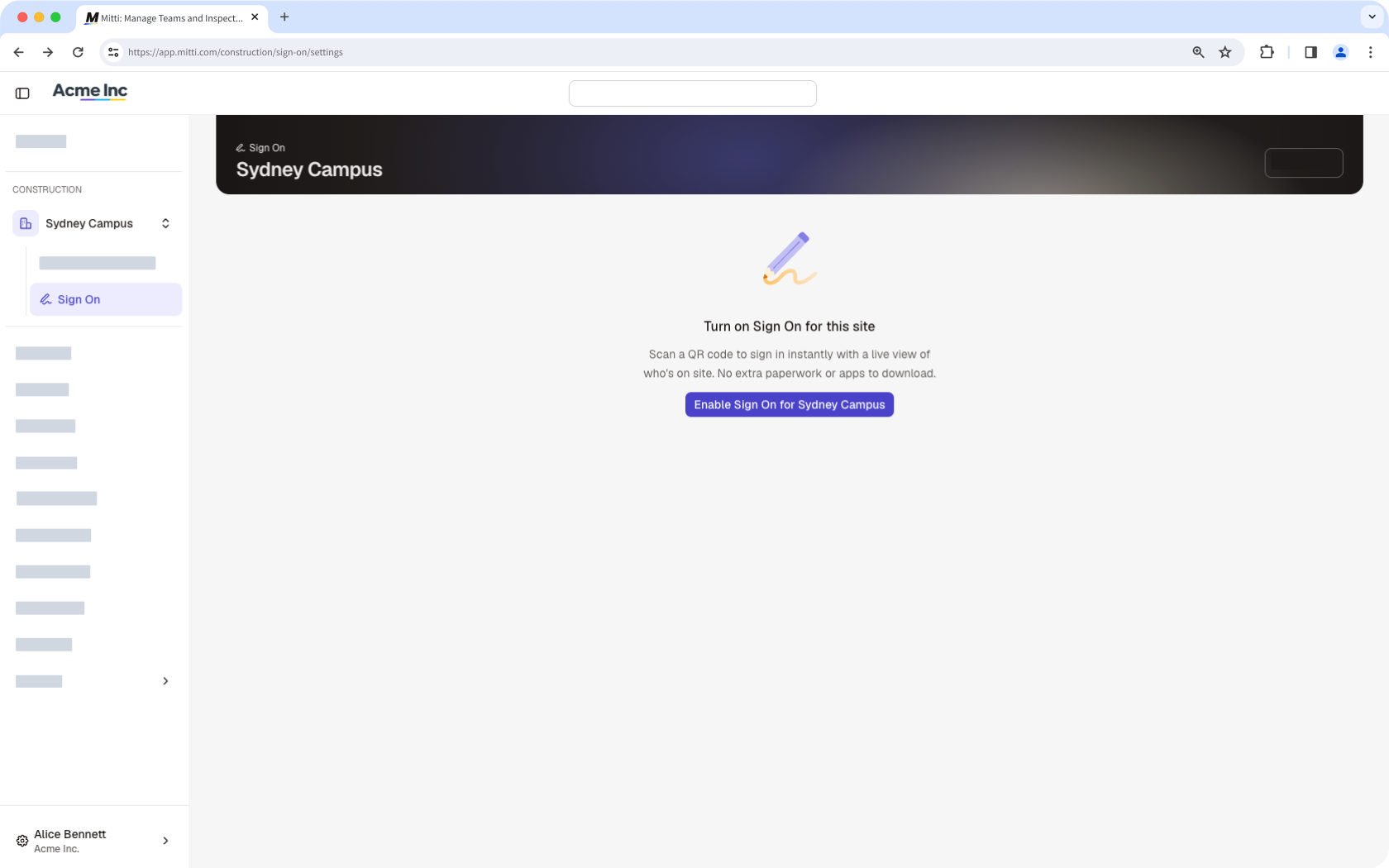
En el módulo «Construcción», haz clic en « Todos los sitios » en la barra lateral y, a continuación, selecciona la obra.
Haga clic en Habilitar el inicio de sesión.
2. Configura los ajustes de inicio de sesión de tu organización
In the sidebar's "Construction" section, click Iniciar sesión.
Click the on the upper-right of the page.
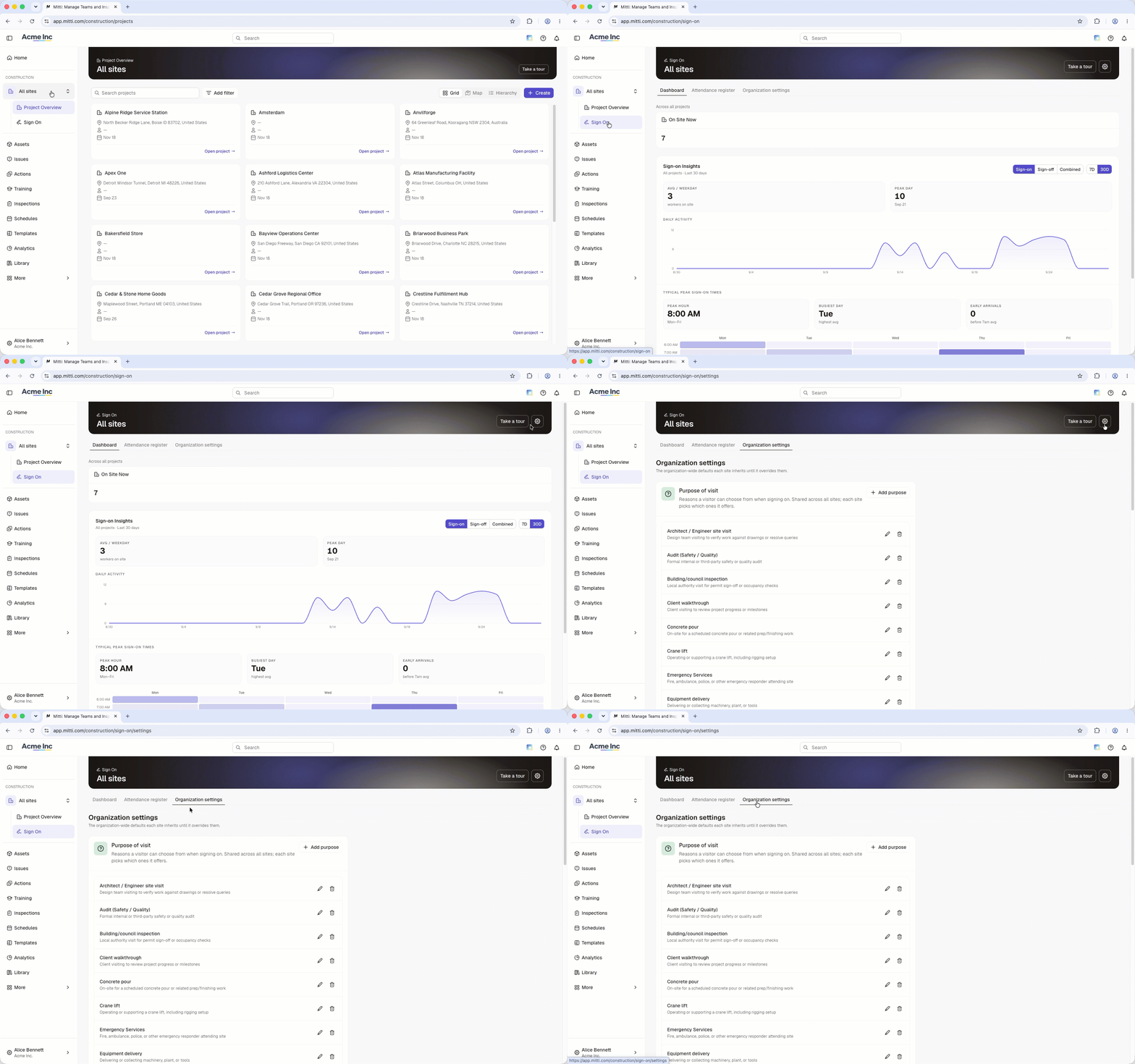
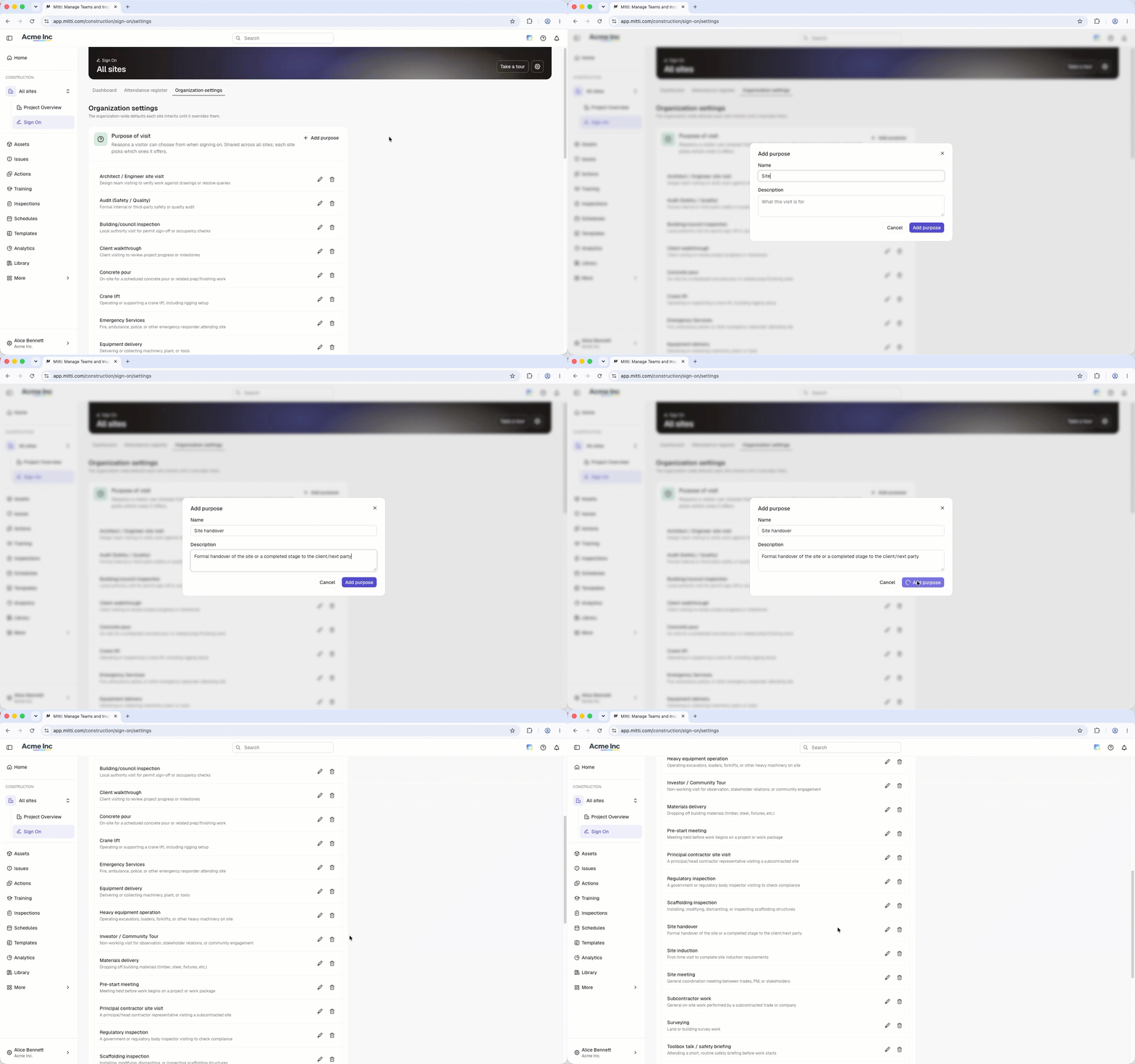
In the "Purpose of visit" section, add each reason a person can give for being on site. Your sites select from this list, so add every reason you want available anywhere.
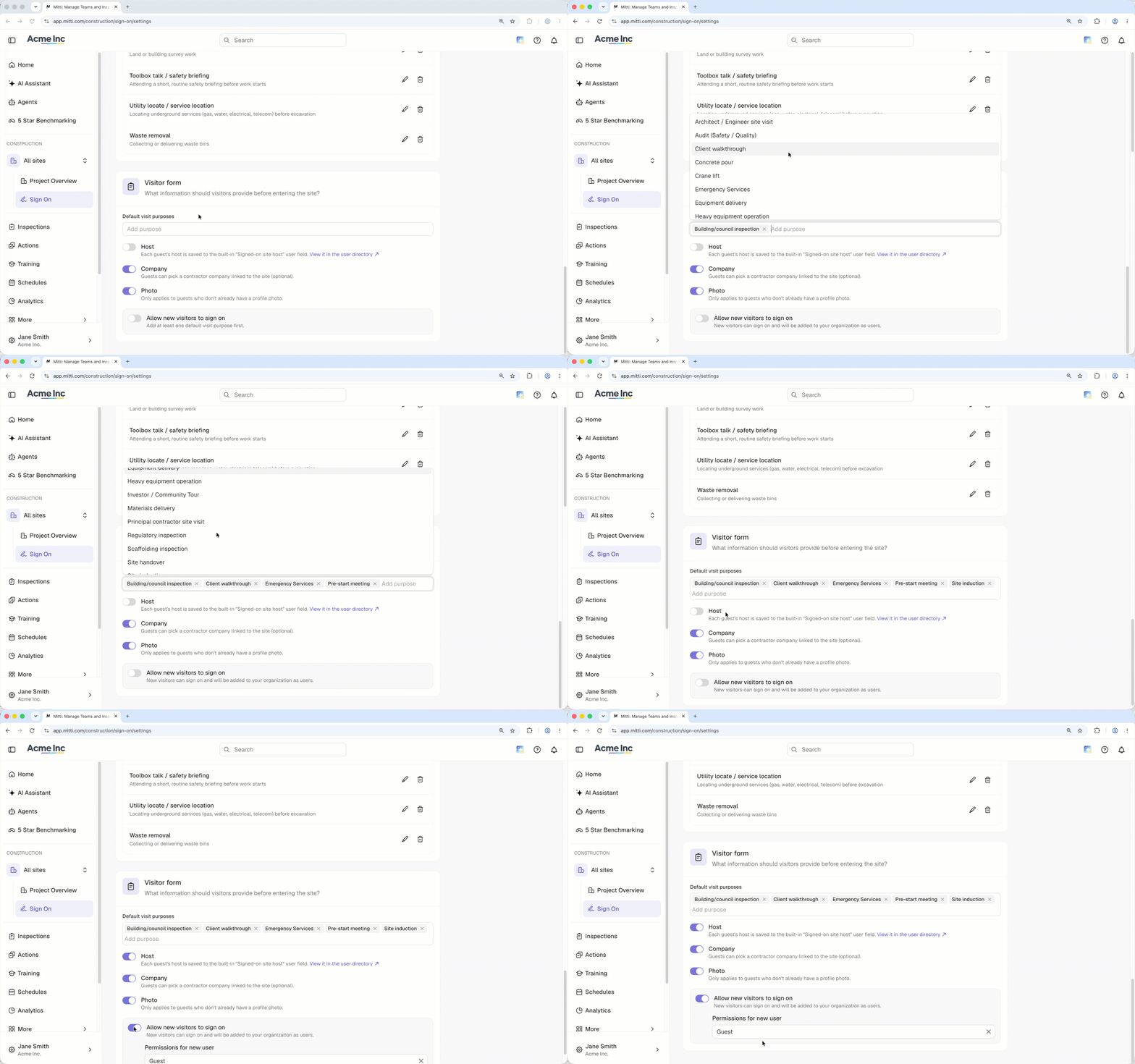
In the "Visitor form" section, turn the following settings on or off:
Host: This setting is off by default. When turned on, visitors are required to provide their point of contact in your organization. Their answer is recorded against the Signed-on site host field on their user profile, and they choose from the full seat and lite seat users in your organization.
Company: When a visitor signs on, they can specify the company they work for. If their company isn't in your organization yet, they can create it as they sign on.
Photo: Visitors are asked for a photo of themselves, which will be added to their new user profile.
Allow new visitors to sign on: This setting is off by default. You need at least one purpose of visit before you can turn it on. When turned on, visitors without a Mitti account can create one at the kiosk and sign on right away. Select the default global role for new visitors.
3. Configurar los ajustes de inicio de sesión de un sitio web
Si cambias una configuración, solo se aplicará a esta página.
En el módulo «Construcción», haz clic en « Todos los sitios » en la barra lateral y, a continuación, selecciona la obra.
Haz clic en « Iniciar sesión » en la barra lateral y, a continuación, selecciona « Ajustes del sitio » en la parte superior de la página.
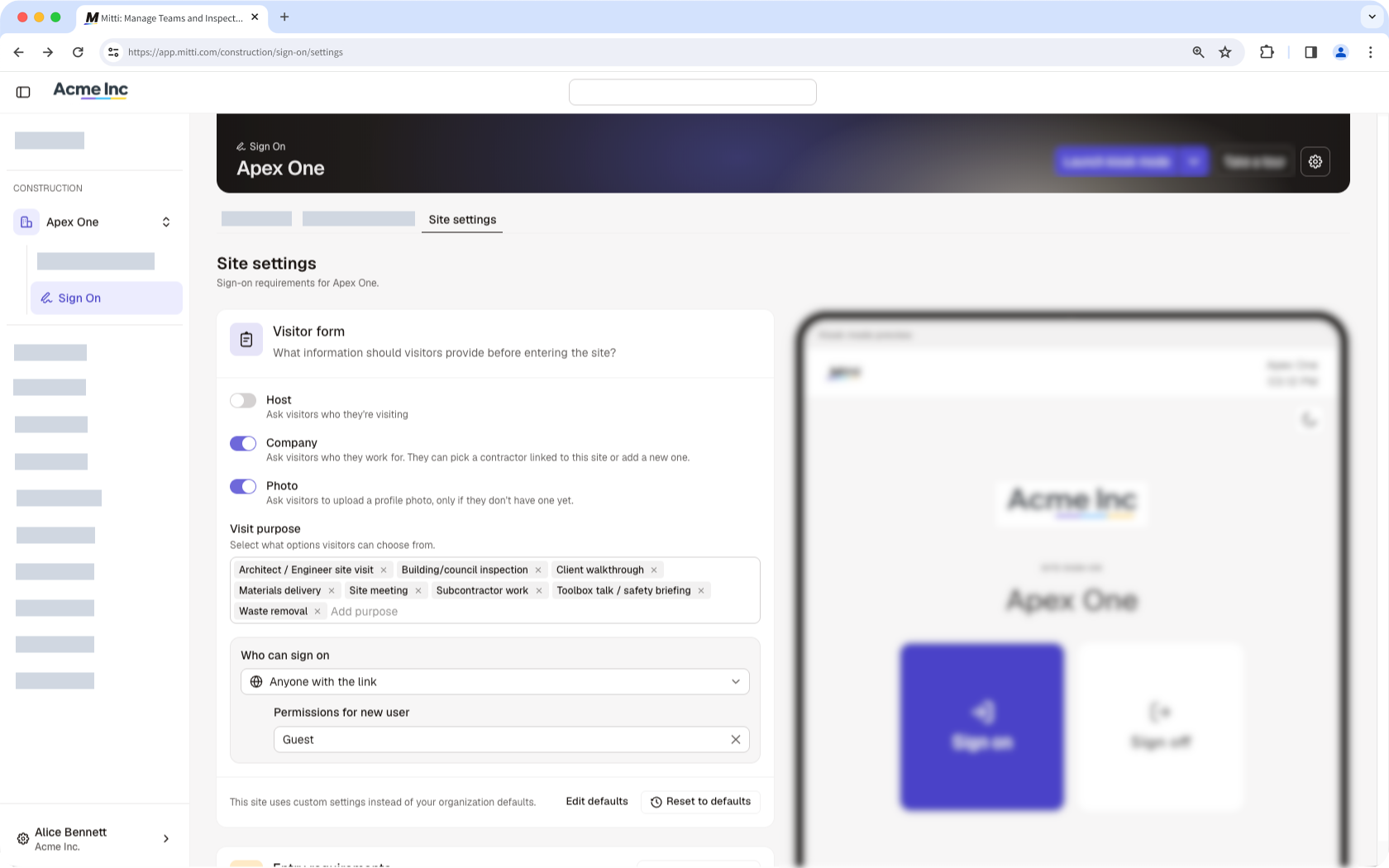
En la sección «Formulario de visitantes», activa o desactiva las opciones «Anfitrión», «Empresa » y «Foto» para el sitio.
En la sección «Motivo de la visita», selecciona cuál de los objetivos de tu organización quieren ver los usuarios al iniciar sesión.
En «Quién puede iniciar sesión», selecciona quién tiene permiso para iniciar sesión en el sitio web.
Miembros actuales del sitio: Las personas que ya son miembros del sitio. Esta es la opción predeterminada.
Cualquier persona de la organización: un usuario que inicie sesión pasa a ser miembro del sitio.
Cualquier persona que tenga el enlace: un visitante puede iniciar sesión por primera vez. Selecciona el rol global para los nuevos visitantes que inicien sesión.
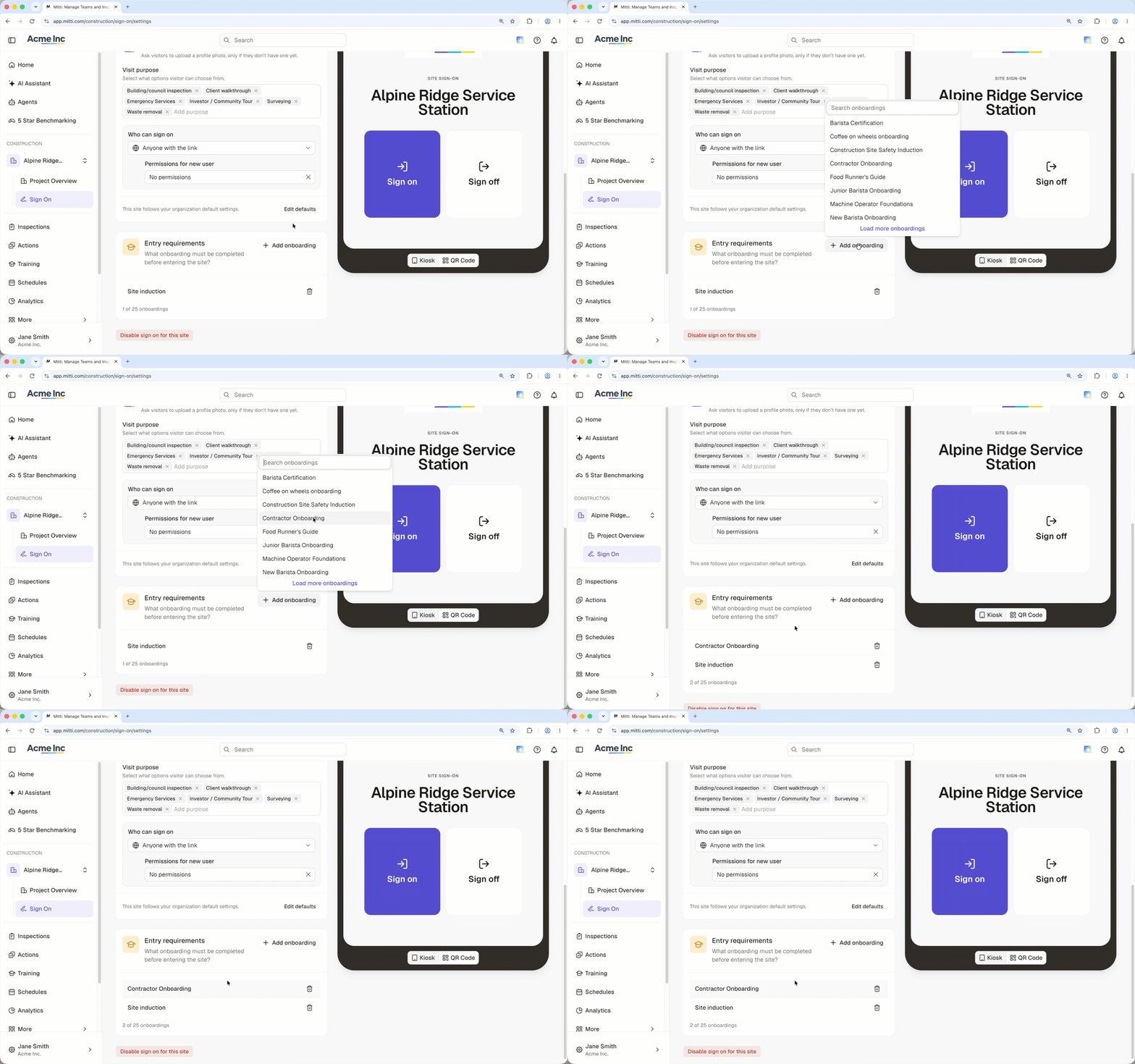
En la sección «Requisitos de acceso», añade cada uno de los procesos de incorporación que una persona debe completar antes de poder iniciar sesión en un sitio. Puedes exigir hasta 25 flujos de trabajo de incorporación.
4. Obtenga el código QR de registro de entrada al sitio
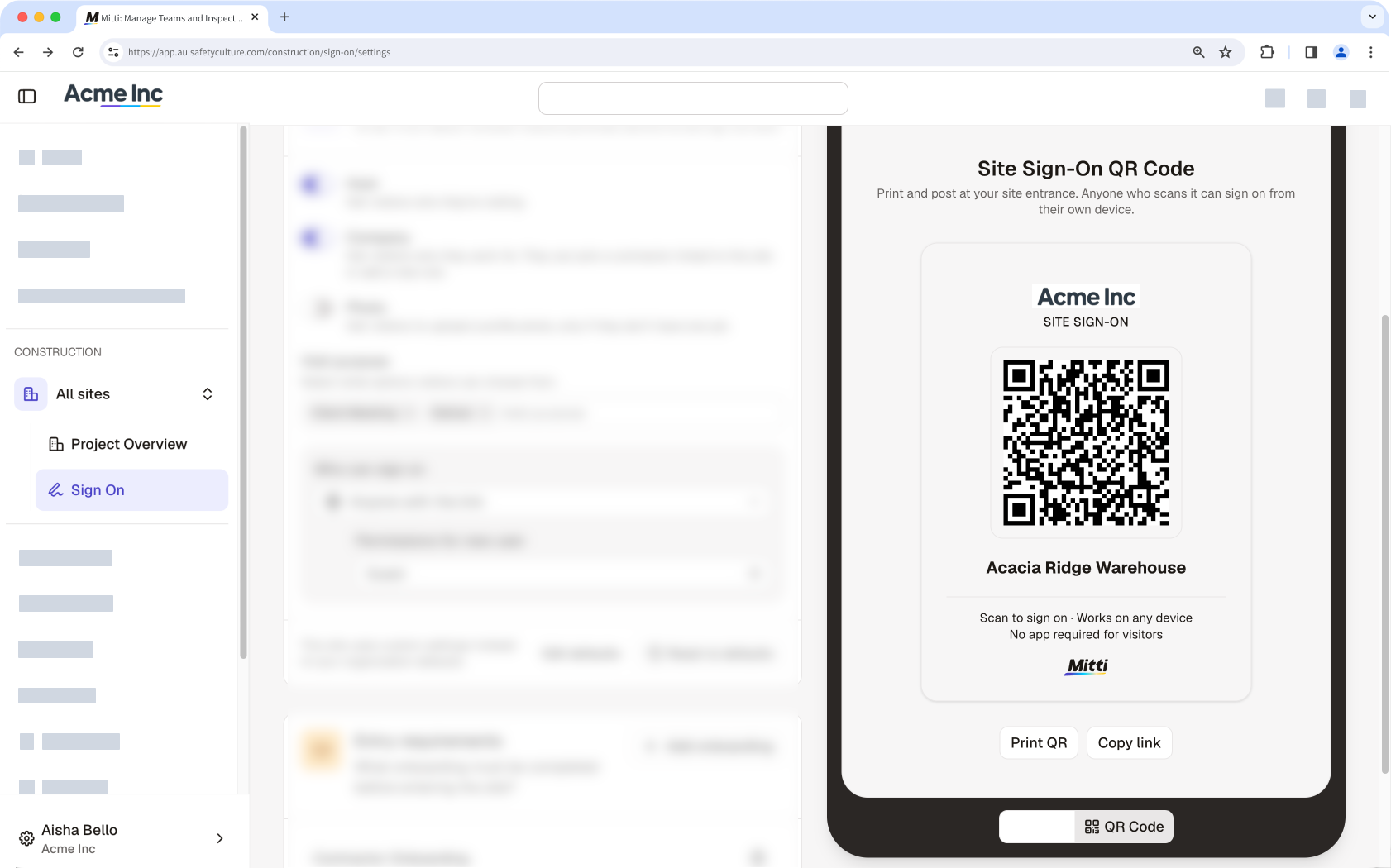
Los trabajadores y visitantes pueden realizar el registro de entrada desde su propio móvil escaneando el código QR del sitio, sin necesidad de quiosco. Imprima el código QR para colocarlo en la entrada del sitio o copie el enlace para compartirlo con su equipo.
En la sección "Construcción" de la barra lateral, haga clic en Todos los sitios y, a continuación, seleccione el sitio.
Haga clic en Iniciar sesión en la barra lateral y, a continuación, seleccione Ajustes del sitio en la parte superior de la página.
En la vista previa del modo Quiosco en la parte derecha de la página, haga clic en Obtener código QR.
Haga clic en Imprimir QR para imprimir y mostrar el código en la entrada del sitio, o haga clic en Copiar enlace para compartir el enlace de registro de entrada al sitio con su equipo.
Para iniciar sesión en el dispositivo del quiosco, necesita una cuenta con el rol de Administrador o con un rol limitado a Gerente de sitio.
5. Set up a kiosk
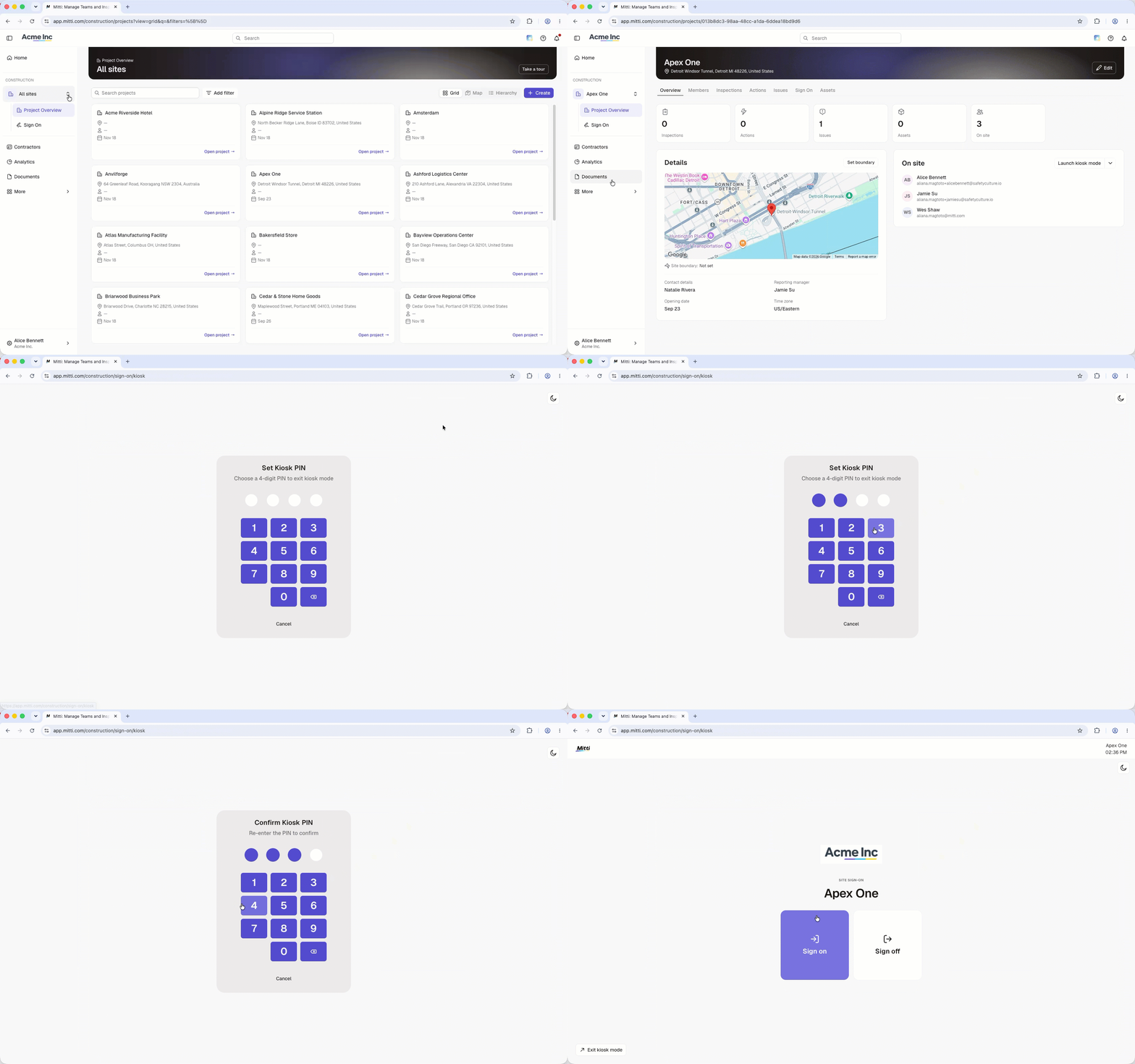
A kiosk is a shared device that workers and visitors use to sign on and off. You can lock the kiosk on the Sign On page if you're leaving the site entrance unattended.
On the kiosk device, log in to the web app (opens in new tab).
In the sidebar's "Construction" section, click Todos los sitios then select the site you want to set up a kiosk for.
Click Iniciar sesión in the sidebar.
Click Launch kiosk mode on the upper-right of the page.
Enter a 4-digit PIN to lock the kiosk.
Preguntas frecuentes
¿Necesitas más ayuda?
¿Fue útil esta página?