Last updated: October 25, 2026
Manufacturing is available to eligible organizations. If your organization is eligible, you can start a trial. If you don't see Manufacturing, contact our customer support team or your customer success manager to check if your organization is eligible.
What is Manufacturing?
The Manufacturing module brings daily quality checks and Overall Equipment Effectiveness (OEE) tracking to Mitti, so continuous and batch manufacturing sites can catch deviations the moment they happen, not after a shift ends. Operators complete checks on the line as work orders run, and Manufacturing grades every reading against the product's specification automatically. An out-of-spec result immediately reports an issue, with the check, the value, and the context needed to act already attached. Every completed run also generates a report, so managers can review the run without going through raw data.
Access to Manufacturing
What you can do in Manufacturing depends on the permissions you've been given.
"Manufacturing: Admin" permission: Configure production sites, lines, and stations, as well as check groups, products, and specifications. Includes everything an operator can do.
"Manufacturing: Operator" permission: View production data, start and end production runs, and capture check results during runs.
Which sites you can see and interact with is separate from your permissions and depends on site membership. A site also needs at least one line added before it appears in Manufacturing at all.
If you have "Data management: Manage all data" permission or "Data management: View all data" permission in addition to your Manufacturing permissions, you can view and interact with all sites, regardless of site membership.
Get started as an admin
As an admin, you may be responsible for setting up Manufacturing for your organization. This includes setting up sites, lines, and stations, adding the products you manufacture and the specs they're measured against, setting up check types and check groups, and configuring alerts so the right people are notified when something needs attention.
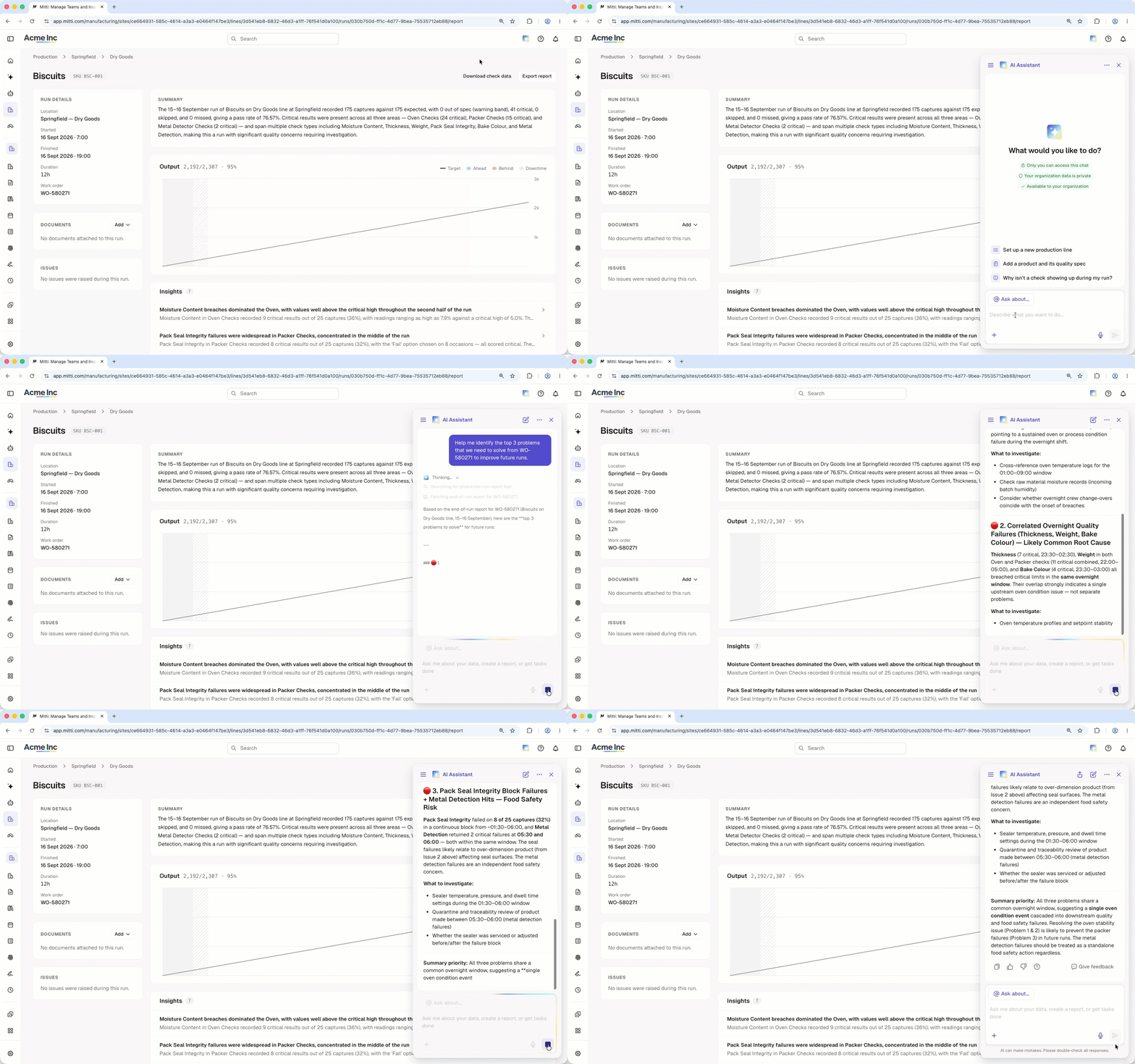
Not sure where to start? The AI Assistant can help you throughout Manufacturing. Try asking it to do one of the following tasks:
Set up my sites based on the attached Excel file.
Add specifications for the following list of products.
Create a check group for [station name].
Set up an alert for out-of-spec results on [line name].
Set up your sites, lines, and stations
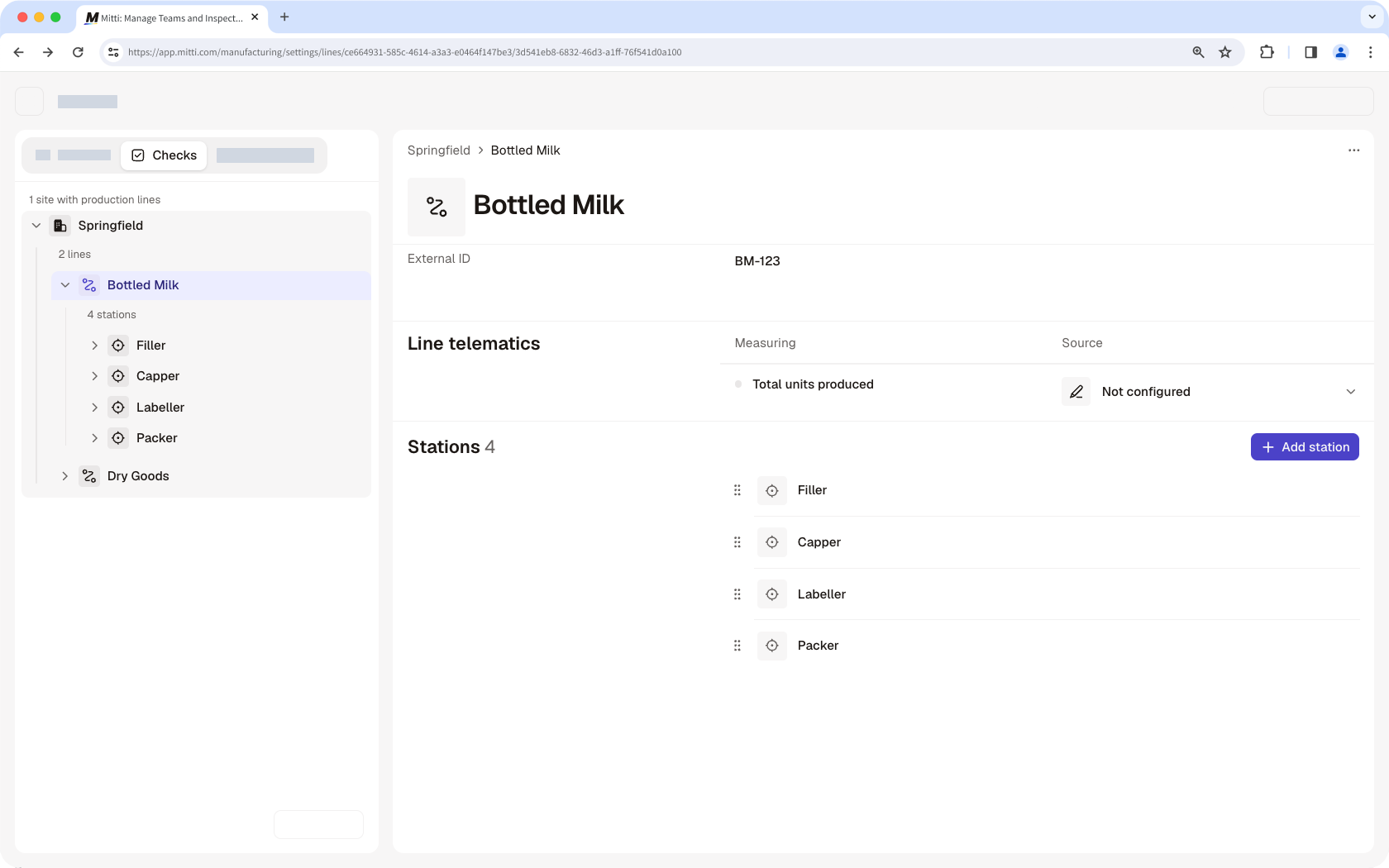
Start by adding the sites you operate, then the lines and stations within each one. This is the structure Manufacturing uses to organize everything else, so every check, work order, and reading can be tied to the exact station it came from.
Add your products and check types
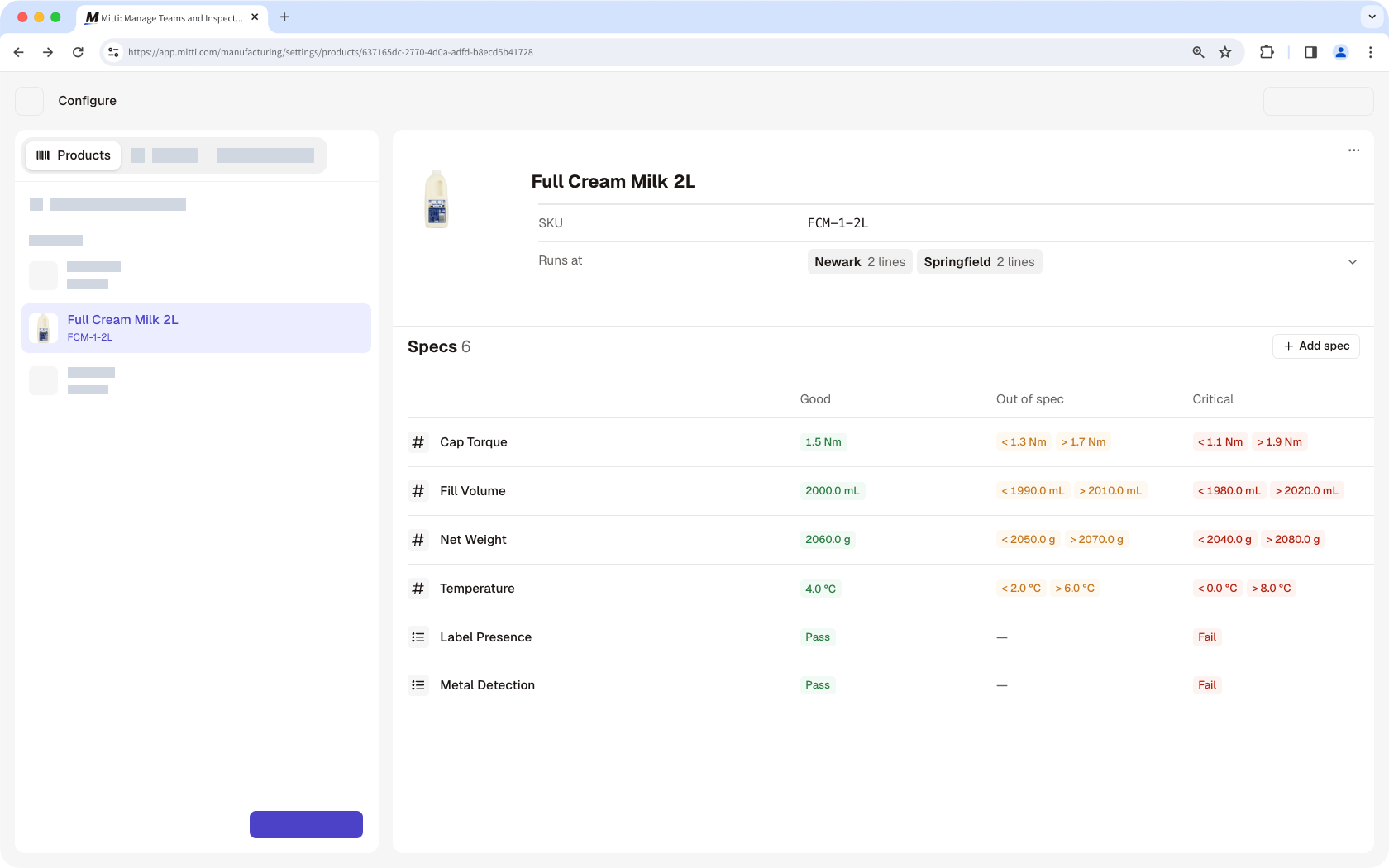
Add the products your sites manufacture, along with the specs they're measured against. Each product has specs that set the criteria its checks are graded against, so Manufacturing can grade a result automatically against the right tolerances for whatever product is currently running.
Set up check groups
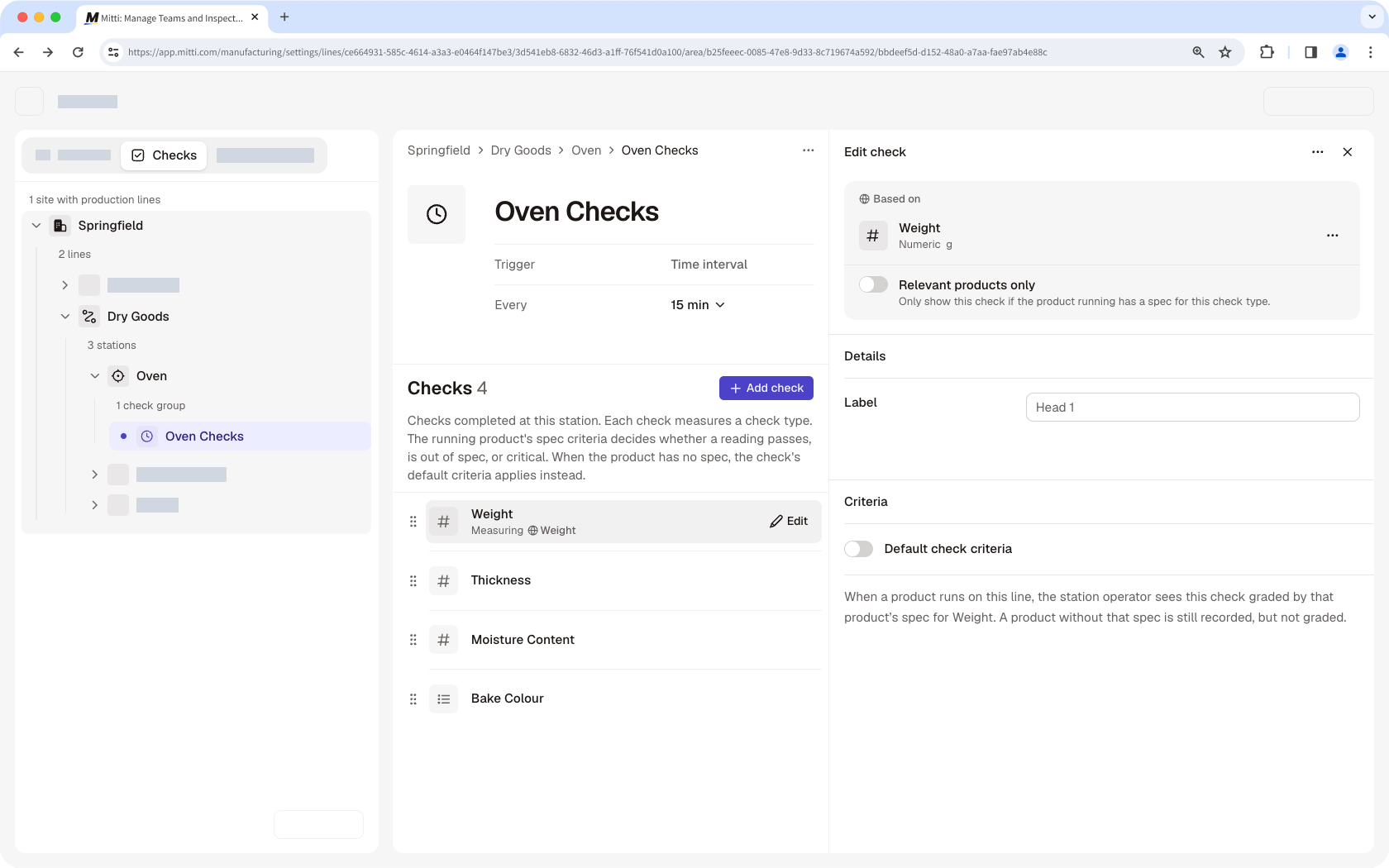
Group the check types operators need to run into check groups for each station on a line. A check group can trigger automatically at set intervals, be completed manually, or be required before a run can start.
Configure issue alerts
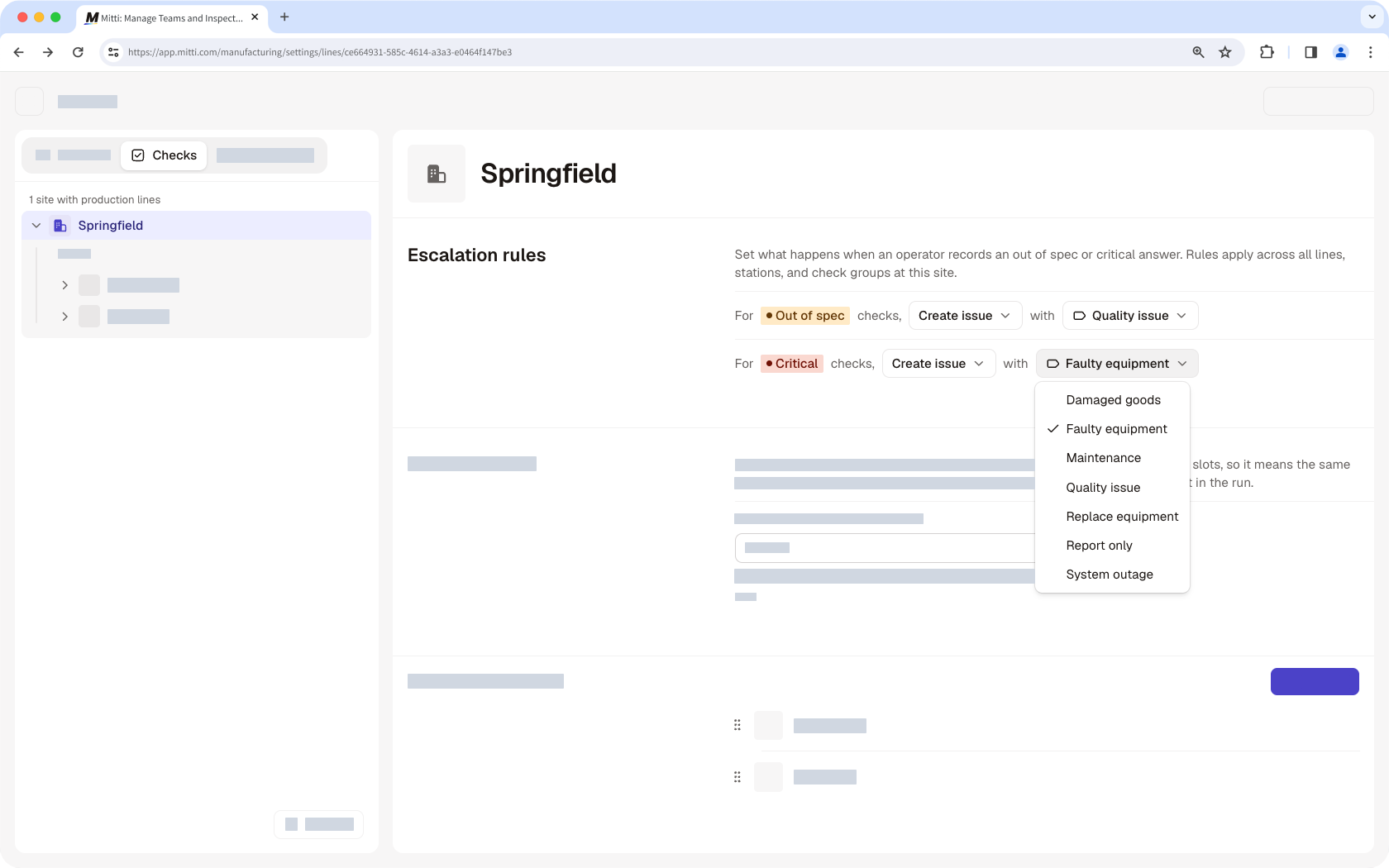
Set up escalation rules so that when a check result comes back out of spec or is flagged as critical, an issue is automatically created with all the relevant details captured. The right people are notified immediately, and the issue can be worked through to resolution.
Schedule production runs
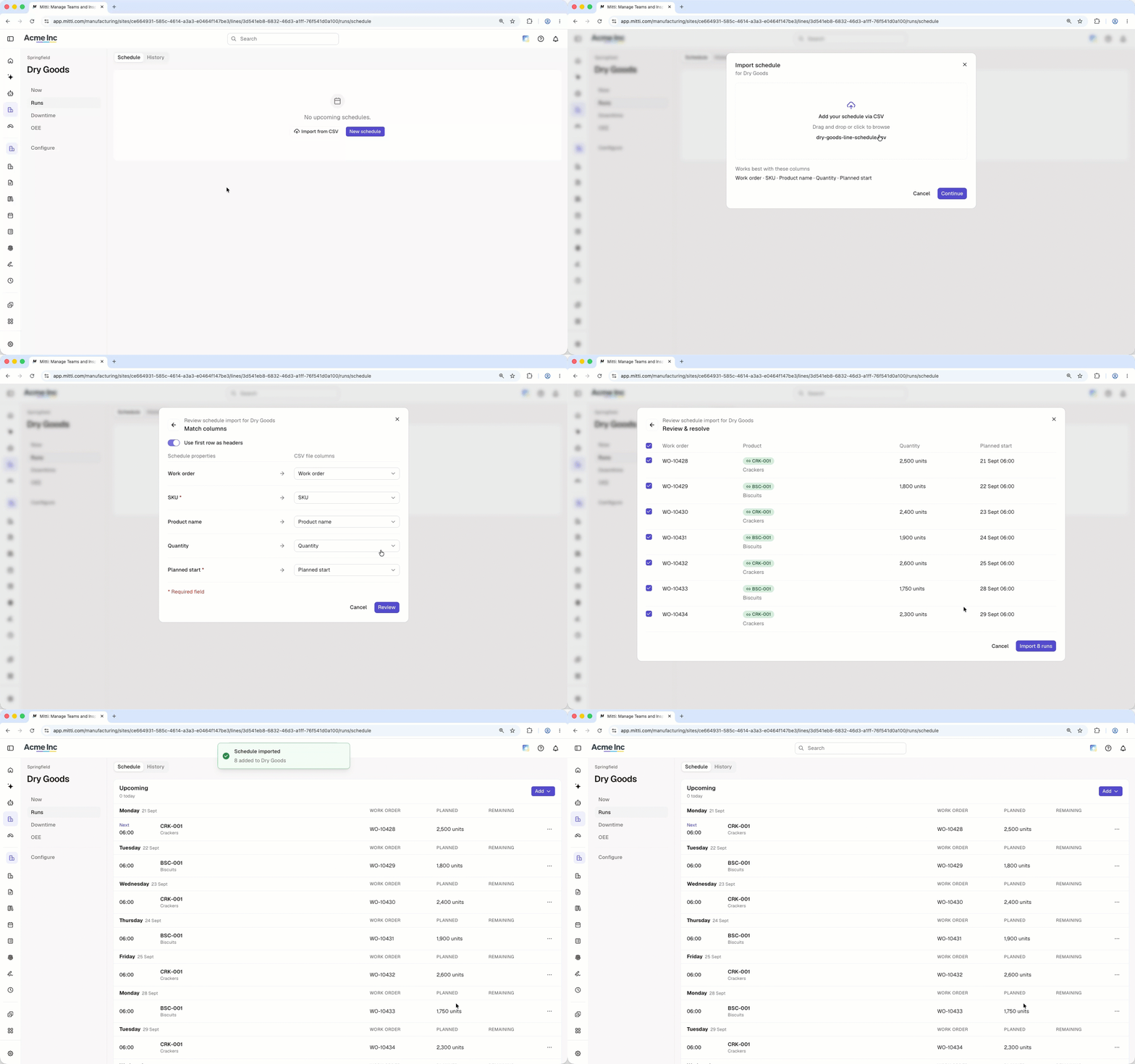
Schedule runs ahead of time for your lines, either manually or by uploading a CSV, so operators can start them as soon as their shift begins.
Get started as an operator
As an operator, you may be responsible for the day-to-day work on the factory floor. This includes starting production runs, completing the checks configured for your line or station, and keeping track of run performance and downtime.
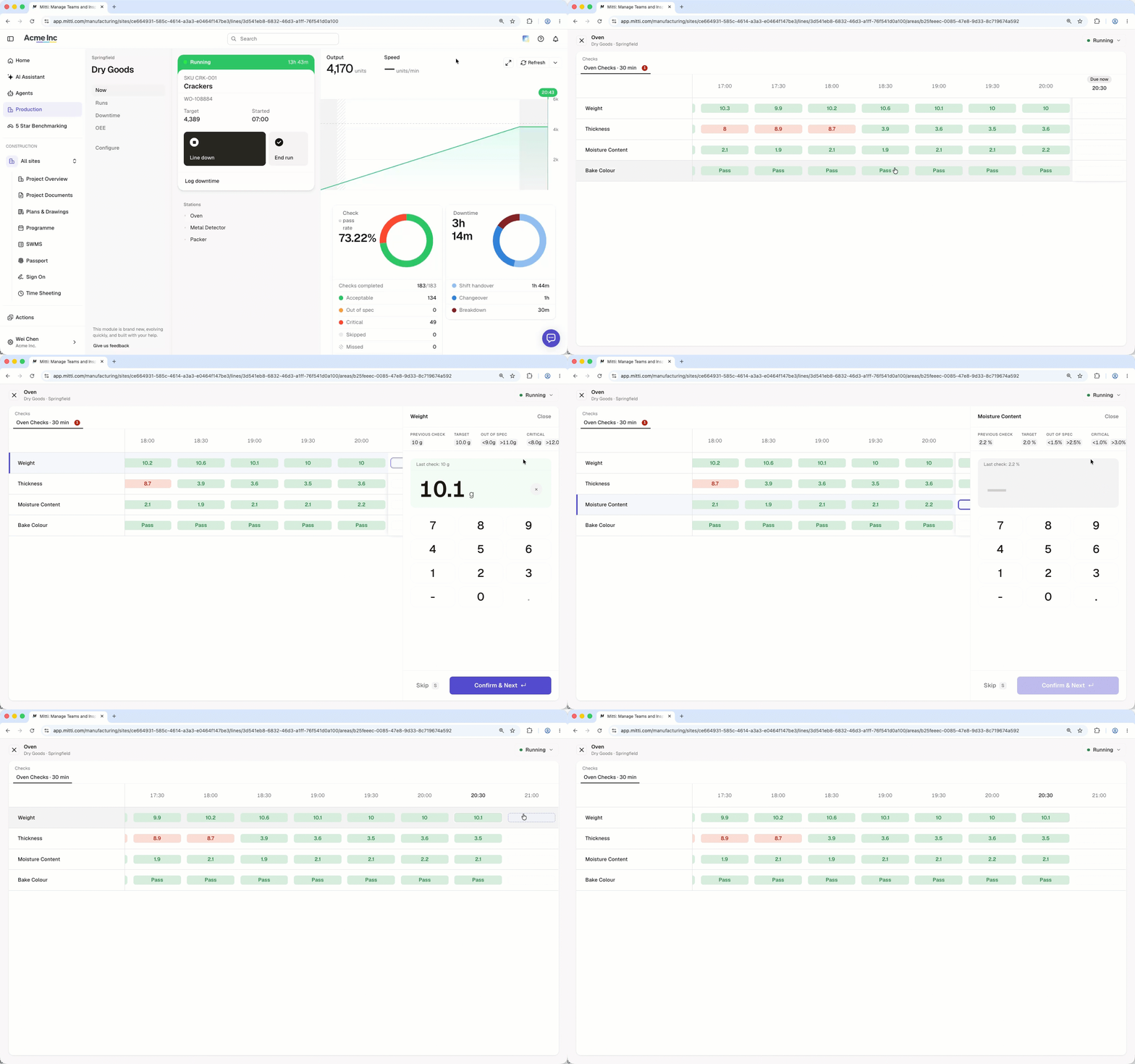
Start runs and complete checks
Start a run against a scheduled or manually selected product, then work through the checks in your station's check group as they come up, whether they trigger automatically, need to be done manually, or are required at the start of a run.
Monitor runs and log downtime
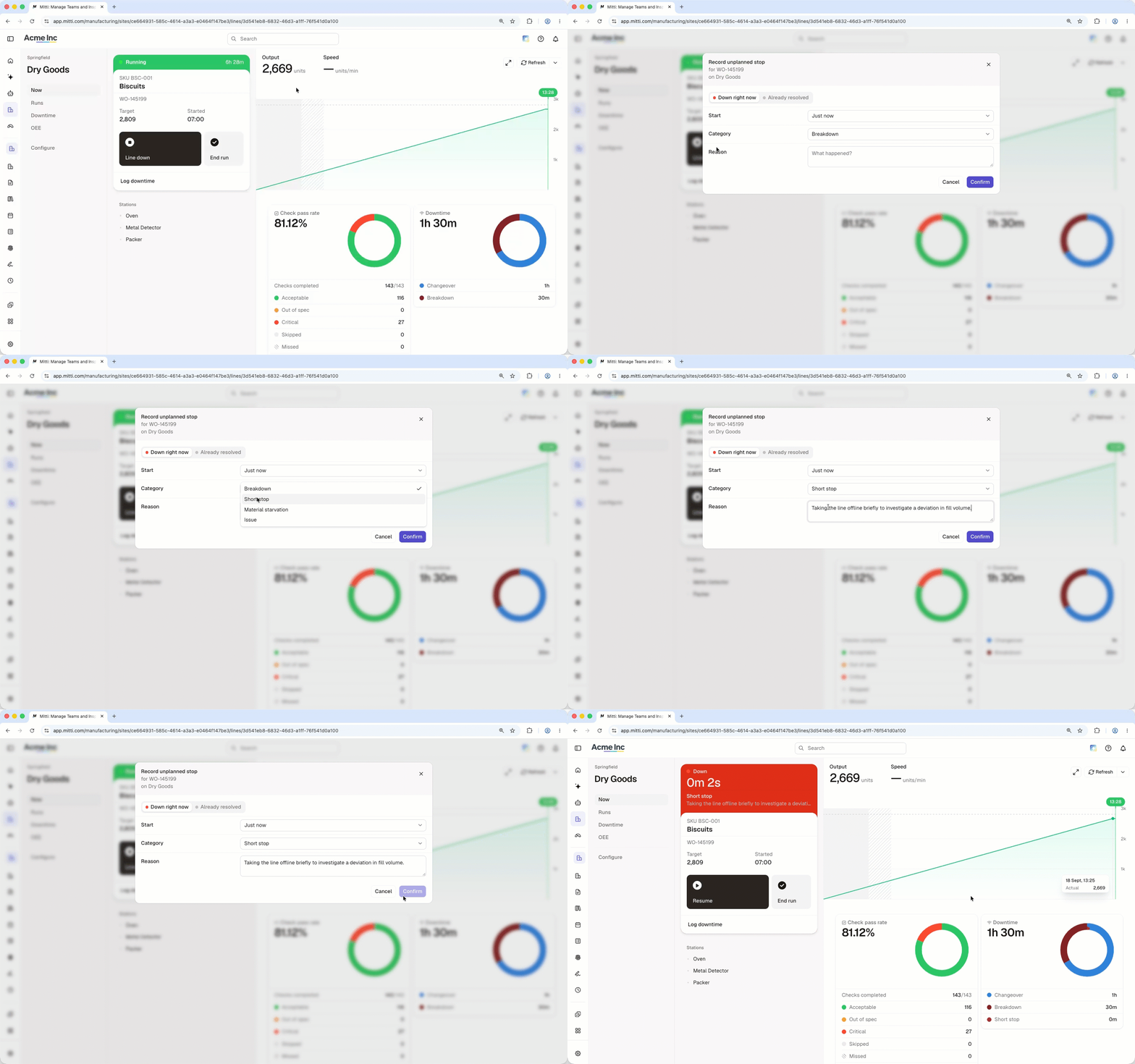
Monitor your line's live run to track output, speed, and any stops as they happen. If you don't have line telematic sensors to pick up downtime automatically, you can log it manually.
Get started as a site manager
As a site manager, you may be responsible for monitoring how production is performing across your site. This includes reviewing run history and reports, and acting on the issues, alerts, and findings that come out of them.
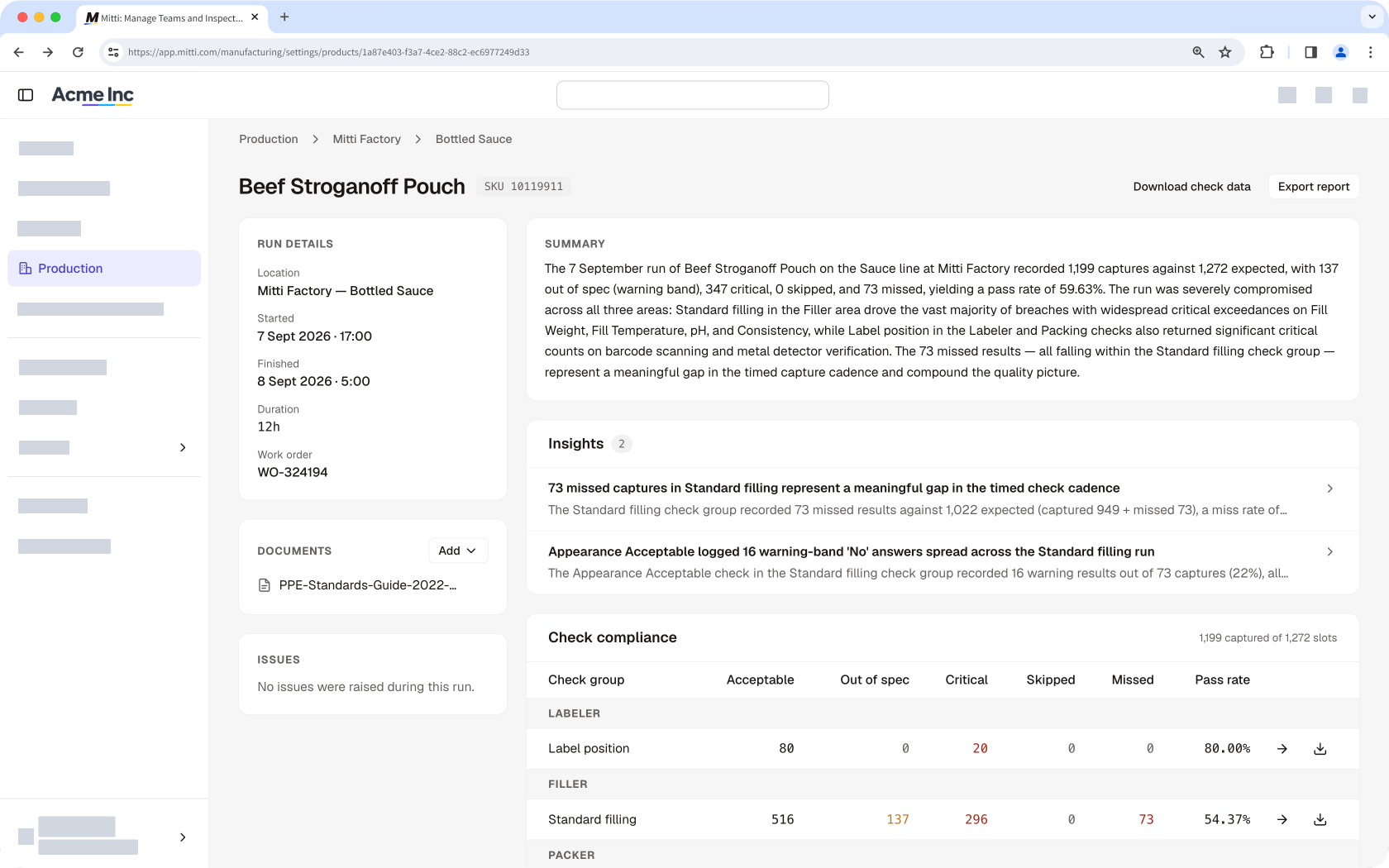
Monitor completion and review runs
Each run's record brings together everything that happened during it, from the checks completed to any issues raised, and locks as a permanent audit trail once the run finishes. An AI-generated summary and insights help you spot trends and see how a run went without digging through the raw numbers.
Act on alerts and findings
Manufacturing automatically creates an issue when a check falls out of spec or is flagged as critical. From there, you can work to resolve the issue and use the AI Assistant to analyze what happened and suggest next steps. Depending on what should be done, you can create actions to complete improvement tasks, send a Heads Up to communicate updates across the business, or create templates and schedule checks to help prevent the same issue from recurring.
Need more help?
Was this page helpful?