Last updated: November 2, 2026
Manufacturing is available to eligible organizations. If your organization is eligible, you can start a trial. If you don't see Manufacturing, contact our customer support team or your customer success manager to check if your organization is eligible.
How do sites, lines, and stations work together?
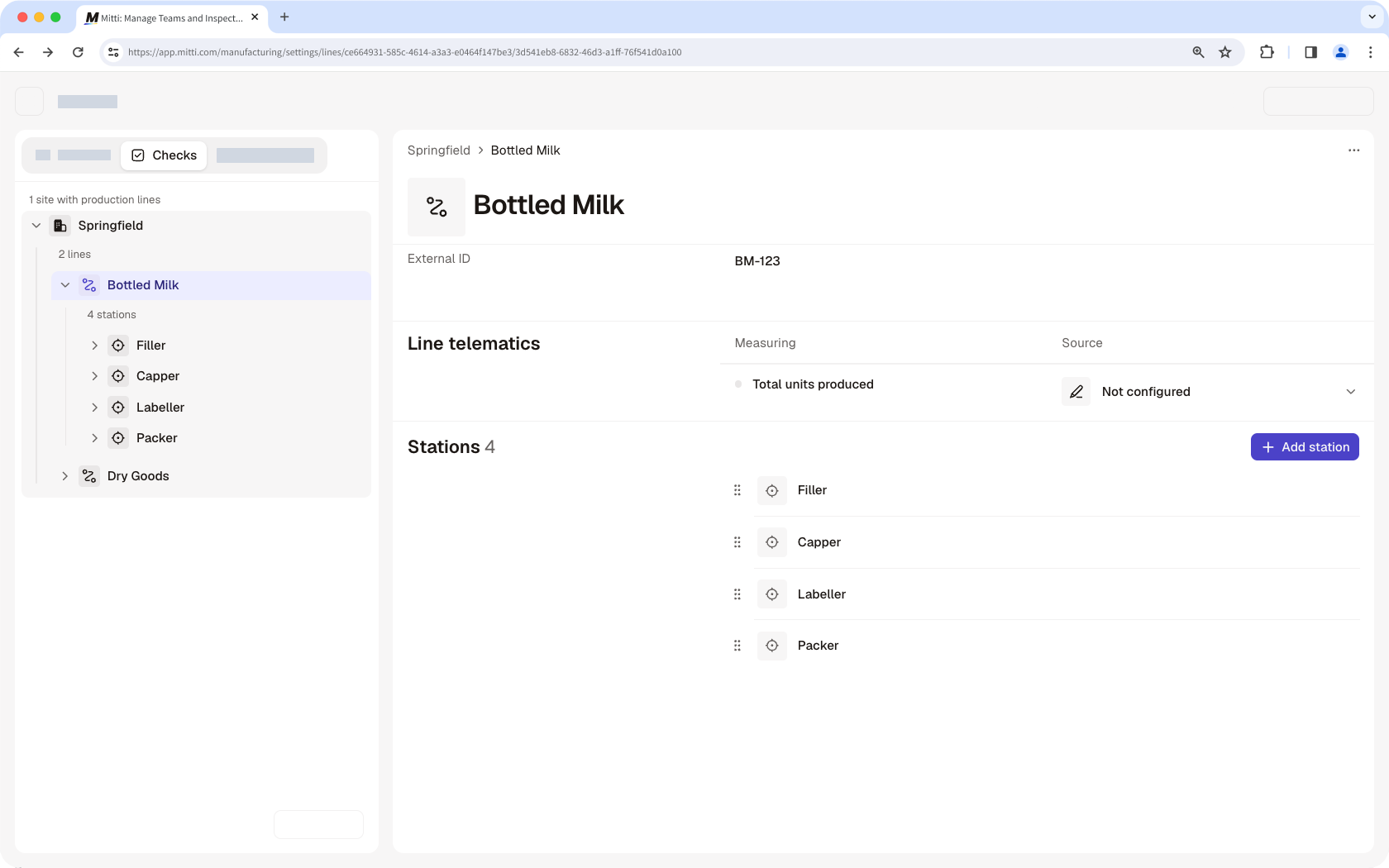
Manufacturing mirrors the shape of your factory floor. Each site contains the lines you run, and each line contains the stations where checks actually happen.
Site: A site doesn't automatically appear in Manufacturing until at least one line has been added to it. Once visible, access to its data follows the same site membership as everywhere else in Mitti.
Line: A complete production flow, from raw materials into finished or in-process product out. If a product is stored and then processed again later, that's generally a separate line.
Station: The specific zone within a line where work and checking actually happen, and where most of your configuration effort goes. Each station contains check groups, which are the sets of check forms operators complete during a production run.
Before you set up sites, lines, and stations, make sure your sites already exist in your organization.
What you'll need
Not sure where to start? The AI Assistant can help you throughout Manufacturing. Try asking it to do one of the following tasks:
Set up my sites based on the attached Excel file.
Add specifications for the following list of products.
Create a check group for [station name].
Set up an alert for out-of-spec results on [line name].
Add a site, line, and station
A site doesn't automatically appear in Manufacturing. It becomes visible once you add a line to it.
Follow the steps to add a line, and select the site during the process.
Once the line is added, go to the site in the side panel and configure the following settings:
Escalation rules: Choose what happens when a production run check on the line records an out-of-spec or critical result. Either do nothing or create an issue from a specified category.
Missed checks: Limit how many slots of check results an operator can backfill. Slots beyond the limit are locked automatically in production runs.
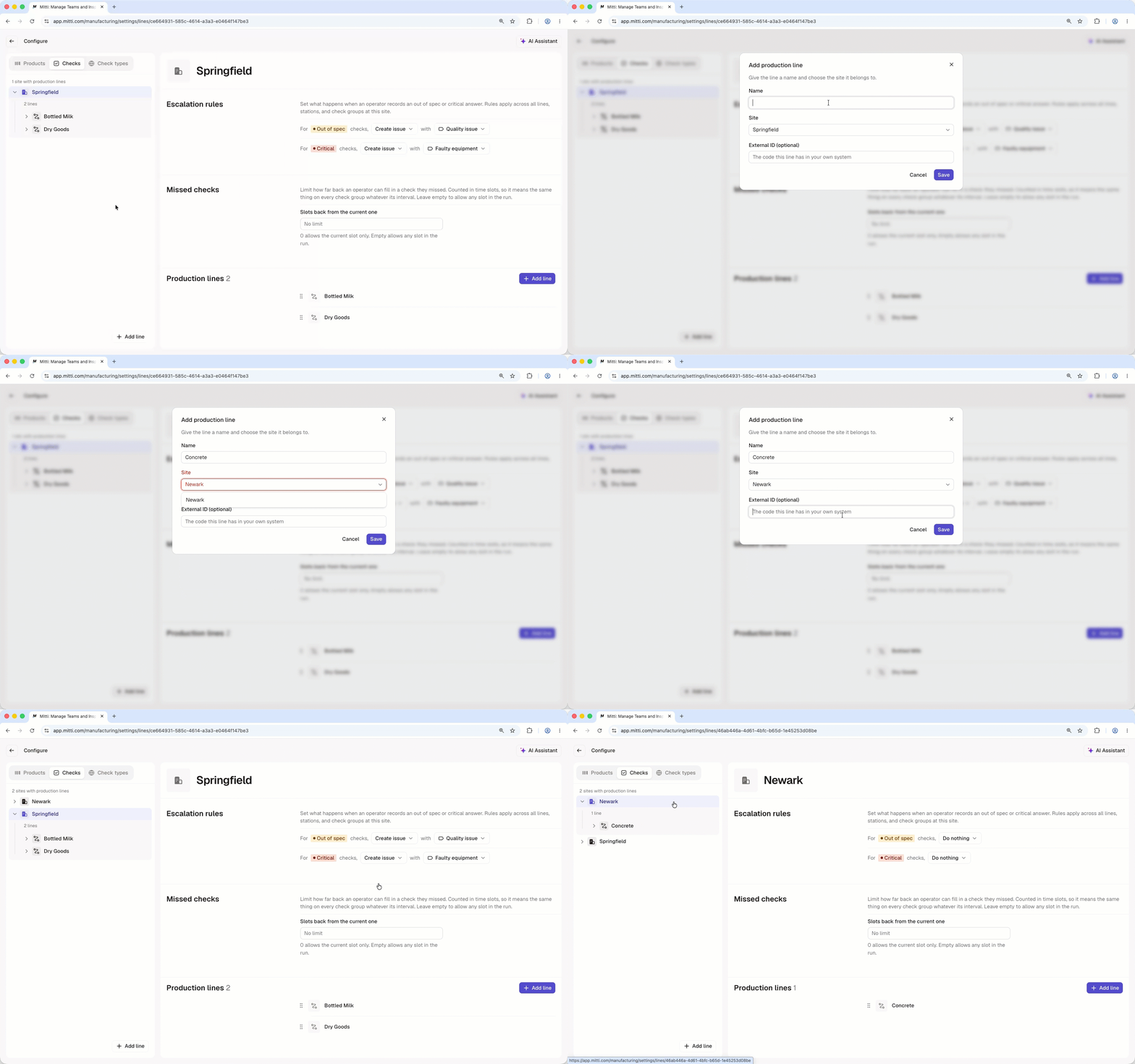
Click Manufacturing in the sidebar.
In the Manufacturing side panel, click Configure. If you don't have any sites set up yet, click Set up your first production line.
Click Add line on the lower-left corner of the page.
In the pop-up window, enter the following fields:
Name: Enter the name for the line
Site: Select which site the line belongs to. If that site isn't yet visible in Manufacturing, adding the line will make it appear.
External ID (optional): Enter the line's external ID from your own system for reference.
Click Save.
In the side panel, go to the line and configure the following optional settings:
Line photo: Click next to the name to upload a photo.
Line telematics: If you have a sensor set up to measure units produced and track OEE, click the dropdown menu for "Source" and select your sensor.
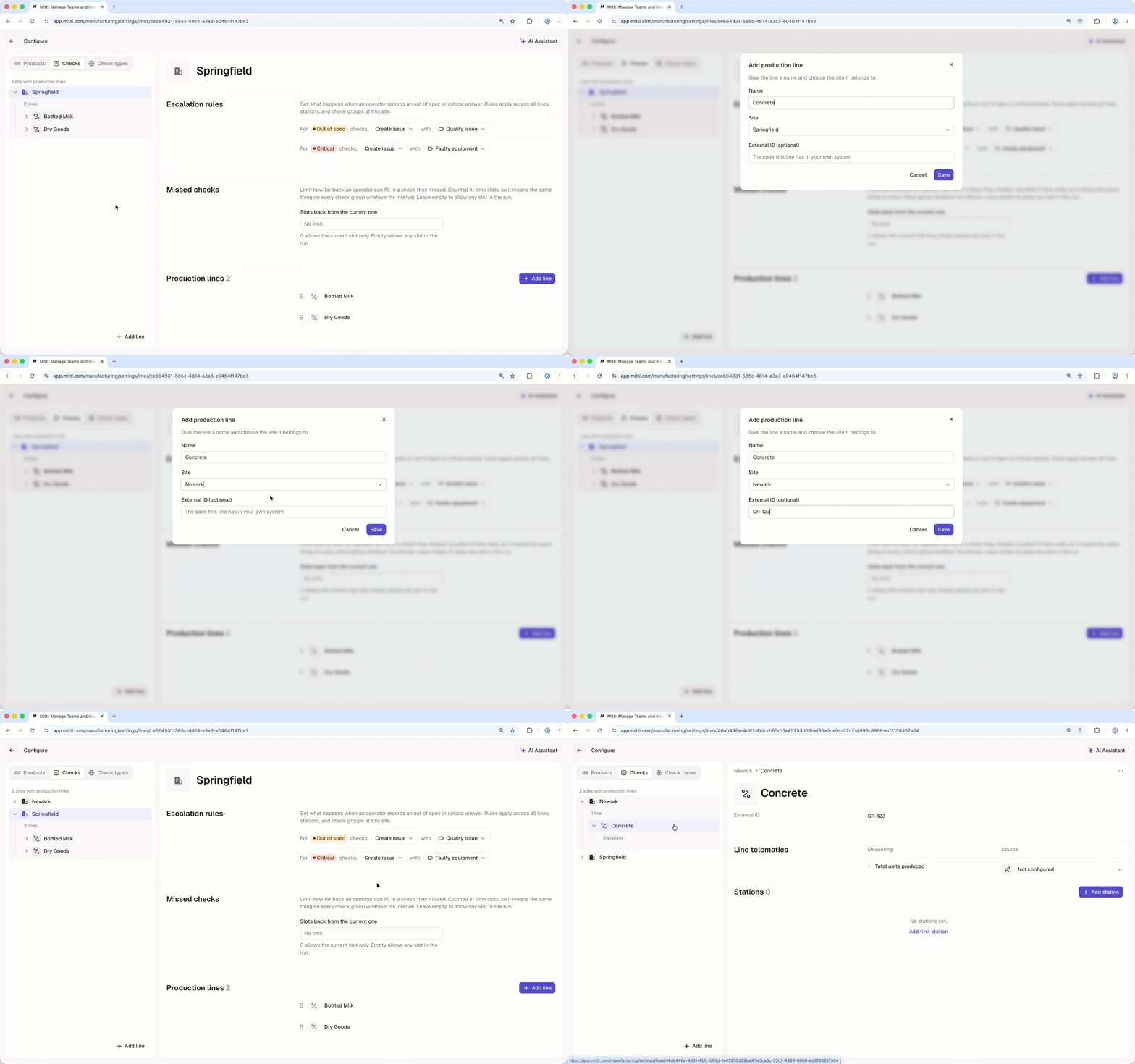
OEE tracking is in the early stages of development, so you'll notice ongoing changes as we continue building it out.
Click Manufacturing in the sidebar.
In the Manufacturing side panel, click Configure.
In the side panel, find and select the line you want to add the station to.
In the "Stations" section, click Add station.
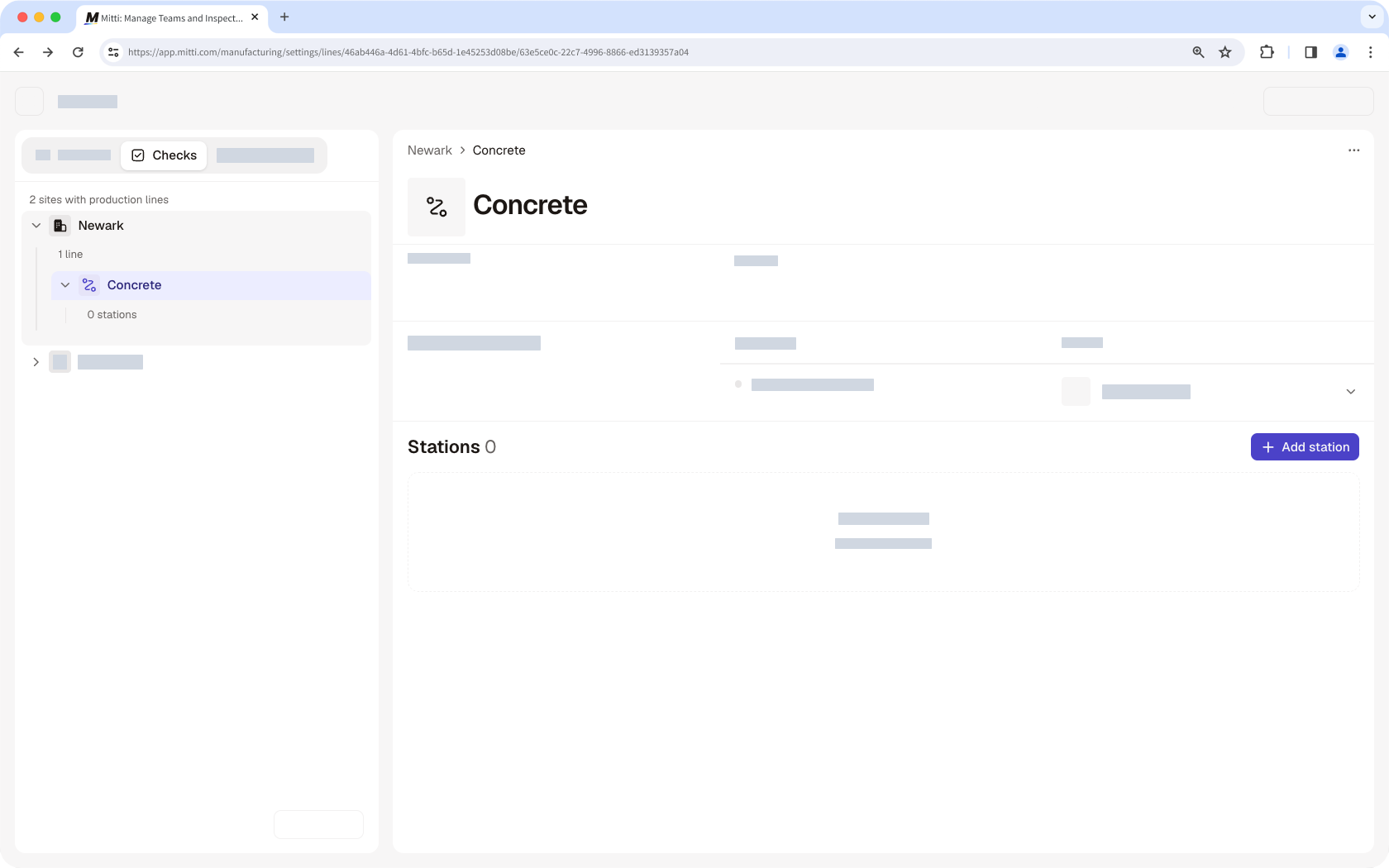
In the side panel, enter the station name, then click Save.
Click the station, then configure the following settings:
Station photo (optional) : Click next to the name to upload a photo.
Check groups: Add check groups to define what gets checked for the products that pass through this station.
Edit a site, line, and station
Click Manufacturing in the sidebar.
In the Manufacturing side panel, click Configure.
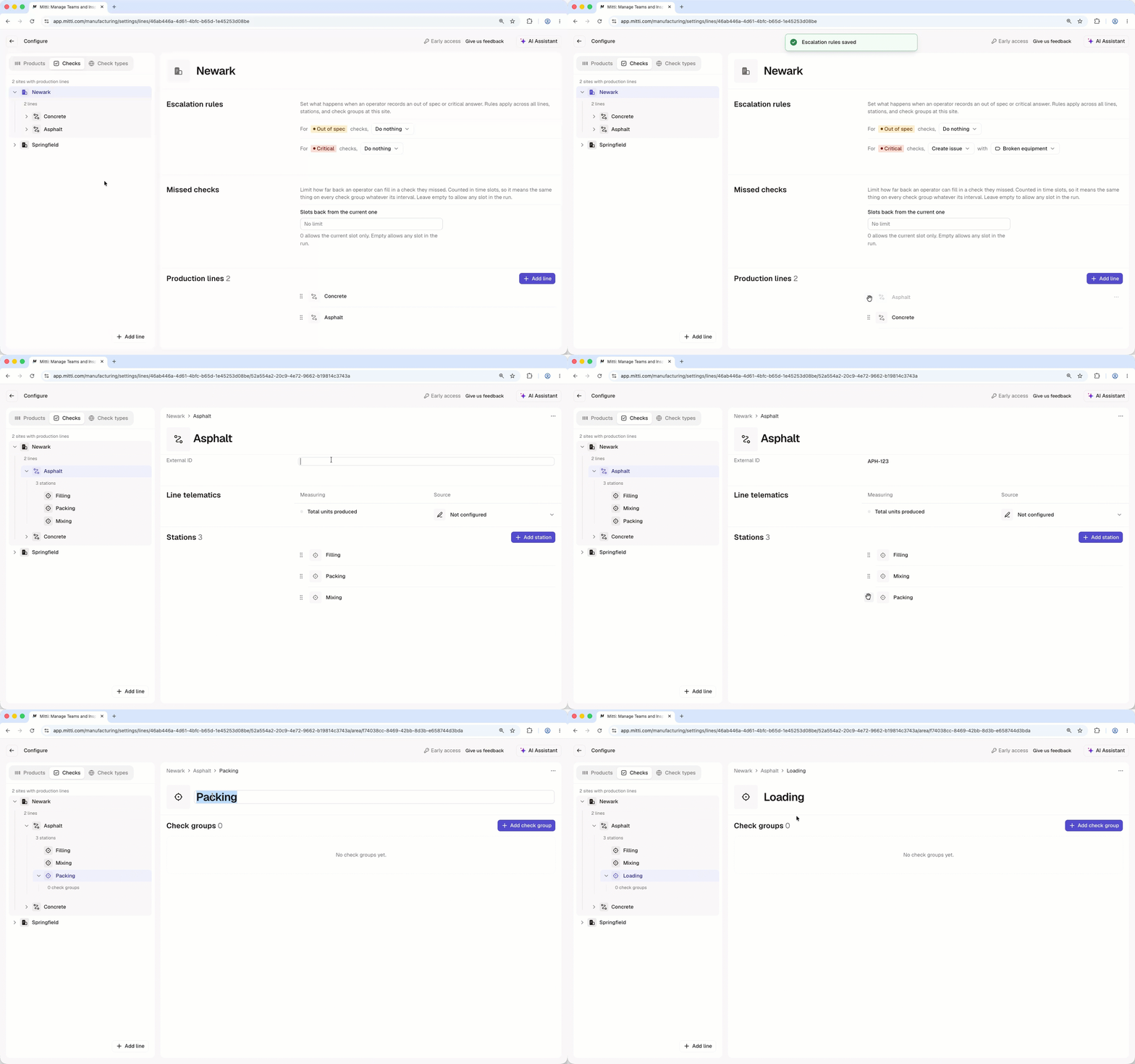
To edit a site, find and select the site in the side panel to configure the following settings:
Escalation rules: Choose what happens when a production run check on the line records an out-of-spec or critical result. Either do nothing or create an issue from a specified category.
Missed checks: Limit how many slots of check results an operator can backfill. Slots beyond the limit are locked automatically in production runs.
Production lines: Click and drag on a line to reorder it.
To edit a line, find and select the line in the side panel to configure the following settings:
Line photo: Click or the existing photo next to the name to upload a photo.
Name: Click the name to update it.
External ID: Click the field to enter the line's external ID from your own system for reference. Clear the field to remove the existing ID.
Line telematics: If you have a sensor set up to measure units produced and track OEE, click the dropdown menu for "Source" and select your sensor.
Stations: Click and drag on a station to reorder it.
To edit a station, find and select the station in the side panel to configure the following settings:
Station photo: Click or the existing photo next to the name to upload a photo.
Name: Click the name to update it.
Check groups: Click and drag on a check group to reorder it.
Deleting is irreversible, and we cannot restore permanently deleted items. Confirmation is always required before any deletion, so be sure you're not accidentally deleting the wrong item.
Delete a site, line, and station
You can't delete a site directly in Manufacturing. Deleting it from your organization's sites removes it from Manufacturing too.
Click Manufacturing in the sidebar.
In the Manufacturing side panel, click Configure.
In the side panel, find and select the line.
Click on the upper-right corner of the page and select Delete line.
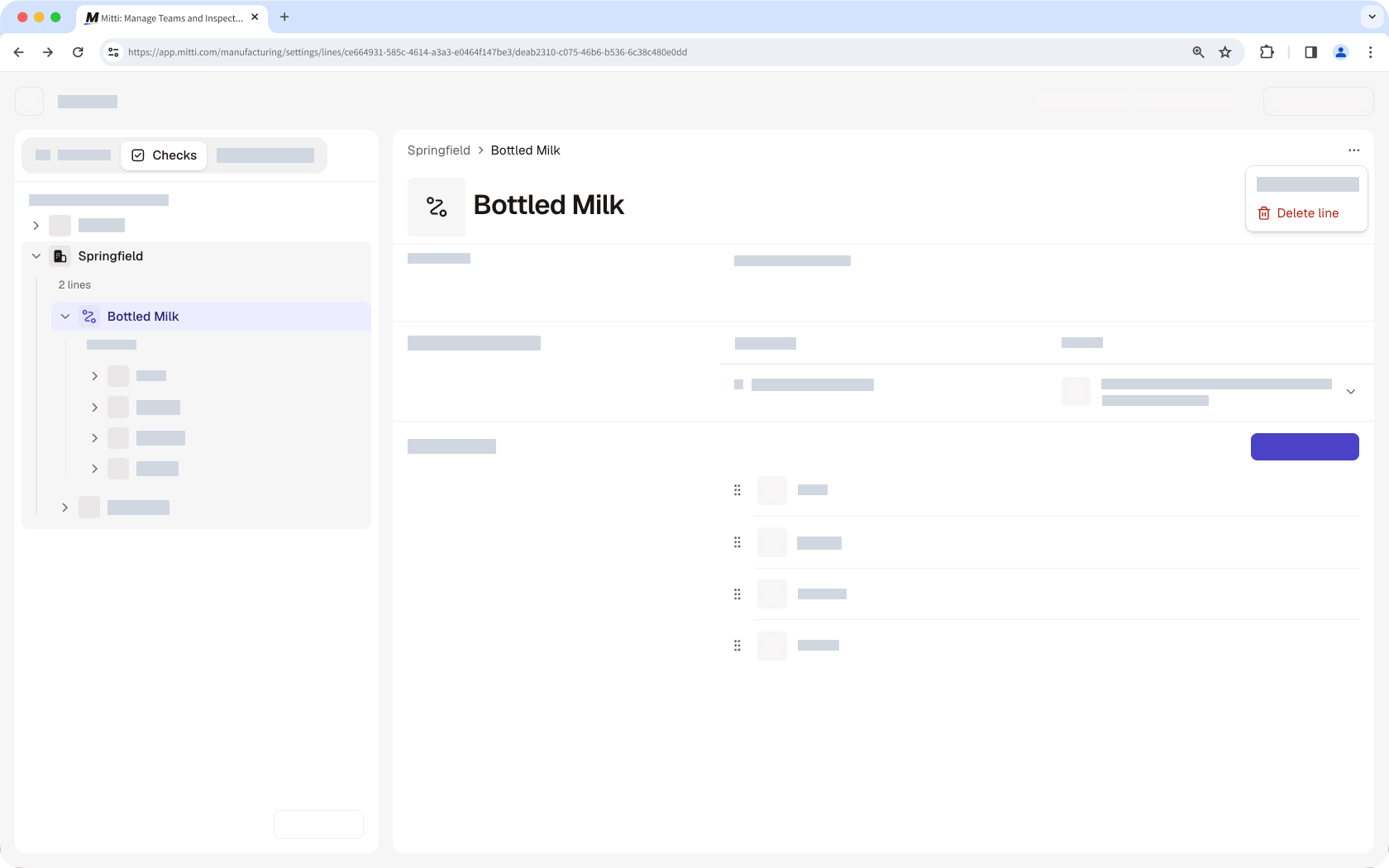
In the pop-up window, click Delete line.
Click Manufacturing in the sidebar.
In the Manufacturing side panel, click Configure.
In the side panel, find and select the station.
Click on the upper-right corner of the page and select Delete station.
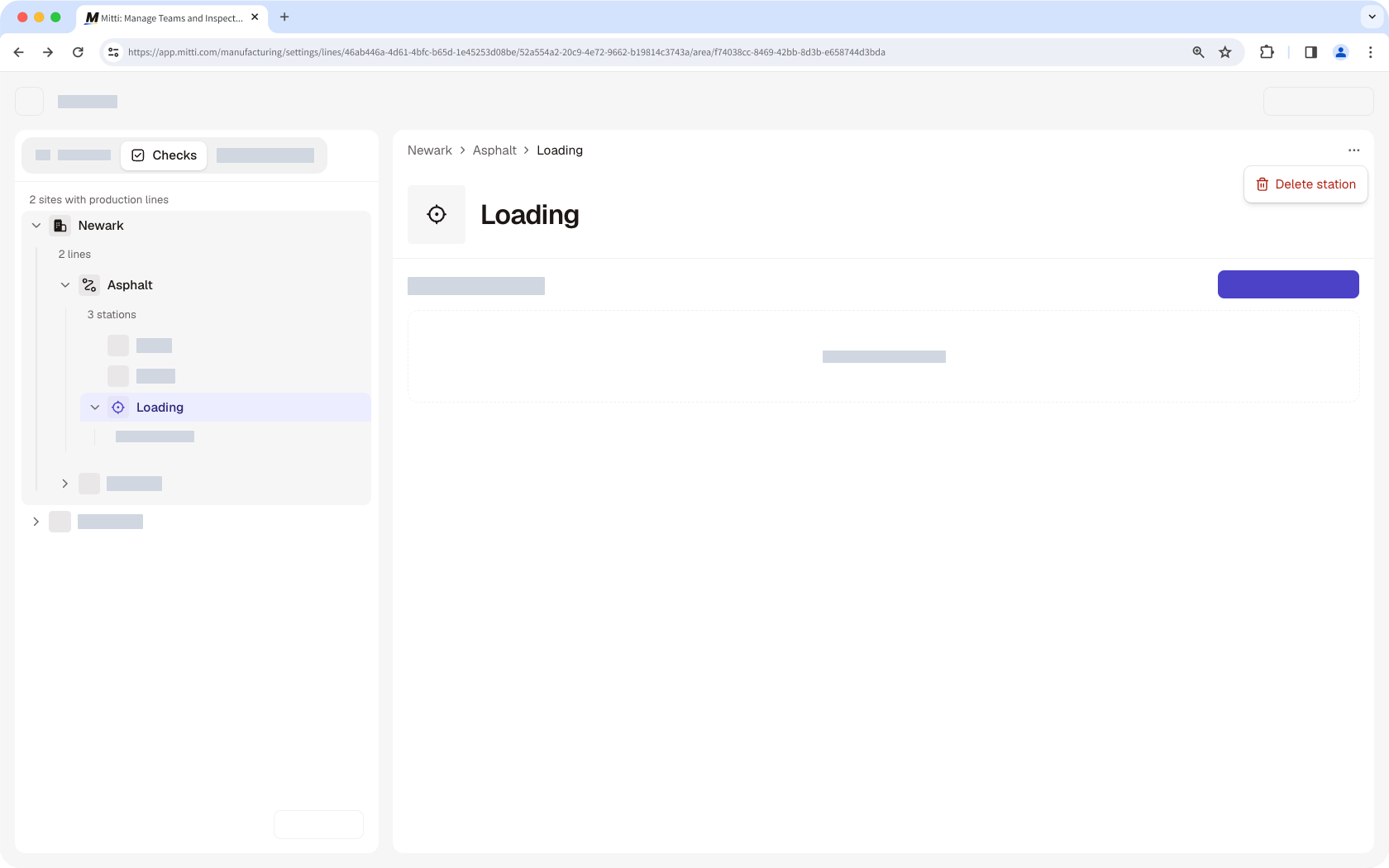
In the pop-up window, click Delete station.
Frequently asked questions
Need more help?
Was this page helpful?