Last updated: September 16, 2026
What can I view in an asset's activity?
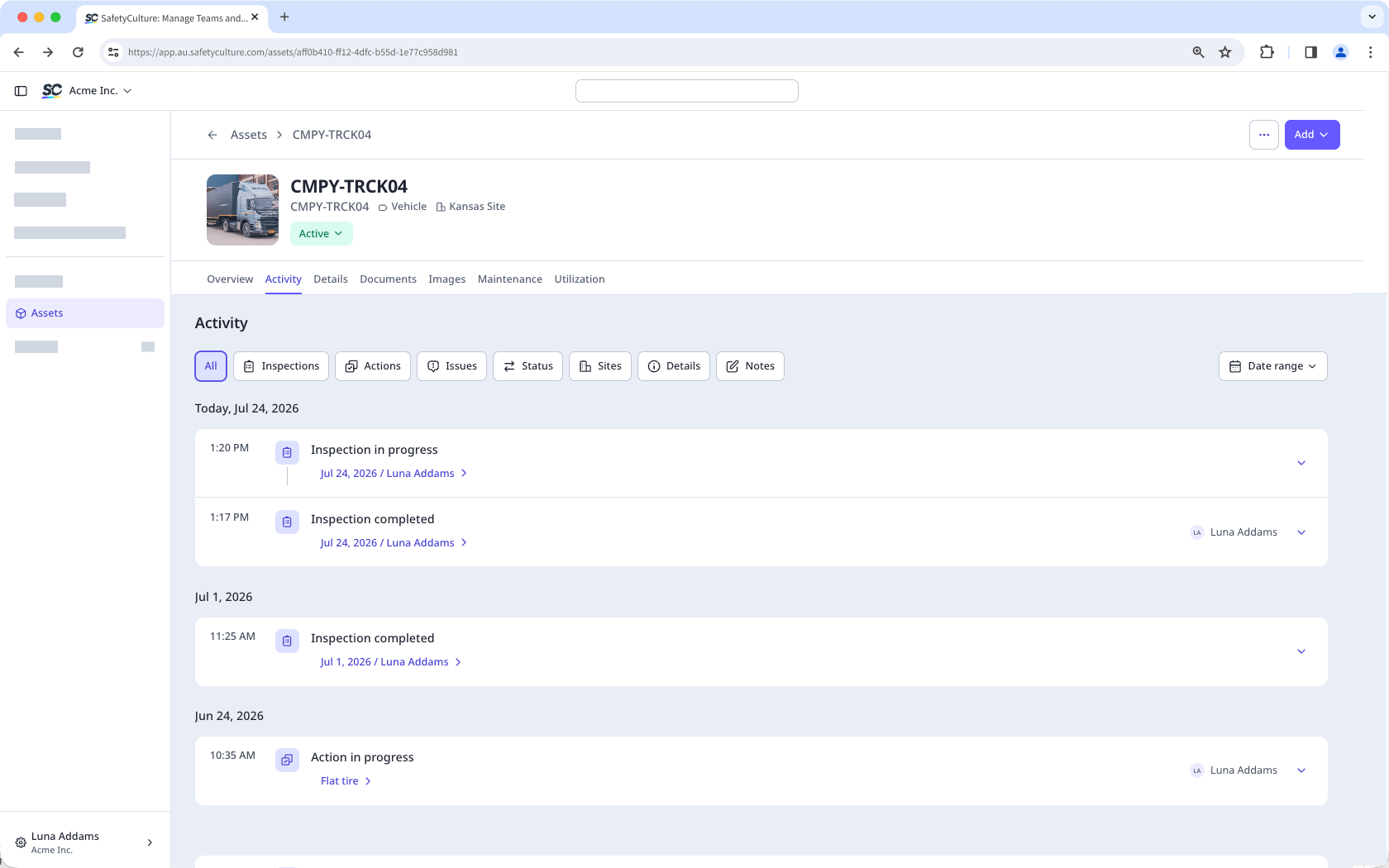
An asset's activity is the chronological record of the events and changes that happen to an asset in Mitti. This includes updates from Inspections, Issues, Actions, Sites, and any changes to asset details or status. You can also view and add notes to an asset for more context. This gives you a single, reliable view of an asset's full lifecycle, useful for reporting, compliance tracking, and other operational needs.
Add an asset activity note
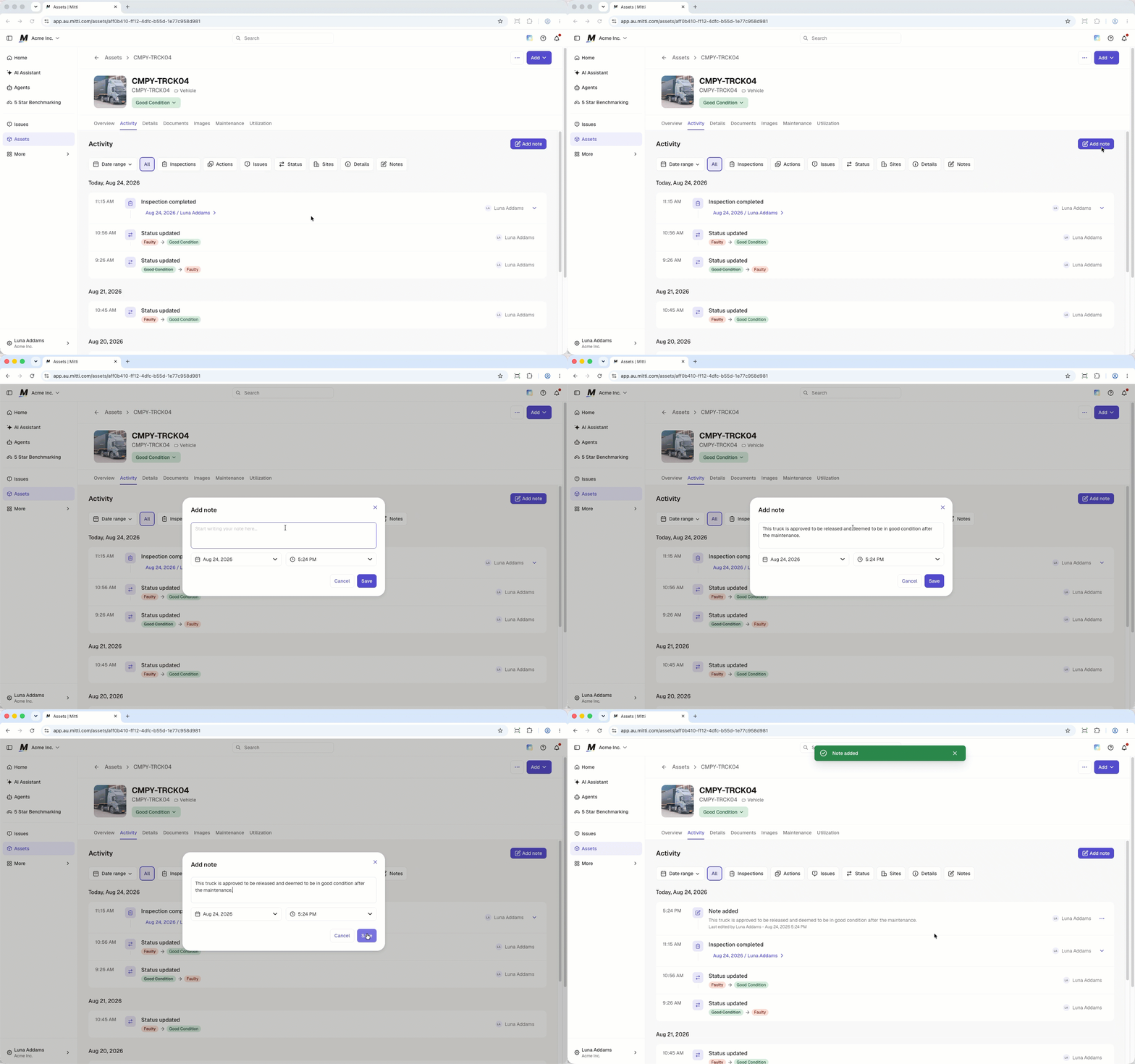
Click Assets from the sidebar or in More.
Find the asset you want to view.
Select the asset.
Select the Activity tab at the center of the page.
Click Add note.
In the pop-up window, enter your note, select the date, and set the time.
Click Save.
Open the mobile app.
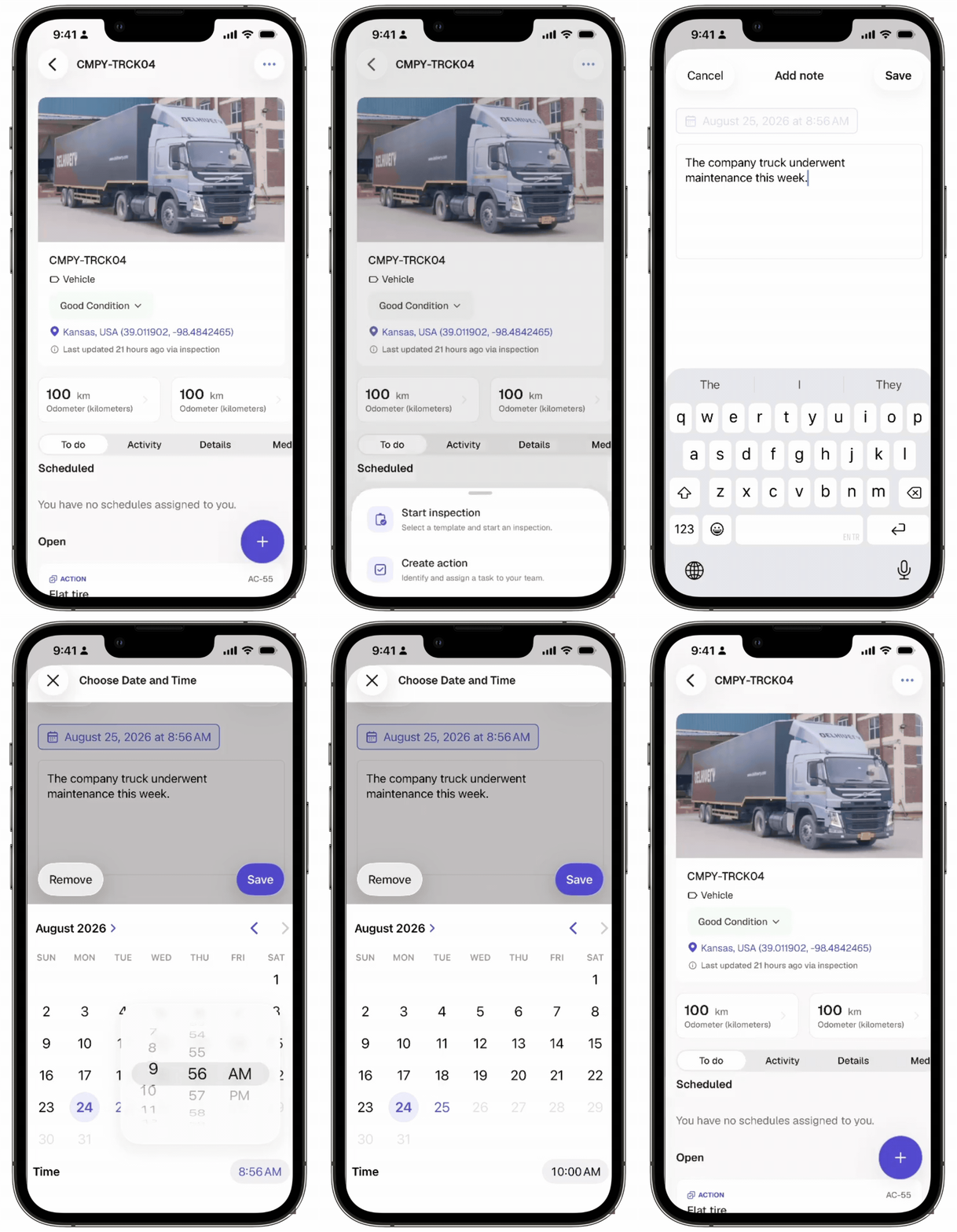
Tap Assets from the navigation bar or in More.
Select the asset.
Tap at the lower-right of your screen.
Select Add note.
In the pop-up window, enter your note, select the date, and set the time.
Tap Save at the upper-right of your screen.
Edit an asset activity note
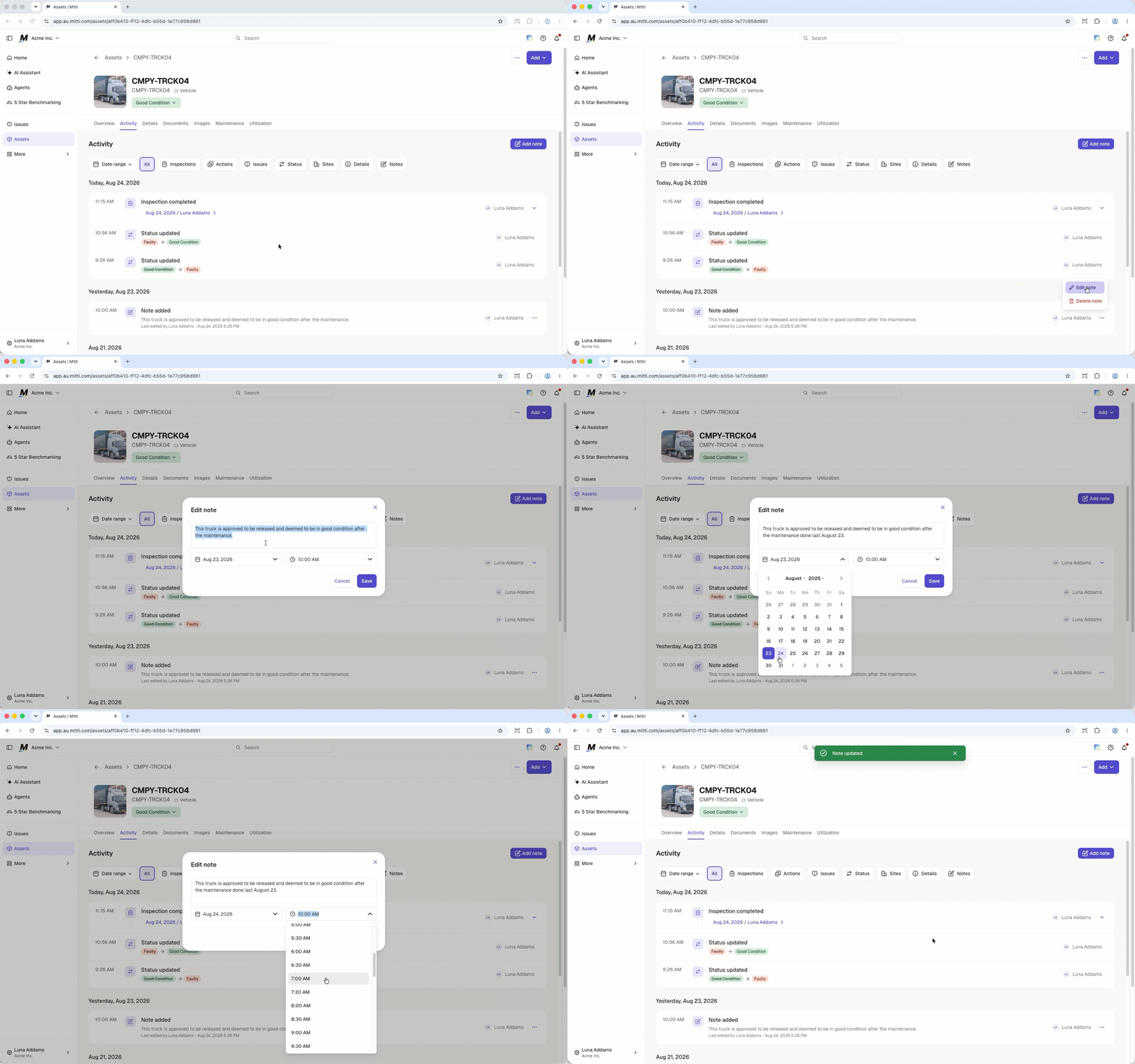
Click Assets from the sidebar or in More.
Find the asset you want to view.
Select the asset.
Select the Activity tab at the center of the page.
Click on the right-hand side of the note and select Edit note.
In the pop-up window, edit the note's details.
Click Save.
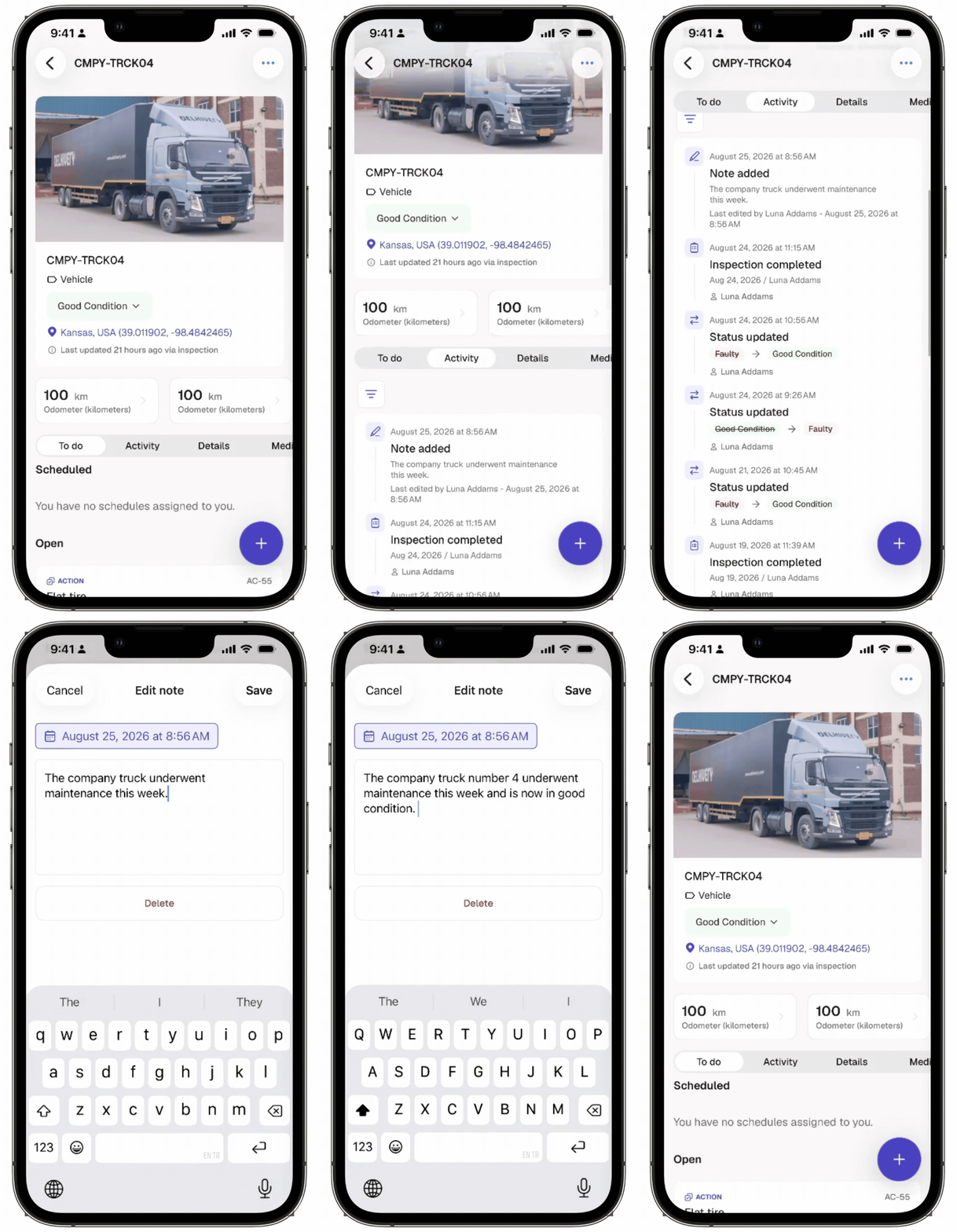
Open the mobile app.
Tap Assets from the navigation bar or in More.
Select the asset.
Select the Activity tab at the center of your screen.
Select the note that you want to edit.
In the pop-up window, edit the note's details.
Tap Save at the upper-right of your screen.
Delete an asset activity note
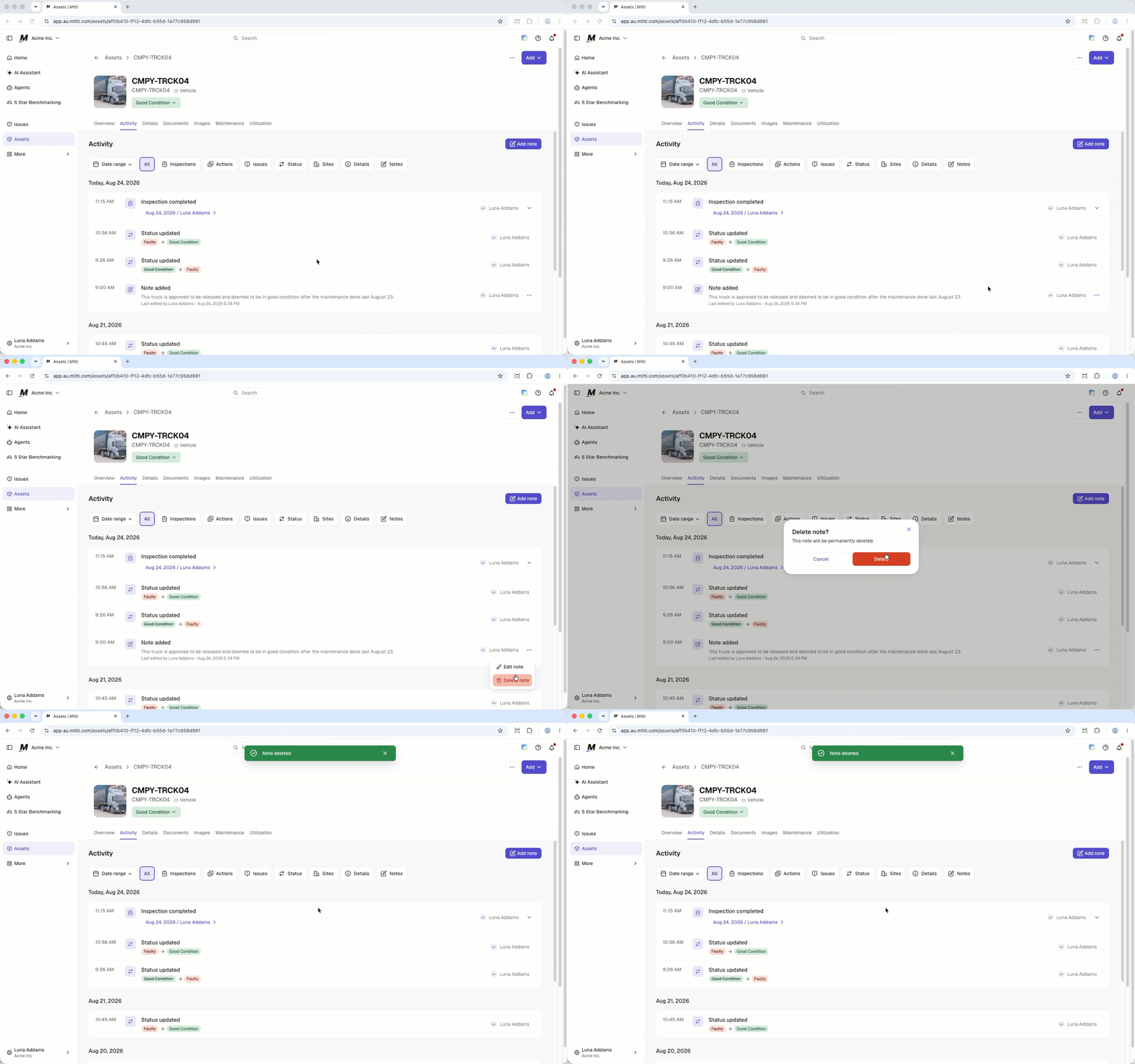
Click Assets from the sidebar or in More.
Find the asset you want to view.
Select the asset.
Select the Activity tab at the center of the page.
Click on the right-hand side of the note and select Delete note.
In the pop-up window, click Delete.
Open the mobile app.
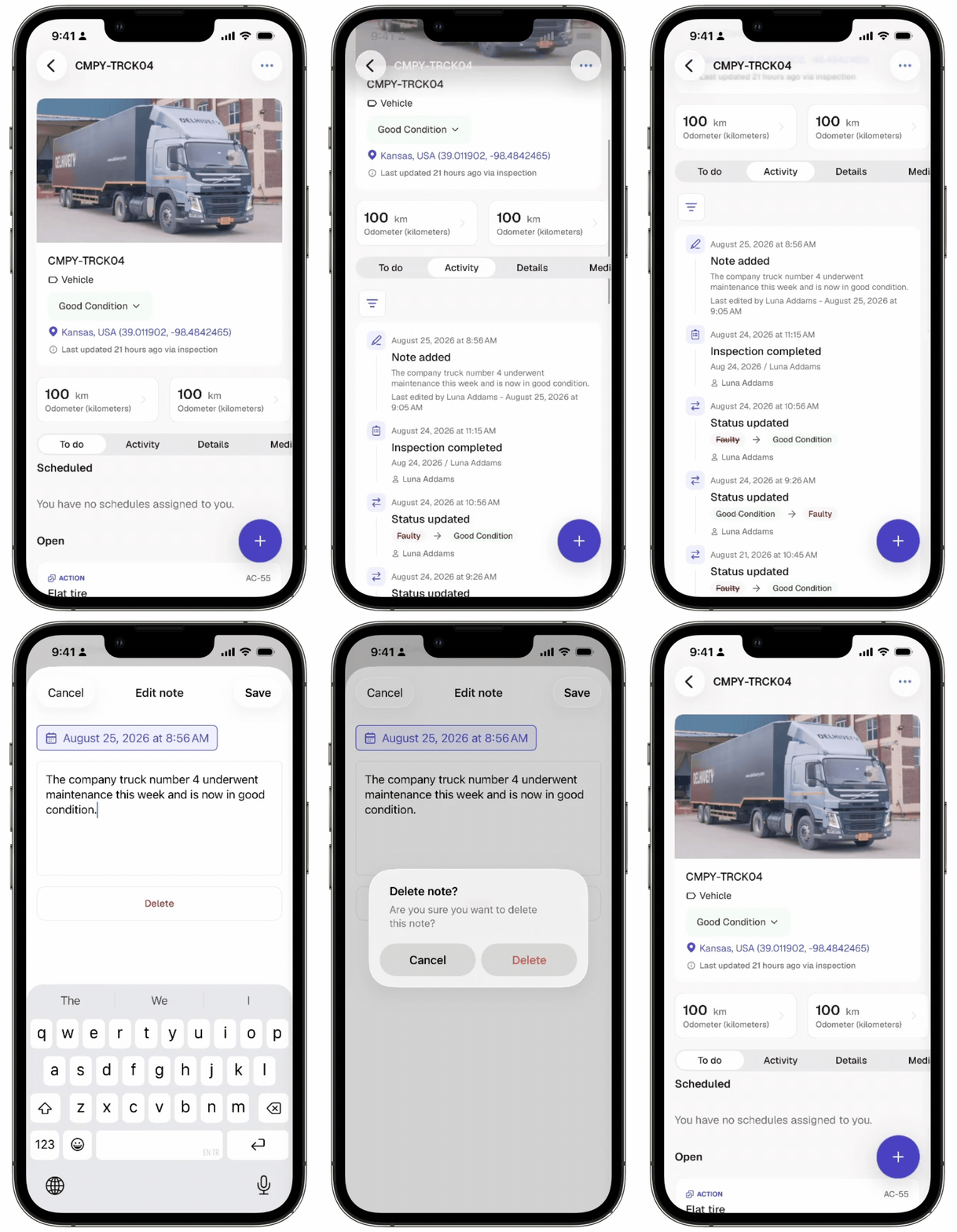
Tap Assets from the navigation bar or in More.
Select the asset.
Select the Activity tab at the center of your screen.
Select the note that you want to delete.
Tap Delete.
In the pop-up window, tap Delete.
Need more help?
Was this page helpful?