Last updated: November 3, 2026
What are Paths?
The new Paths experience in Mitti lets you bring different types of training and requirements together into one guided learning journey. The new experience builds on the familiar Onboarding workflows feature with a redesigned builder to create and manage training. Use the new Paths to onboard new hires, develop employees in their roles, or deliver recurring compliance training.
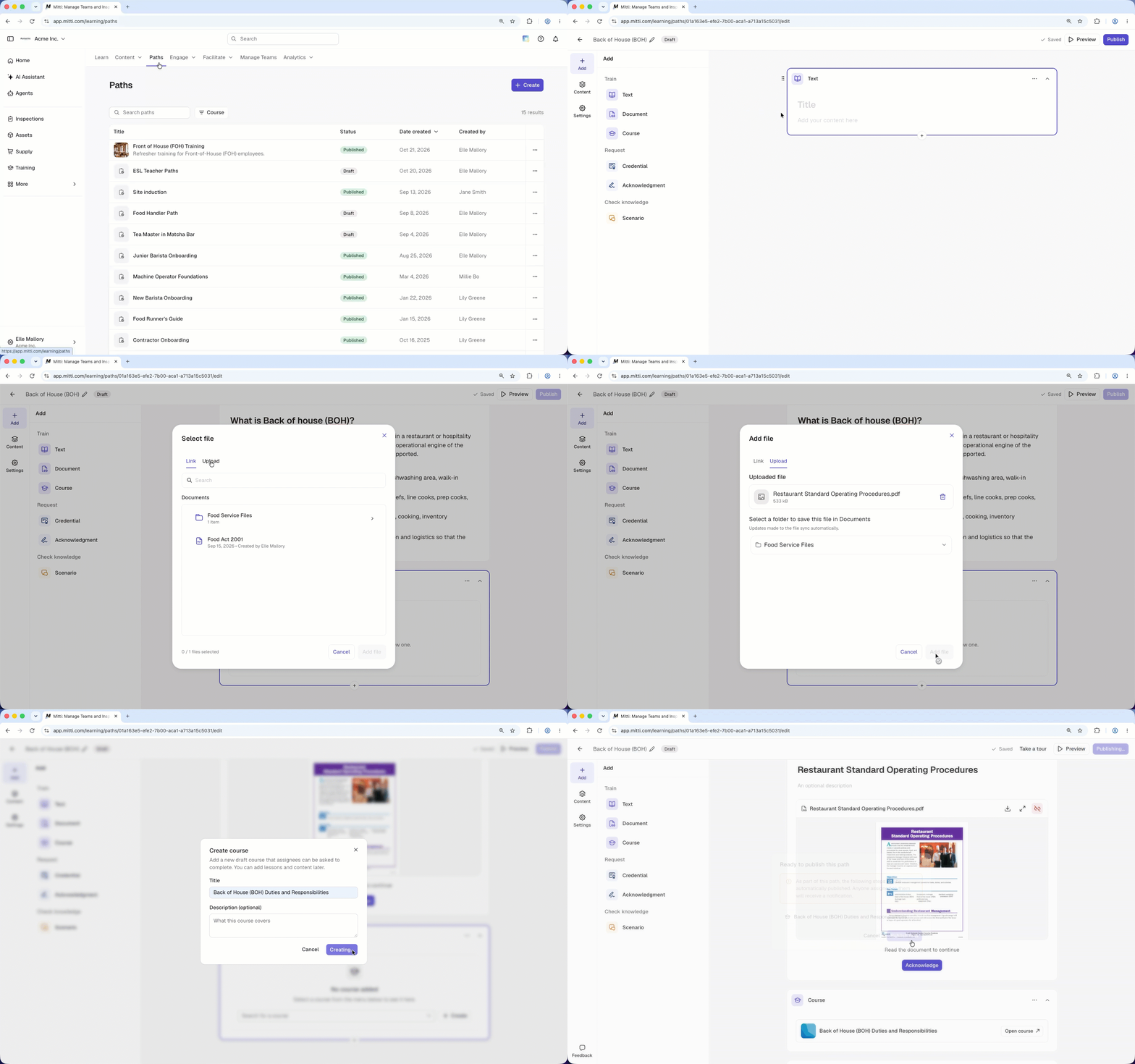
Each path is made up of blocks, with each block representing a step in the learning journey. You can combine different block types to suit your team's needs. For example, a new-hire path could start with a "Text" block to welcome employees, followed by a "Document" block outlining your organization's policy. An "Acknowledgment" block lets them confirm they've read and understood the path. You choose whether assignees complete the blocks in sequence or in any order, then track their progress.
What you'll need
Assign a path
Click Training from the sidebar or in More.
Click Paths tab at the top of the page.
Select the path you want to assign.
Click Assign on the upper-right of the page.
In the pop-up window, click next to "Groups", "Sites", or "Users".
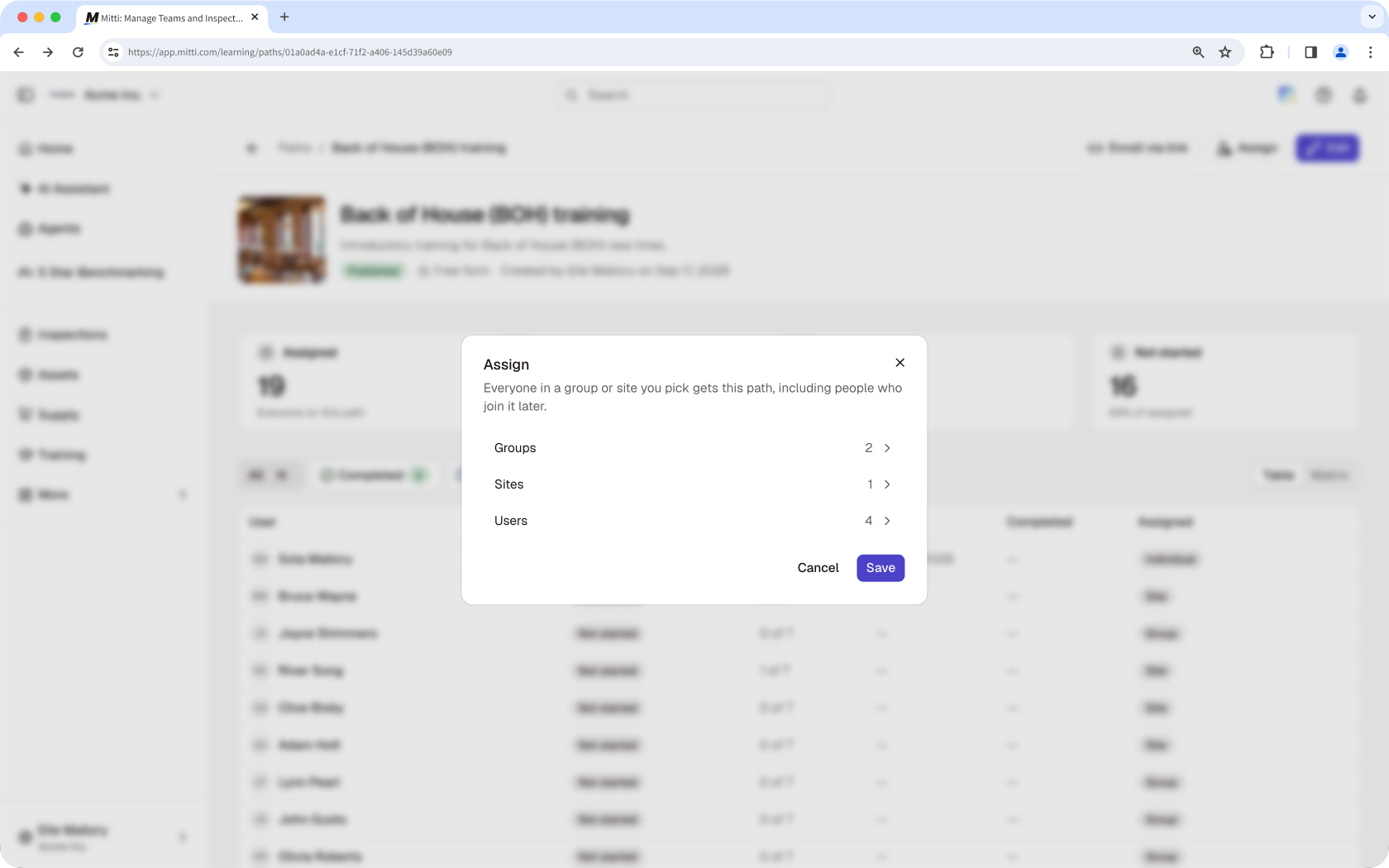
Select the groups, sites, or users you want to assign the path to.
Click Save.
Share a path
Click Training from the sidebar or in More.
Click Paths tab at the top of the page.
Select the path you want to share.
Click Enroll via link at the top of the page.
In the pop-up window, select who can access the path link. Selecting Anyone with the link requires Premium Plan or Enterprise Plan.
Only assigned users: Only users assigned to the path can use this link.
Anyone with the link: Anyone on the internet with the link can sign up in your organization and enroll.
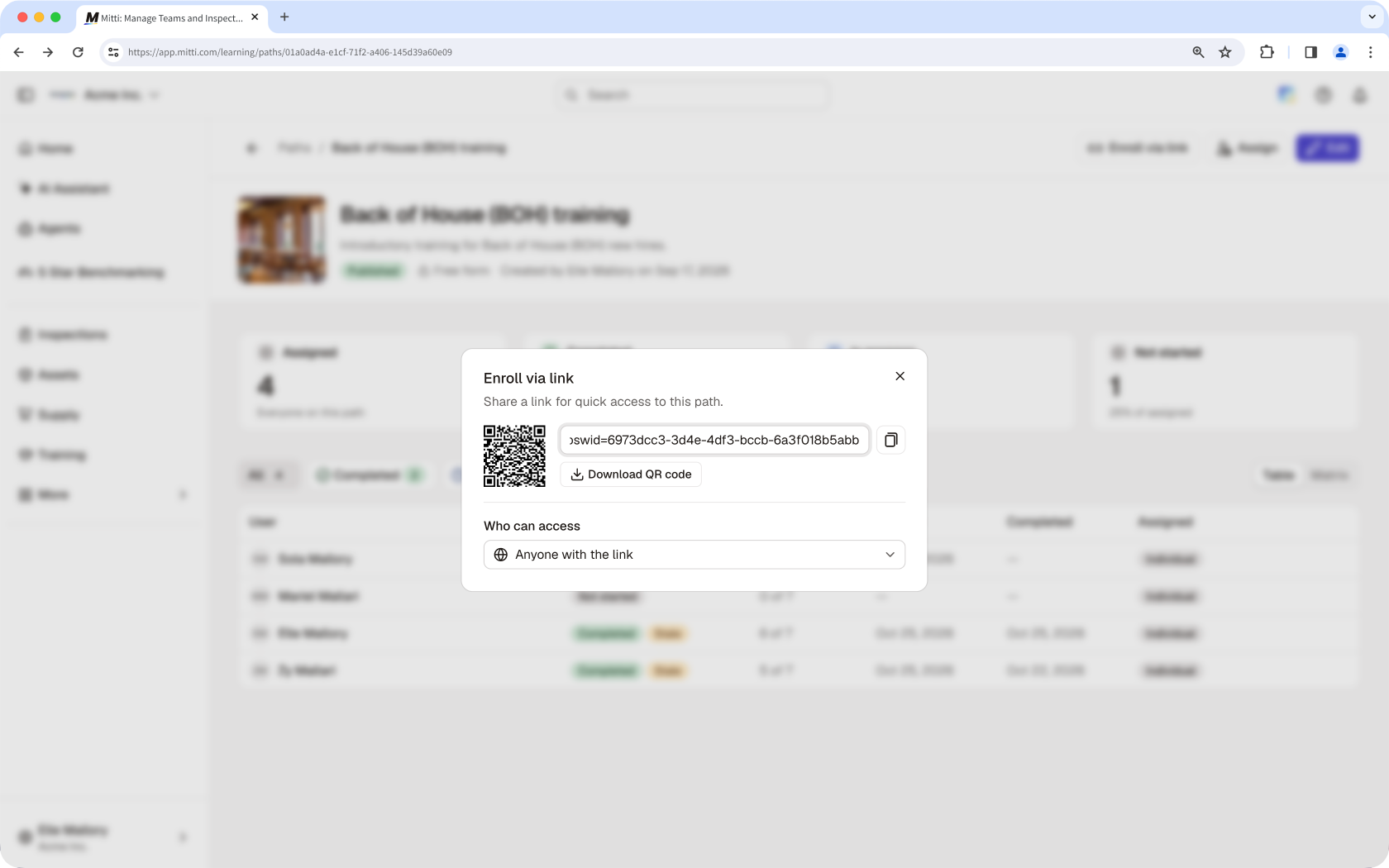
Click to copy the link or click Download QR code to download a QR code of the path.
Need more help?
Was this page helpful?