Last updated: October 26, 2026
This article covers the legacy Supply experience, which is available to organizations in the U.S. If your organization is in Australia, you're on the new experience.
Why set Supply budgets?
Setting a budget for your users or buying group helps you ensure resources are used wisely. You can allocate budgets by project or location, prioritize essential products, and avoid unnecessary costs. Team members can request approvals for orders that exceed the budget, so admins can review and approve these requests before the order is placed.
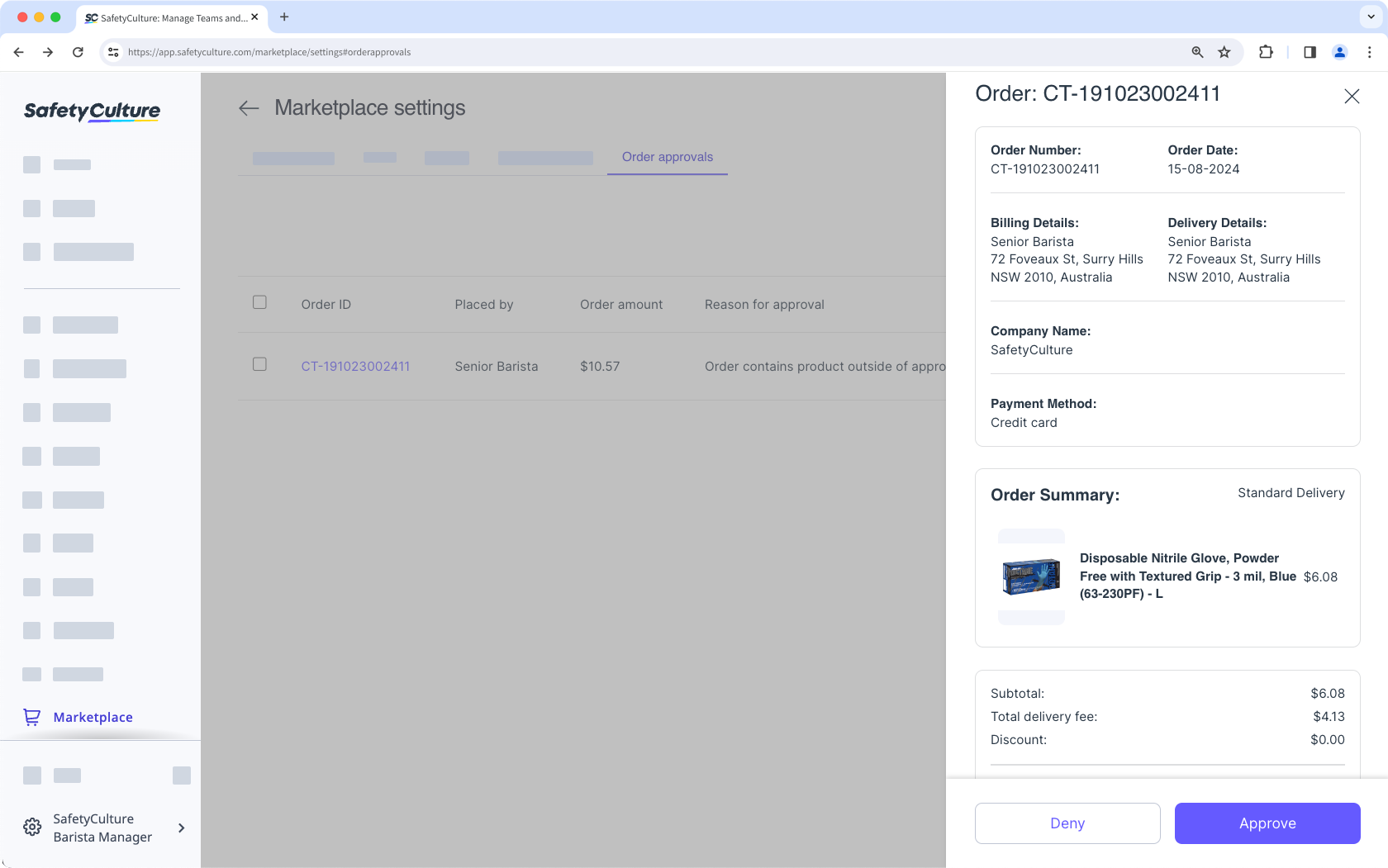
Purchasing products from Supply is currently only available to customers in Australia and the U.S.
Budget settings
You can manage the following settings for a user or buying group:
Max Order Limit: Set the maximum budget when placing an order.
Monthly Limit: Set the maximum budget for the whole month.
Manage a buying group's budget
Click Supply from the sidebar or in More.
Click Settings on the upper-right of the page.
In the "Buying groups" tab, click on the group's right-hand side, then select Update Details.
In the side panel, enter the budget in the "Max Order Limit" and "Monthly Limit" fields. The max order limit must be less than the monthly limit.
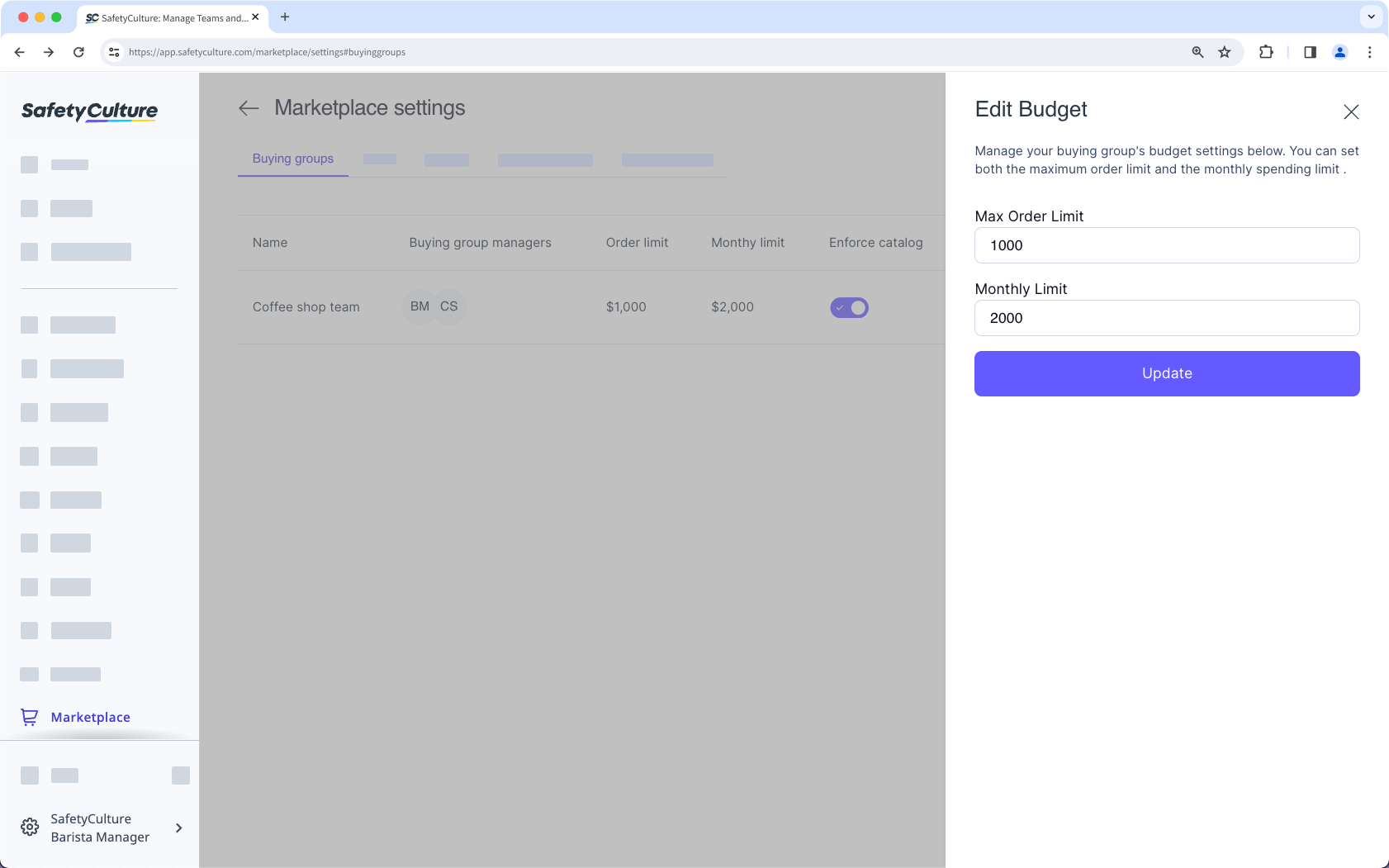
Click Update.
Manage a user's budget
Click Supply from the sidebar or in More.
Click Settings on the upper-right of the page.
In the "Users" tab, click on the user's right-hand side, then select Update Details.
In the side panel, enter the budget in the "Max Order limit" and "Monthly Limit" fields. The max order limit must be less than the monthly limit.
If a user is in a buying group, you can update their details so they inherit the group’s budget.
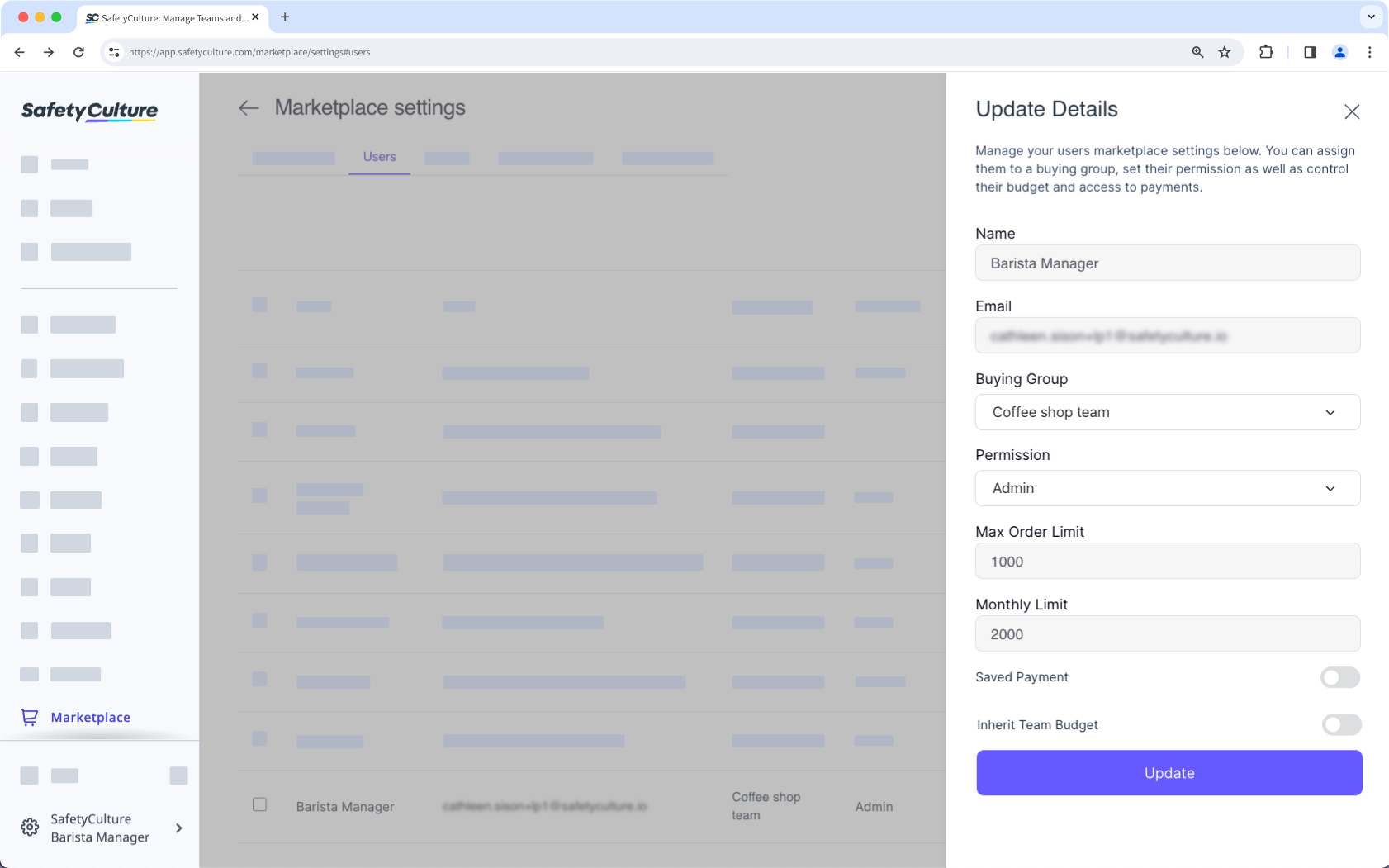
Click Update.
If a user or buying group exceeds the maximum budget, the order needs approval. Review and approve it in the "Order approvals" tab before placing it in Supply.
Need more help?
Was this page helpful?