Last updated: September 20, 2026
What does it mean to manage site membership automatically via rules?
Managing site membership at scale can be challenging, especially when you’re adding or removing large numbers of users. Rule-based site membership simplifies the process by automatically updating site membership based on rules you set using user fields. As user details change, like their site or job title, they’re added or removed as site members from the right sites. This ensures teams get the right access based on their role or location, without relying on manual updates.
What you'll need
What rules and operations are available?
You can set up membership using different rules and operations depending on the user field's data type.
Rule logic
The rule logic defines how rules are evaluated together, either requiring all rules to match or allowing any matching rule to apply. Please note that only one combinator can be used to evaluate multiple rules at a time.
Combinator | Description | Example |
|---|---|---|
and | All rules must be true for a user to be added. | If "Start date" is after Jan 1, 2024; If "Manager" is People Manager; and If "Shirt size" is Large; Only users who match all three of those rules will be added. |
or | A user only needs to match one or more of the rules to be added. | If "Start date" is after Jan 1, 2024; If "Manager" is People Manager; and If "Shirt size" is Large; Any user who matches at least one of those rules will be added. |
Text
You can add up to 250 values per rule.
Operator | Description | Example |
|---|---|---|
is | Matches if the user field is exactly the value you specify. | If Job role is "Customer Support", only users with that exact job role will be added. |
is not | Matches if the user field is anything except the value you specify. | If Job role is not "Customer Support", all users with a different job role will be added. |
contains | Matches if the user field includes the value you specify. | If Job role contains "Customer", users with roles like "Customer Support" and "Customer Success" will be added. |
does not contain | Matches if the user field doesn't include the value you specify. | If Job role doesn't contain "Customer", users whose job role doesn’t include "Customer" will be added. |
Values entered for the “Text” data type are case-sensitive.
Date
You can only select one value per rule.
Operator | Description | Example |
|---|---|---|
before | Matches if the user field is before the value you specify. | For example, if Hire date is before "January 1, 2024", users hired before that date will be added. |
after | Matches if the user field is after the value you specify. | For example, if Hire date is after "January 1, 2024", users hired after that date will be added. |
is | Matches if the user field is exactly the value you specify. | For example, if Hire date is exactly "January 1, 2024", users hired on that date will be added. |
is not | Matches if the user field is anything except the value you specify. | For example, if Hire date is not "January 1, 2024", users hired on any other date will be added. |
User
You can select up to 250 values per rule.
Operator | Description | Example |
|---|---|---|
is | Matches if the user field is exactly the value you specify. | For example, if Manager is "John Doe", users with that exact manager will be added. |
is not | Matches if the user field is anything except the value you specify. | For example, if Manager is not "John Doe", users with any other manager will be added. |
Multiple choice
You can select up to 250 values per rule.
Operator | Description | Example |
|---|---|---|
is | Matches if the user field is exactly or one of the values you specify. | For example, if Shirt size is "Small" and "Medium", users with "Large" won't be added. |
is not | Matches if the user field is anything except the value(s) you specify. | For example, if Shirt size is "Large", users with other sizes will be added. |
Deleting an option from a user field being used in assignment rules will remove users assigned to the course.
Once membership rules are created, adding or removing site members can only be managed by editing the rules. To manage members manually, delete all rules first to convert the site back to normal membership.
Add a rule
Click your organization name on the lower-left corner of the page and select Sites.
Add or edit a site.
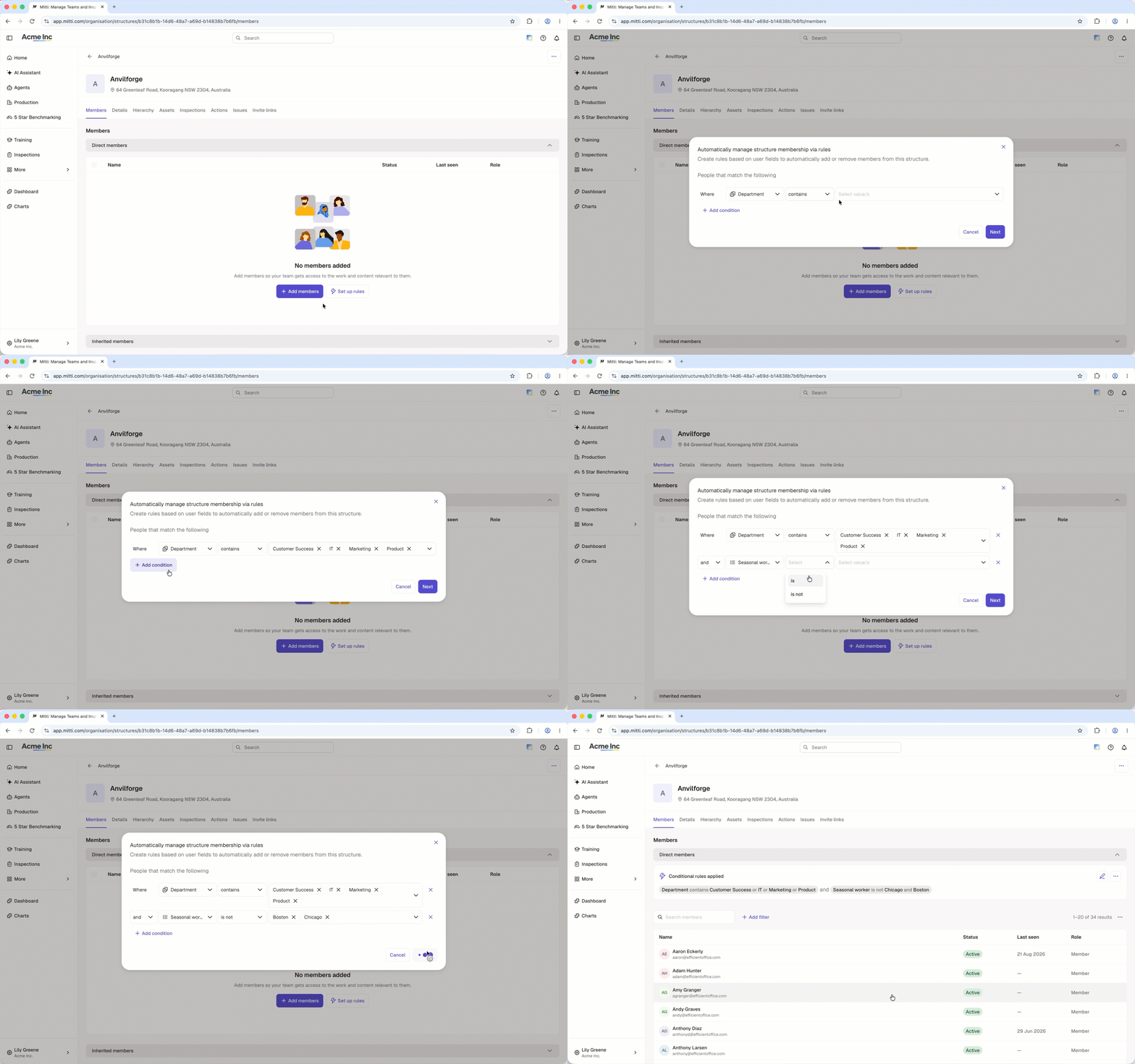
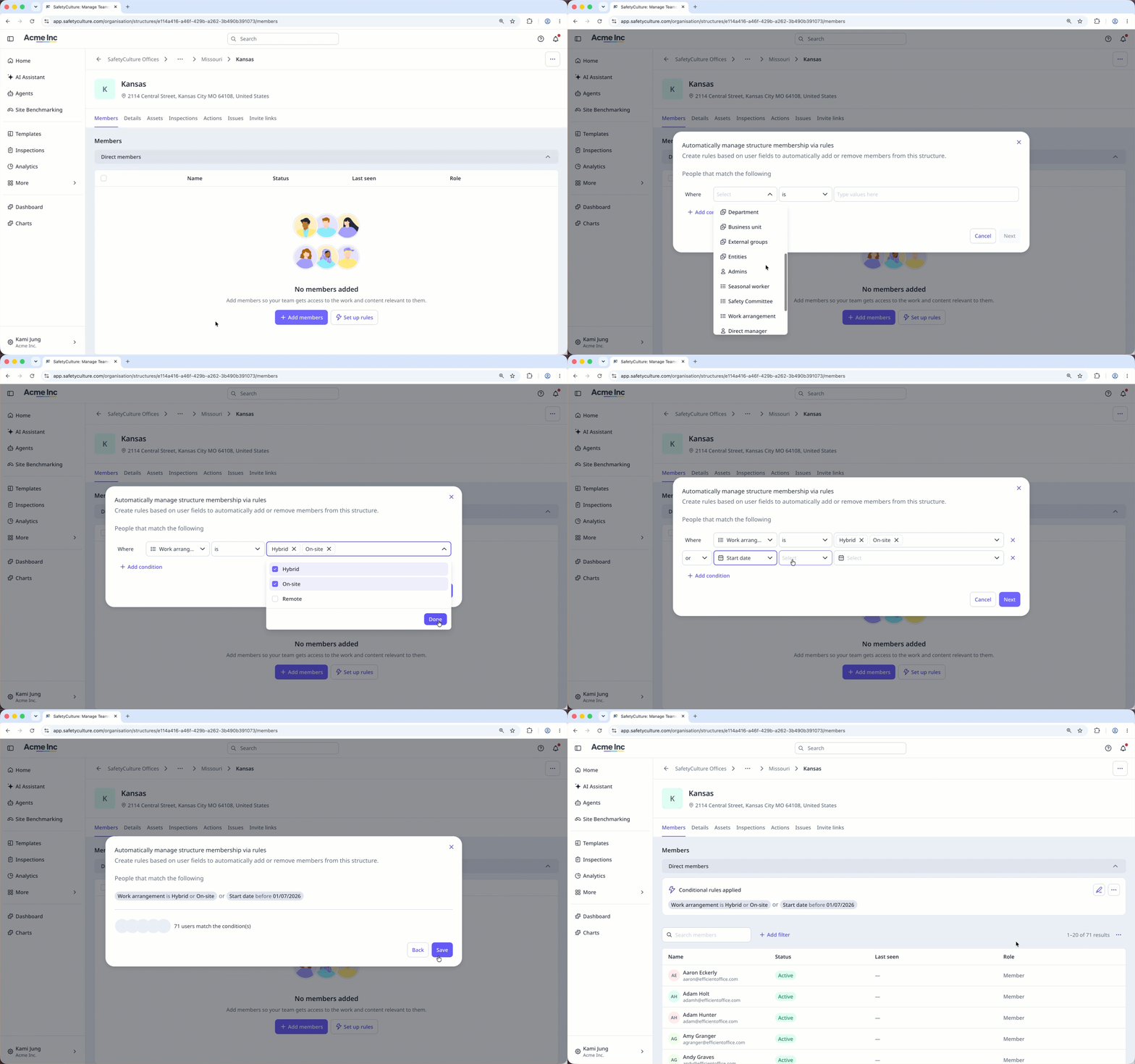
Click Set up rules.
In the pop-up window, configure the rules accordingly. You can add up to 5 rules to define the conditions for your site or level, and up to 15,000 users can be added to sites with rule-based membership.
Click Next.
Click Save.
Each user can only be a direct member of up to 40 sites. Membership inherited from a higher level in the site hierarchy doesn't count toward this limit.
If a user needs access to more than 40 sites, add levels or group sites. Then, add the user to the new levels to inherit the membership of every site below that level.
Edit a rule
Click your organization name on the lower-left corner of the page and select Sites.
Select a site with membership rules.
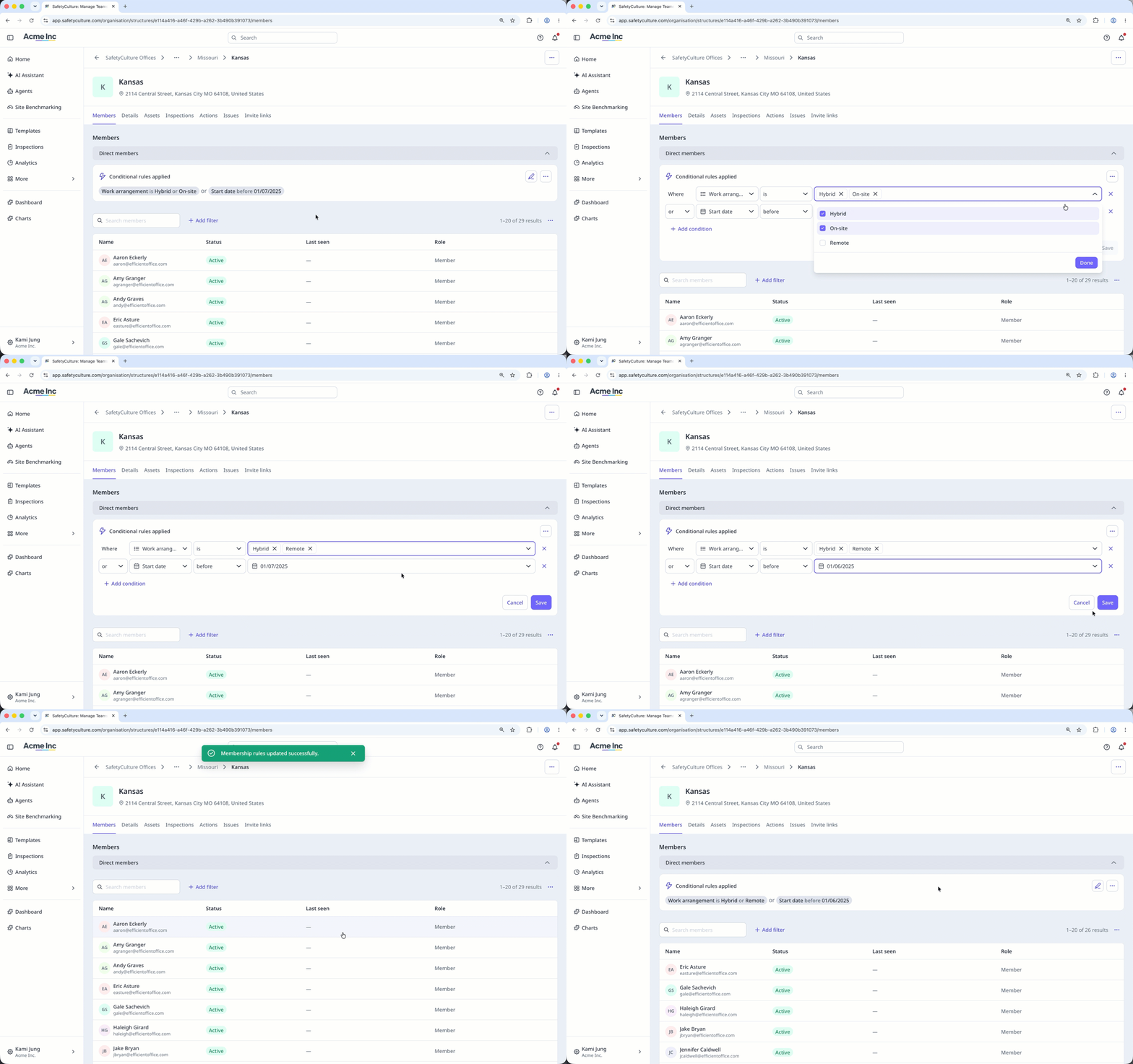
Click on the upper-right of the "Conditional rules applied" section.
Click the dropdowns to select or enter new values.
Click Save.
In the pop-up window, click Save and apply.
Delete a rule
Click your organization name on the lower-left corner of the page and select Sites.
Select a site with membership rules.
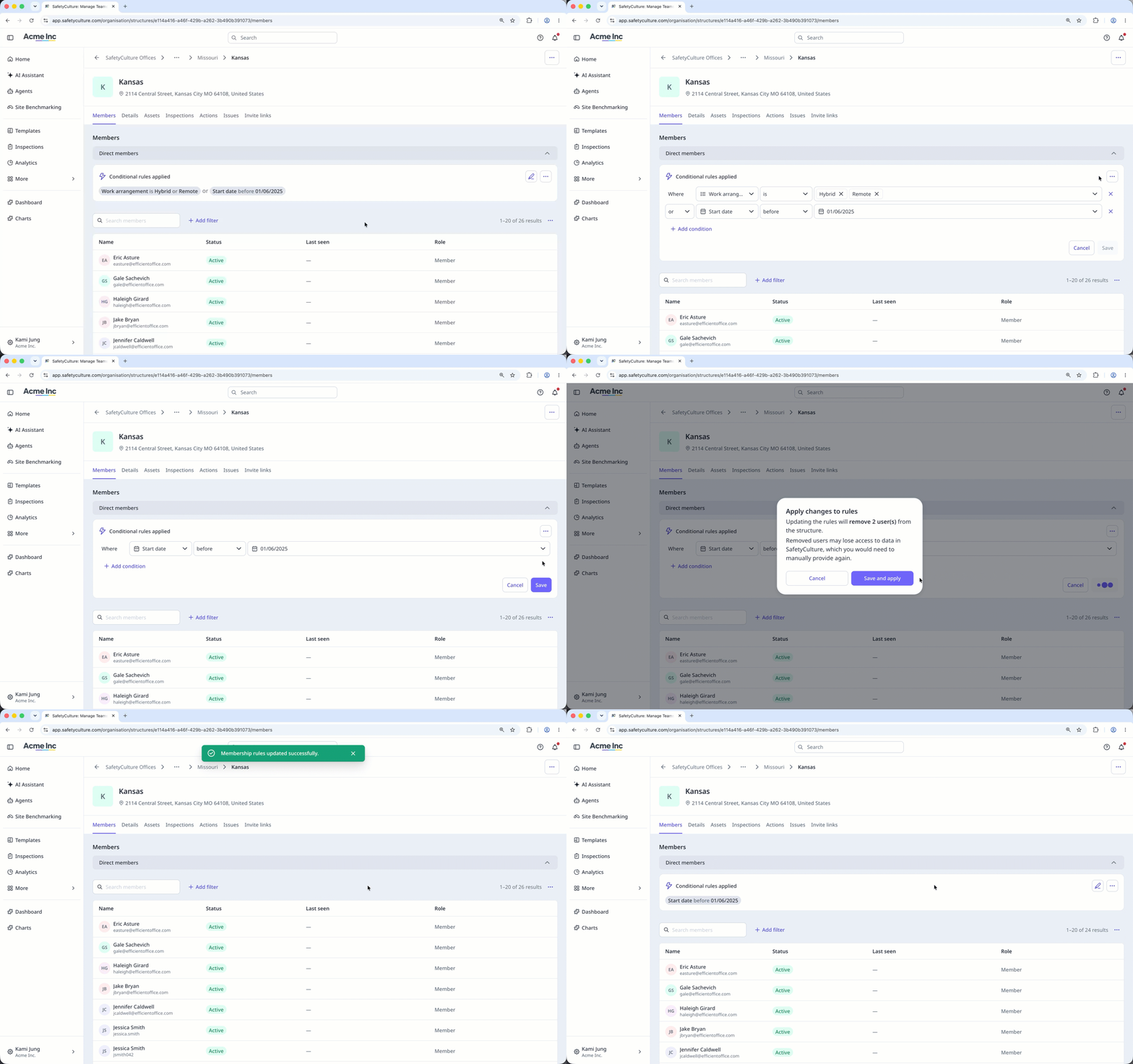
Click on the upper-right of the "Conditional rules applied" section.
Click on the right-hand side of the rule.
Click Save.
In the pop-up window, click Save and apply.
Archiving a user field or deleting options from a single or multiple choice field converts any affected sites to normal sites, even if those options aren't used in any membership rules. Restoring a user field won't restore the rules.
To set up rules again, you'll need to remove all existing site members first.
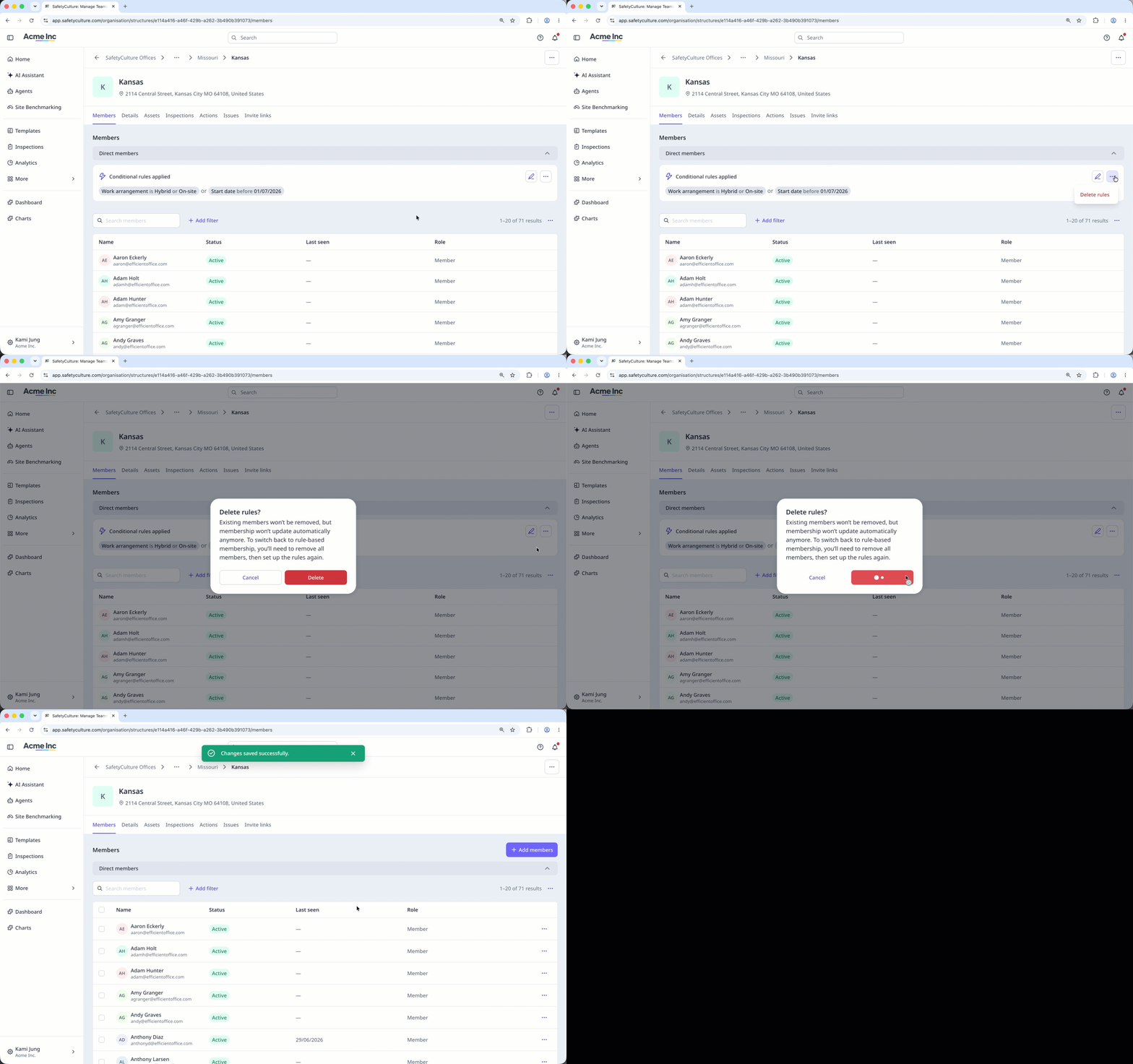
Delete all rules
Click your organization name on the lower-left corner of the page and select Sites.
Select a site with membership rules.
Click on the upper-right of the "Conditional rules applied" section and select Delete rules
In the pop-up window, click Delete.
Existing members won't be removed from the site. To switch back to rule-based membership, remove all site members, then add rules again.
Frequently asked questions
Need more help?
Was this page helpful?
