Zuletzt aktualisiert: 24. September 2026
Bitte beachten Sie, dass sich diese Funktion derzeit im frühen Zugriffs-Modus befindet. Wenn Sie daran interessiert sind, wenden Sie sich bitte an Ihren Kundenbetreuer, und fragen Sie, ob Ihre Organisation daran teilnehmen kann.
What’s the difference between adding and linking files and folders?
Whether you add or link files and folders to a site profile, you give your team the documentation a location needs to operate, such as compliance certificates, floor plans, or work instructions. Keeping these files on the site profile means site members and managers can find what they need in one place.
You can either add a new file from your device, which saves it to the Documents feature, or link existing files and folders already stored in the Documents feature. Either way, updates to the file carry through everywhere it's linked.
Ways to add or link files and folders
The following table shows where each method is available, what you can do, and where files are stored.
Where | What you can do | Storage location |
|---|---|---|
Documents tab in the site profile | Upload files from your device or link existing files and folders already stored in Documents. | • Uploaded files stay in Documents and update everywhere they're linked. |
Manage linked items page in Documents | Link a file or folder to multiple sites. | Linked files and folders stay in Documents and update everywhere they're linked. |
Was Sie brauchen
Add files and folders to a site
You can upload files up to 100 MB in CSV, DOC, DOCX, GIF, JPEG, JPG, PDF, PNG, WEBP, XLS, and XLSX formats.
Click your organization name on the lower-left corner of the page and select Standorte.
Select a site.
Select the Dokumente tab at the top of the page.
Click Add files on the upper-right of the page.
In the pop-up window, click Hochladen.
Drag your files or click durchsuchen to select files.
To save your file in a linked folder, click to select an existing folder or click New folder to create a new one.
Click Hinzufügen.
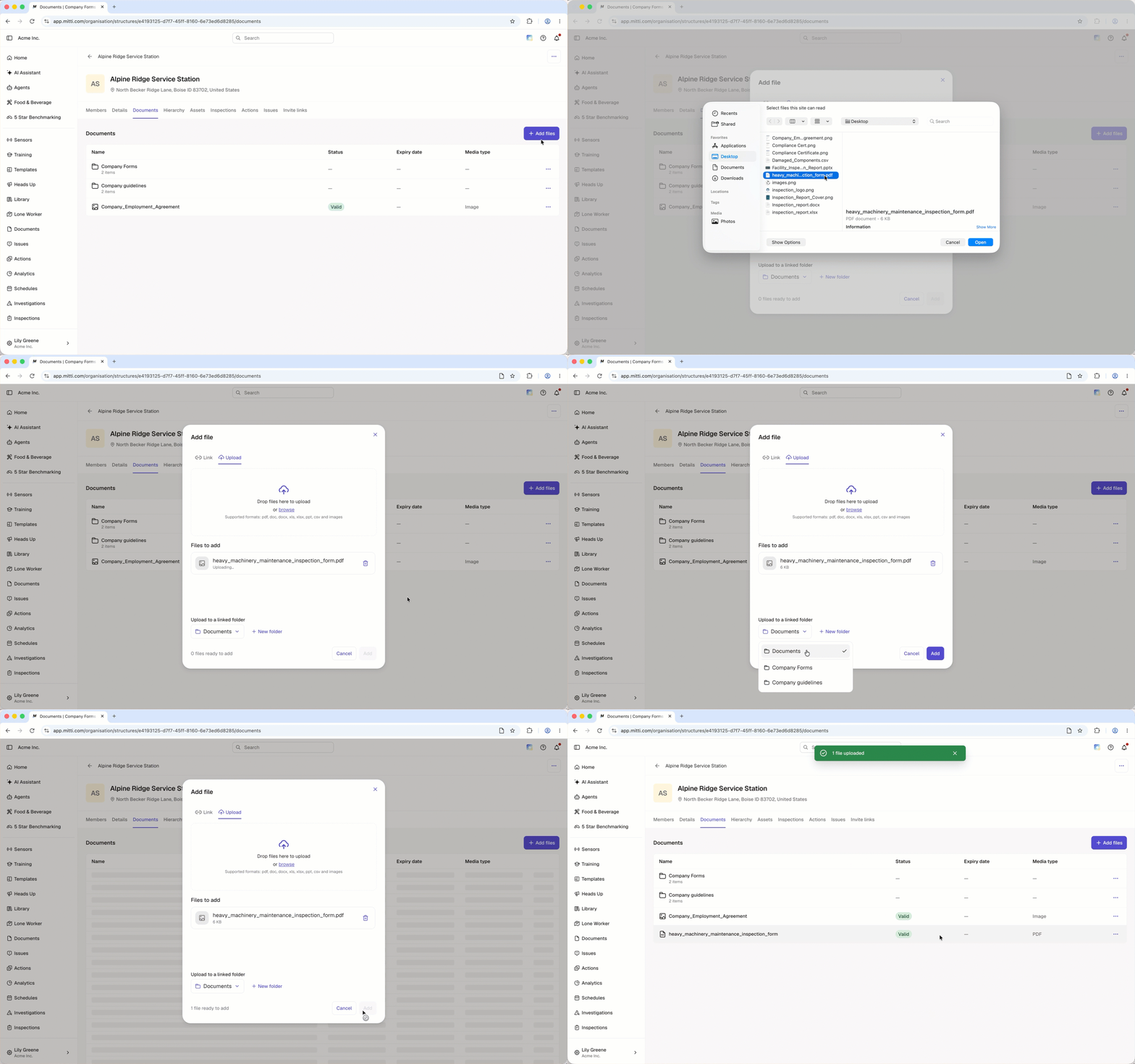
Link files and folders to a site
Click your organization name on the lower-left corner of the page and select Standorte.
Select a site.
Select the Dokumente tab at the top of the page.
Click Dateien hinzufügen on the upper-right of the page.
In the pop-up window, click Verknüpfen.
Check the box next to the file or folder you want to link.
To add files in a folder, click the folder and check the box next to the file you want to link.
Click Dateien hinzufügen.
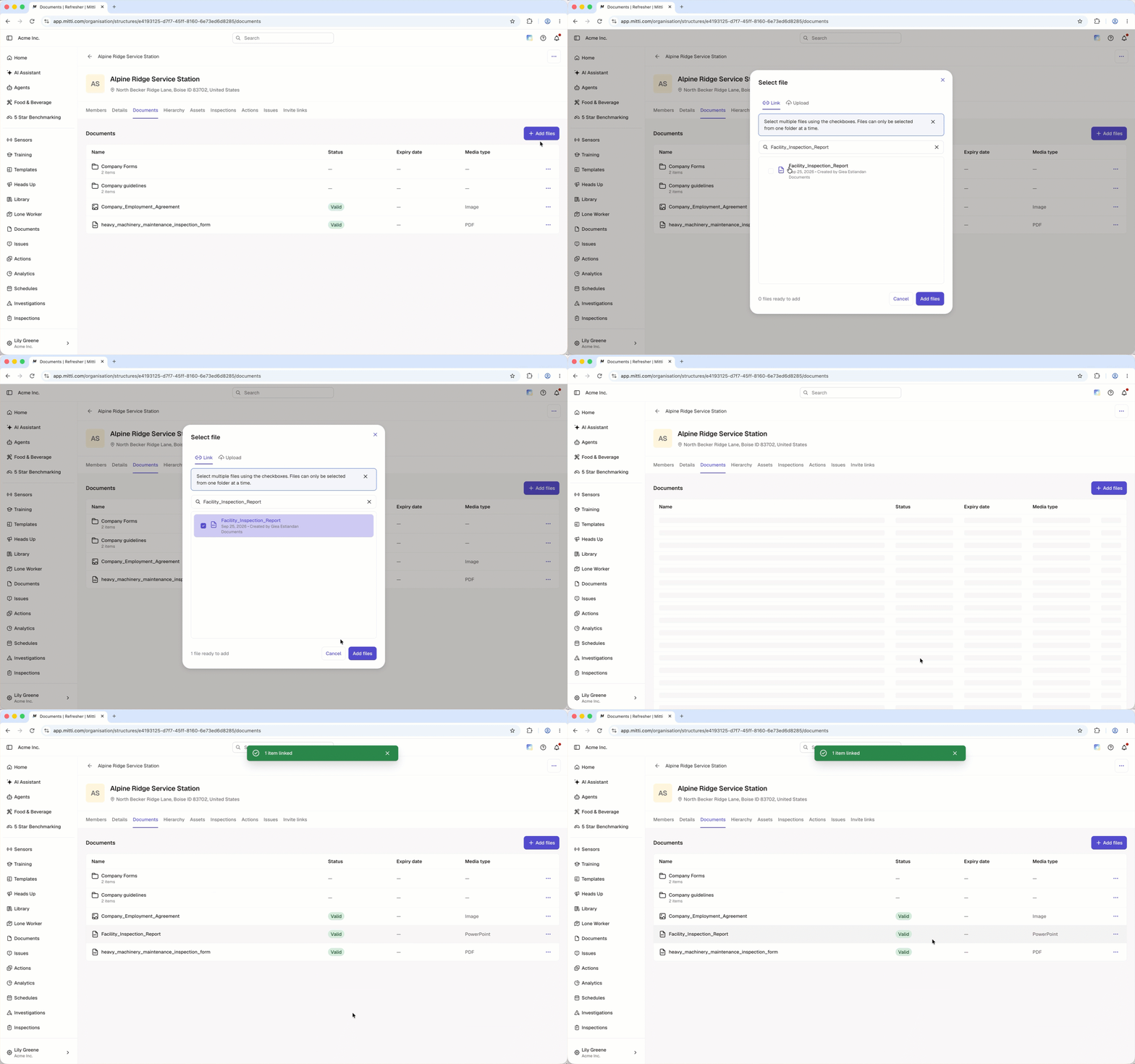
Limitations
When uploading a file, you can only select folders that are already linked to the site.
When linking files, you can only select from one folder at a time.
Only folders linked directly to a site can be unlinked. Subfolders and files inside a linked folder can't be unlinked individually.
Users in guest seats can't link existing files from the Documents feature. They can only download a file from sites they have access to.
Häufig gestellte Fragen
Brauchen Sie weitere Hilfe?
War diese Seite hilfreich?
