Última actualización: 12 de enero de 2026
¿Cómo funcionan las tablas en las inspecciones?
Las tablas en las inspecciones están diseñadas para ayudar a los equipos a recopilar, mostrar y gestionar grandes volúmenes de datos repetitivos de forma eficaz en formato tabular. Ya sea para registrar conjuntos de información coherentes de varios elementos o para cumplir requisitos de informes exigentes por parte de clientes externos, las tablas ofrecen una forma estructurada de capturar lo que importa. Su formato claro y estructurado facilita consultar respuestas anteriores, identificar patrones y tendencias, y garantizar que los datos estén completos y sean fáciles de interpretar.
Lo que necesitarás
Tipos de respuesta compatibles
Los siguientes tipos de respuesta son compatibles con las tablas:
Texto
Número (con unidades)
Opción múltiple (conjuntos de respuestas personalizados y conjuntos de respuestas globales), incluida la selección múltiple
Fecha y hora
Añadir una tabla
Select Plantillas in the sidebar or in Más.
Click a template and select Editar plantilla in the side panel.
Click Añadir nuevo at the bottom of a page and select Tabla. Each table will be added as a separate page in the template.
Click on the existing table name and rename it accordingly. Then, press the enter or return key on your keyboard or click anywhere in the Template Editor.
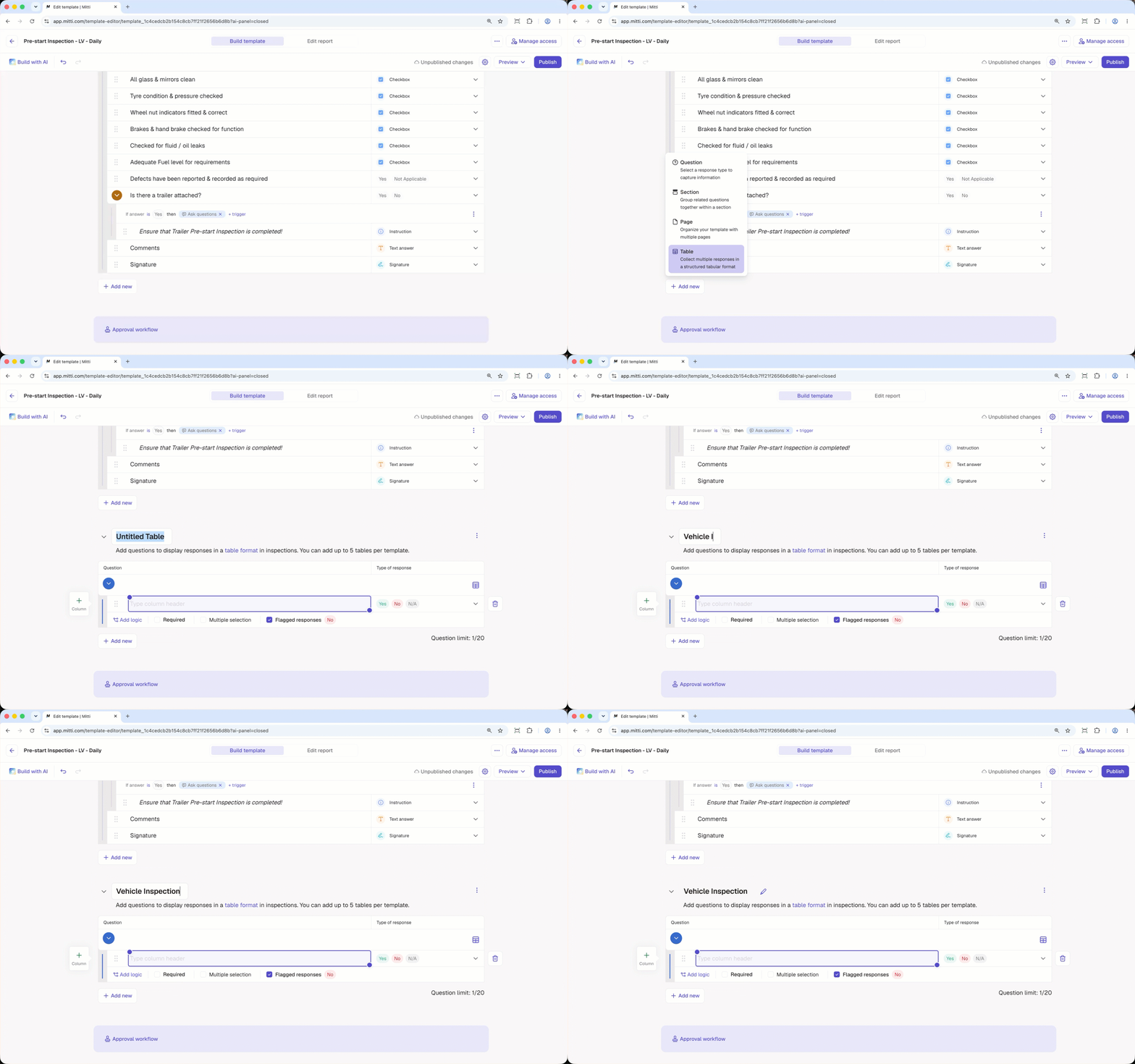
If the table page isn't in the correct order, you can rearrange pages at any time.
Start typing to label the question and click on the right-hand side to select its type of response. Each question in the table is a column header.
Click Pregunta on the left-hand side to add more columns to the table.
Click Publicar on the upper-right of the page to publish the template. If you're not ready to publish the template, you can go back to the templates list and come back when you're ready.
Open the mobile app.
Tap Inspecciones in the navigation bar or select it from Más.
Select Plantillas tab at the top of your screen.
Tap a template and select Editar plantilla from the pop-up options.
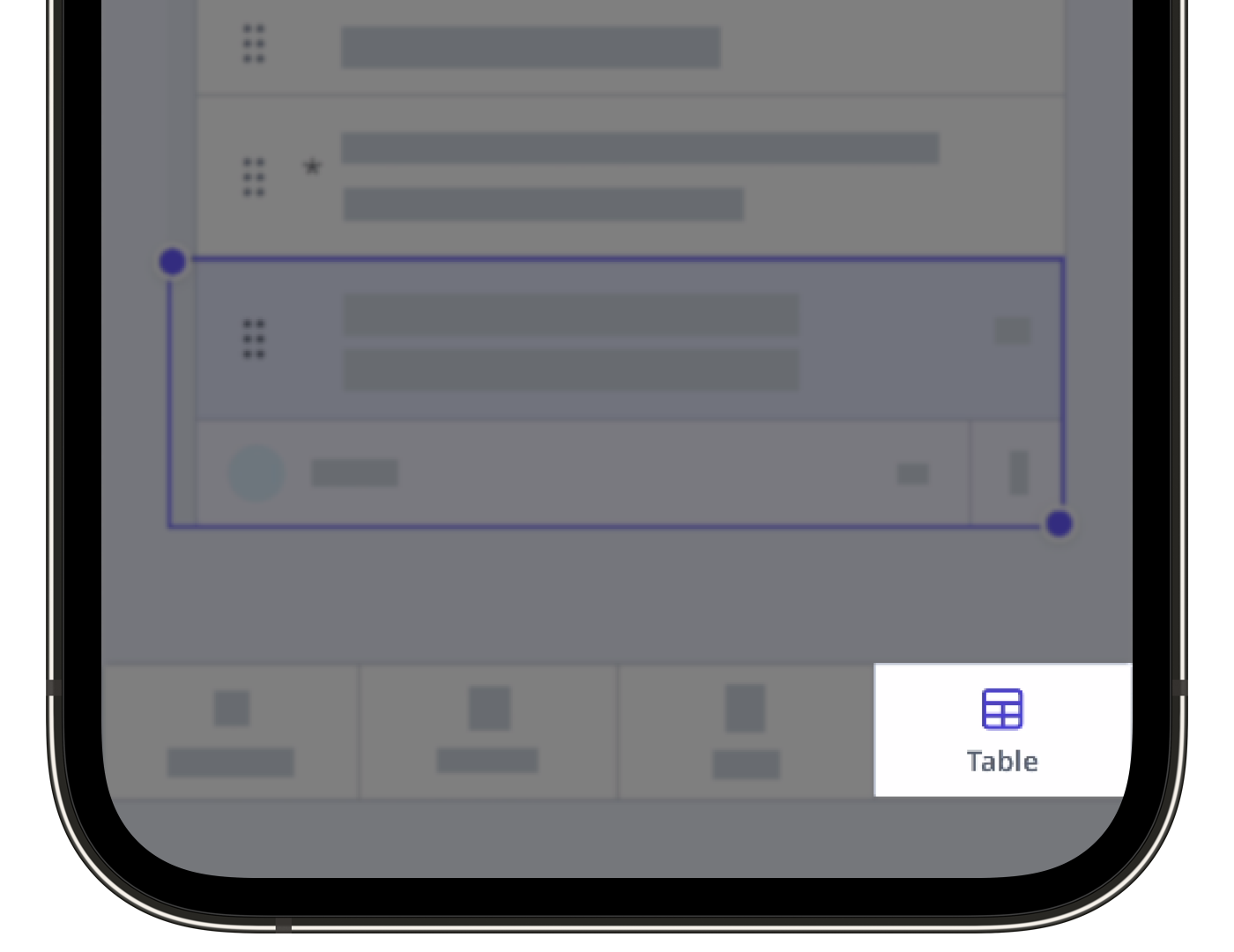
Tap Tabla in the navigation bar or select it from Más.Each table will be added as a separate page in the template.
Tap on the existing table name and rename it accordingly. Then, press the enter or return key on your keyboard or click anywhere in the Template Editor.
If the table page isn't in the correct order, you can rearrange pages at any time.
Start typing to label the question and tap below the question label to select its type of response (opens in new tab). Each question in the table is a column header.
Tap Pregunta at the bottom of your screen to add more columns to the table.
Tap Publicar on the upper-right of your screen to publish the template. If you're not ready to publish the template, you can go back to the templates list and come back when you're ready.
Eliminar una página de tabla también eliminará las preguntas que contiene.
Eliminar una tabla
Seleccione Plantillas en el menú de la izquierda.
Haga clic en una plantilla y seleccione Editar plantilla en el panel lateral.
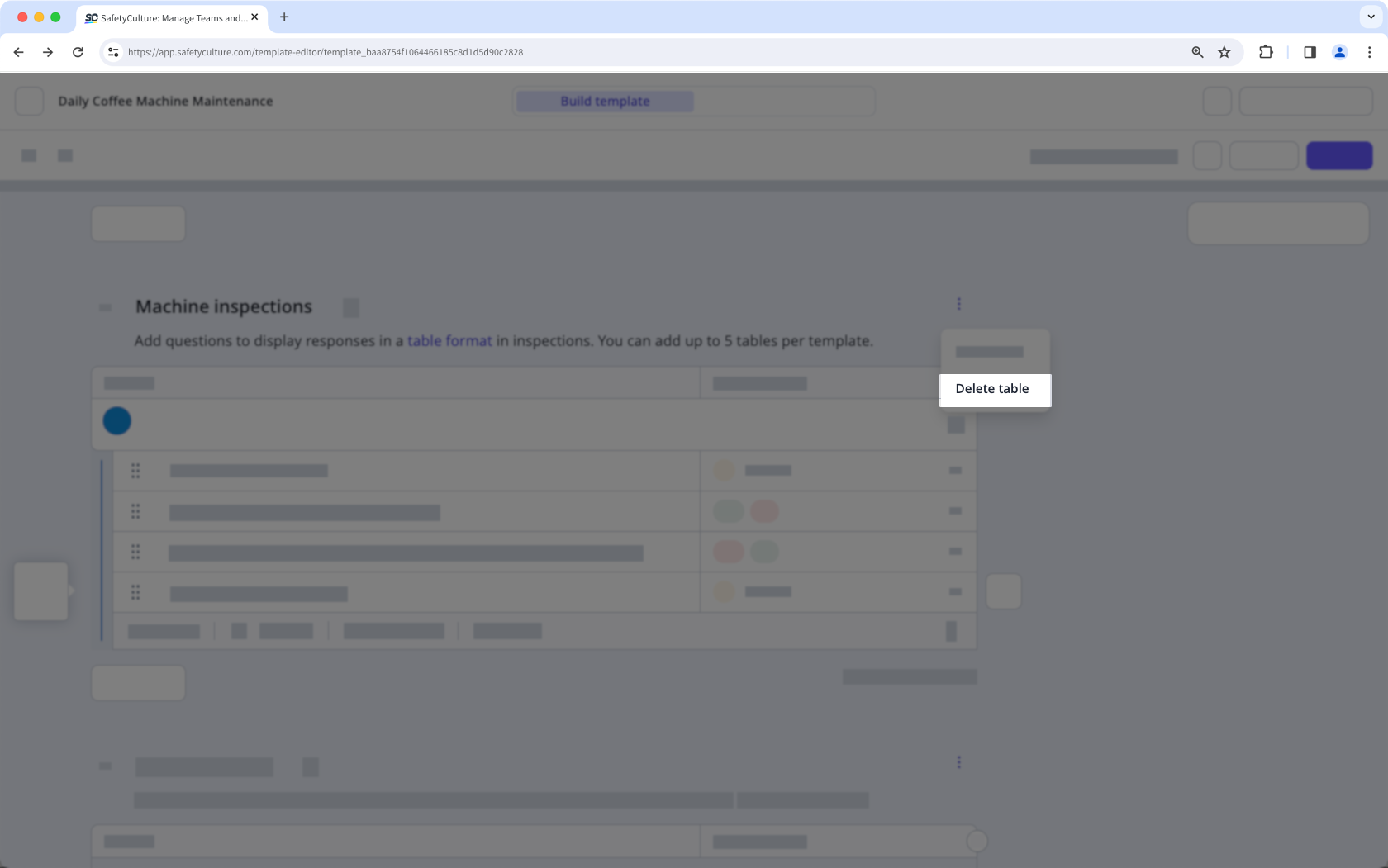
Haga clic en en la esquina superior derecha de la tabla, encima de la columna "Tipo de respuesta".
Seleccione Eliminar una tabla.
Haga clic en Publicar en la parte superior derecha de la página para publicar la plantilla. Si no está lista para publicarse, puede volver a la lista de plantillas y regresar cuando esté lista.
Open the mobile app.
Tap Inspecciones in the navigation bar or select it from Más.
Select Plantillas tab at the top of your screen.
Tap a template and select Editar plantilla from the pop-up options.
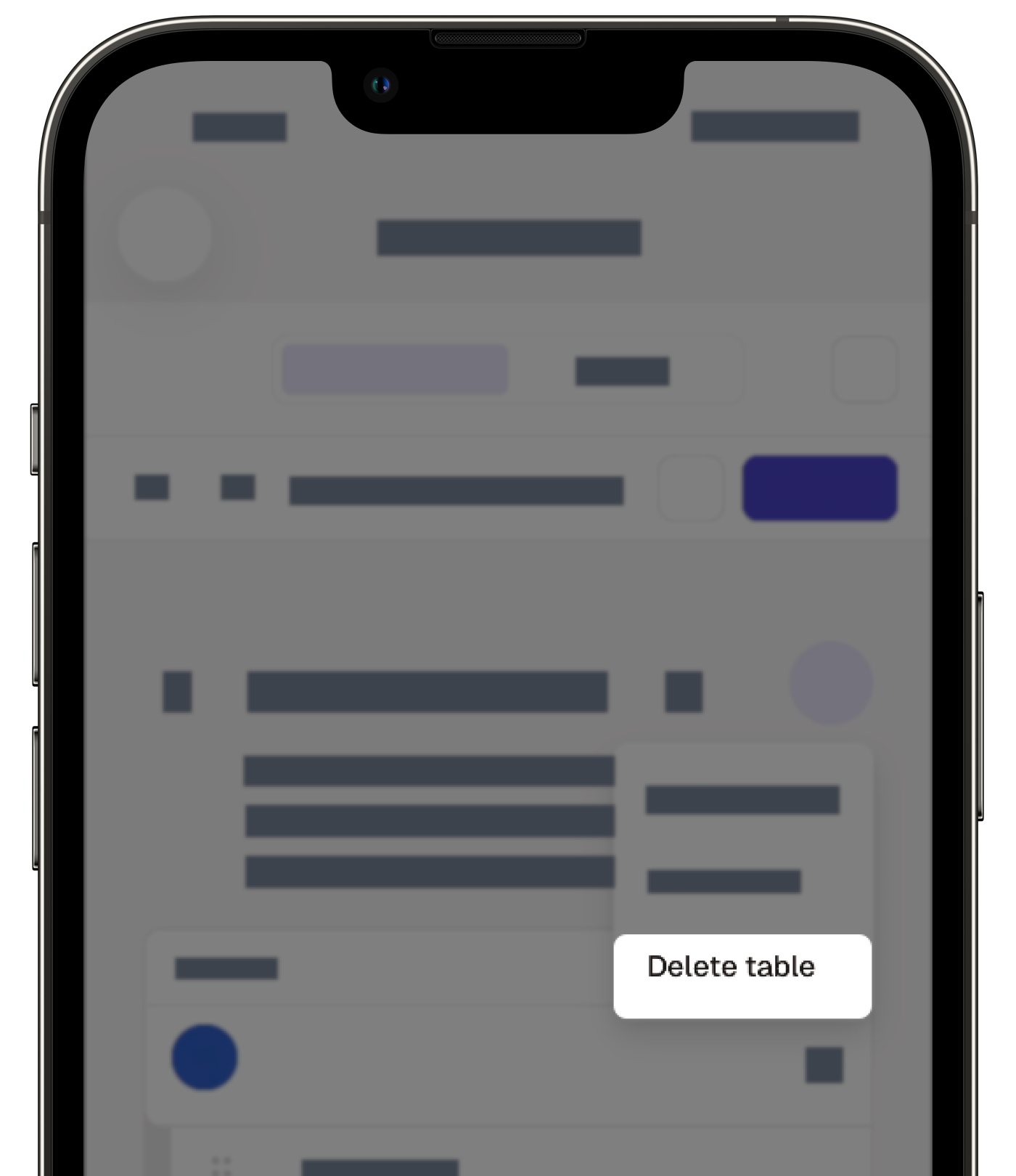
Tap on the upper-right corner of the table.
Select Eliminar una tabla.
Tap Publicar on the upper-right of your screen to publish the template. If you're not ready to publish the template, you can go back to the templates list and come back when you're ready.
Puede exportar informes de inspección con tablas tanto en archivos PDF como Word, lo que le da más flexibilidad a la hora de utilizarlos y compartirlos.
¿Qué más puedo hacer con las tablas?
Las tablas pueden ir más allá de organizar la información. Puede marcar respuestas específicas como obligatorias, añadir puntuación a las respuestas de opción múltiple, calcular valores automáticamente dentro de las filas de la tabla, señalar respuestas para que sean más fáciles de identificar en los informes y en Estadísticas, y activar notificaciones cuando se seleccionan ciertas respuestas.
Limitaciones
Una plantilla puede tener hasta 5 tablas.
Cada tabla puede tener hasta 20 columnas de preguntas y los usuarios pueden añadir hasta 100 filas de respuestas.
Solo puede añadir campos de lógica para notificar a los miembros del equipo.
No se pueden vincular respuestas a o desde tablas.
Actualmente no se puede copiar y pegar preguntas en las tablas.
Preguntas frecuentes
¿Necesitas más ayuda?
¿Fue útil esta página?
