Last updated: October 26, 2026
This article covers the legacy Supply experience, which is available to organizations in the U.S. If your organization is in Australia, you're on the new experience.
What is Supply?
Supply is the next generation of procurement, providing a seamless experience to streamline the purchasing process, reduce costs, and improve compliance. This helps admins focus on other important tasks and frontline teams to get the tools they need as soon as possible.
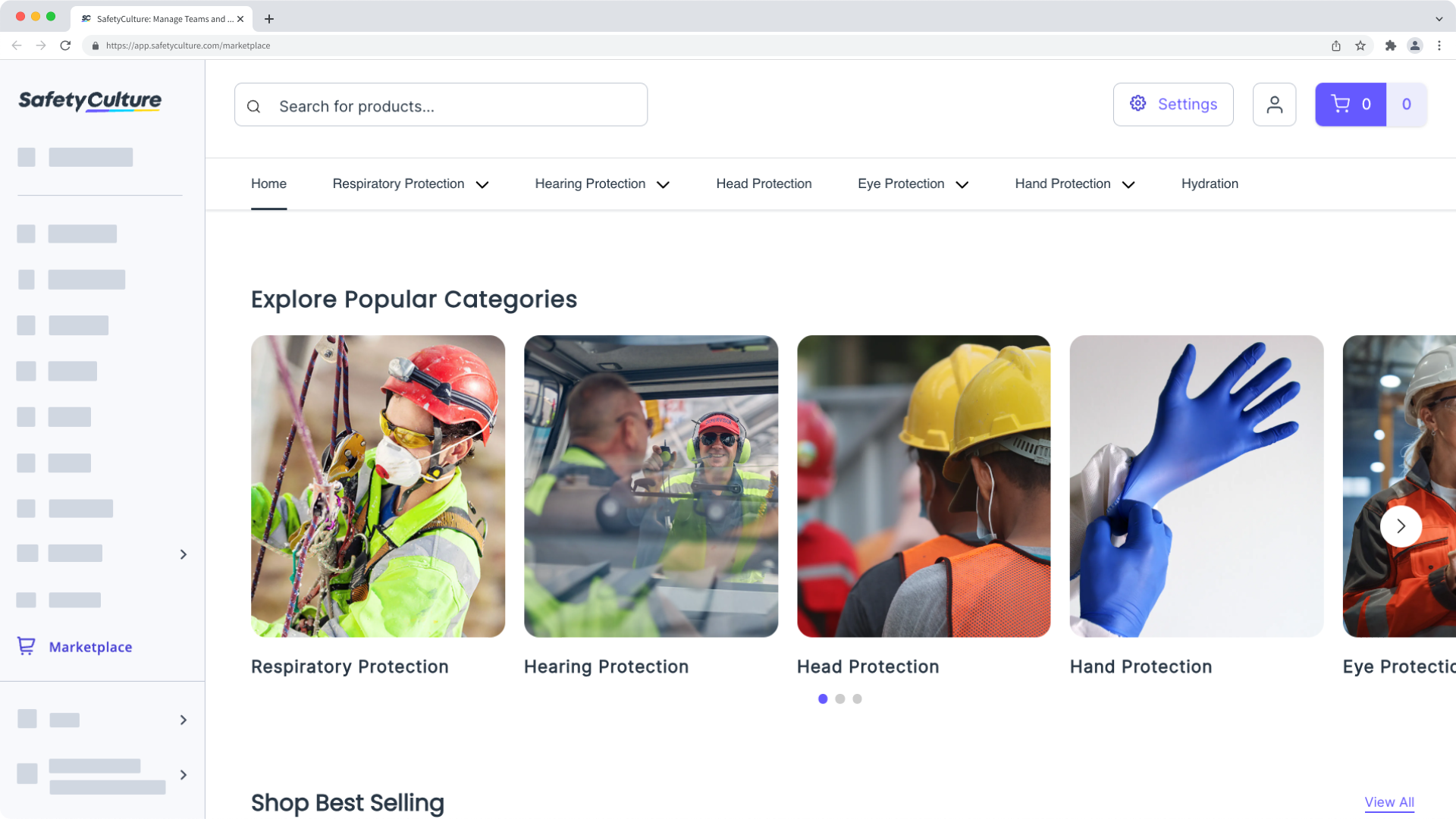
As part of the platform experience, admins can tailor product catalogs so teams can only buy approved products. They can also set budgets for specific users or buying groups to keep spending within limits and use saved company credit cards to minimize the risk of sharing credit card details.
Purchasing products from Supply is currently only available to customers in Australia and the U.S.
Place an order in Supply
Click Supply from the sidebar or in More.
Browse through categories and products, then click Add to cart to add items to your cart.
If applicable, select a size from the dropdown menu in the side panel before adding to your cart.
When you're ready to checkout, click on the upper-right of the page. The number of items in your cart and its total amount will be indicated.
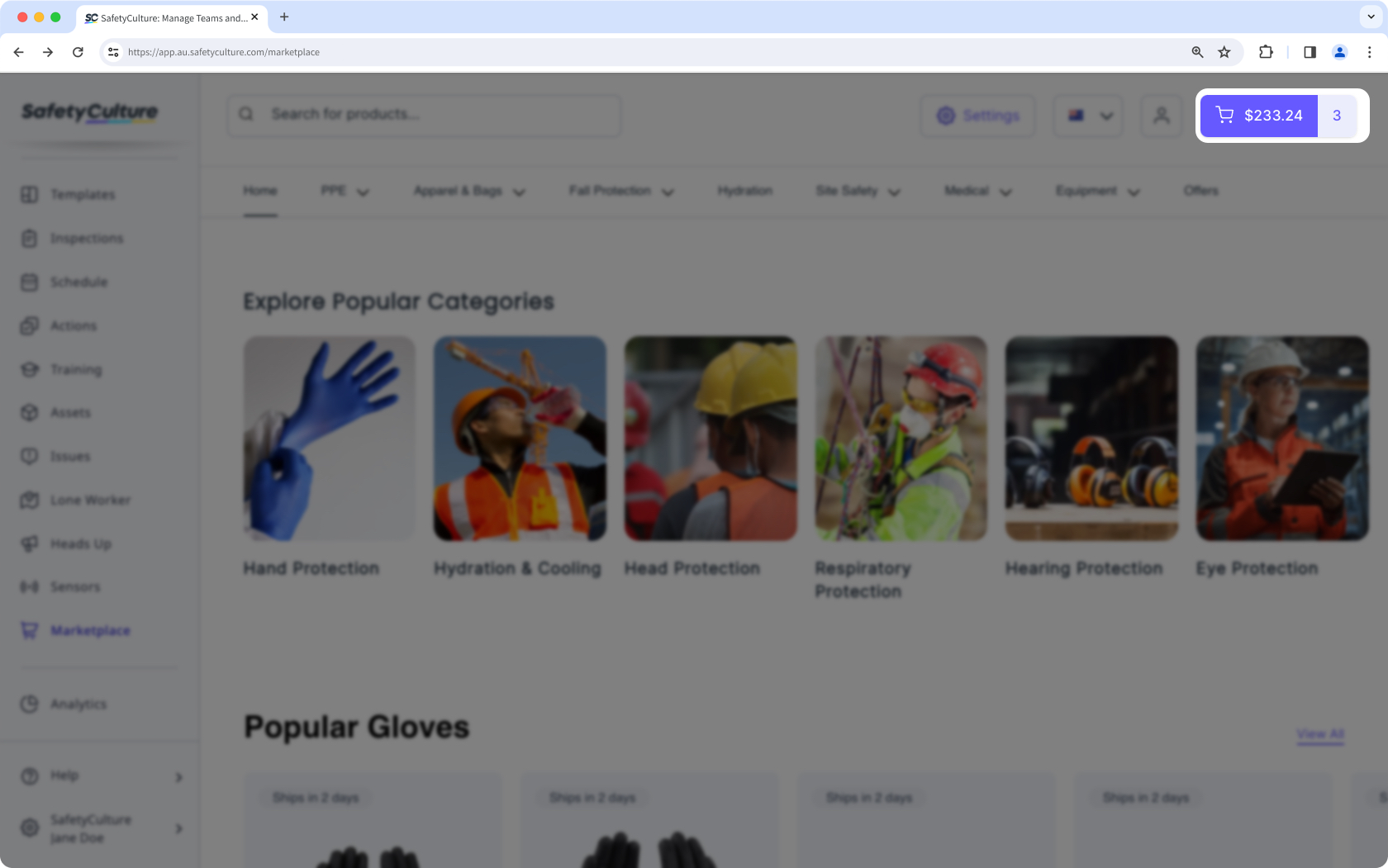
Click View & checkout and adjust product quantities or remove items as needed.
Click Continue to checkout or Continue to Approval so your buying group manager can approve your order request.
Enter your details and click Continue to delivery.
Enter your delivery address and click Continue to payment.
Select a payment option.
If available, you can use one of the saved payment methods from your organization. Otherwise, you can add your own credit card details for payment.
Click Pay.
Open the mobile app.
Tap Supply from the navigation bar or in More.
Tap the product you want to purchase and tap Add to cart.
If applicable, select a size from the dropdown menu below the price before adding to your cart.
When you're ready to checkout, tap at the upper-right of your screen. The number of items in your cart will be indicated.
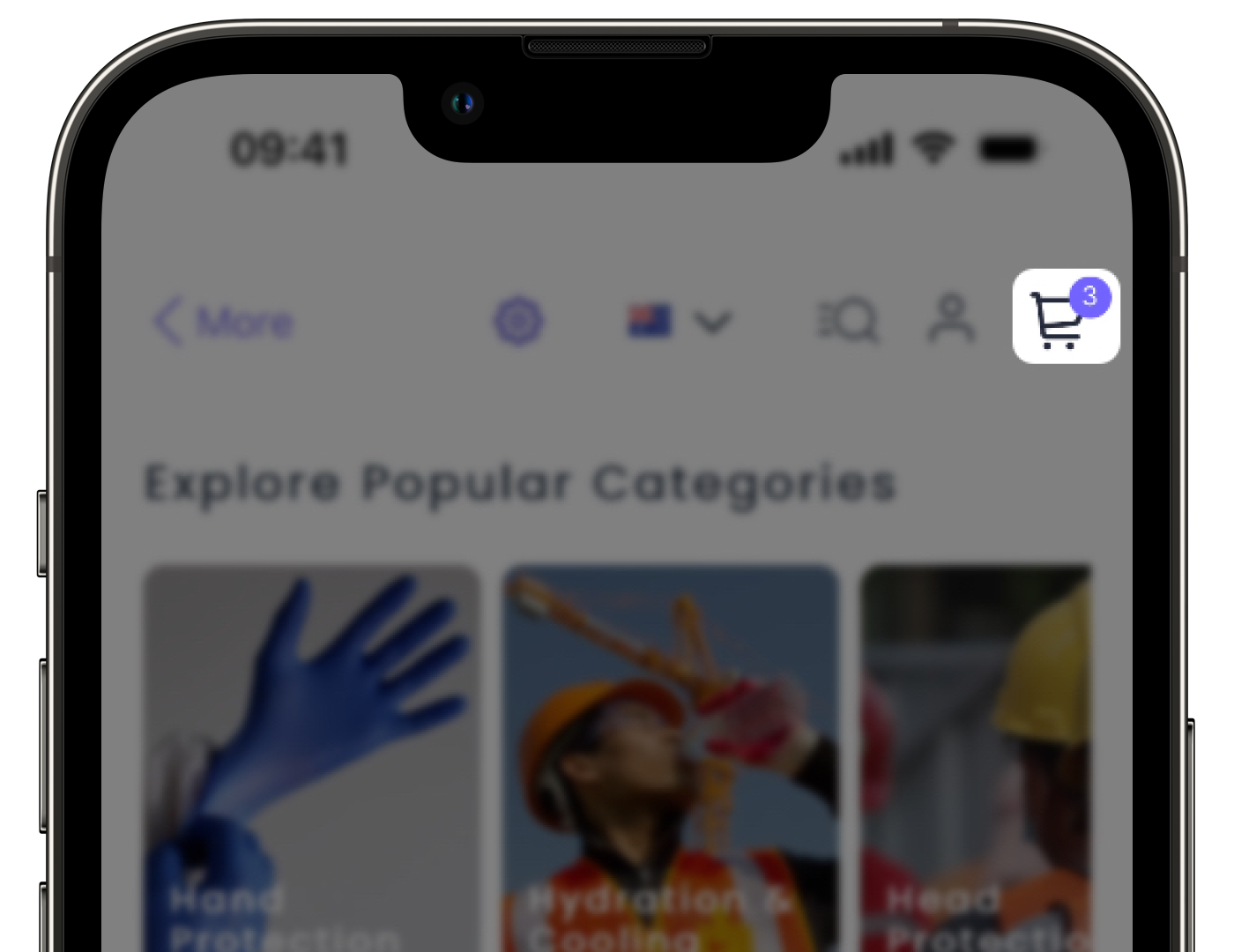
Adjust product quantities or remove items as needed, then tap Go To Checkout.
Enter the following details:
Shipping address: Where your order will be delivered.
Payment method: If available, you can use one of the saved payment methods from your organization. Otherwise, you can add your own credit card details for payment.
Promo code: Enter any applicable discount codes.
Tap Confirm Order or Request Order Approval so your buying group manager can approve your order request.
Need more help?
Was this page helpful?