Last updated: August 30, 2026
Where do your credits come from?
Credits draw from a shared pool in a fixed order: your included monthly allocation first, then any shared organization credits, and lastly, your overage if your organization has set a limit. How many monthly credits you get depends on your plan and seat type.
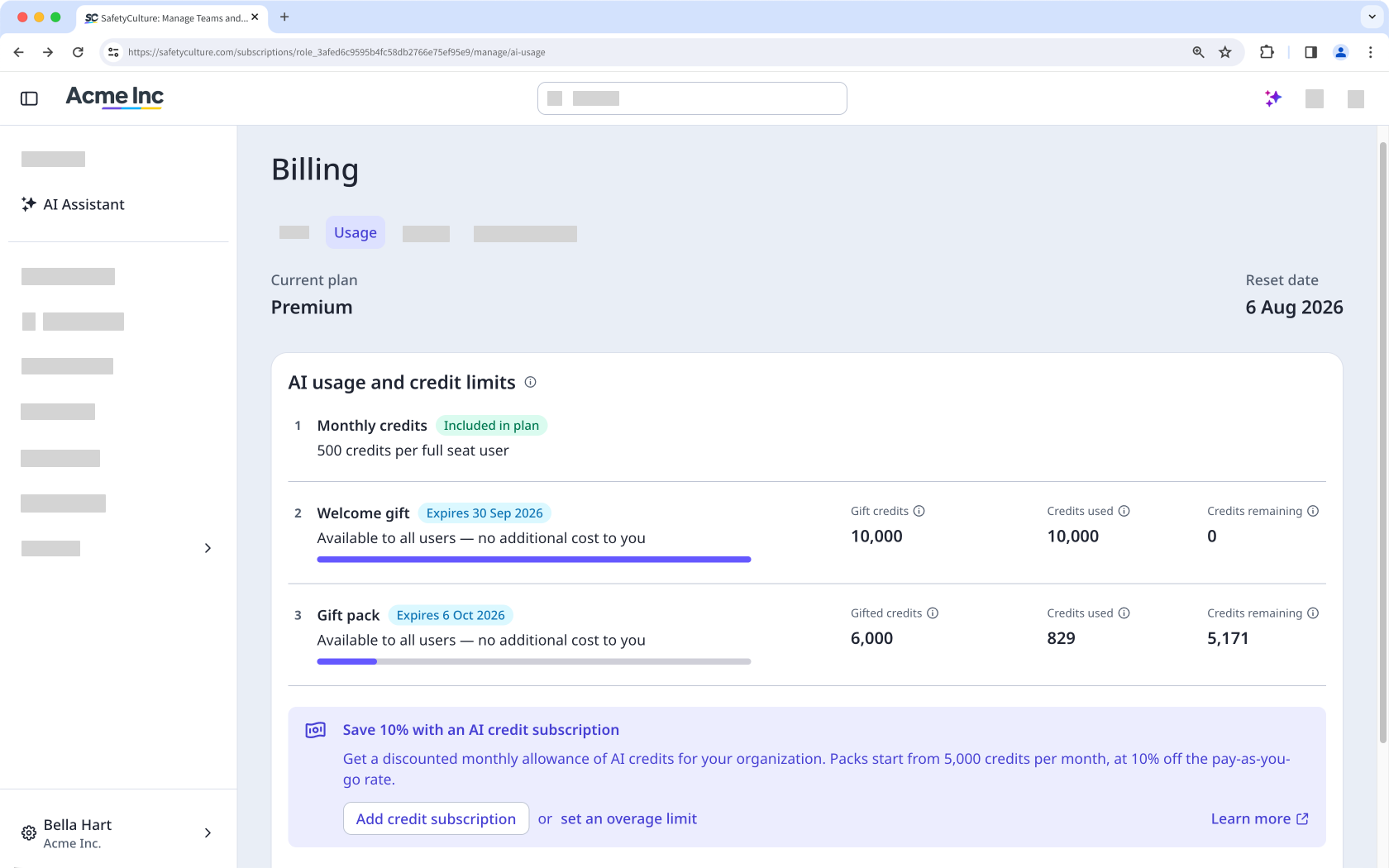
Credit usage scales with how much work a request takes, not with the number of messages you send. That distinction shapes most of the best practices.
Best practices for AI credits
1. Break work into focused steps
If you've used other AI tools with per-message limits, you may be used to batching several questions into one message to save messages. Do the opposite here. Since credits scale with how much a single request has to do, one broad, multi-part request can cost more than the same work split into a few specific ones. Keep each prompt focused on one goal, treat a complex task as a short sequence of connected prompts, and start a new chat when you move to a different topic.
A good prompt can help the AI Assistant do less work, so it uses fewer credits. Write better prompts for the AI Assistant to get the most out of your credits.
2. Reach for credit-free tools first
There are AI-powered tools in Mitti that don't draw from your credit pool at all.
Ask AI Assistant about the product itself, like general "how do I" questions about using Mitti answered from Help Center articles.
Generate issue details from a description and photos.
Work with agents to automate repetitive tasks and workflows on your behalf.
Compare performance and standards across your sites with 5 Star Benchmarking.
3. Monitor usage before you're close to the limit
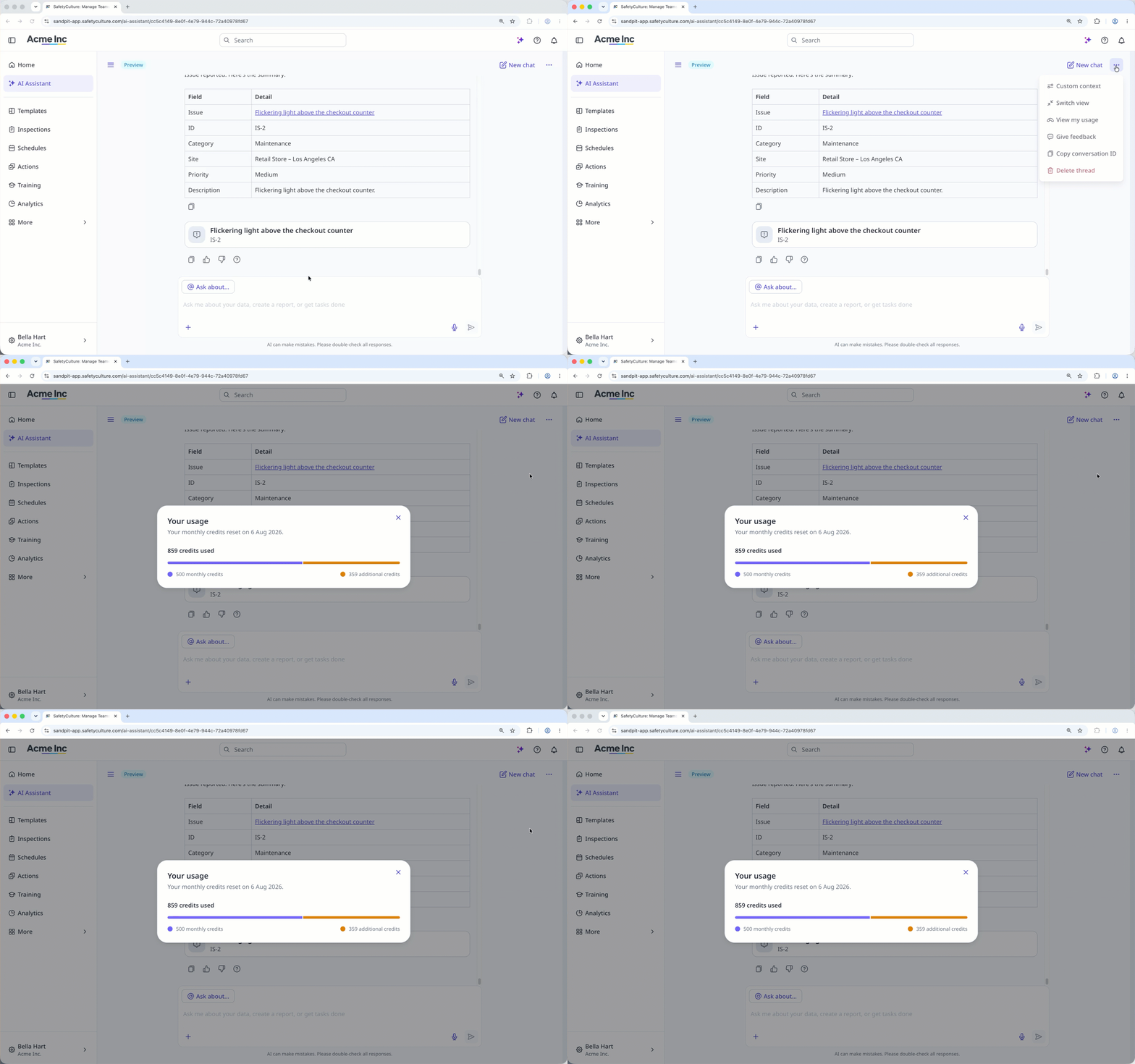
Don't wait for the low-credit alert to check where you stand. Any user can view their own credit usage from AI Assistant at any time, and users with "Platform management: Billing" permission can view usage across the whole organization, broken down by user. Checking in periodically gives admins time to act instead of reacting to a support request.
4. Plan your credit subscription or overage limit ahead of time
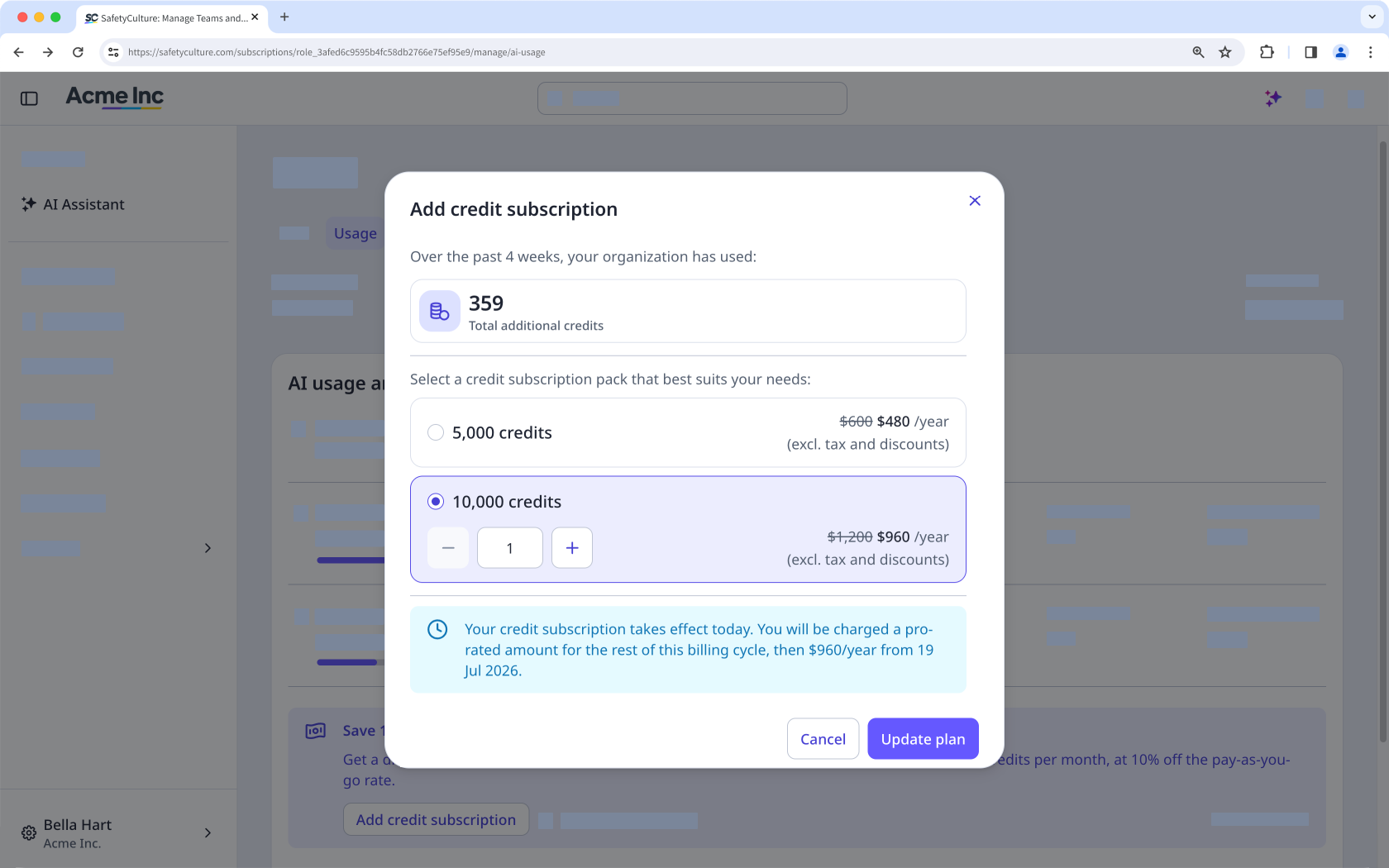
Welcome credits and gift packs expire, and included monthly credits don't roll over. If your team consistently needs more than its included allocation, decide on a credit subscription or overage limit based on the usage pattern you've been tracking, rather than setting it reactively after AI Assistant is already blocked for everyone.
5. Know what to do when credits run out
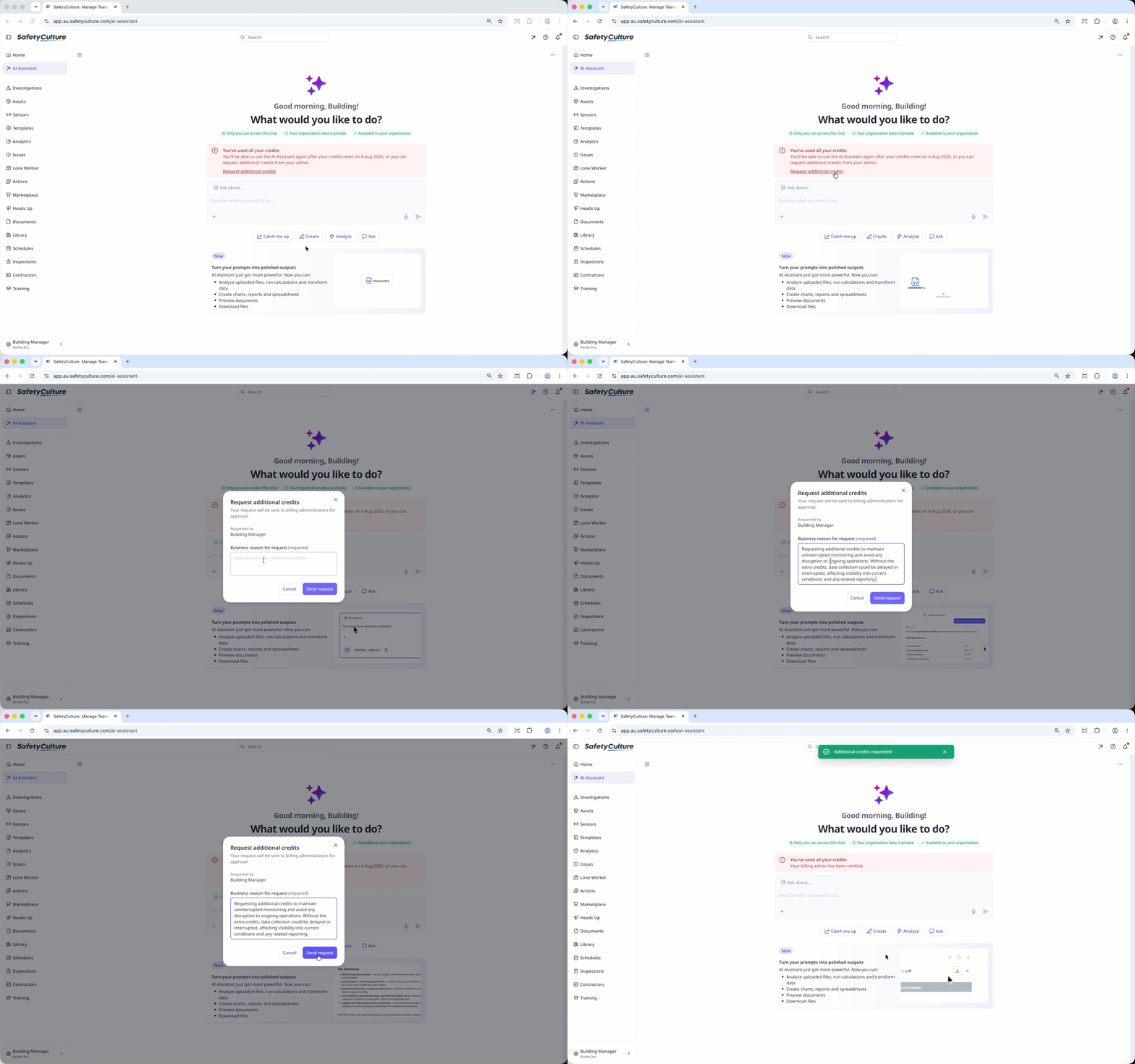
If your organization runs out of credits, AI Assistant blocks every user until more are added or the allocation resets. Any user can request additional credits directly from that alert, which notifies your admin so they can restore access for everyone.
Best practices for tasks
Everyday questions and lookups
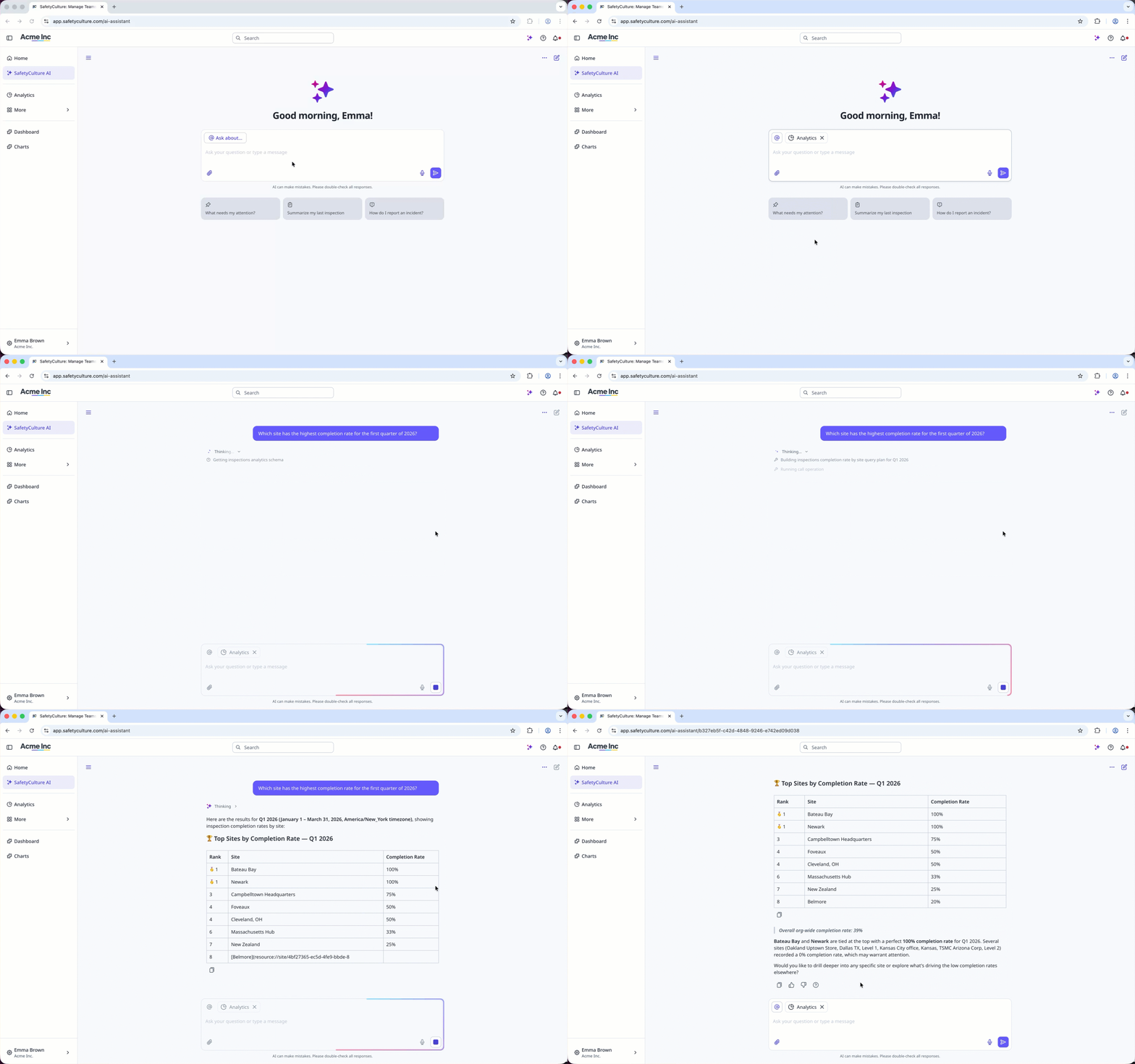
Keep prompts short and specific. Use natural filters like site, status, or date range instead of asking AI Assistant to search everything and narrow it down for you.
Reports, templates, and documents
State the output format and scope in your first prompt, for example "PDF report" or "spreadsheet grouped by site." If you're working from an existing file, upload it directly rather than pasting or re-describing its contents.
Recurring or scheduled work
If you find yourself sending the same prompt on a regular basis, set up an agent to run it automatically instead of repeating it through AI Assistant chat.
Frequently asked questions
Need more help?
Was this page helpful?
