Dernière mise à jour: 21 octobre 2026
Cet article traite de la nouvelle expérience « Supply » d', qui n'est accessible qu'aux organisations situées en Australie. Si votre organisation se trouve en dehors de l'Australie, vous utilisez pour l'instant l'ancienne version d'.
Qu'est-ce qu'une centrale d'achat ?
Les groupes d'achat dans Mitti constituent un moyen pratique de rationaliser les processus d'approvisionnement. Grâce aux groupes d'achat, vous pouvez organiser l'approvisionnement dans votre entreprise en fonction des besoins de chaque équipe, de sorte qu'elles n'achètent que des produits pertinents selon un budget standard et qu'elles utilisent les cartes de crédit de leur service.
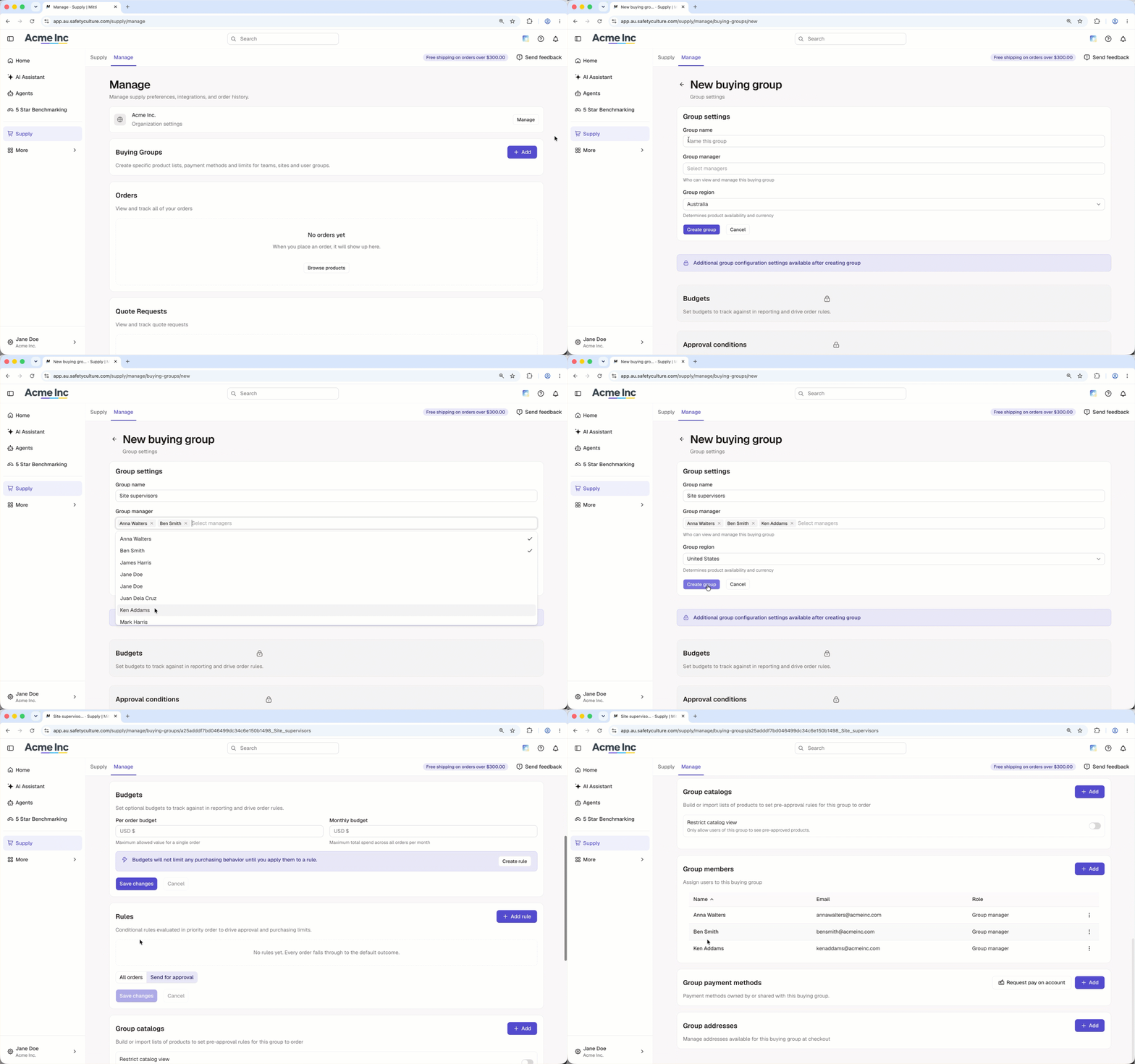
Les groupes d'achat dans Fournitures sont gérés séparément des groupes que vous pouvez créer et sélectionner sur le reste de la plateforme.
Ce dont vous aurez besoin
Ajouter un groupe d'achat
Click Fournitures in the sidebar or in Plus.
Click Gérer at the top of the page.
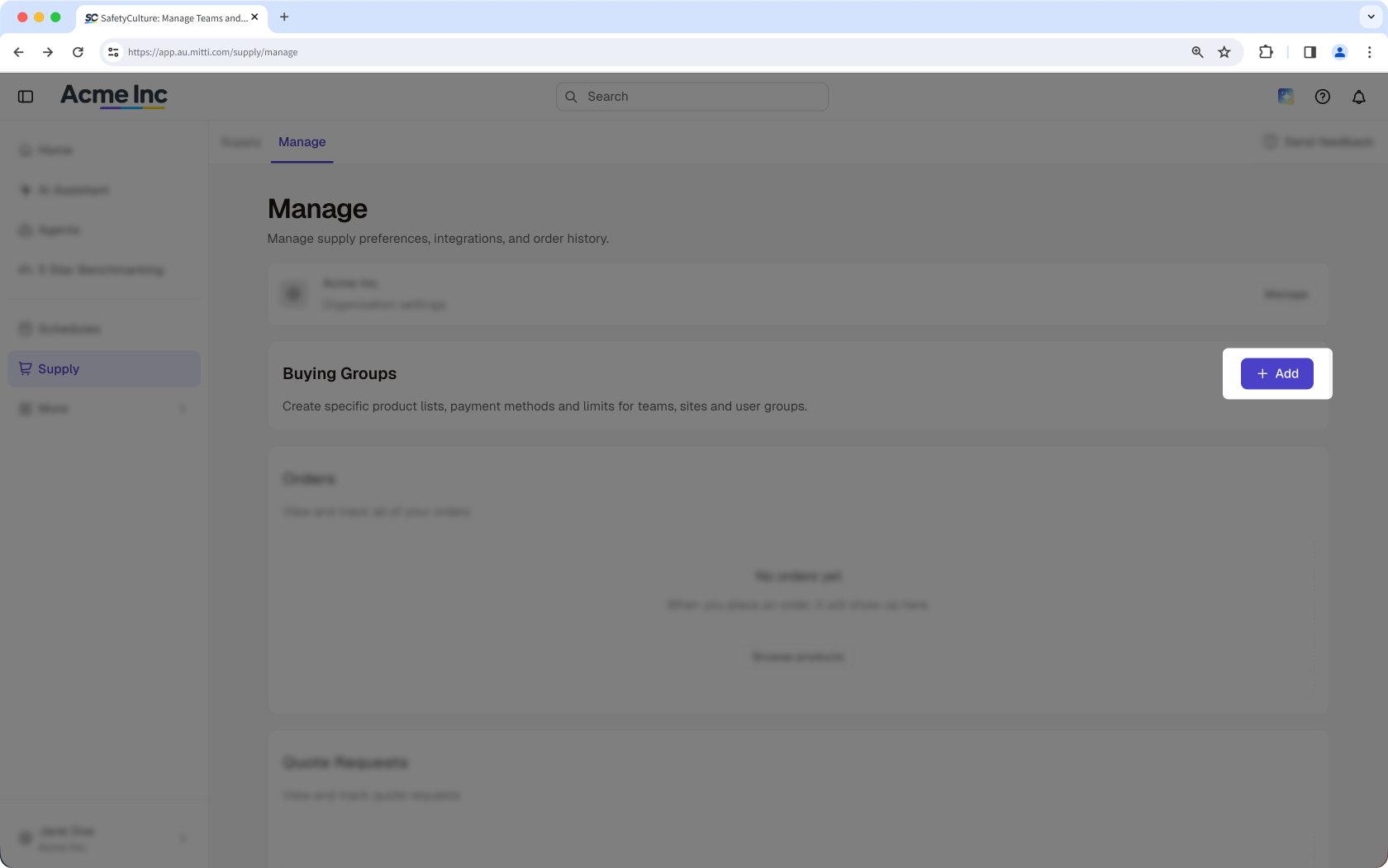
In the "Buying Groups" section, click Ajouter on the right-hand side of the section.
Enter or select the following details:
Group name: Enter the name of the group.
Group manager: Click the field and select the users you want to set as group managers.
Group region: Click the dropdown menu and select the group region. The group region determines product availability and currency.
Click Créer un groupe.
Open the mobile app.
Tap Fournitures from the navigation bar or in Plus.
Tap Gérer at the upper-left of your screen.
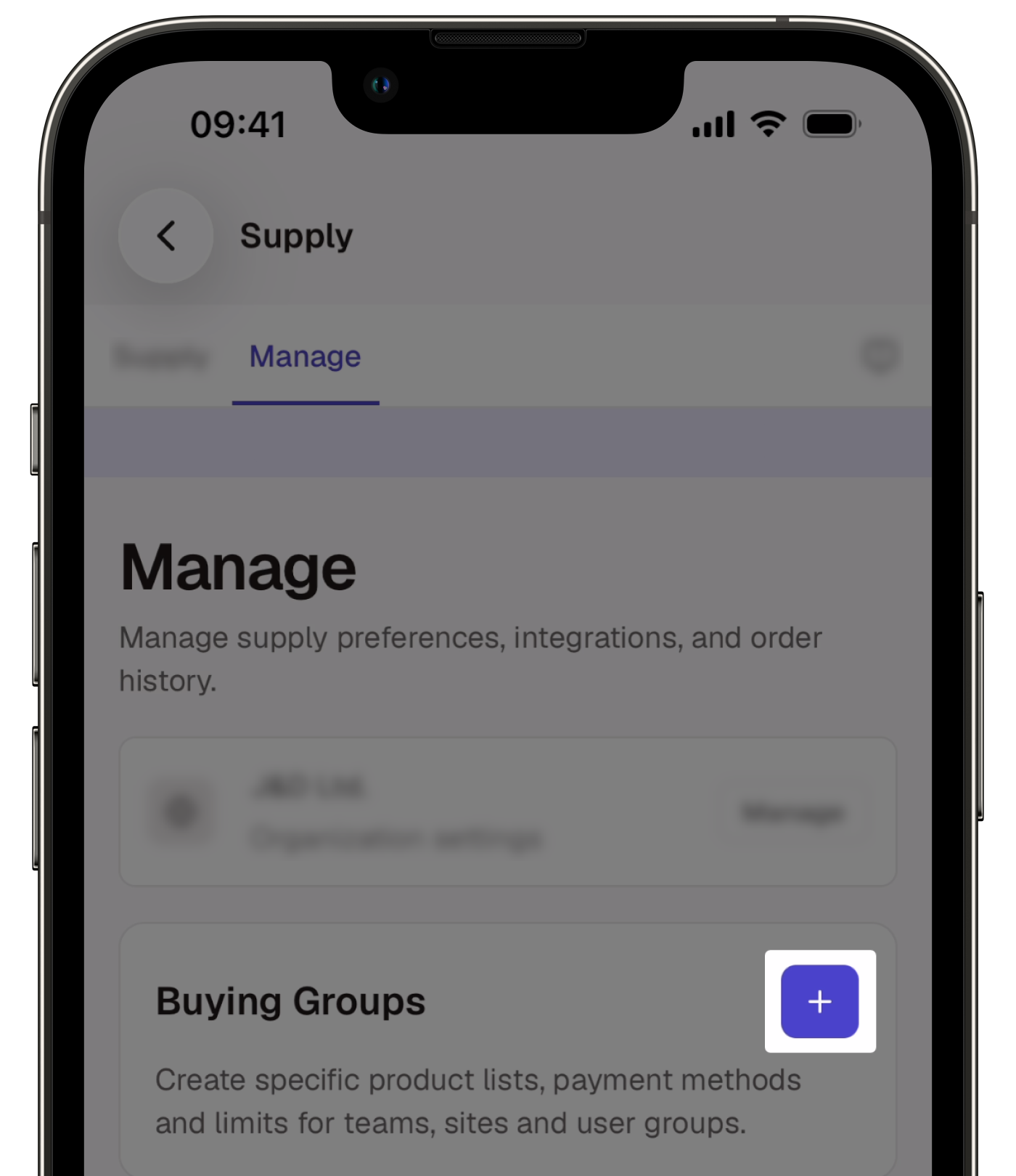
In the "Buying Groups" section, tap .
Enter or select the following details:
Group name: Enter the name of the group.
Group manager: Tap the field and select the users you want to manage the buying group.
Group region: Tap the dropdown menu and select the region. The group region determines product availability and currency.
Tap Créer un groupe.
Une fois le groupe d'achat créé, vous pouvez gérer ses budgets, règles d'approbation, catalogues, membres, modes de paiement et adresses.
Dupliquer un groupe d'achat
Click Fournitures in the sidebar or in Plus.
Click Gérer at the top of the page.
In the "Buying Groups" section, click Gérer on the right-hand side of the buying group you want to duplicate.
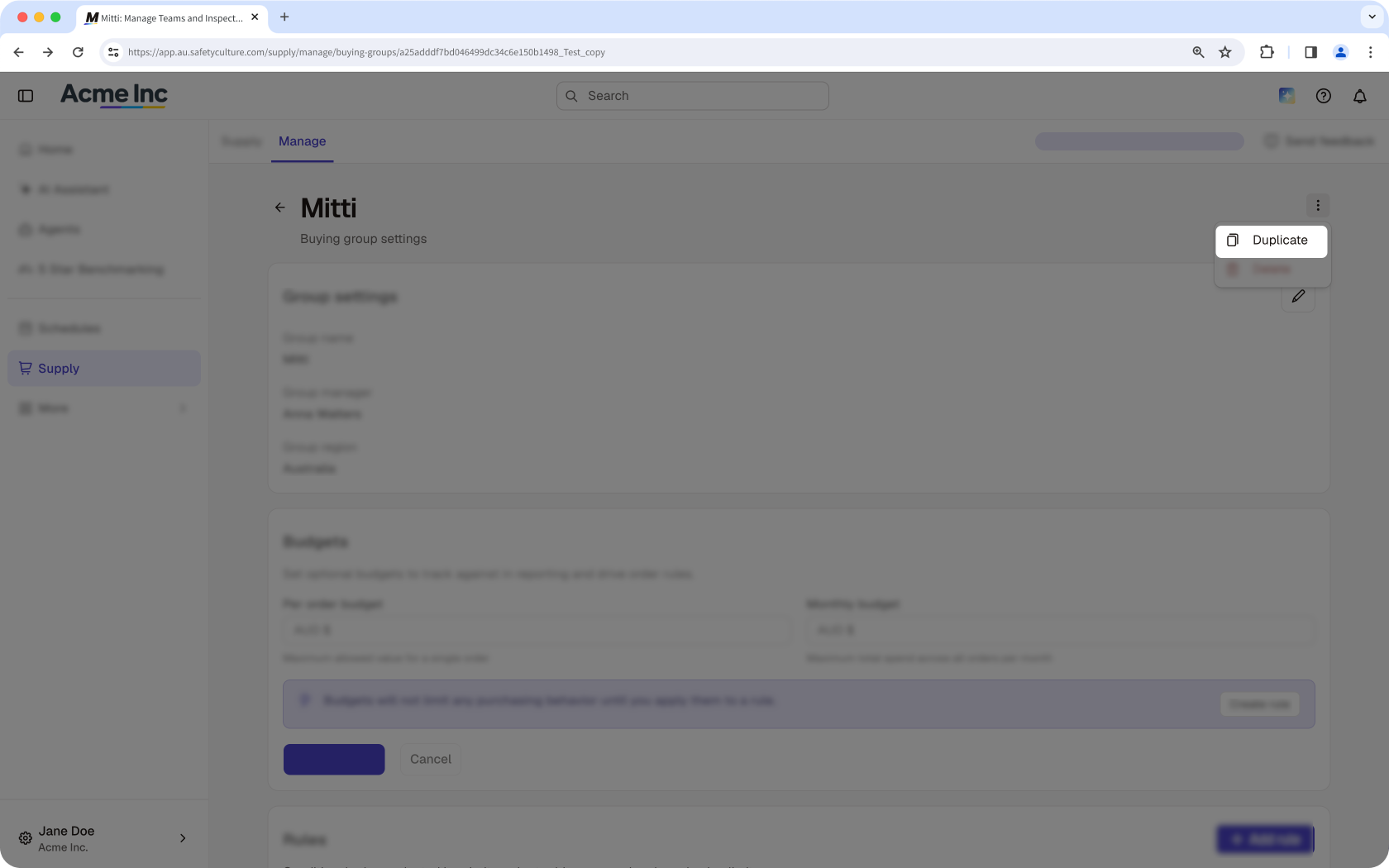
Click on the upper-right of the page and select Dupliquer.
In the "Group settings" section, enter or select the following details:
Group name: Enter a name for the new buying group.
Group manager: Click the field and select the users you want to set as group managers.
Group region: Click the dropdown menu and select the group region. The group region determines product availability and currency.
Check or uncheck the box next to each setting you want to copy to the new buying group.
Click Duplicate group.
Ouvrez l'application portable.
Appuyez sur Fournitures dans la barre de navigation ou dans Plus.
Appuyez sur Gérer en haut à gauche de votre écran.
Dans la section « Groupes d'achat », appuyez sur Gérer à droite du groupe d'achat que vous souhaitez dupliquer.
Appuyez sur en haut à droite de votre écran et sélectionnez Dupliquer.
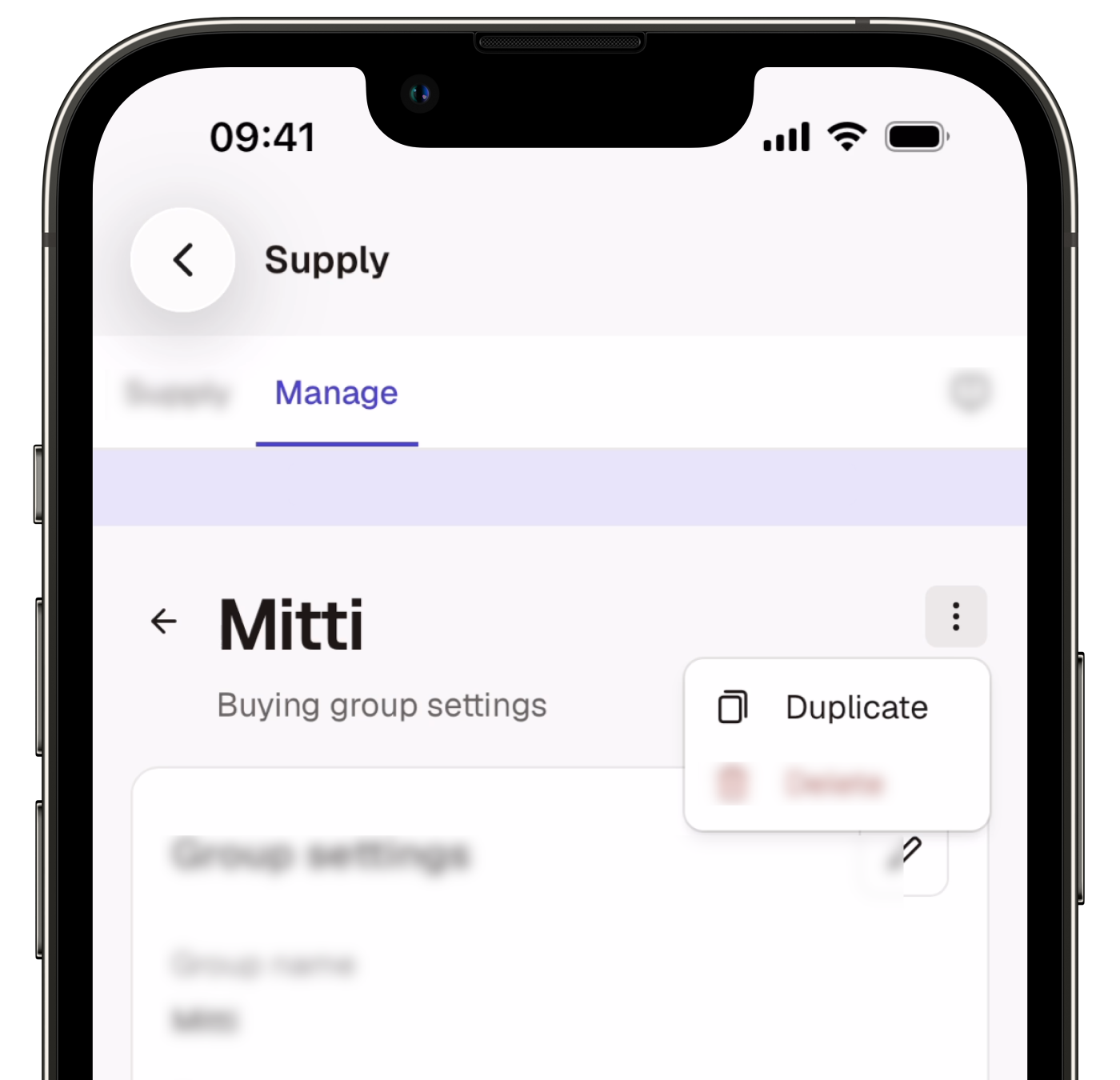
Dans la section « Paramètres du groupe », saisissez ou sélectionnez les informations suivantes :
Nom du groupe : Saisissez un nom pour le nouveau groupe d'achat.
Responsable de groupe : Appuyez sur le champ et sélectionnez les utilisateurs que vous souhaitez désigner comme responsables de groupe.
Région du groupe : Appuyez sur le menu déroulant et sélectionnez la région du groupe. Cela détermine la disponibilité des produits et la devise.
Cochez ou décochez la case située à côté de chaque paramètre que vous souhaitez copier dans le nouveau groupe d'achat.
Appuyez sur Duplicate group.
Supprimer un groupe d'achat
Cliquez sur Fournitures dans la barre latérale ou dans Plus.
Cliquez sur Gérer en haut de la page.
Dans la section « Groupes d'achat », cliquez sur Gérer à droite du groupe d'achat que vous souhaitez supprimer.
Cliquez sur en haut à droite de la page et sélectionnez Supprimer.
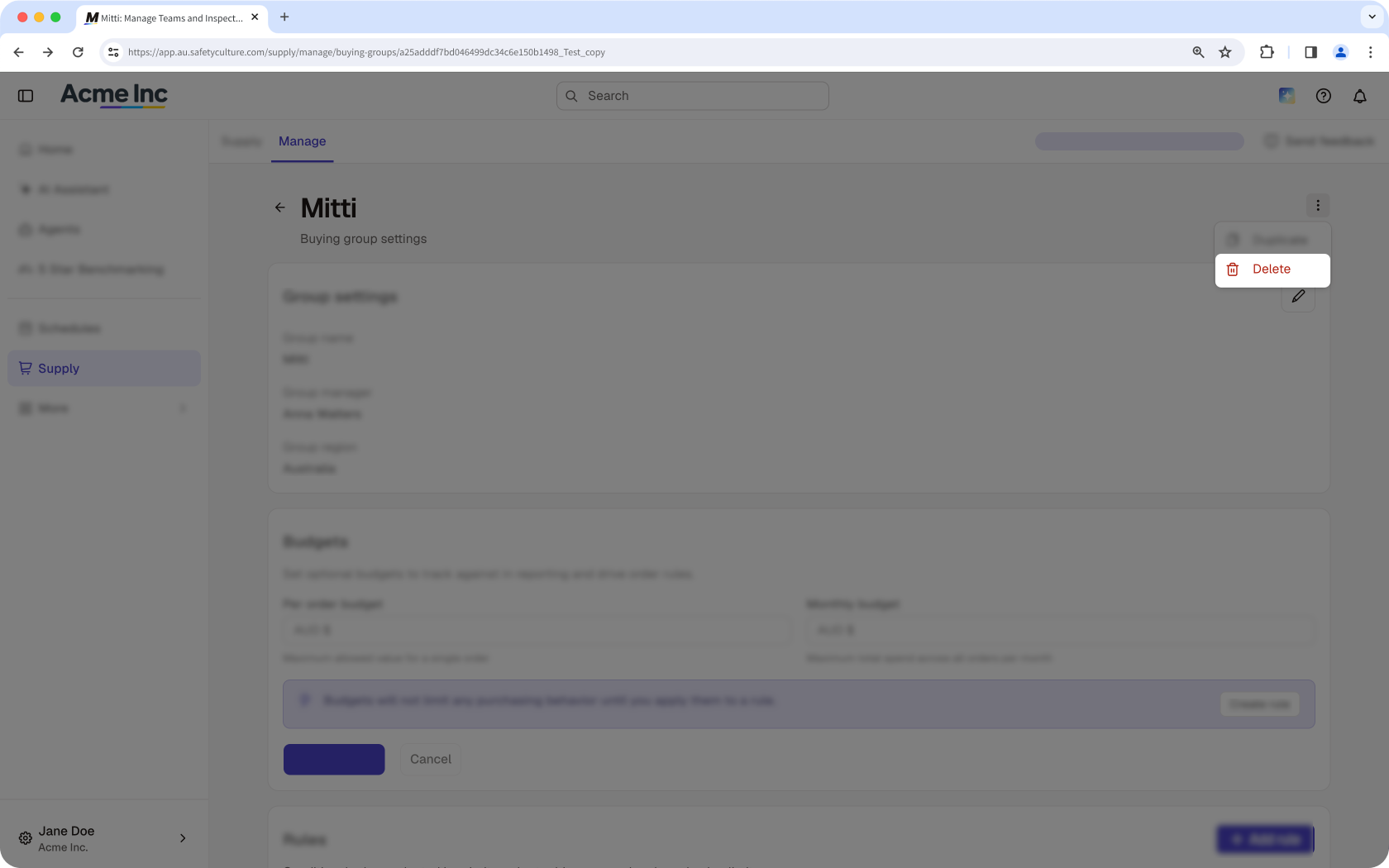
Dans la fenêtre contextuelle, cliquez sur Delete buying group.
Ouvrez l'application portable.
Appuyez sur Fournitures dans la barre de navigation ou dans Plus.
Appuyez sur Gérer en haut à gauche de votre écran.
Dans la section « Groupes d'achat », appuyez sur Gérer à droite du groupe d'achat que vous souhaitez supprimer.
Appuyez sur en haut à droite de votre écran et sélectionnez Supprimer.
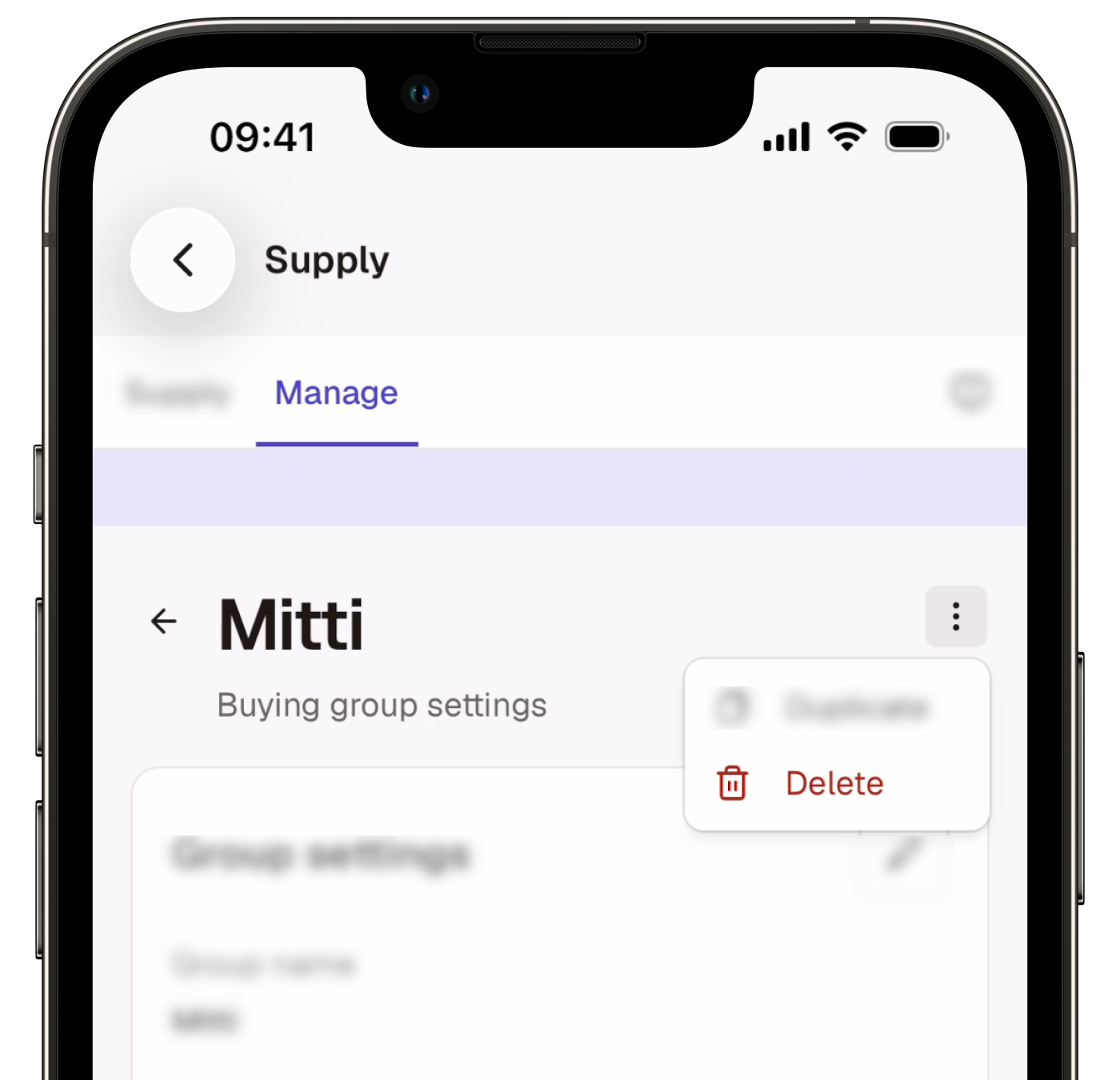
Dans la fenêtre contextuelle, appuyez sur Delete buying group.
Limitations
Lorsque vous dupliquez un groupe d'achat par défaut, les membres du groupe ne sont pas copiés. Les groupes d'achat par défaut incluent automatiquement tous les utilisateurs.
Lorsque vous dupliquez un groupe d'achat, les modes de paiement du groupe ne sont pas copiés. Vous ne pouvez ajouter des modes de paiement au nouveau groupe d'achat qu'après l'avoir dupliqué.
Besoin d'aide supplémentaire?
Cette page vous a-t-elle été utile?